

cPanel: Setting up a White label domain
To connect a custom white-label domain via cPanel, you’ll need to add a CNAME record pointing your subdomain to ContentStudio. This allows your branded URL to correctly route to ContentStudio’s white-label service. Follow the steps below to set it up.
In this Article:
Setting up a white-label domain
Sign in to your cPanel account.
Once logged in, click on Simple Zone Editor.
In the Name field, enter your custom subdomain (e.g., track).
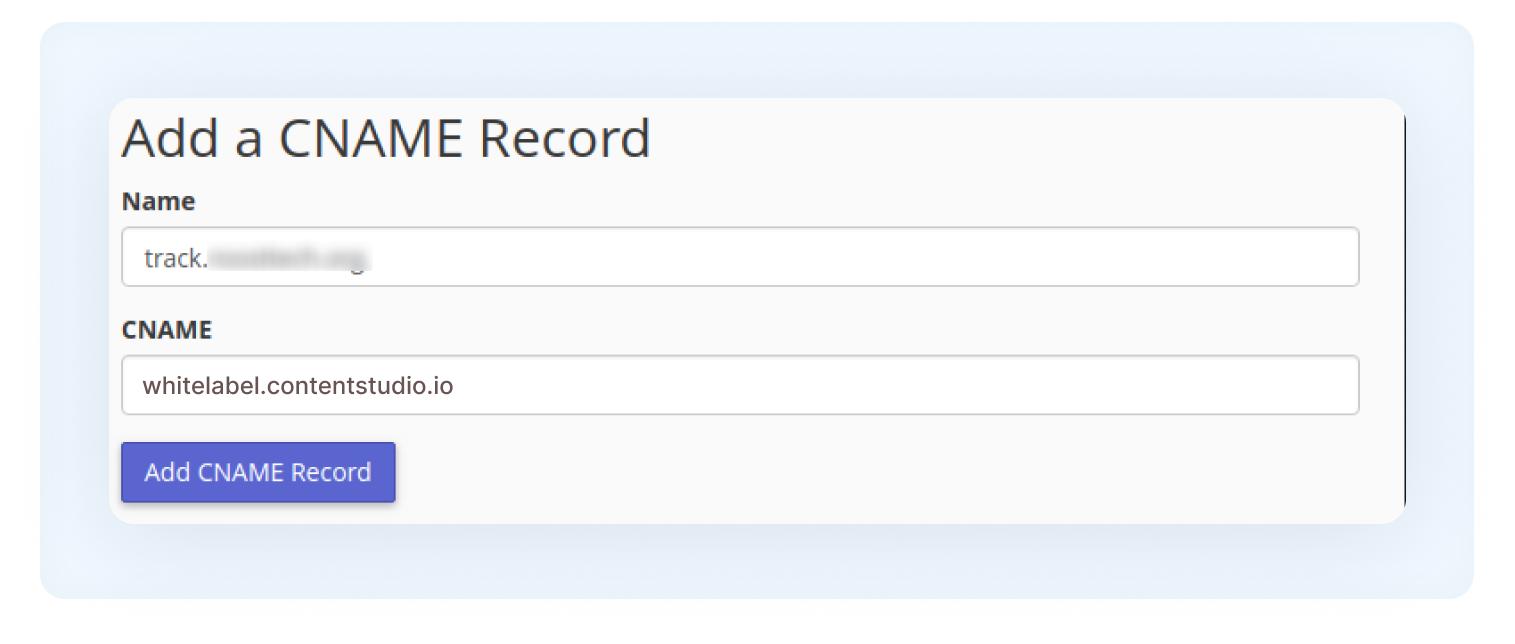
Click on Add CNAME Record to save the record.
FAQs
Q1: Do I need a specific subdomain name?
No, you can use any subdomain you like (e.g., track.yourdomain.com). Just make sure to enter it correctly in the Name field when adding the CNAME record.
Q2: What CNAME value should I use?
Enter: whitelabel.contentstudio.io in the CNAME Target/Value field. Double-check for typos to avoid connection issues.
Q3: How long does it take for changes to propagate?
DNS propagation may take a few minutes up to 24–48 hours, depending on your cPanel hosting and DNS refresh settings.
Q4: What if my white-label domain doesn’t work after setup?
Ensure that the CNAME record is correctly added and that no conflicting records exist for the same subdomain. If the issue persists, contact ContentStudio support for assistance.
Was this article helpful?