

Where do I host the media for the CSV file?
In this article:
Retrieve URL from media library
After uploading media to the Media Library, you can retrieve its URL and add it to your CSV file for bulk scheduling.
📥 Copy Multiple Media URLs at Once
Navigate to Media Library in ContentStudio.
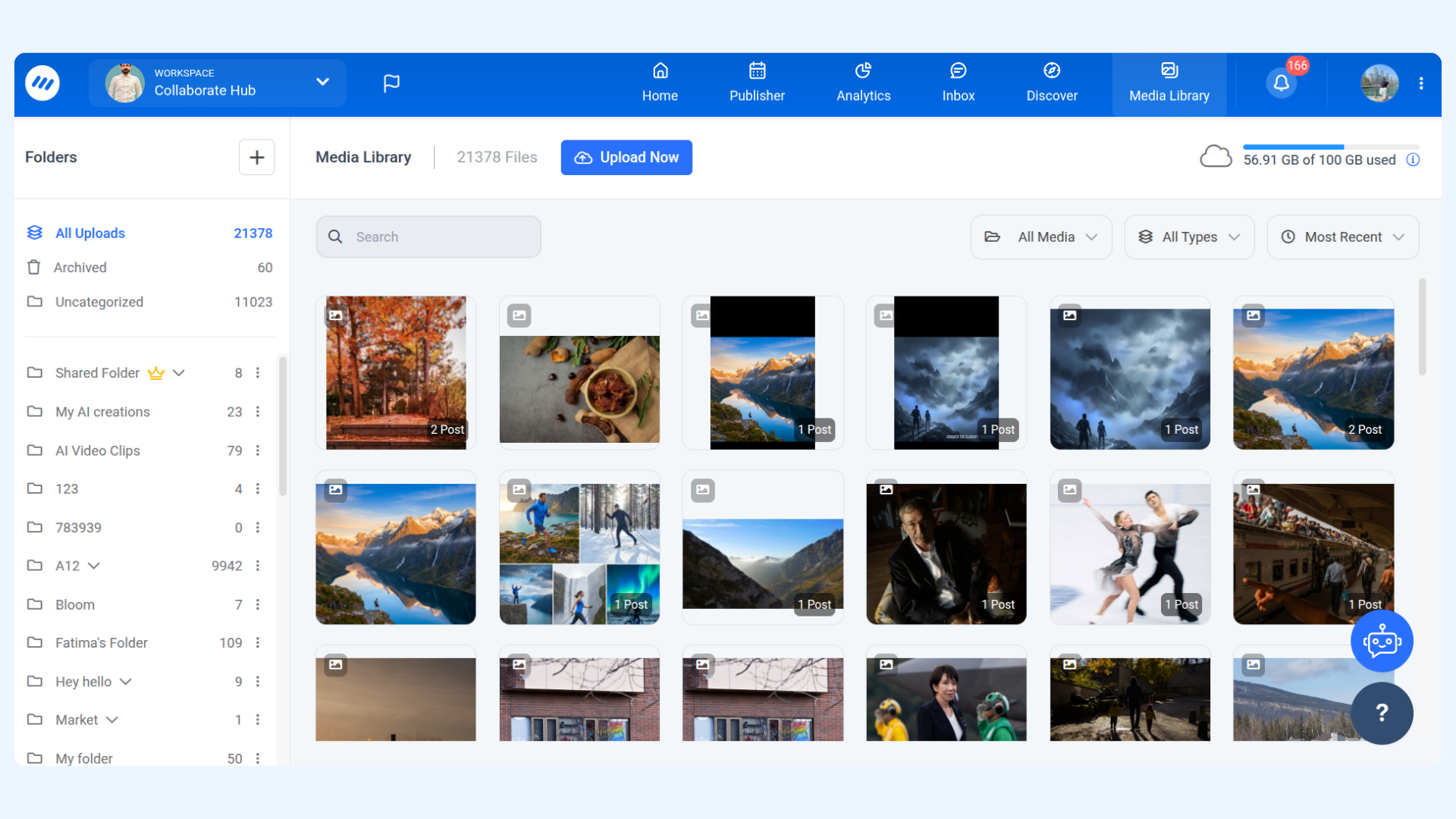
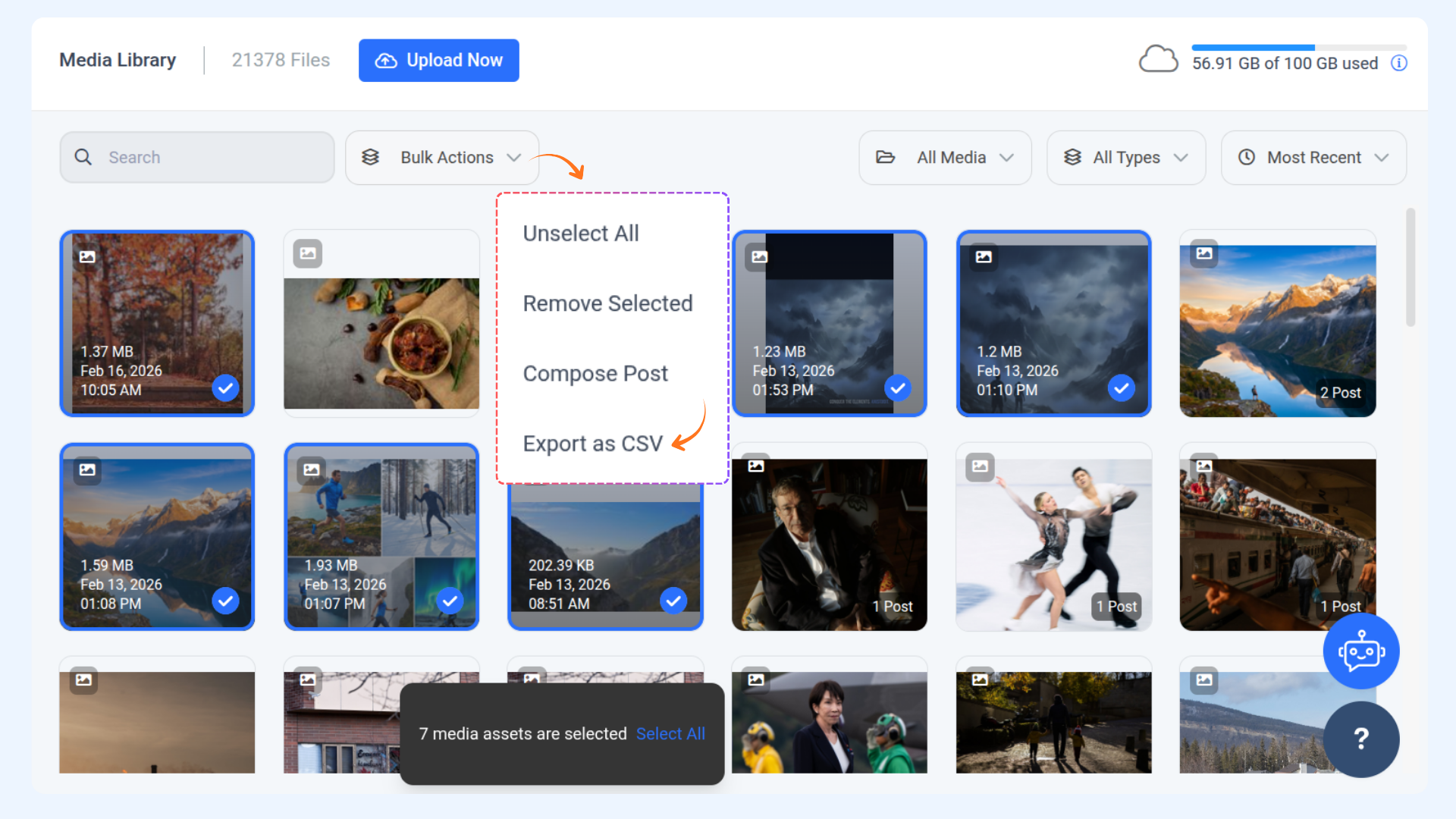
Select the media files you want to use. Go to Bulk Actions and click Export as CSV.
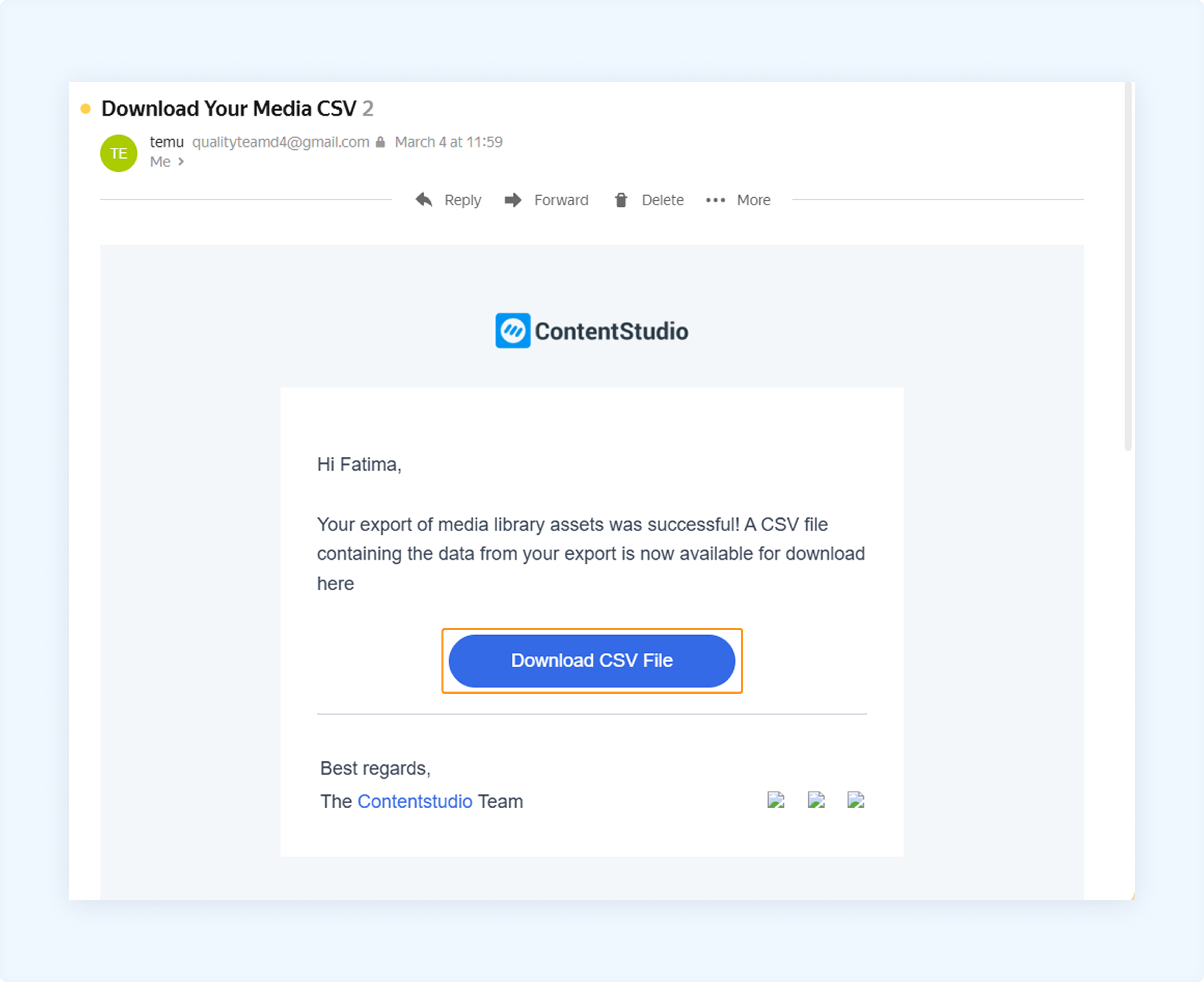
An email will be sent to your registered email address containing a CSV file with all selected media URLs.
Copy the URLs from the downloaded CSV file and paste them into your bulk upload CSV template. Then upload the updated file back to ContentStudio.

Schedule your posts accordingly.
Copying a single media URL
For Images:
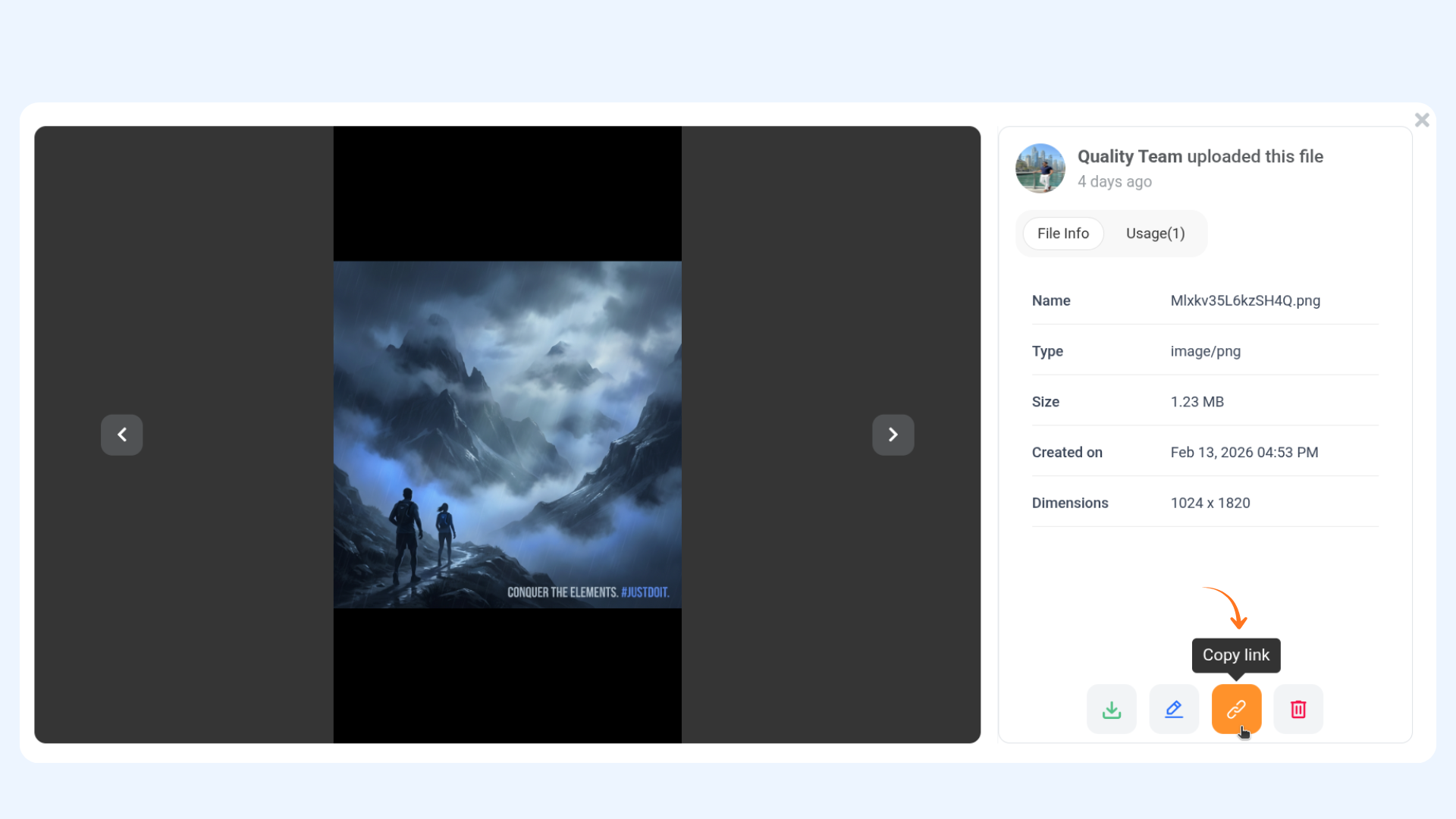
Open the image preview from the Media Library.
Click Copy media link to clipboard at the bottom-right corner of the screen.
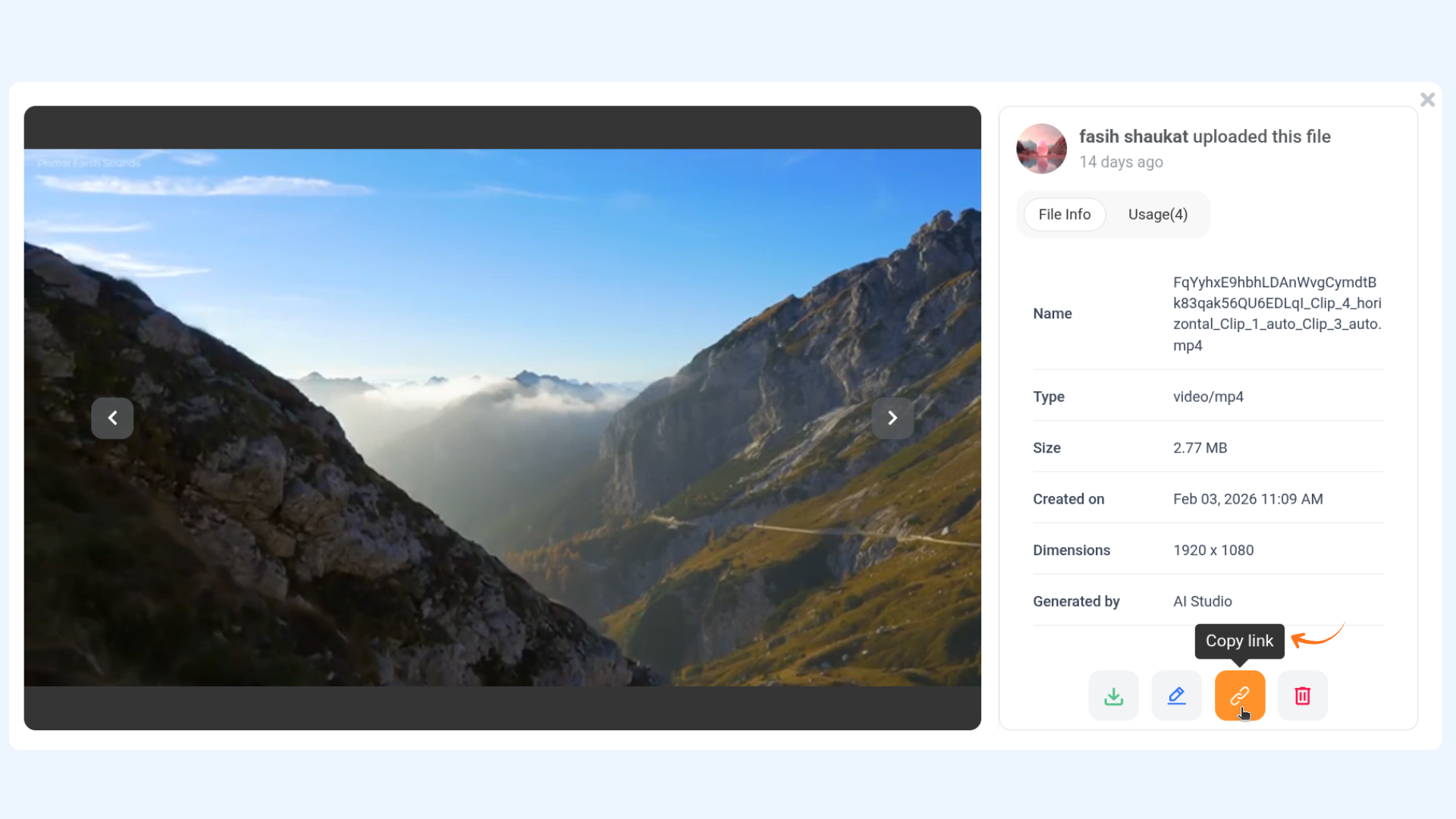
For Videos:
Open the video in full view from the Media Library.
Click Copy media link to clipboard at the bottom-right corner of the screen.
Using media in a CSV File
Copy the media URL from the Media Library and paste it into the Media URL column of your CSV file for bulk scheduling.
FAQs
Q1: How can I quickly add multiple media files to my CSV file?
A: You can bulk copy URLs from the Media Library by selecting multiple files, clicking Copy URLs, and pasting them into the Media URL column of your CSV file.
Q2: Do I need to upload media whenever I schedule a post?
A: No, once uploaded, media stays in the Media Library, so you can reuse it anytime without re-uploading. Just copy the URL and paste it into your CSV file.
Q3: What happens if my media URL is not working in the CSV file?
A: Ensure the media is fully processed in the Media Library before copying the URL. If the issue persists, try re-uploading the file or checking the URL format.
Was this article helpful?