

Smart Scheduling
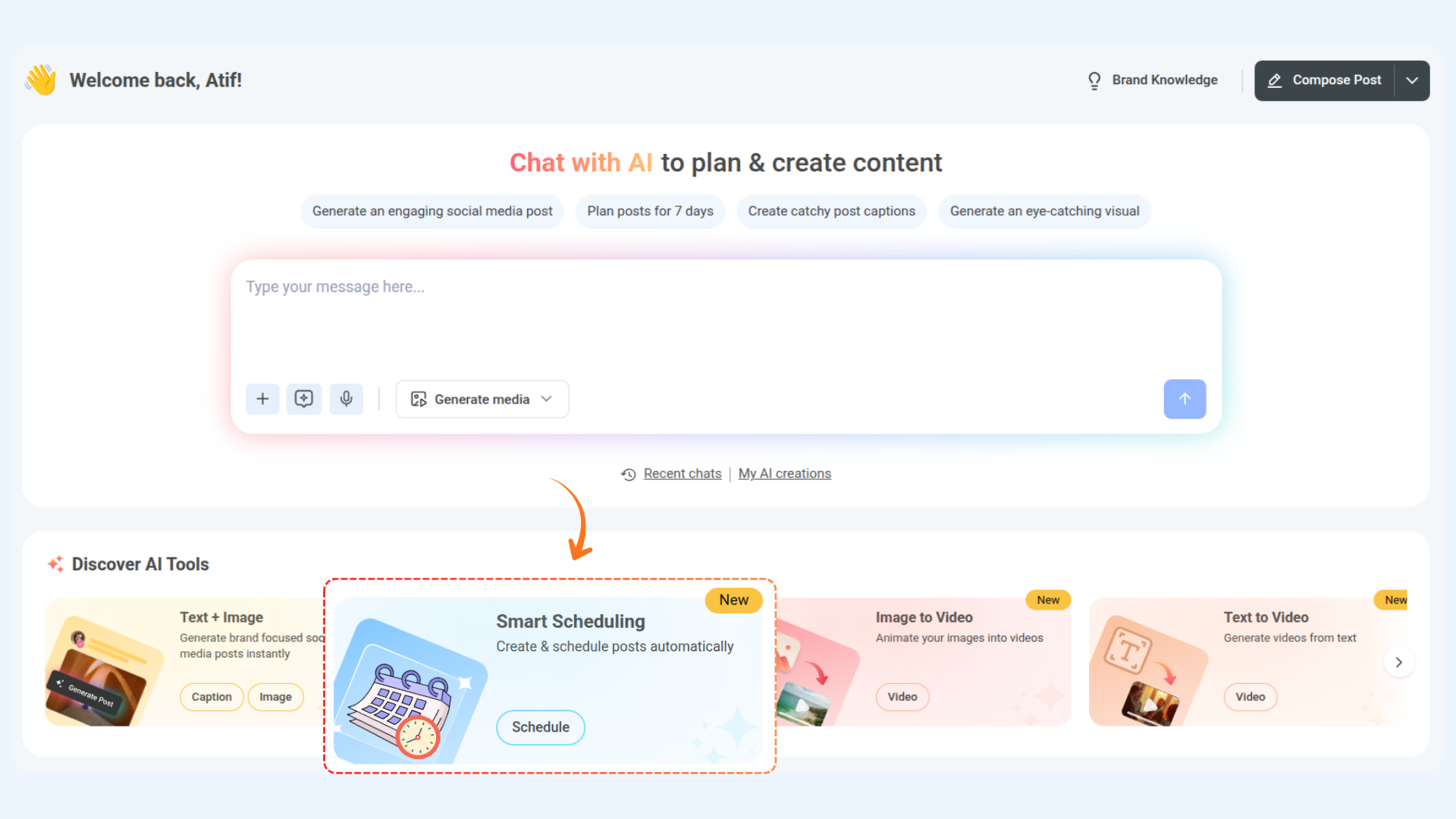
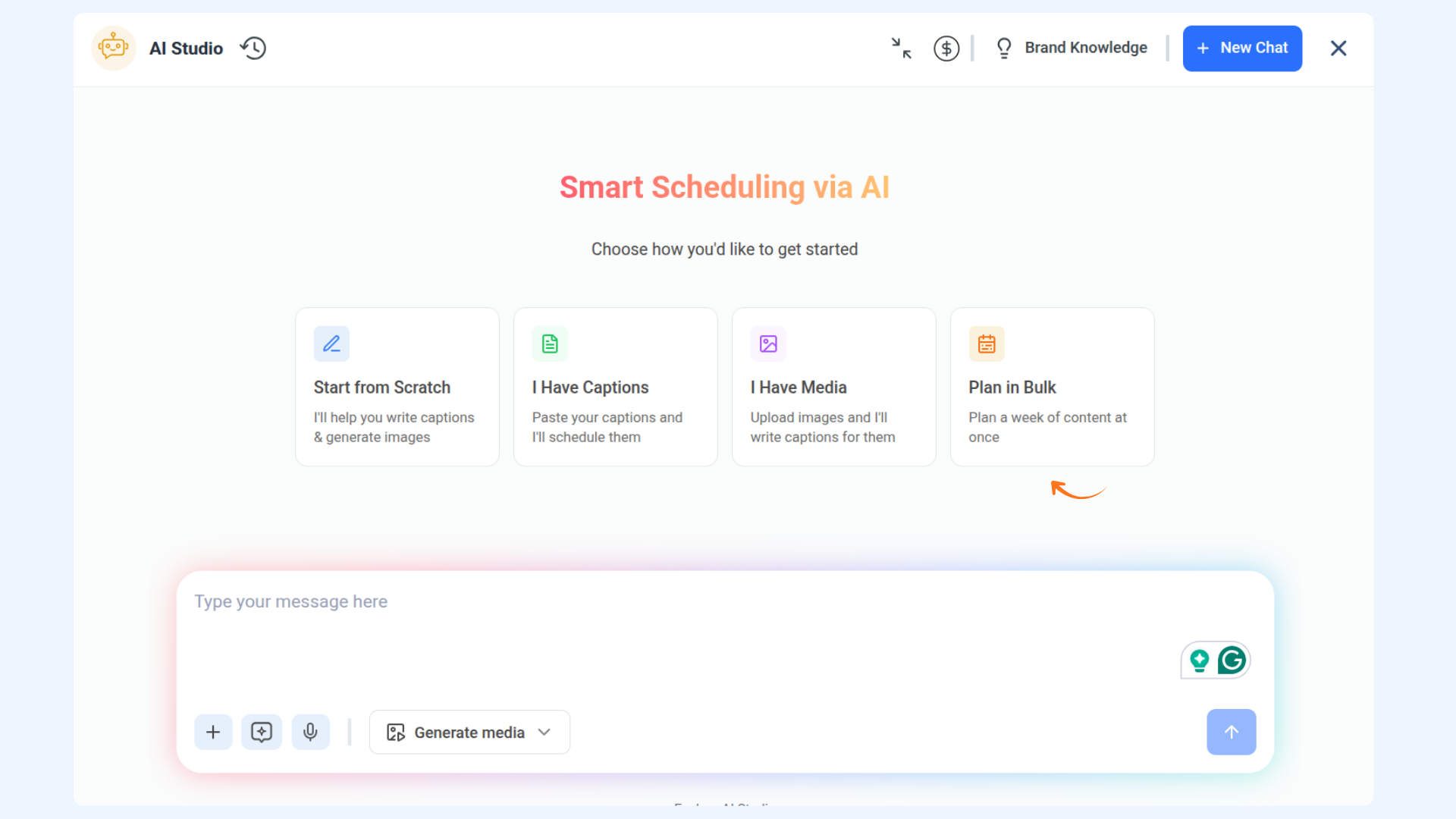
Meet Smart Scheduling — your AI-powered content assistant designed to make creating and publishing posts faster, easier, and smarter. Chat with AI to generate engaging content, refine your captions, and attach media in seconds. With support for bulk scheduling and posting across multiple accounts, Smart Scheduling helps you plan days or weeks of content in one go.
In this Article:
How to Create & Schedule a Post
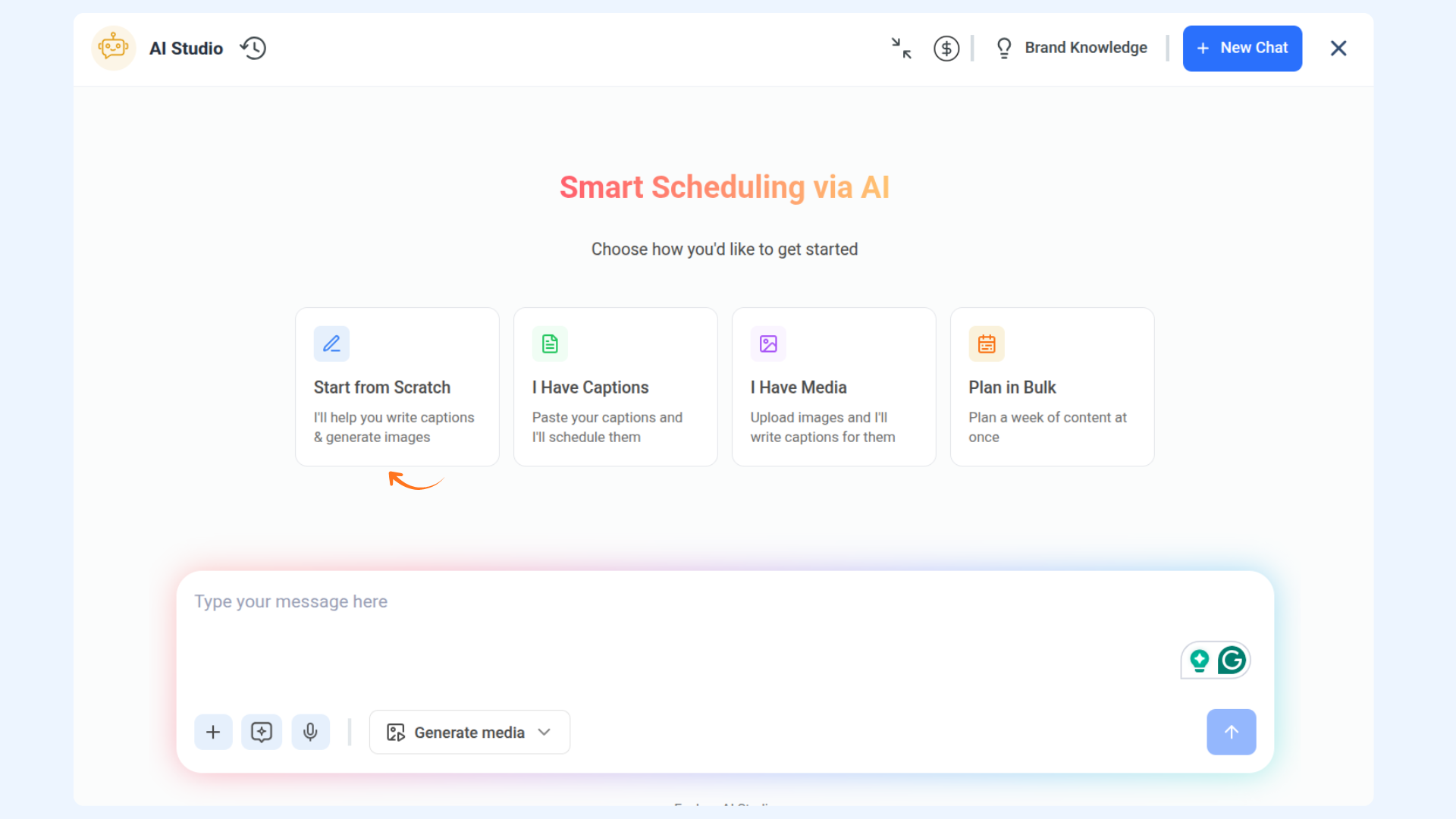
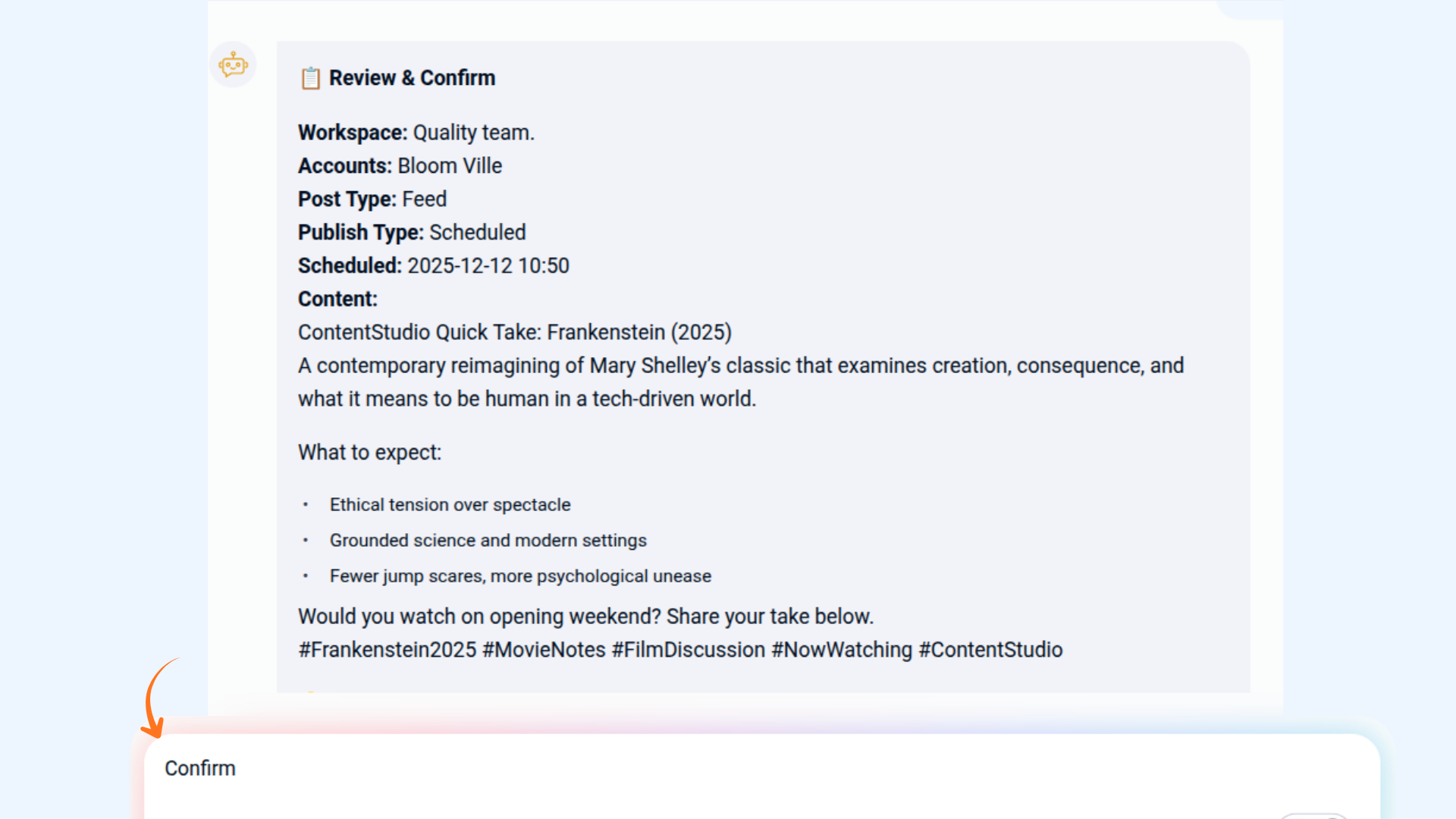
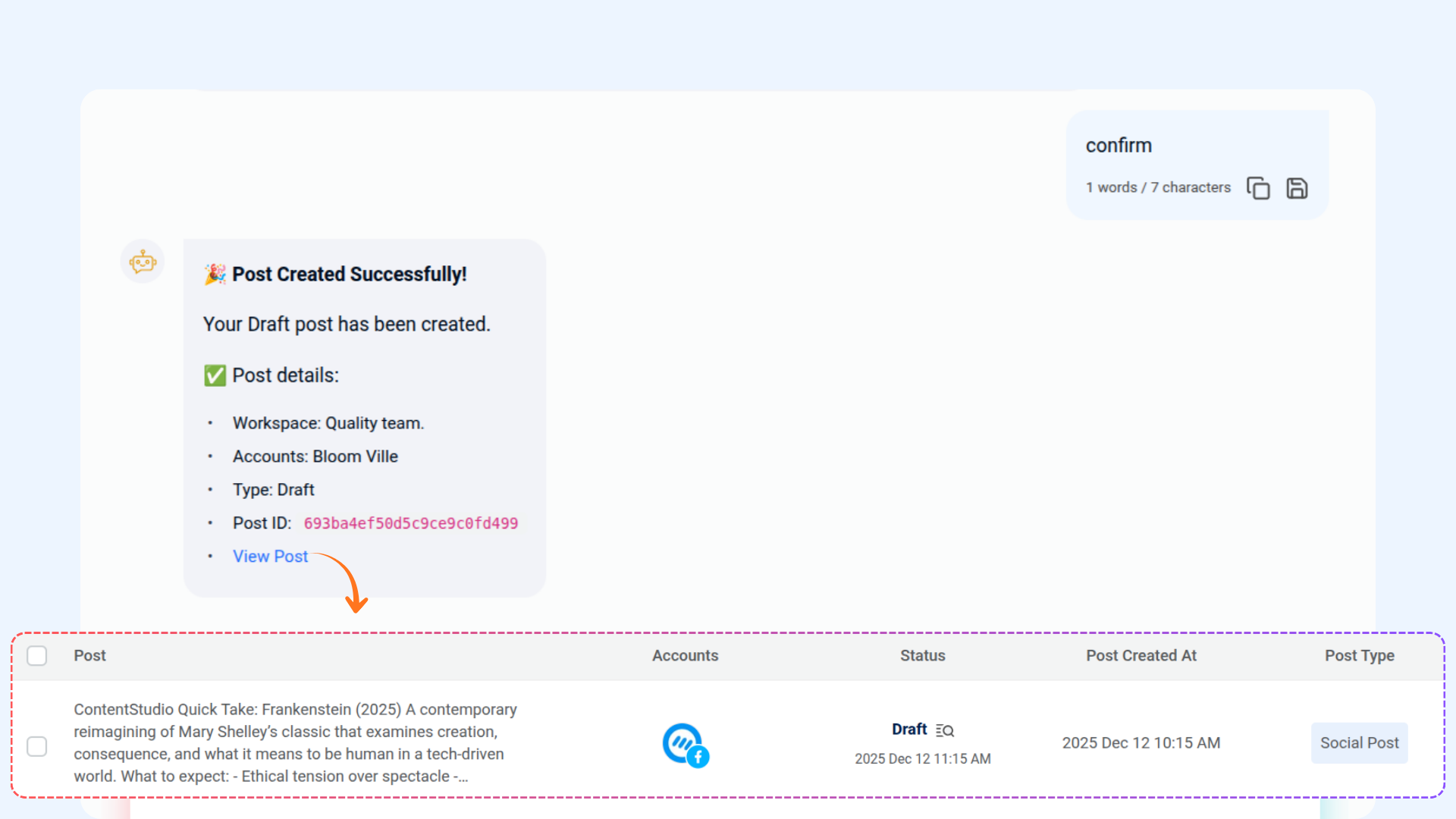
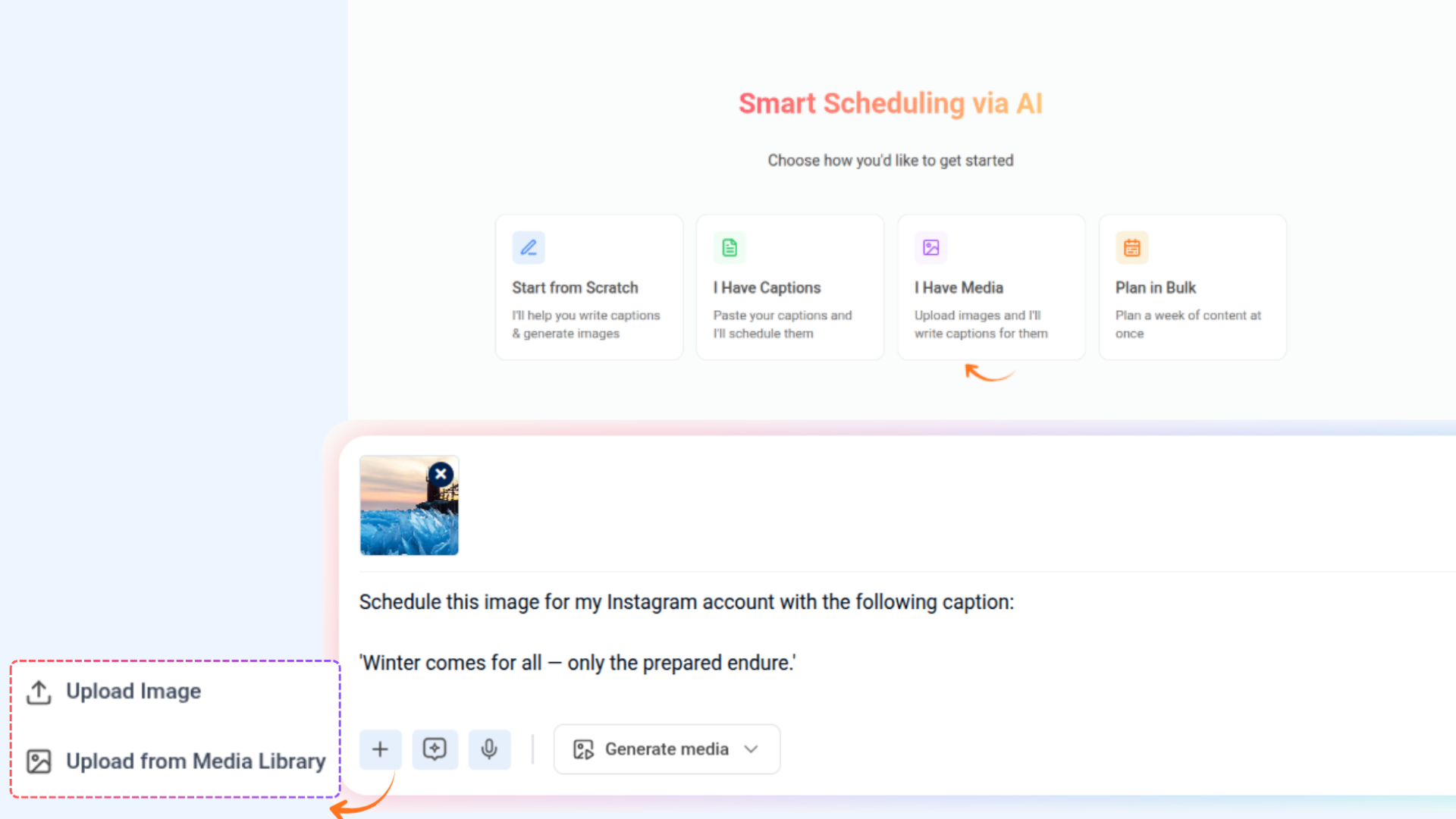
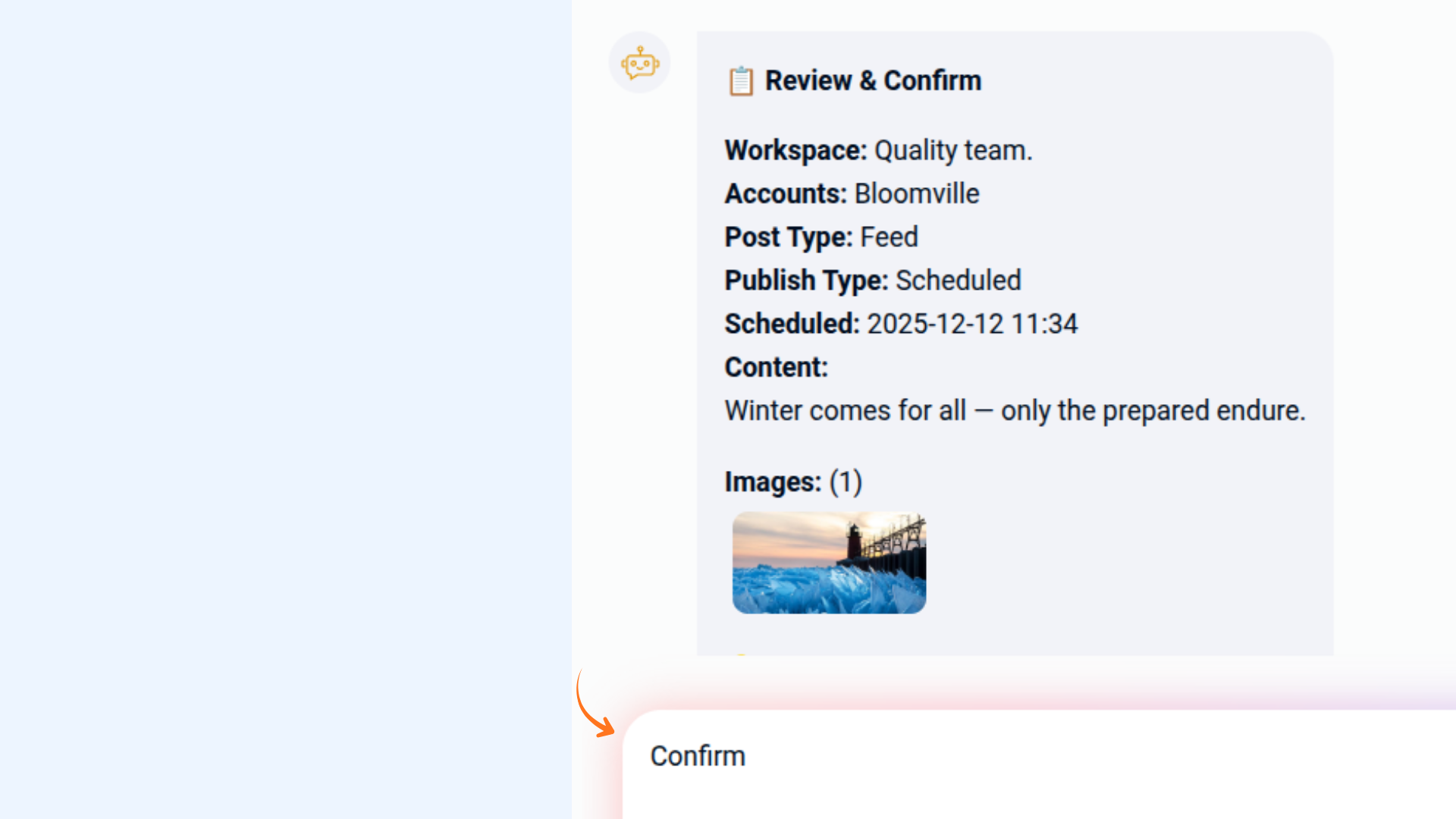
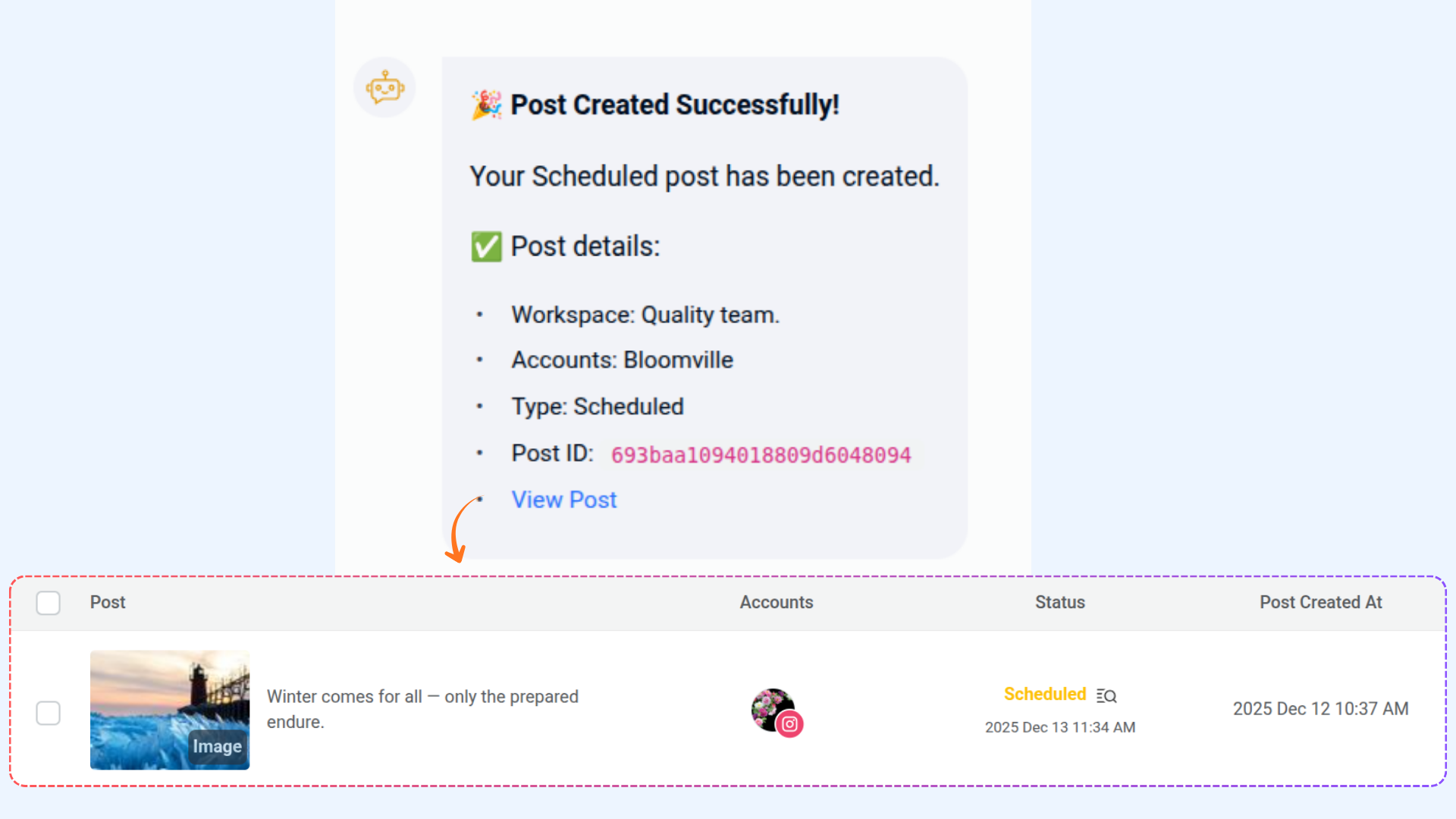
Smart Scheduling lets you quickly create a post by adding your media and caption, then schedule it to go live at your chosen time. It’s an easy way to plan and manage your content efficiently.
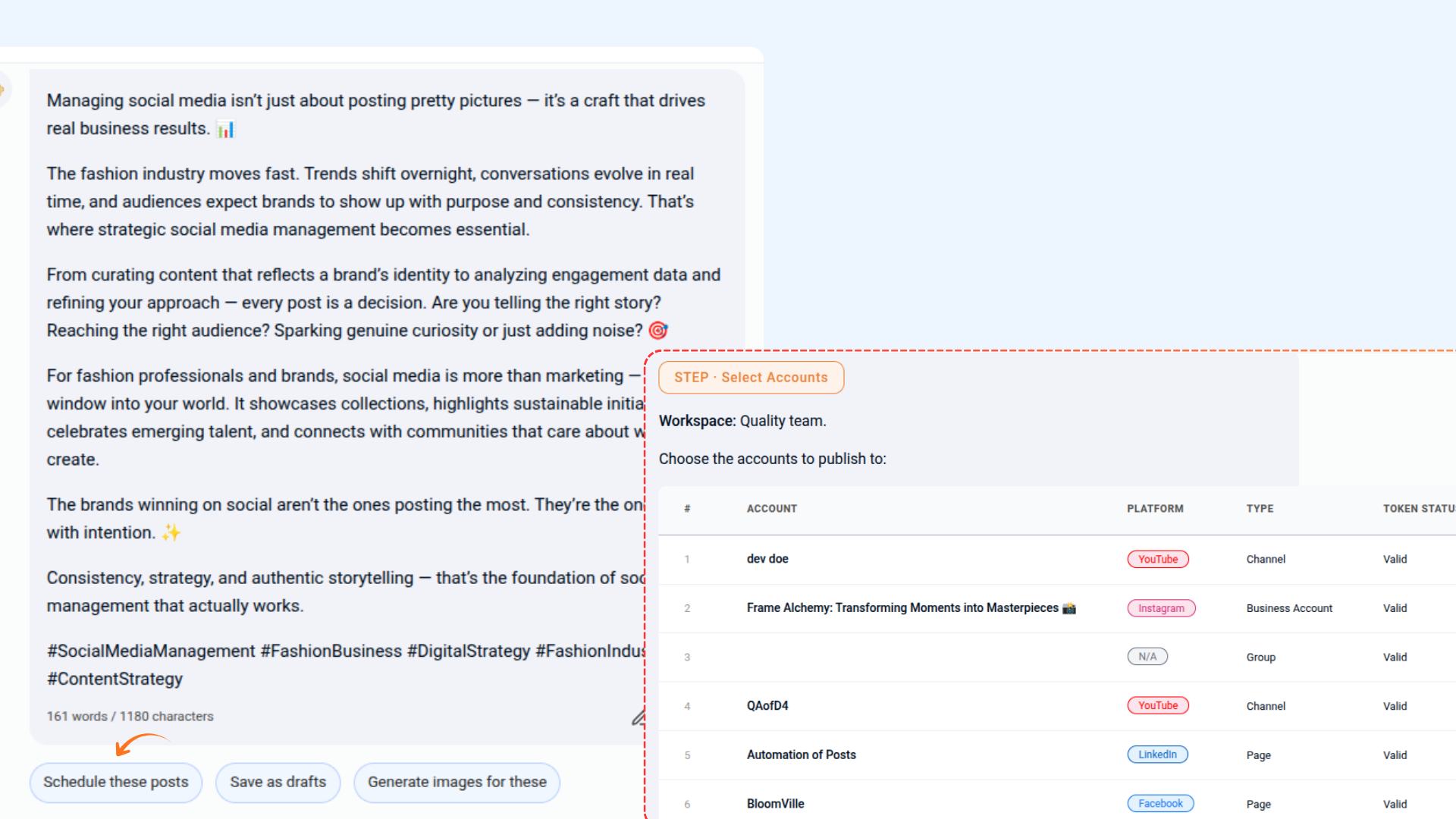
Ask AI to Write & Schedule a Post
Schedule with your own content
Bulk Schedule Posts with Smart Scheduling
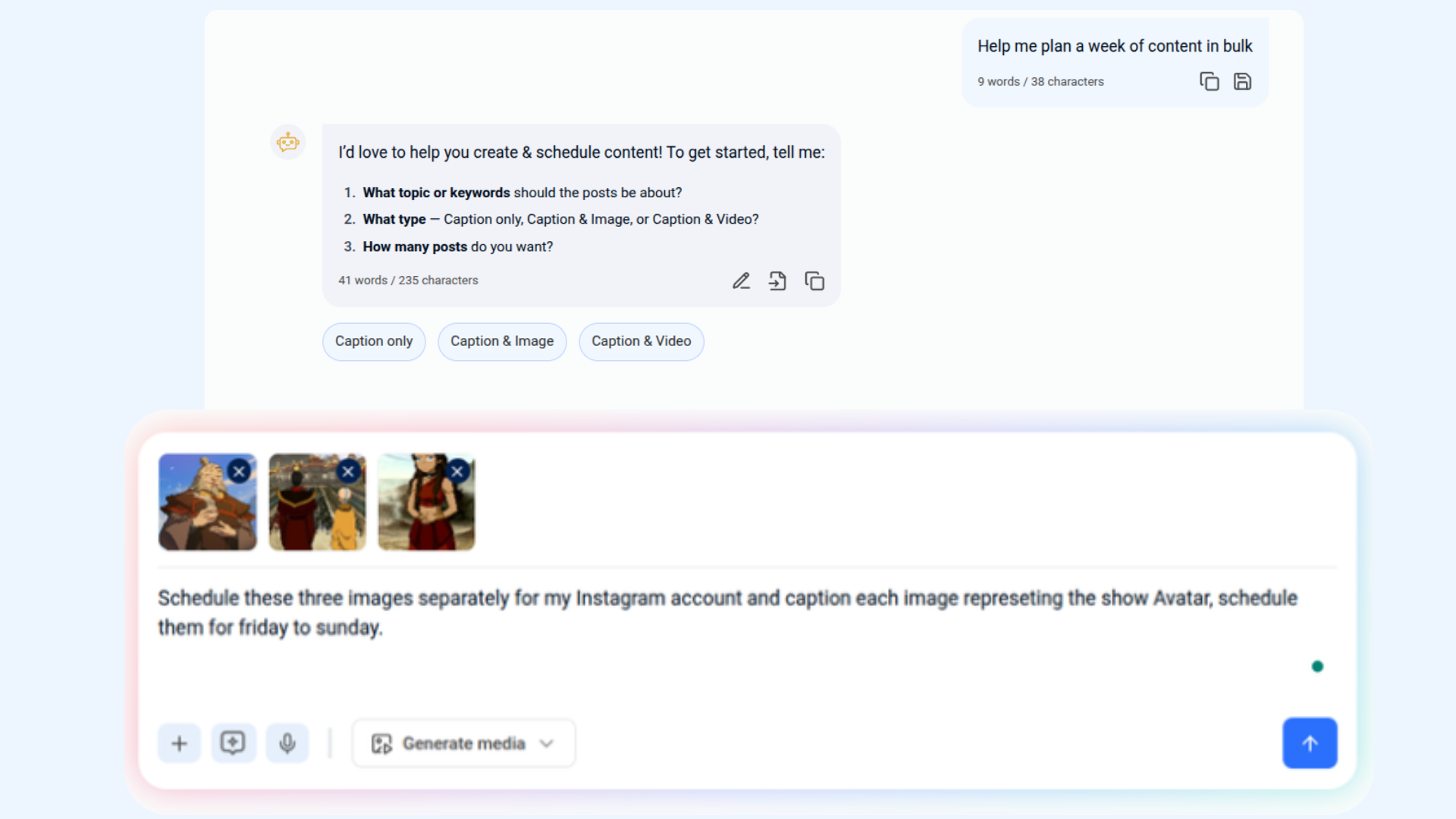
Smart Scheduling enables you to create and schedule multiple posts simultaneously. You can upload multiple images and generate captions for each post, making it easier to plan and organize your content in advance. This feature is ideal for publishing content over a longer time period, such as weekly or recurring posts.
Bulk Media Upload & Captions
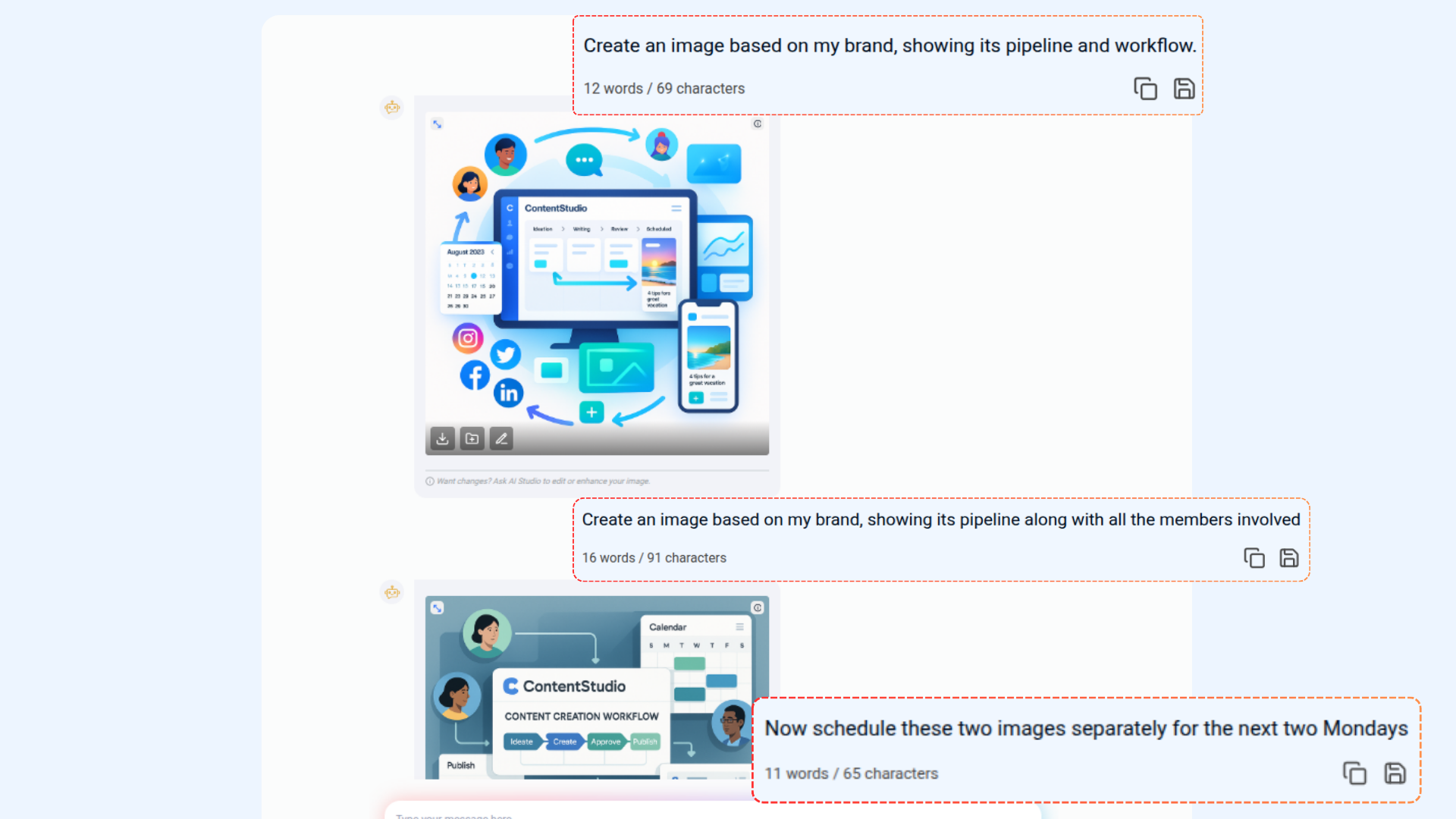
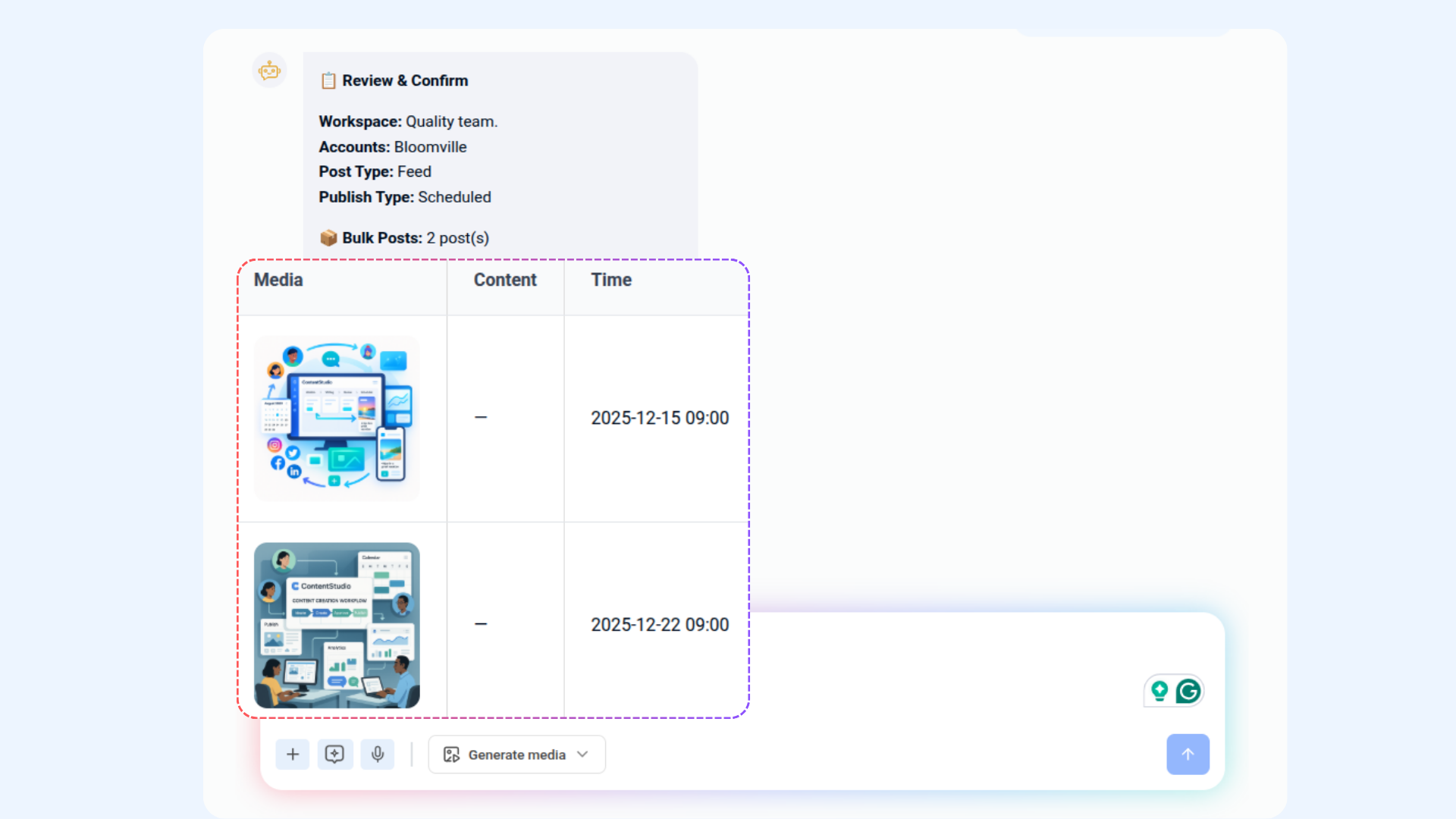
Generate Images with AI & Schedule
Use Cases
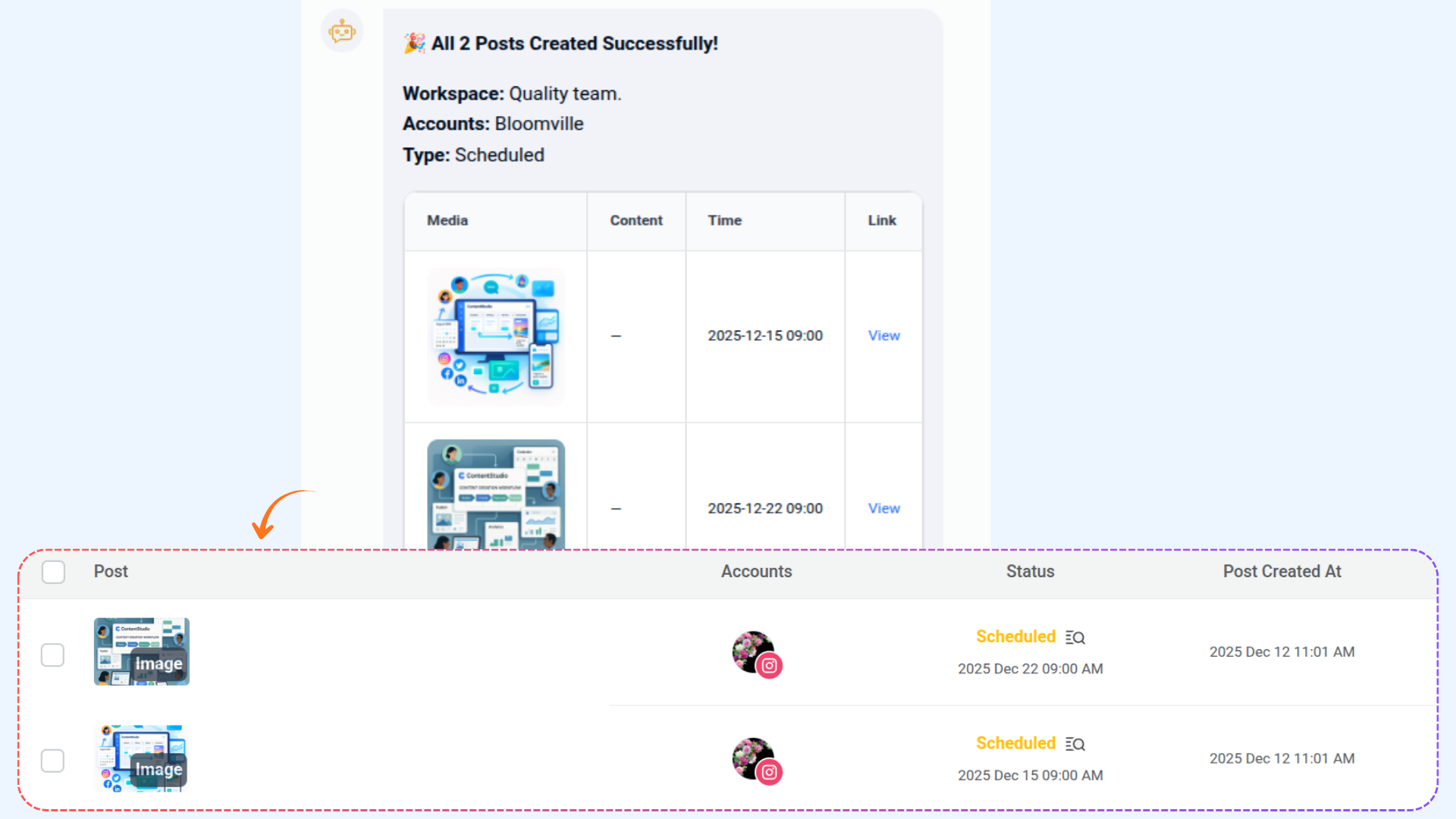
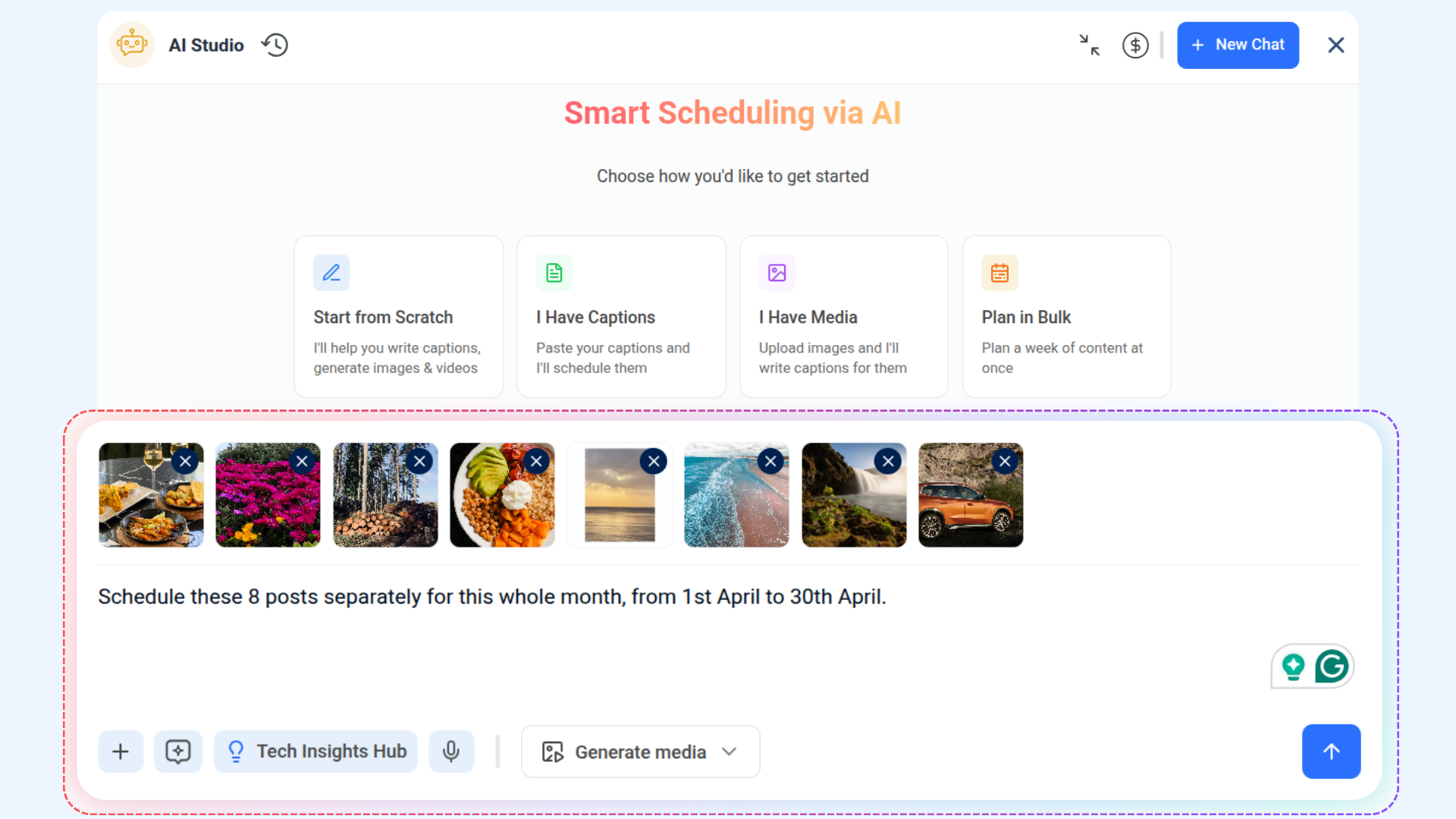
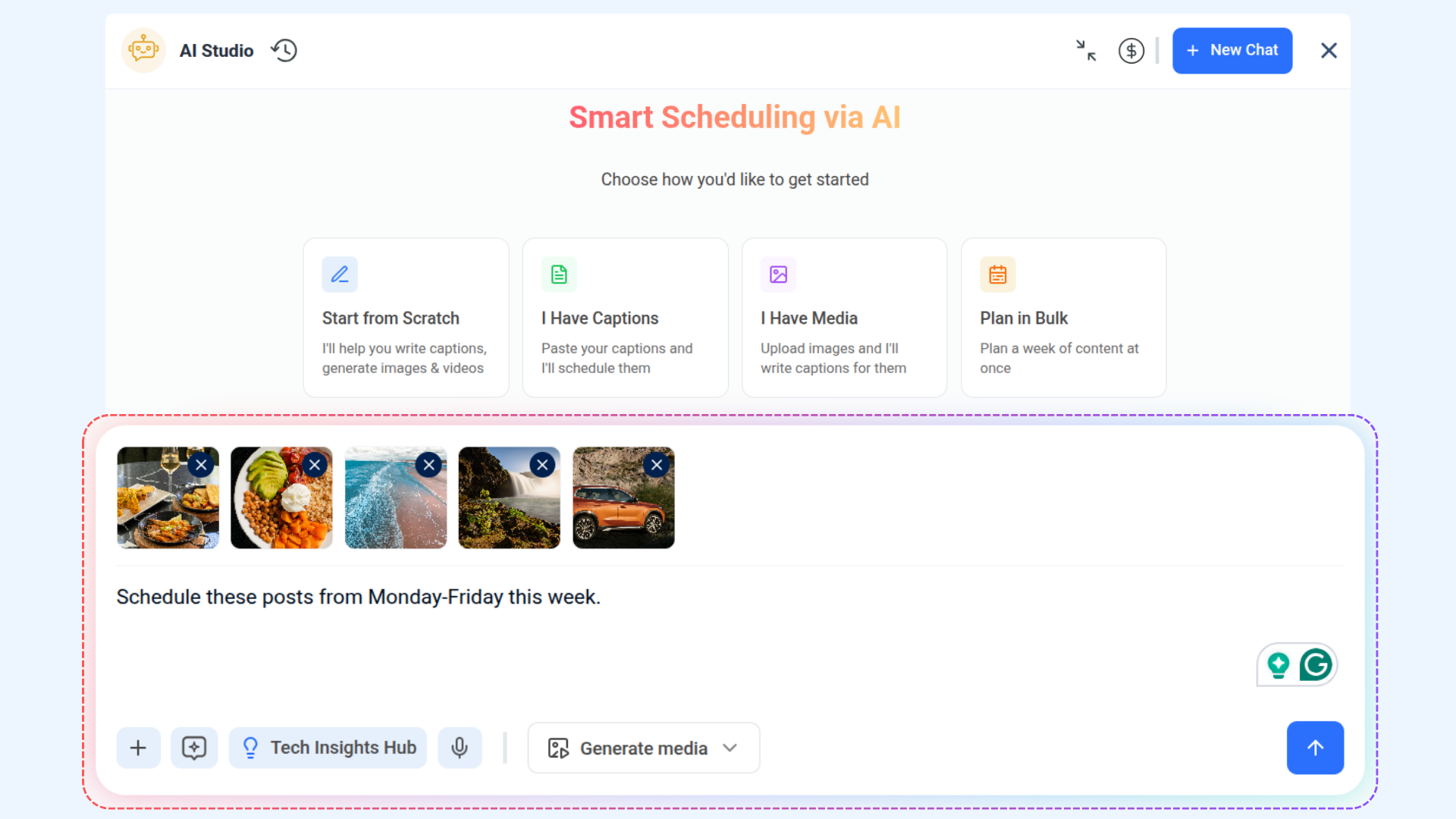
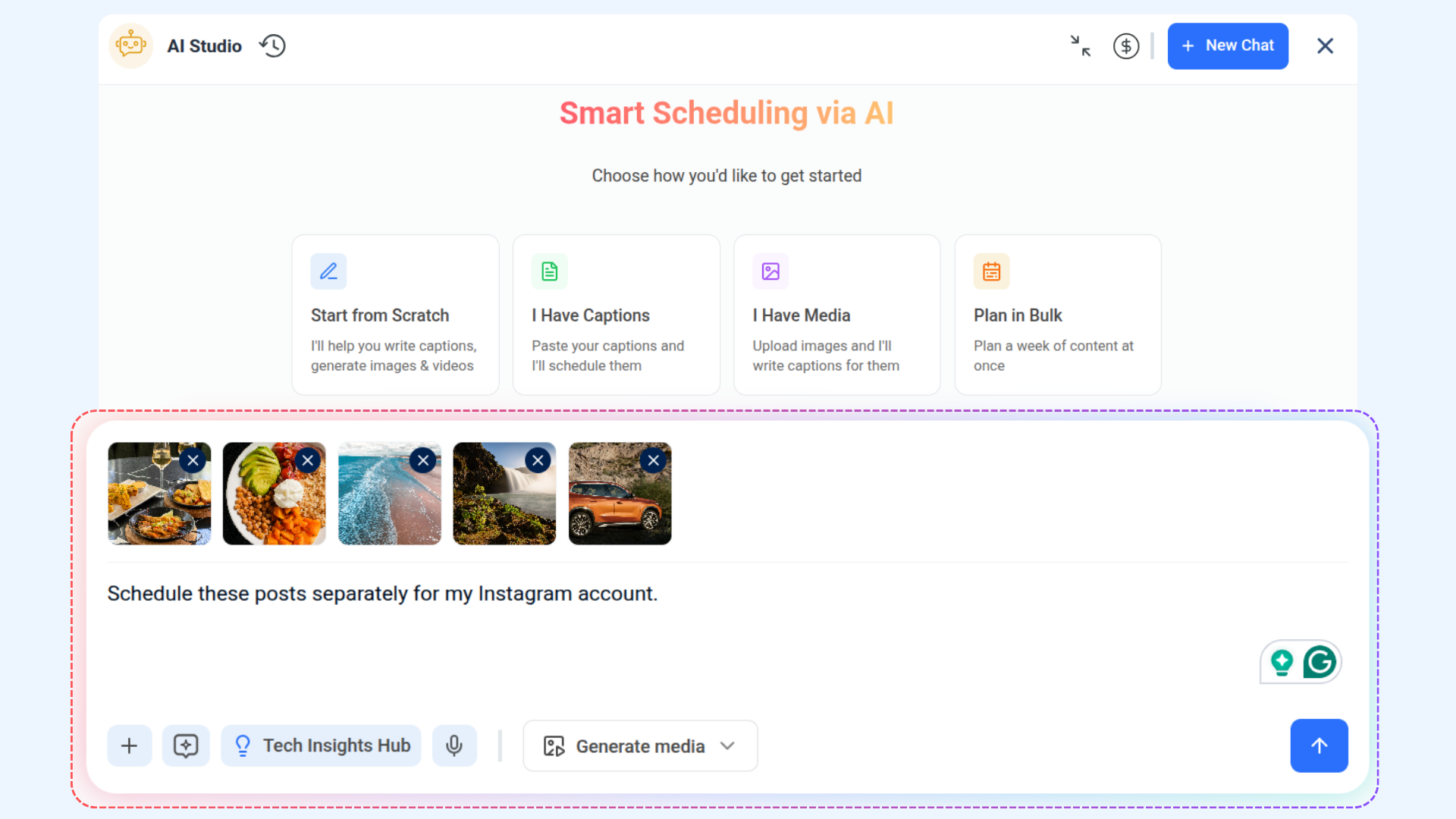
The following use cases show how Smart Scheduling's auto time distribution works in real-world scenarios. Whether you're planning a full month of content or just need to queue up a few posts quickly, Smart Scheduling figures out the timing for you.
FAQs
Q: What if I don’t want to set a time right now?
A: You can choose “queued” or “draft” as your publish mode instead of scheduling.
Q: Can I attach multiple media items?
A: Yes — you may upload or select multiple images/videos when attaching media.
Q: Can I schedule posts for multiple accounts at once?
A: Yes — when selecting accounts, you may pick more than one.
Q: Can I change the schedule time after confirmation?
A: Yes, you can edit the scheduled post from the Planner or Publisher section.
Q: How do I generate captions for multiple images in bulk?
A: Upload your images and ask the system to generate separate captions for each one automatically.
Q: How can I track all my scheduled posts?
A: All scheduled posts are displayed in the Planner, where you can review and manage them.
Was this article helpful?