
React to comments in Planner on iOS
You can now react to comments in Planner using emojis — making it easier to acknowledge feedback without adding extra replies. This helps keep conversations clean while still letting teammates know their message has been seen.
In this Article:
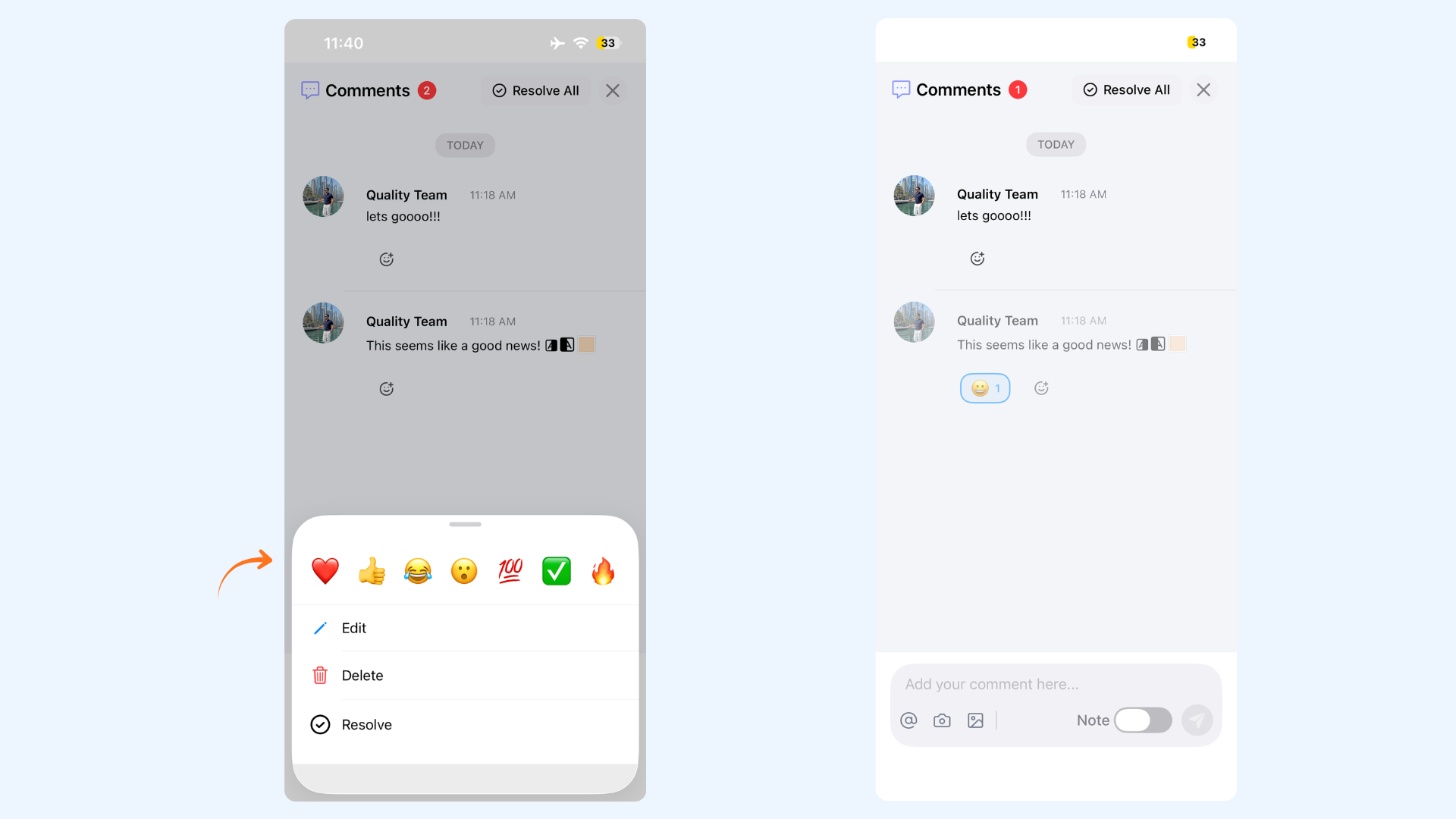
How to React to Comments in Planner

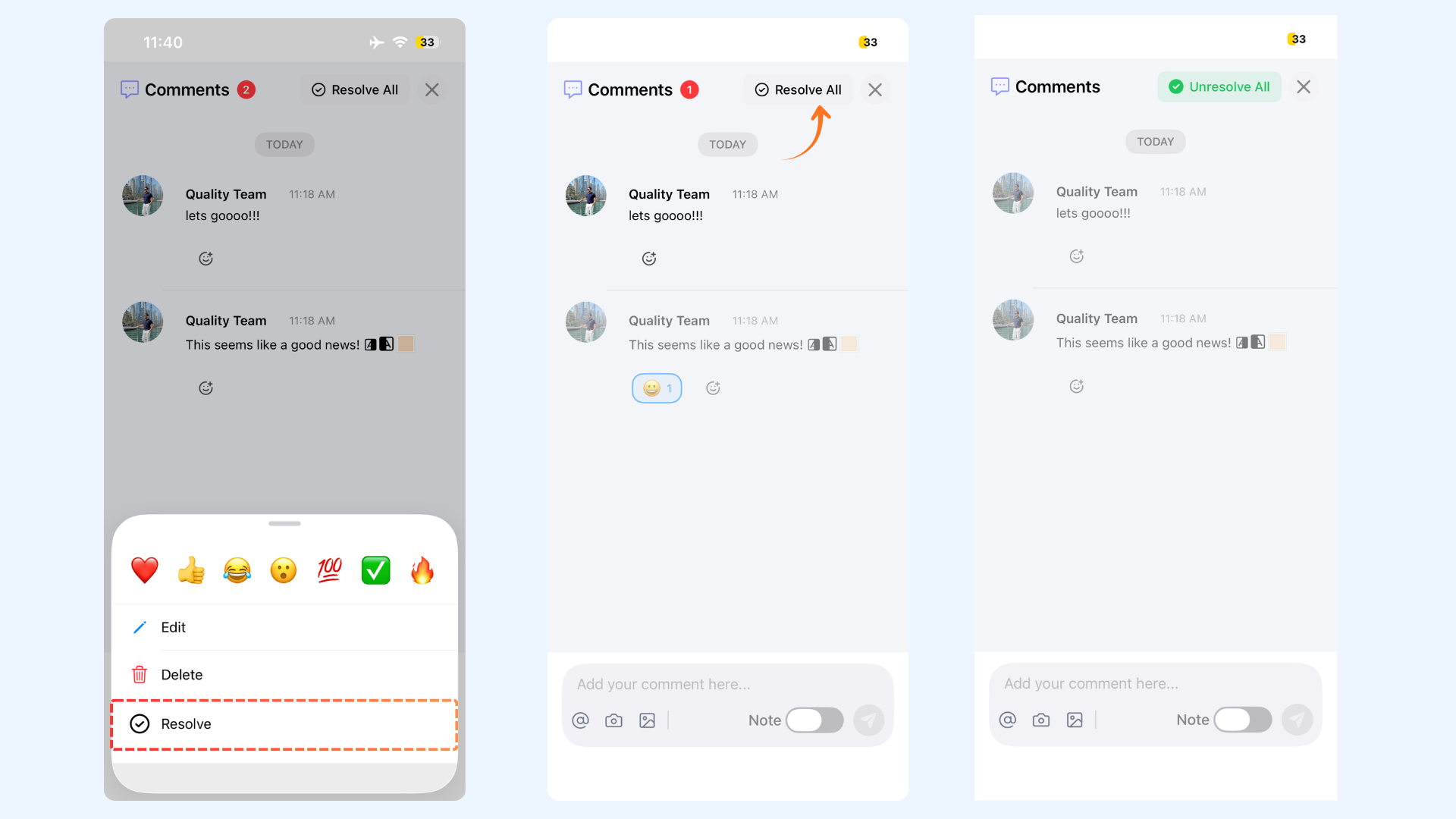
Mark Comments as Resolved or Unresolved
FAQ's
Can I react to a comment in Planner on iOS?
Yes. Open the post in Planner, tap Comments, then tap the emoji icon under a comment to add a reaction. Your reaction will appear instantly.
Who gets notified when I react to a comment?
Only the person who wrote the comment receives a notification when you react to it.
Can I change or remove my reaction?
Yes. Simply tap the emoji reaction again and select a different one or remove it.
How do I resolve a comment on iOS?
Open the Comments section of a post, long-press the comment, and select Resolve from the menu.