

AI Studio in iOS
Creating great content just got a whole lot easier. Meet AI Studio — your personal AI writing assistant built right inside the ContentStudio iOS Composer.
Whether you're staring at a blank caption box or you already have a draft and just want to make it better, AI Studio is here to help. Write faster, fix mistakes, adjust tone, generate images from text, and so much more — all without ever leaving the Composer. It's smart, it's fast, and it's always just one tap away.
In this Article:
How to Use AI Studio in Composer
Follow the steps below to access and use AI Studio directly from your iOS Composer.
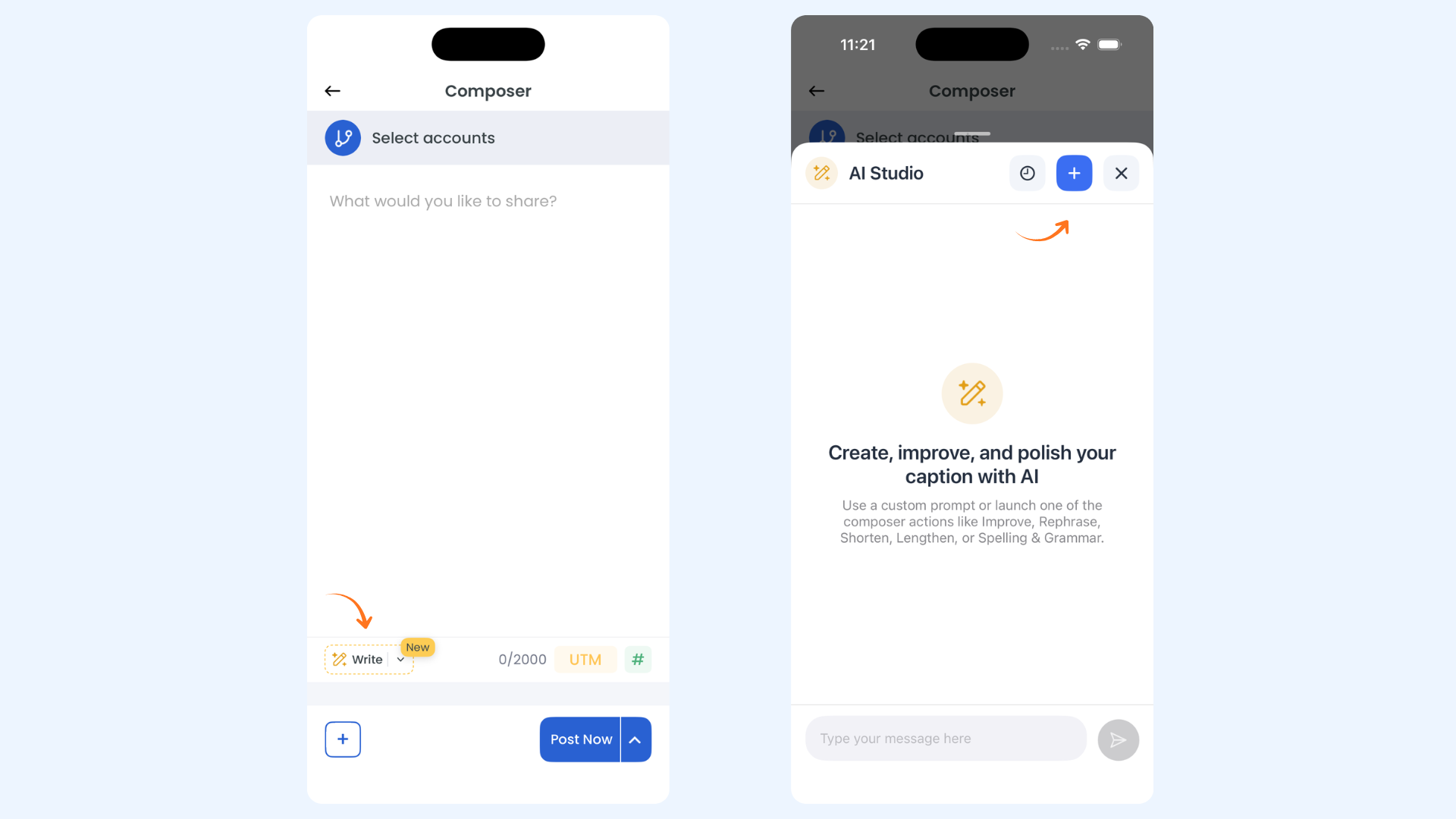
In the Composer, tap the Write option to open AI Studio. You can do this even if your caption is empty — or if you already have text written.
Get familiar with the AI Studio interface. At the top right, you'll find History — your past AI conversations, and a New Chat (➕) which starts a fresh session.
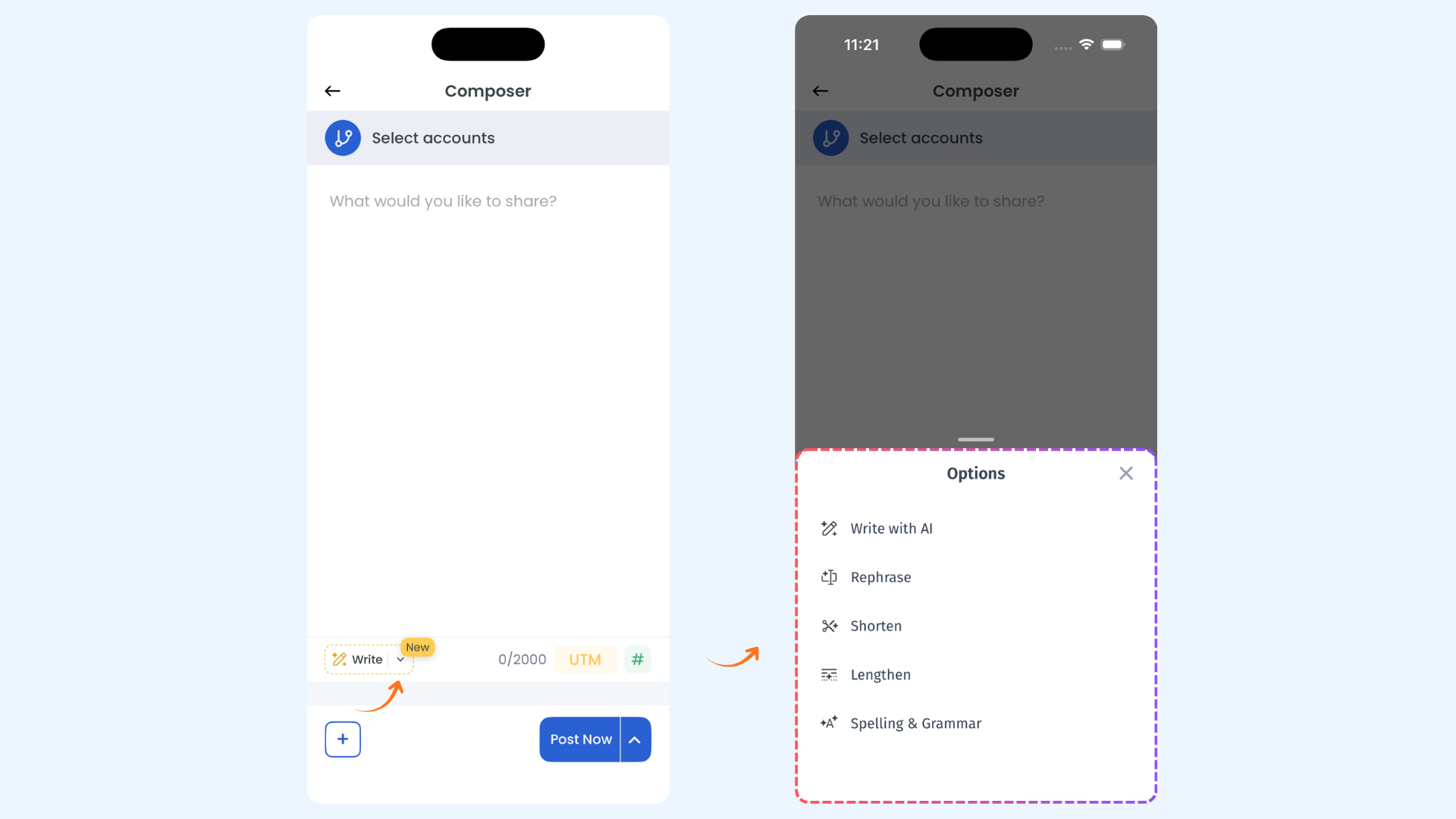
Choose an AI writing action based on what you need:
Write with AI — Generate a brand new caption or post from scratch.
Rephrase — Reword your existing text while keeping the same meaning.
Shorten — Trim your content down to something more concise.
Lengthen — Expand your text with more detail and depth.
Spelling & Grammar — Fix any errors and clean up your writing.
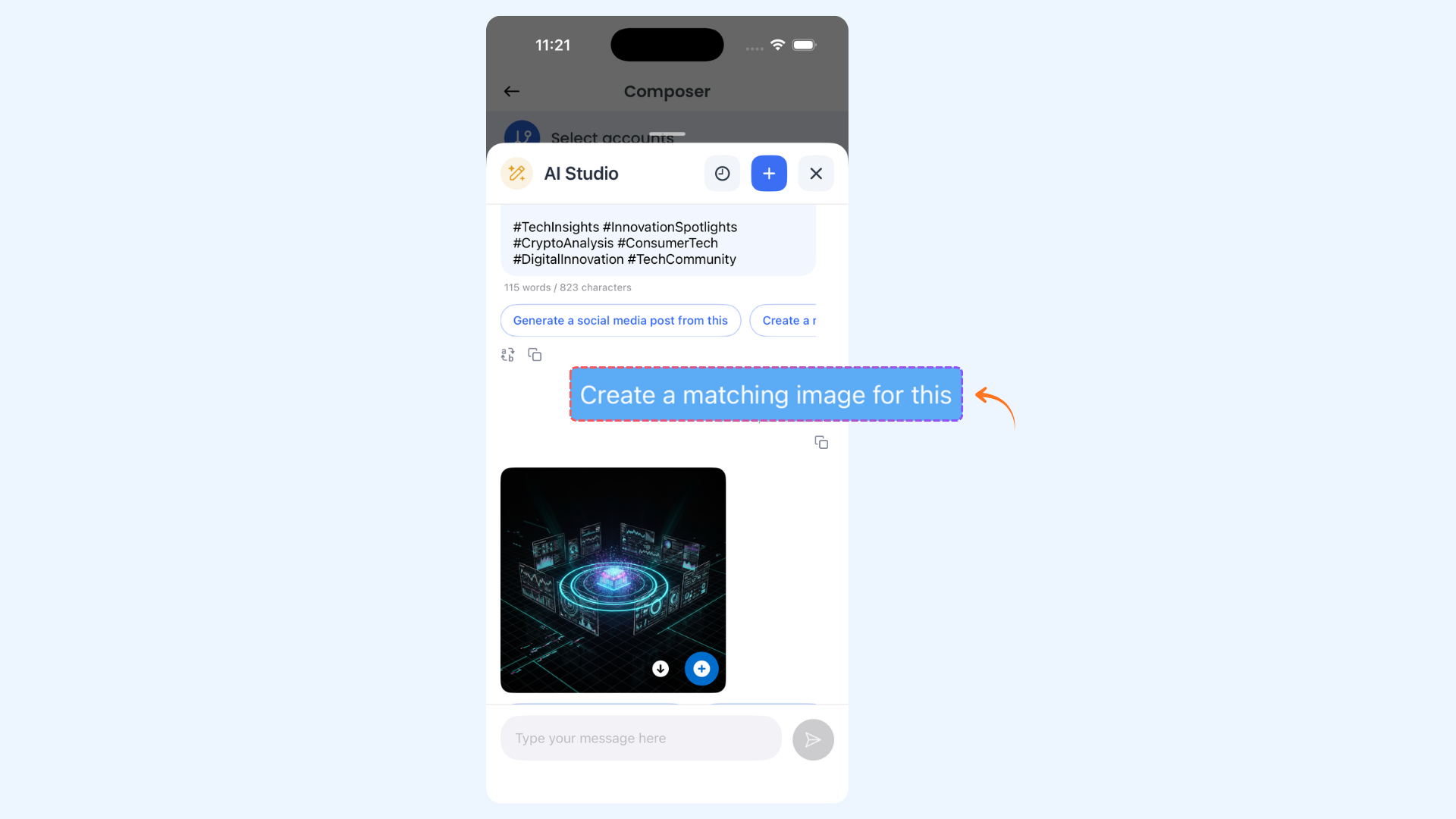
To generate an AI image, type a description of the image you want in the text box and select the image generation option. The AI will create a visual based on your prompt.
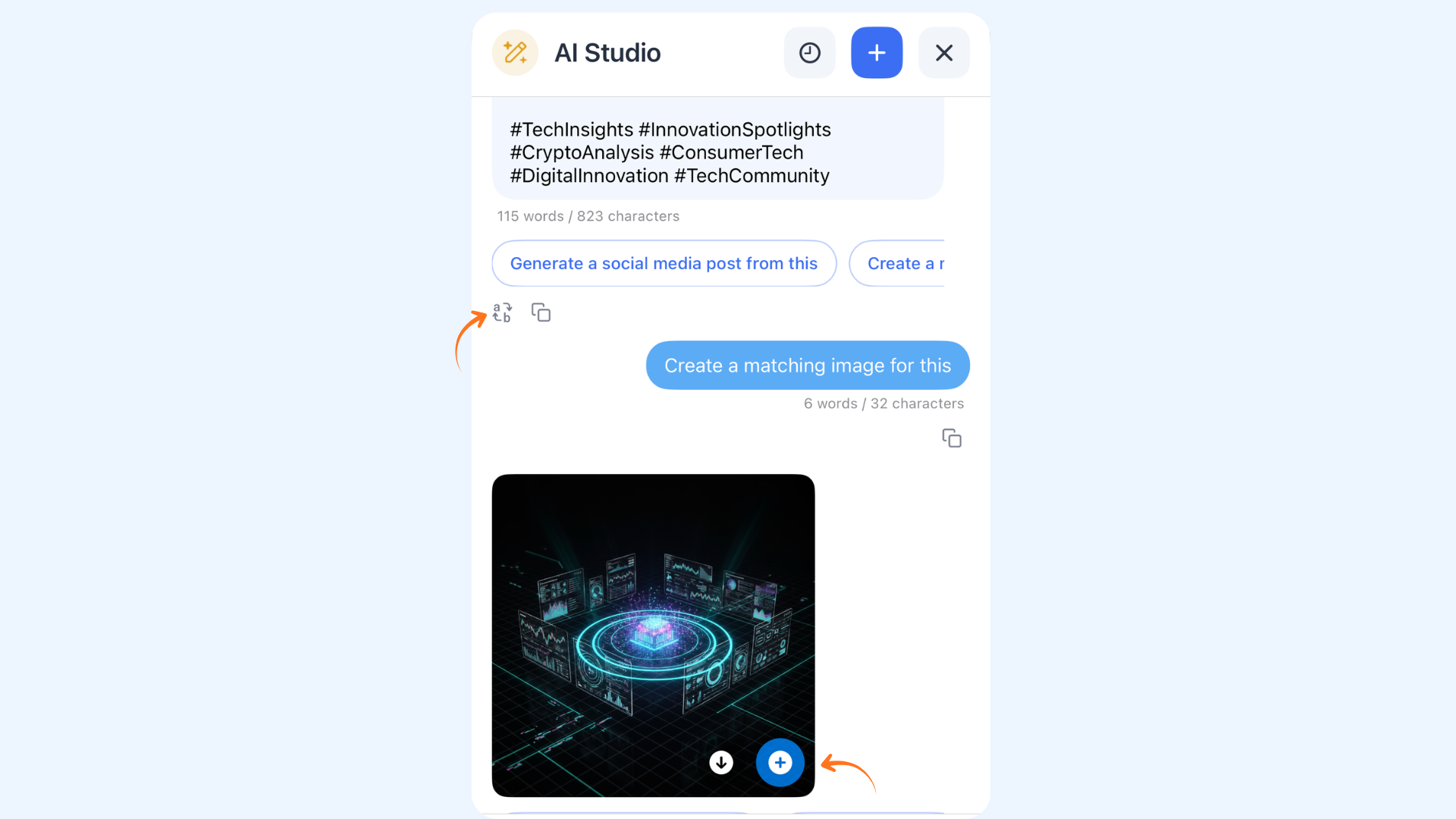
After the AI responds, choose what to do with the result:
Replace in Composer — Swap out your existing caption with the new AI-generated text.
Open in Composer — Send the result to the Composer to review and edit before posting.
Copy — Copy the text to your clipboard to use anywhere you like.
FAQs
Q: Where do I find AI Studio in the iOS Composer?
A: Open the Composer on your iOS device and tap the Write option. This will launch AI Studio right inside the Composer.
Q: Can I use AI Studio if I haven't written anything yet?
A: Yes! AI Studio works whether your caption box is empty or already has text. If it's empty, just use the Write with AI action to generate content from scratch.
Q: What is the difference between "Replace in Composer" and "Open in Composer"?
A: Replace in Composer swaps your current caption with the AI-generated text right away. Open in Composer sends the result to the caption box so you can review and edit it before deciding to keep it.
Q: Can I ask AI Studio to improve its answer after it responds?
A: Absolutely. Just type a follow-up prompt in the text box and AI Studio will continue the conversation from where it left off. You don't need to re-explain your original request.
Q: Can I generate images using AI Studio?
A: Yes! Simply describe the image you want in the prompt box and select the image generation option. The AI will create a visual based on your description. Keep in mind that image generation uses image credits, which are separate from text credits.
Was this article helpful?