

Reviewing & Approving Posts on Mobile App - iOS & Android
If your team uses Approval Workflows in ContentStudio, you can review, approve, or reject posts directly from the iOS and Android app — no need to open a browser. This is especially useful for approvers who are on the go and need to act on pending posts quickly.
This article covers how to find posts that are waiting for your approval in the iOS & Android Planner, how to approve or reject them, how to leave a comment with your decision, and what happens when an approved post gets edited.
In this Article:
iOS App
How to Find Posts Under Review in the Planner
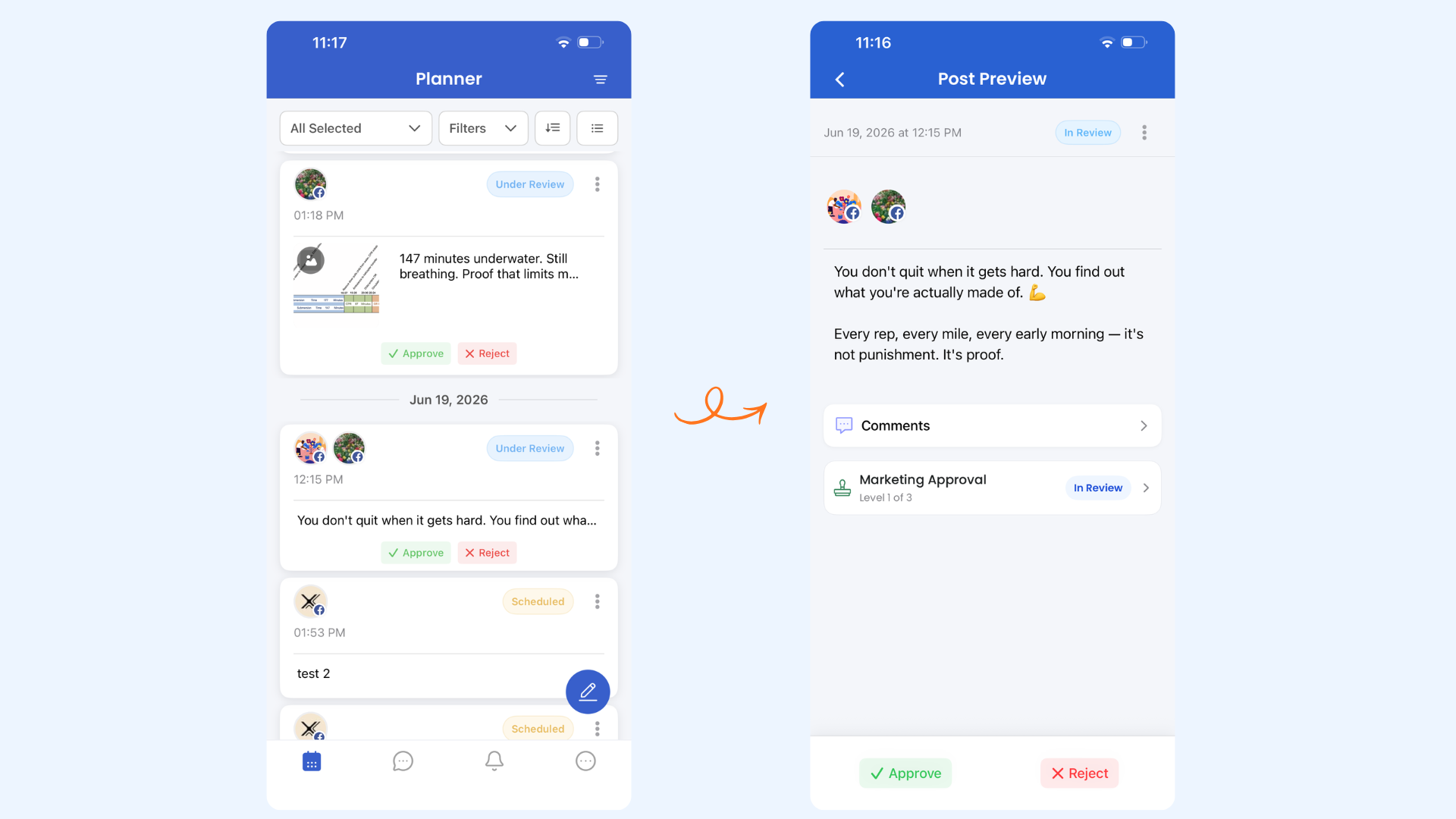
Open the ContentStudio iOS app and tap Planner from the bottom navigation bar.
Scroll through the Planner feed. Posts that are waiting for approval will appear with an Under Review badge next to them.
Tap on the post to open the Post Preview.
How to Approve or Reject a Post
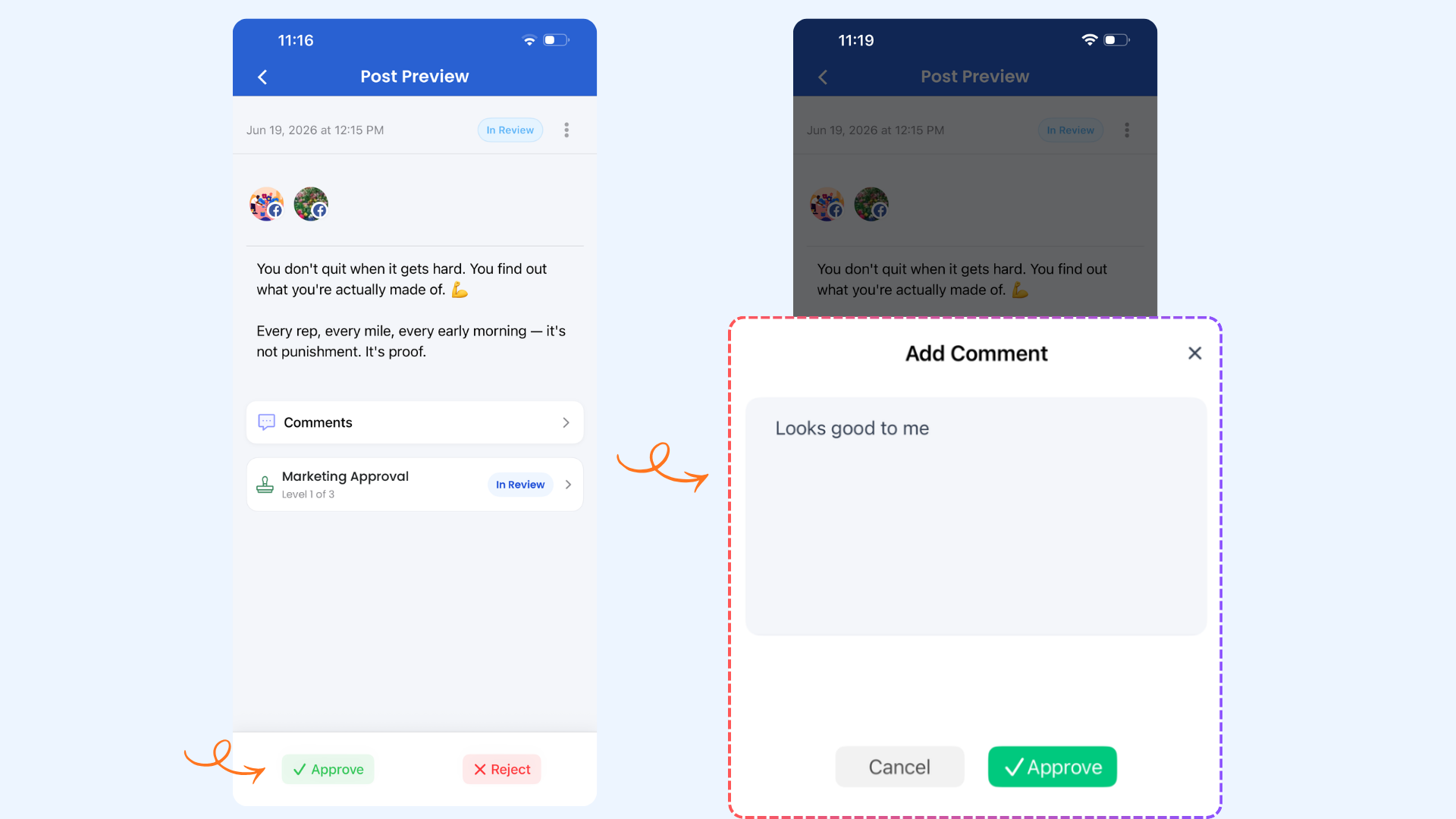
In the Post Preview, you'll see the post content along with Approve and Reject buttons at the bottom of the screen.
Tap Approve. An Add Comment sheet will slide up. You can type a comment (e.g. "Looks good to me") or leave it blank, then tap Approve to confirm.
To reject instead, tap Reject at the bottom of the Post Preview. You'll also be prompted to add a comment before confirming the rejection.
How to View Marketing Approval Levels
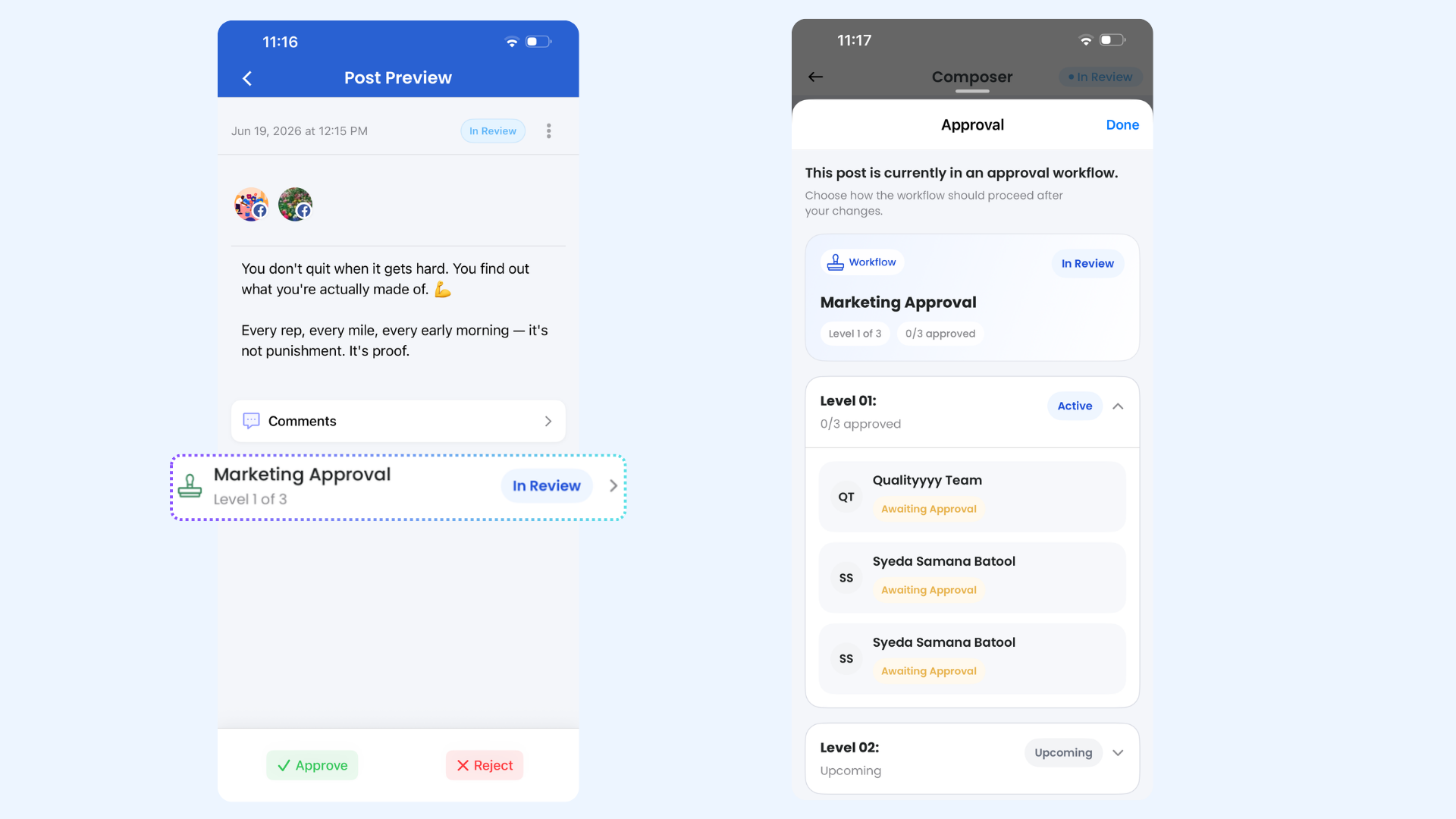
In the Post Preview, scroll down to see the Marketing Approval section. It shows the current level (e.g. Level 1 of 3) and its status.
Tap the Marketing Approval row to expand the full approval chain. You'll see each level, which team members are assigned, and whether their approval is pending, active, or upcoming.
What Happens When You Edit a Post That's In Review
If you need to make changes to a post that is already in an approval workflow, here's what to do.
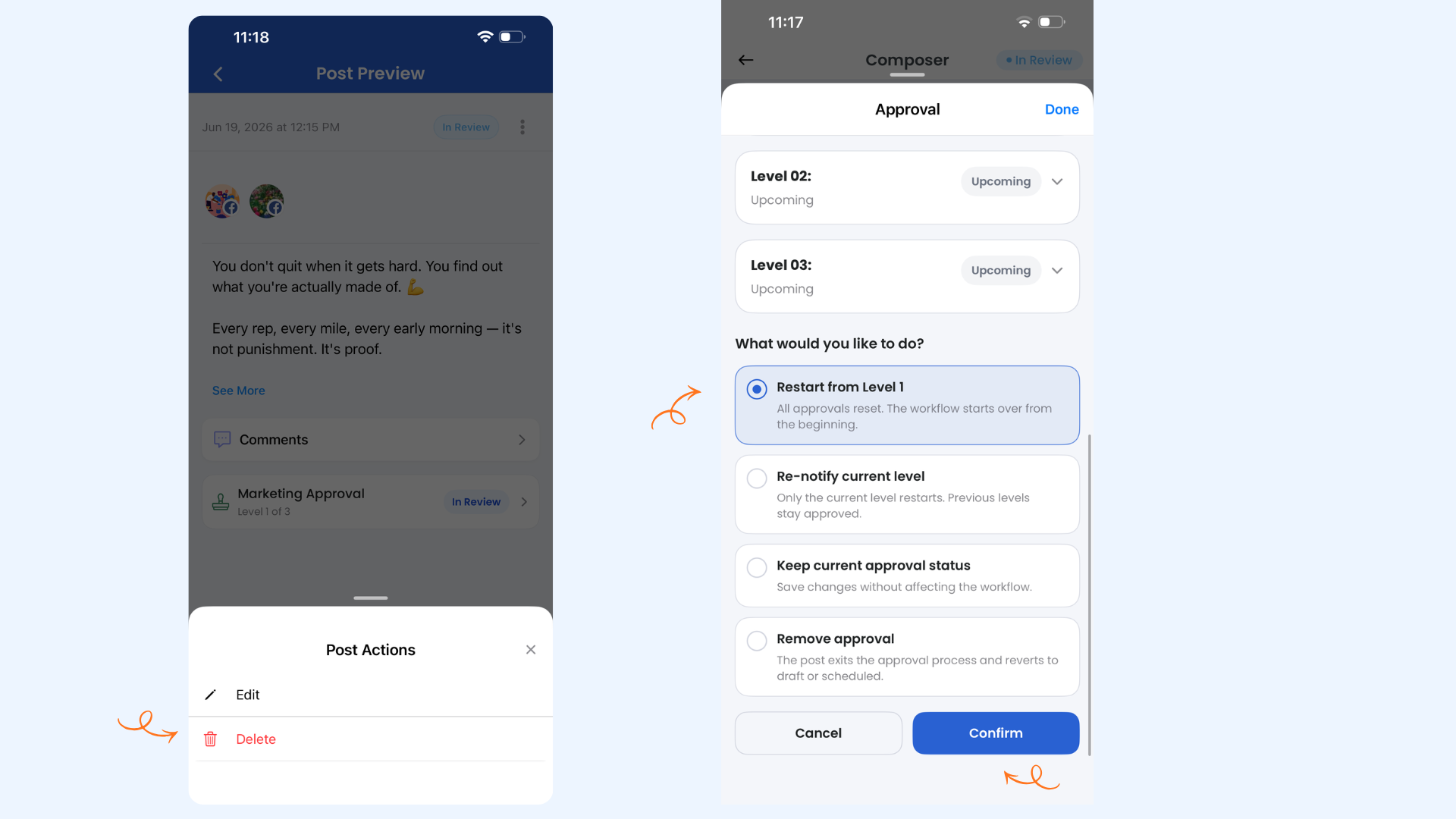
In the Post Preview, tap the three-dot menu (⋮) in the top-right corner.
Tap Edit from the Post Actions sheet. Make your changes in the Composer, then tap Save.
An Approval prompt will appear, asking what you'd like to do with the workflow. Choose one of the following options and tap Confirm:
Restart from Level 1 — All previous approvals are reset and the workflow starts over from the beginning.
Re-notify current level — Only the current level restarts. Previously approved levels remain approved.
Keep current approval status — Your edits are saved without affecting the workflow at all.
Remove approval — The post exits the approval process entirely and reverts to draft or scheduled.
Android App
The approval workflow experience on Android works the same way as iOS. You can find posts under review in the Planner, approve or reject them, view the full approval chain, and handle edits — all from the Android app.
Tap the three-dot menu (⋮) in the Post Preview and select Edit. Make your changes in the Composer and tap Save.
An Approval prompt will appear showing the current workflow status — which levels are completed, active, or upcoming — and ask how you'd like to proceed. Choose one of the four options and tap Confirm:
Restart from Level 1 — All approvals reset and the workflow starts over.
Re-notify current level — Only the current level restarts; previous levels stay approved.
Keep current approval status — Changes are saved without affecting the workflow.
Remove approval — The post exits the approval process and reverts to draft or scheduled.
FAQs
Is a comment required when approving or rejecting?
No, adding a comment is optional. However, it's a good practice — especially when rejecting — to leave a note so the content creator knows what needs to change.
Can I see who else has approved a post before me?
Yes. Tap the Marketing Approval row in the Post Preview to see the full breakdown — each level, the assigned members, and the status of each person's approval.
What if I approve a post by mistake?
You can't undo an approval directly from the iOS app. Contact your workspace admin or open the web app to adjust the workflow status if needed.
Can I delete a post from the iOS app?
Yes. Tap the three-dot menu (⋮) in the Post Preview and select Delete from the Post Actions sheet. Note that deleting a post under review will remove it from the approval workflow entirely.
The approval workflow was set up on the web app. Will I see it in the iOS app?
Yes. Any workflow created on the web app is available across all platforms, including iOS. The approval levels, assigned members, and current status all sync automatically.
Was this article helpful?