

Inviting your team members for collaboration
In ContentStudio, you can manage your workspace by adding team members as Admins or Collaborators.
Admins have full access to settings and team management, while Collaborators can work on assigned social accounts and content.
Follow the steps below to add a new team member and configure their role and permissions.
Adding Admins & Collaborators in ContentStudio
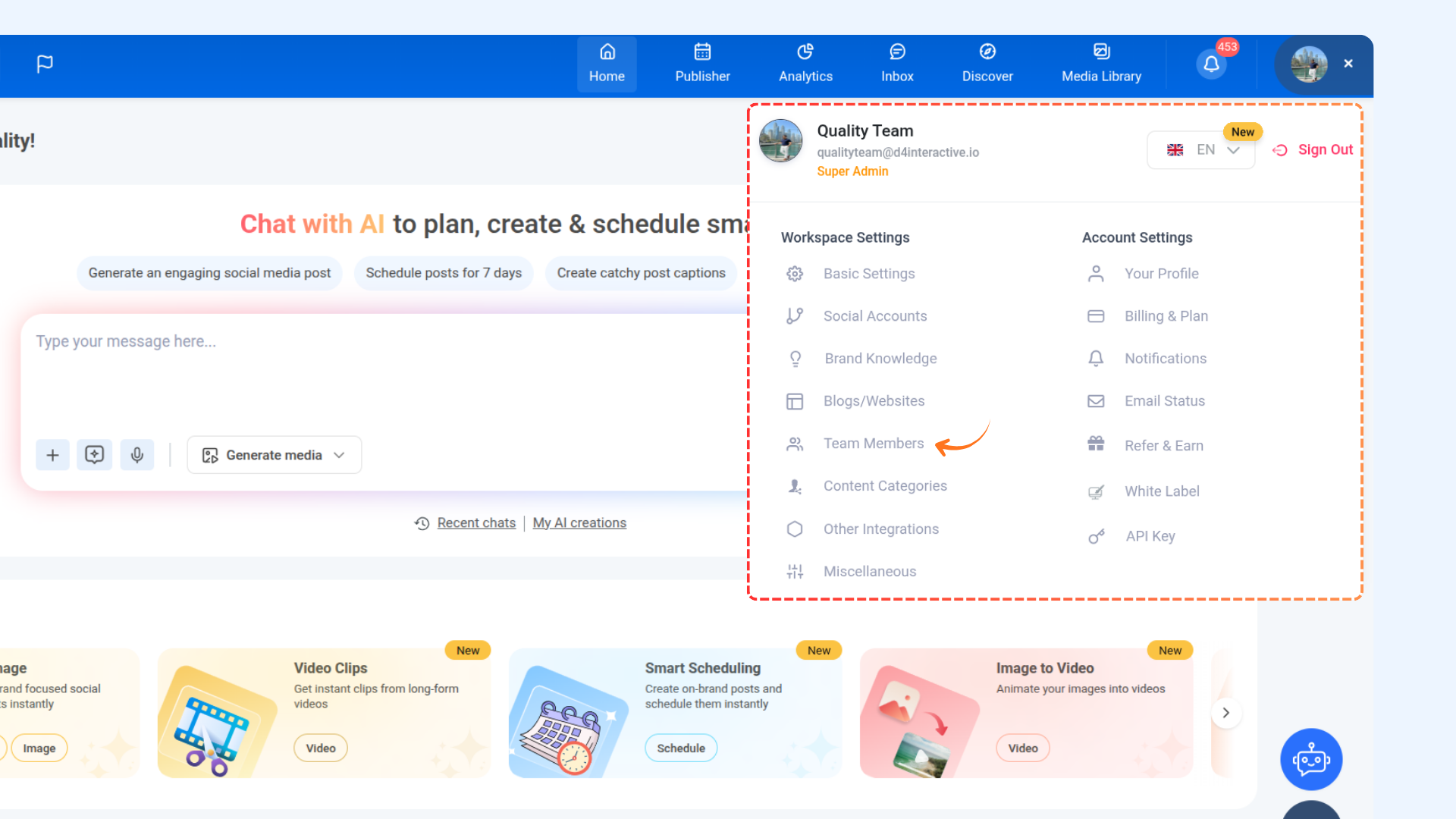
Go to Settings by clicking on your profile.
Click on Team Members.
Click Add New Team Member.
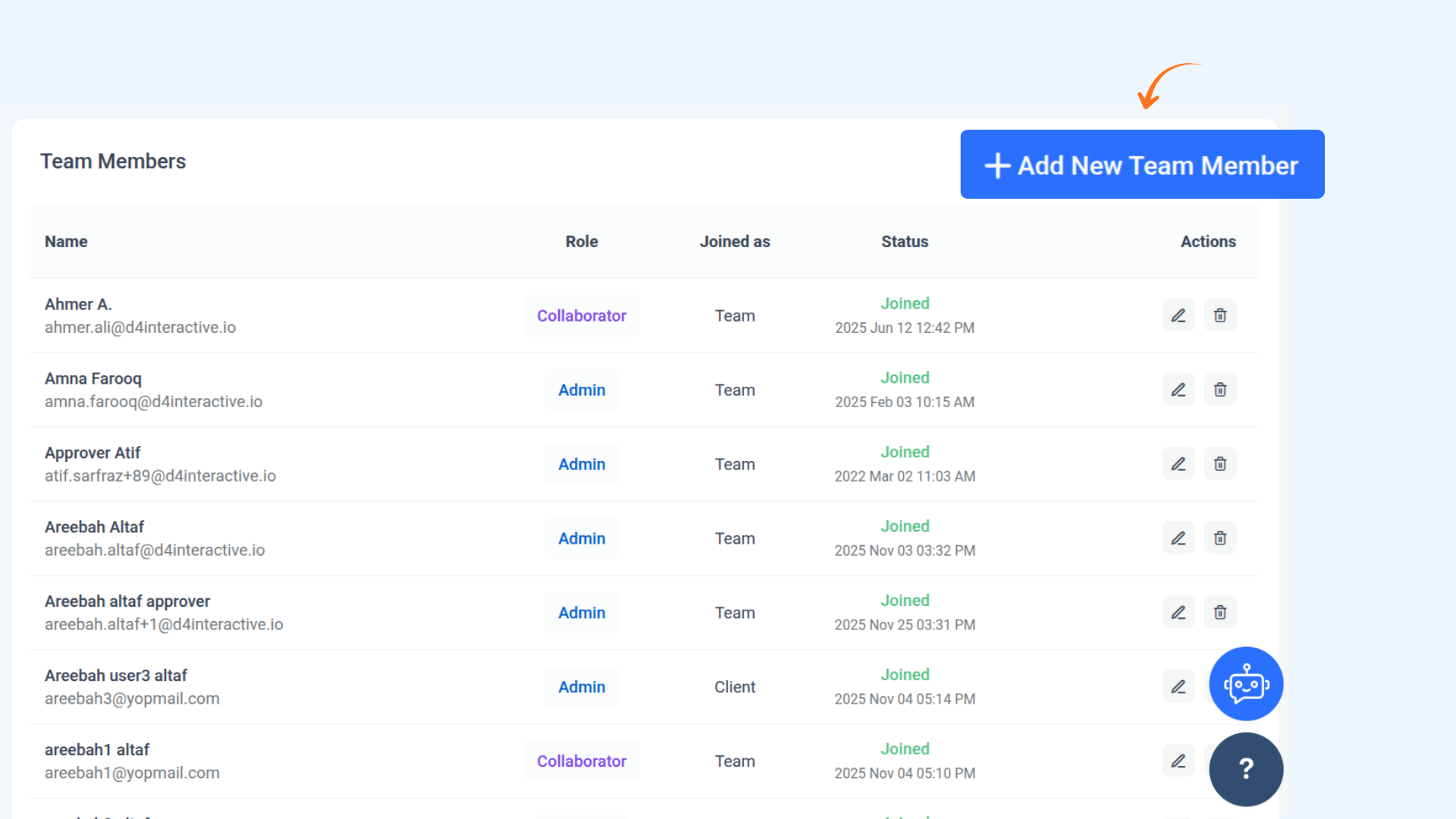
Enter the email address of the team member you want to invite.
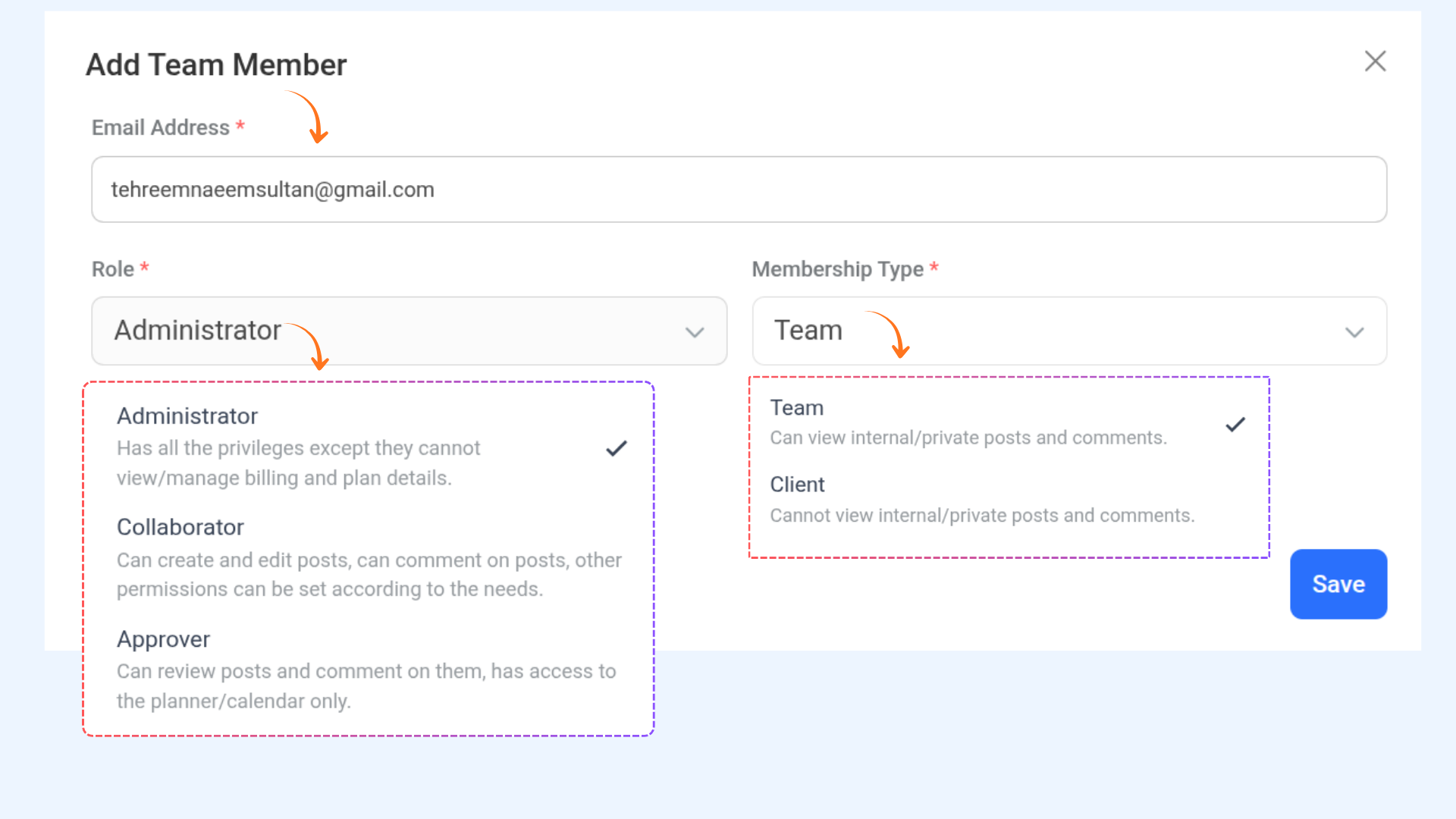
Select the appropriate role and click Send Invite.
Select Administrator as the member role.
When you choose Administrator, select the Membership Type. You can assign the admin as either a Client or a Team member.
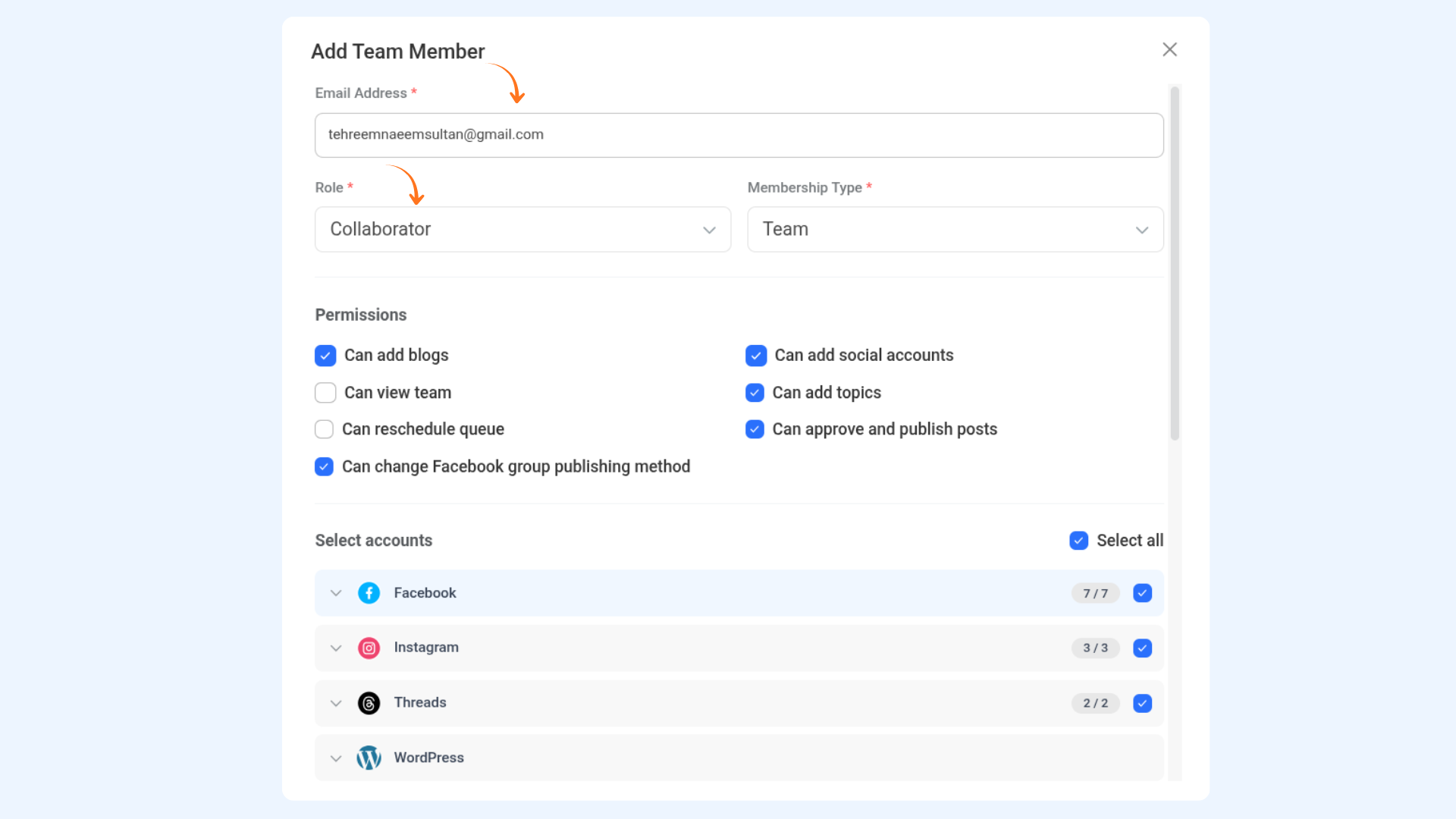
If you select Collaborator, enable the required permission checkboxes and choose the social accounts they can access from the list.
FAQs
Who can add new team members?
Only Admins can add, edit, or remove team members from the workspace.
What is the difference between an Admin and a Collaborator?
Admins have full access to workspace settings, team management, and social accounts. Collaborators can work on assigned content and social accounts based on the permissions you grant.
What does Membership Type mean for Admins?
When assigning the Administrator role, you must choose a Membership Type. Admins can be added as either Client or Team members depending on how you want to manage access.
Can I limit access for Collaborators?
Yes. When adding a Collaborator, you can select specific permissions and choose which social accounts they can access.
Can I change a team member’s role later?
Yes. You can update roles, permissions, or remove access at any time from the Team Members section in Settings.
What happens after I send an invite?
The invited user receives an email invitation. Once accepted, they will appear in your team member list with the assigned role and permissions.
Was this article helpful?