How to Bulk Edit post from the Planner
With this new update, Content Studio lets you edit posts in bulk from the planner.
Note:
- All posts on view and do not have the status of Published, Partially Failed, and Failed posts can be bulk edited.
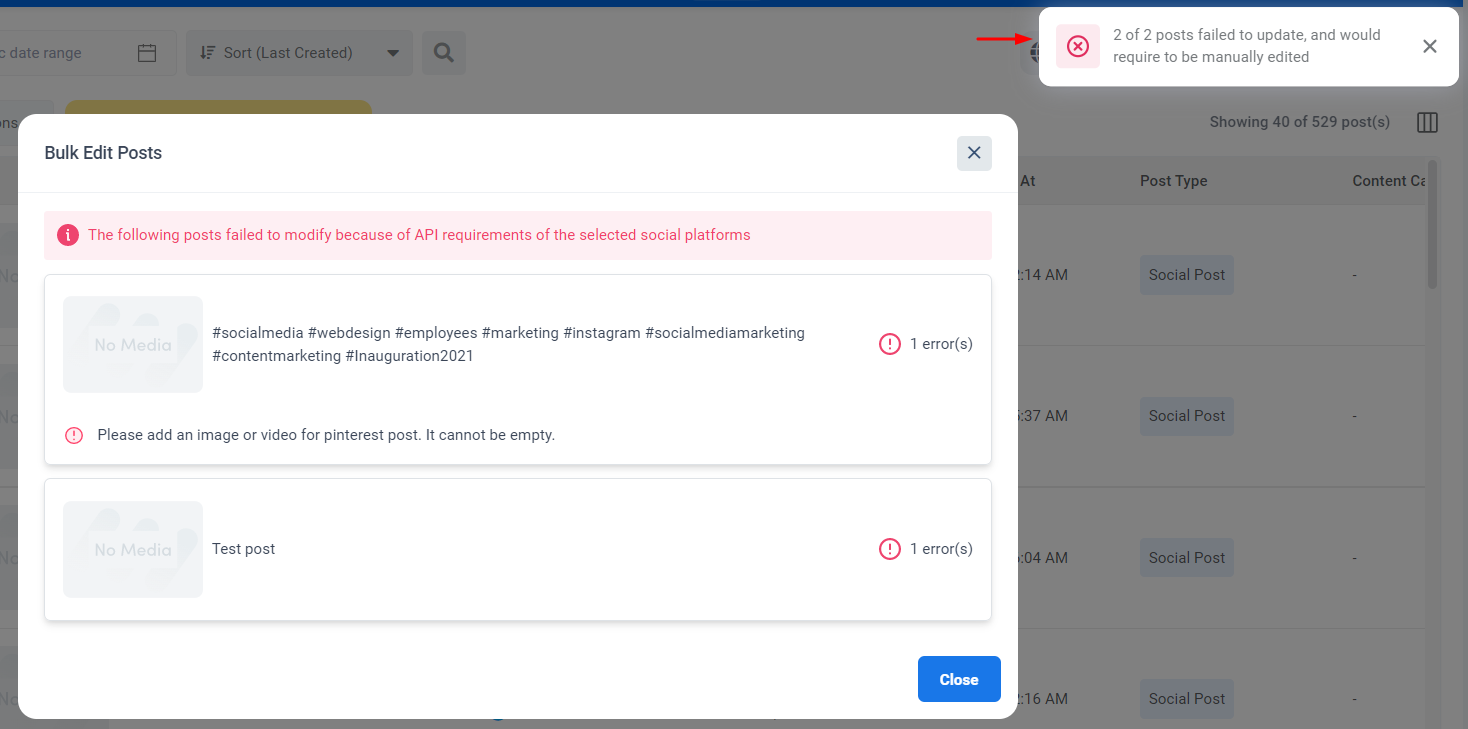
- Depending on the social accounts selected, some posts would be updated right away, while some will fail to update because the post would not meet the requirements for that social platform. For the failure to update posts, we would also show the list of posts and the platform requirements due to which it failed.
- By clicking on the “override” schedule time option, user’s can either set the post to Post Now, Schedule or Draft. This selection would override all previous statuses and make the selected option the preferred execution method.
- The social accounts drop-down would have three states. The social is selected in:
- all posts
- some posts
- none of the posts
Depending on these states, we determine the inclusion/exclusion of the account in the post. Inclusion also depends on the post fulfilling the requirements of the social platform.
1- Go to the Planner and select the posts you want to bulk edit.

2- After this, hover over to the Bulk Actions and click on edit social posts.
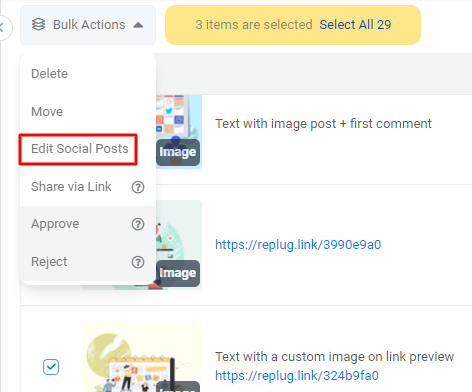
3- A modal will appear that shows:

a- Social accounts
b- Label
c- Campaigns
d- Members
e- Posting Schedule
(3a)- Click on the social accounts drop-down button.
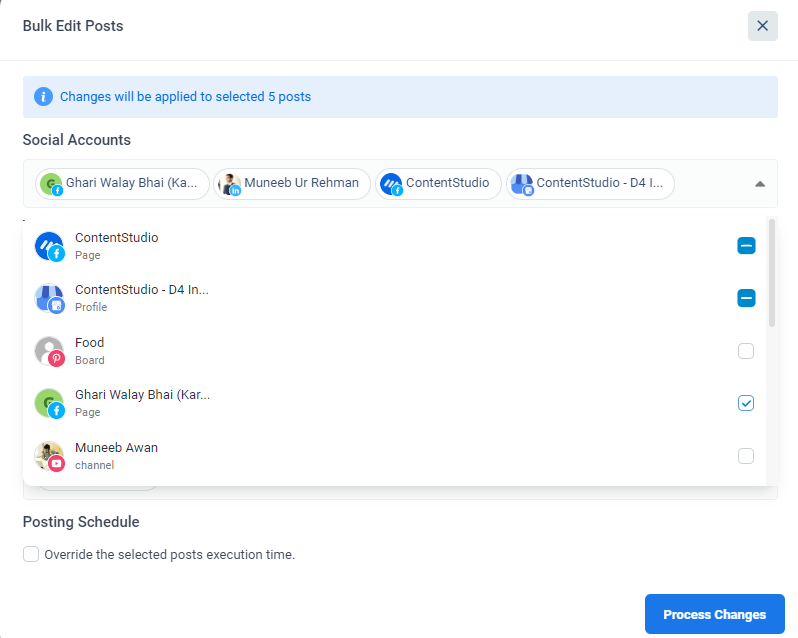
- The tick box shows the social account that is standard in all posts.

- The box with the dash shows the social accounts selected in some posts.

- The hollow box shows the social accounts that are not in any post.


-You can select or unselect any social media channels if you want to add or remove them.
(3b)- The next step is to set your labels. You can also add more than one label.

(3c)- Once this is done, you can change your campaign; but only one campaign may be selected.
 (3d)- You can also add multiple team members.
(3e)- By clicking on the “override” schedule time option, you can either set the post to Post Now, Schedule or Draft. This selection would override all previous statuses and make the selected option the preferred execution method.

4- Once you have made your changes, click on the Process changes button
5- A notification will appear showing whether your posts are successfully updated or not.
Case 1: For instance, if you edited two posts and clicked on the process changes button, and both failed (due to API requirements)
Case 2: If you edit five posts, four will be updated successfully, and one will not due to API requirements; you need to go back to the planner and manually edit them.

Case 3: Once all of your posts have been successfully updated.