

How to design a post through Canva?
Seamlessly integrate Canva with ContentStudio Composer to design eye-catching social media graphics without ever leaving the platform! Whether you’re a pro designer or a beginner, Canva’s vast library of templates, fonts, and design elements makes it easy to create stunning visuals.
With this integration, you can:
Design logos, banners, infographics, newsletters, and more
Create GIFs and videos for dynamic content
Customize images with your brand colors and fonts
Share and schedule directly from ContentStudio
No design skills? No problem! 🎨 Start creating with Canva and take your content to the next level.
In this article:
Step-by-step process
Access Canva in the Composer:
In the ContentStudio Composer, click the Canva button located next to the Upload button to start designing.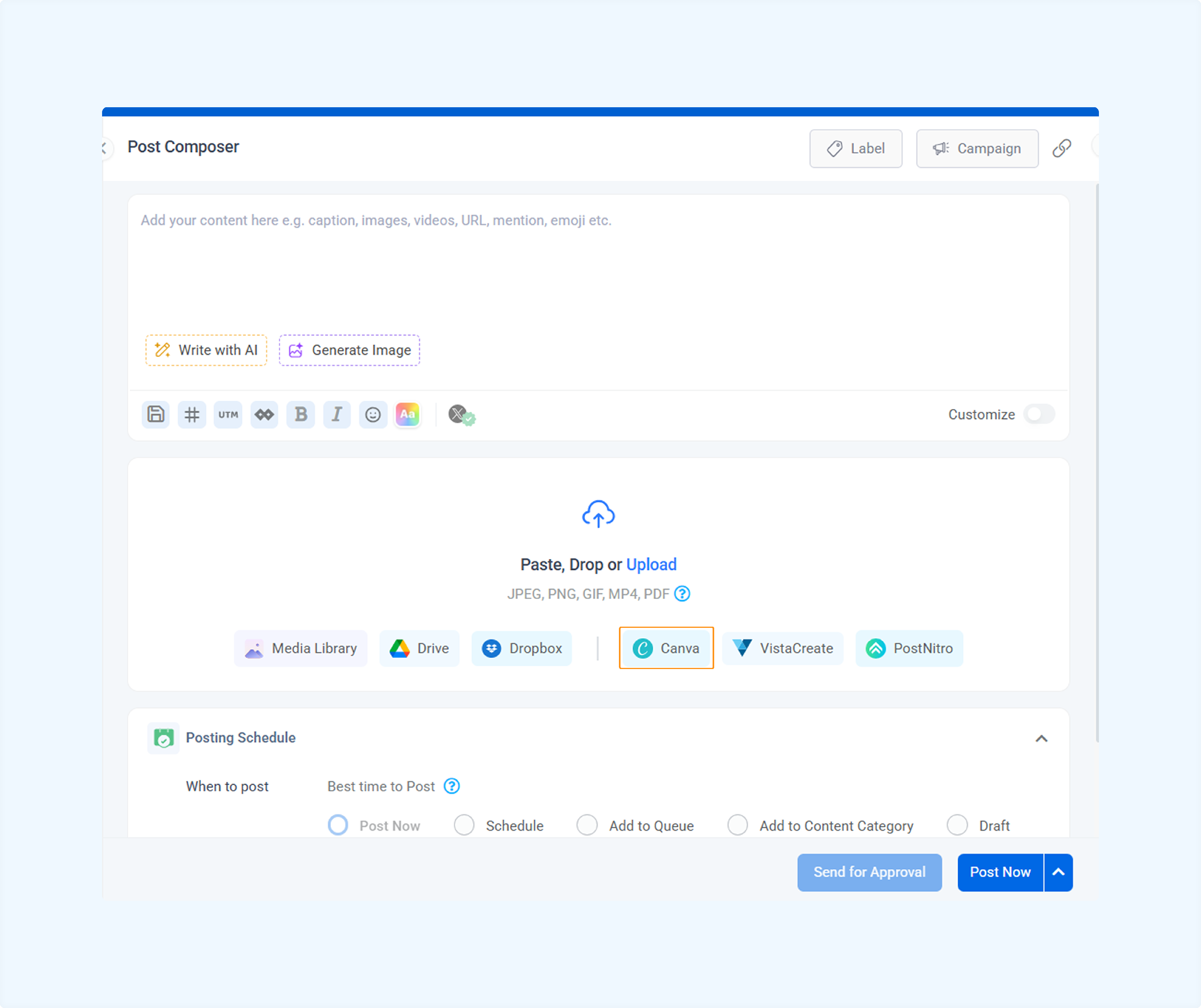
Select a Design Type:
Choose the social media platform or design type for your post, such as Instagram, Facebook, or a custom size.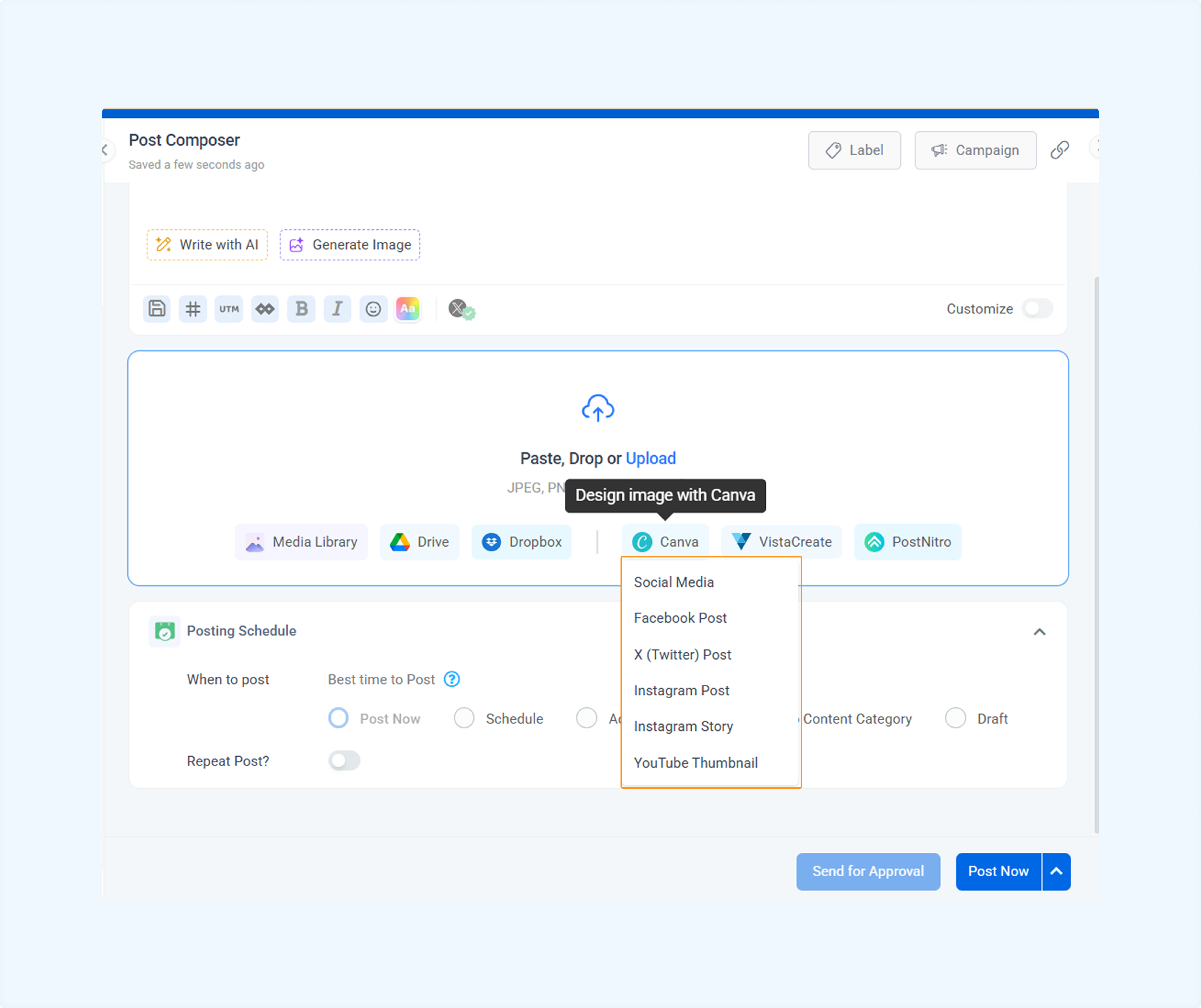
Log in to Canva:
You’ll be redirected to Canva, where you need to log into your Canva account to access the design editor.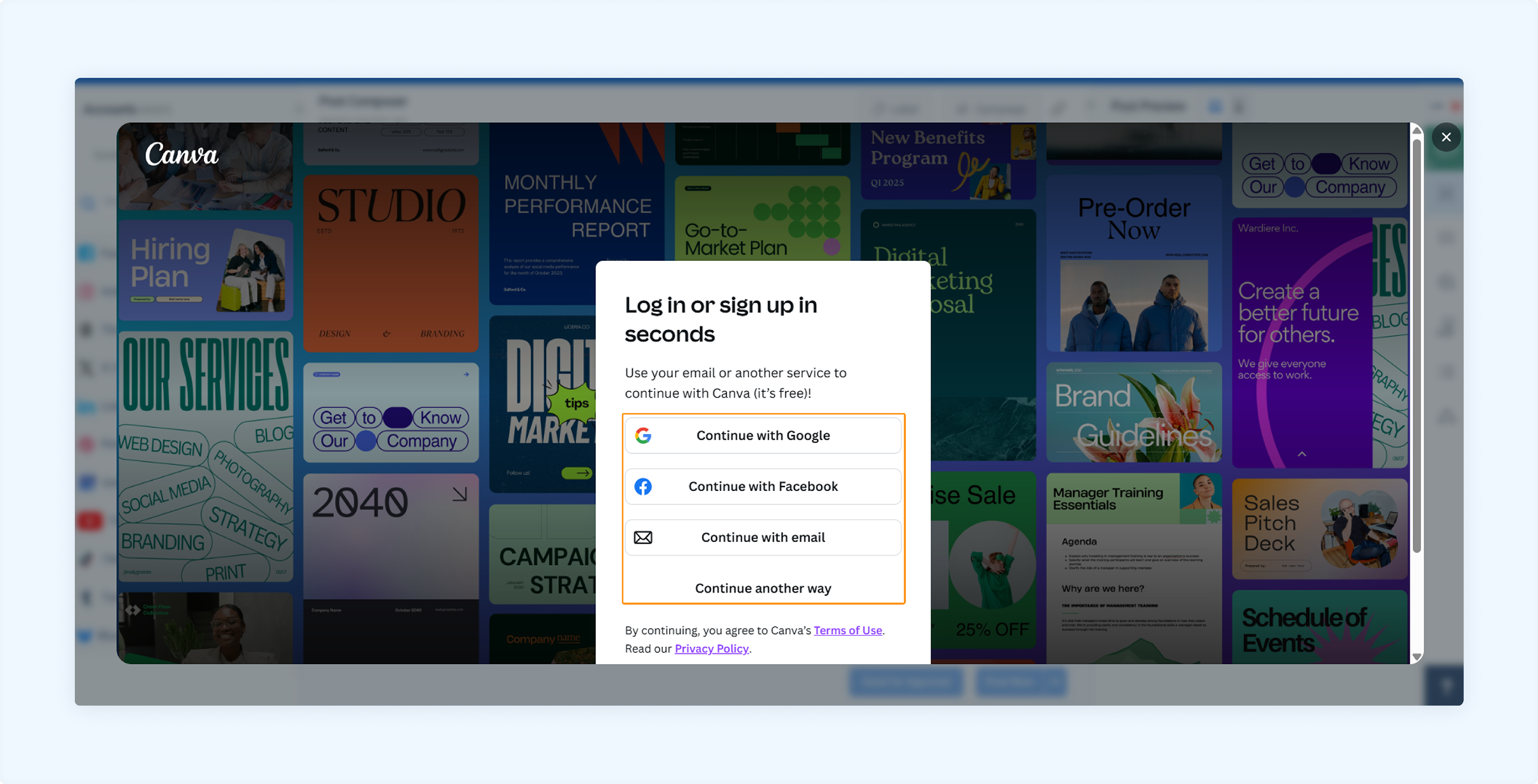
Create your post:
Design your post in Canva as desired. Once ready, you can publish it directly to ContentStudio.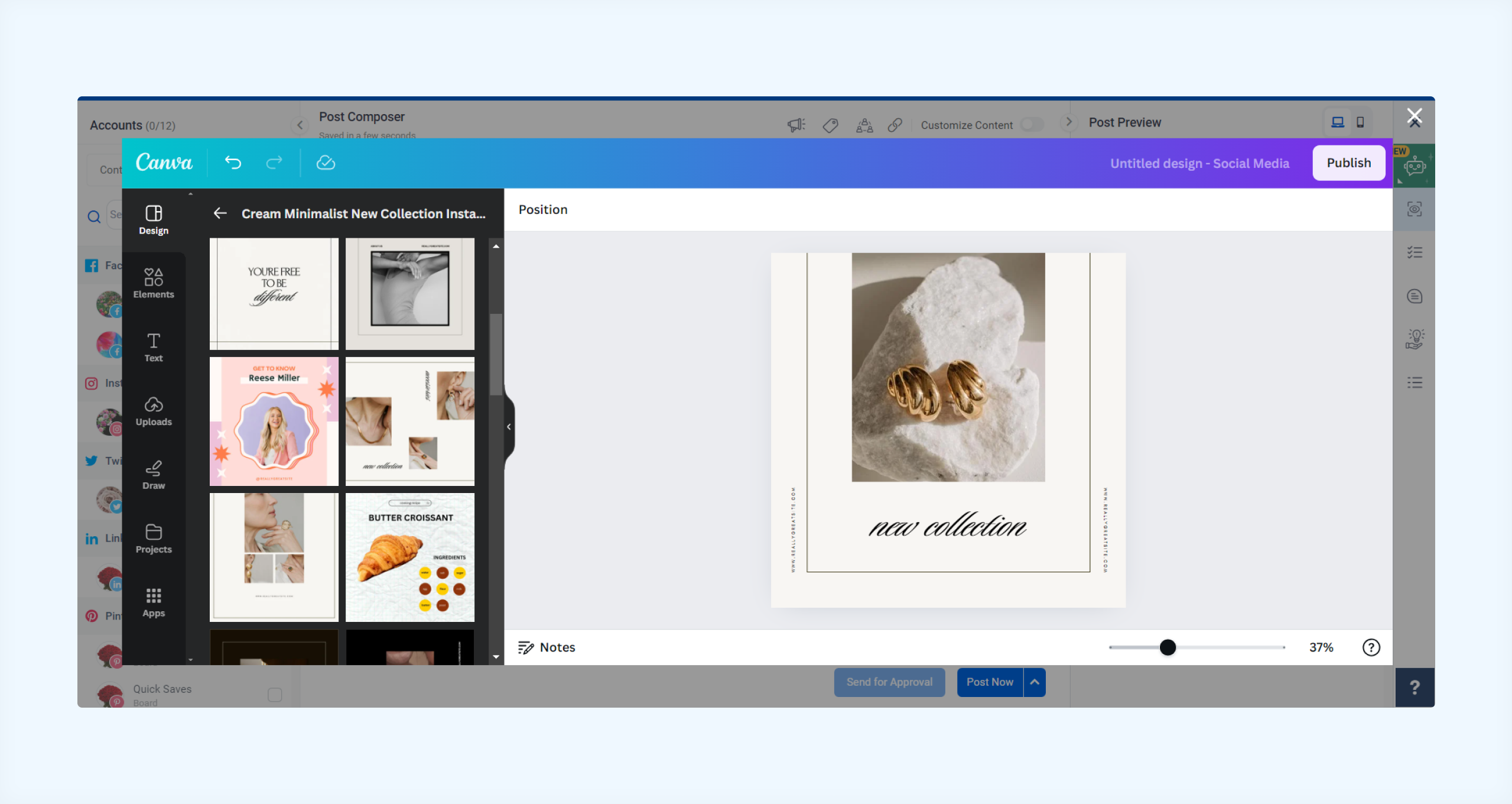
FAQs
Q1: Can I collaborate with my team on Canva designs within ContentStudio?
A: The integration allows you to design and insert images individually. You need to use Canva’s shared folders and team features directly in Canva for team collaboration.
Q2: Can I import my existing Canva designs into ContentStudio?
A: Currently, you cannot directly import previously created designs. However, you can open Canva in a separate tab, download your design, and manually upload it to ContentStudio.
Q3: Does this integration work on mobile devices?
A: Yes! You can access the Canva integration on desktop and mobile browsers using ContentStudio’s web platform. However, the experience may be smoother on a desktop.
Let me know if you need any more edits! 😊
Was this article helpful?