

Manage failed posts in Planner
Sometimes, scheduled posts may fail to publish for various reasons, such as expired tokens, missing media, or platform restrictions. To help you stay on top of your content, ContentStudio logs all failed posts so you can quickly review, edit, and reschedule them.
This guide will walk you through locating and managing failed posts in the Planner, ensuring your content stays on track. 🚀
In this article:
How to manage a failed post
Open Planner
Go to Publisher from Home screen.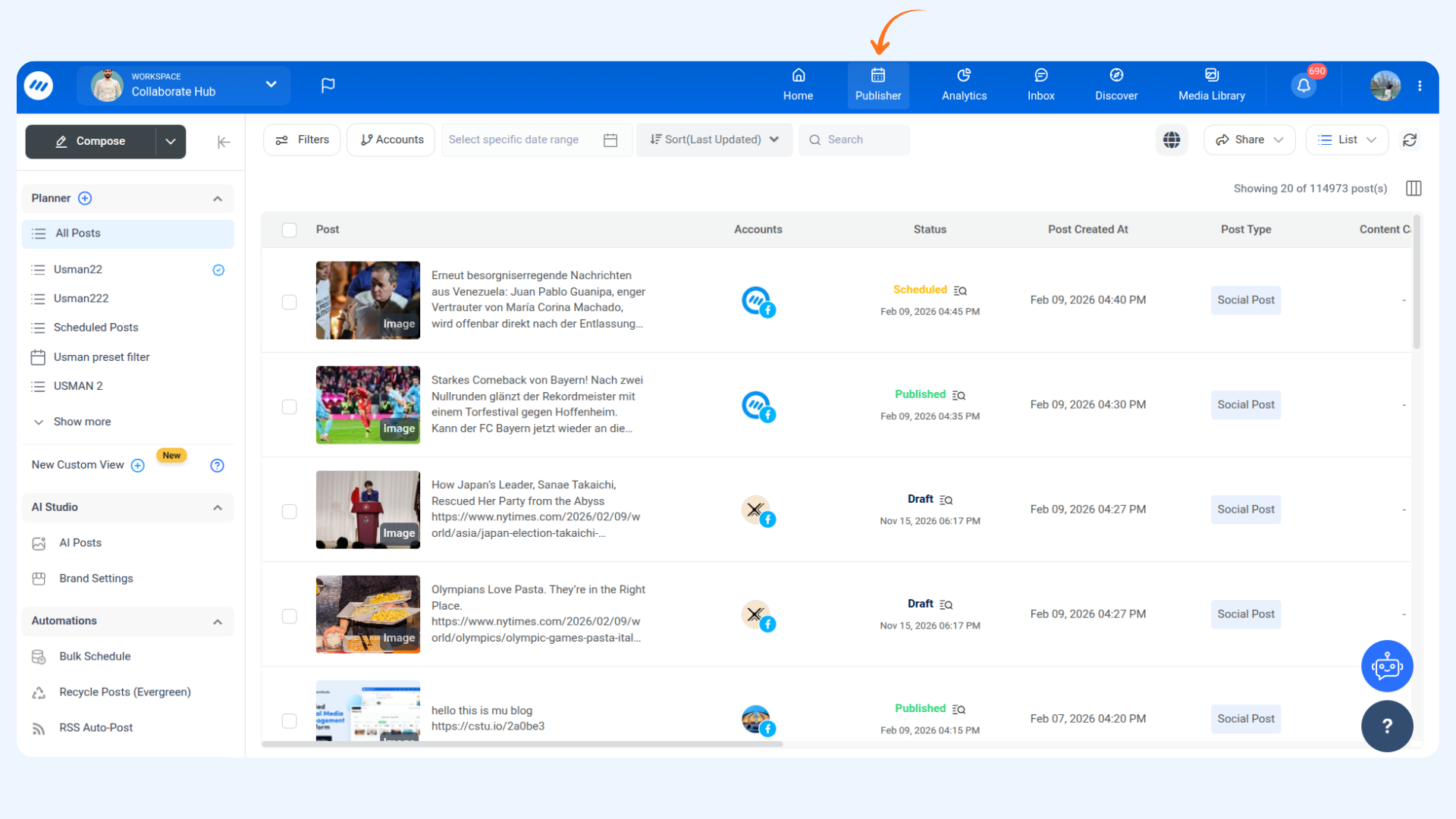
Filter failed posts
Use the Status filter and select Failed to view posts that were not published.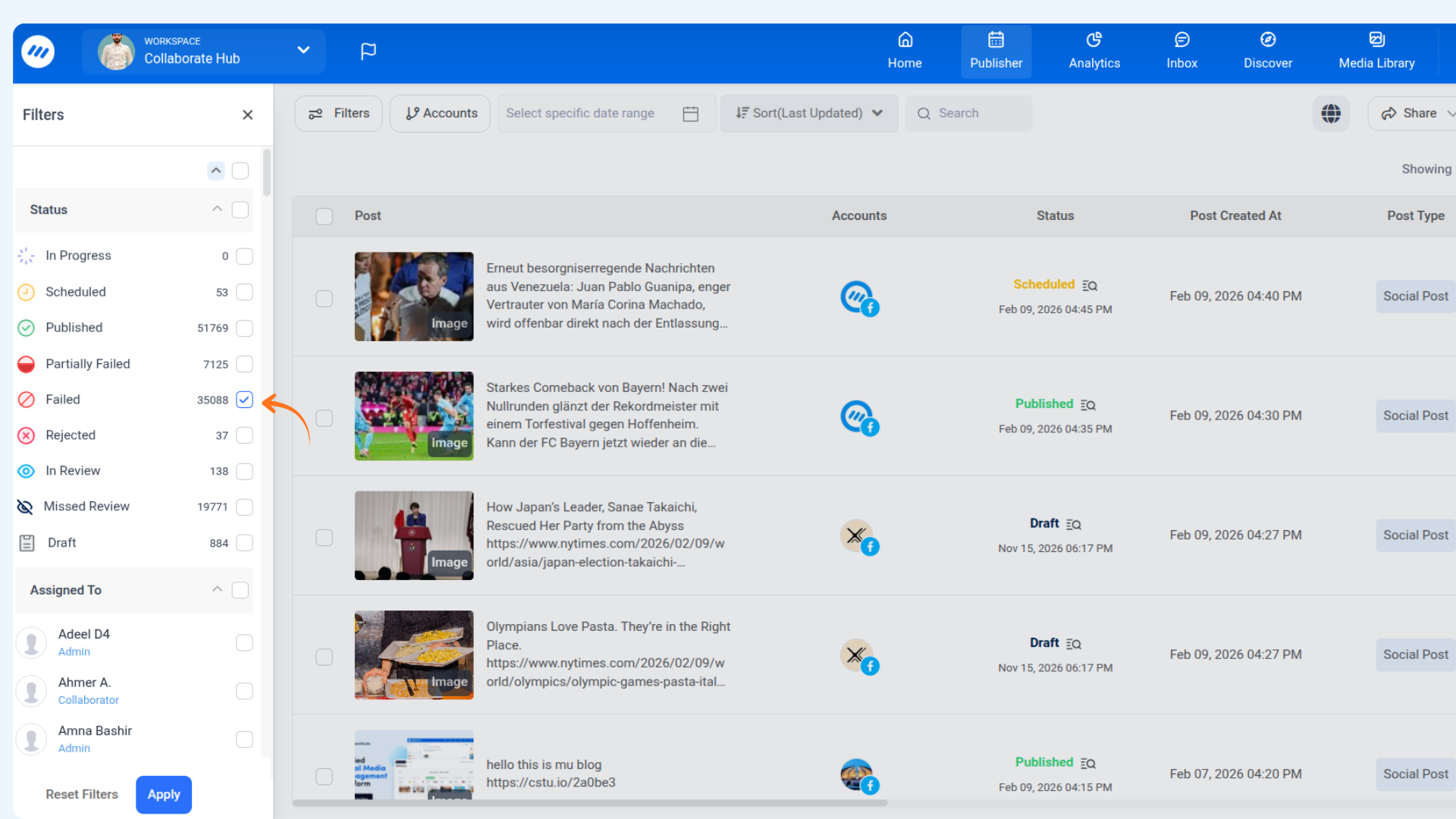
View failure reason
Click on a failed post to see the reason it wasn’t published.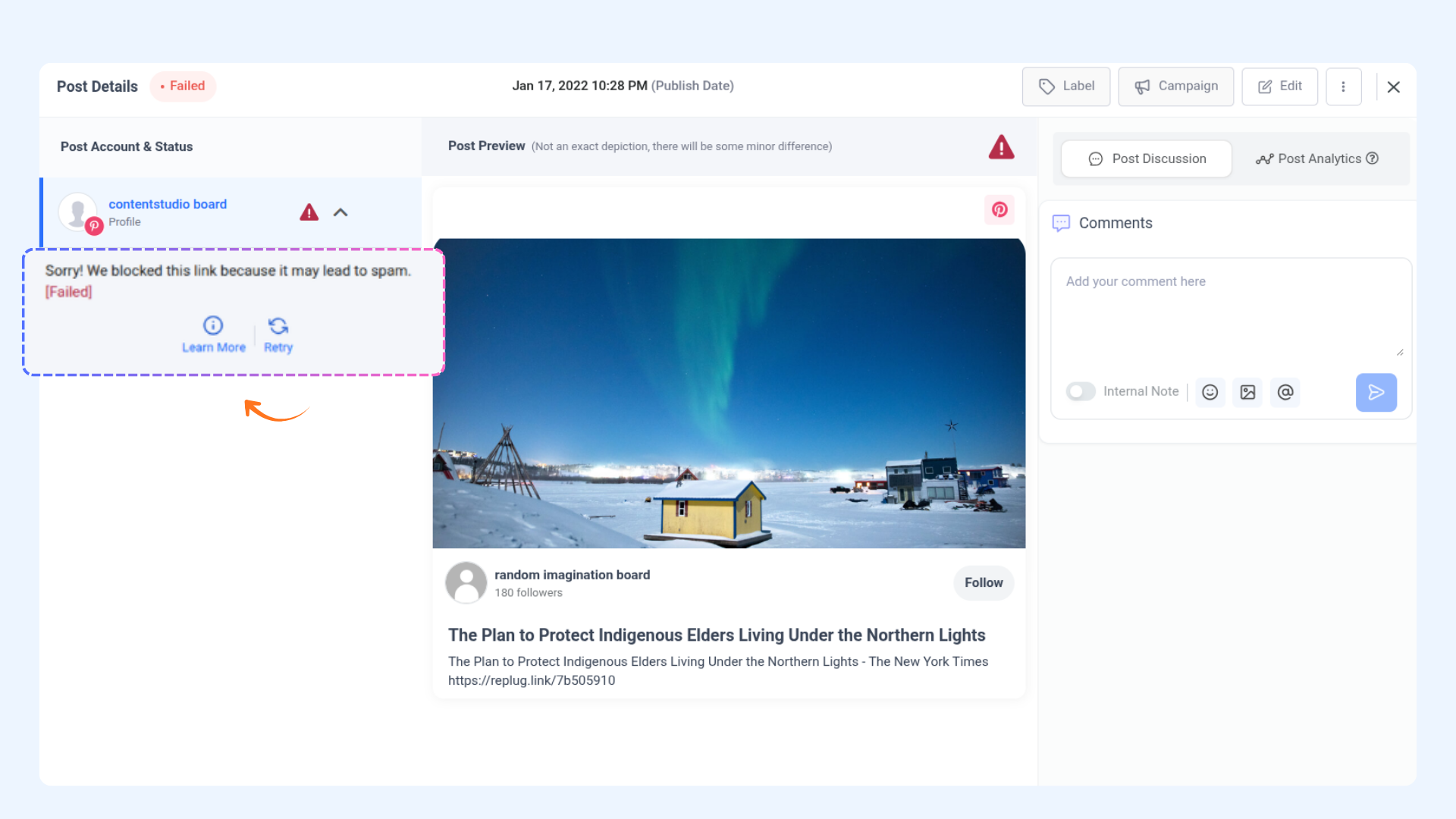
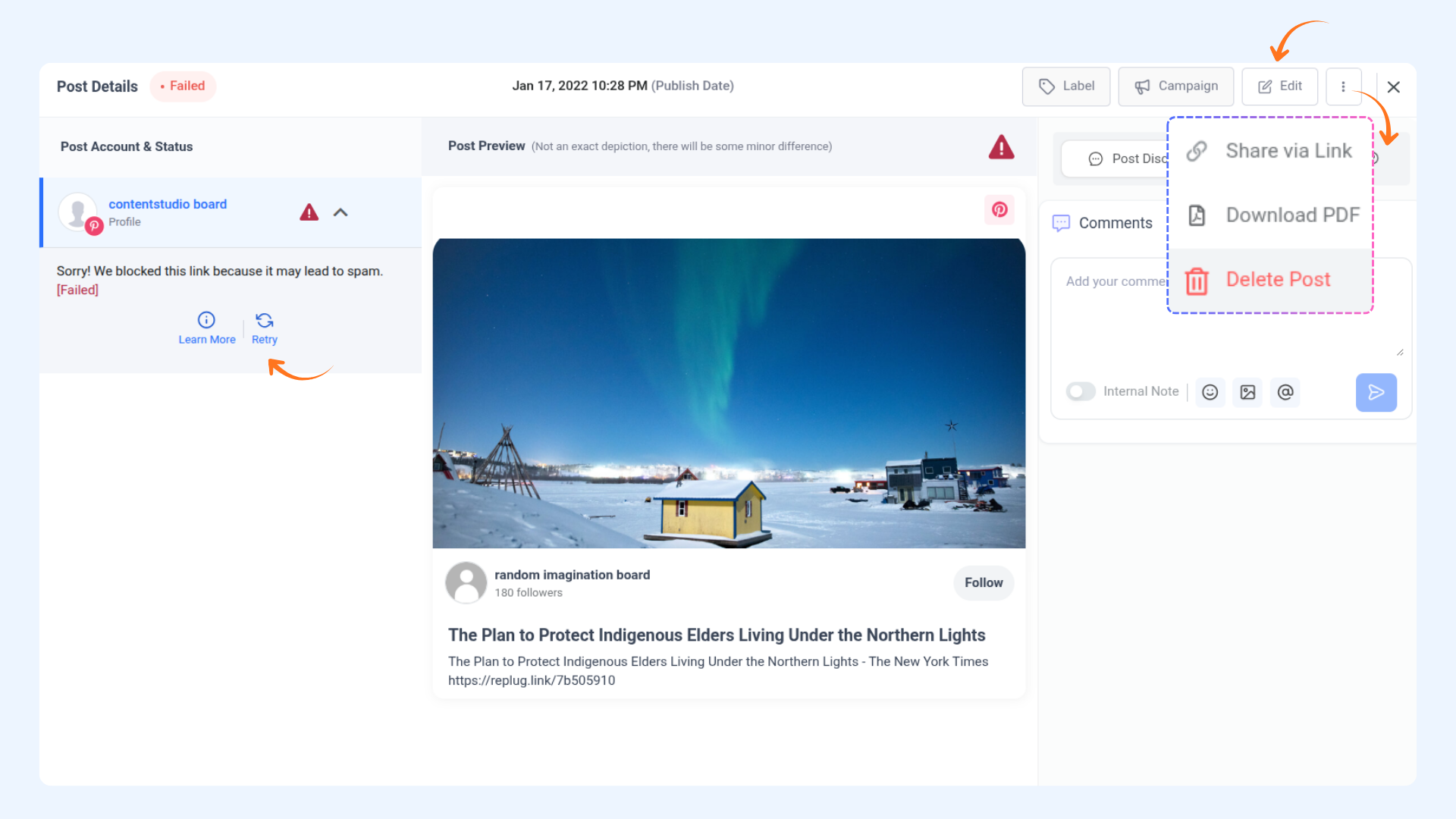
Choose an action
You can manage a failed post using one of the following options:Retry 🔄 – Republish the post if the failure was caused by a temporary issue (for example, an expired token or platform error). Make sure any required fixes, such as reconnecting the account, are completed before retrying.
Edit ✏️ – Modify the post content if the failure was due to an issue like an invalid link, missing media, or policy violation. After editing, you can attempt to publish again.
Delete 🗑️ – Remove the post from the Planner if it is no longer needed. This action cannot be undone.
FAQs
Q1: Will retrying a post create a duplicate if the original post was actually published?
A: No, if a post was successfully published despite showing a failure message, the Retry option won’t create a duplicate. However, it's always best to check the platform manually before retrying.
Q2: If I fix my account connection issue, will failed posts publish automatically?
No, reconnecting your account does not automatically retry failed posts. You need to manually Retry or Edit and reschedule them.
Q3: Can I make changes before retrying a failed post?
Yes! Use the Edit option to modify the content, change media, or fix any issues before rescheduling the post.
Was this article helpful?