

Public Webhooks in ContentStudio
Stop refreshing dashboards and checking post statuses manually. ContentStudio's Public Webhooks let your tools react to what is happening in your account the moment it happens. Whether a post just got approved, failed to publish, or received a comment, webhooks push that information to any URL you choose in real time, with zero polling required.
What Are Webhooks?
A webhook is an automated HTTP POST request that ContentStudio sends to a URL you specify whenever a particular event occurs. Think of it as a notification system for machines. Instead of your application repeatedly asking ContentStudio "did anything happen?", ContentStudio tells your application the instant something does.
Each time a subscribed event fires (for example, a post gets approved), ContentStudio sends a signed payload to your endpoint containing the event details. Your server, Zapier zap, Make scenario, or any other receiver can then take action: log it, trigger a workflow, send a Slack message, update a spreadsheet, or anything else you build.
How to Set Up a Webhook
Step 1: Navigate to the Webhooks Page
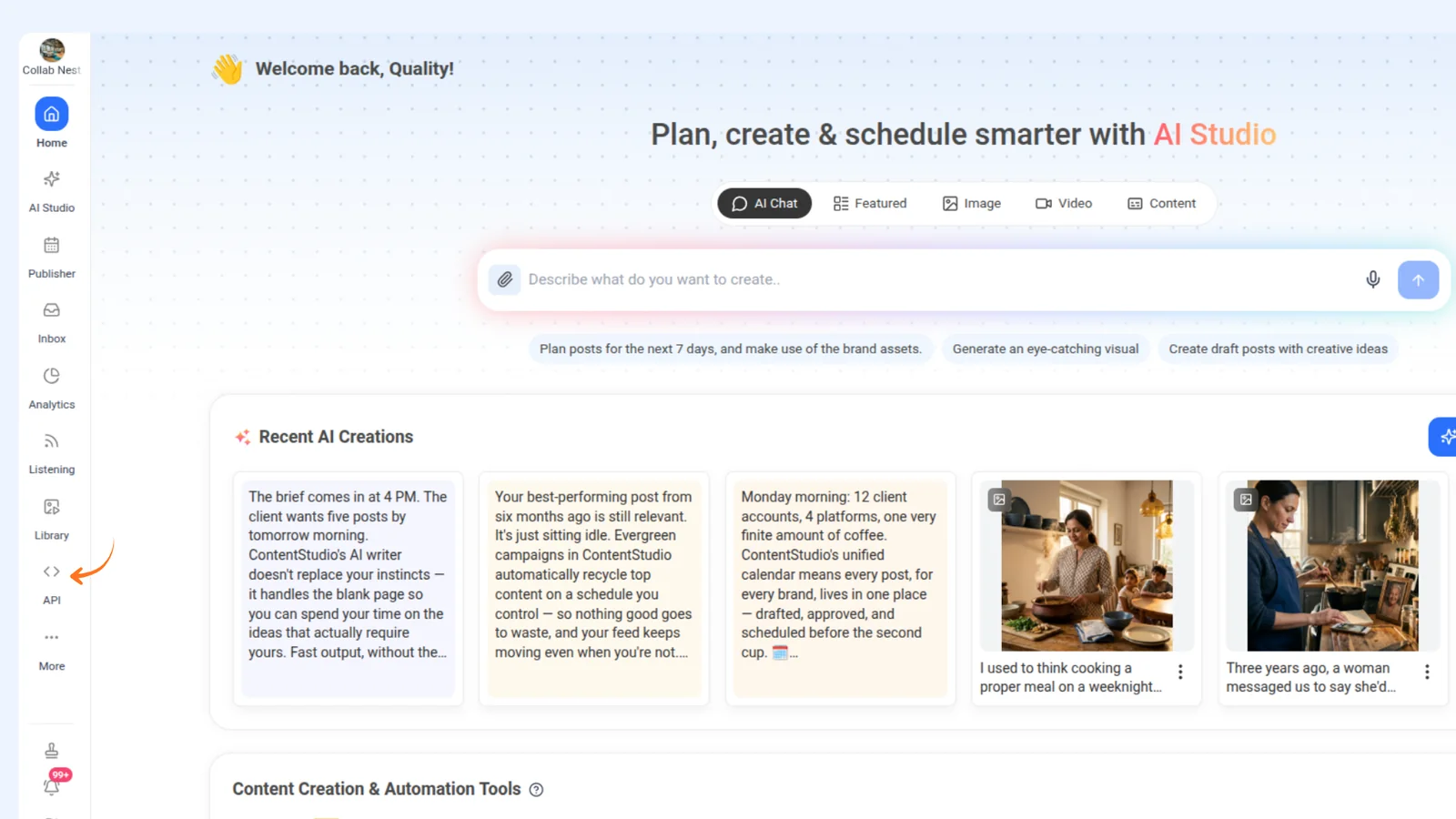
In the left sidebar, click API.
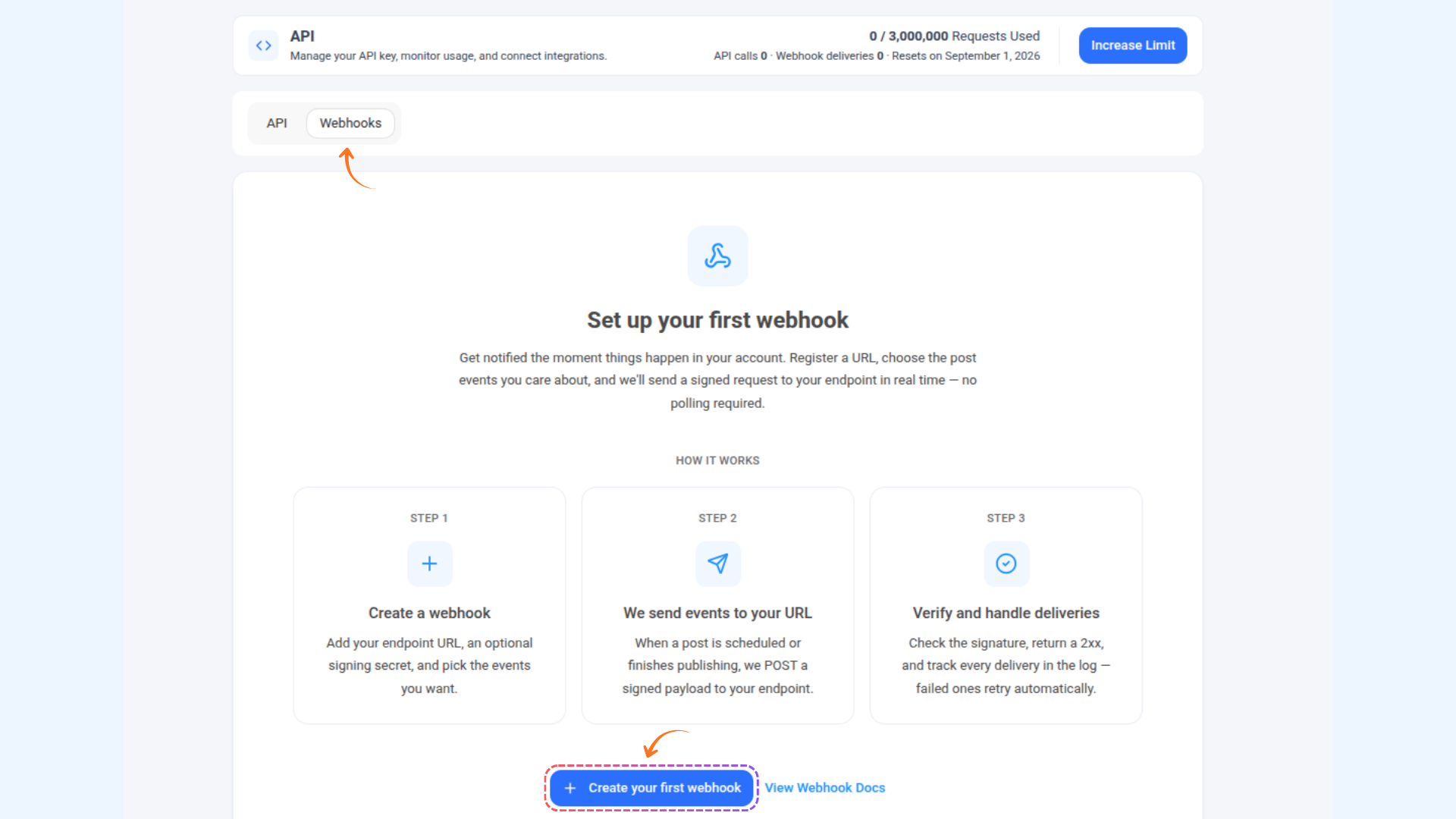
At the top of the page, switch to the Webhooks tab.
Click + Add webhook (or Create your first webhook if this is your first one).
Step 2: Configure the Webhook
In the Name field, enter a descriptive label (e.g.,
zapier).In the Payload URL field, paste your Zapier webhook URL (e.g.,
https://hooks.zapier.com/hooks/catch/...).
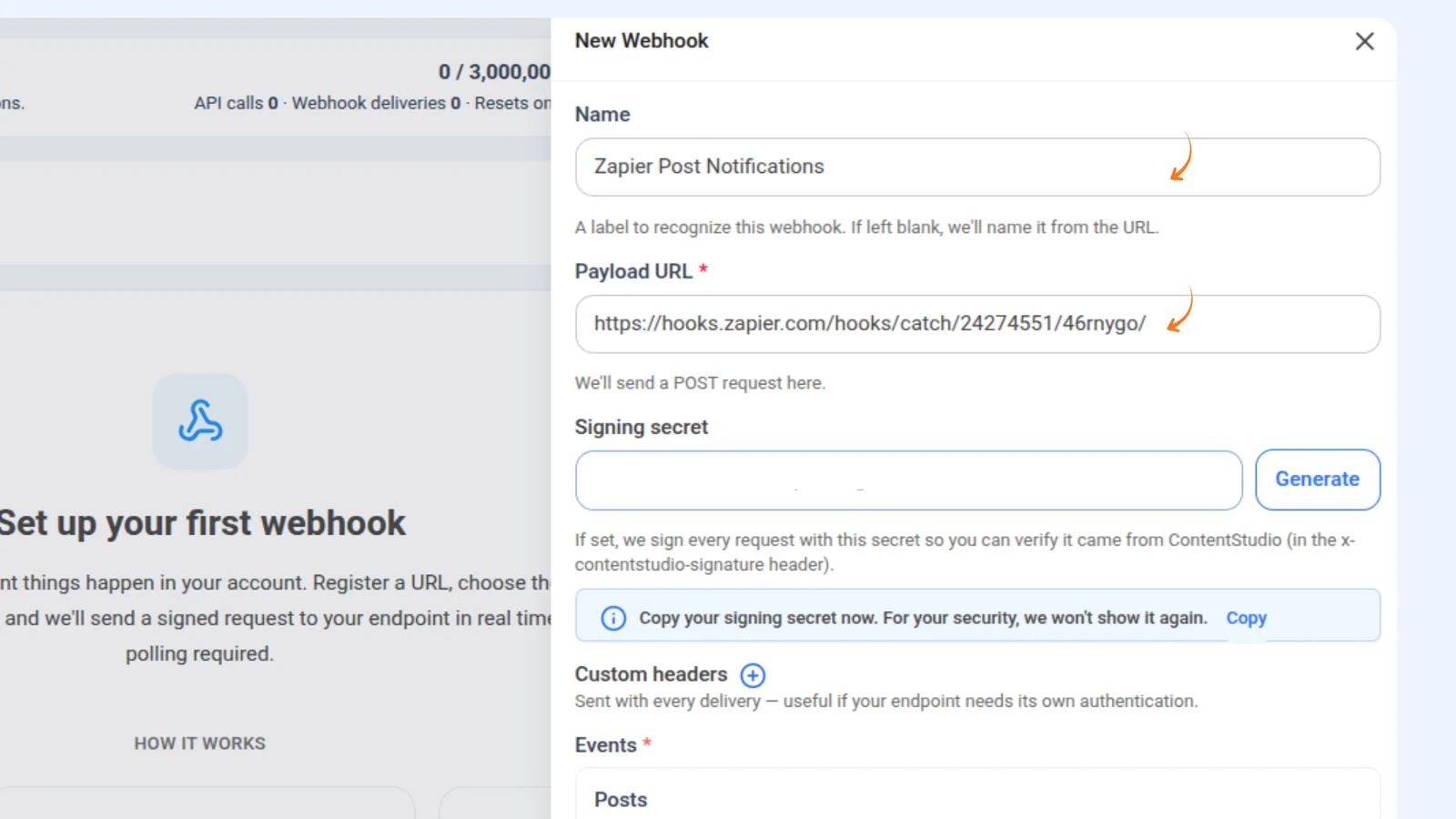
Click Generate next to Signing Secret to create a secret key. Copy and save it immediately as it will not be shown again.
(Optional) Click the + icon next to Custom headers to add any extra key-value headers your endpoint requires.
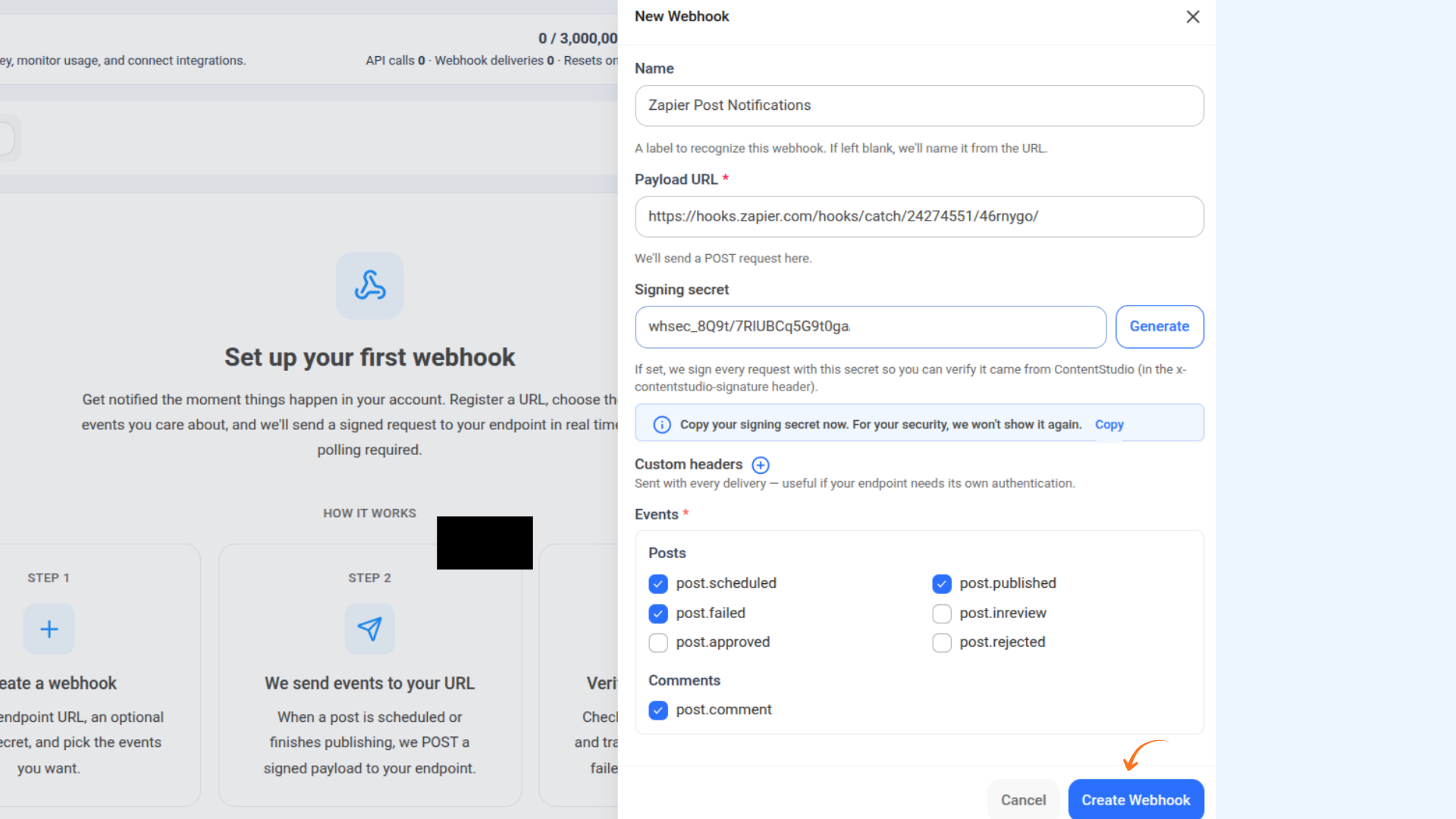
Under Events, check the boxes for the events you want to subscribe to (e.g.,
post.approved,post.rejected, andpost.comment).Click Create Webhook.
Step 3: Manage Your Webhook
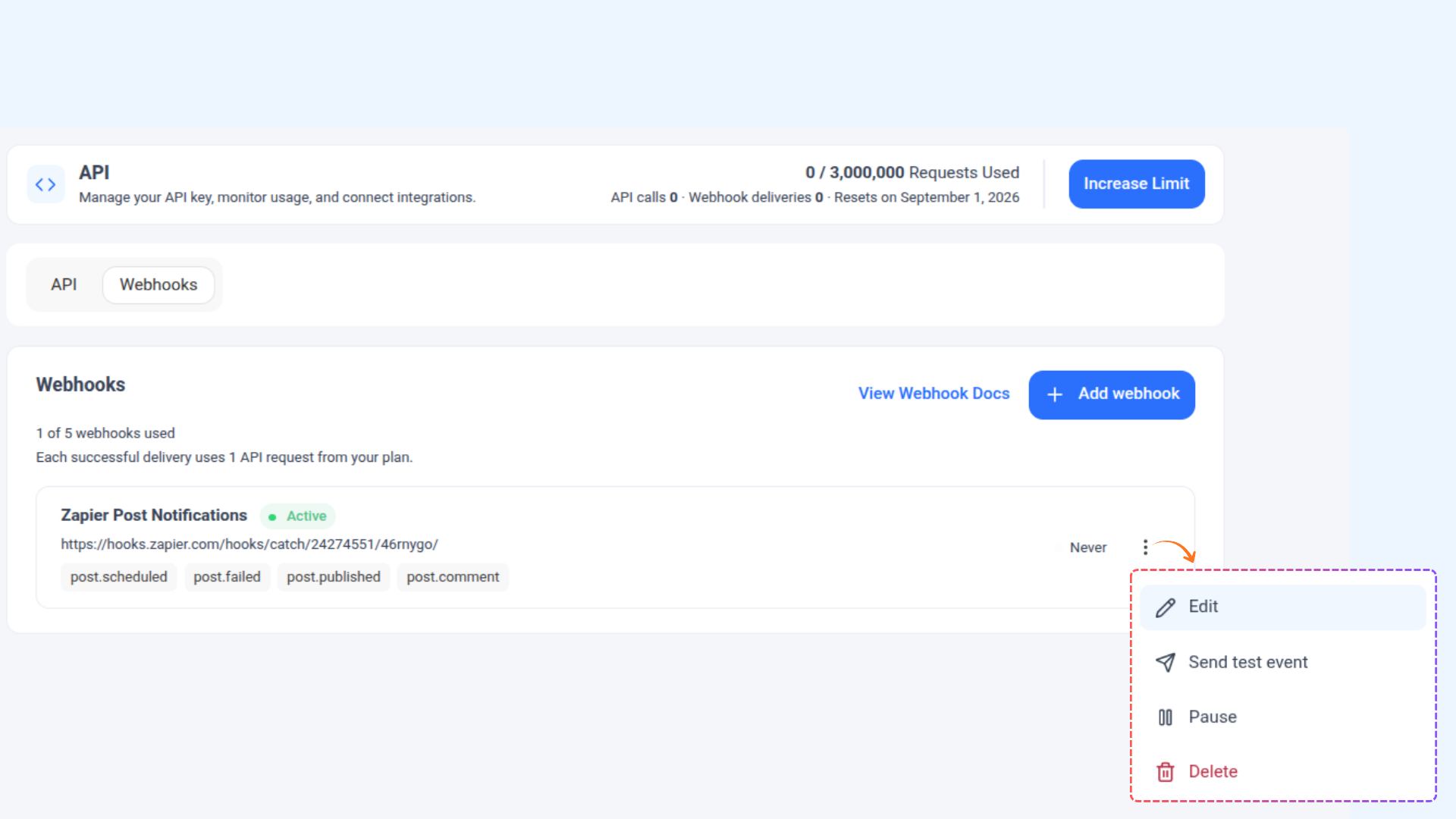
On the Webhooks page, find the webhook you want to manage.
Click the three-dot menu (⋮) on the right side of the webhook row.
Select Edit to modify settings, Send test event to verify your endpoint, Pause to temporarily disable, or Delete to remove the webhook.
Step 4: Monitor Delivery Logs
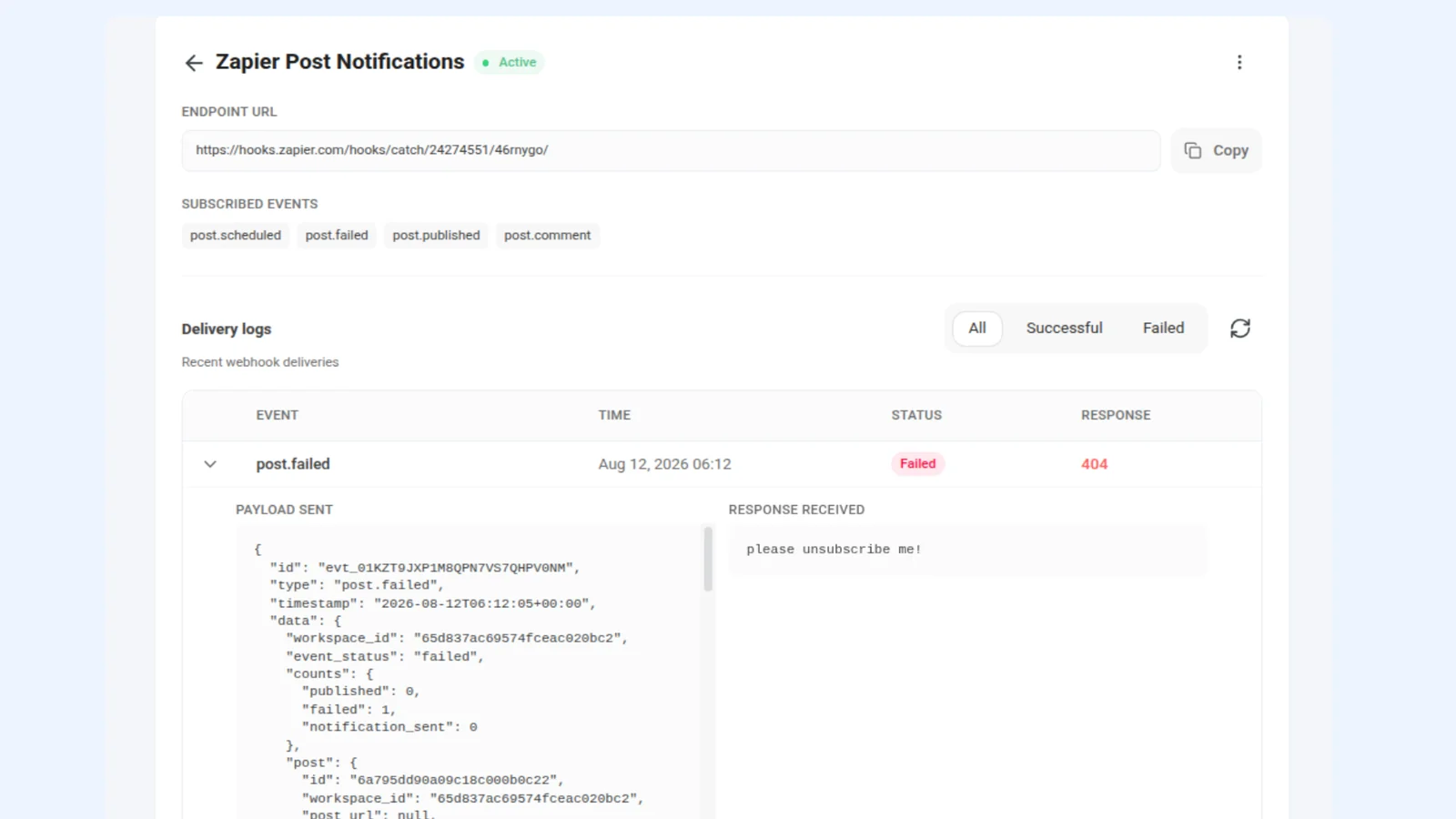
On the Webhooks page, click on the webhook you want to inspect. This opens the detail view.
Scroll down to the Delivery logs section. Use the All, Successful, or Failed tabs to filter deliveries. Click the ↻ button to refresh the logs.
Click the dropdown arrow (⌄) next to any delivery to expand it. This reveals the Payload Sent (the JSON ContentStudio delivered) and the Response Received (what your endpoint returned).
Step 5: API Limits and Billing
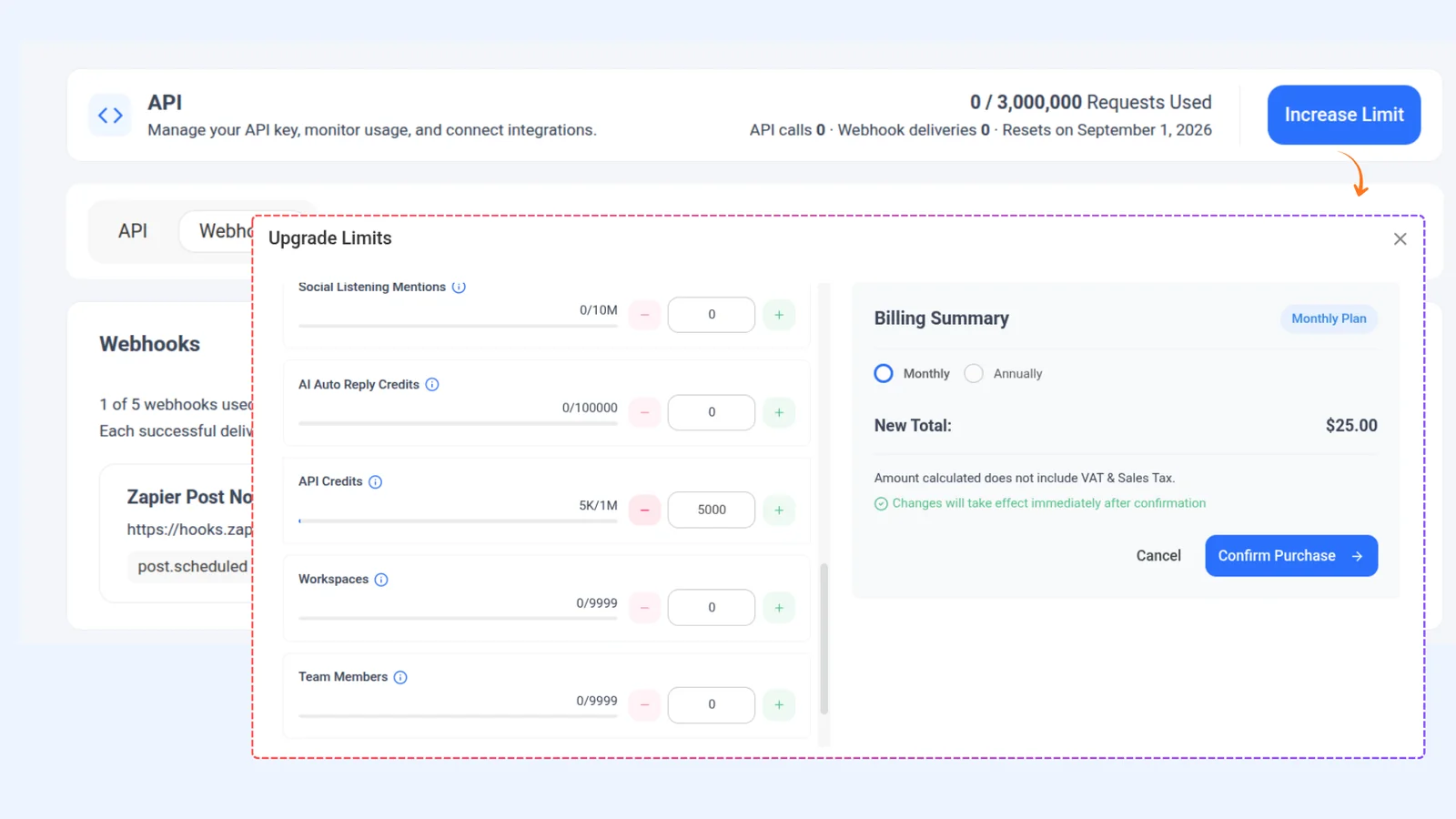
At the top of the API page, review your current usage under Requests Used.
If you need more capacity, click the Increase Limit button in the top-right corner.
In the Upgrade Limits dialog, adjust the API Credits slider, choose Monthly or Annually, and click Confirm Purchase.
FAQs
What is the difference between a webhook and the ContentStudio API?
The API lets you pull data from ContentStudio on demand. You send a request and get a response. Webhooks work in the opposite direction: ContentStudio pushes data to you when something happens. They are complementary. Use the API when you need to fetch data or perform actions, and use webhooks when you want to be notified about events automatically.
Do webhooks and API calls share the same usage limit?
Yes. Both draw from the same pool of API requests in your plan. Each successful webhook delivery uses 1 request from your quota. You can check your current usage at the top of the API page.
How many webhooks can I create?
You can create up to 5 webhooks per account.
What happens if my endpoint is down when a webhook fires?
If the delivery fails (your endpoint does not return a 2xx response), the delivery is marked as failed. You can monitor failed deliveries from the Webhooks page. It is recommended to use the "Send test event" option to verify your endpoint is working before relying on it.
Can I subscribe to the same event on multiple webhooks?
Yes. Multiple webhooks can listen for the same event. Each one will receive its own delivery independently.
What does the signing secret do?
When you generate a signing secret, ContentStudio uses it to create an HMAC signature of each payload. This signature is included in the x-contentstudio-signature header of every delivery. Your endpoint can recalculate the signature using the same secret and compare it to verify the request is authentic and has not been tampered with.
I forgot to copy my signing secret. What do I do?
The signing secret is only shown once, right after you generate it. If you missed it, you will need to edit the webhook and generate a new one. Keep in mind that the old secret will stop working immediately, so update your endpoint accordingly.
Can I temporarily disable a webhook without deleting it?
Yes. Click the three-dot menu next to your webhook and select "Pause." This stops all deliveries until you resume it. Your configuration and event selections are preserved.
Are webhooks available for events outside of posts and comments?
Currently, webhooks support post lifecycle events (post.scheduled , post.published , post.failed , post.inreview , post.approved , post.rejected ) and comment events (post.comment ). Support for additional event types may be added in the future.
What format is the webhook payload?
ContentStudio sends webhook payloads as JSON via HTTP POST to your specified URL. The payload includes the event type and relevant data about the post or comment that triggered the event.
Was this article helpful?