

Telegram Integration in ContentStudio
🎉 Telegram is now supported in ContentStudio! You can connect your Telegram channels and groups, publish posts directly from Composer, schedule them, add them to a queue, and manage everything from one place — just like you do with your other social accounts. Here's everything you need to get started.
In this Article:
Prerequisites for Connecting Telegram
Before you connect Telegram in ContentStudio, you need to create a Telegram bot and make it an admin of your channel or group. This is a one-time setup and only takes a few minutes.
Open Telegram and search for @BotFather
In Telegram, tap the search icon and look for
@BotFather. This is Telegram's official bot for creating and managing bots. Make sure you select the verified account (it has a blue checkmark).Send the /newbot command
Start a chat with @BotFather and type
/newbot. Send it, and BotFather will walk you through the setup process step by step.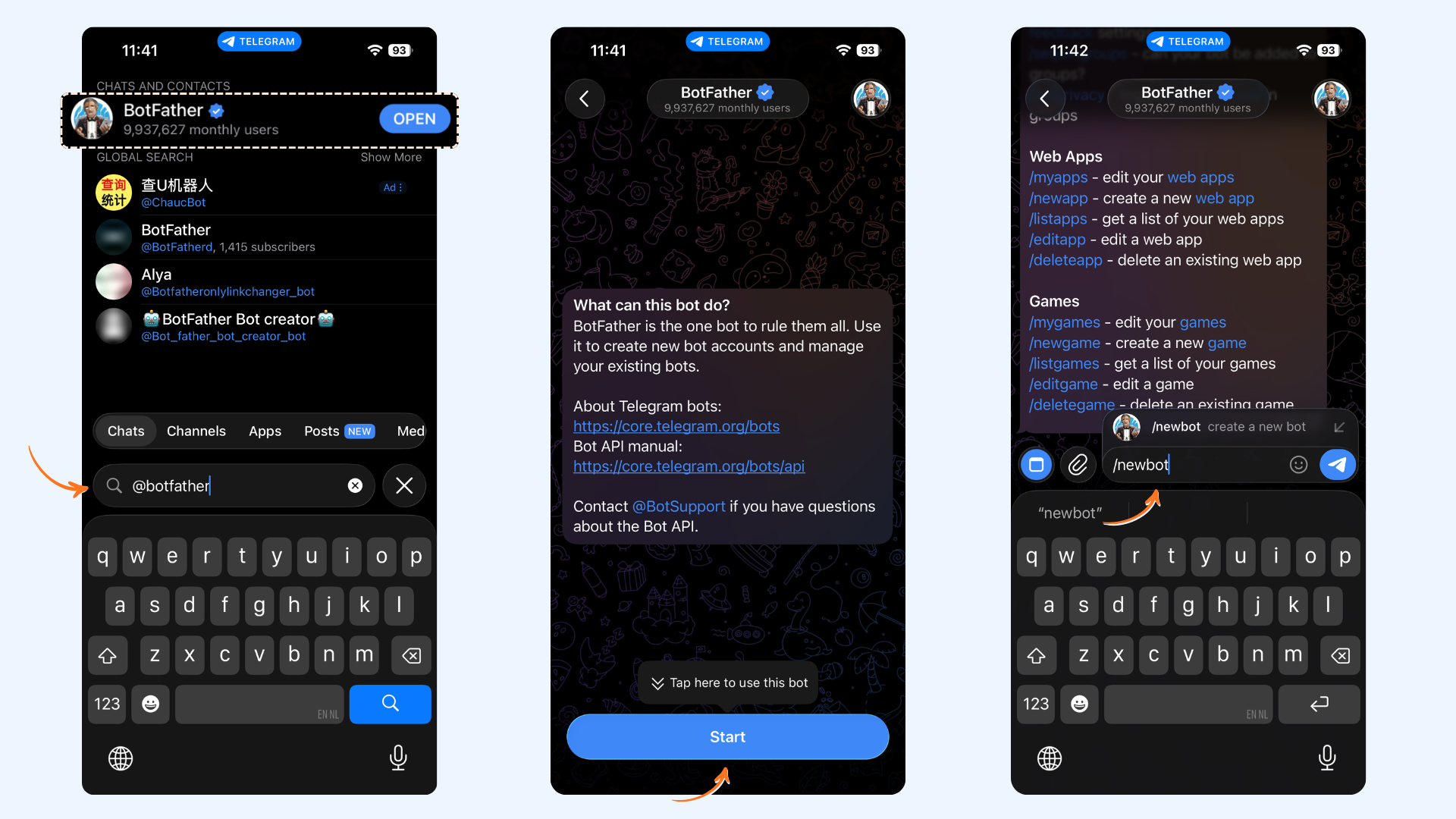
Enter a display name for your bot
BotFather will ask you to choose a name for your bot — this is the display name that people will see. It can be anything, like
My Brand Bot.Enter a username ending in "bot"
Choose a unique username for your bot. It must end with the word
bot— for example:mybrand_bot. BotFather will confirm if the username is available.Copy the bot token provided by BotFather
Once the bot is created, BotFather will give you a bot token — a long string that looks like
123456789:ABCdef.... Copy and save this token — you'll need it when connecting in ContentStudio.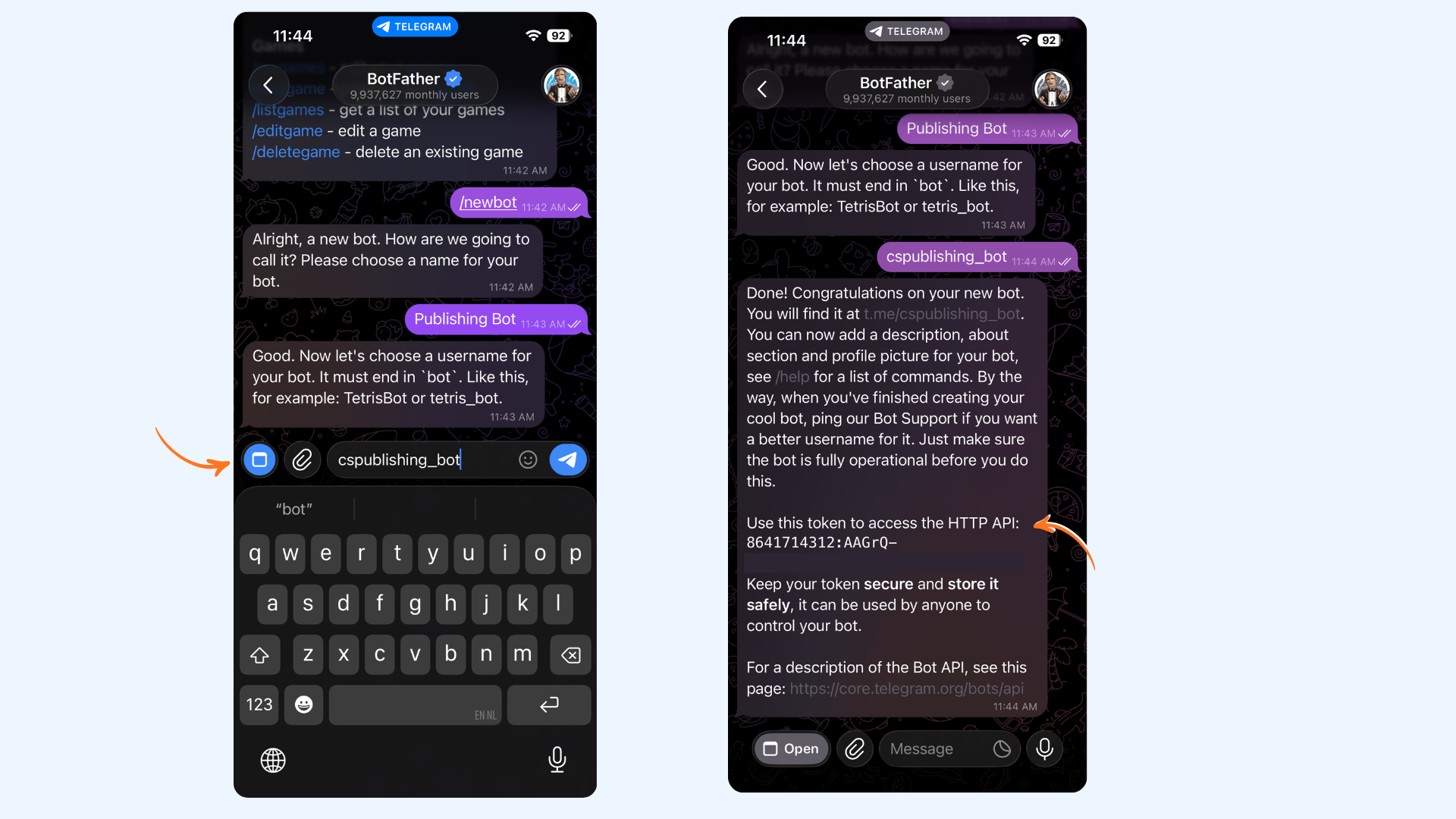
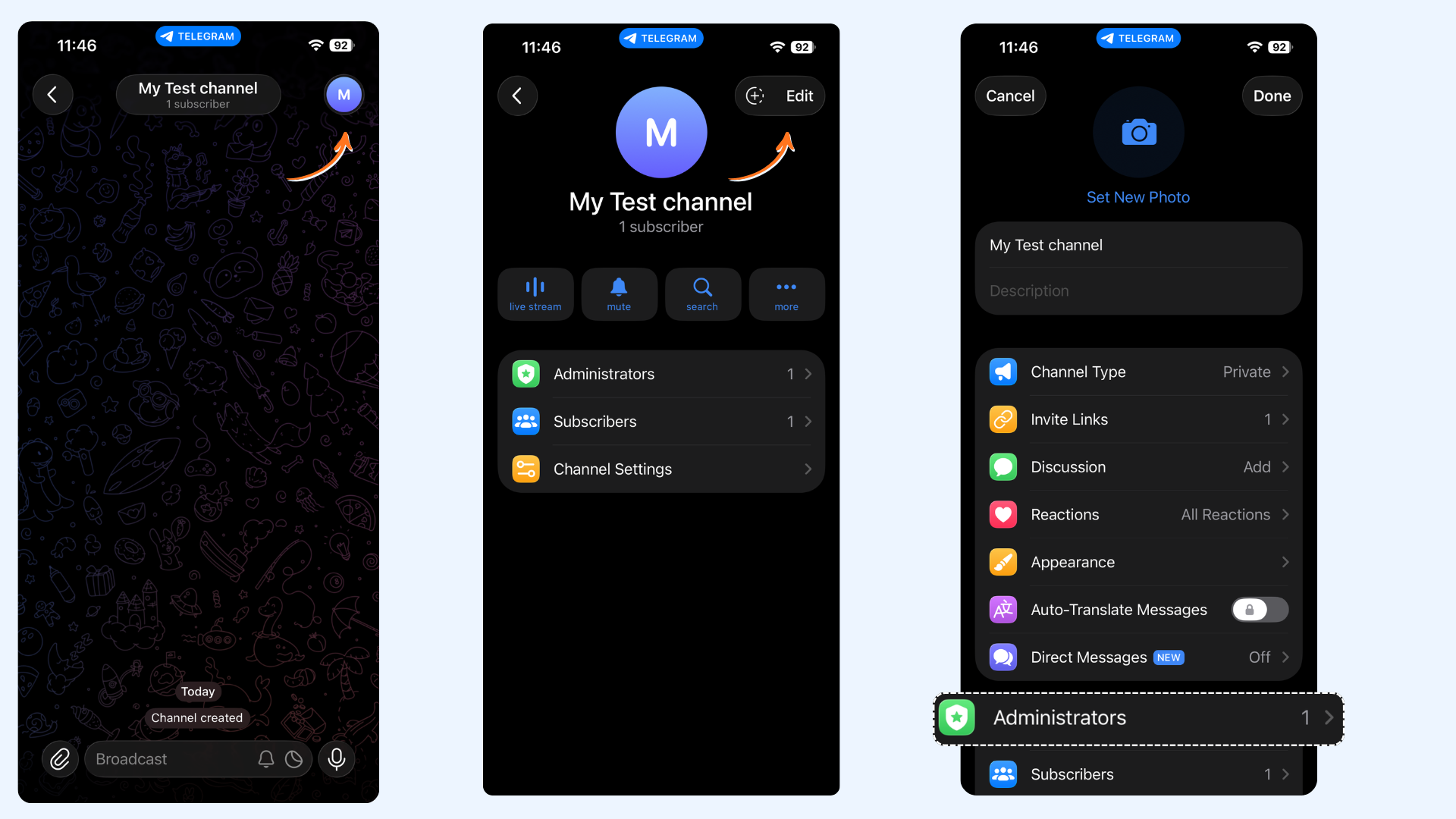
Open your Telegram channel or group settings
Go to the Telegram channel or group you want to connect to ContentStudio.
Tap the profile icon at the top to open its profile, then tap Edit.
Scroll down and tap Administrators.
Add your bot as an administrator
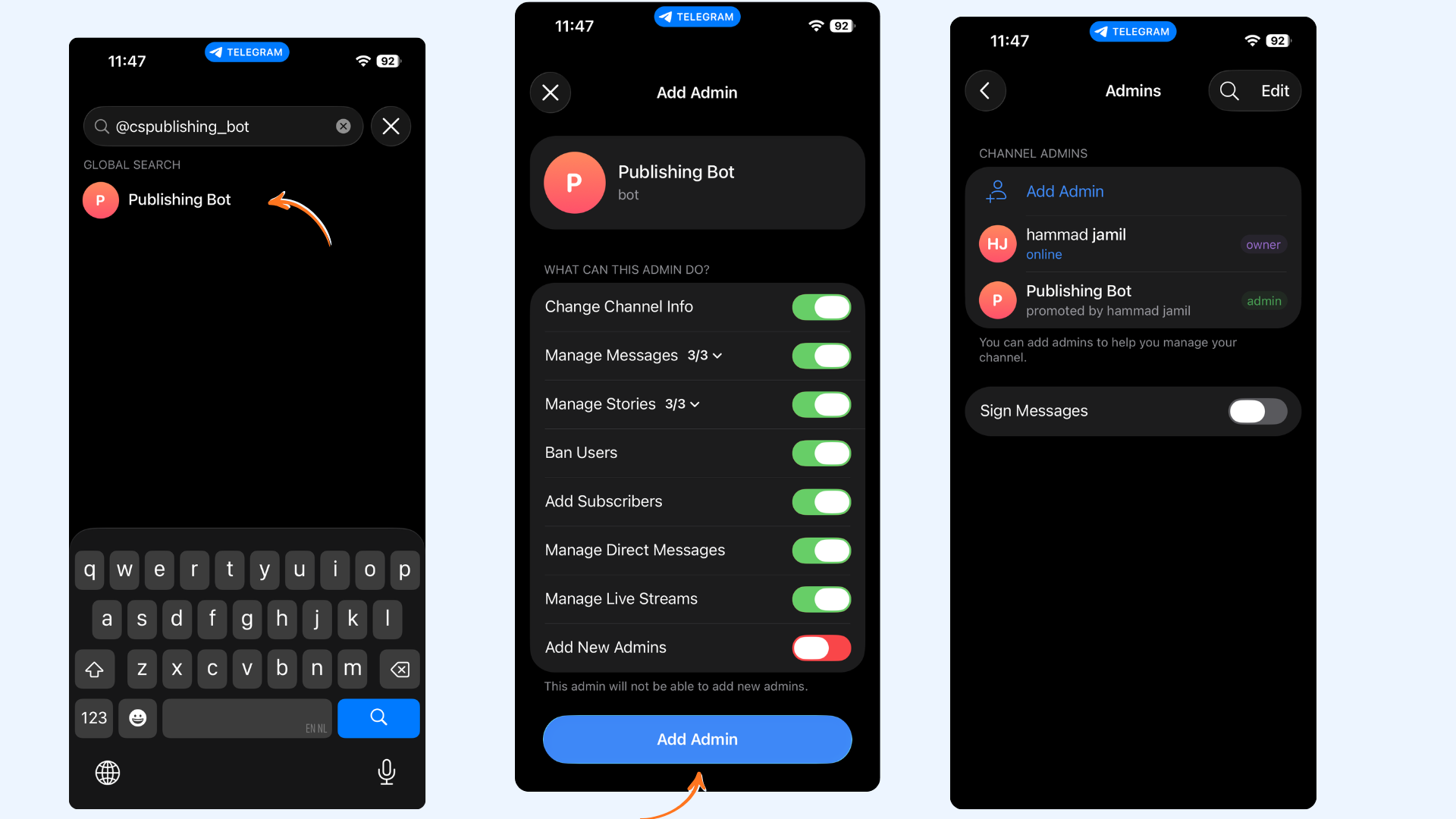
In the search bar, search for the bot you created in the previous step and tap on it.
You'll see a list of permissions — make sure Manage Messages is turned on as this is required for publishing.
Tap Add Admin to confirm. Your bot will now appear in the administrators list.
How to Connect Telegram to ContentStudio
Once your bot is set up and added as an admin, follow these steps inside ContentStudio to complete the connection.
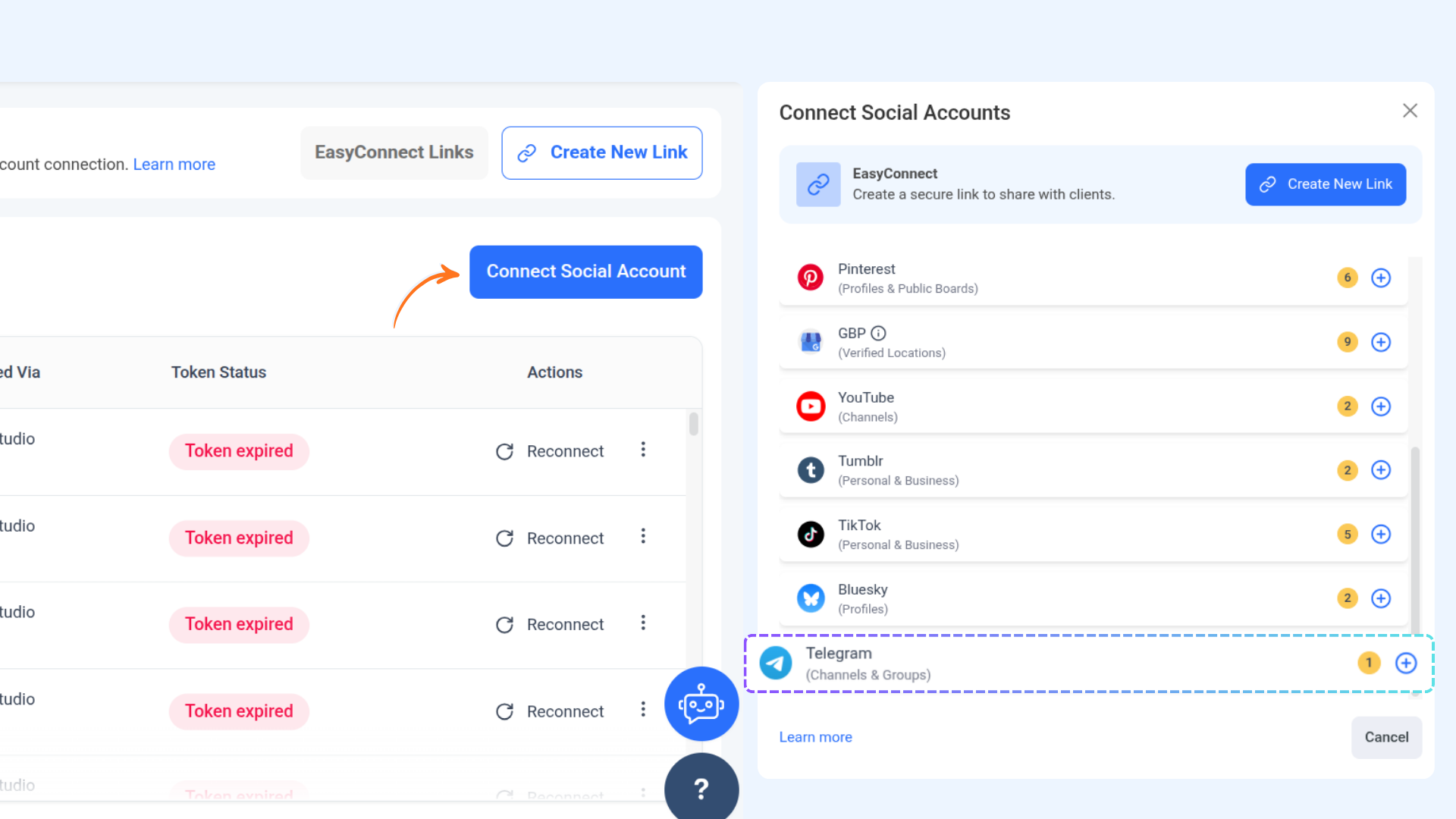
Go to Settings → Social Accounts
Open Settings, click on Social Accounts, then click the Connect Social Account button.
Click the plus (+) icon
On the Telegram section, click the + icon to open the connection modal.
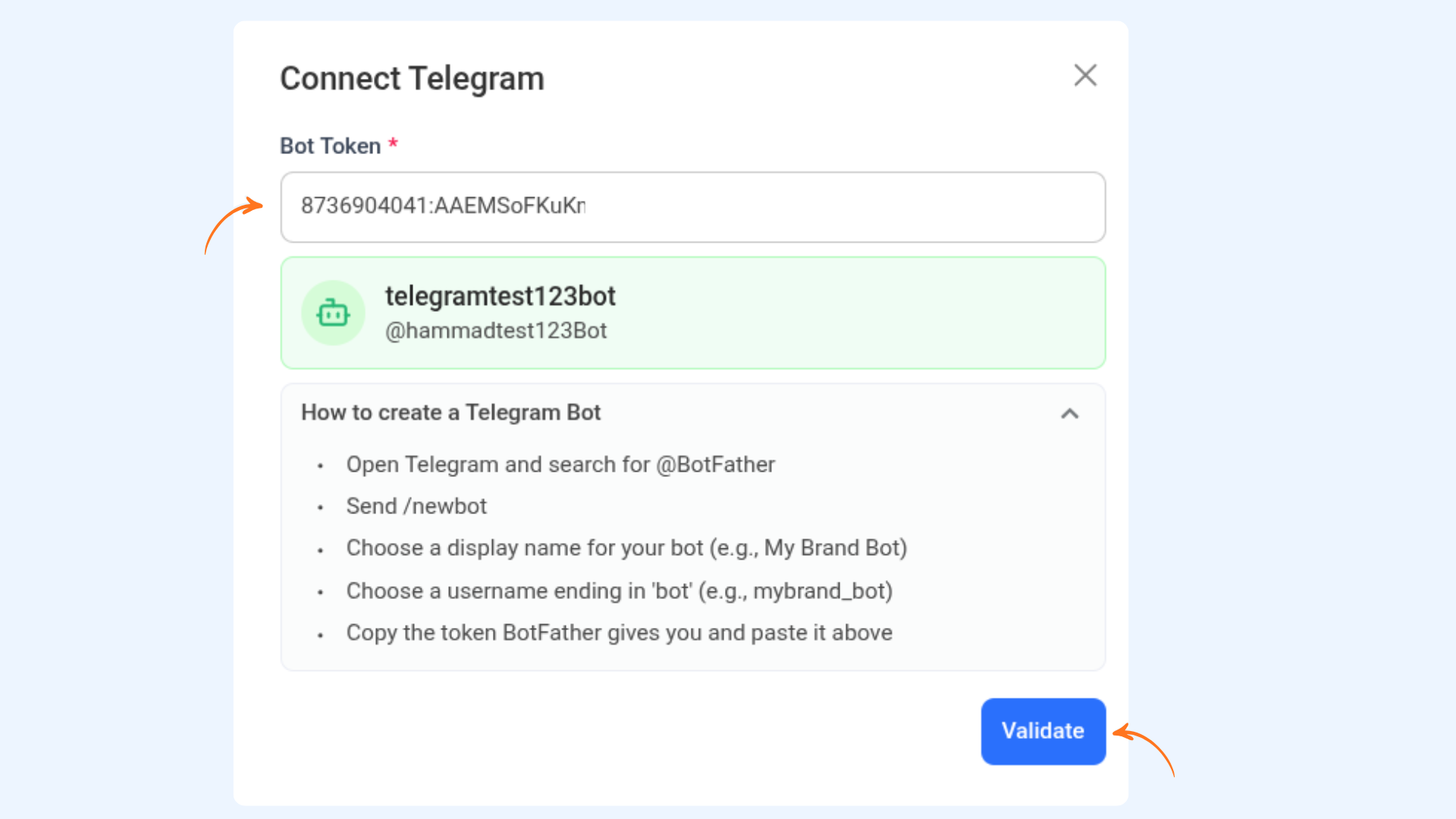
Paste your Bot Token and click Validate
In the Connect Telegram modal, paste the bot token you copied from @BotFather. If you need a reminder on how to create one, click the "How to create a Telegram bot" dropdown inside the modal. Once your token is pasted, click Validate.
Select your channels and groups
After validation, a new modal will load showing all the channels and groups where your bot is an admin. Select the ones you want to connect to ContentStudio.
If a channel or group isn't appearing, click the Refresh button.
If it still doesn't show up, manually add it by entering the channel/group username or its shared ID in the input field.
Make sure the bot is already an admin before trying to add it manually.
Groups with no recent activity may not appear — try sending a message in the group first to make it active.
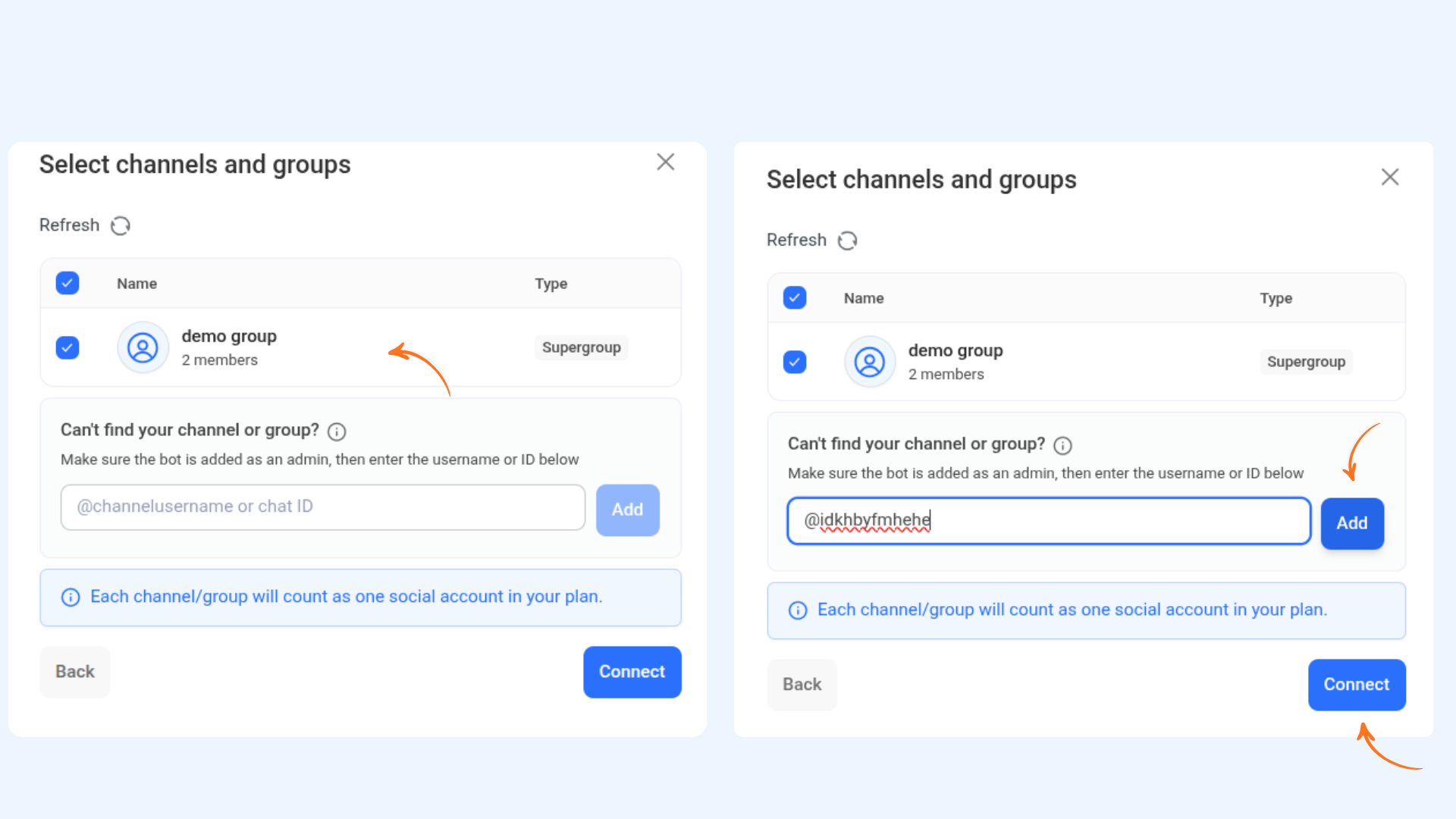
Click Connect
Once you've selected your channels or groups, click Connect to move to the next step.
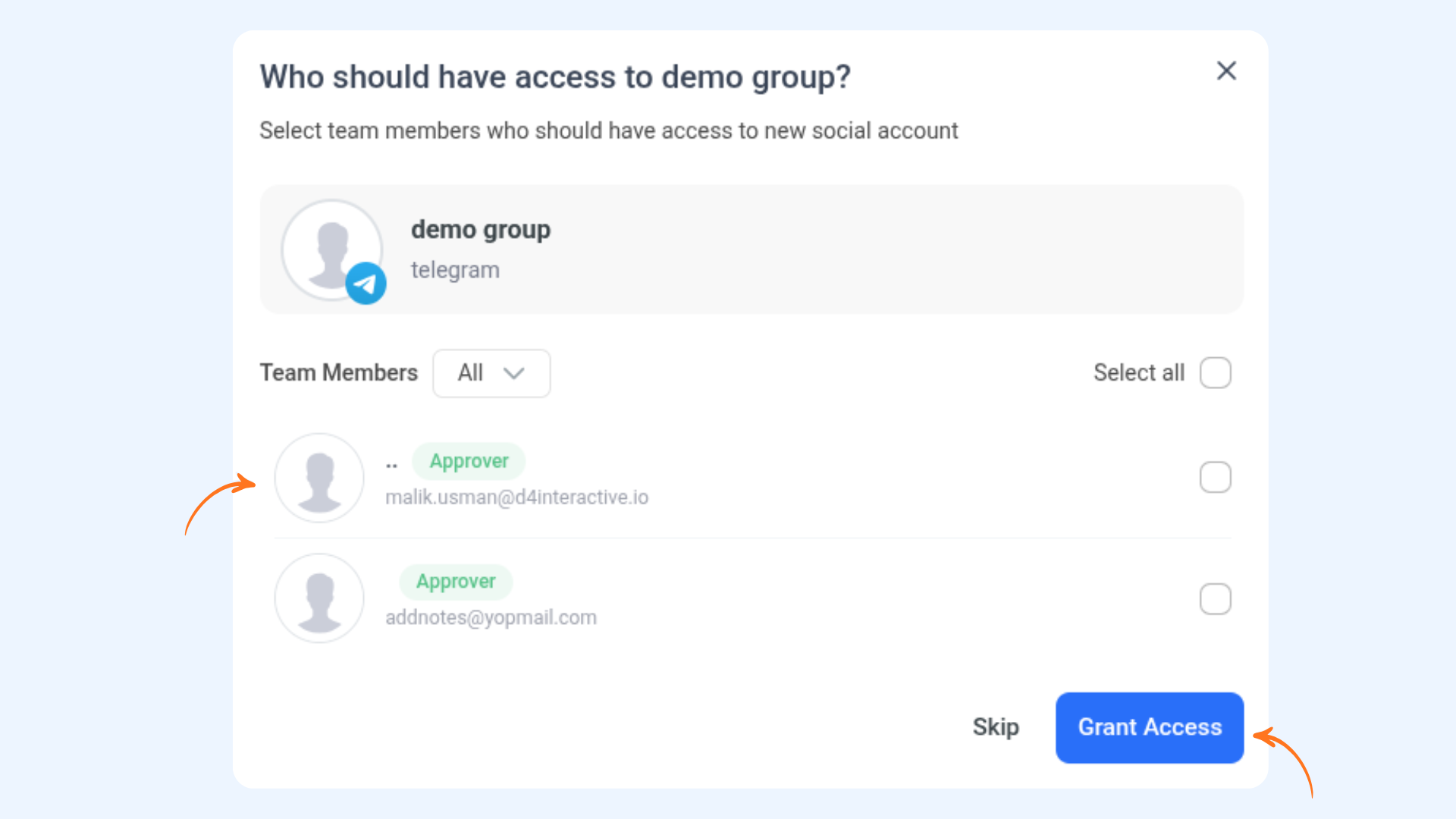
Set team access permissions (optional)
A final modal will ask if you want to grant access to team members. You can select specific members, or click Skip. Click Grant Access to confirm, or Skip to continue without assigning access.
How to Post on Telegram from ContentStudio
Publishing to Telegram works just like any other platform in ContentStudio's Composer. Here's how to do it.
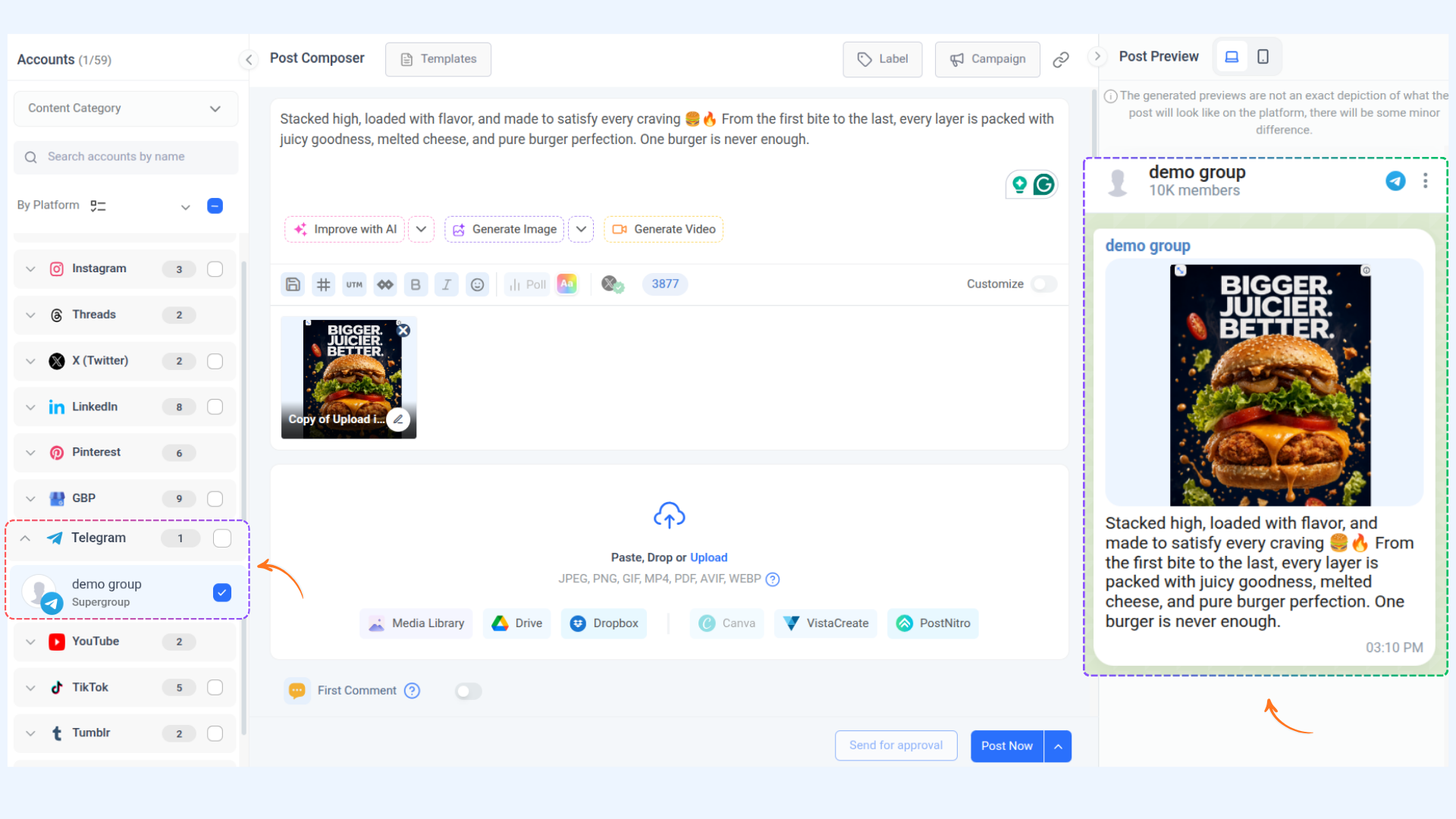
Go to Composer and select your Telegram channel or group
Open Composer and select your Telegram channel or group from the platforms section. You can select multiple accounts at once if needed.
Write your post and add media
Type your message in the content area. You can also attach an image or media file if you want to include visuals with your post.
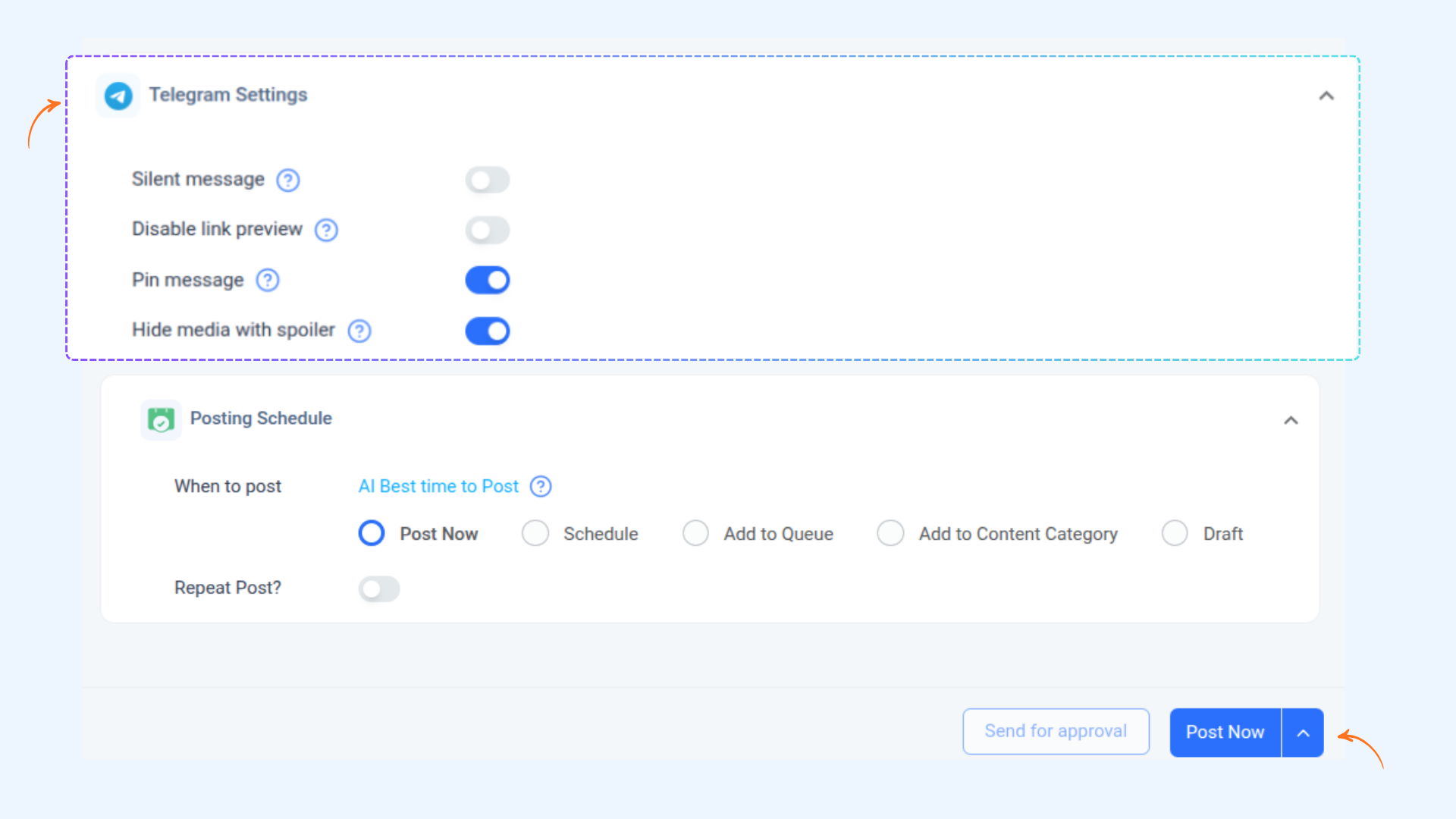
Configure your Telegram posting options
In Telegram Settings, you'll find four toggles you can turn on or off before publishing. Choose your preferred posting schedule and post
Option
Description
Silent Message
Send without notifying members. Your post is published but members won't receive a notification sound or alert.
Disable Link Preview
Prevent Telegram from generating a link preview card. Turn this on to show the plain link only instead of an auto-generated preview.
Pin Message
Automatically pin the post after publishing. Once the post is live, it will be pinned at the top of your Telegram channel or group.
Hide Media with Spoiler
Adds Telegram's spoiler blur effect on your media. The image or video will appear blurred until the viewer taps to reveal it — great for surprise reveals or announcements.
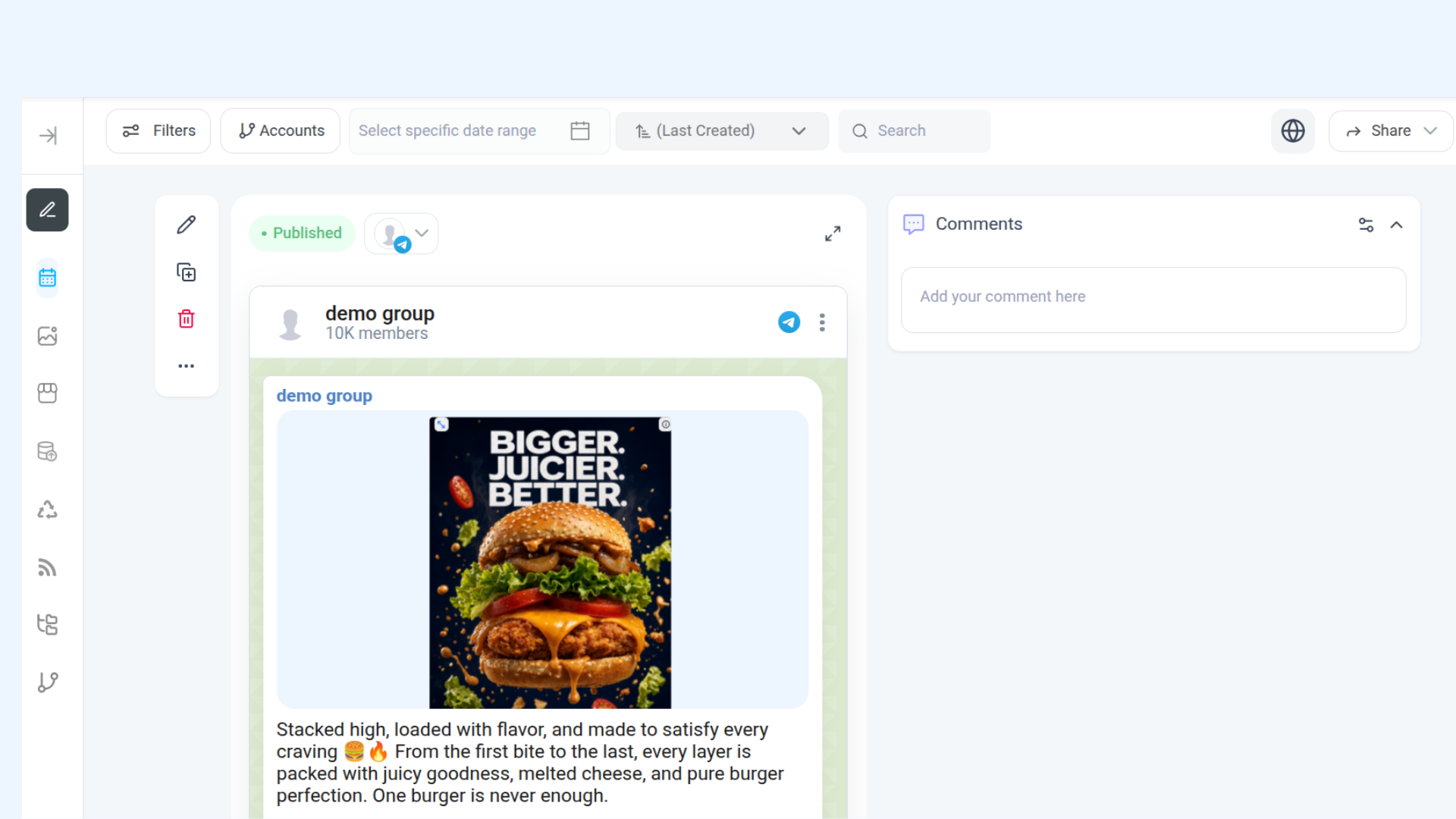
Where to View Your Published Telegram Posts
After you publish, you can find and track all your Telegram posts in one place.
Go to Planner
Navigate to Planner from the left-side menu. Your published and scheduled Telegram posts will appear here in the calendar view, alongside your other social accounts.
Frequently Asked Questions
Why is my Telegram group not showing after validation?
This usually happens because the bot hasn't been added as an admin in the group yet, or the group has been inactive. First, confirm your bot is an admin. Then send a message in the group to make it active, go back to ContentStudio, and hit Refresh. If it still doesn't appear, add it manually using the group's username or shared ID.
Why is the Validate button not working?
The Validate step fails when the bot token is incorrect or incomplete. Double-check that you copied the full token from @BotFather — it should look like 123456789:ABCdefGHIjkl.... Also make sure there are no extra spaces before or after the token.
Why isn't the spoiler blur effect visible in the Composer preview?
The spoiler effect is a native Telegram feature and isn't rendered inside ContentStudio's preview panel. That's completely normal — the blur will appear correctly once the post is published and viewed in the Telegram app.
Can I connect both Telegram channels and groups?
Yes! ContentStudio supports both Telegram channels and groups. As long as your bot is an admin in each one, they'll all appear during the connection process and you can select multiple at once.
Can I connect Telegram to multiple workspaces in ContentStudio?
Yes. Each workspace in ContentStudio has its own Social Accounts section. You can connect the same Telegram bot (or a different one) to each workspace independently.
What happens if I lose my bot token?
Open @BotFather on Telegram, send /mybots, select your bot, and choose "API Token" to view it again. If you suspect it's been compromised, use /revoke to generate a new one — then reconnect your account in ContentStudio.
Was this article helpful?