

Design and Publish Posts Using VistaCreate in ContentStudio
Designing scroll-stopping visuals for your social posts just got a whole lot easier. With the VistaCreate integration built right into ContentStudio's Post Composer, you can create stunning, platform-ready graphics without ever leaving your workflow. Whether it's a Facebook post, an Instagram story, or a TikTok video, simply pick a format, design it in VistaCreate's powerful editor, and it drops straight into your post, ready to publish.
In this Article:
How to Access VistaCreate from the Post Composer
Here's how to open and start using VistaCreate directly inside ContentStudio's Composer.
Navigate to the Composer from the Home page and click Compose Post.
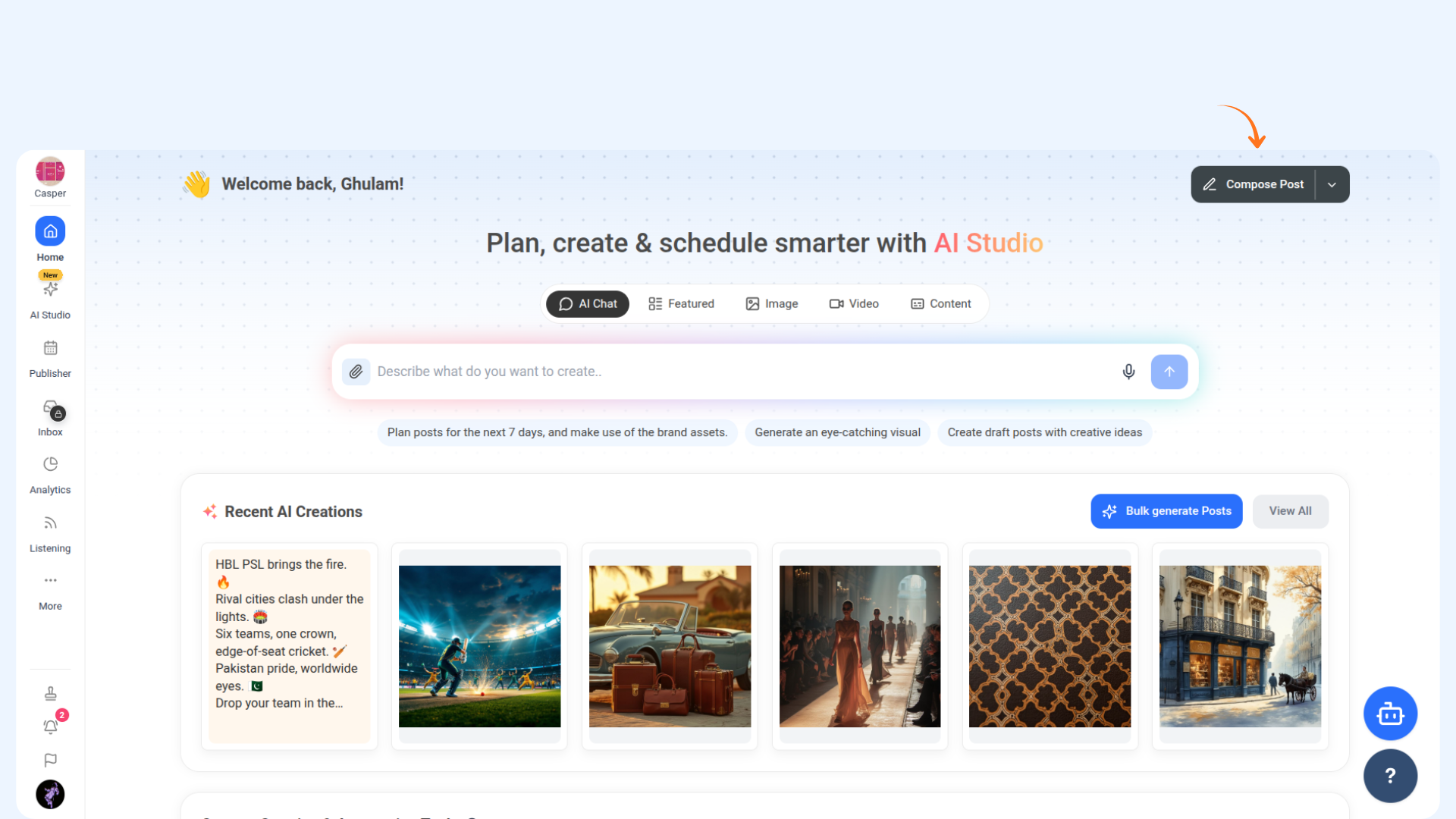
Select the social account(s) you want to create a post for from the left-side platform panel.
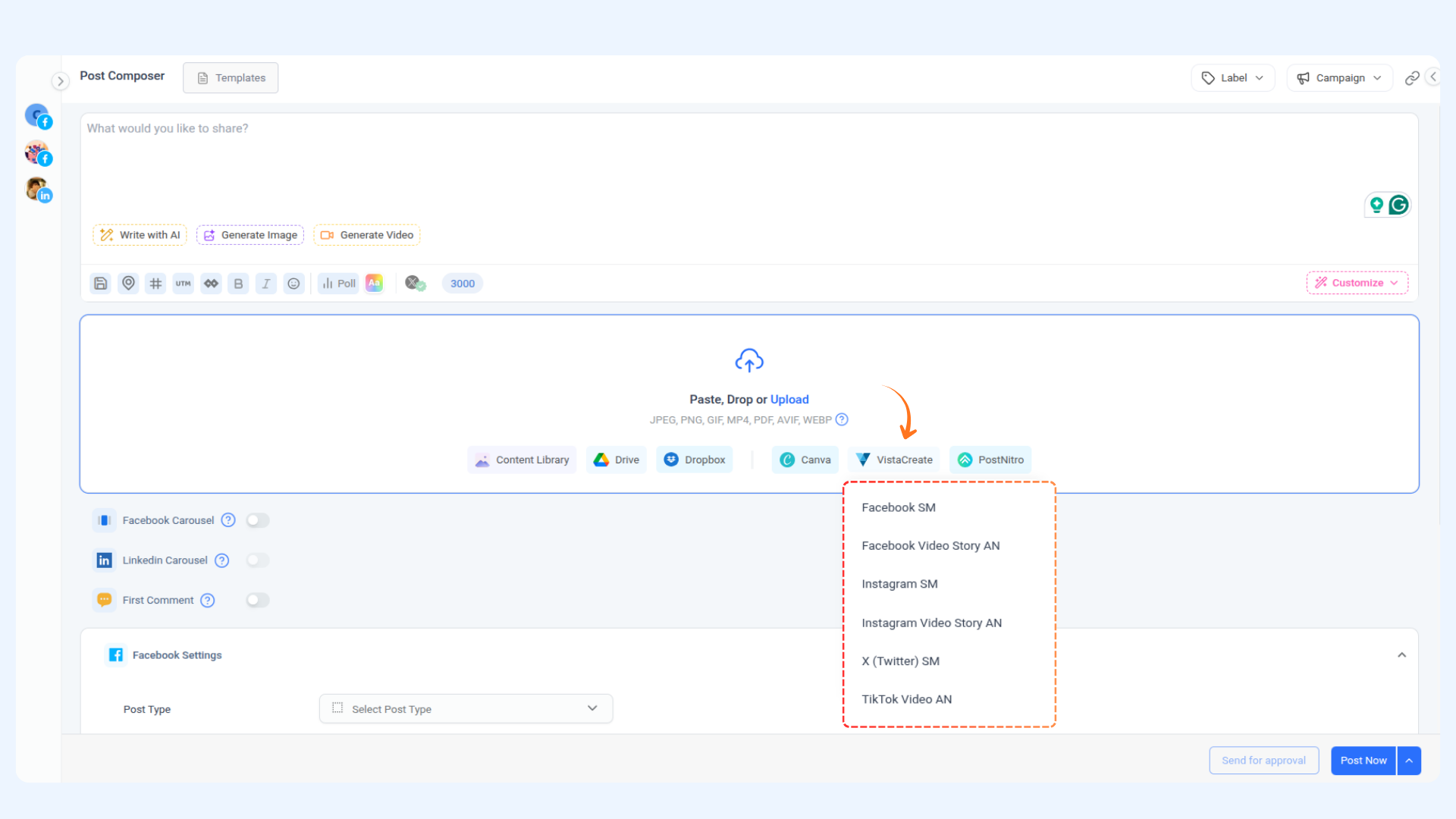
In the media upload area, you'll see several integration options. Click on VistaCreate.
The following format options are available in the VistaCreate dropdown:
Facebook SM – Standard Facebook social media post
Facebook Video Story AN – Facebook video story (animated)
Instagram SM – Standard Instagram social media post
Instagram Video Story AN – Instagram video story (animated)
X (Twitter) SM – Standard X (Twitter) social media post
TikTok Video AN – TikTok video (animated)
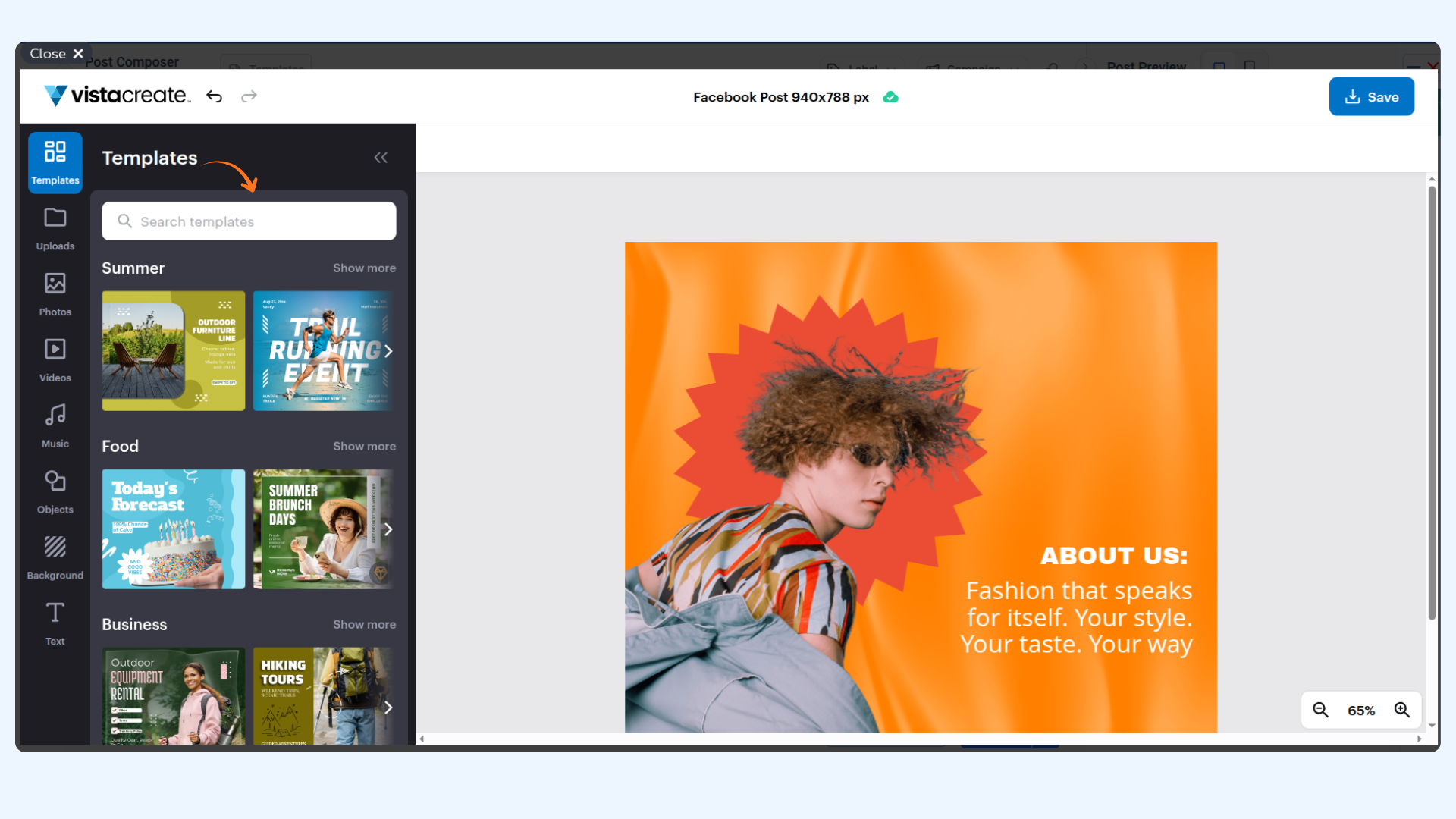
Browse through the template categories on the left panel (e.g., Summer, Food, Business, Photo) or use the search bar to find a specific template.
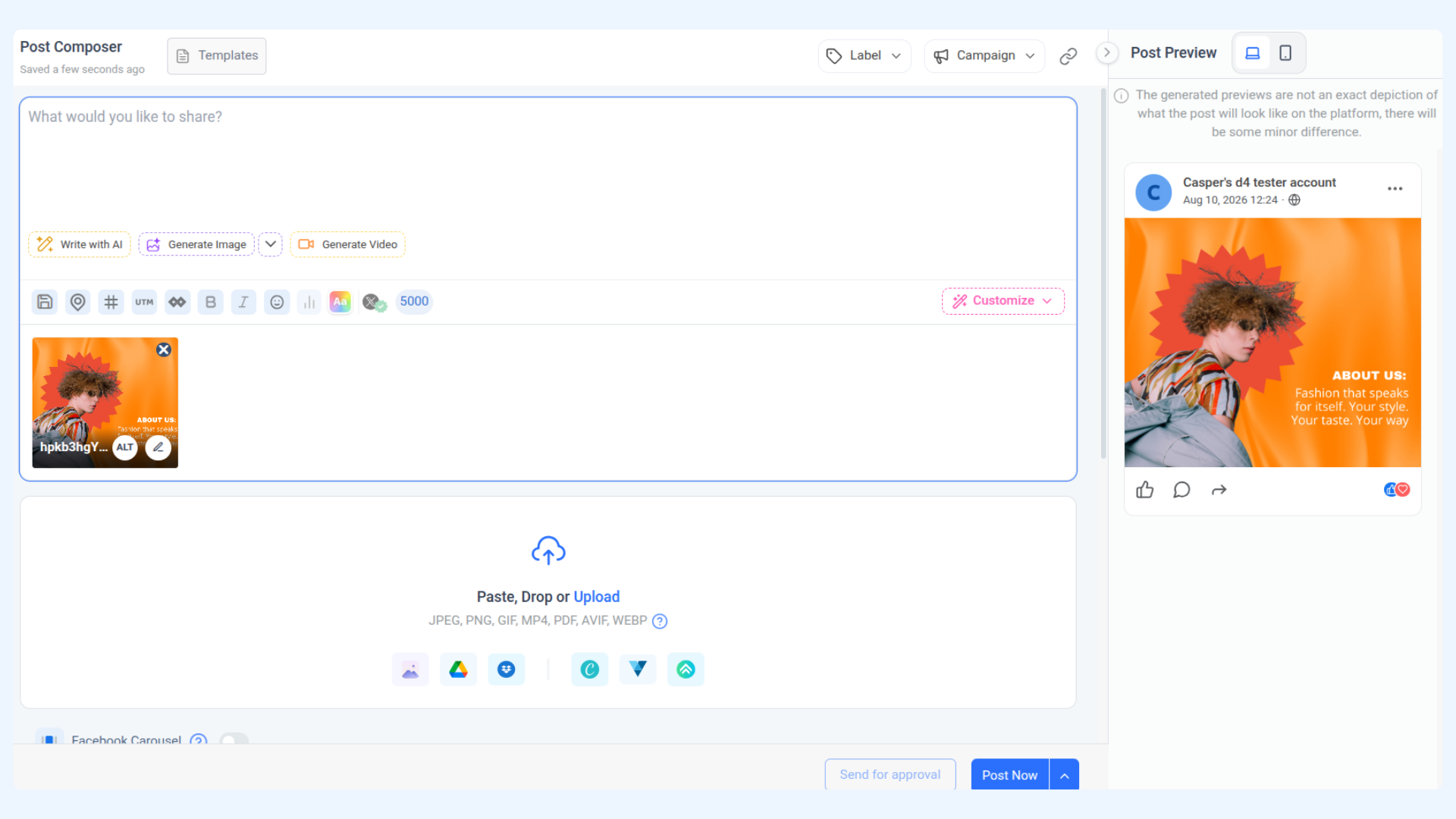
Once your design is ready, click Save in the top-right corner of the VistaCreate editor. Your design will begin preparing to be saved.
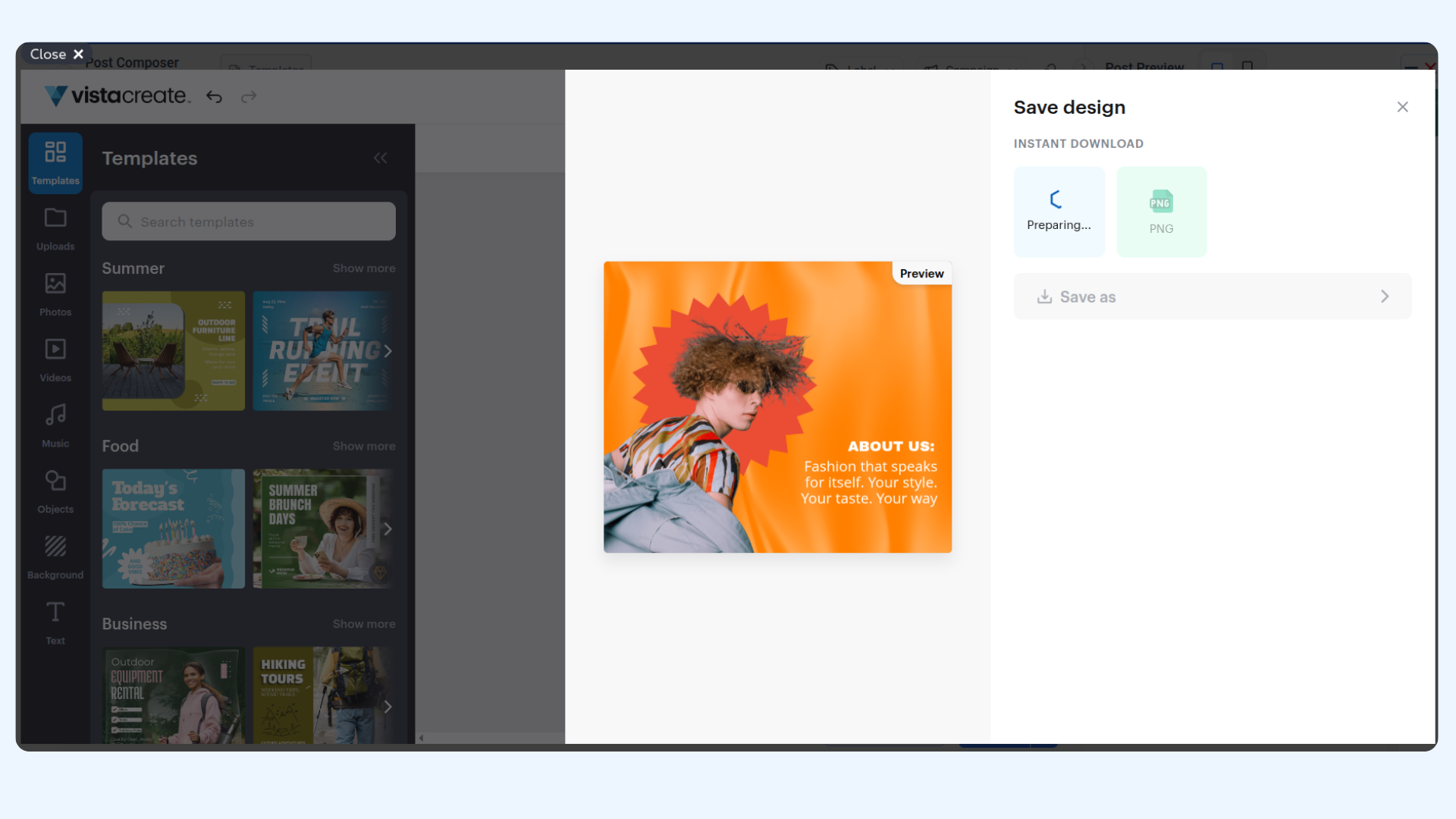
The design will automatically be imported back into the Post Composer as a media attachment, ready to be published.
Create Platform-Specific Content Using VistaCreate
Here are practical use cases for some VistaCreate format options available in the dropdown.
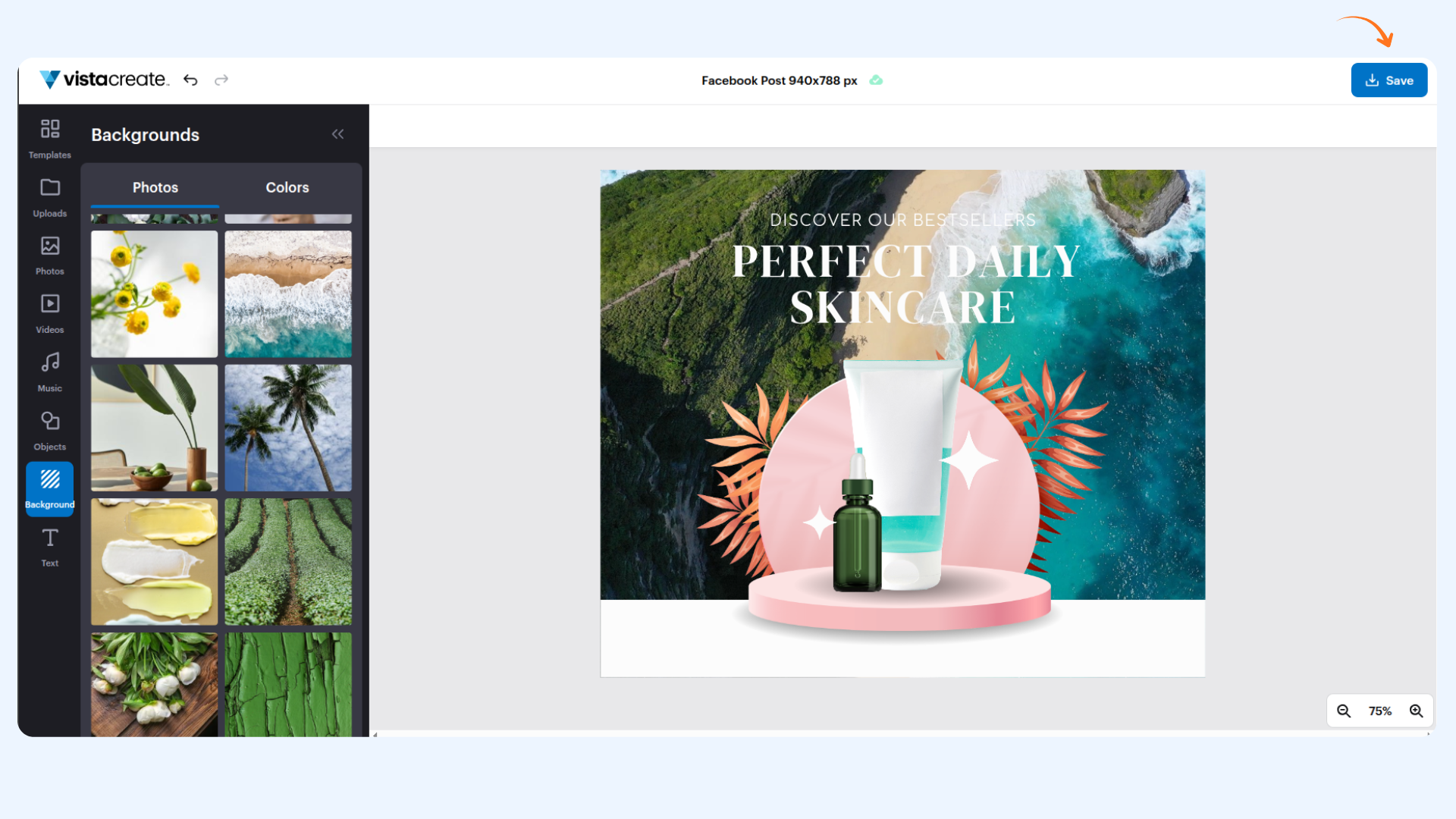
Facebook SM (Static Facebook Post Image)
Use this format when you need a polished, perfectly sized image for your Facebook feed. It's your go-to for any static visual content on Facebook.
Best suited for:
Product announcements
Event promotions and seasonal campaigns
Motivational or branded quote posts
Sale banners and discount graphics
Instagram SM (Static Instagram Post Image)
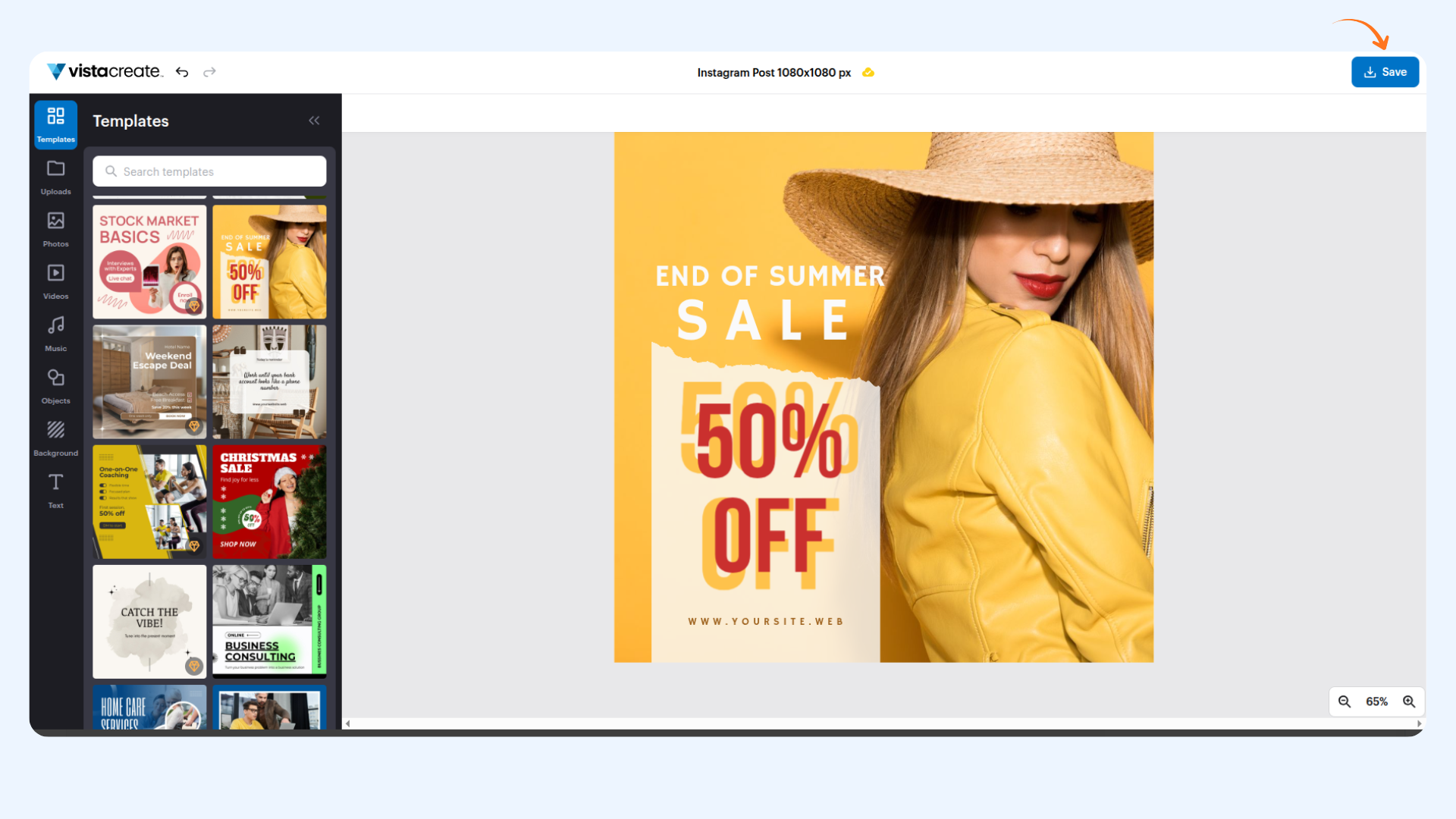
Use this format when you want a visually consistent, on-brand image for your Instagram feed. The editor opens with Instagram-optimized dimensions so your design looks sharp without any cropping.
Best suited for:
Product showcase graphics
Customer testimonial cards
Branded quote posts
Carousel-style visuals
X (Twitter) SM (Static X Post Image)
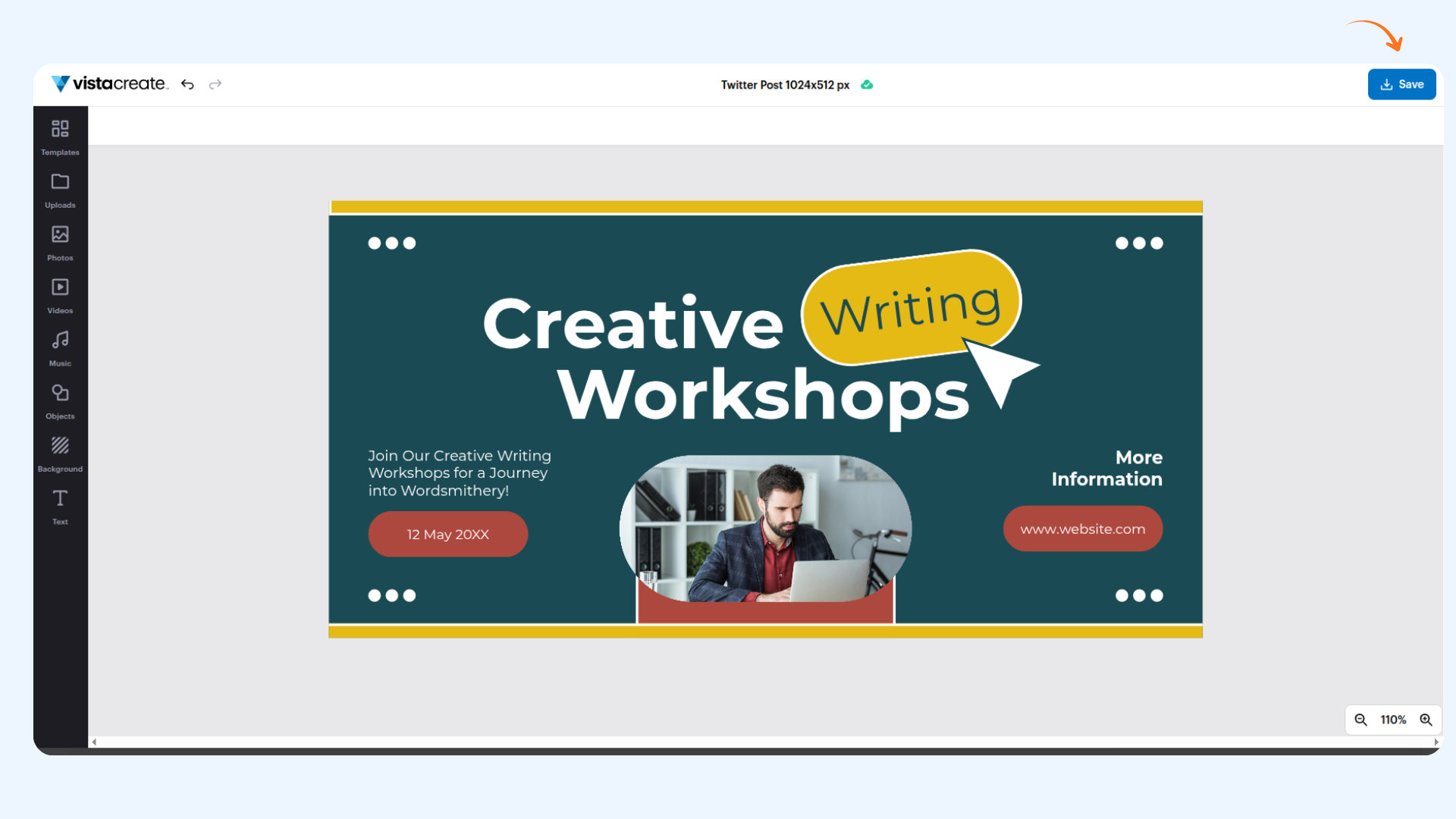
Use this format when you want a clean, eye-catching image to pair with your tweet. The dimensions are optimized for the X timeline so your visual displays without any awkward cropping.
Best suited for:
Infographic snippets
Branded quote cards
Thread openers with a visual hook
Data highlights or key takeaways
FAQs
Q: Do I need a separate VistaCreate account?
Yes, you'll need a VistaCreate (Vista) account to use this integration. You can create a free account directly from the sign-up screen that appears when you first click VistaCreate in the Composer.
Q: Will my design be automatically sized for the platform I choose?
Yes! When you select a format from the dropdown (e.g., Facebook SM, Instagram SM, TikTok Video AN), the VistaCreate editor automatically opens with the correct dimensions for that platform.
Q: What is the difference between SM and AN formats?
SM stands for Social Media and is used for static image posts. AN stands for Animated and is used for video/motion content. Choose SM for regular image posts and AN for stories or video posts.
Q: Can I edit my design after it has been imported into the Composer?
Once the design is saved back into the Composer, it is imported as a media file (image or video). To make changes to the design itself, you would need to open VistaCreate again and create a new version.
Q: Can I use VistaCreate for platforms not listed in the dropdown?
The dropdown shows the currently supported format presets. However, you can use any design from VistaCreate by uploading it manually through the standard media upload option in the Composer.
Was this article helpful?