
OpenClaw Workflows in ContentStudio
Once your OpenClaw agent is connected to ContentStudio (if you haven't set that up yet, start with OpenClaw Integration in ContentStudio, you can run your everyday publishing work straight from a chat — no need to open the dashboard. You just talk to your agent in plain language, and it handles the rest on ContentStudio's side. 🦞
This article walks through two of the most common things people use it for: scheduling posts straight from a chat message, and approving or rejecting posts as a team. Every example below uses Telegram, but the same steps work on any connected chat app, including WhatsApp and Discord.
In this Article:
- Publishing posts straight from a chat message
- Handling OpenClaw social media approvals as a team
- FAQ's
Use case 1 — Publishing posts straight from a chat message
Say you want a few posts scheduled for next week and you're away from your desk. Instead of logging in, you message your agent, drop in your images, and tell it when and where to post. If you don't have captions ready, it can write them for you (Hook, Body, CTA), and if you'd rather check everything first, it can send the posts to review before anything goes live.
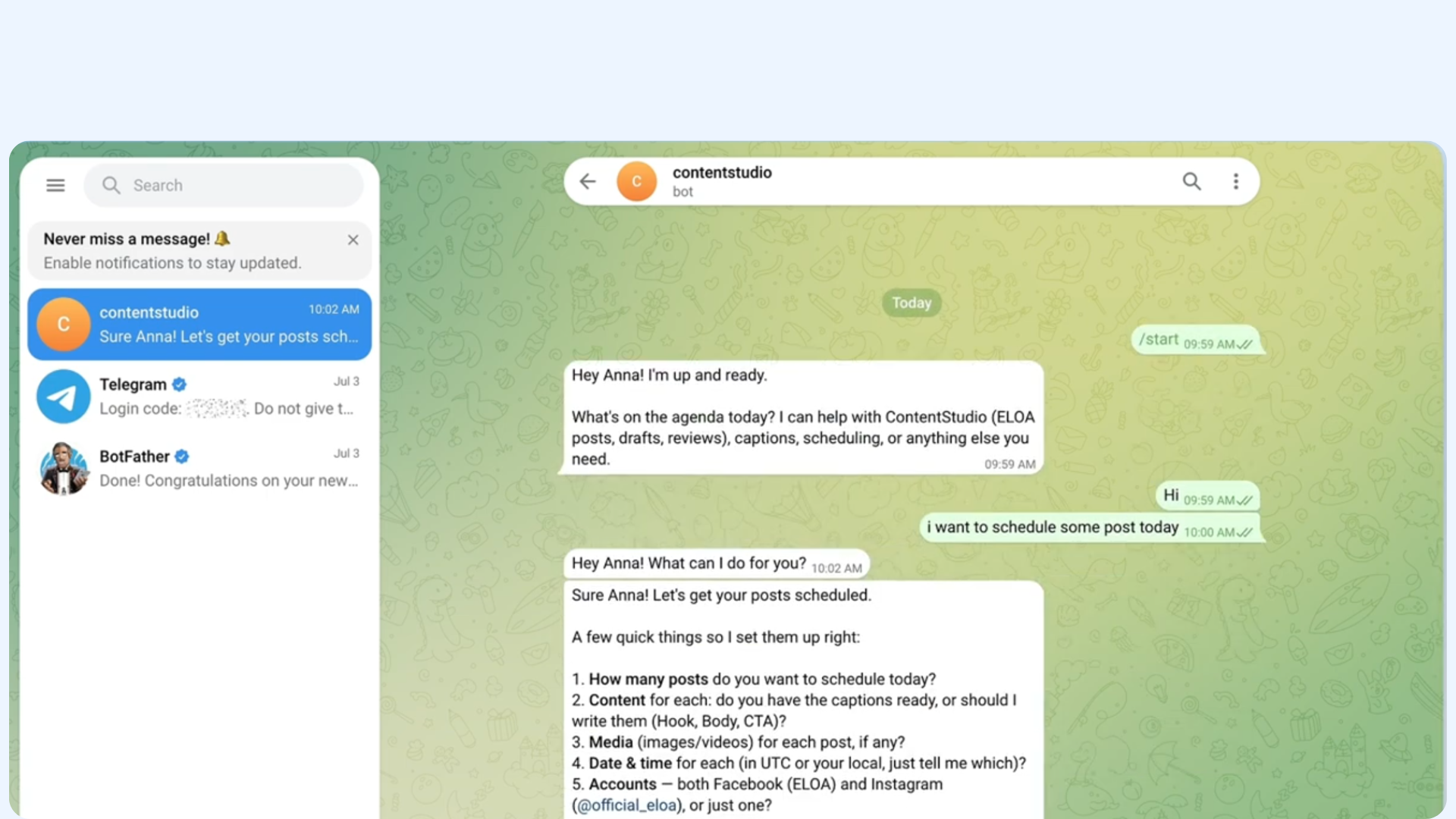
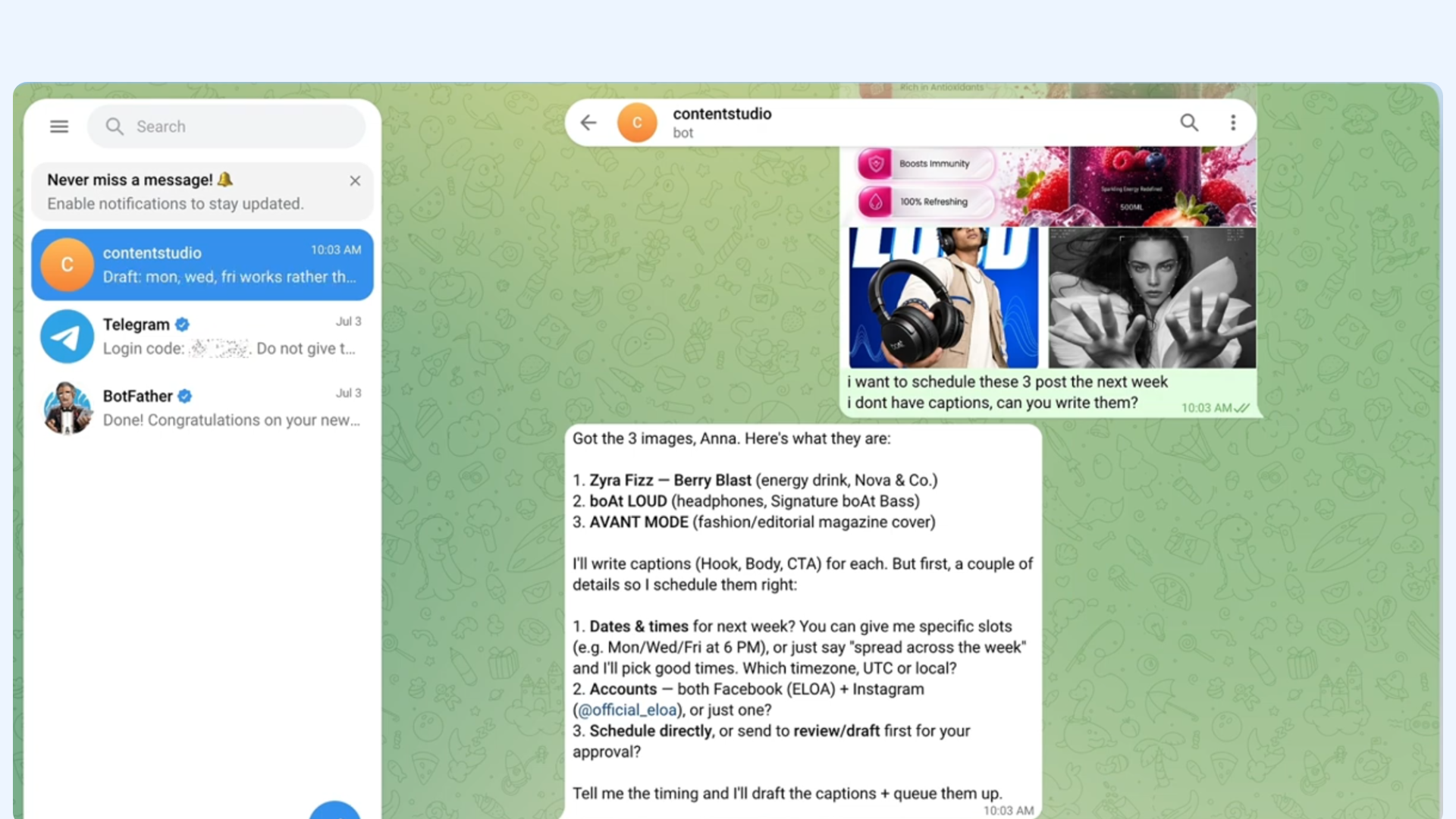
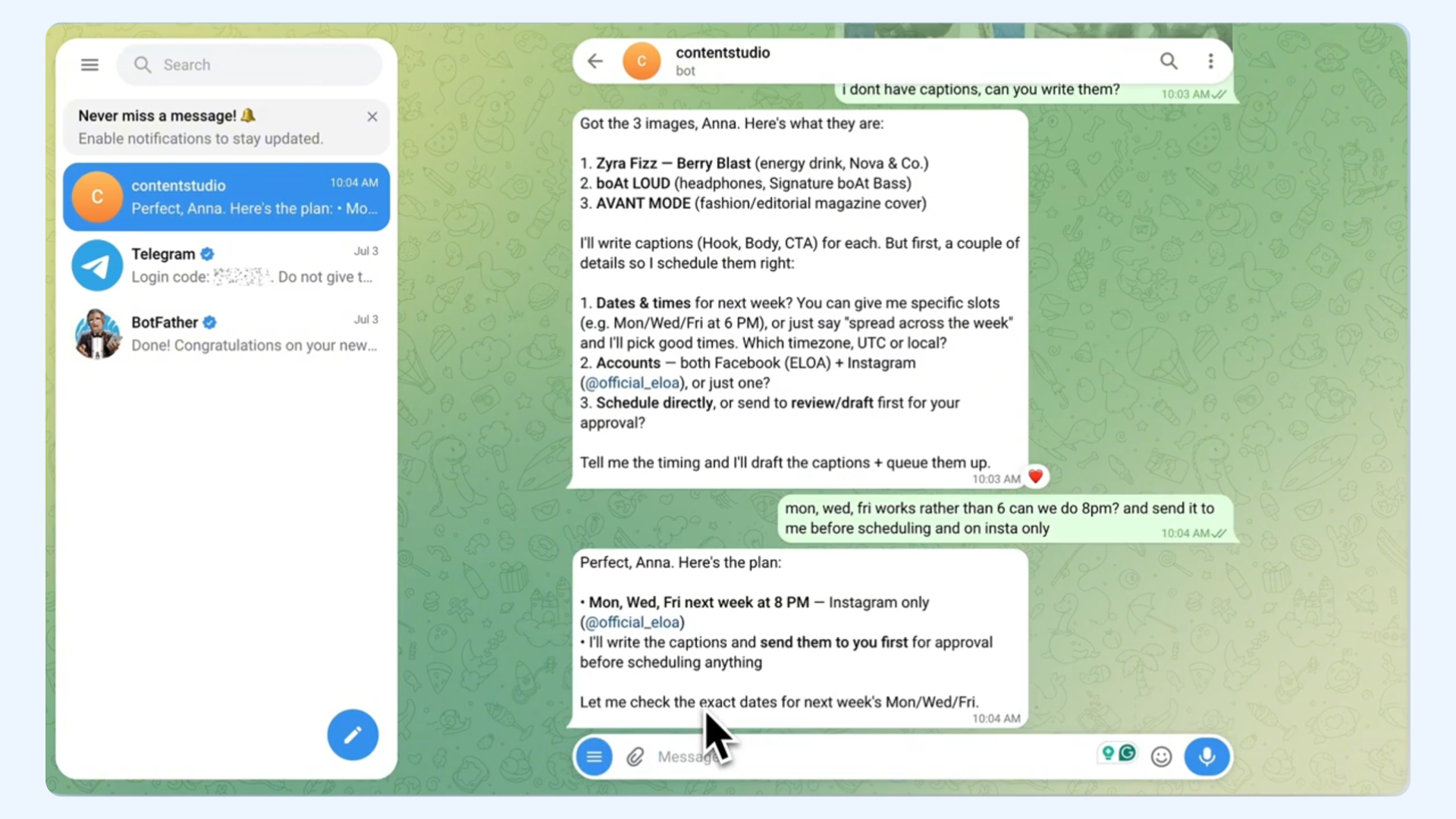
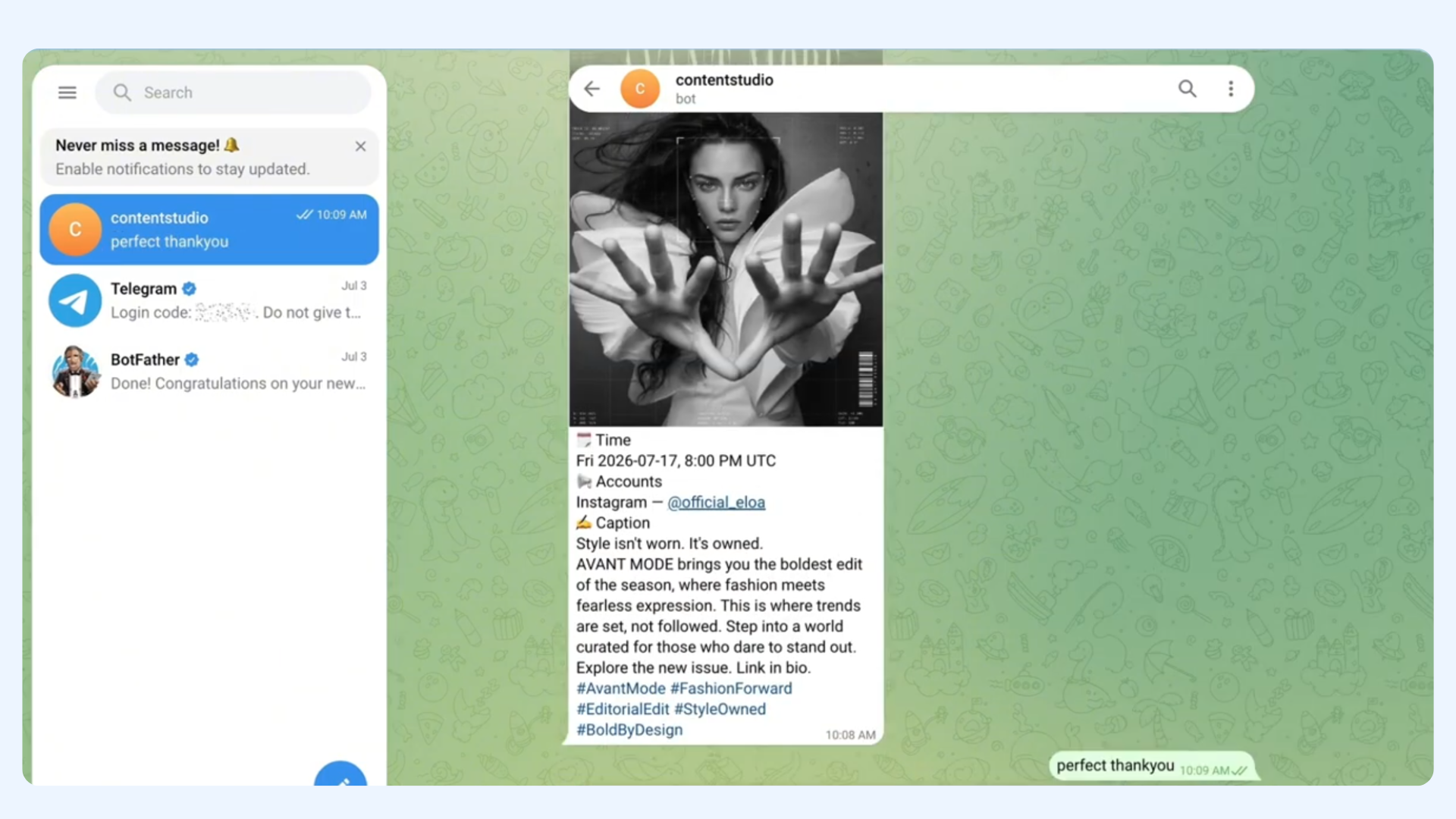
You can change your mind at any point before the plan is final — just say so in the chat. Requests like "make it 8 PM instead of 6," "Instagram only," or "send it to me before scheduling" are all fair game, and your agent updates the plan before queuing anything.
Handling OpenClaw social media approvals as a team
If your team reviews posts before they publish, your agent can run that whole approval loop from chat. Anyone on your approved users list can pull up what's pending, then approve or reject each post right from the conversation. This is handy when the person who schedules posts isn't the same person who signs off on them.
The trick is replying. When you reply directly to a post's message and say "approve" or "reject," your agent uses that reply, along with the post's image, scheduled time, and account, to know exactly which post you mean. There are no post IDs to copy and no dashboard to open.
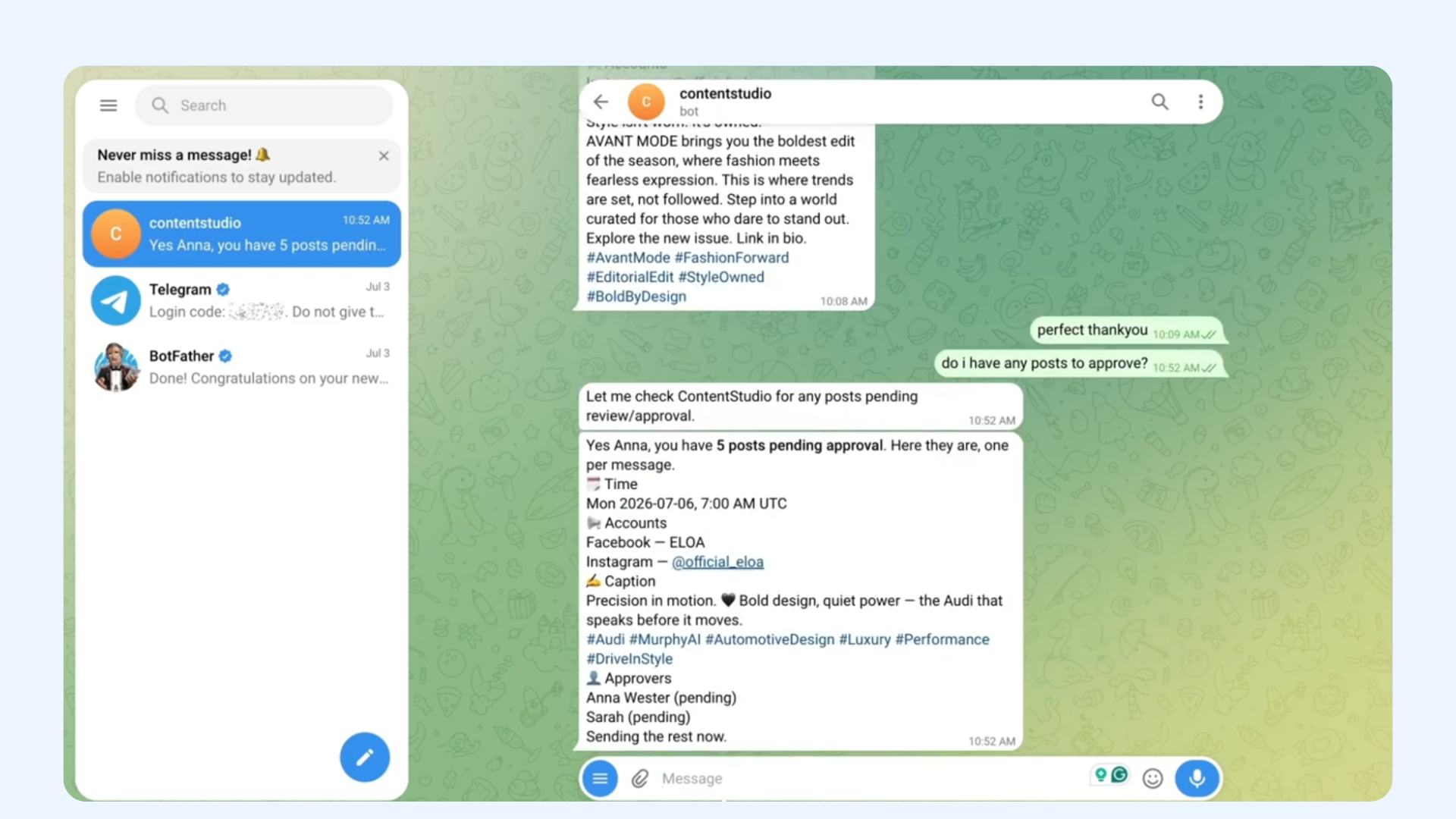
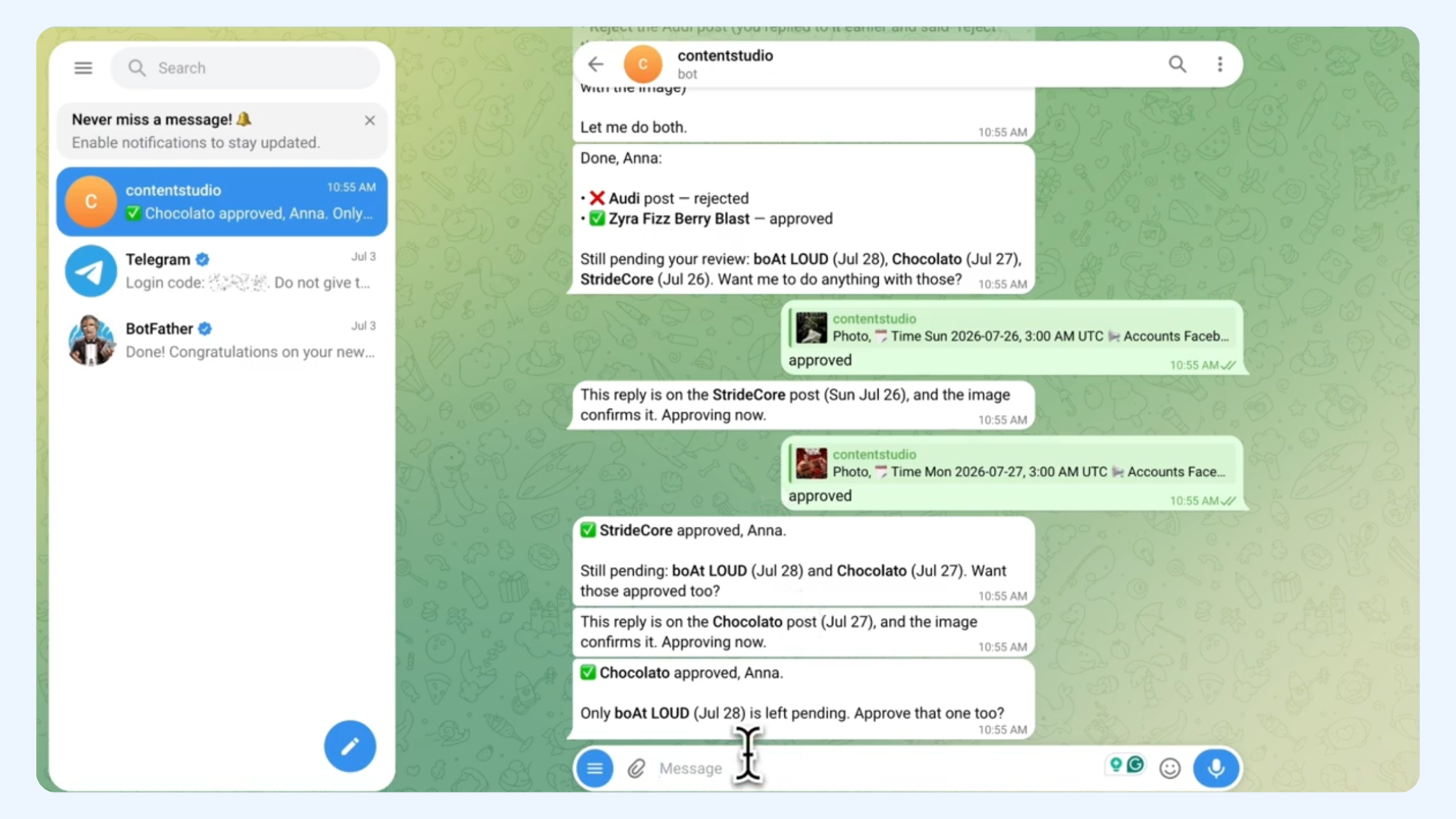
Approvals and rejections are limited to users on your OpenClaw allowlist, so only trusted teammates can sign off on posts. If a teammate can't approve, check that their chat account has been paired and added to the allowlist. See OpenClaw Integration in ContentStudio for how pairing works.
FAQ's
Do I have to send images, or can I schedule posts with just text?
Either works. You can attach images or videos, import media from a URL, or skip media entirely and schedule a post with just text. Just tell your agent what you want.
Can the agent write captions for me?
Yes. If you don't have captions ready, ask your agent to write them and it'll draft a Hook, Body, and CTA for each post. You can adjust anything you don't like before it schedules.
What timezone does it use for scheduling?
Whatever you tell it. You can give times in UTC or your local timezone, just say which one, and the agent schedules accordingly.
Can I review posts before they go live?
Yes. Ask your agent to send posts to review/draft first instead of scheduling directly, and nothing publishes until it's approved.
How does the agent know which post I'm approving?
By your reply. When you reply to a specific post's message with "approve" or "reject," the agent matches it using that post's image, scheduled time, and account, so there's no need to copy a post ID.
Can I approve or reject several posts at once?
Yes. Your agent keeps track of everything pending and walks you through it, so you can clear approvals one by one or ask it to action the rest in one go.
Can more than one person handle approvals?
Yes. Anyone added to your OpenClaw allowlist can approve or reject from their own chat, which is what makes this work as a team workflow. Users who aren't on the allowlist can't control your bot.
Does this work on WhatsApp and Discord too?
Yes. The examples here use Telegram, but scheduling and approvals work the same way on any chat app you've connected to OpenClaw.