
Connect a Replug account
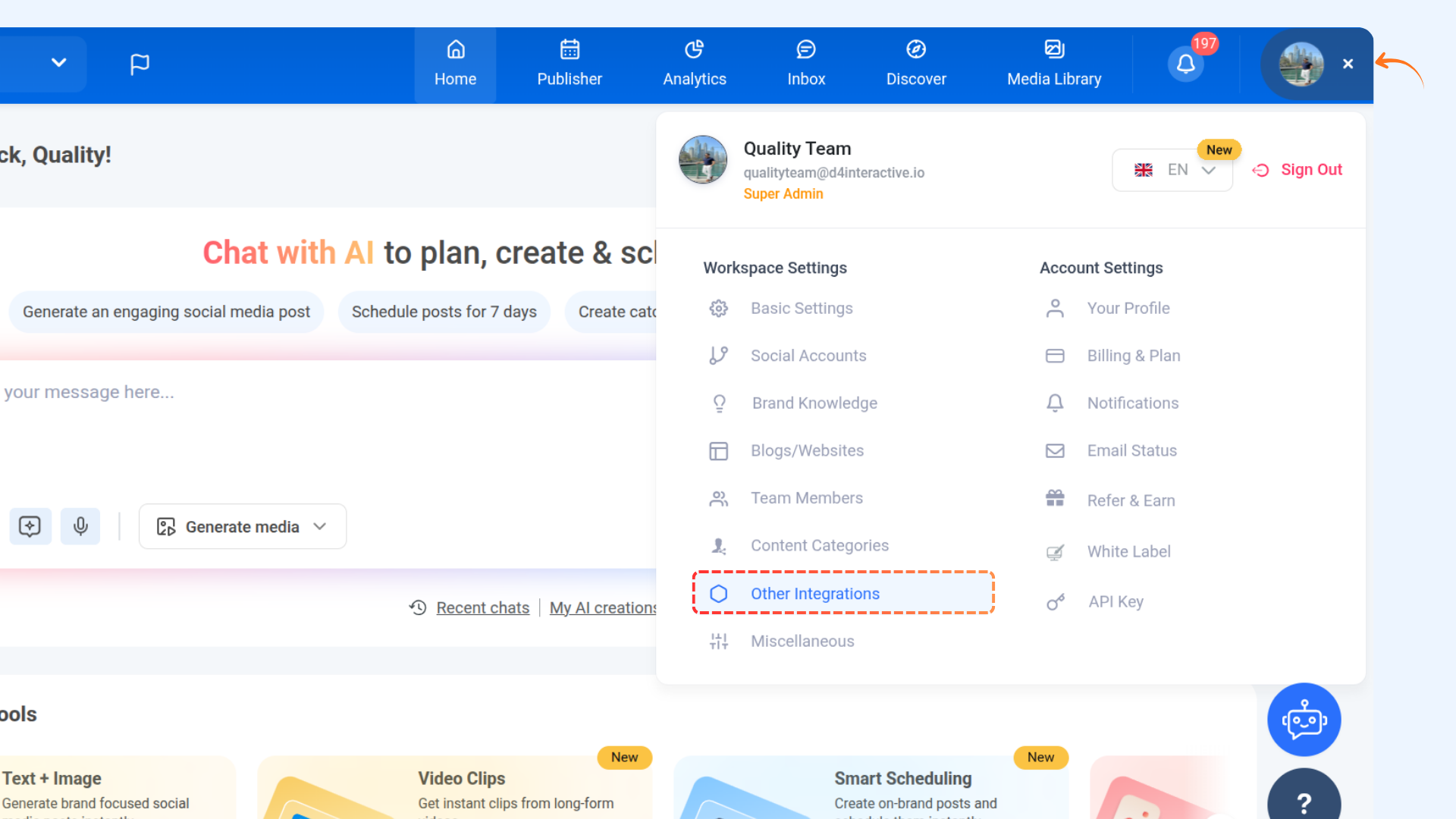
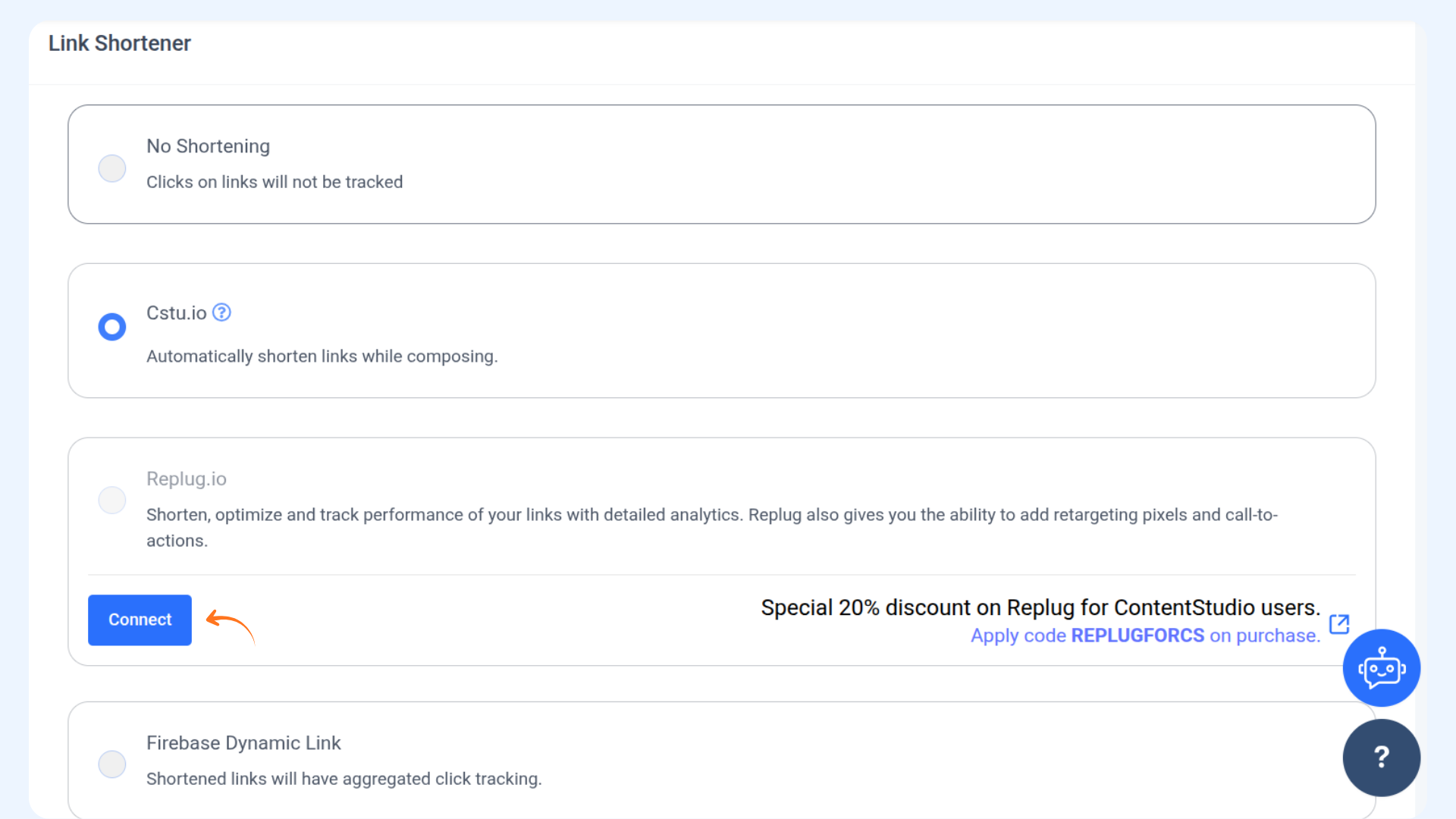
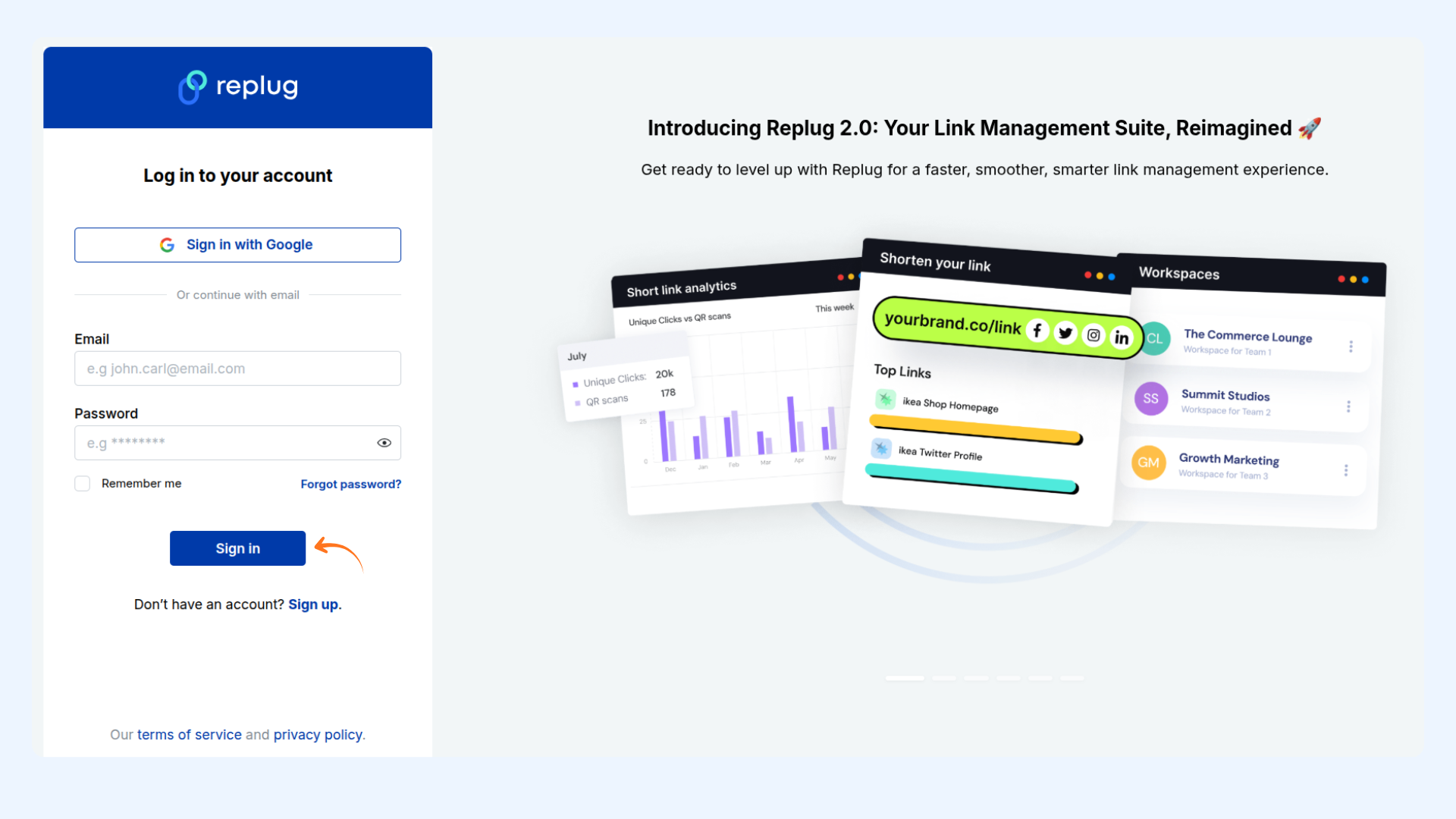
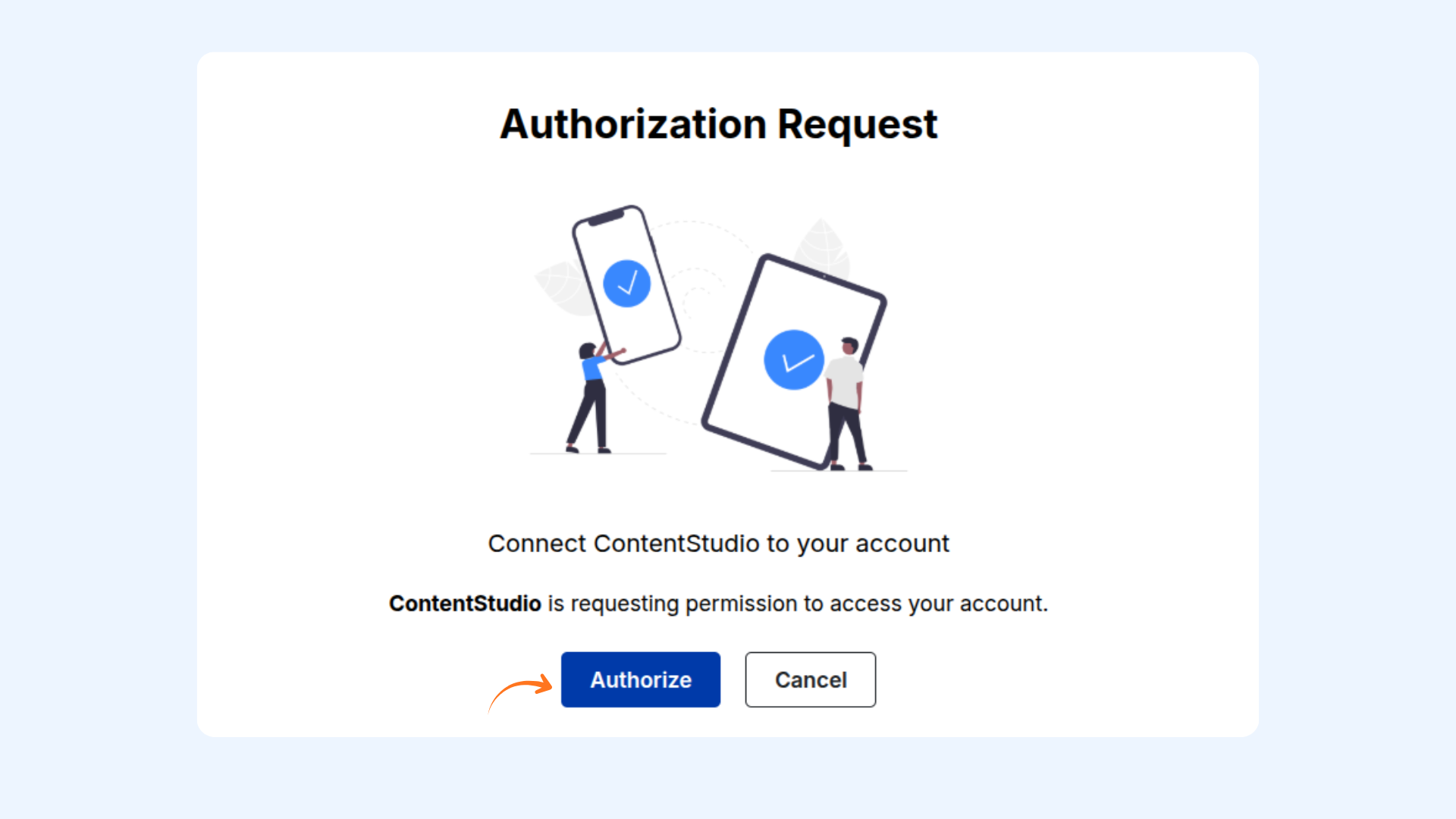
If you want to add a Call To Action to the content you share from ContentStudio, you will have to connect your Replug account. Follow these steps to connect your Replug account with ContentStudio.
Steps to connect a Replug account
FAQ's
Can I connect more than one Replug account to ContentStudio?
Currently, you can connect one Replug account at a time. If you want to use a different account, you’ll need to disconnect the existing one and connect the new account.
What happens if I change my default brand or campaign in Replug?
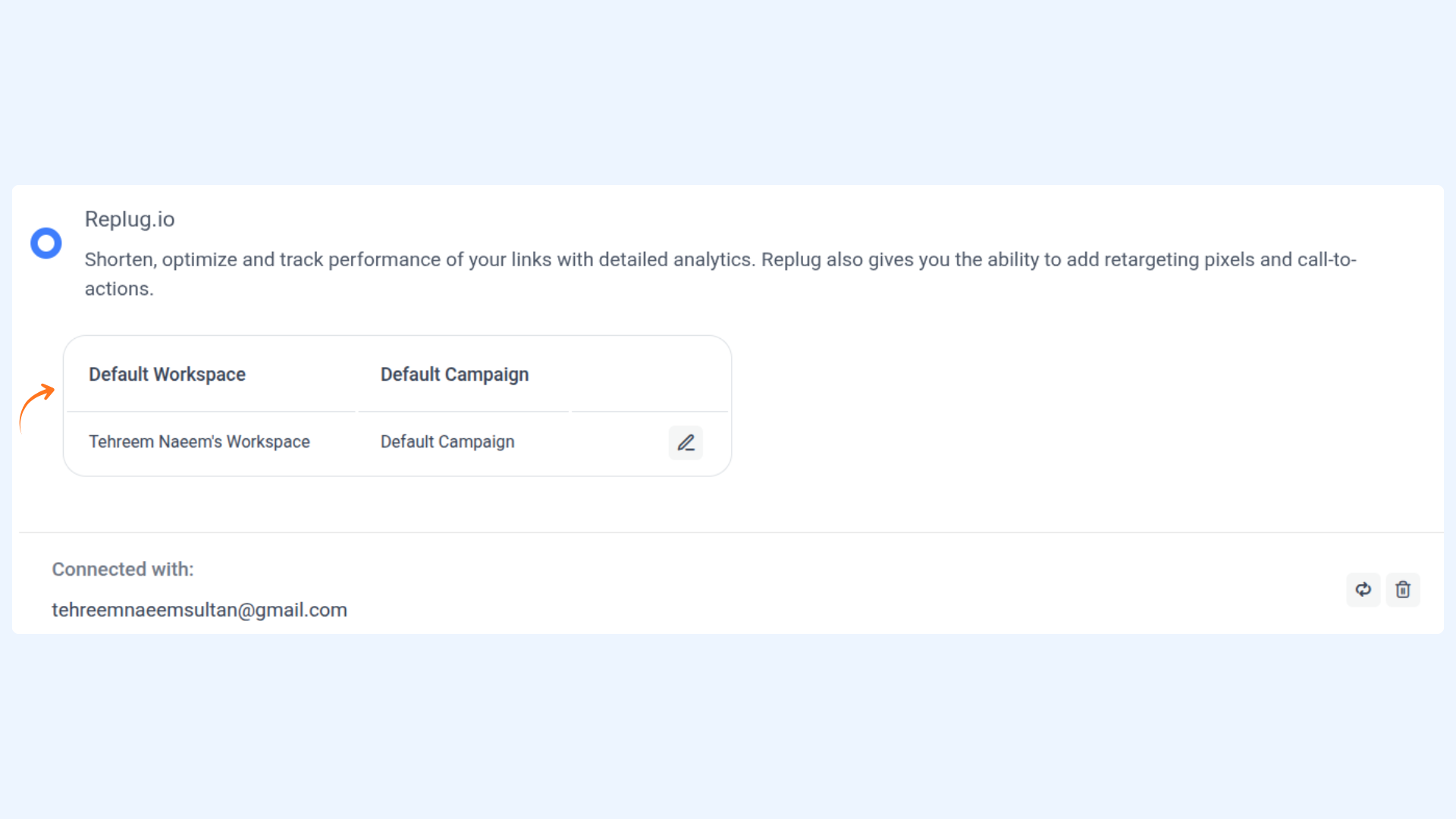
You can update the default brand or campaign anytime from the integrations section. The updated selection will be used for future posts.
Why is my Replug account not connecting?
Make sure you’ve authorized all required permissions during the connection process and that your Replug account is active. If the issue persists, try reconnecting the integration.