

How to change the image aspect ratio in ContentStudio
Ensuring your images fit perfectly on social media is crucial for a polished and professional look. With the built-in crop tool, you can quickly adjust the aspect ratio of your images before publishing. Whether you need a custom size or predefined formats like Square, Landscape, or Portrait, this guide will walk you through the steps to edit your images effortlessly.
Let us dig in 🤤
In this article:
Step-by-step process:
If you want to change the image aspect ratio, follow these steps to fix it directly:
Click the Edit button on the image, as shown below.
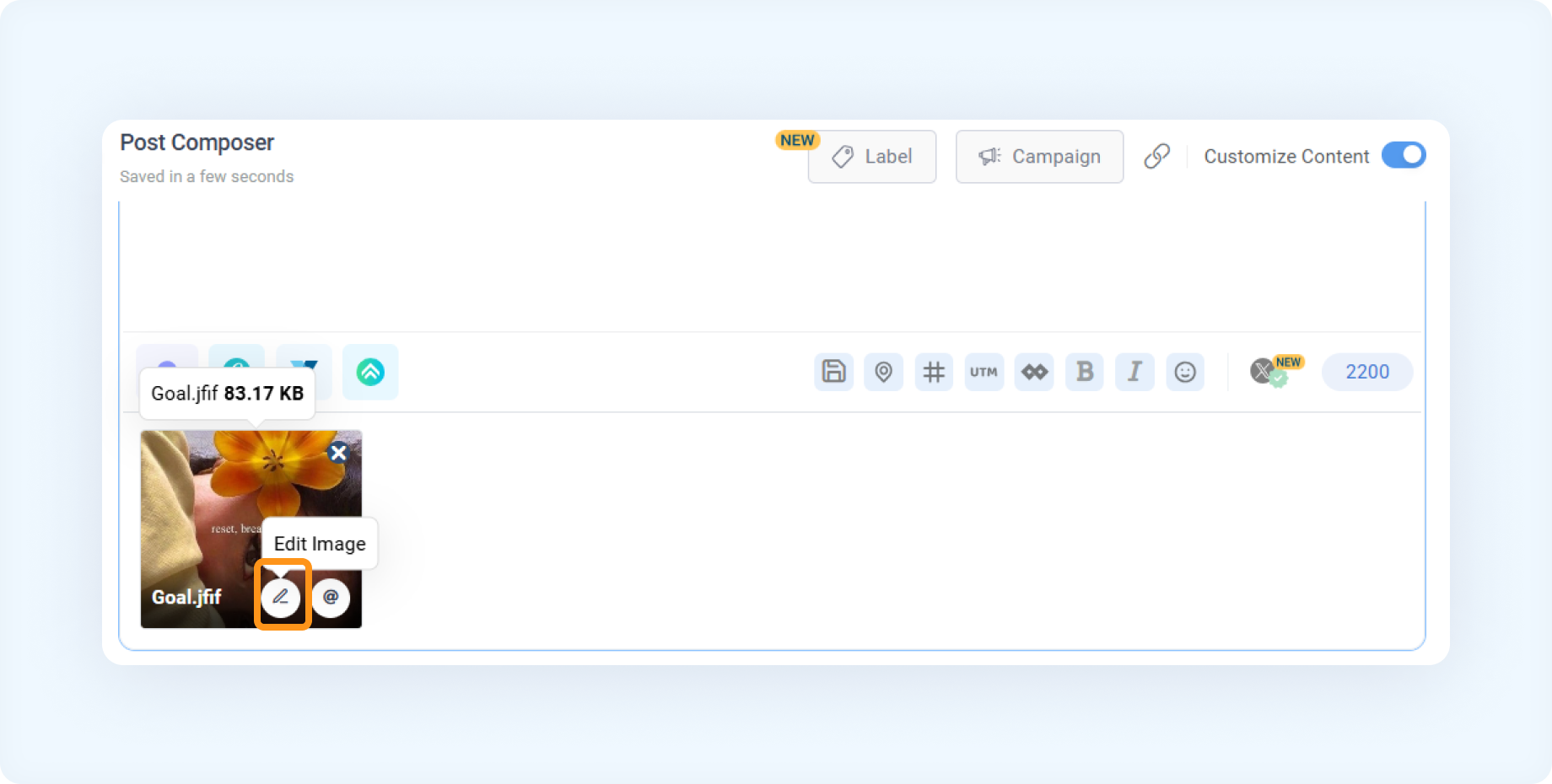
Choose the Crop option, which is highlighted in the image.
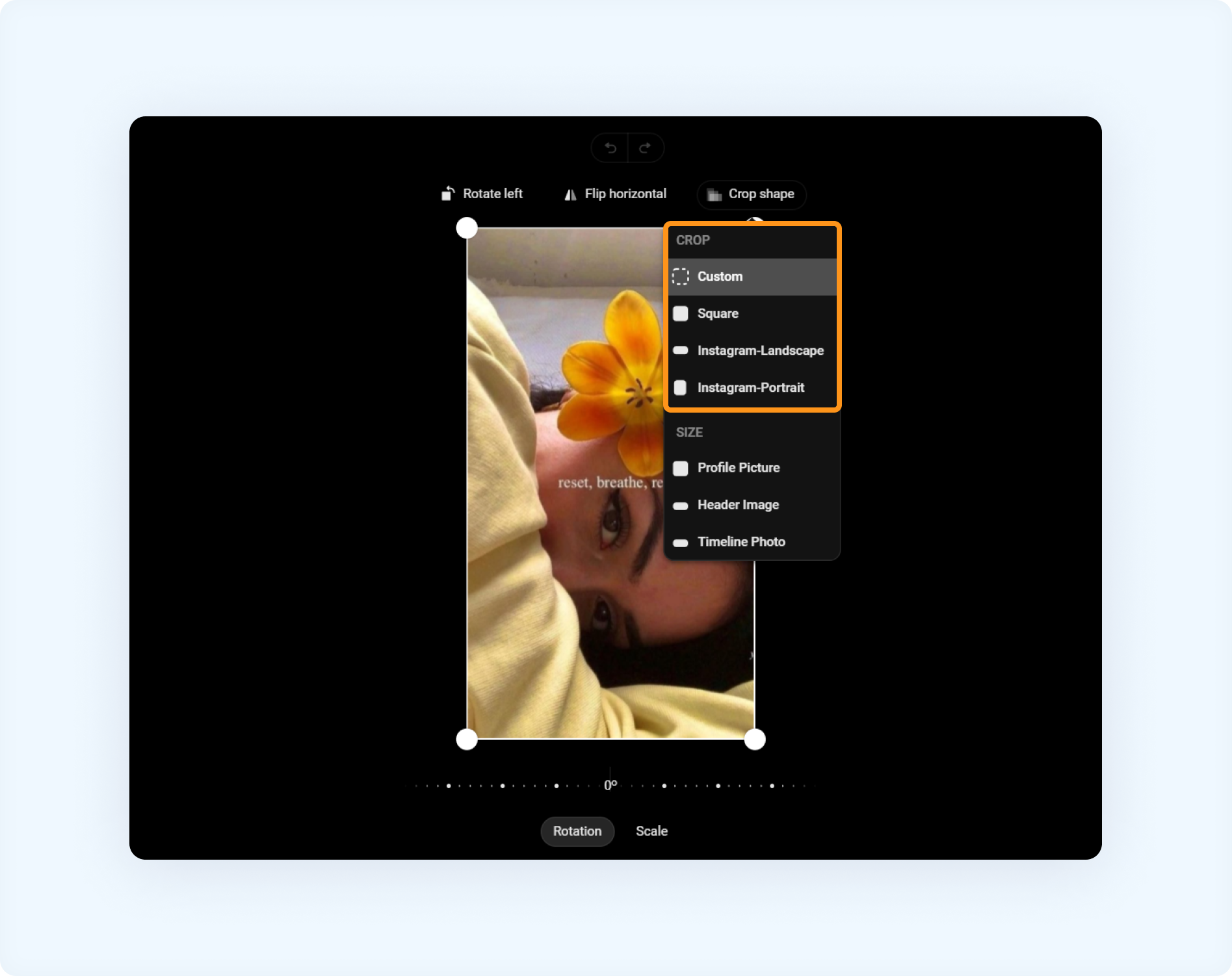
A drop-down menu will appear with the following options:
Custom
Square
Instagram – Landscape
Instagram – Portrait
Choose the aspect ratio that best fits your needs (Custom, Square, Portrait, or Landscape).
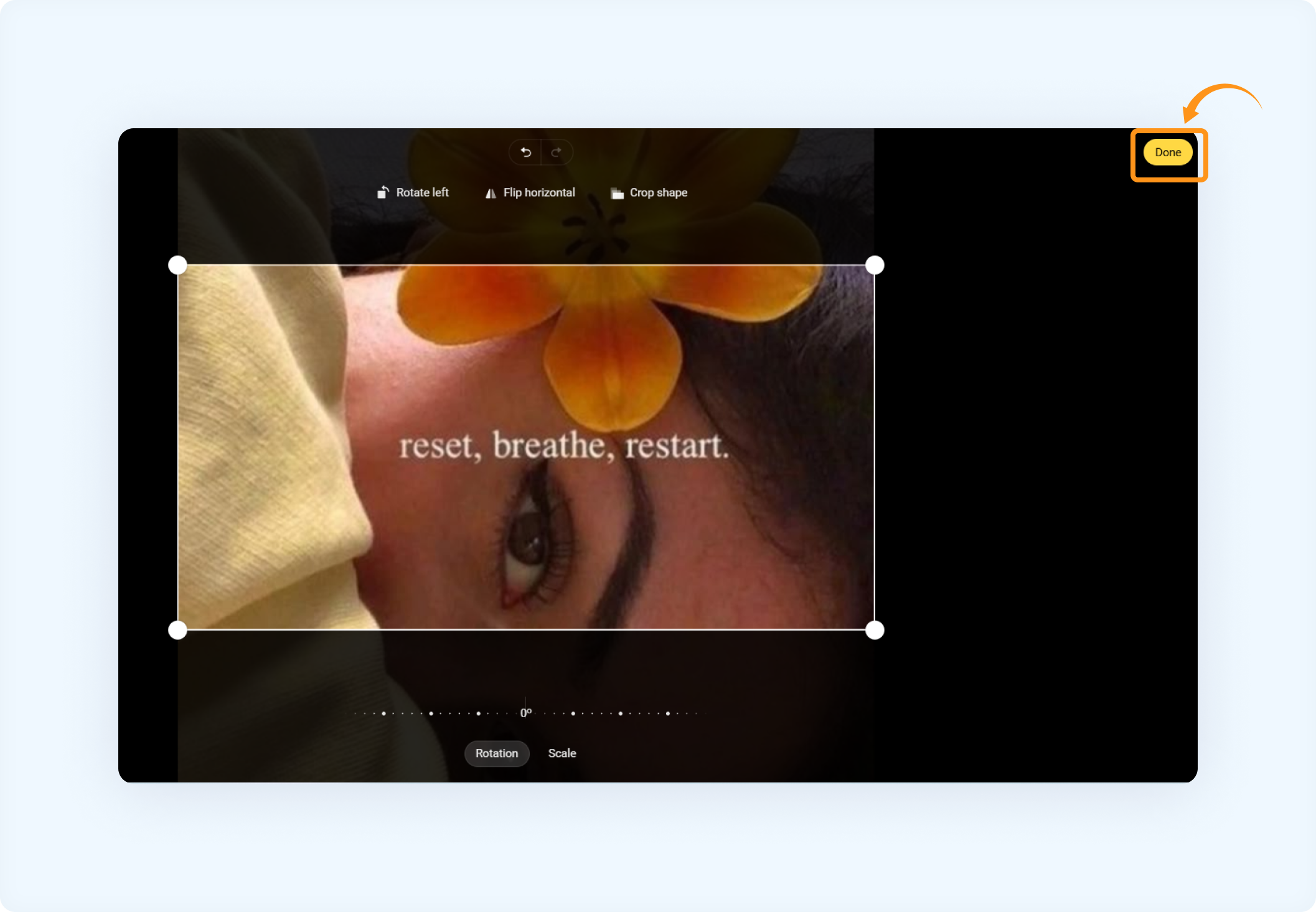
Once satisfied with the crop, click Done (highlighted in yellow) to save your changes and return to publishing.
FAQs
Q1: What crop options can I choose from?
Custom: Adjust as needed.
Square: Perfect for Instagram posts.
Instagram-Landscape: Landscape format.
Instagram-Portrait: Vertical format for portraits.
Q2: How do I apply changes to the image?
A: Once cropped, click Done to finalize your adjustments.
Was this article helpful?