

How to use ContentStudio's AI Studio
ContentStudio's AI Studio is a brilliant chat that helps you create better content faster. It is designed to help users engage in conversations with AI, enabling them to get information, support, or perform specific actions without requiring manual input or extensive human intervention.
In this article:
Starting a Conversation
On the Home page, you can now chat directly with the AI Studio from the Chat with AI section. Simply type your message in the text box and press Enter to start the conversation.
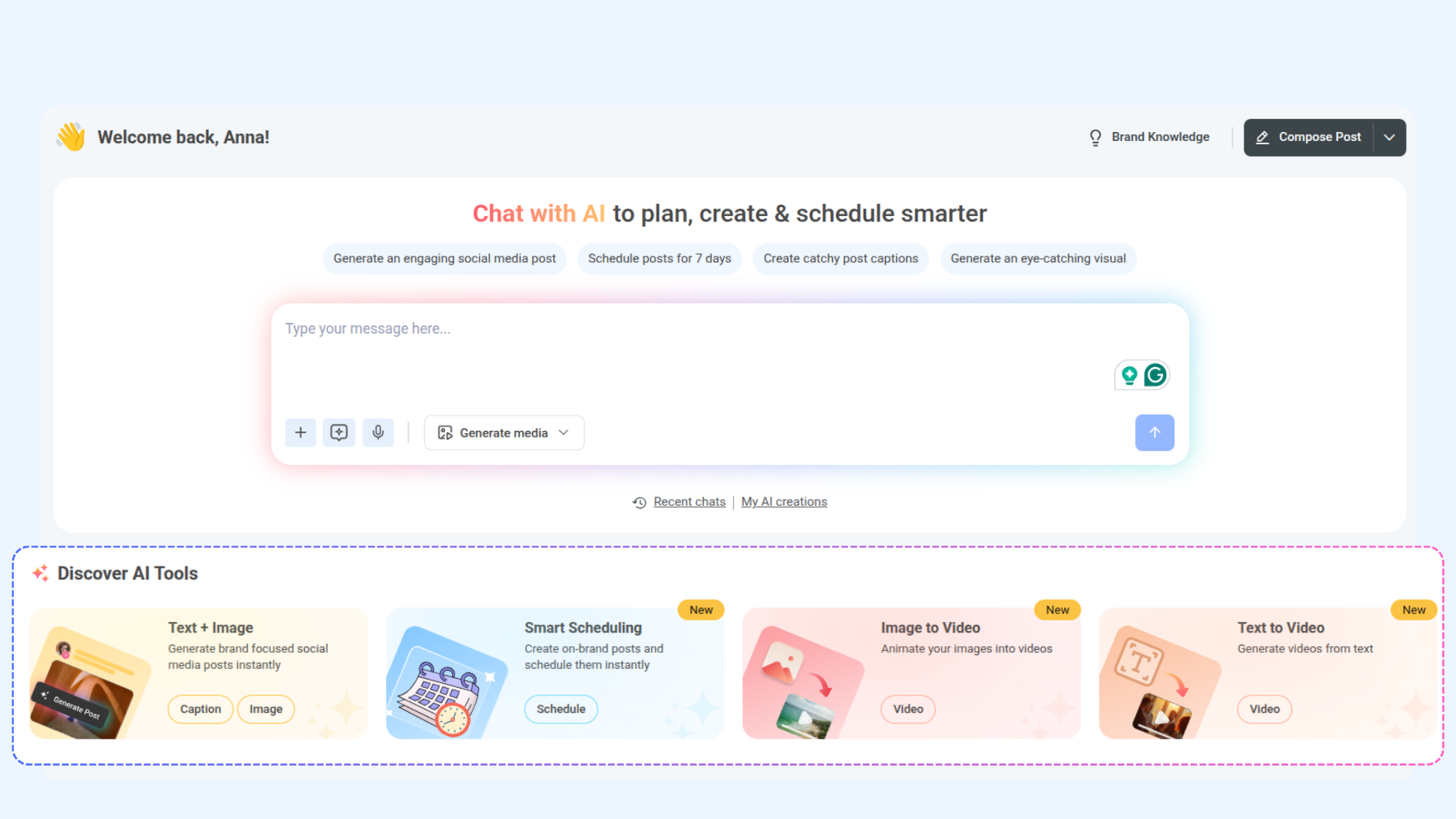
Once you press Enter, the AI Studio chat screen will open where you can continue the conversation, ask questions, or generate content instantly.
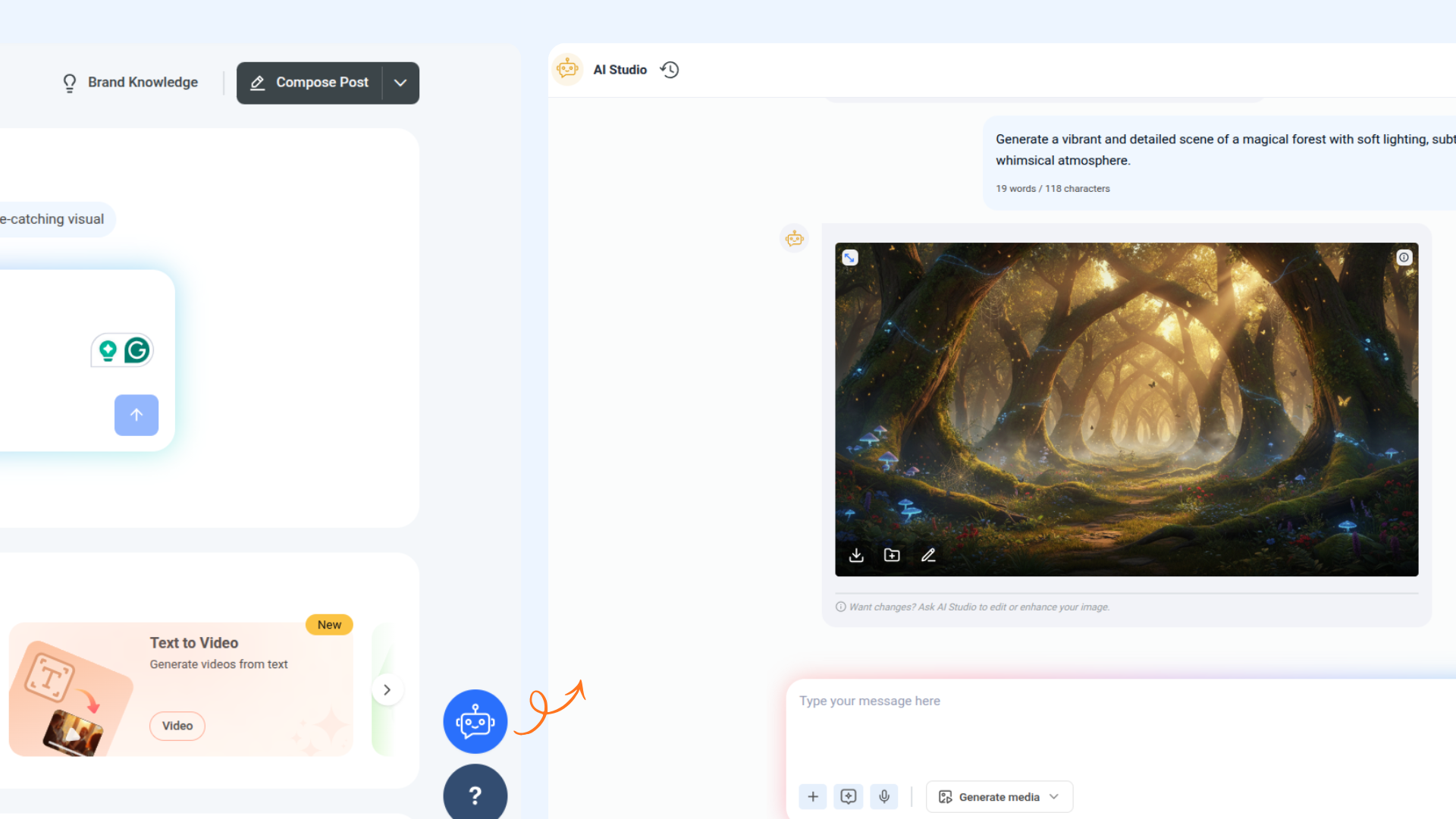
Or, you can go to the bottom-right corner of the Home page to find the AI Studio 🤖.
Click on it and a chat window will appear — type your message to start the conversation.
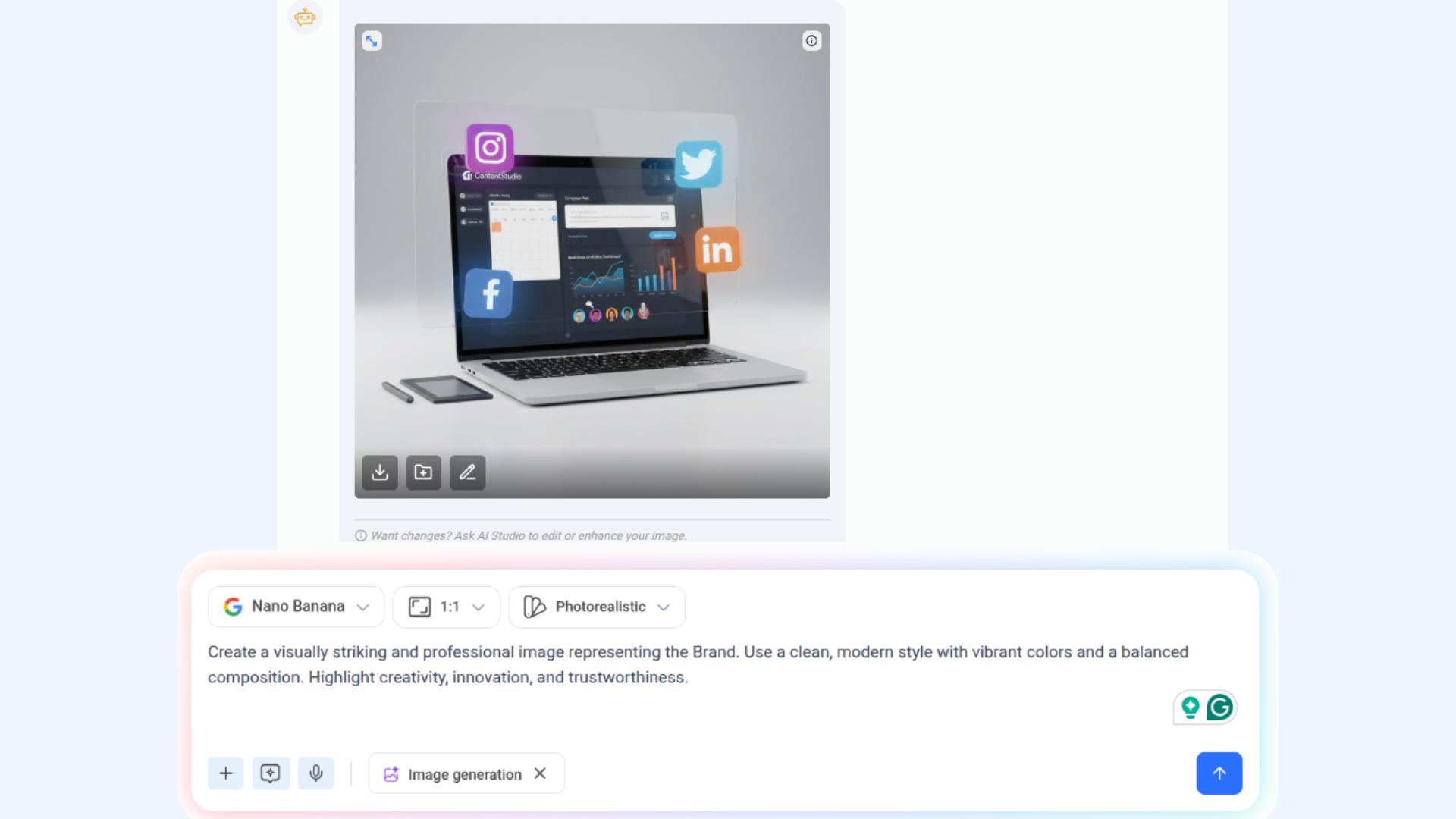
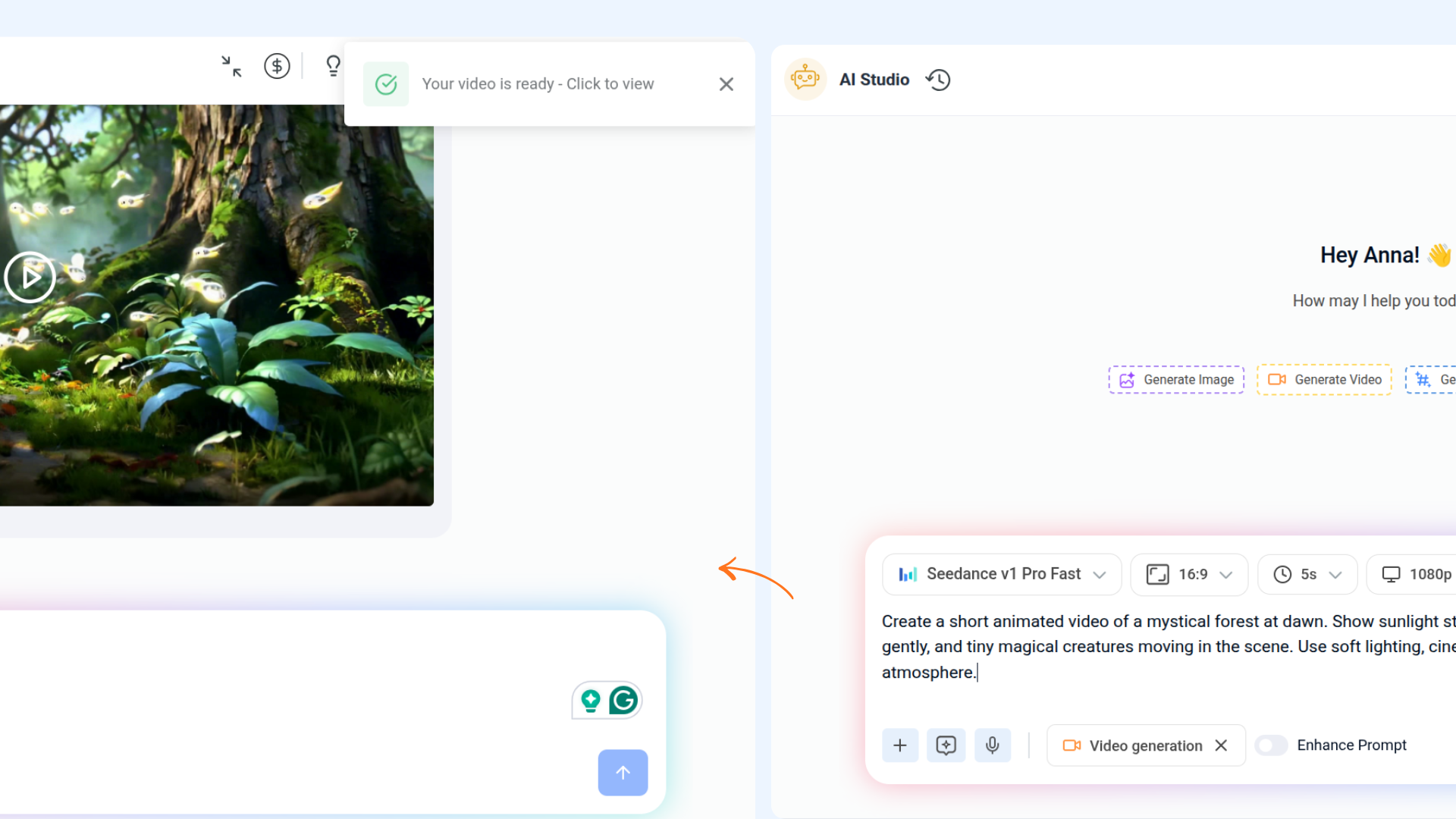
You can generate media using AI, including Image Generation and Video Generation to create visuals for your posts.
Smart Scheduling
Smart Scheduling is built into AI Studio and lets you create and schedule social posts using AI. You can generate captions, refine your content, and attach media — all in one flow. View doc
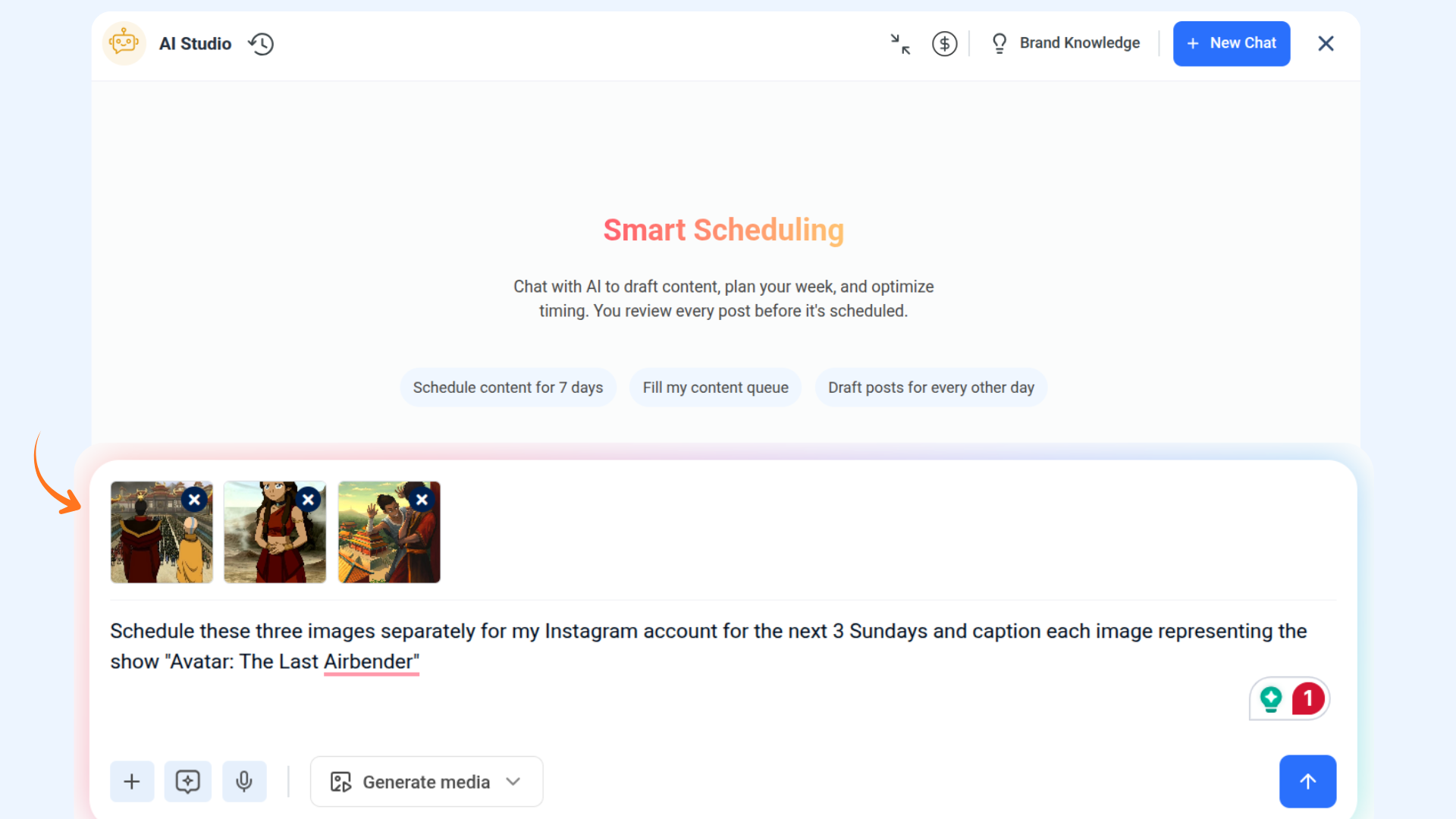
Chat with AI to write your post or select from pre-written prompts. Choose the social account and schedule time, then review the summary before confirming.
Once confirmed, your post is scheduled instantly. You can view and manage all scheduled posts from the Publisher without leaving AI Studio.
Web-Powered search
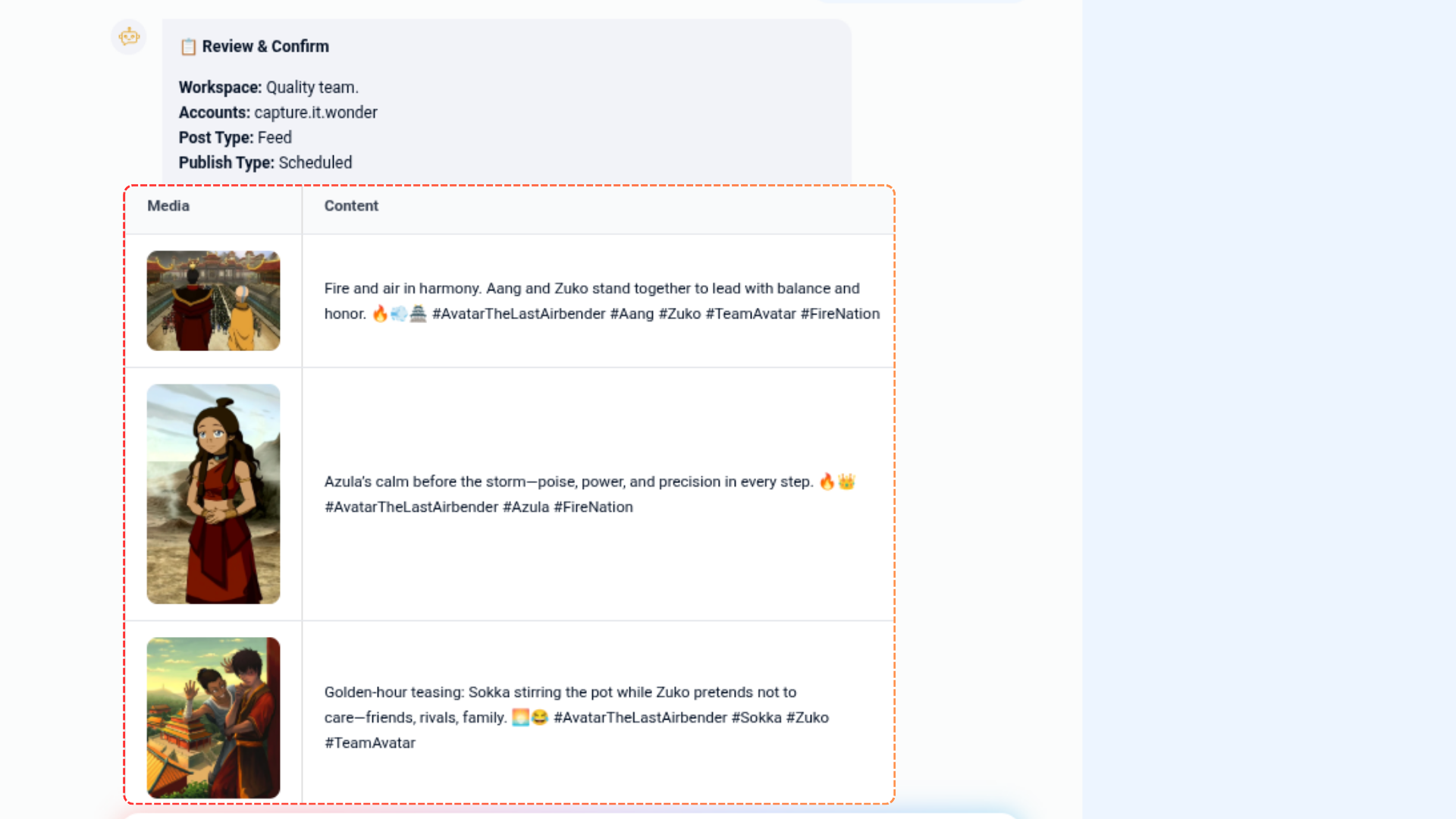
You can use the chat to instantly explore information from the web without leaving AI Studio. Just type what you’re looking for, and the AI will handle the rest for you.
Type prompts to search the web and explore topics quickly.
Paste your own links and ask the AI to summarize, analyze, or extract key points.
Get clear, helpful responses pulled from relevant online sources.
Take Action Instantly with Follow-Up Suggestions
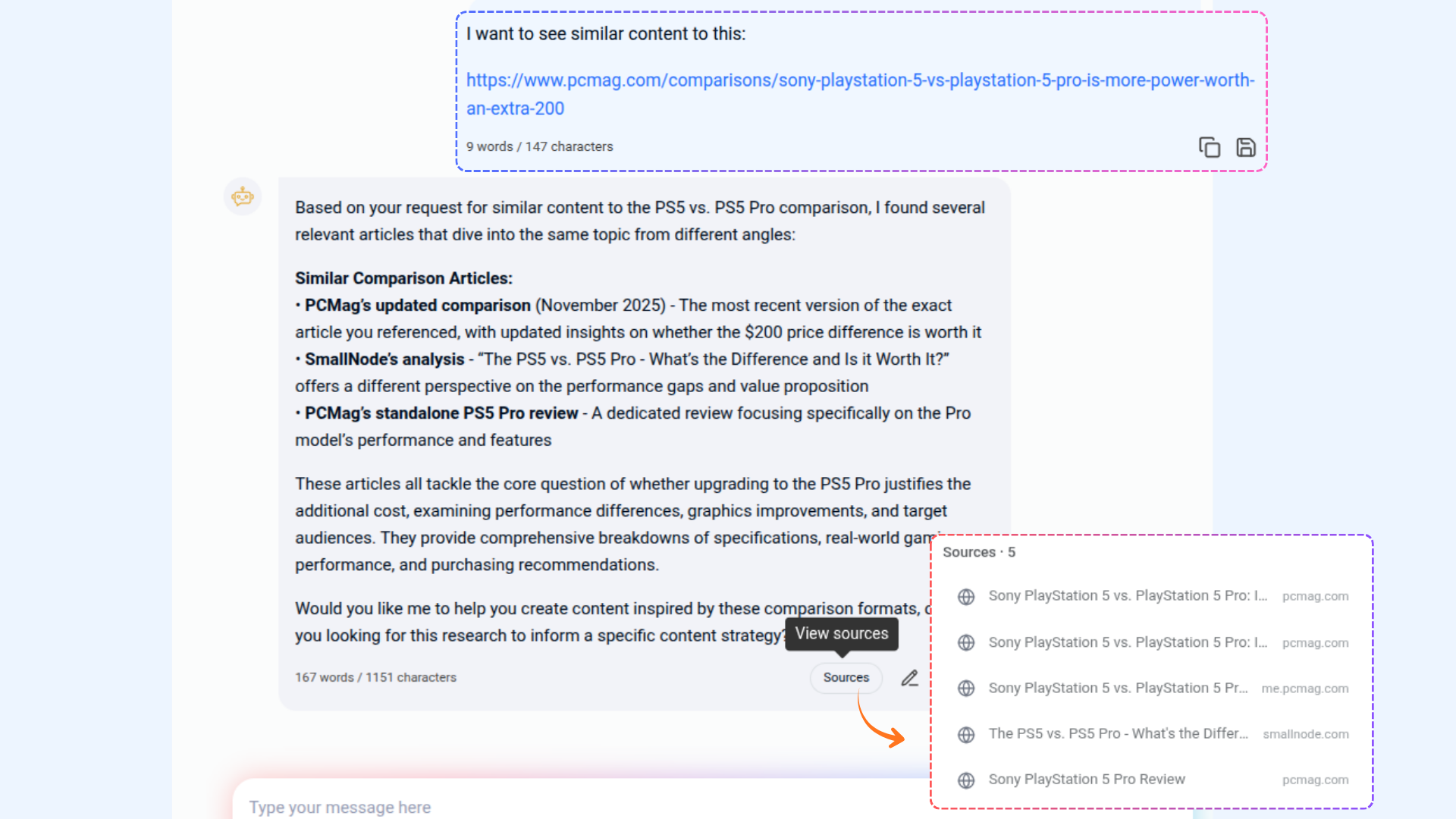
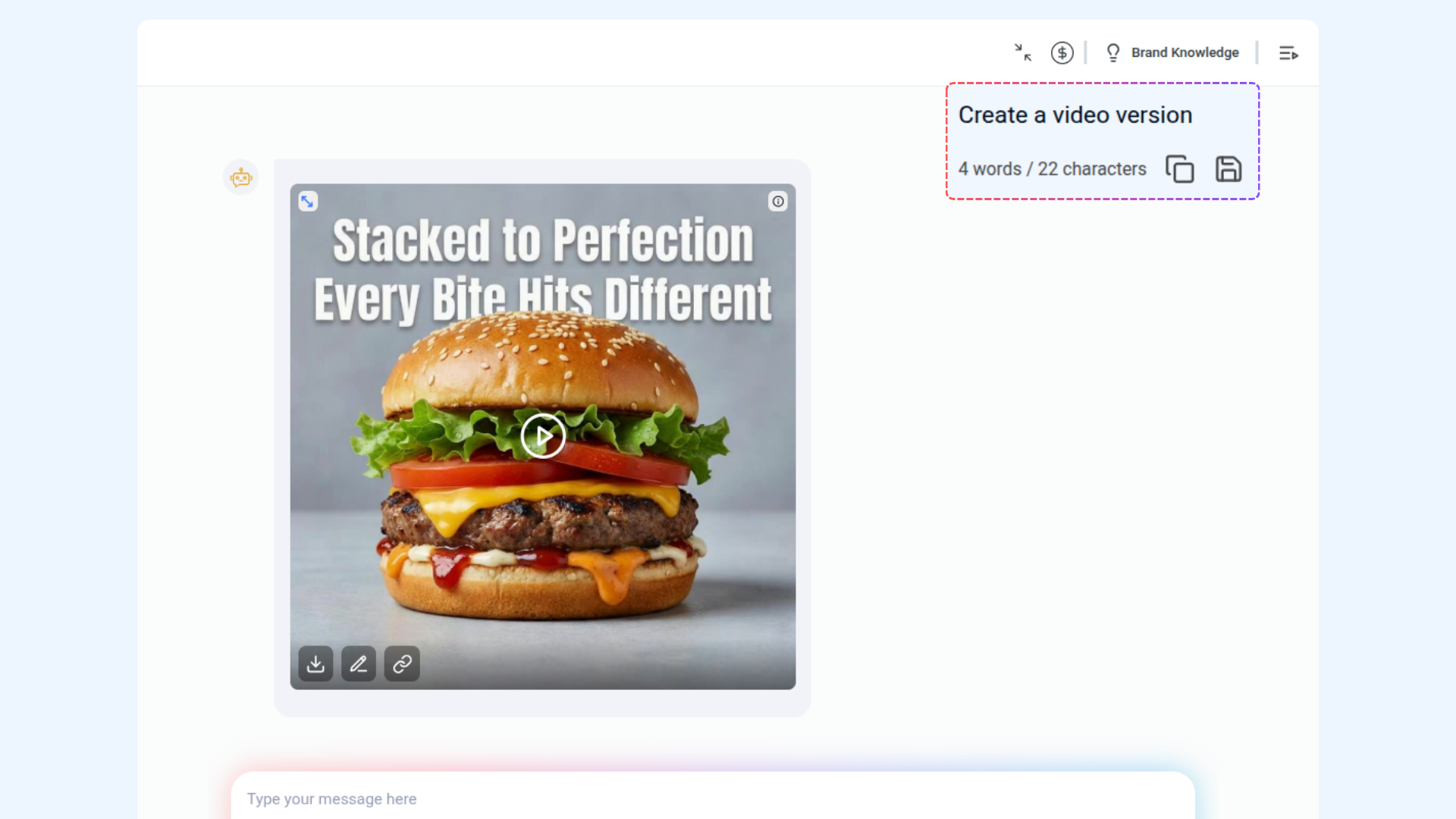
After AI generates a response in AI Studio, you’ll see smart follow-up actions directly below it. These actions help you quickly refine, edit, or publish your content — without typing another prompt.
Instead of rewriting instructions, simply click an action and AI will continue working using the same conversation context.
Enter your prompt in AI Studio.
Review the AI-generated response.
Choose one of the suggested follow-up actions displayed below the response.
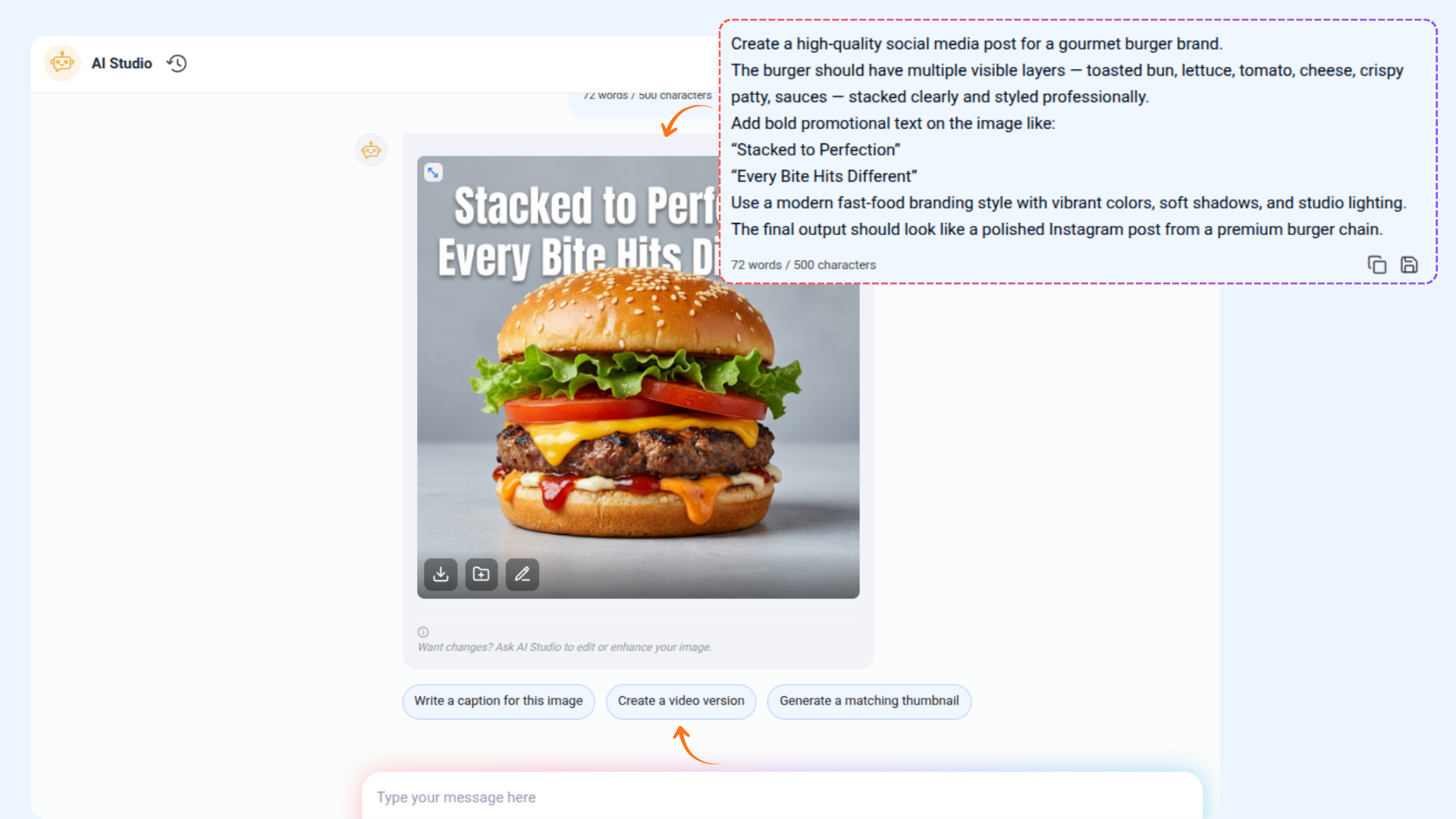
AI will either instantly perform the action or ask for additional details (such as account selection or scheduling time).
The updated result appears in the same chat.
Discover AI Tools
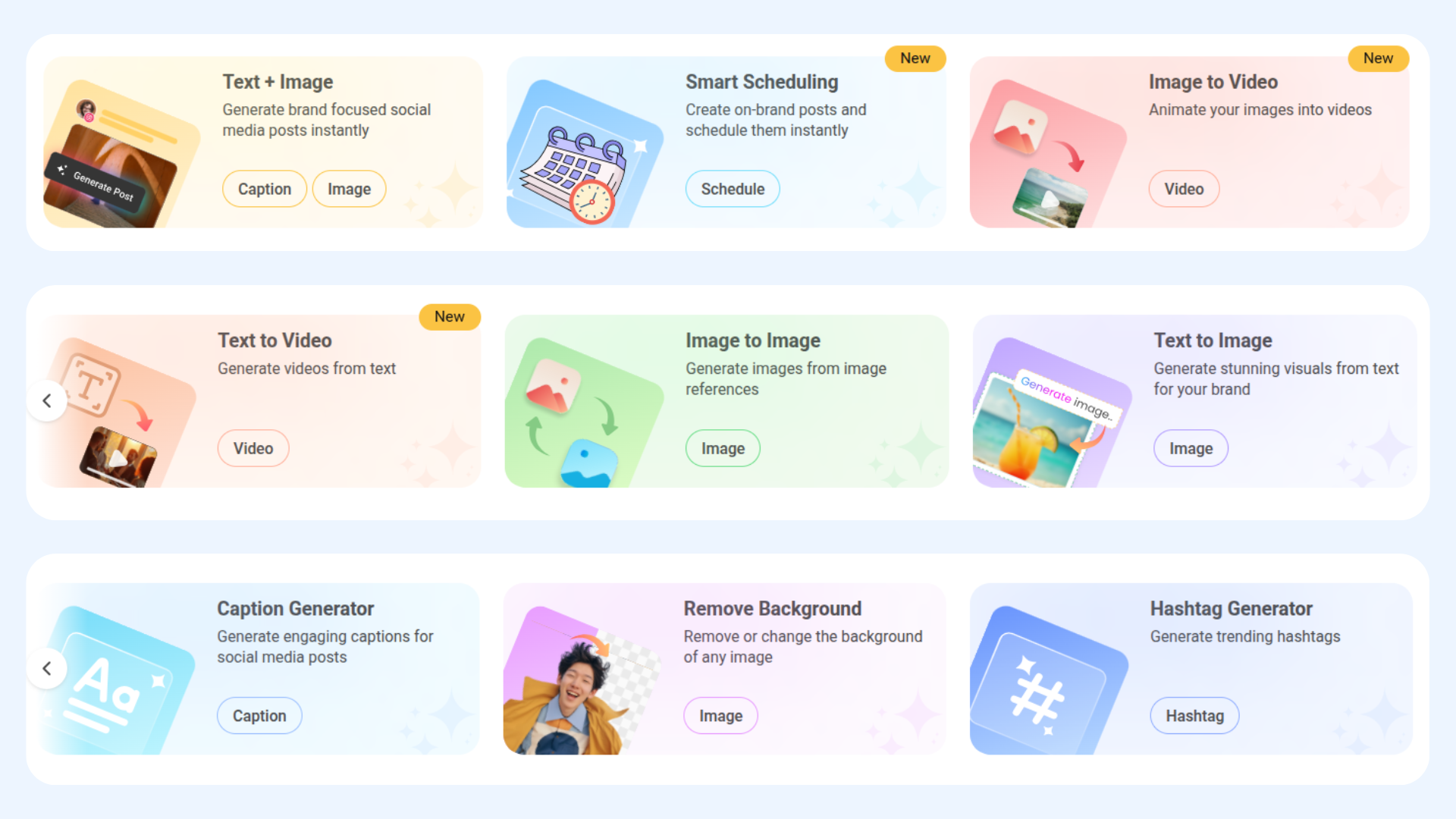
ContentStudio offers a collection of AI-powered tools designed to help you create, design, and optimize your content effortlessly. Here’s an overview of the available tools:
AI Post Generator
Generate brand-focused social media posts instantly, tailored to your content strategy.Smart Scheduling
Create on-brand posts and schedule them effortlessly.Image to Video
Animate your images into engaging videos quickly.Text to Video
Generate compelling videos directly from text prompts.Image to Image
Generate new images using existing images as reference or inspiration.Text to Image
Generate stunning visuals from text prompts for your brand.Caption Generator
Generate engaging captions for social media posts in seconds.Remove Background
Remove or replace the background of any image instantly.Hashtag Generator
Generate trending and relevant hashtags to boost your social media reach.
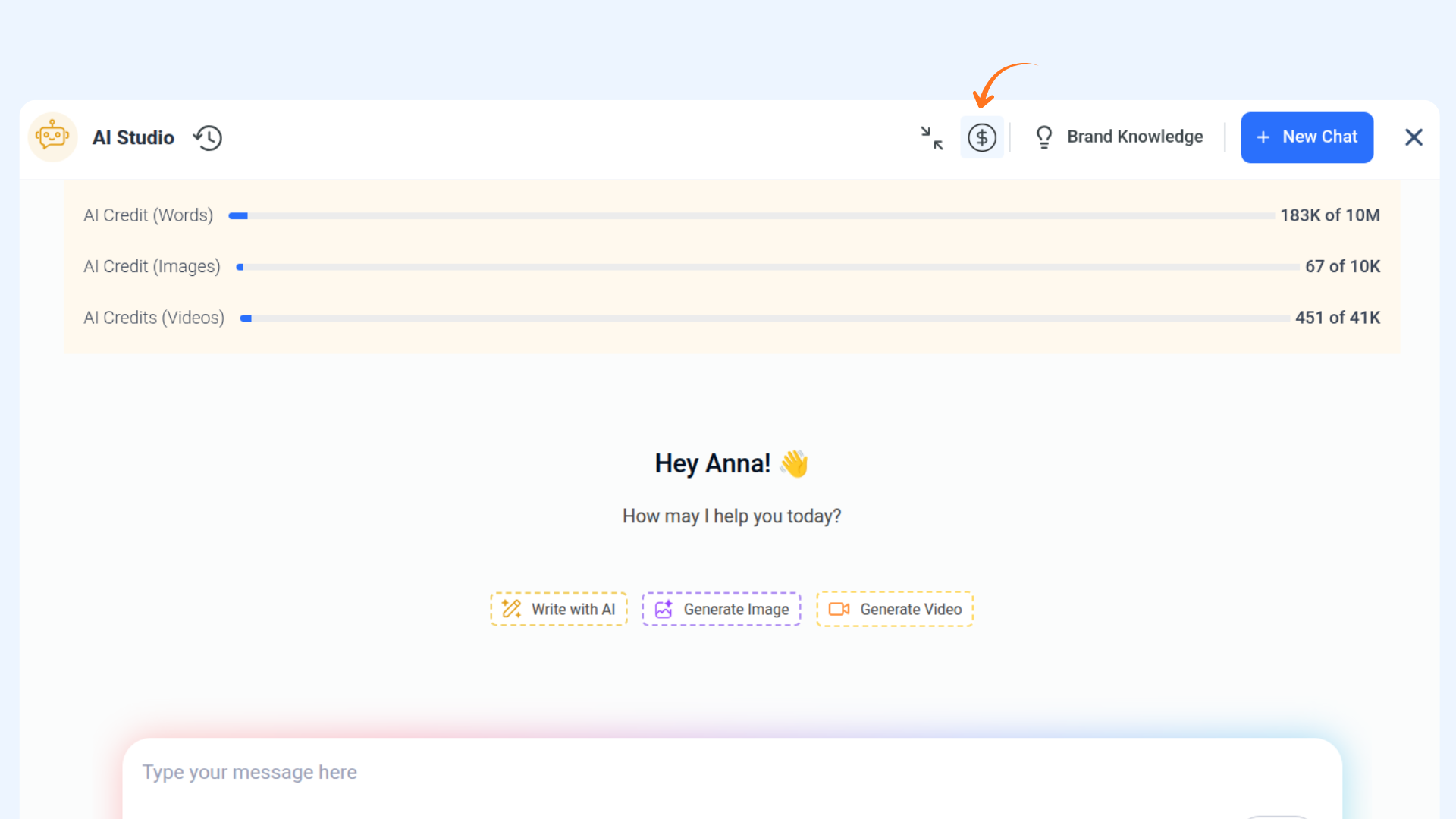
Chat Credit
Clicking on Chat Credit shows the words consumed plus the remaining limit.
The Super Admin subscribes to this limit, and all team members share it (same calculation as AI captions).
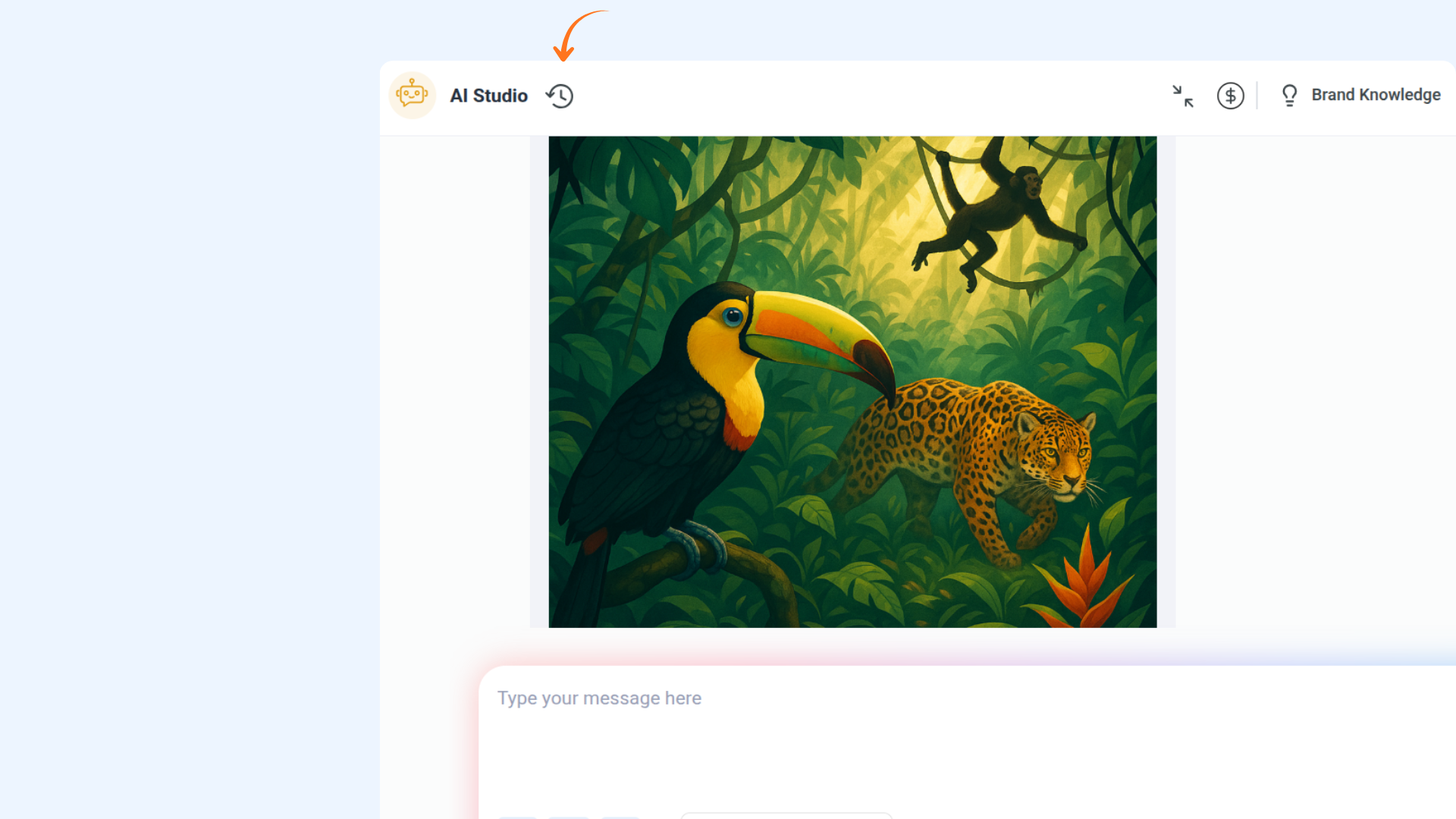
Chat History
ContentStudio's AI Studio allows you to maintain a conversation history, so you never lose track of your chats. You can scroll through previous messages to review information or continue the conversation seamlessly. You can view the chat history or create New Chat.
Brand Knowledge
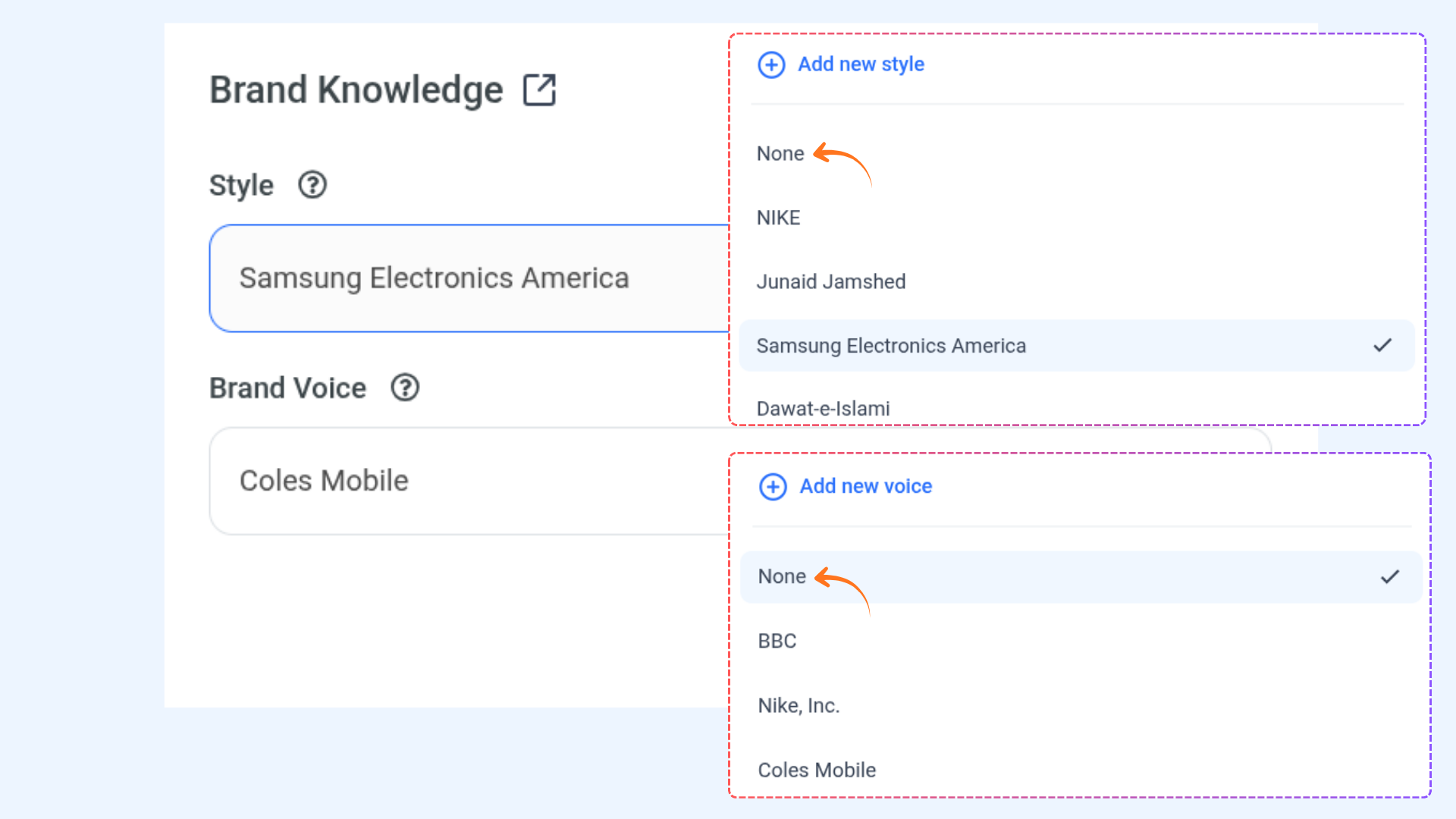
You can now define and apply your Brand Voice within the AI Studio to ensure consistent communication across all your content. Once you’ve set it up, the AI will automatically recognize your tone, style, and preferences — generating responses and content that perfectly align with your brand’s personality. This helps you maintain a unified voice, whether you’re writing captions, blog posts, or replies.
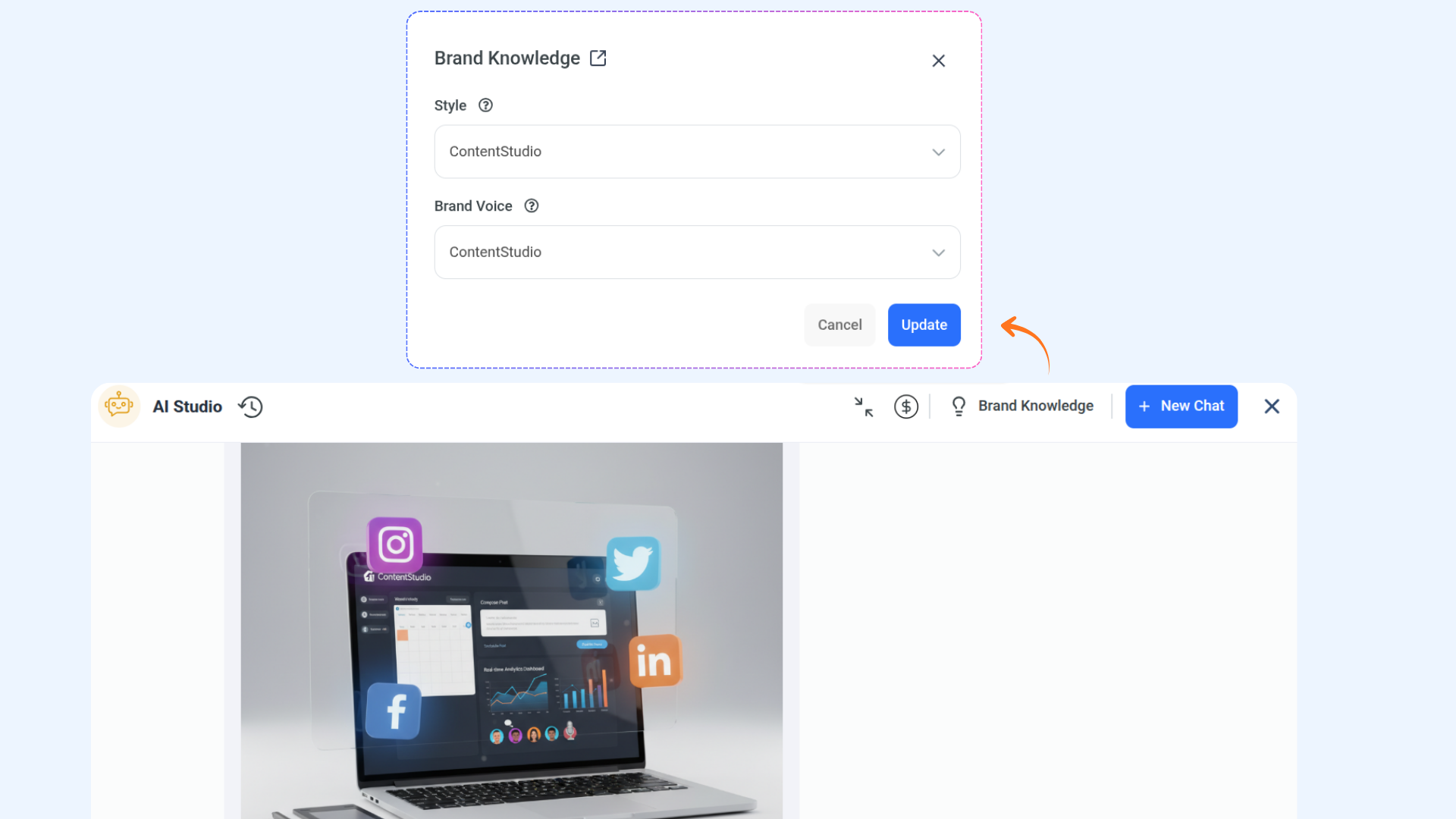
You can also choose None for both Brand Voice and Brand Style if you prefer not to apply any predefined tone or formatting. Selecting this option allows the AI to generate content using its default behavior, giving you full flexibility for one-off content or experimentation without brand constraints.
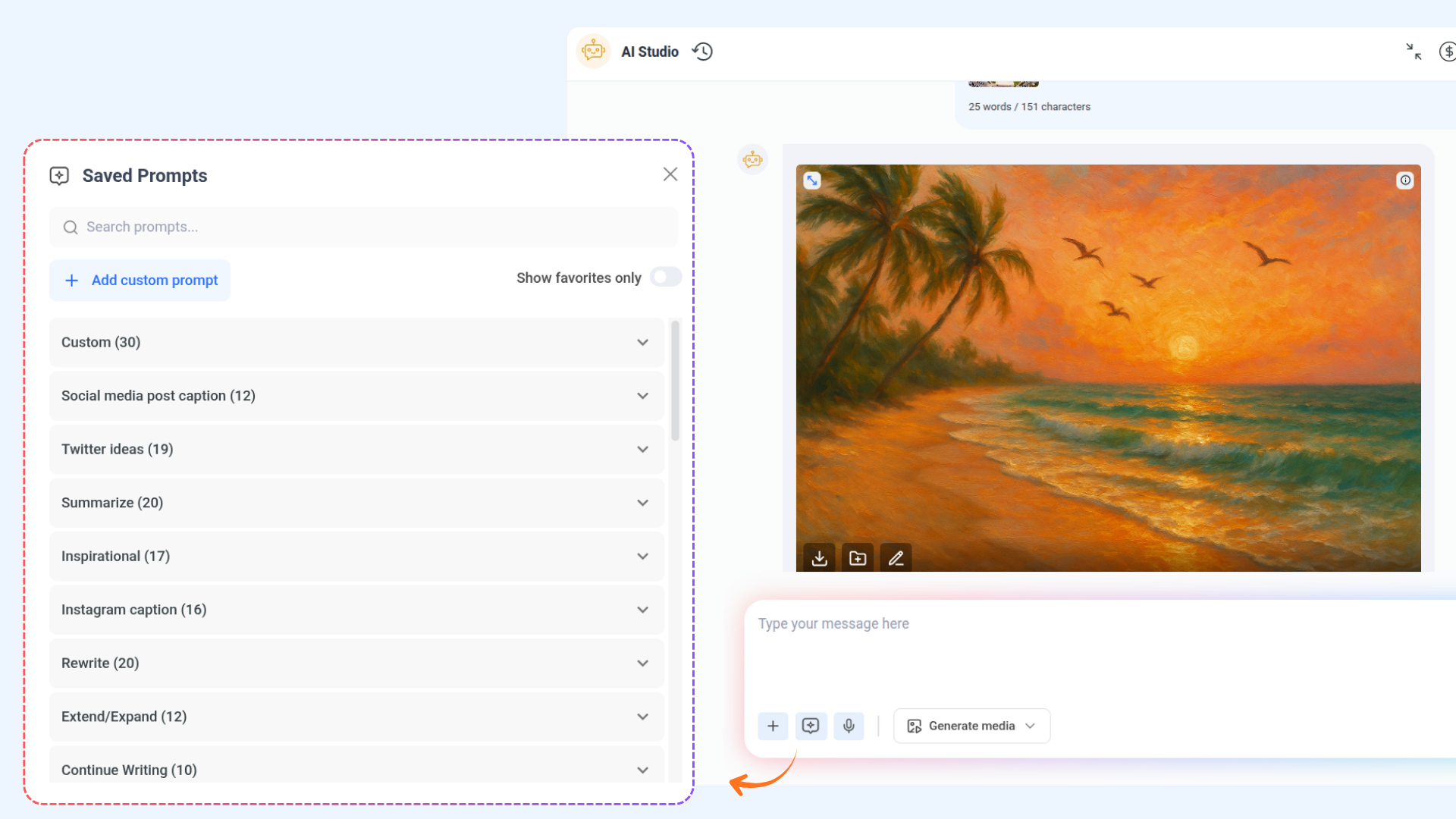
Predefined prompts library
If you're unsure what to ask, the AI Studio offers a predefined prompts library and suggestions. Click on the Prompts button to view a list of available prompts that can help you get started or explore common topics.
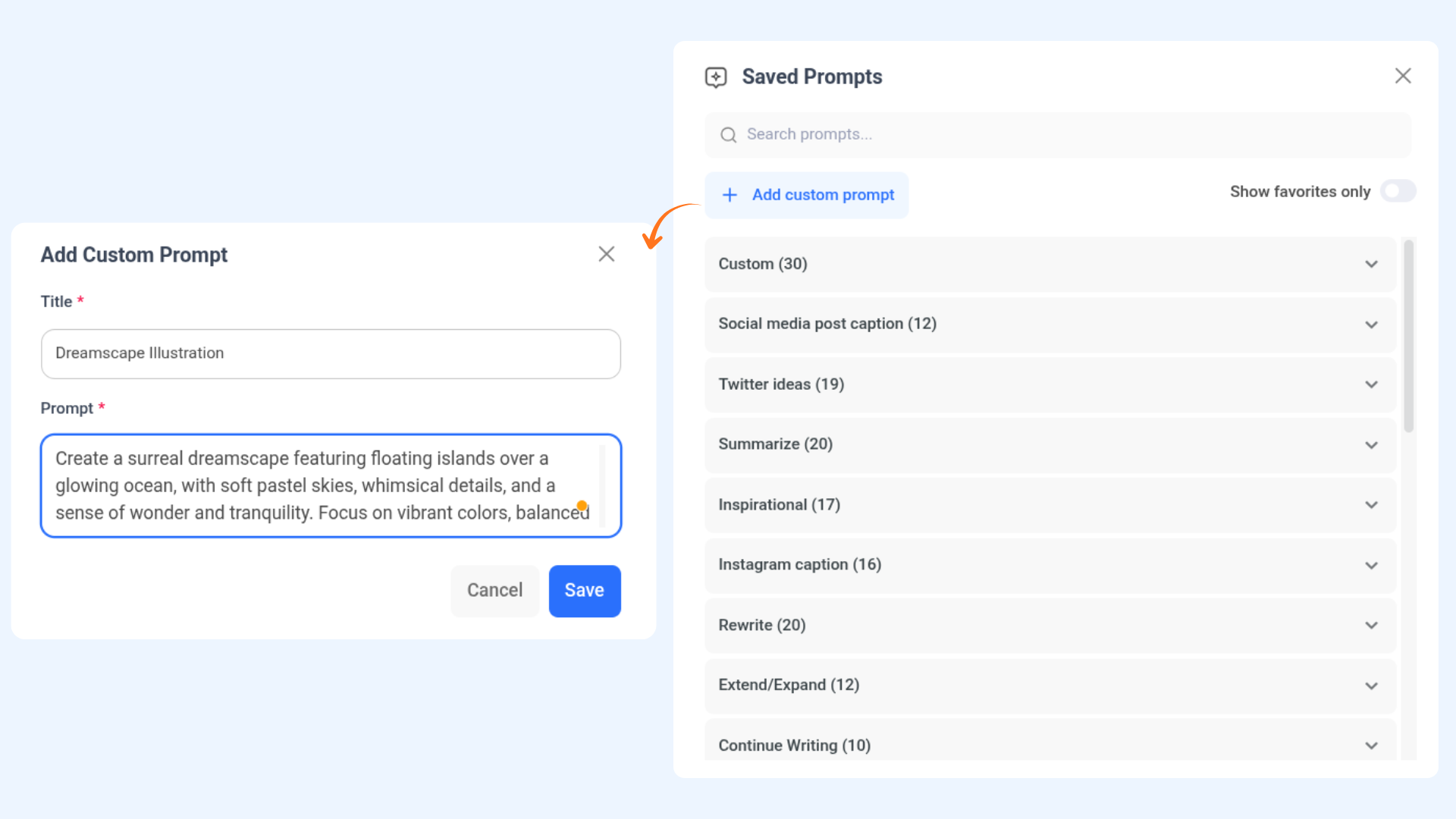
Custom Prompts
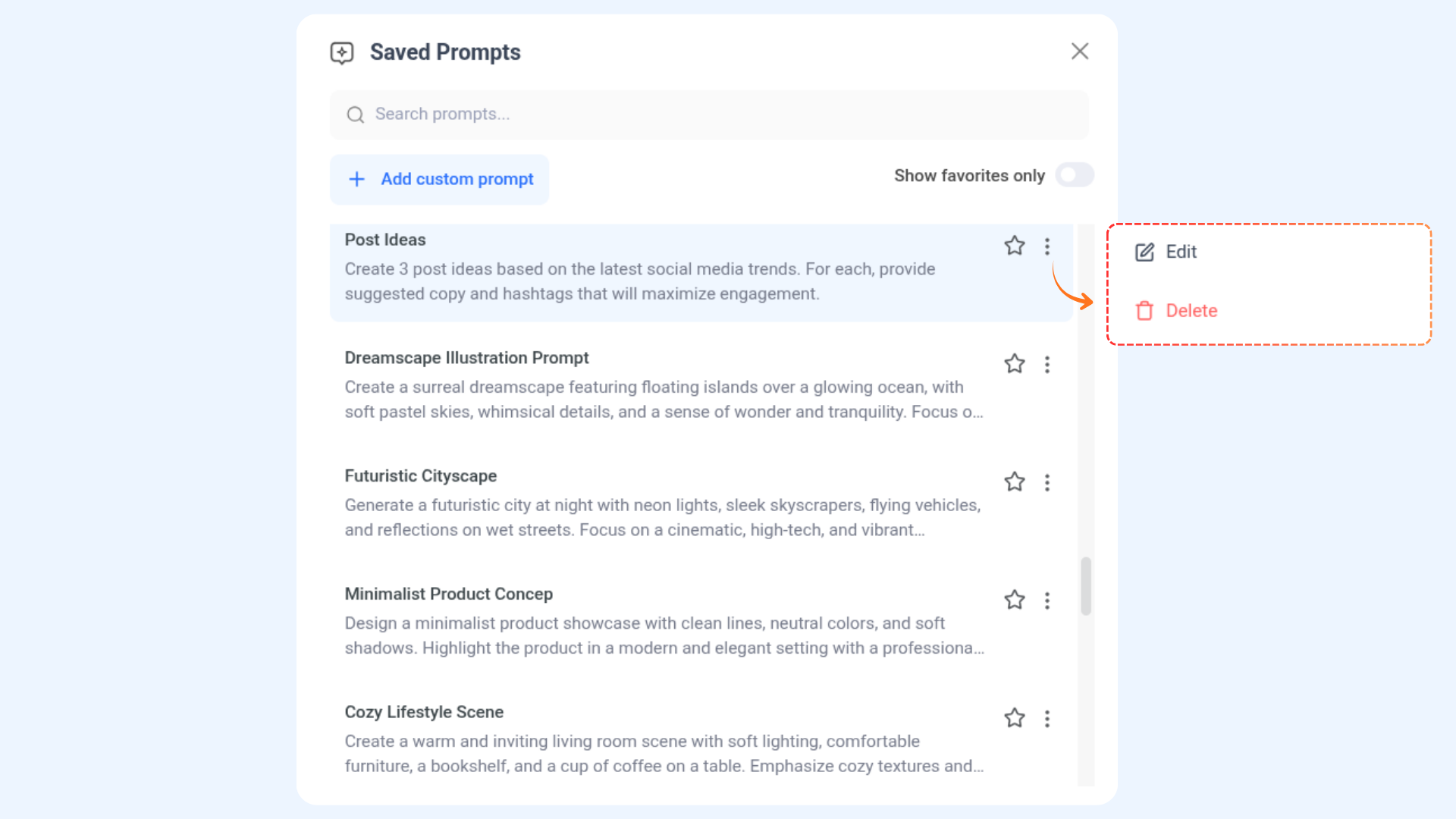
You can see the option to create custom prompts below the search bar. Here's how you can achieve that with the AI Studio:
Enter your prompt title and description based on your specific needs.
Click the Save button to add it to your list of saved prompts.
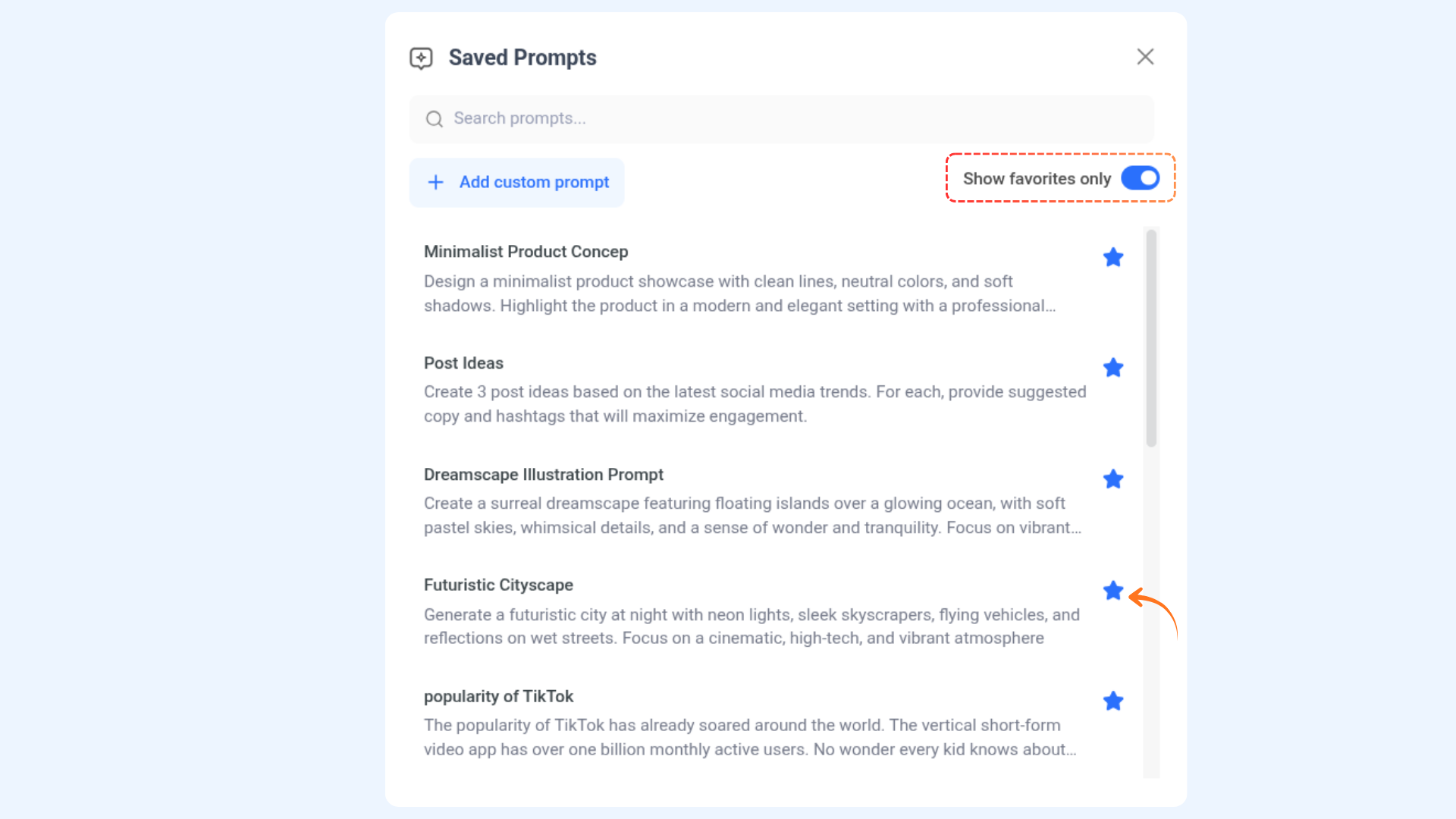
Favorite prompts
You can mark a prompt as a favorite.
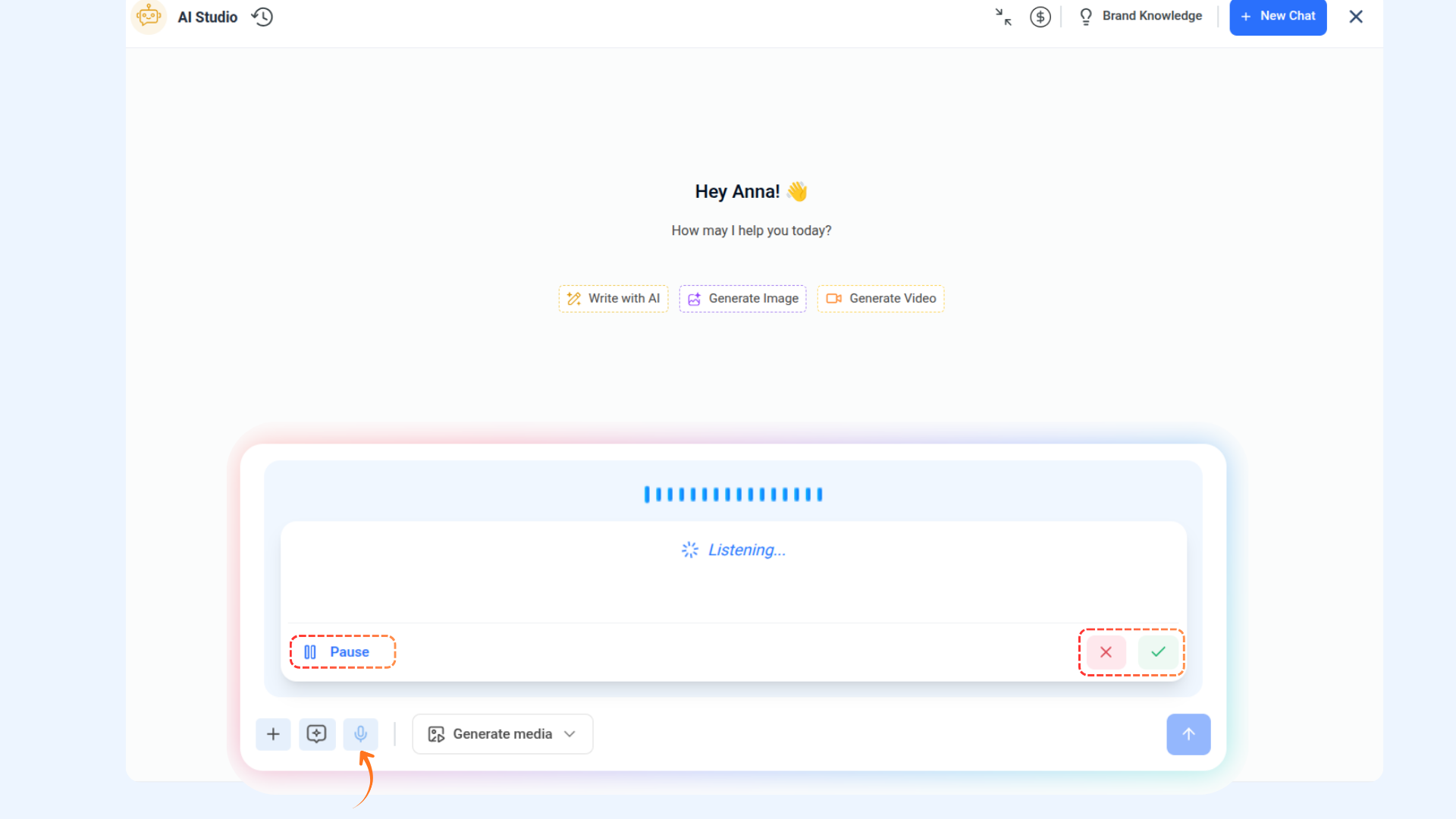
Audio to Text
Tap the mic icon to start speaking.
Speak — the text will appear on screen in real time. Use Pause and Resume if needed.
Tap the ✓ to accept and send the text.
FAQs
Q1: How do I start a conversation with the AI Studio?
A: Type a question or message into the chat window to start interacting. You can also use quick prompts for instant suggestions tailored to your content needs.
Q2: Can I create and save custom prompts?
A: Yes! You can create custom prompts with a title and description based on your needs. Saved prompts can be edited or deleted anytime for future use.
Q3: Can I view past conversations with the AI Studio?
A: Yes! The Chat History feature allows you to revisit previous interactions. Click “New Chat” to access your chat history.
Was this article helpful?