

How to connect a WordPress Blog
To publish content directly to your WordPress blog from ContentStudio, you first need to integrate your website with the platform. ContentStudio offers three different integration methods so you can choose the one that best fits your setup.
We have enabled three different ways to integrate your website into ContentStudio.
Method 1: Using the Official WordPress Plugin (Preferred)
If you are a new user please continue reading.
Activate the ContentStudio Plugin in WordPress
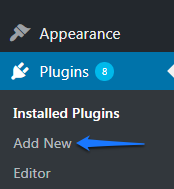
Go to WordPress Admin → Plugins → Add New
Log into your WordPress dashboard and click Add New under Plugins.
Search for "ContentStudio"
Use the search bar on the right. If you see Update Now, refresh the page first.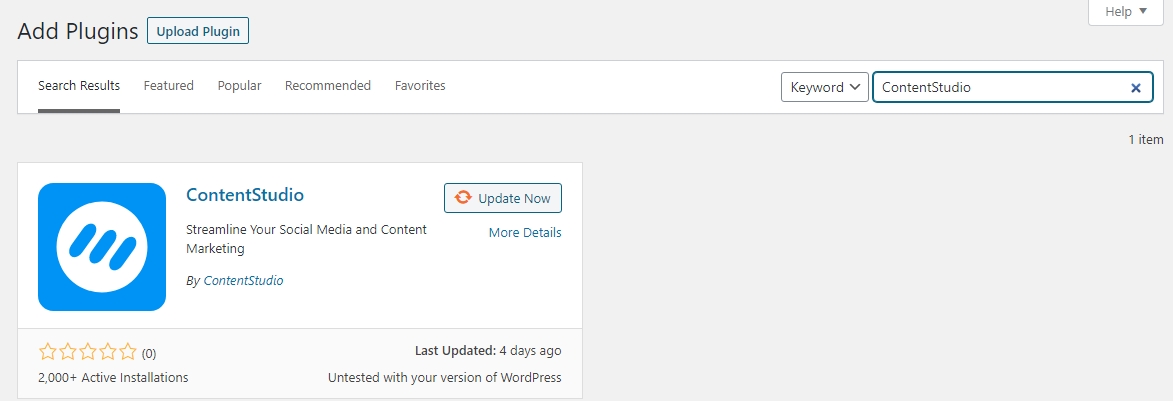
Click Activate
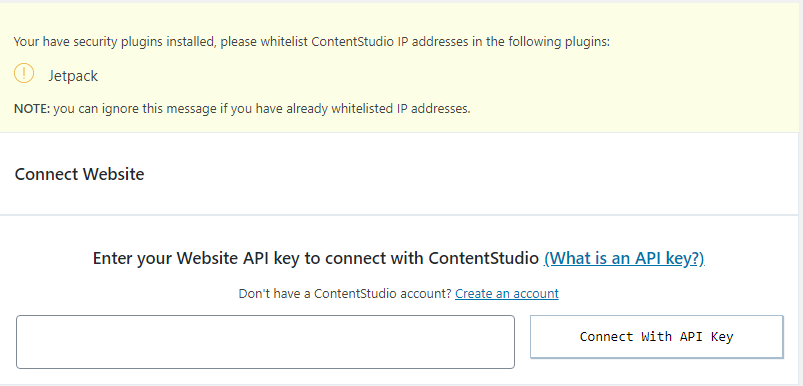
Activate the ContentStudio plugin. The page will refresh and prompt you for an API key.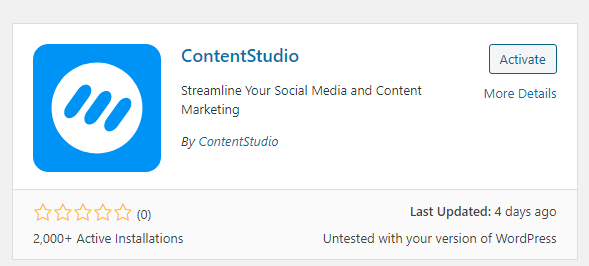
Connect WordPress in ContentStudio
Copy Your Blog URL
In another tab, copy your blog URL from the address bar (e.g., https://yourblog.com/).
Go to ContentStudio → Settings → Blogs & Websites
Select Connect a New WordPress Blog/Website.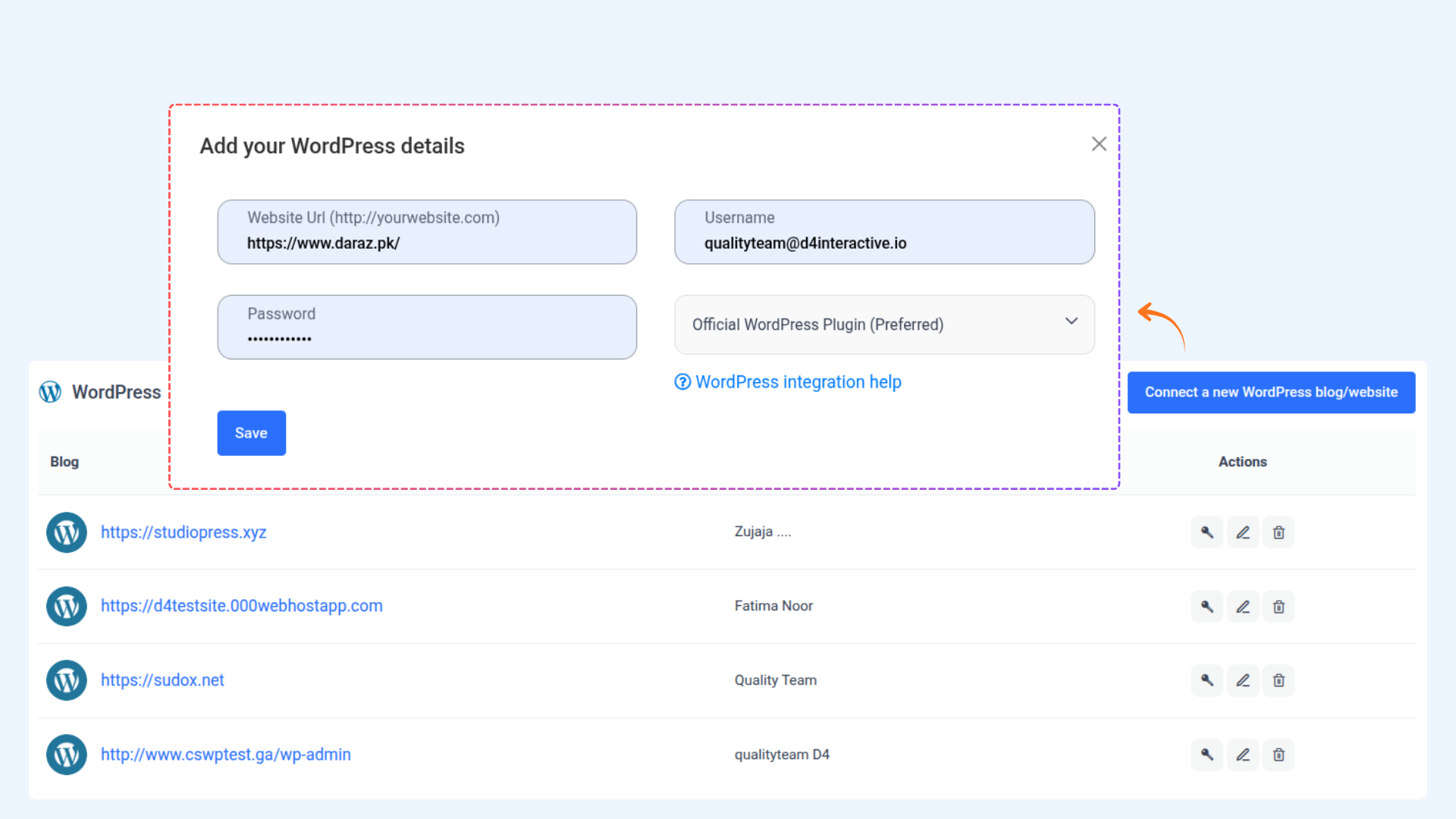
Enter Blog Details
Paste your blog URL, enter your WordPress credentials, and under Choose Method for Content Submission, select Official WordPress Plugin (Preferred).Click Save
Once credentials are verified, you will see a success notification in the top right corner confirming your blog has been added.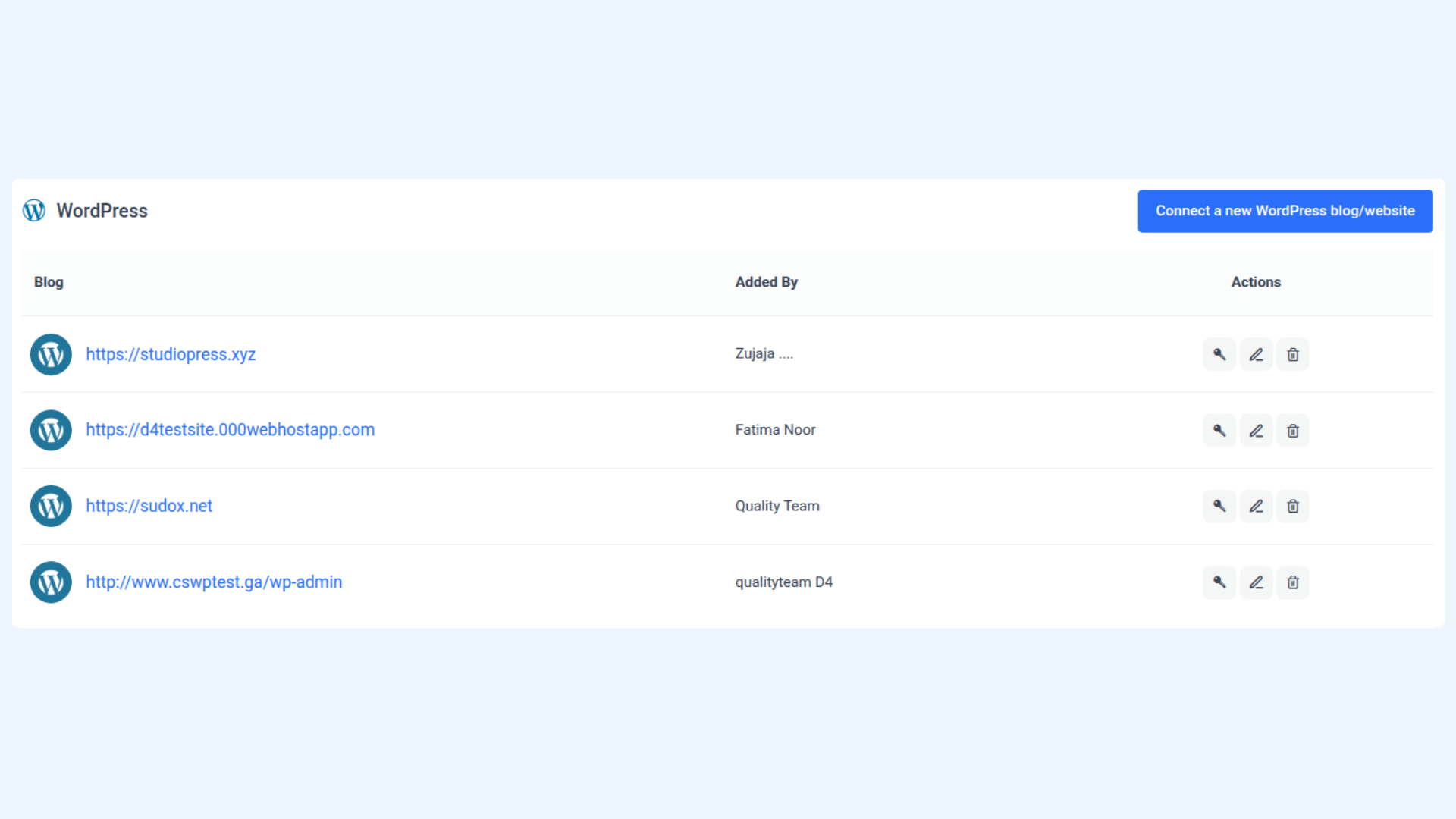
Connect Using API Key
Copy the API Key
Click the key icon under Actions next to your connected blog and copy the API key.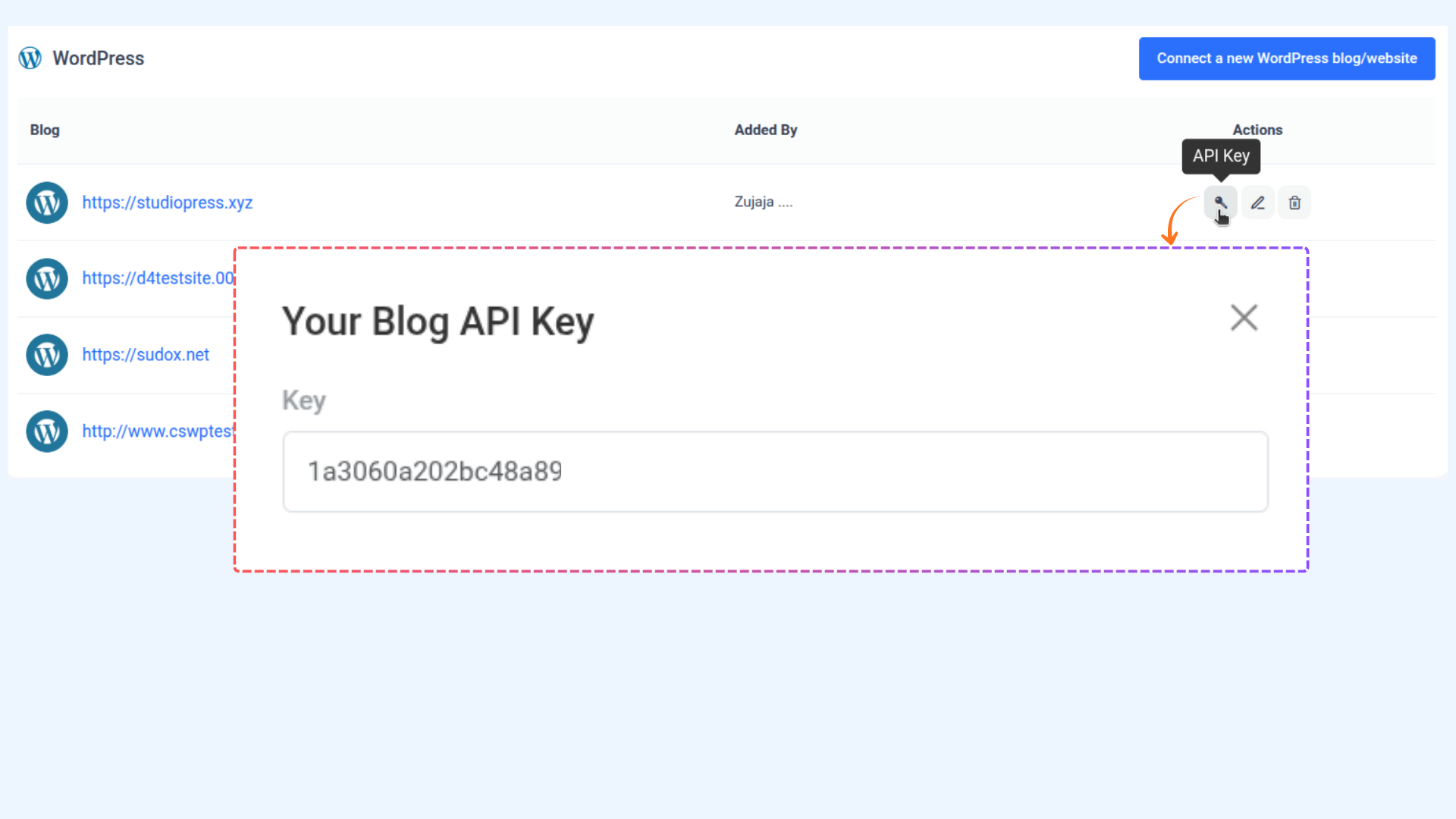
Paste API Key in WordPress
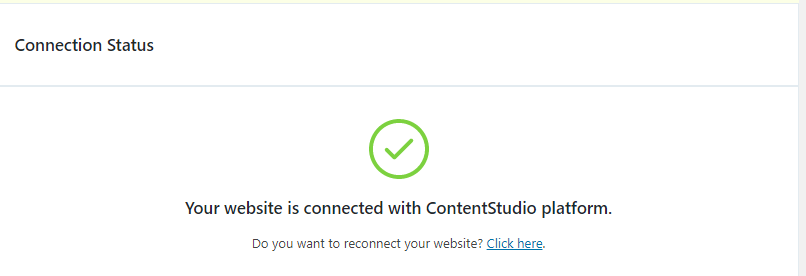
Go back to WordPress Admin, paste the API key, and click Connect with API Key. Once successful, the page will refresh and confirm your website is connected.
Whitelisting IPs (If Using Security Plugins)
Whitelist ContentStudio IP
If using security plugins like Wordfence, whitelist the IP address:
116.203.138.107Follow this detailed guide for Wordfence:
👉 How to Whitelist IPs for Wordfence
Method 2: WordPress API
The steps to follow for the second method are given below.
Download & Install the Required Plugin
Before integrating your website, install the required plugin:
WordPress Rest API Plugin
Upload the Plugin in WordPress
Log in to your WordPress Admin panel.
Go to Plugins → Add New.
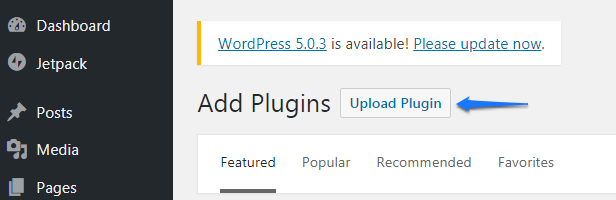
Click Upload Plugin.
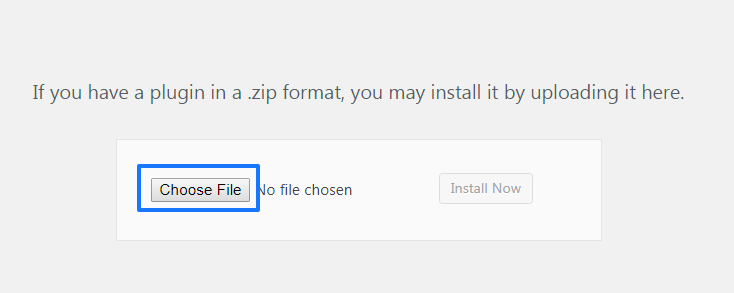
Click Choose File and select the downloaded ZIP file.
Click Install Now.
Activate the plugin after installation.
Navigate to Blogs & Websites
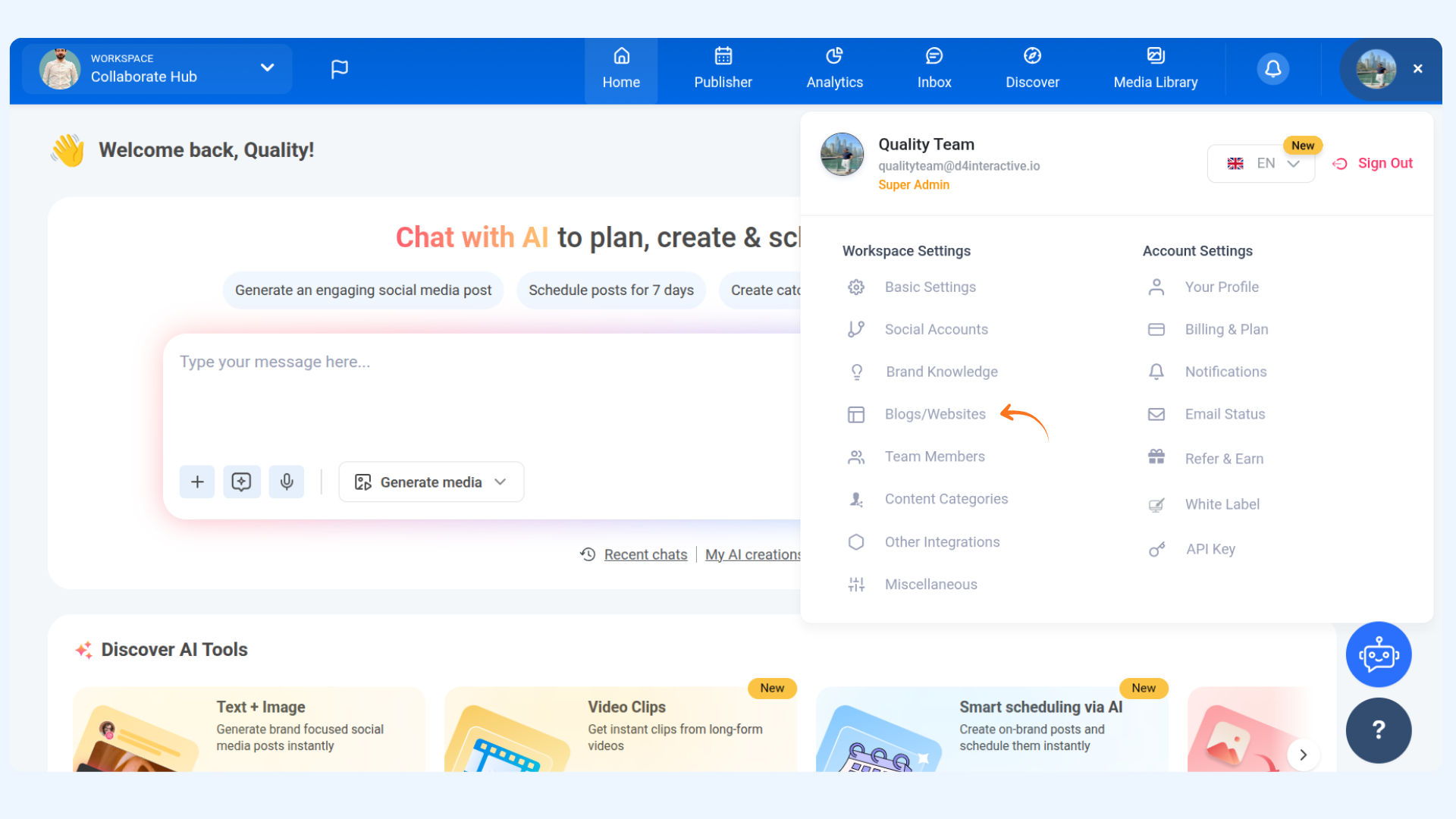
In ContentStudio, go to:
Settings → Blogs & Websites
Then click Connect New WordPress Blog/Website.
Fill in Required Information
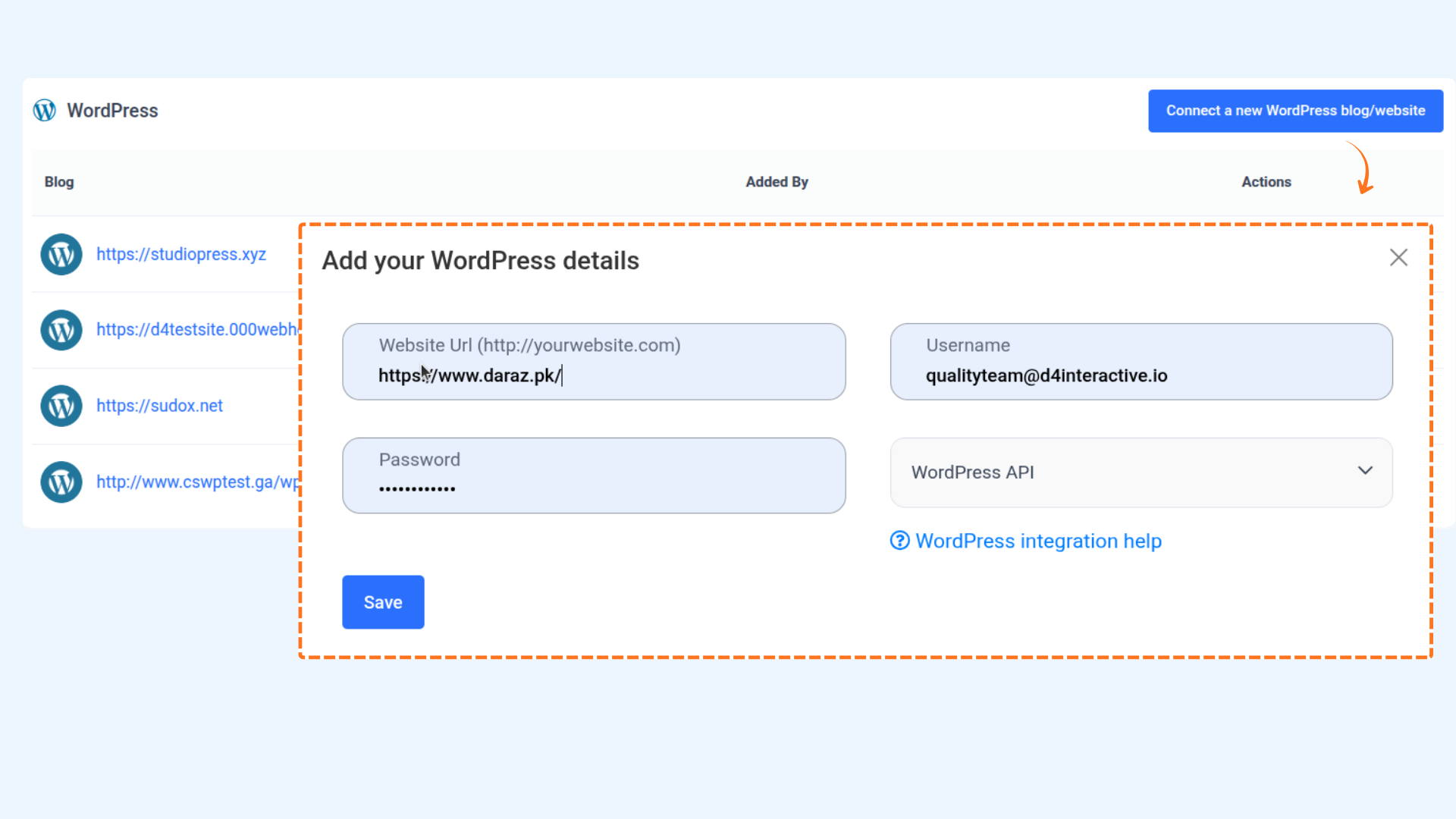
Enter your full WordPress website URL (must start with http:// or https://).
If WordPress is installed in a subdirectory (e.g., example.com/wp), enter the exact homepage URL.
Enter your WordPress Username.
Enter your Password.
Under Choose Method for Content Submission, select WordPress API.
Click Save.
Connection Successful
If all details are correct, your blog will appear in the connected blogs list.
Your WordPress website is now successfully connected using the WordPress API method.
Method 3: Using XML-RPC
The steps to follow for the third method are given below.
Verify XML-RPC is Enabled
Some hosting providers disable XML-RPC by default.
To check if it is enabled, visit:
https://yourdomain.com/xmlrpc.phpIf you see the message:
"XML-RPC server accepts POST requests only."
It means XML-RPC is enabled.
If you see a different message, contact your hosting provider to enable XML-RPC.
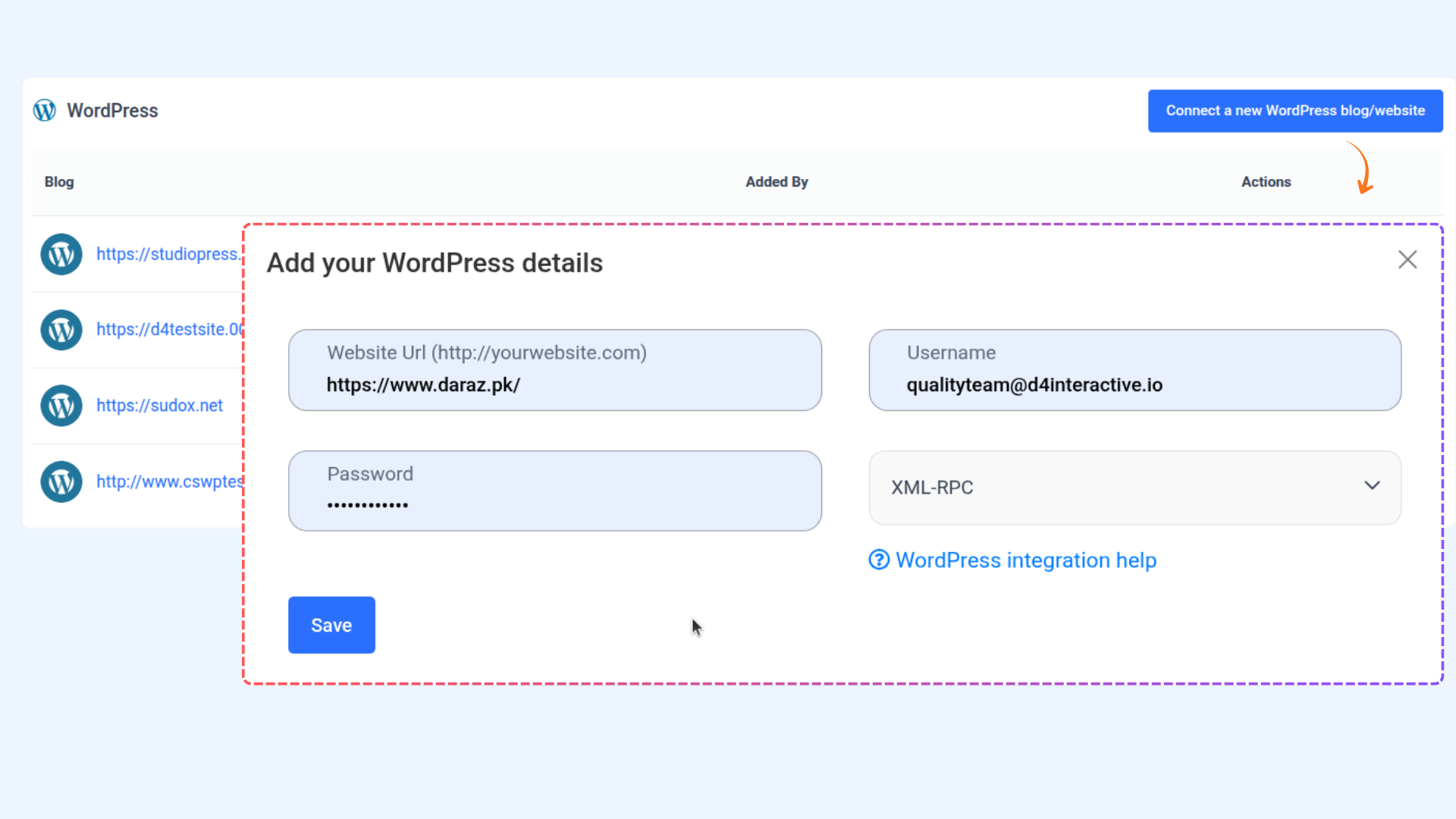
Open Blogs & Websites in ContentStudio
Go to:
Settings → Blogs & Websites
Click Connect New WordPress Blog/Website.
FAQs
1. Which WordPress connection method should I use?
The Official WordPress Plugin (Method 1) is recommended because it is the most stable and reliable option.
2. Why are my featured images not uploading?
This is usually caused by incorrect wp-content folder permissions or security plugin restrictions. Make sure server permissions are correct and required IPs are whitelisted.
3. What WordPress version is required?
Your WordPress website must be running version 4.4 or above.
4. Do I need to install plugins for every method?
Method 1 requires the official ContentStudio plugin.
Method 2 requires the WordPress REST API plugin.
Method 3 does not require a plugin but is not recommended.
5. Why is XML-RPC not recommended?
XML-RPC can cause security or compatibility issues on some hosting environments.
6. How can I verify that my WordPress blog is successfully connected?
Go to the ContentStudio Composer, create a blog post, select WordPress under Distribute, and choose your blog. If author and category options appear, your connection is successful.
Was this article helpful?