

How to manage and log out from linked devices
This feature helps you secure your account by managing active sessions across devices. Easily view linked devices, log out from specific or all devices, and safeguard your account when using shared or public devices.
In this article:
Accessing linked devices 🔗
Navigate to Your Profile Settings section in your account.
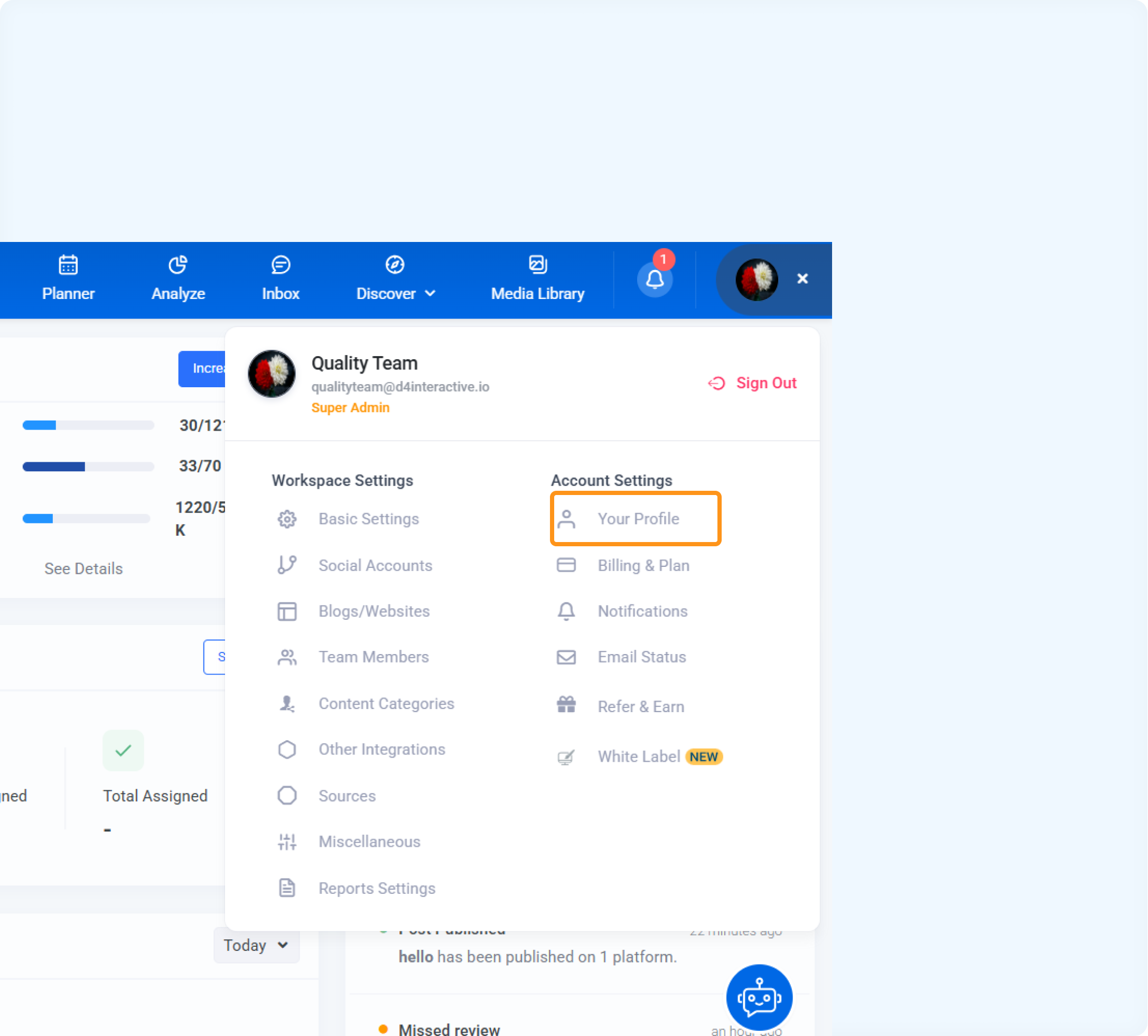
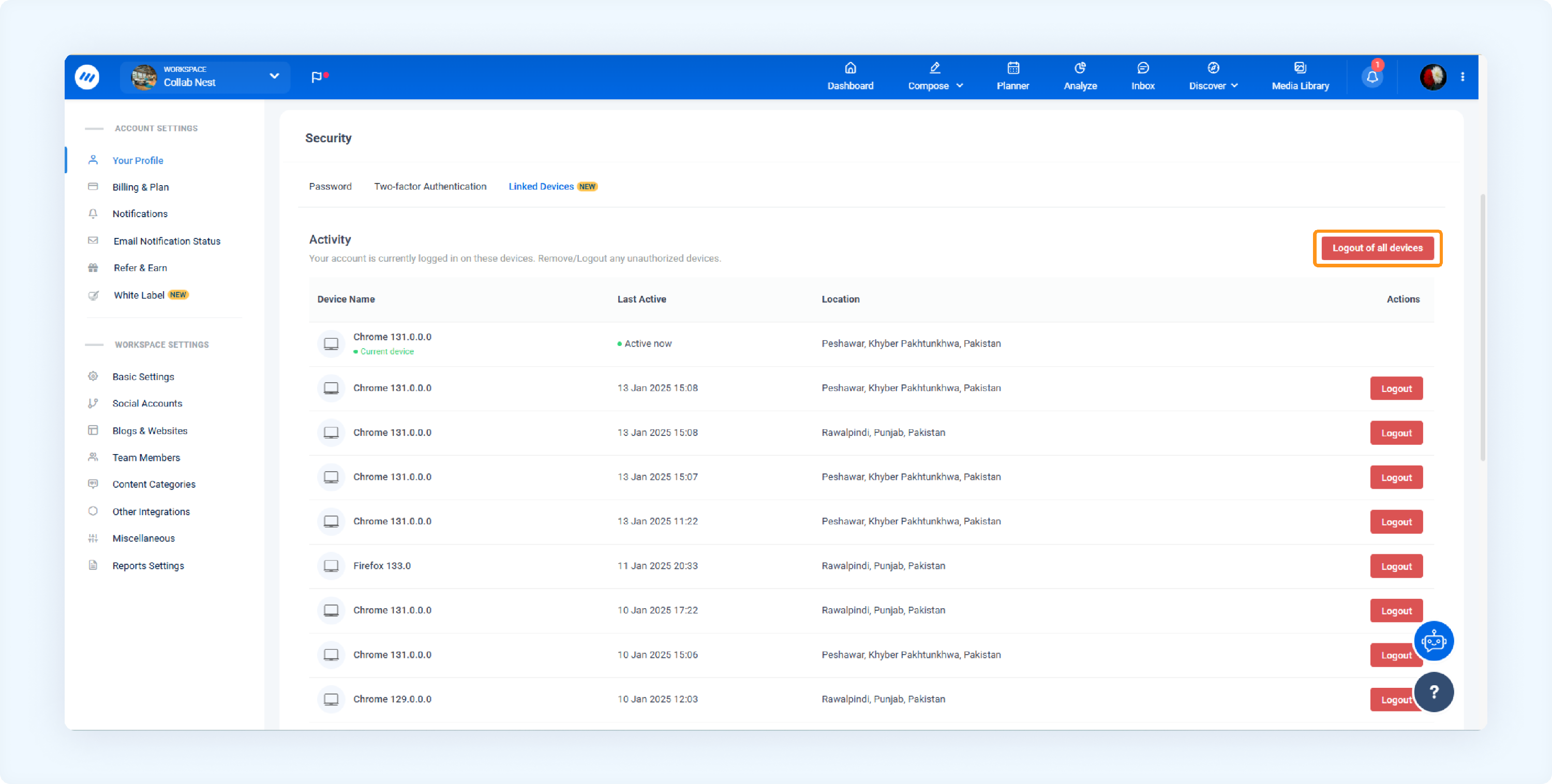
Under the Security section, click on the Linked Devices tab.
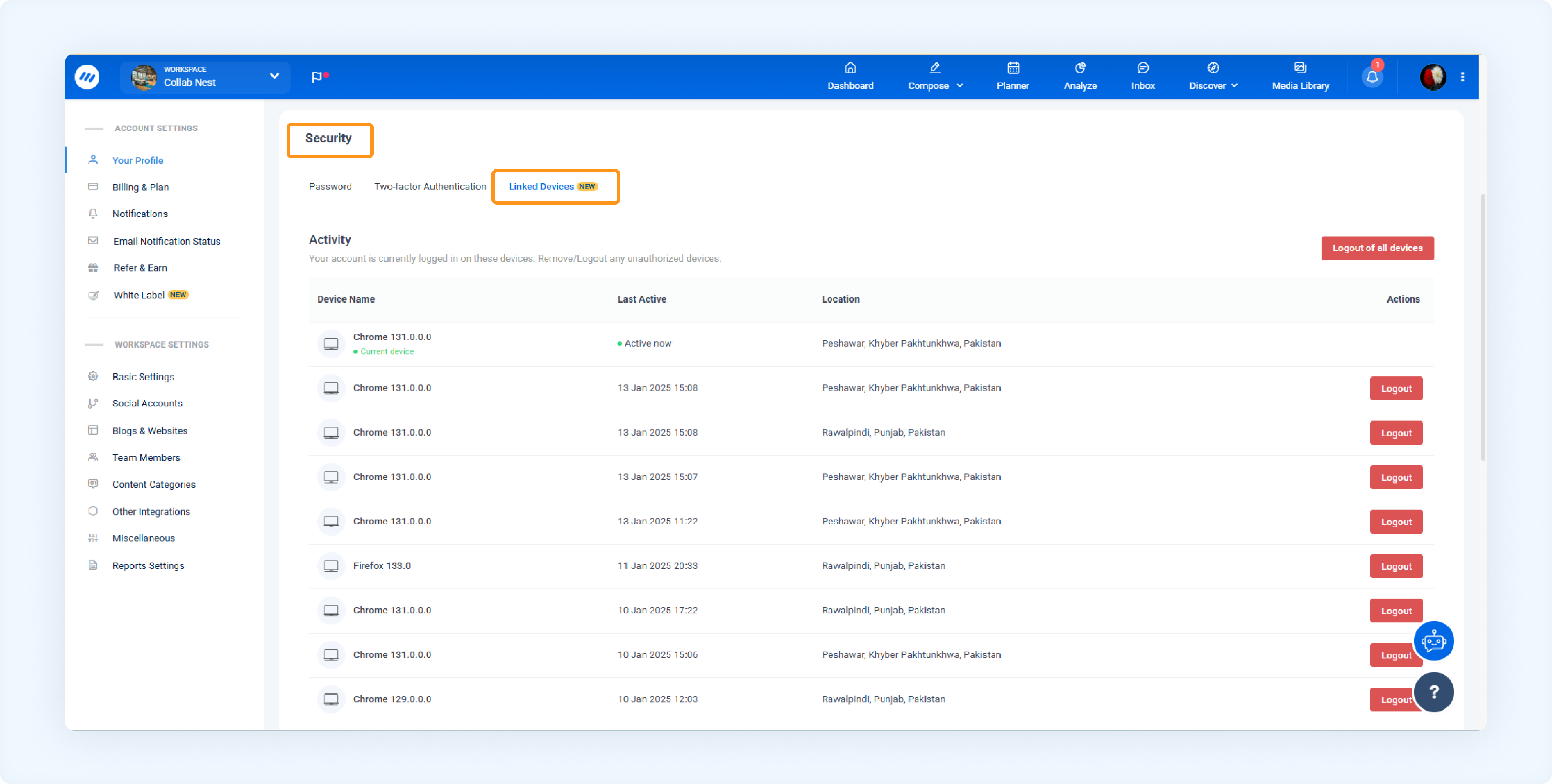
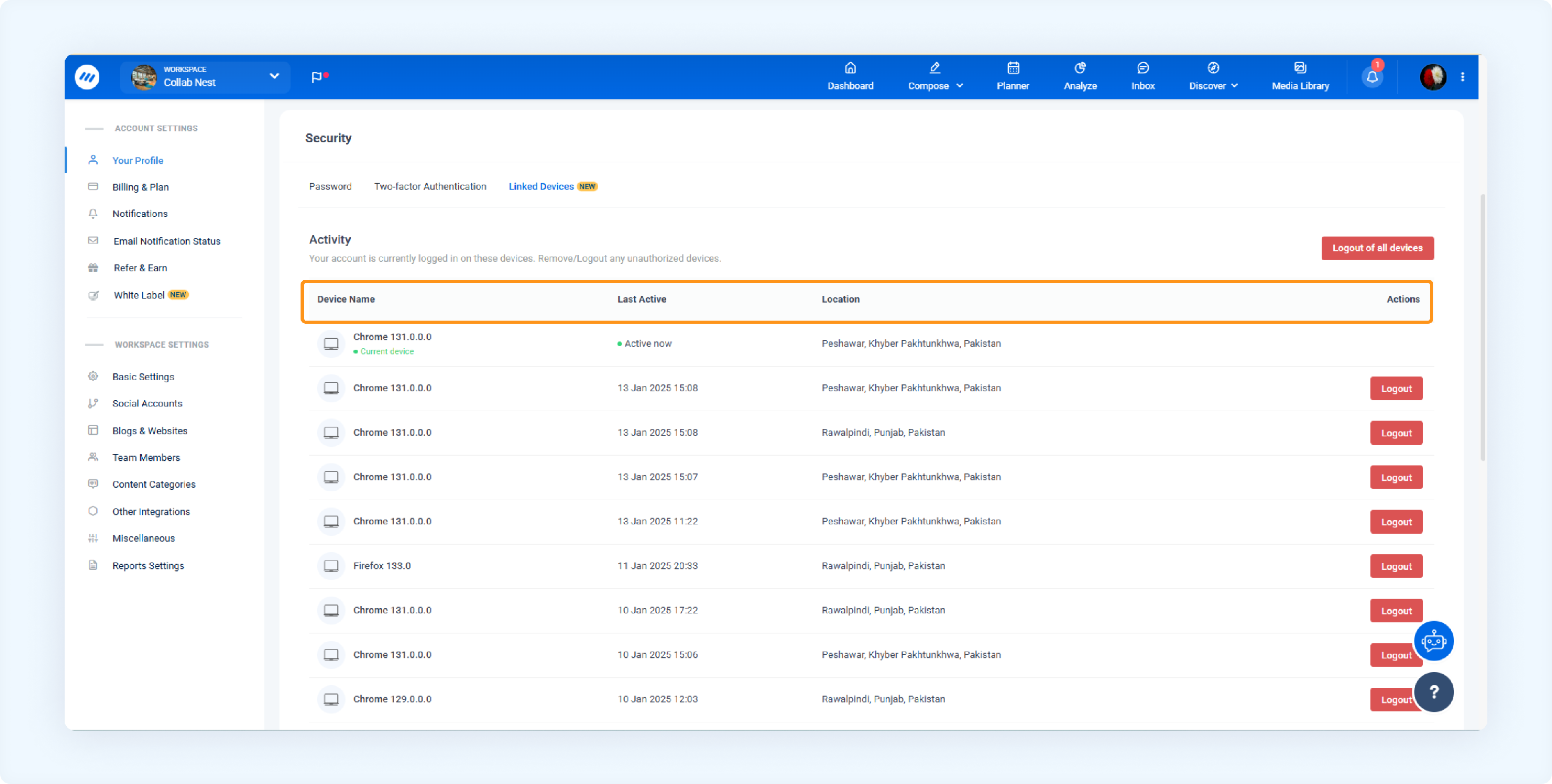
A list of all devices currently logged into your account will appear.
Details for Each Device:Device Name: E.g., iPhone 12 Pro, Windows PC
Last Active: The last time the account was accessed (e.g., Mar 21, 2024, 11:02 AM)
Location: Based on the device's IP address
How to logout 🔒
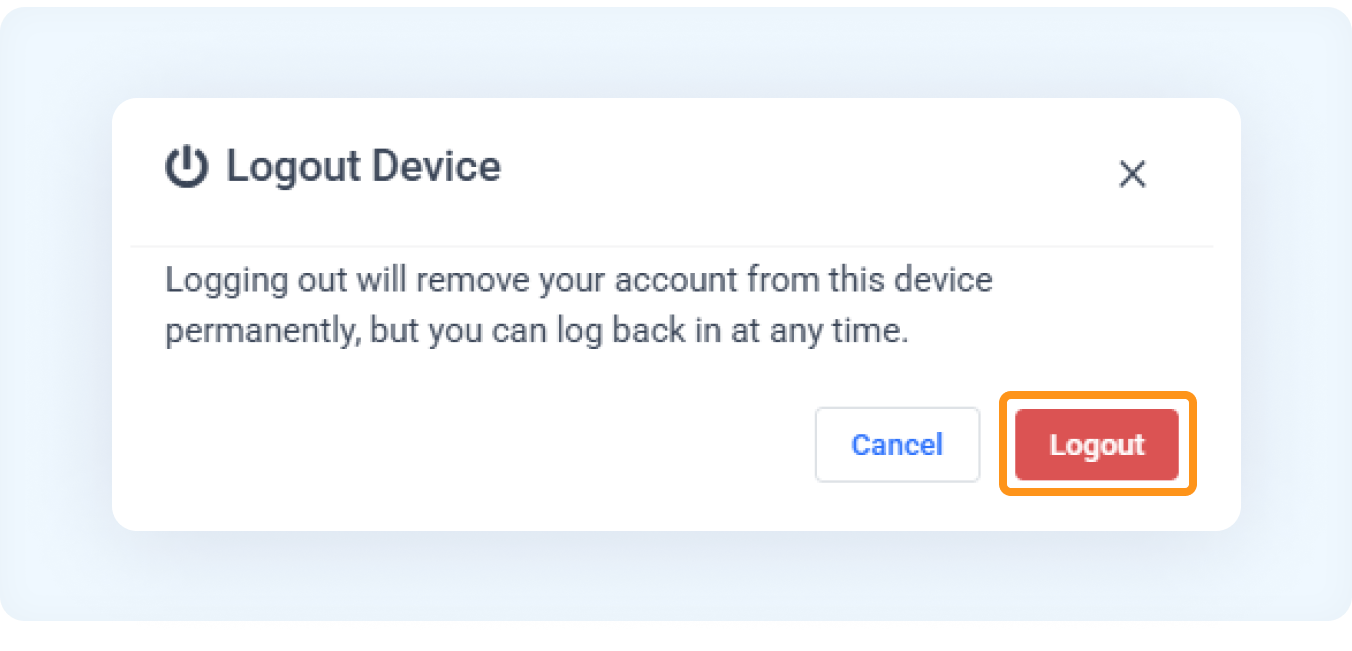
Click the Log out button next to the desired device.
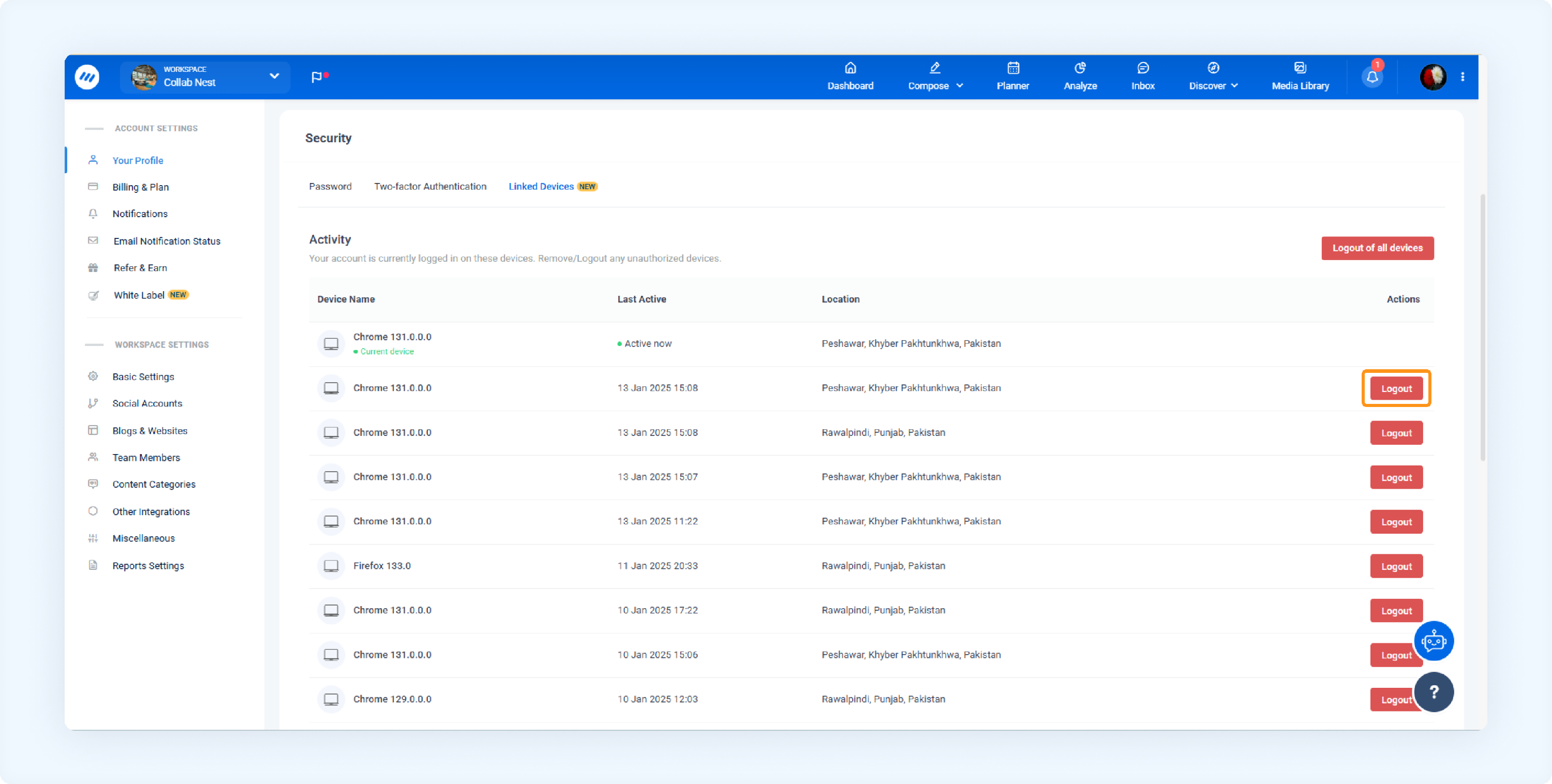
A confirmation pop-up will appear. Click Logout to confirm.
To logout from all devices, click the Log out of all devices button.
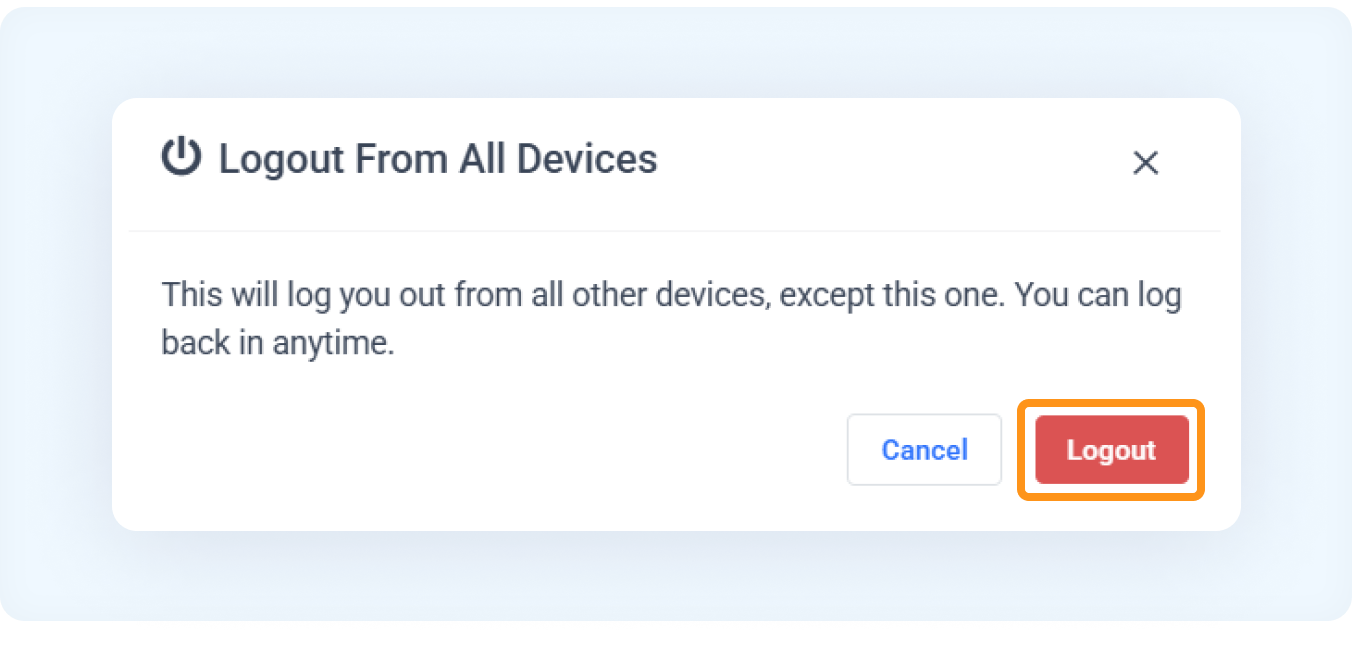
A confirmation pop-up will appear. Click Logout to confirm.
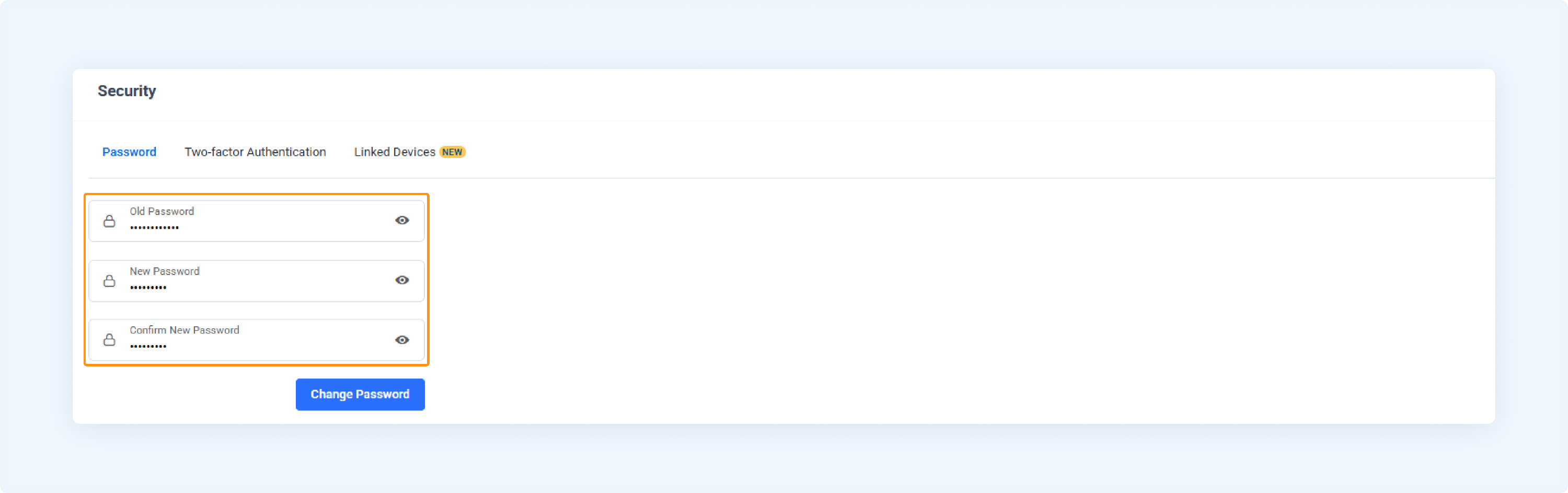
Force logout from all devices
If you reset your password under the Password tab in the Security section, you will be logged out from all devices automatically for security reasons — except for your current session.
FAQs
Q1: What happens if I log out from a device?
A: Your account will be removed from the selected device, but you can log back in any time.
Q2: How will I know which device I’m currently using?
A: The device you’re currently using will display the label "This device" next to its name in the list.
Q3: Can I log out from multiple sessions on the same device?
A: Yes, if you’re logged into multiple browsers on the same device, each session will be listed separately with its own "Log out" option.
Was this article helpful?