

Change Workspace settings
You can easily update your Workspace settings, including the Workspace Name, Timezone, etc., at any time. Follow these steps to make changes:
Access Workspace Settings
From the ContentStudio dashboard, go to Workspace Settings. You can either click the dropdown next to the workspace name to open a menu, or simply click the ContentStudio logo in the top-left corner.
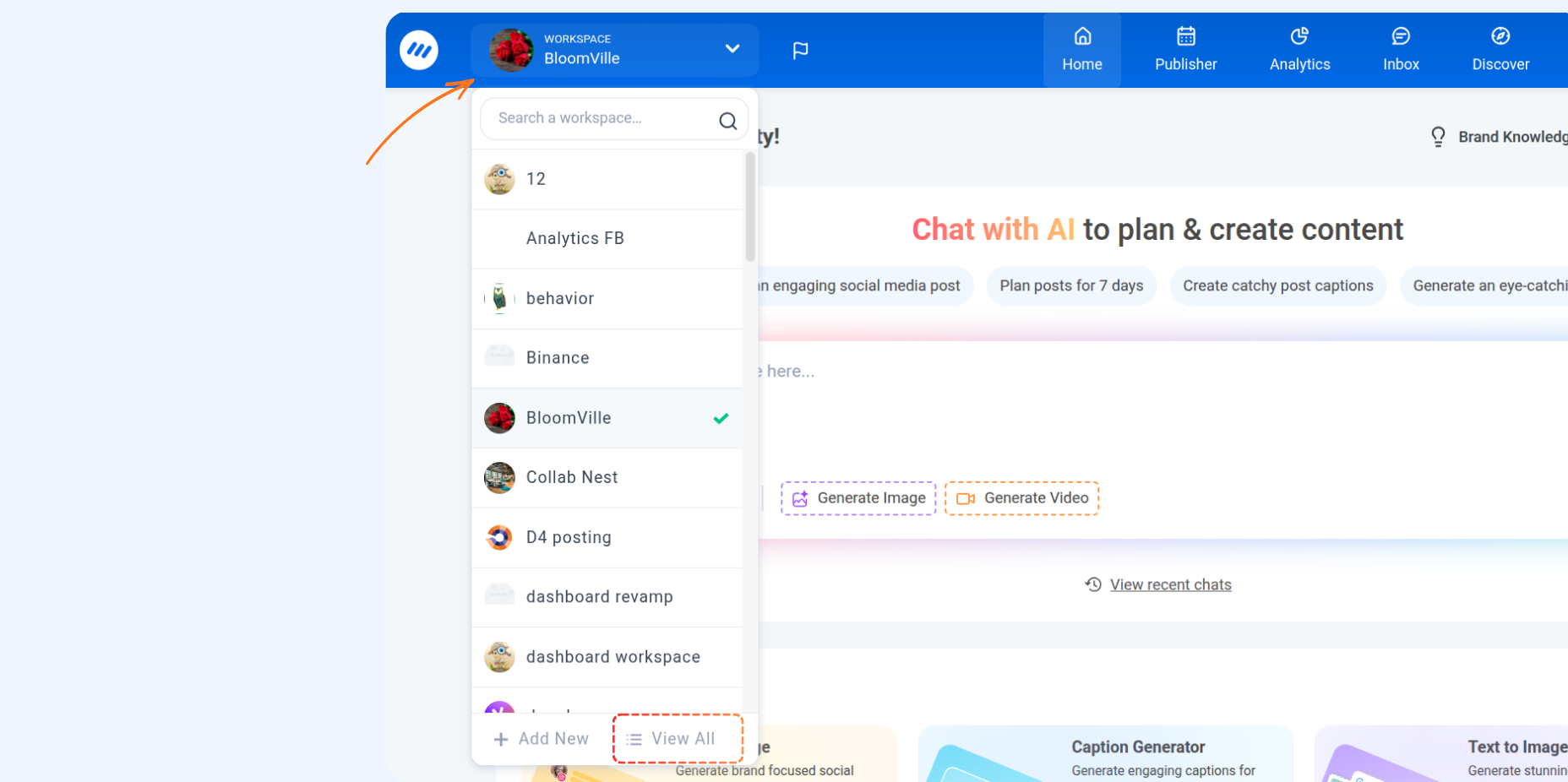
A list of your created workspaces will appear. Click on the three dots in the workspace chiclet you wish to modify, then click Manage Workspace.
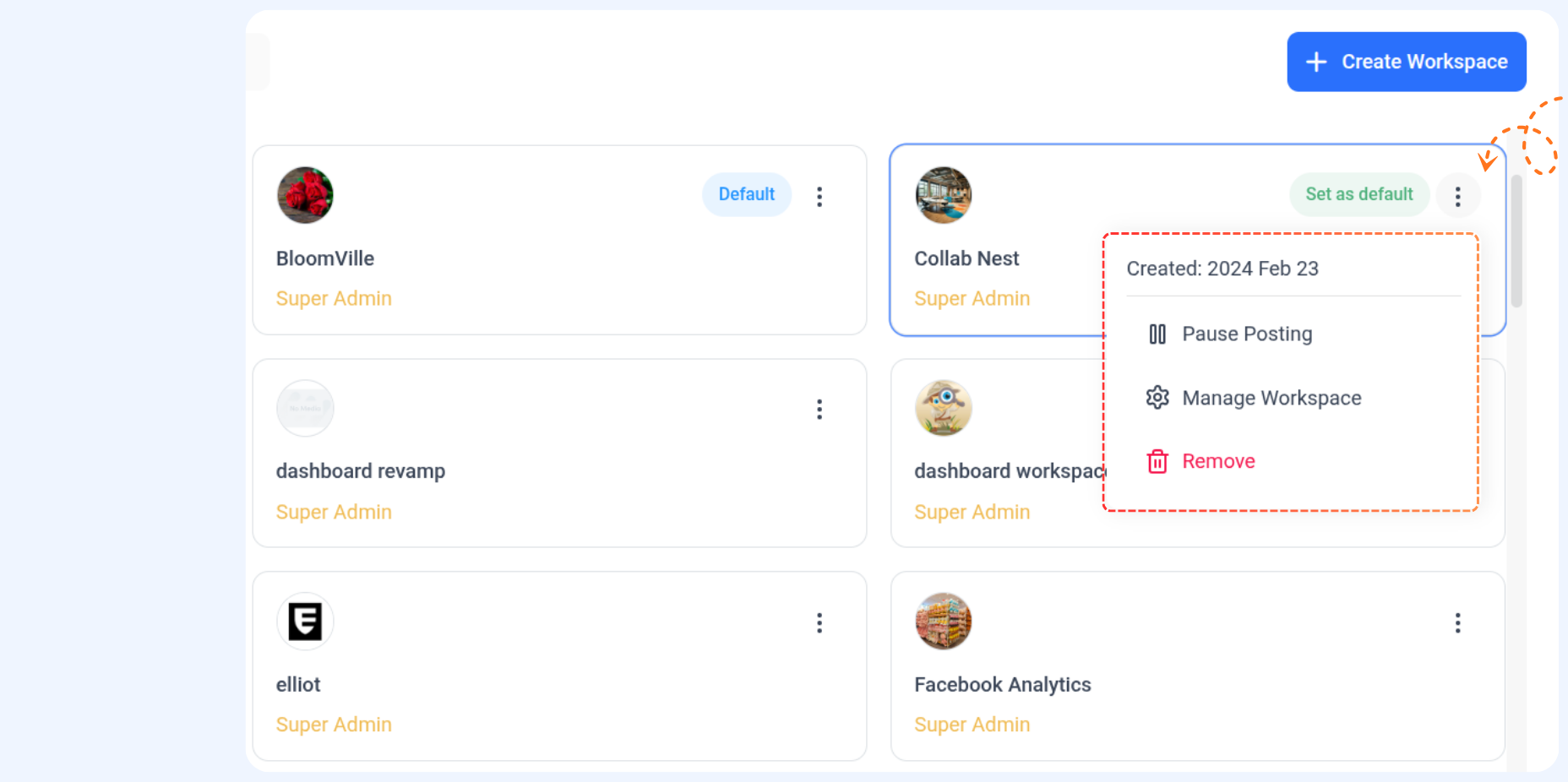
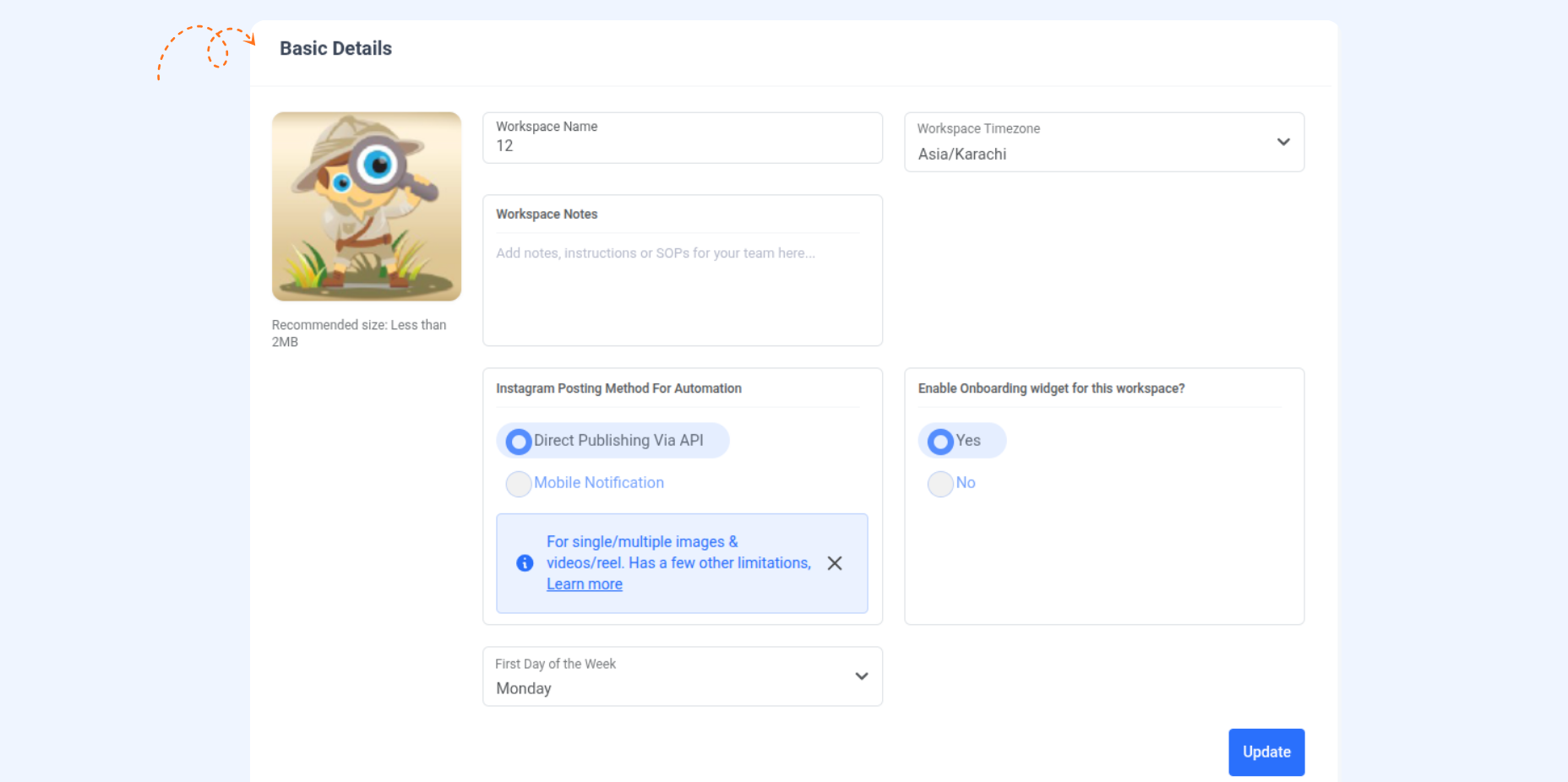
In the settings menu, you can edit details such as:
Update workspace profile photo
Workspace name
Workspace timezone
Workspace notes
Instagram posting method for automation
First day of the week
After making the desired changes, click the Update button to save them.
FAQs
Q1: How do I rename my Workspace?
A: To rename your Workspace, go to the Workspace settings from the dashboard, click on the workspace you want to edit, and enter the new name in the "Workspace Name" field. Click "Update" to save the changes.
Q2: How can I change the timezone of my Workspace?
A: In the Workspace settings, select the Workspace you want to edit, then choose the correct timezone from the dropdown menu. Click "Update" to apply the changes.
Was this article helpful?