

Brand Knowledge: Teach AI Studio Your Brand's Voice
Your brand's identity has always been at the heart of ContentStudio's AI content generation, and Brand Knowledge is where it all comes together. Whether it's your website, brand documents, past social posts, or your visual assets, ContentStudio pulls it all in and builds a living profile of your brand — its voice, its look, and its personality — so every post, caption, and visual the AI generates sounds and feels like you. No more generic AI copy that needs a full rewrite. Set it up once, keep it updated, and let AI Studio create content that's on-brand by default, every single time.
In this Article:
How to Set Up Your Brand Knowledge
Click your profile icon in the bottom-left corner, then select Brand Knowledge.
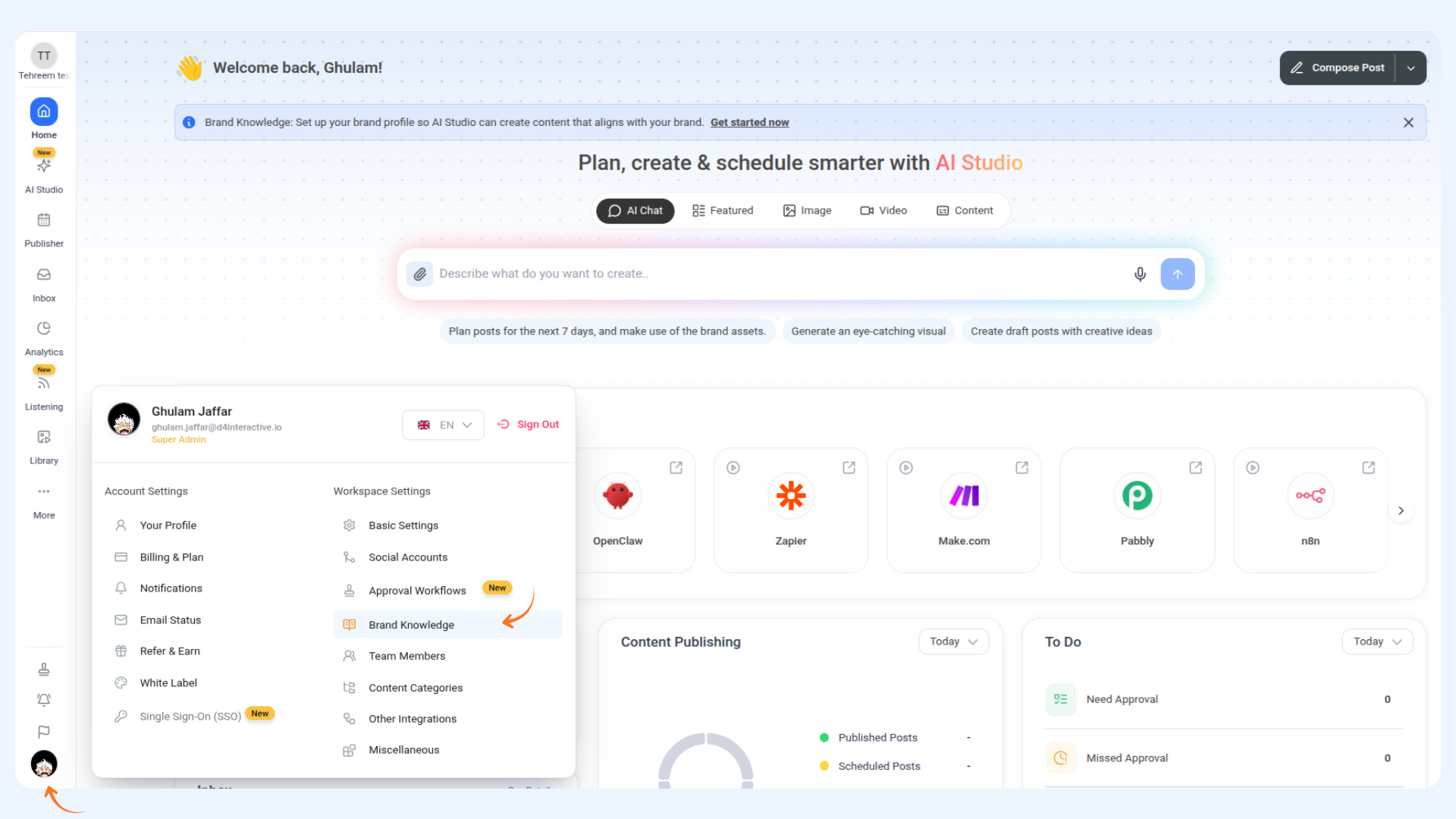
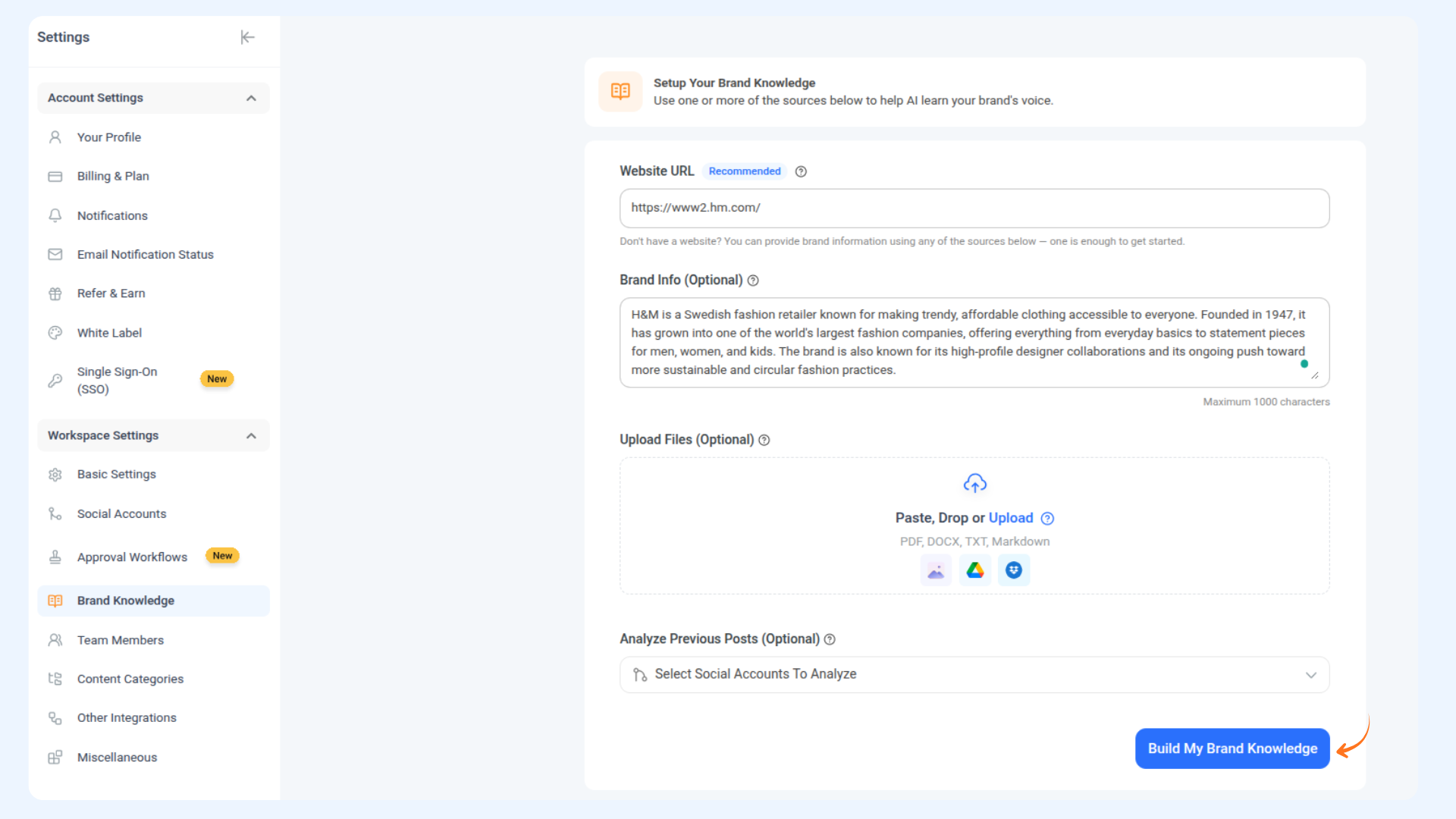
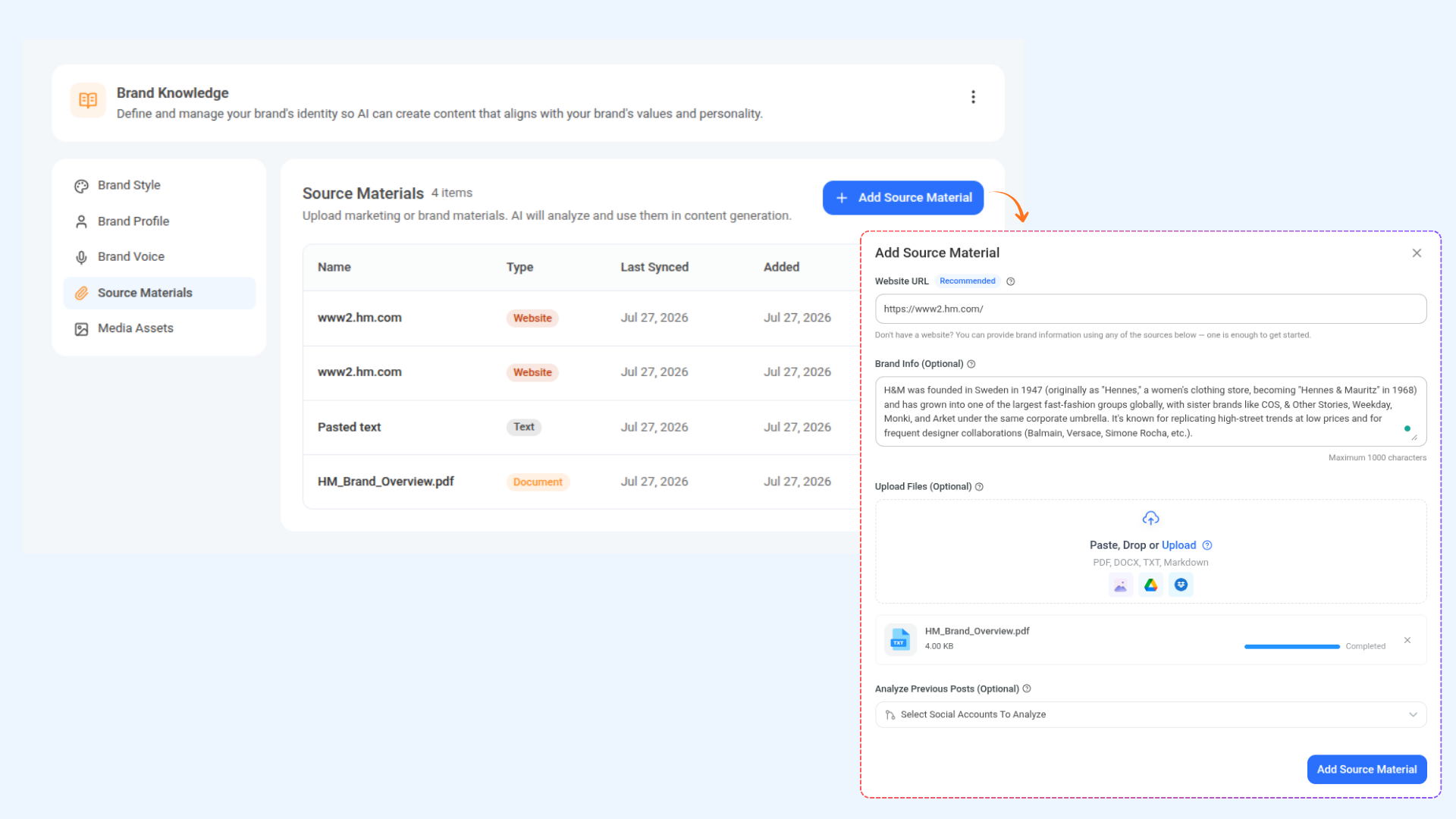
Provide at least one source for AI to learn from: your Website URL (recommended), a short Brand Info description, uploaded files (PDF, DOCX, TXT, or Markdown), or by selecting social accounts for AI to analyze your past posts. You only need one to get started — the more you add, the richer your profile.
Click Build My Brand Knowledge. AI will analyze your source(s) and automatically populate your Brand Style, Brand Profile, Brand Voice, and Media Assets — no manual entry required.
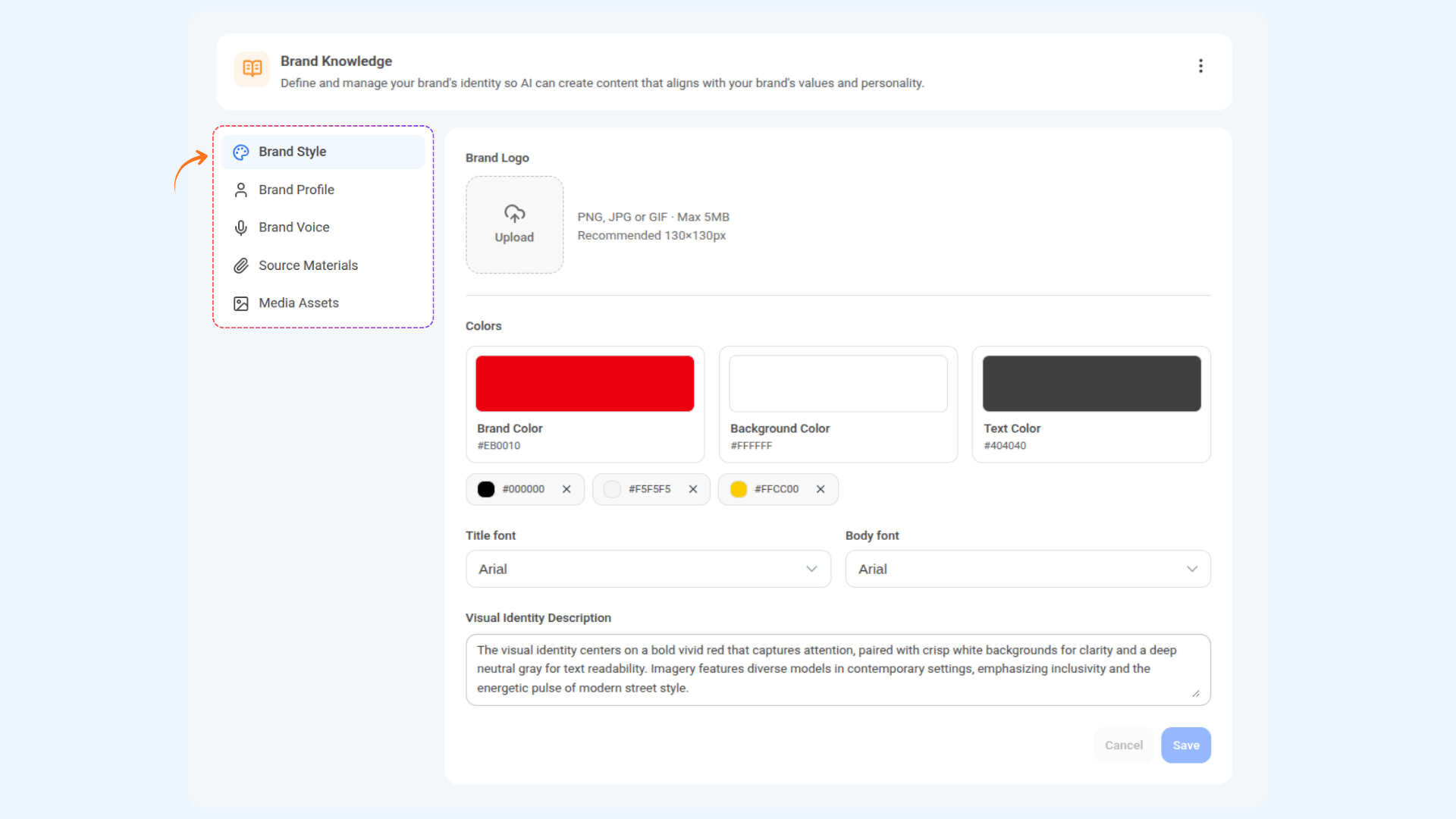
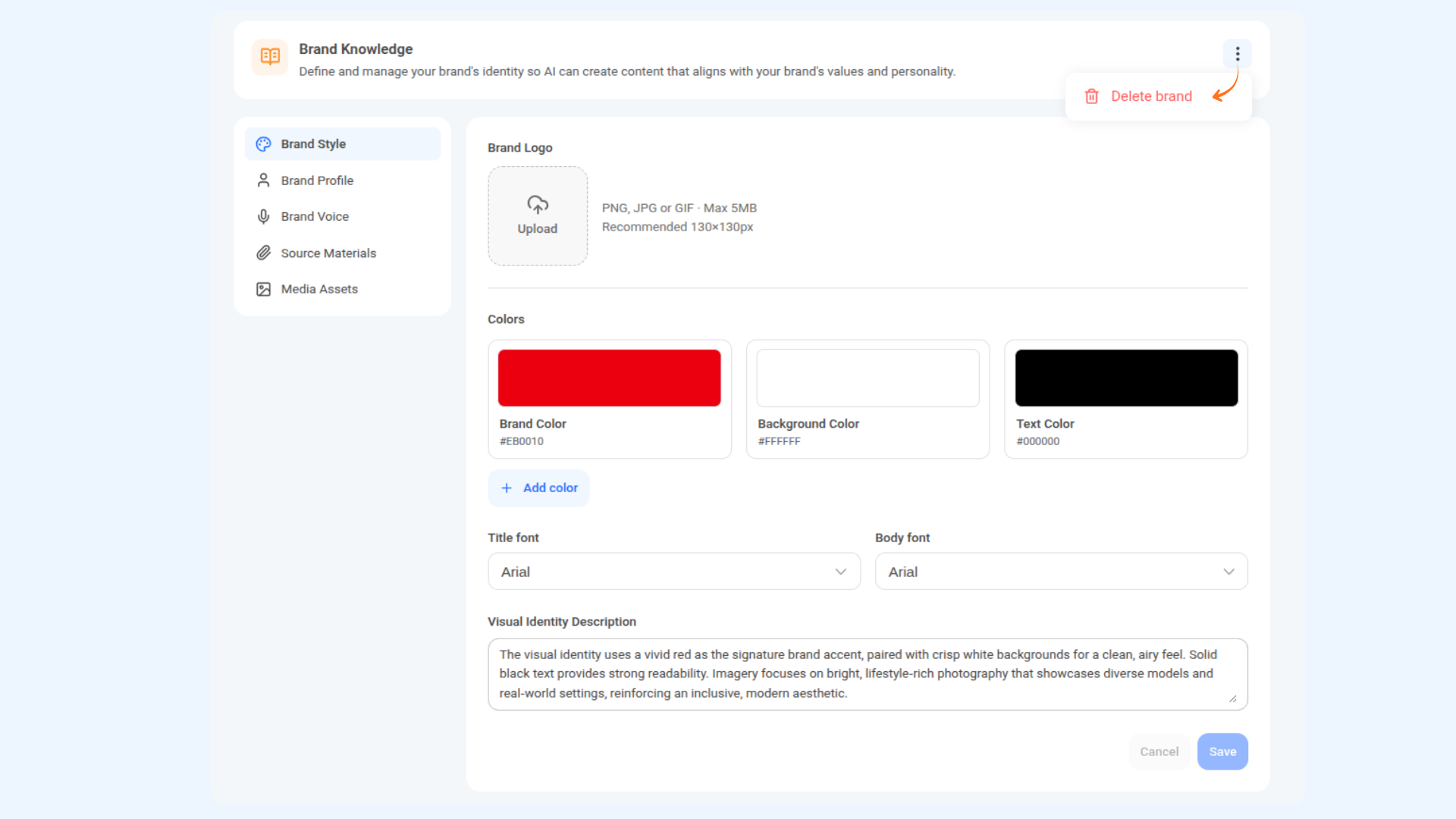
Under Brand Style, review the extracted brand logo, brand color, background color, text color, title font, and body font, plus a written Visual Identity Description. Adjust any of these if the AI didn't get it quite right, then hit Save.
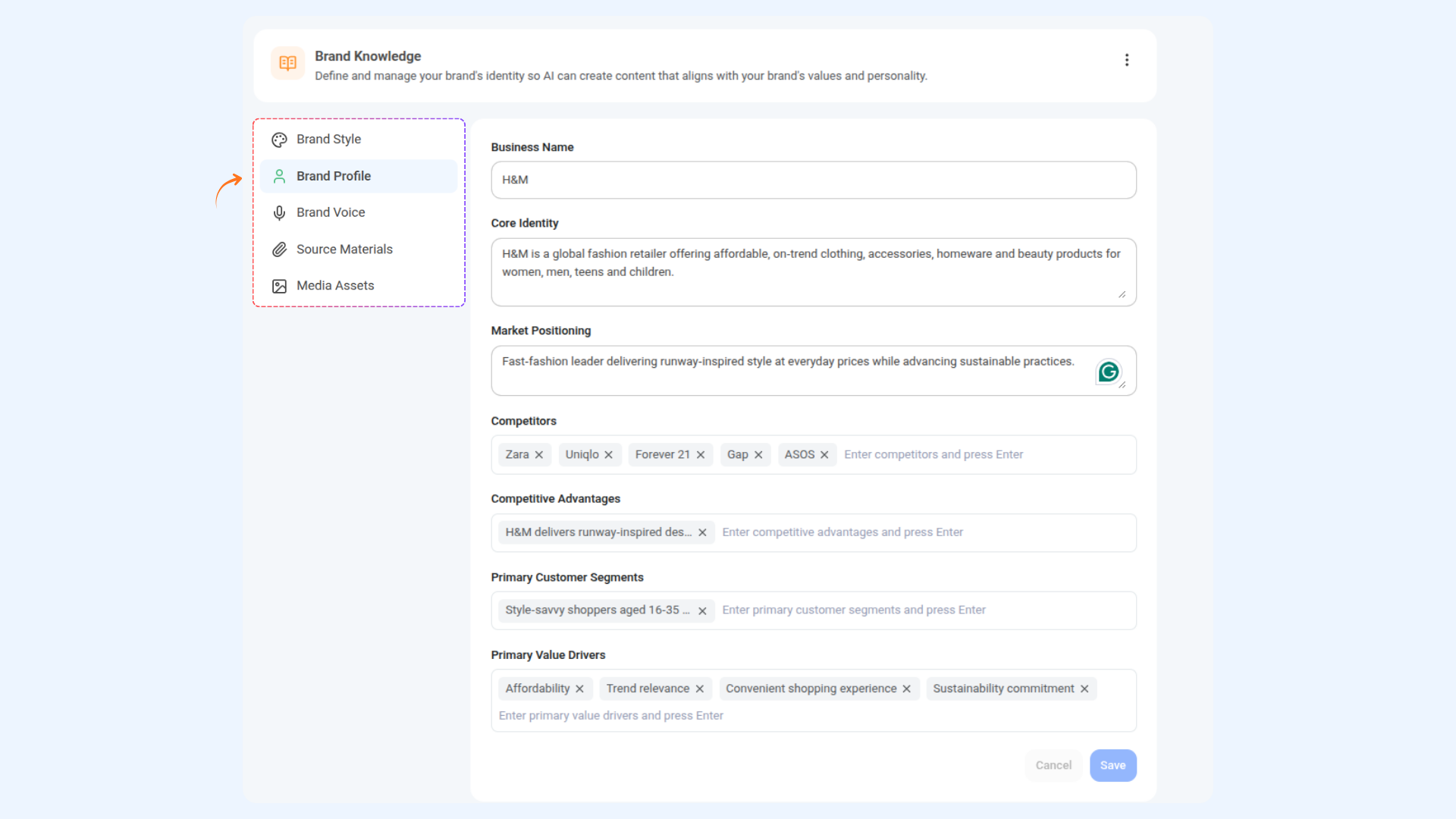
Under Brand Profile, check your Business Name, Core Identity, Market Positioning, Competitors, Competitive Advantages, Primary Customer Segments, and Primary Value Drivers. Edit any field or add/remove tags as needed, then Save.
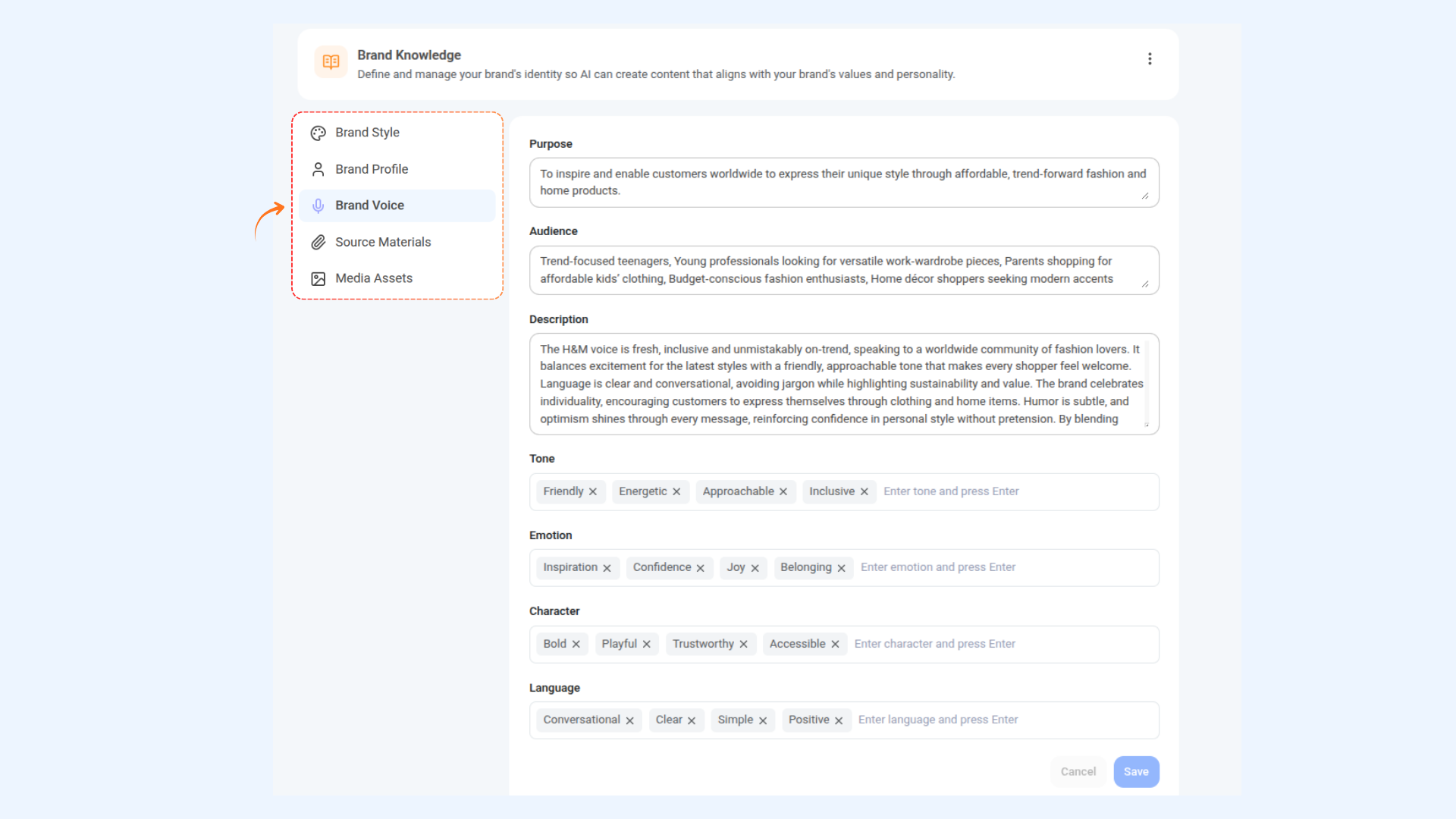
Under Brand Voice, review your Purpose, Audience, and written Description, along with tag-based Tone, Emotion, Character, and Language attributes. Adjust these to match exactly how your brand should sound, then Save.
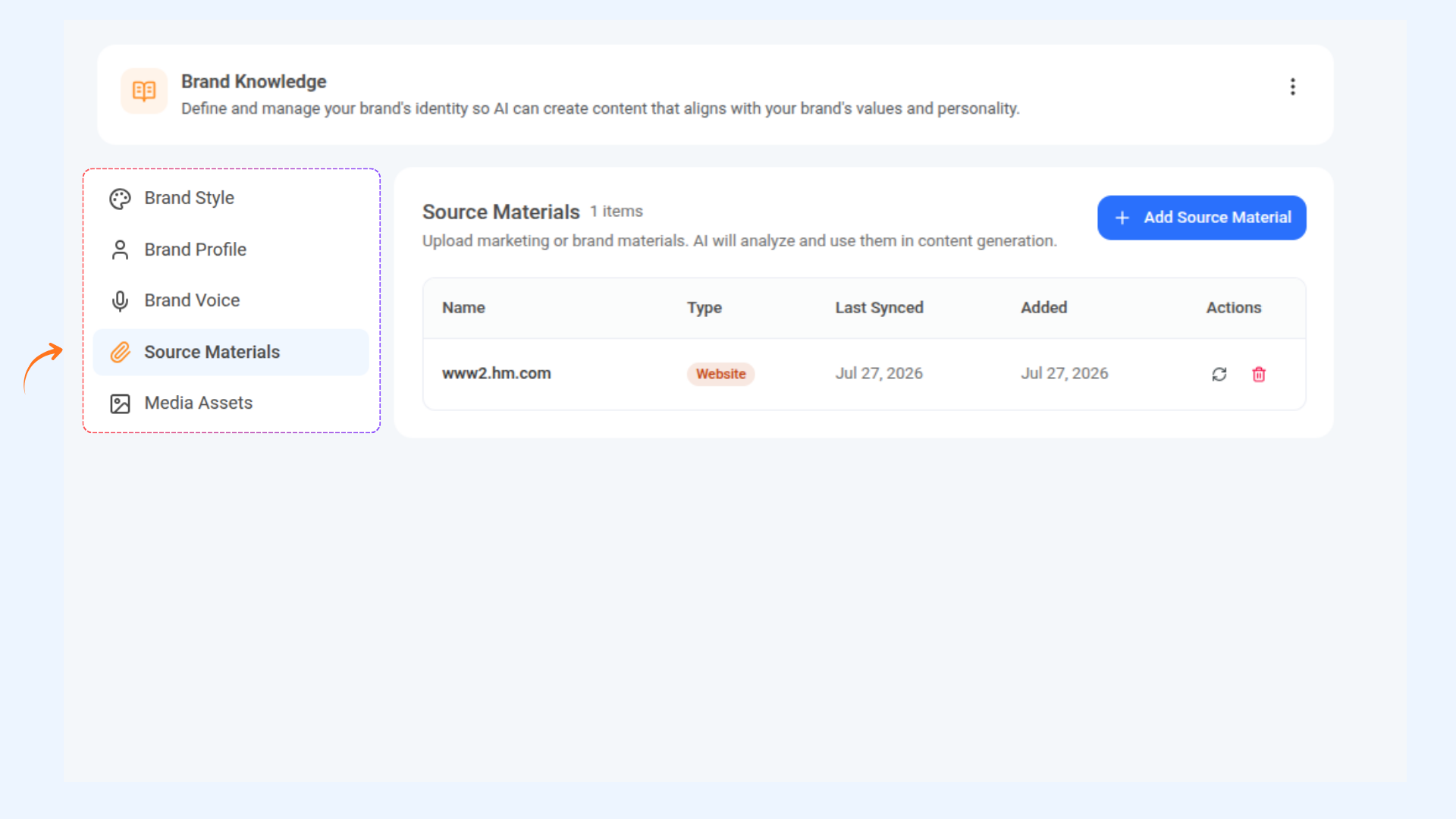
Head to the Source Materials tab to see every source you've added, along with its type, last synced date, and date added. Click the sync icon to re-analyze a source, or the trash icon to remove it. Click + Add Source Material anytime to bring in more sources — websites, brand info, files, or social accounts.
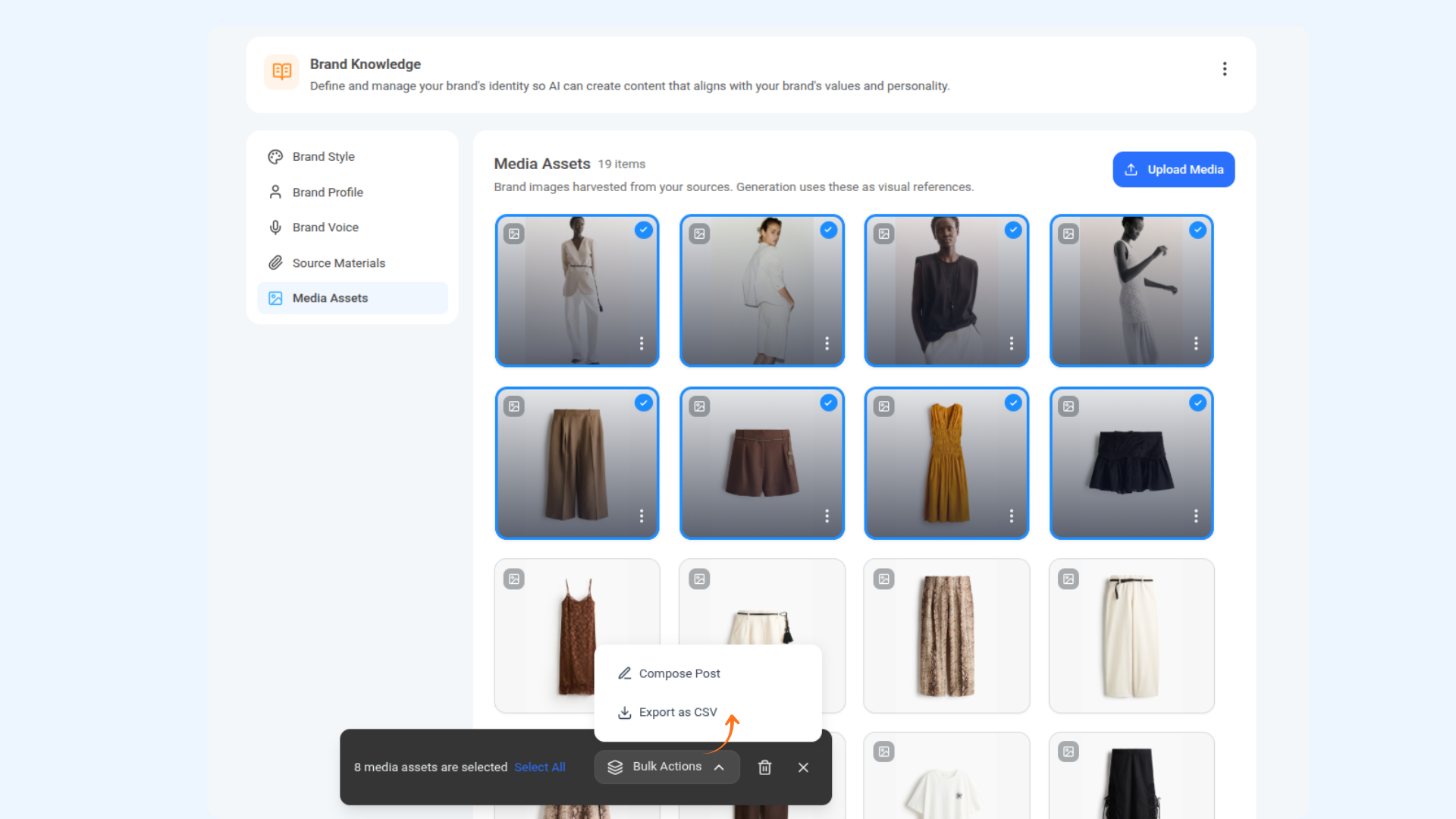
Visit the Media Assets tab to see all the brand imagery AI has harvested from your sources — these are automatically used as visual references during generation. Click Upload Media to add your own images, or select multiple assets to Compose Post, Export as CSV, or delete in bulk.
If you ever need to start fresh, click the three-dot menu in the top-right of the Brand Knowledge panel and select Delete brand.
Using Your Brand Knowledge in AI Studio
Once your Brand Knowledge is set up, you don't have to describe your brand every time you want AI to generate something — just toggle it on and let AI Studio do the rest.
Head to AI Studio, and toggle on your brand from the options above the prompt bar. This tells AI to pull from your saved brand style, voice, and profile for anything you generate next.
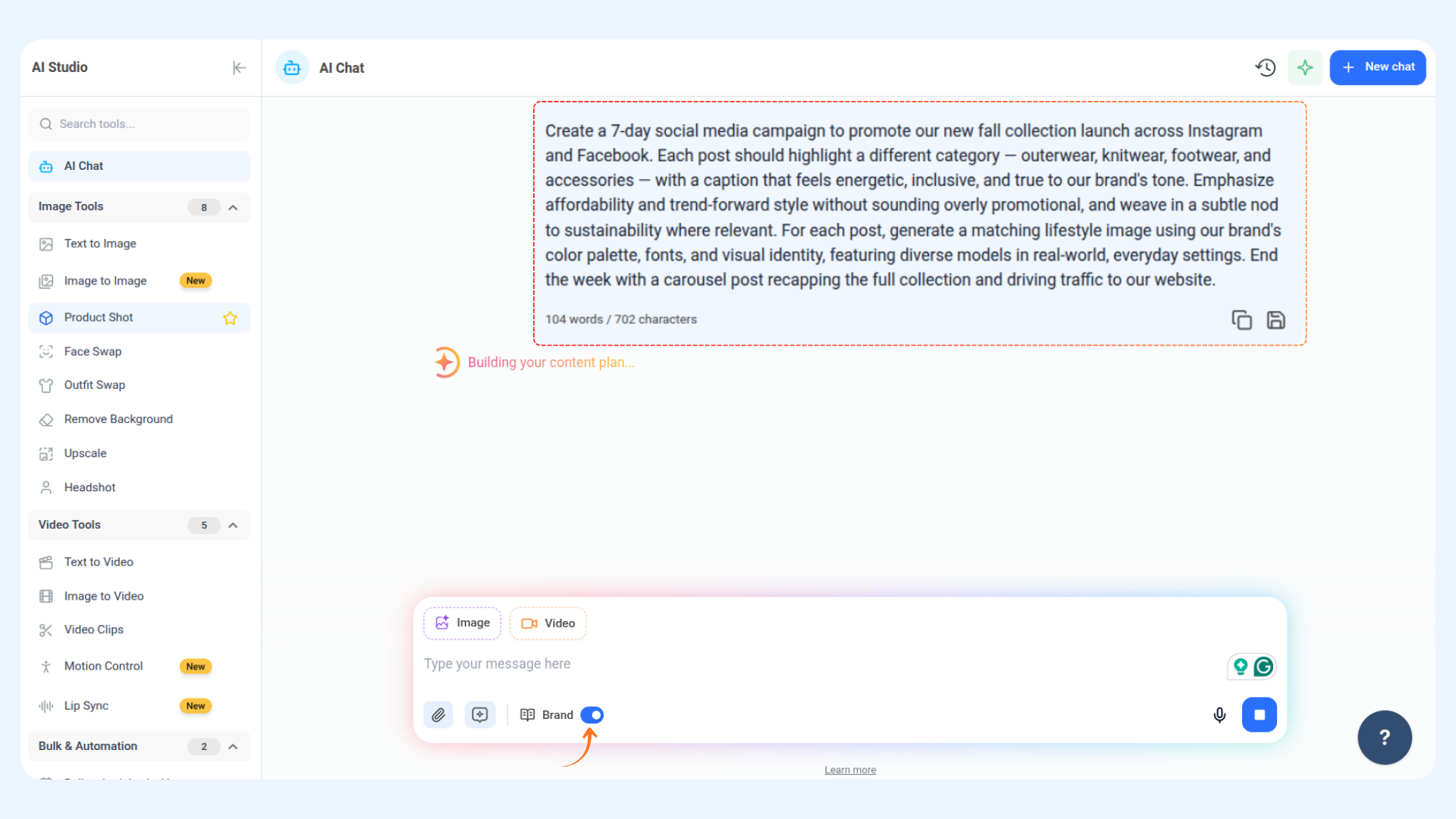
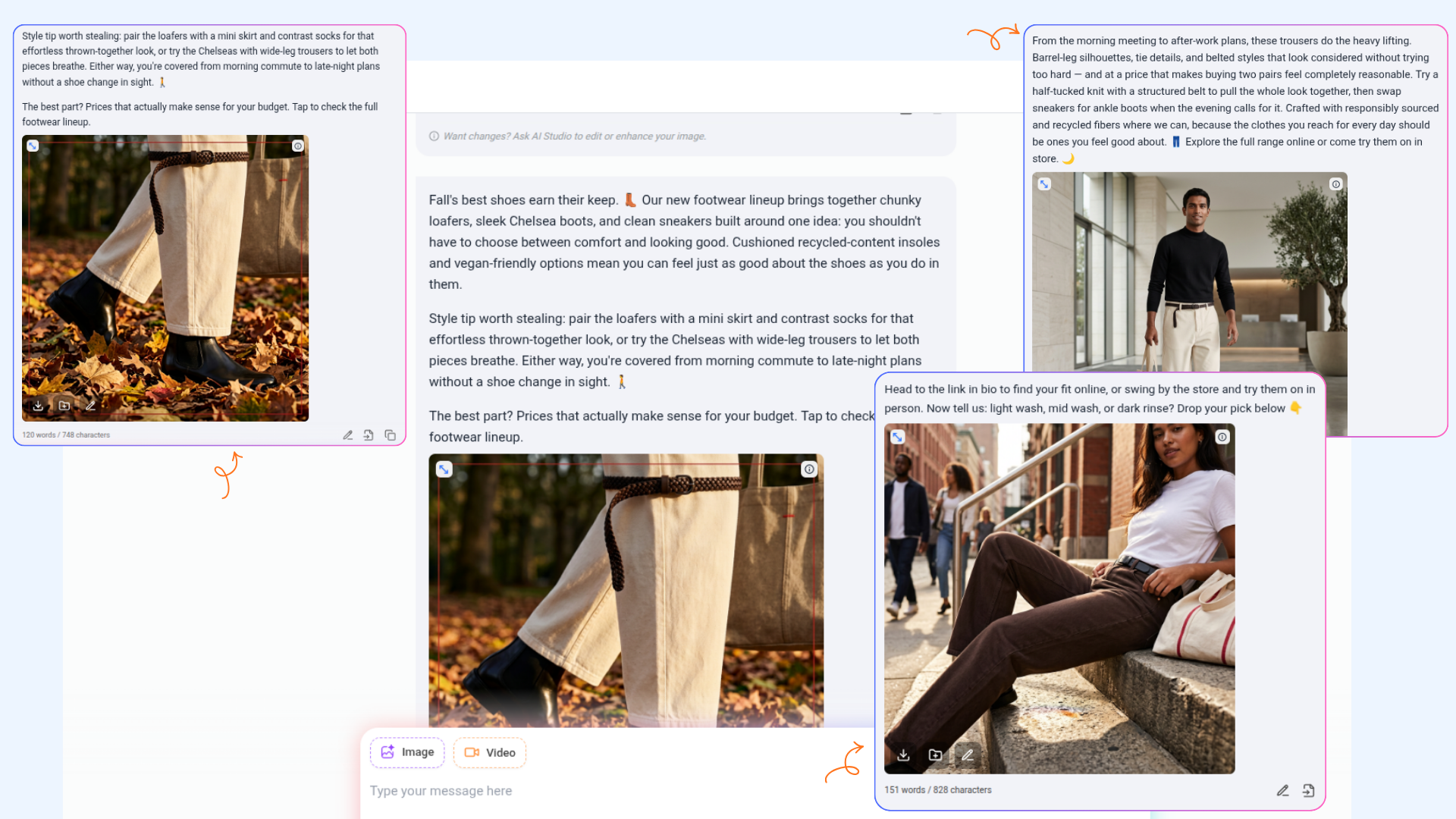
Type your prompt describing what you want — a post, a campaign, or an image — and AI Studio will automatically apply your brand's colors, fonts, tone, and voice to the output. No need to re-explain your brand every time.
FAQs:
Do I need a website to set up Brand Knowledge?
No. A website URL is recommended for the richest results, but you can build your brand knowledge from just a short brand description, an uploaded file, or by analyzing your connected social accounts.
What happens if the AI gets something wrong?
Every field across Brand Style, Brand Profile, and Brand Voice is fully editable. If AI misreads your tone or picks the wrong colors, simply update the field and save — your changes are used going forward.
Can I add more sources later?
Yes. Go to the Source Materials tab and click Add Source Material anytime. You can also sync existing sources to refresh them if your brand or website has changed.
Where do the images in Media Assets come from?
They're automatically pulled from whatever sources you've added — your website, uploaded documents, and so on. You can also upload your own images directly.
Can I delete my brand knowledge and start over?
Yes. Use the three-dot menu at the top of the Brand Knowledge panel and select Delete brand. This is permanent, so make sure you're ready to rebuild before doing so.
How does Brand Knowledge actually improve my content?
Once set up, every AI generation in AI Studio — captions, posts, images — automatically pulls from your brand's colors, fonts, tone, and voice, so content comes out on-brand from the very first draft instead of needing heavy edits.
Was this article helpful?