

Getting Started with ContentStudio on iOS
Welcome to ContentStudio on iOS 🚀 – your all-in-one tool to plan, create, and manage content across multiple social platforms. Getting started takes just a few minutes, and once you’re set up, you’ll be ready to explore powerful publishing and collaboration features right from your phone.
In this article
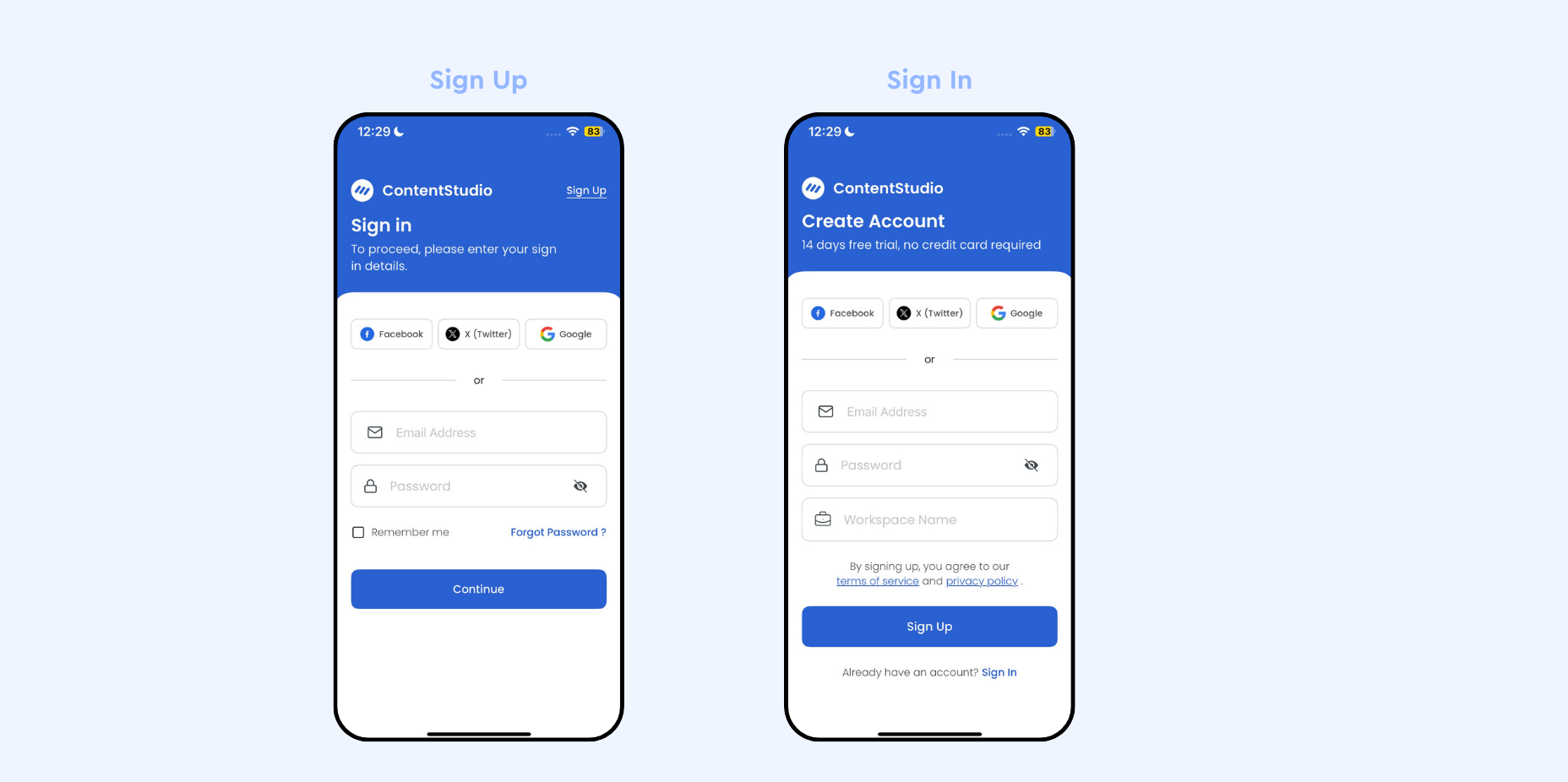
Sign Up or Sign In
To start using ContentStudio, download the app from the App Store and either create a new account or log in if you already have one.
Open the app and choose between Sign Up (for new users) or Sign In (for returning users).
For detailed steps on both options, see Sign Up / Sign In On iOS Devices.Select your preferred login method:
Facebook
Twitter (X)
Google
Email Address & Password
If you select Email & Password, you’ll also be asked to create a Workspace Name.
For social logins, the workspace is created automatically.
Complete Onboarding
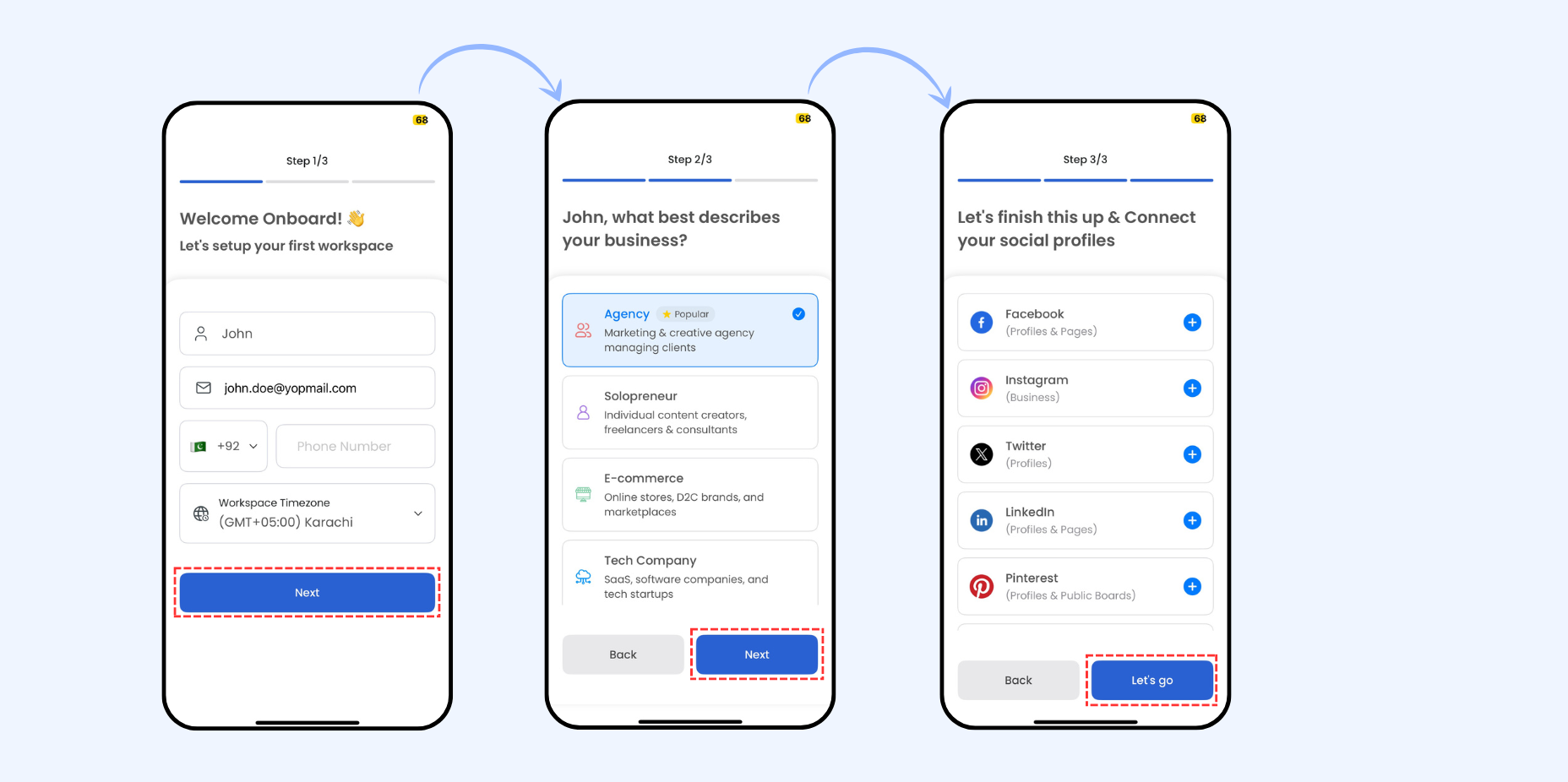
Once you’ve signed up or signed in, the app will guide you through a simple 3-step onboarding process to set up your workspace.
Personal Information
Enter your Full Name, Mobile Number, and select your Time Zone.Business Details
Choose the option that best describes your business or profession.Connect Social Platforms
Link one or more of your social media accounts. ContentStudio supports 11 different platforms, so you can connect whichever ones you use the most.
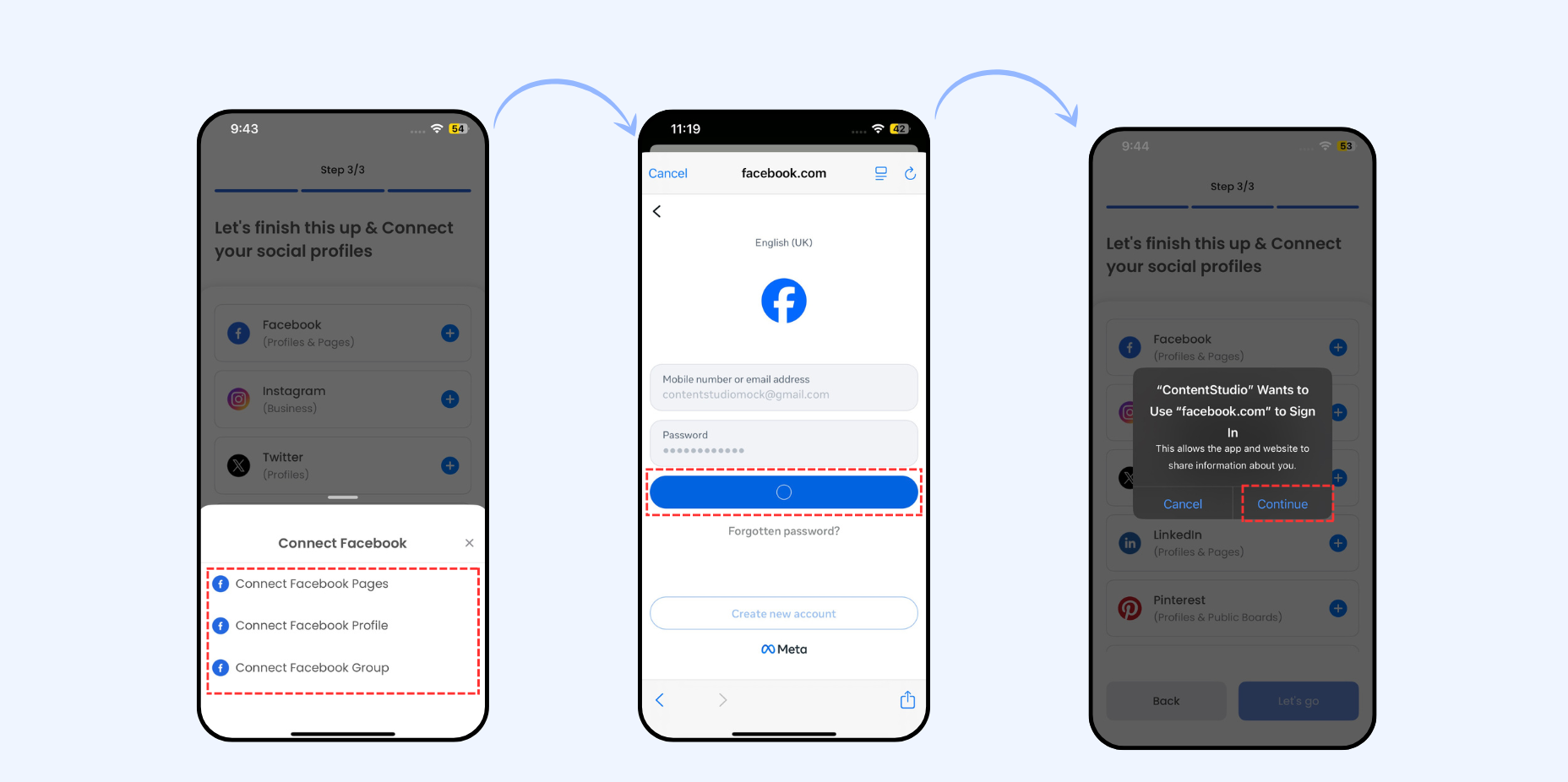
Example: Connect a Facebook Page
Start Connection
Click the ➕ icon next to Facebook Page and select Connect Facebook Page.Log in
A browser window opens → enter your Facebook credentials.Allow Sign In
A popup appears → click Continue to let ContentStudio use Facebook to sign in.Save Login Info
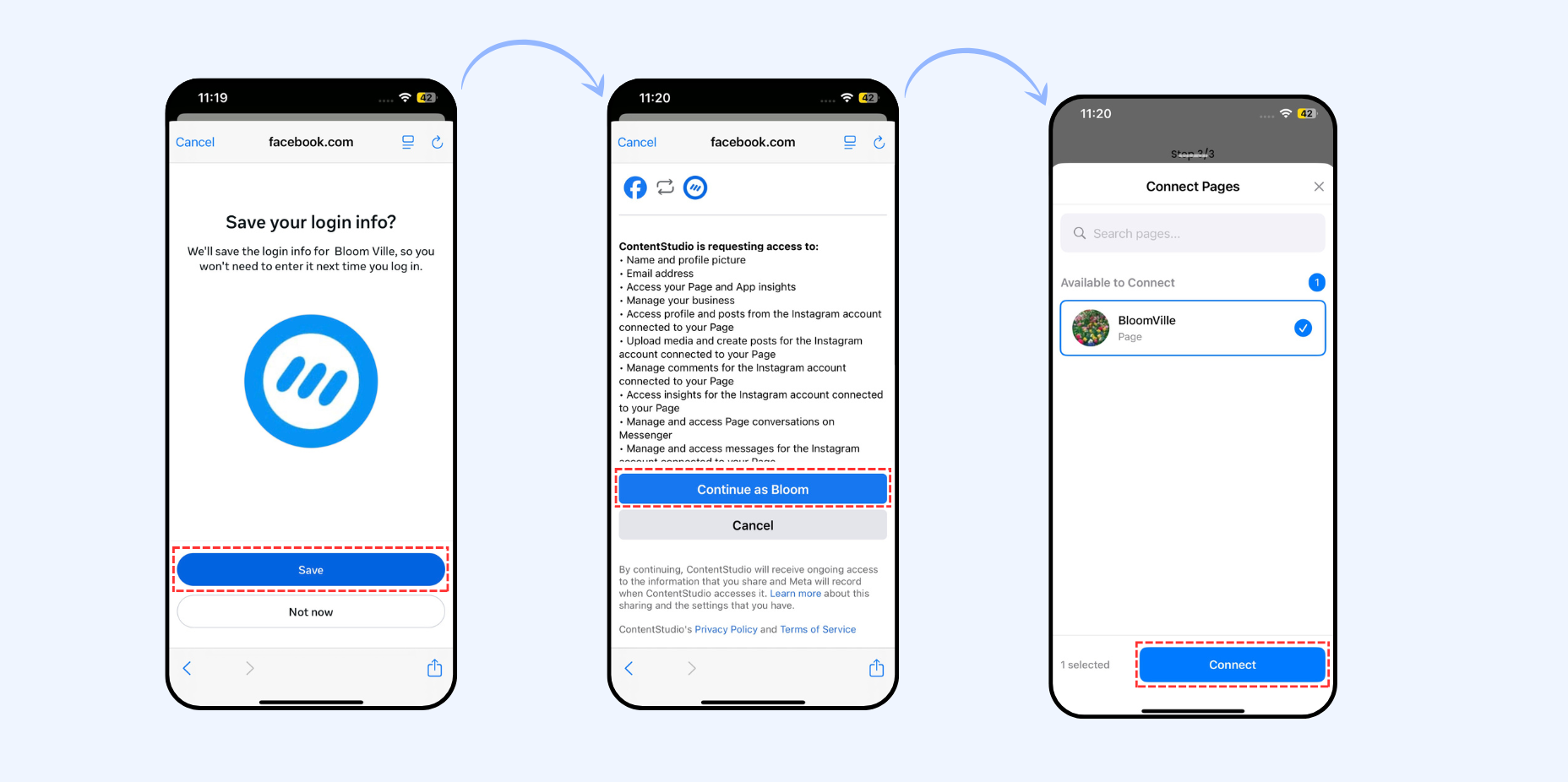
Facebook asks to save login info for ContentStudio → click Save.Grant Access
A popup shows permissions ContentStudio requires → click Continue.Choose Pages
Select the available Facebook Pages you want to connect → click Connect.
FAQs
Q1: Can I skip onboarding steps?
No. You need to complete the 3-step onboarding (Personal Info, Business Info, Connect Platforms) to set up your workspace.
You can, however, update details later in Settings.
Q2: Which social platforms can I connect?
ContentStudio supports multiple platforms such as Facebook, Instagram, LinkedIn, TikTok, YouTube and more.
Q3: Can I connect more than one social account?
Yes. You can connect multiple accounts for the same platform (e.g., several Facebook Pages or Instagram accounts).
Q4: I don’t see my Facebook Page while connecting. What should I do?
Make sure you are an admin of the page and grant ContentStudio all requested permissions during connection.
Q5: Can I change or remove connected accounts later?
Yes. You can add, remove, or reconnect accounts anytime from your workspace settings.
Q7: Does ContentStudio work on iPad as well as iPhone?
Yes. The app is optimized for both iPhone and iPad devices running iOS 13 or later.
Q8: Can I receive push notifications on iOS?
Absolutely ✅ You can enable push notifications to get reminders for scheduled posts and activity updates.
Was this article helpful?