Publishing to the Facebook group via mobile app push notification method


ContentStudio provides a streamlined method for publishing to Facebook Groups via push notifications through the mobile app. This guide outlines the steps to efficiently create, schedule, and share your posts. Let’s get started! 💫


In this article:


Are Facebook groups already connected? Install ContentStudio Mobile app

You do not need to reconnect if you have already connected the Facebook group to ContentStudio. However, you may need to install the ContentStudio Mobile app (iOS/Android) to receive push notifications and continue publishing.

Connect the new Facebook group to ContentStudio
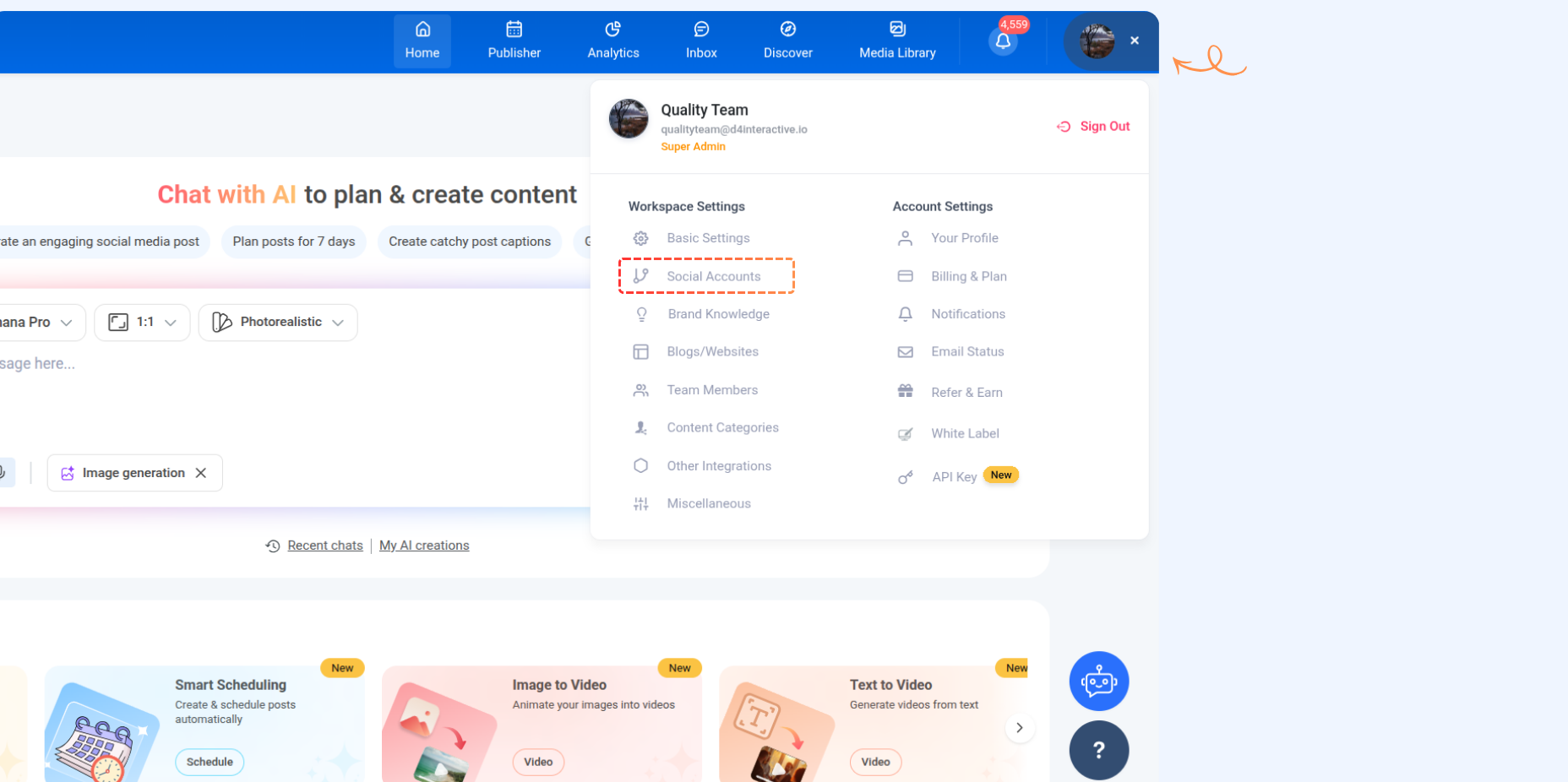
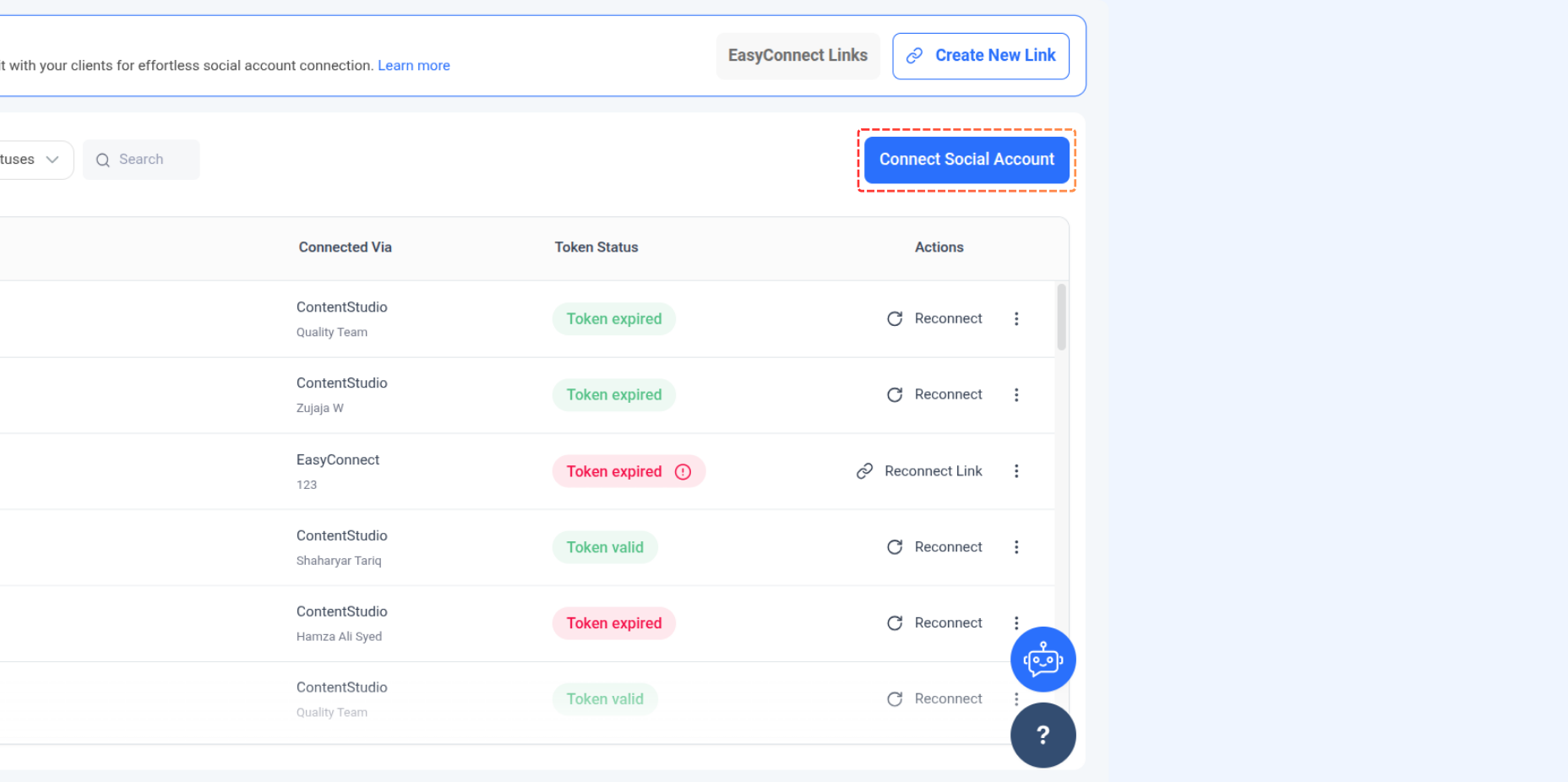
1 Navigate to Settings and click on Social Accounts.

2 In the Social Accounts section, click on Connect Social Account and select Facebook Page.

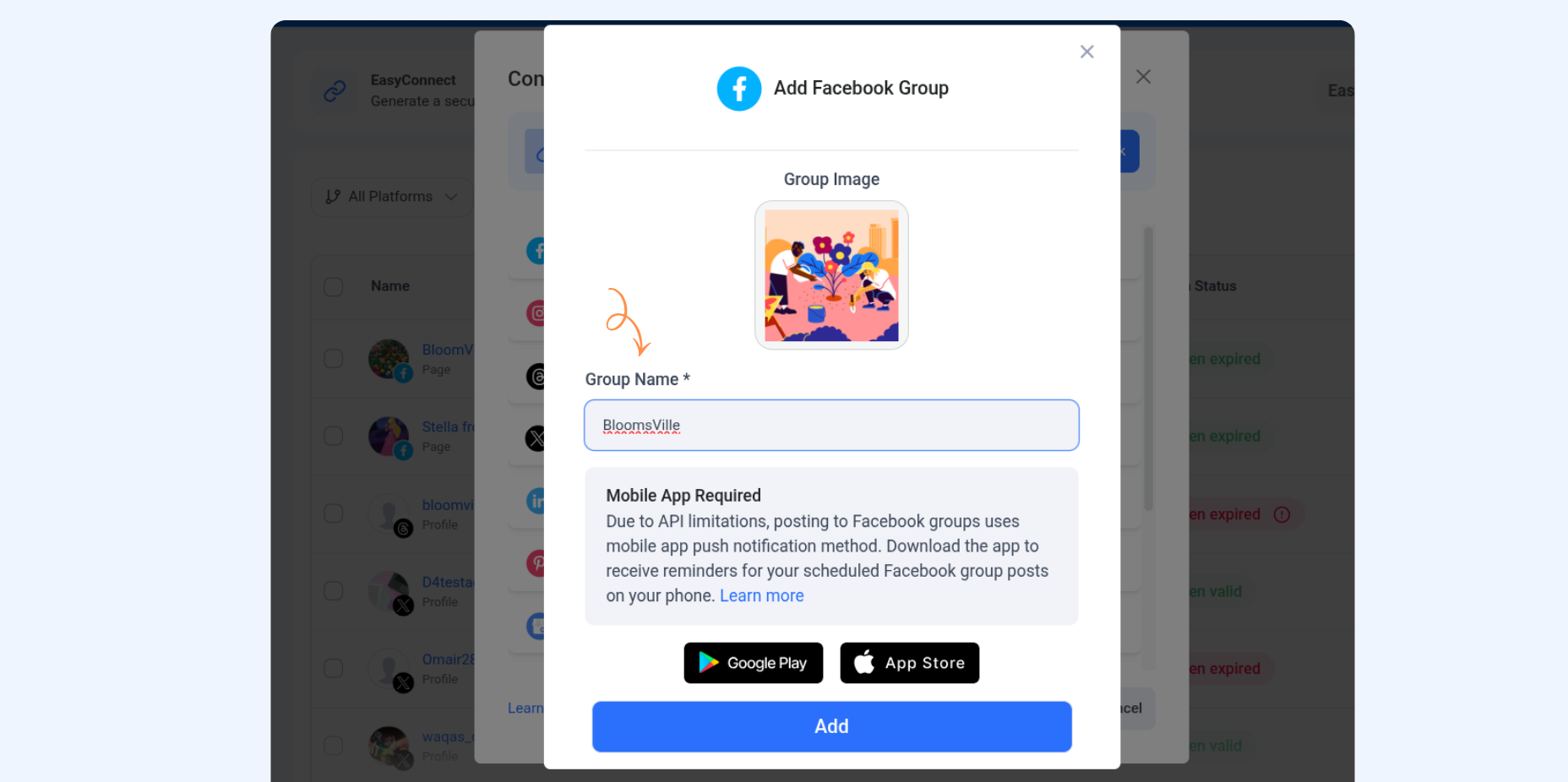
3 Add your Facebook Group by typing its name in the search field and clicking Add.

💡Tips:

  • It is recommended that you use the same name and profile picture as your Facebook group for better identification when posting via push notifications.
  • Be sure to install the ContentStudio app to use this feature.
The Facebook Group is successfully connected to ContentStudio.

Create a new post for a Facebook group via mobile app push notifications
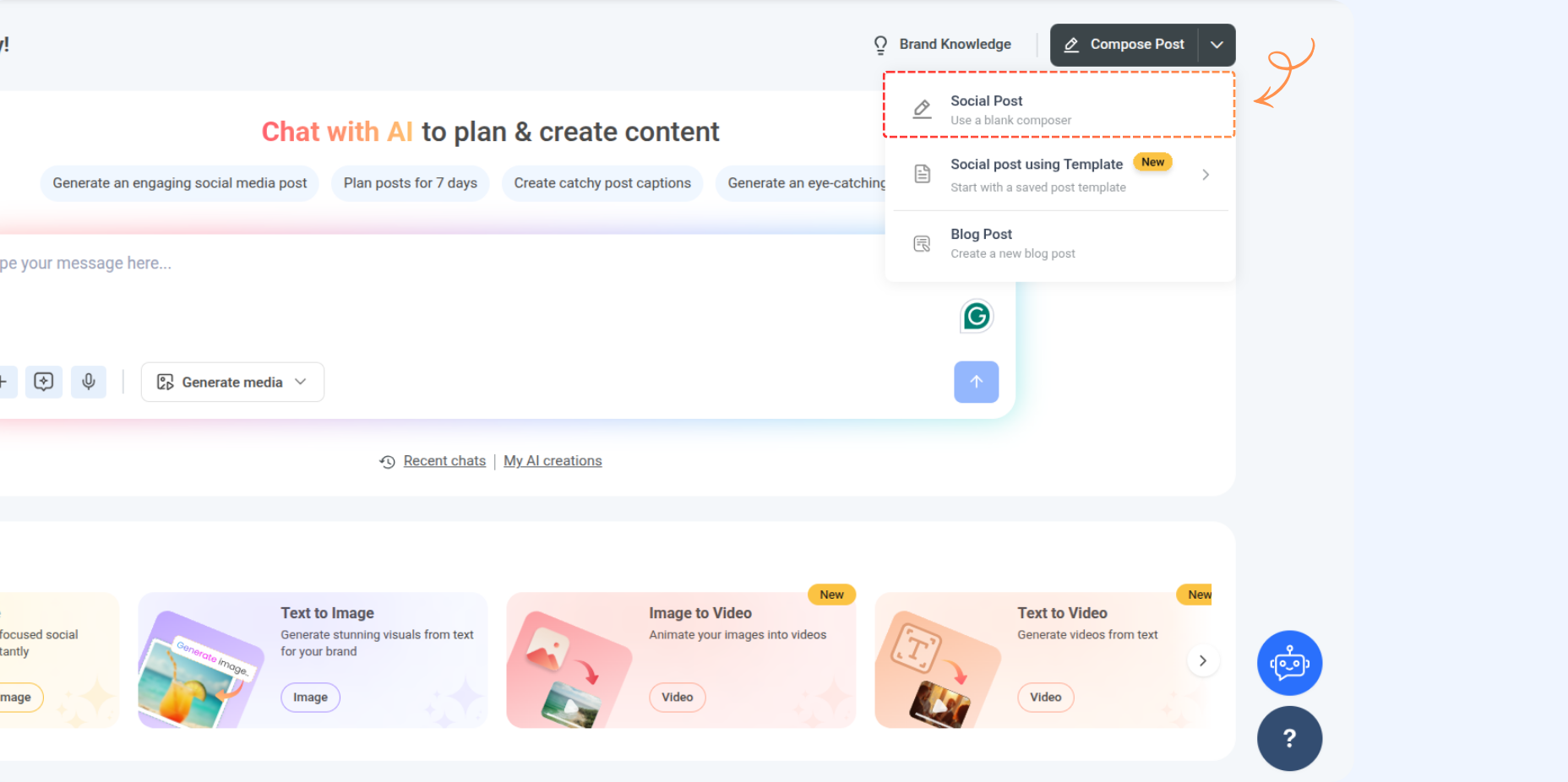
Once your Facebook Group is connected to ContentStudio, you’re ready to start creating and publishing posts directly through the platform.
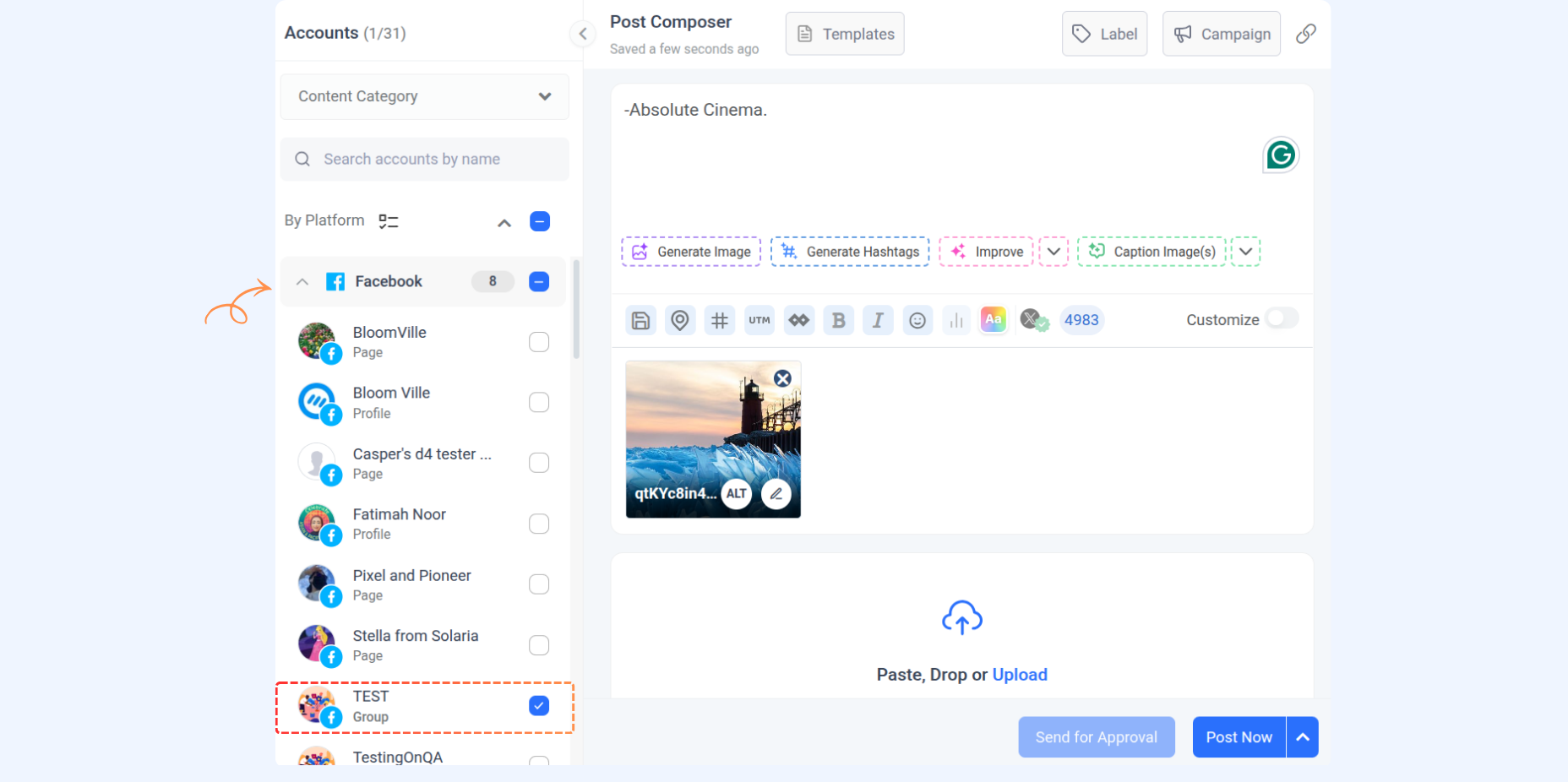
1 Go to the ContentStudio Web App and navigate to Compose → Social Post.

2 Select the Facebook Group where you want to share your post, and compose your content directly in the post editor.

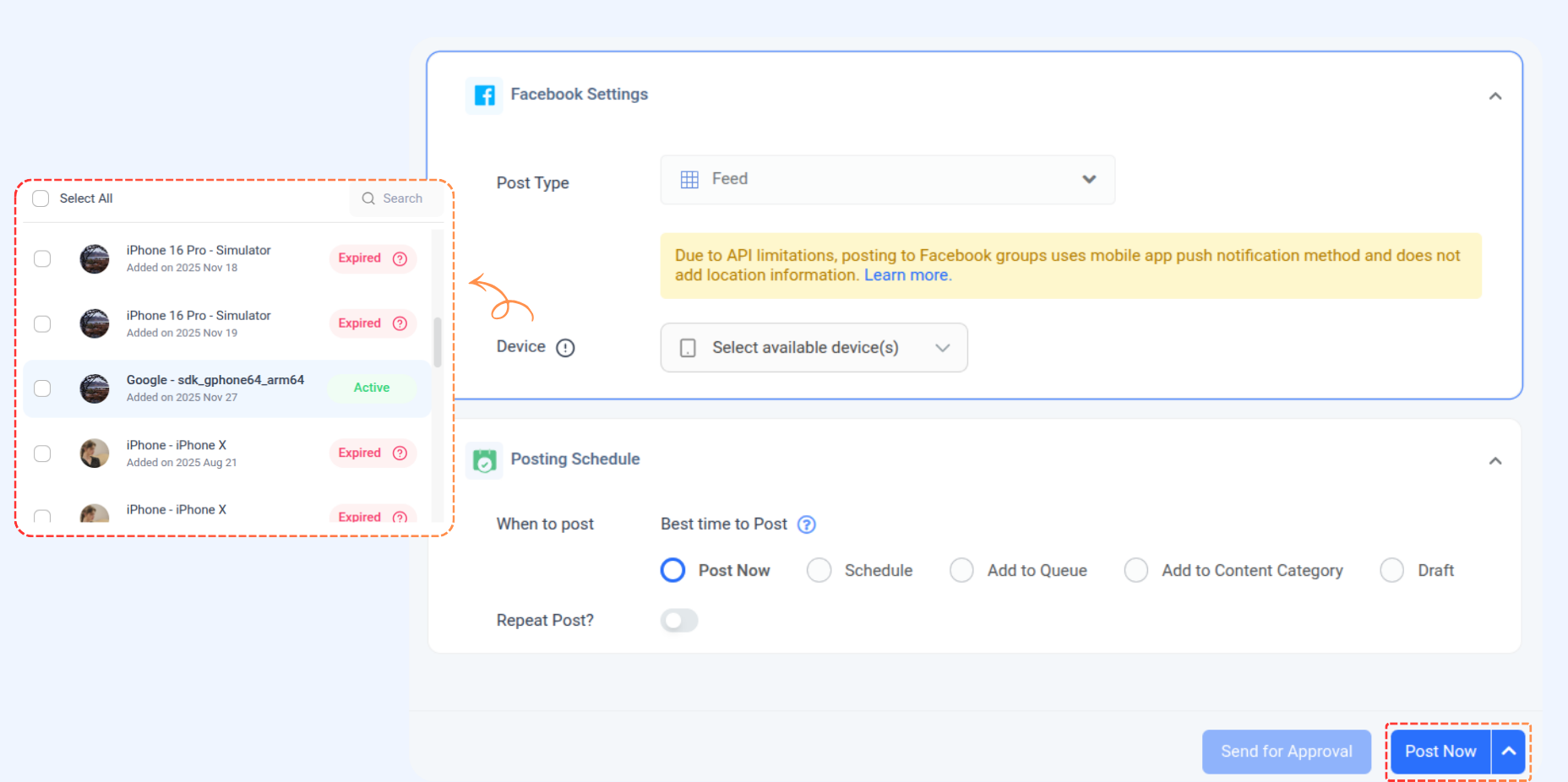
3 In the Facebook settings, select the desired post type and choose your device from the available options. Then click Post Now or select your preferred posting schedule.
By this step, you have completed the initial part of the scheduling process with the semi-automated system. Next, you will receive a push notification from the ContentStudio mobile app informing you that your post is ready to publish.

Depending on your posting schedule, you will receive a push notification on your mobile app. Click on that notification to be redirected to the ContentStudio mobile app.

Push notification on ContentStudio mobile app (iOS)
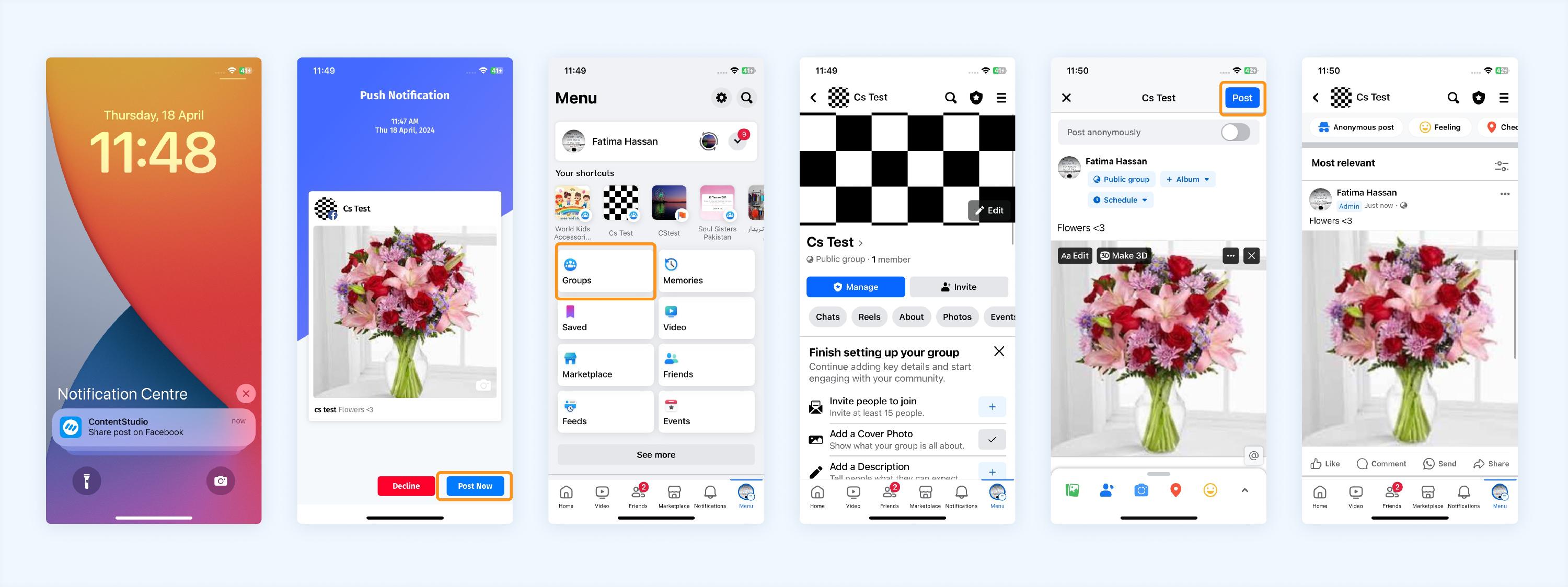
1 When you tap the notification, the post preview will open.
2 Tap on Post Now.
3 Go to the menu on the Facebook app and click on Groups.
4 Select the desired group, then manually paste the caption.
5 The media will be saved in your device’s library and needs to be manually added to the post.
6 Set the post privacy settings and tap on Post.

Push notification on ContentStudio mobile app (Android)
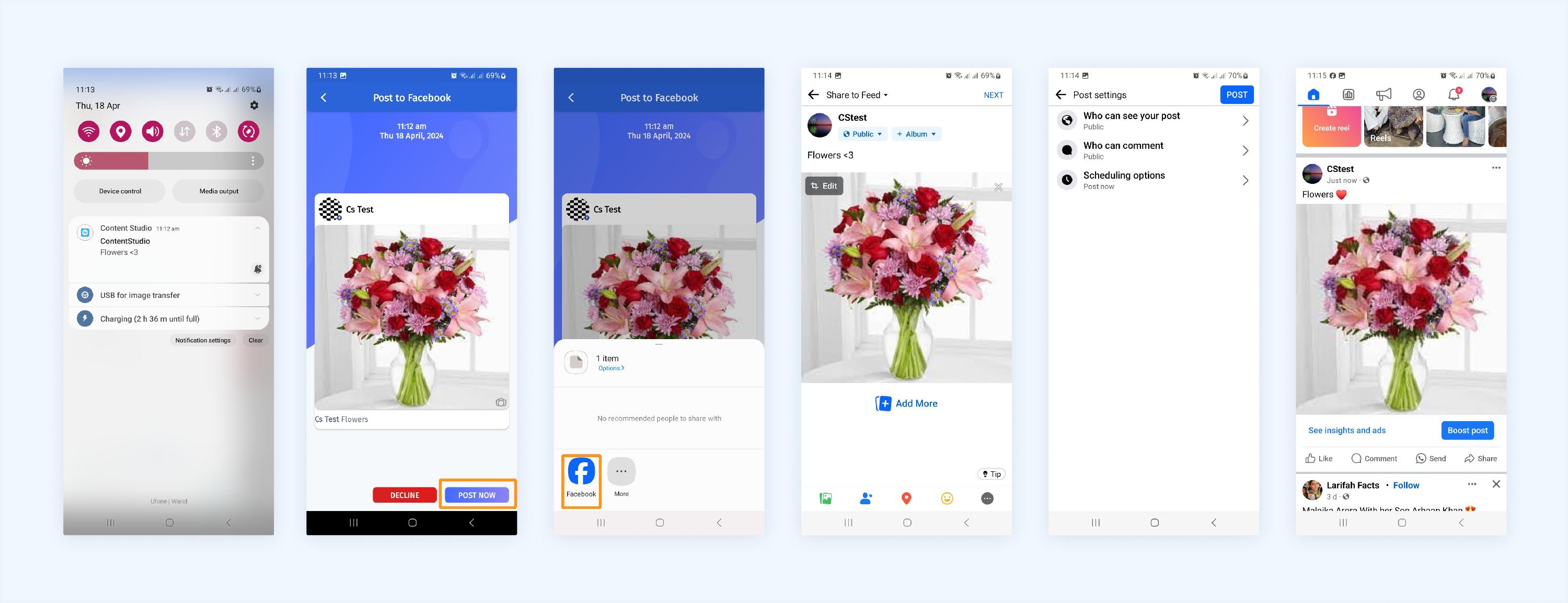
1 When you tap the notification, the post preview will open.
2 Tap on Post Now.
3 On the Facebook app, a window will appear asking where to share the media.
4 Tap Facebook Group, select the specific group you want, and the media will be automatically added when the app opens. You will need to add the text manually.
5 Set the Post settings.
6 Tap on Post.

You have successfully completed the process. Your Facebook Group is now connected, and posts can be created, scheduled, and published seamlessly via ContentStudio.

FAQs

Q1: Will the Facebook group in ContentStudio be linked to my original Facebook group?

A: The Facebook API no longer allows data fetching, so the groups are not directly linked. You'll manually manage your posts using the ContentStudio and Facebook apps.

Q2: What should I do if my push notifications aren't working?

A: First, ensure all notifications are enabled for the ContentStudio app. Check your device's notification settings or contact support for further assistance if the issue persists.

Q3: Can I manage multiple Facebook groups using ContentStudio?

A: You can add multiple Facebook groups and manage them all through ContentStudio.

Did this answer your question? Thanks for the feedback There was a problem submitting your feedback. Please try again later.

Still need help? Contact Us Contact Us