

Enabling ContentStudio Notifications on Android
This guide will walk you through enabling notifications for ContentStudio on an Android device. By following these steps, you can stay updated in real-time, manage tasks efficiently, and keep your social media strategies running smoothly—all from the convenience of your mobile device.
Steps to Enable Notifications on Android
Open Android Settings
Navigate to the Settings app on your Android device. Use the search bar at the top to find Apps and tap on it.Find ContentStudio
Within the Apps list, locate ContentStudio. You can either scroll through your apps or use the search bar at the top to find it quickly.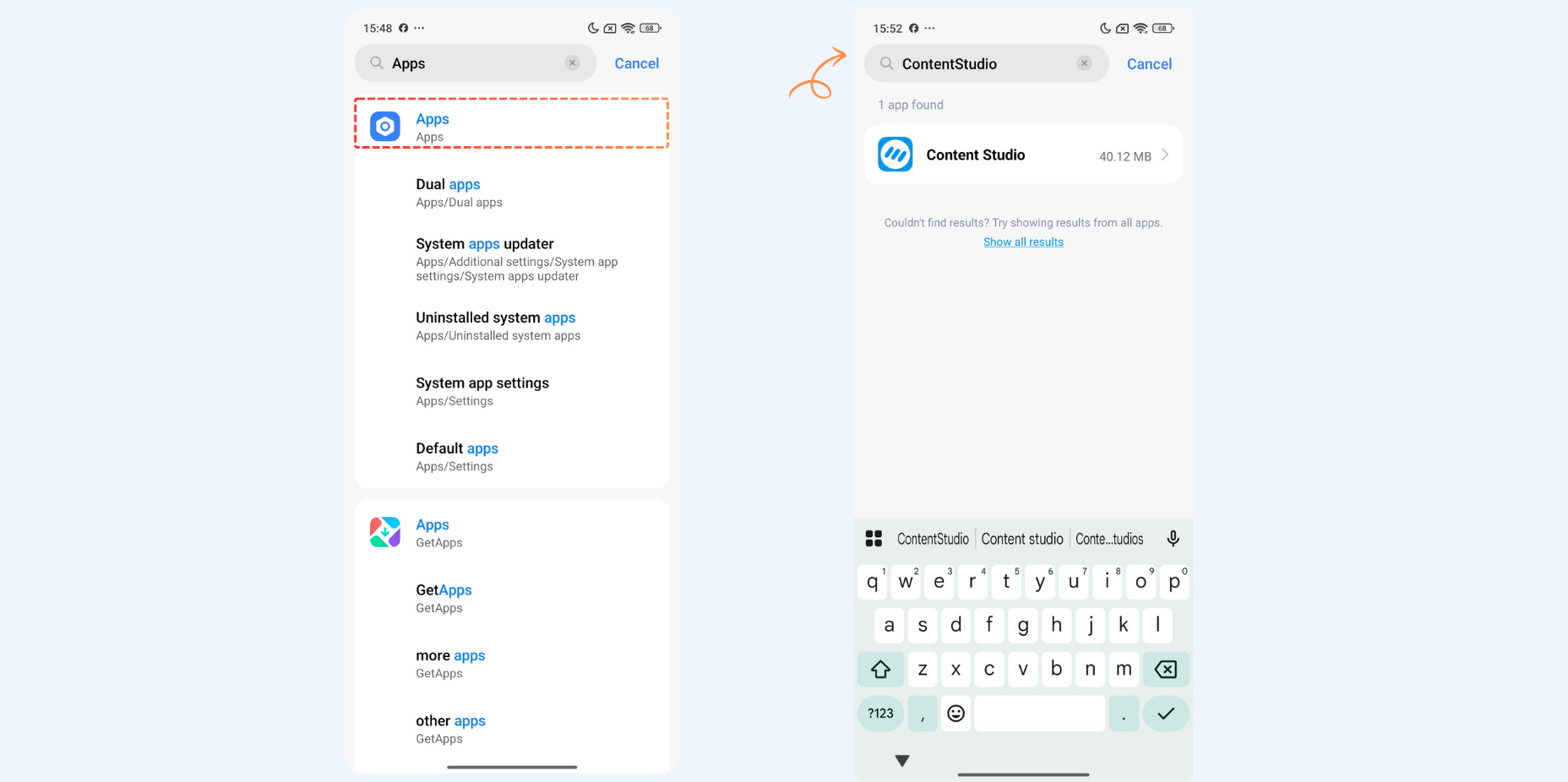
Open App Notifications
Tap on Notifications. This will open the notification settings specific to ContentStudio. Toggle Show notifications to ON.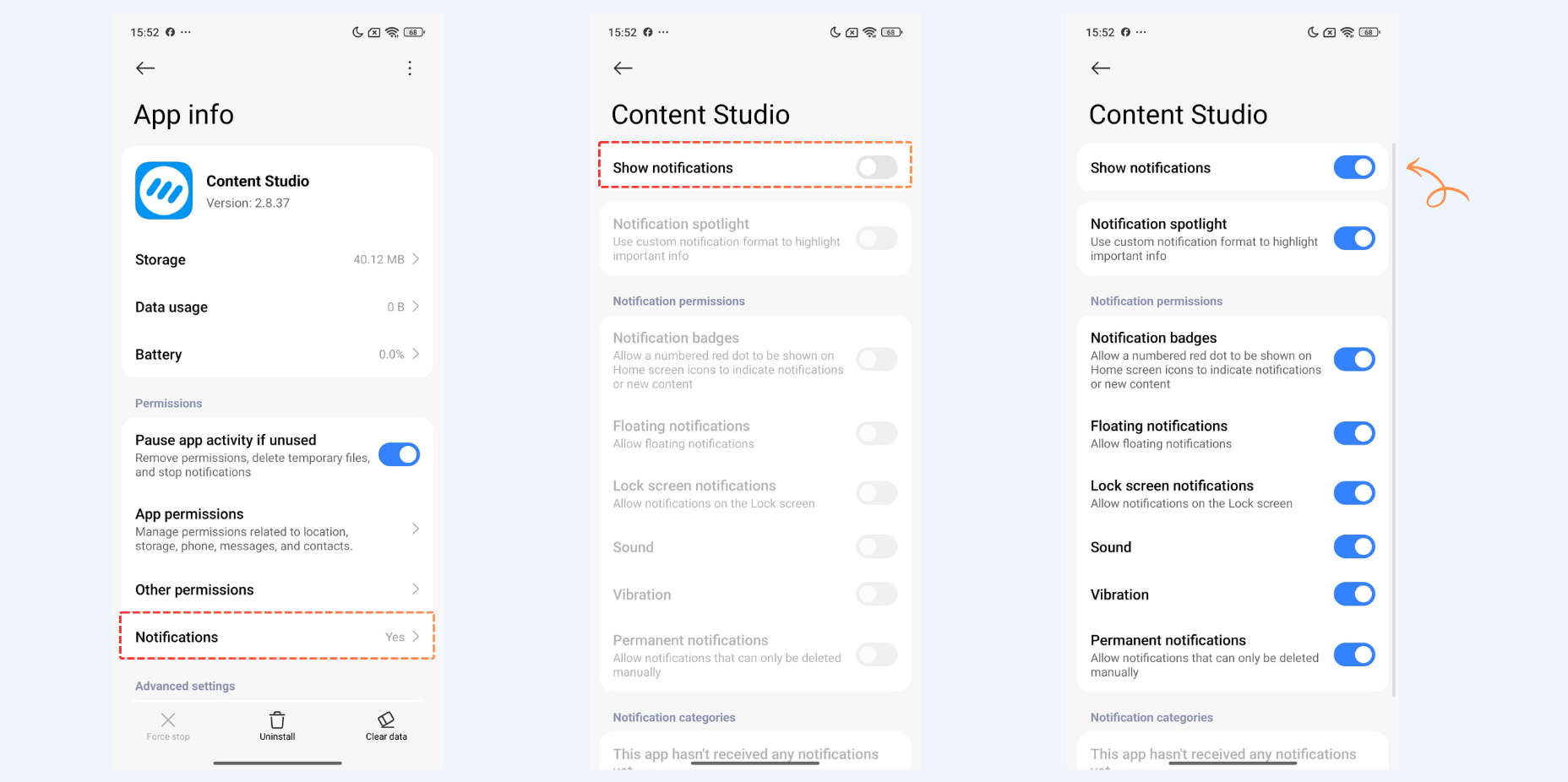
Once you have customized your preferences, exit the settings. ContentStudio notifications are now enabled, and you will start receiving updates in real-time.
FAQs
Q1: Why am I not receiving notifications from ContentStudio?
A1: Ensure that notifications are enabled for ContentStudio in your Android settings. Also, check that Do Not Disturb mode is turned off and that the app has permission to send notifications.
Q2: Can I customize the type of notifications I receive?
A2: Yes. In the app notification settings, you can choose to receive alerts for post publishing, comments, engagement updates, and workspace activity.
Q3: Will I get notifications if the app is closed?
A3: Yes. As long as notifications are allowed in Android settings and the app has background permissions, you will receive updates even when the app is not actively open.
Was this article helpful?