

How to add team members to multiple workspaces?
Using ContentStudio, you can add a member and assign them to one or more workspaces directly from a centralized panel.
Let's get in!
Step-by-step process
Go to All Workspaces from your dashboard and click on Manage Team.
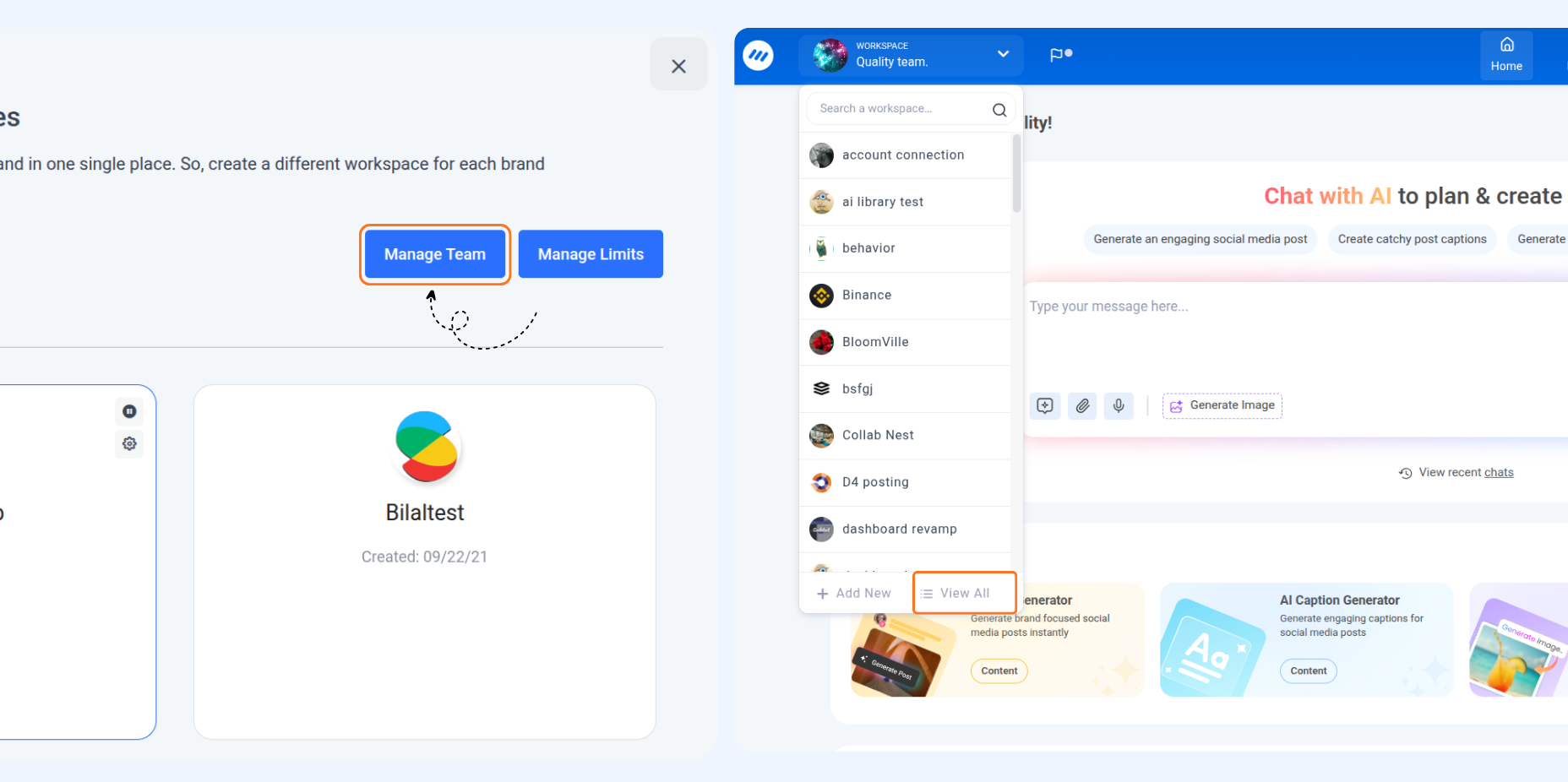
Hit the "Add Member" button at the top right.
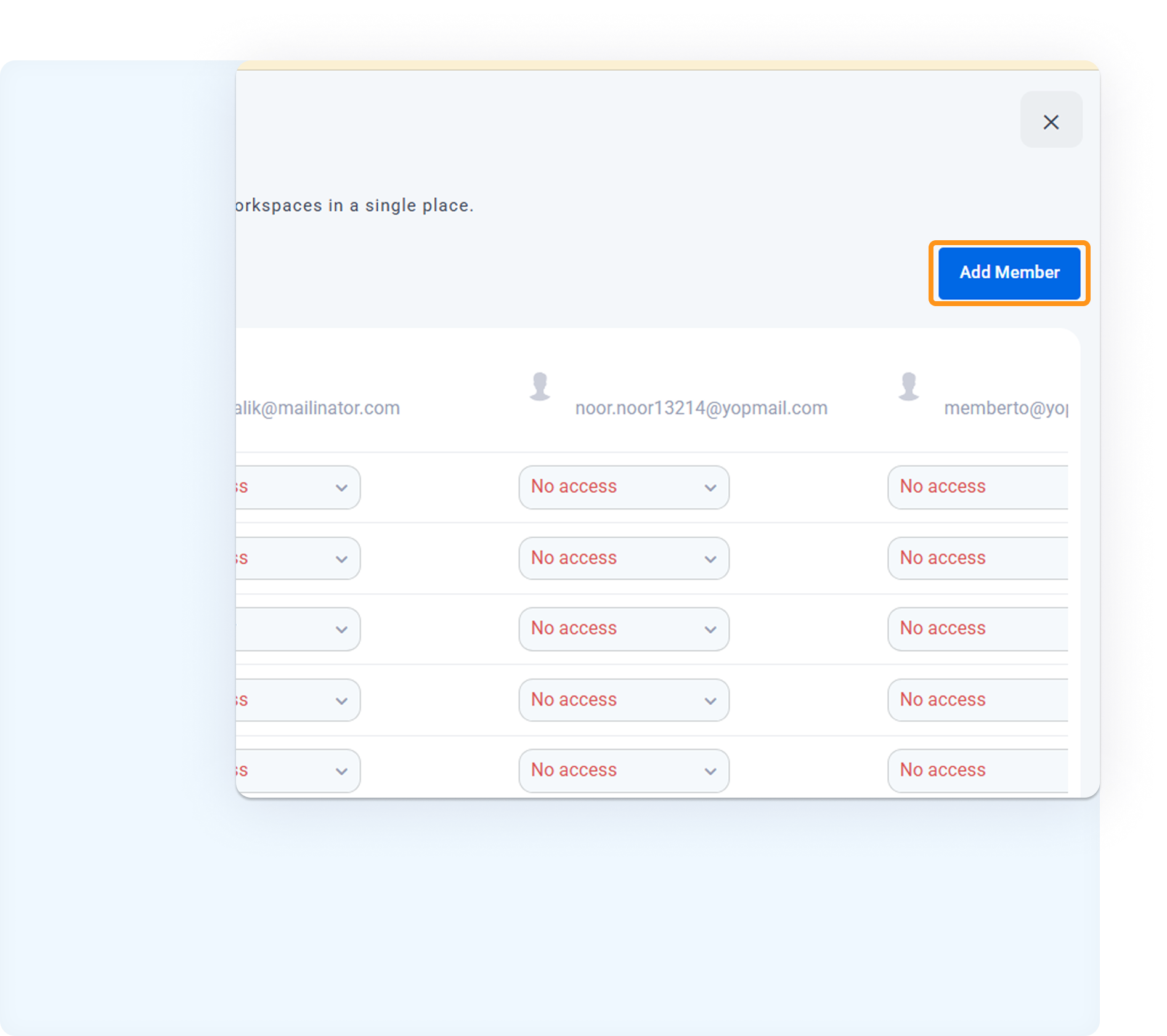
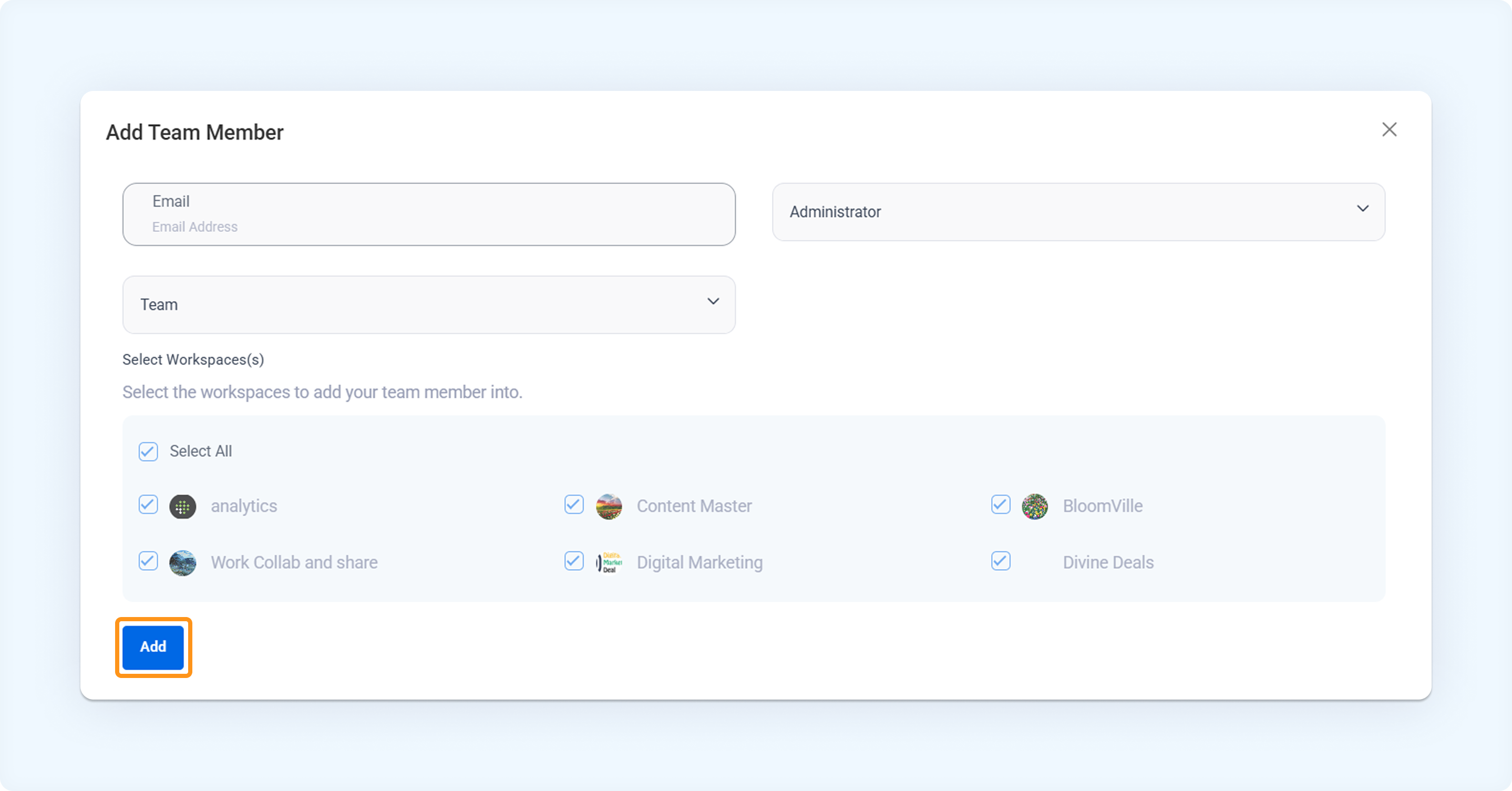
In the pop-up:
Enter the email address of the new team member.
For all selected workspaces, assign a role:
Admin
Collaborator
Approver
Select the type of team member — Team or Client.
Select the workspaces to which you want to assign them.
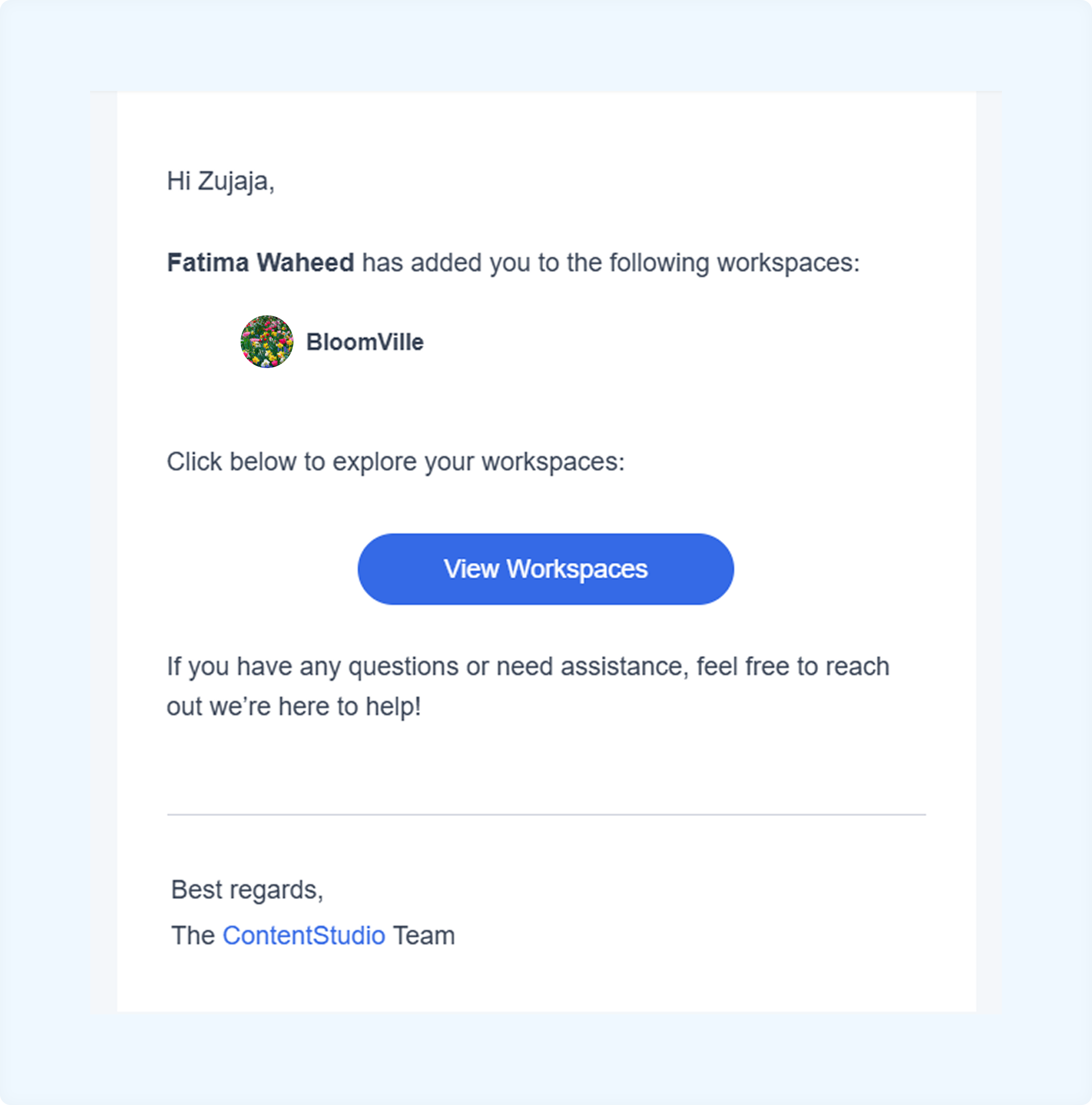
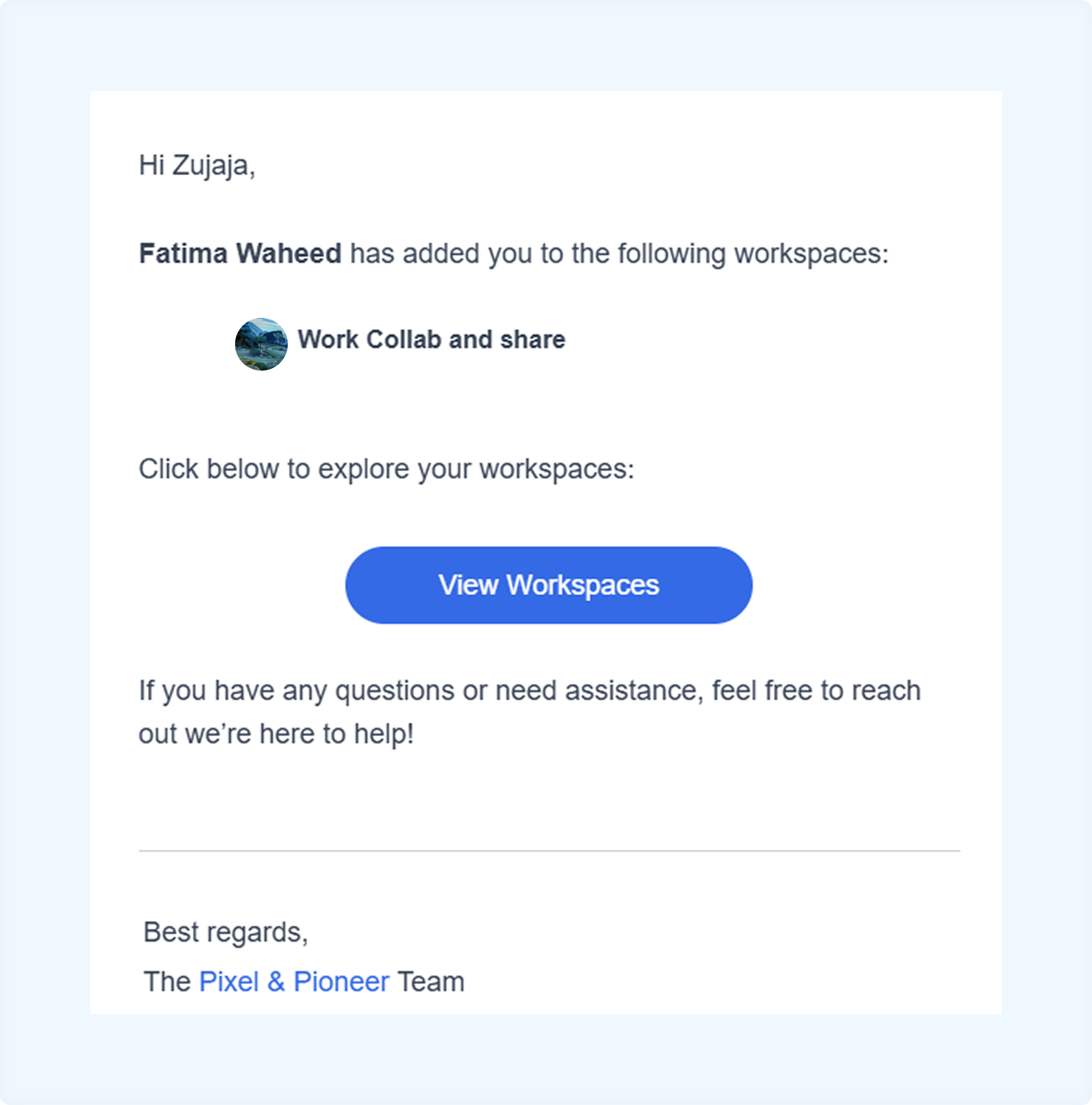
The invited member will receive emails with the invitations. Clicking on "View Workspaces" will open the respective dashboard for each workspace.

FAQs
Q1: Can I assign different roles to each workspace when adding members?
A: No, you can only assign the same role for all workspaces.
Q2: Can I skip the workspace assignment for now?
A: No, you must select one workspace to add a member.
Q3: What happens if a team member hasn’t accepted the invite?
A: They’ll remain invited until they accept the email invitation.
Was this article helpful?