

AI Hashtags
Unlock the full power of AI right inside your ContentStudio Composer! With our AI-powered tools, creating engaging captions, generating relevant hashtags, and extracting insights from images has never been easier. Whether you’re looking to craft the perfect caption, refine your text, or find trending hashtags, AI is here to supercharge your workflow — all without leaving your composer.
In this article:
AI Credits
AI text credits are based on the number of words.
Credits will reset at the start of every month based on your account membership.
Credits are shared among all team members and across all workspaces.
Subscription | AI text credits (words) |
|---|---|
Standard | 10,000 |
Advanced | 20,000 |
Agency Unlimited | 50,000 |
Steps to Generate Hashtags with AI
Write or paste your content into the Caption Editor in the Composer.
Click on the Improve with AI button next to the caption editor and select Generate Hashtags from the dropdown.
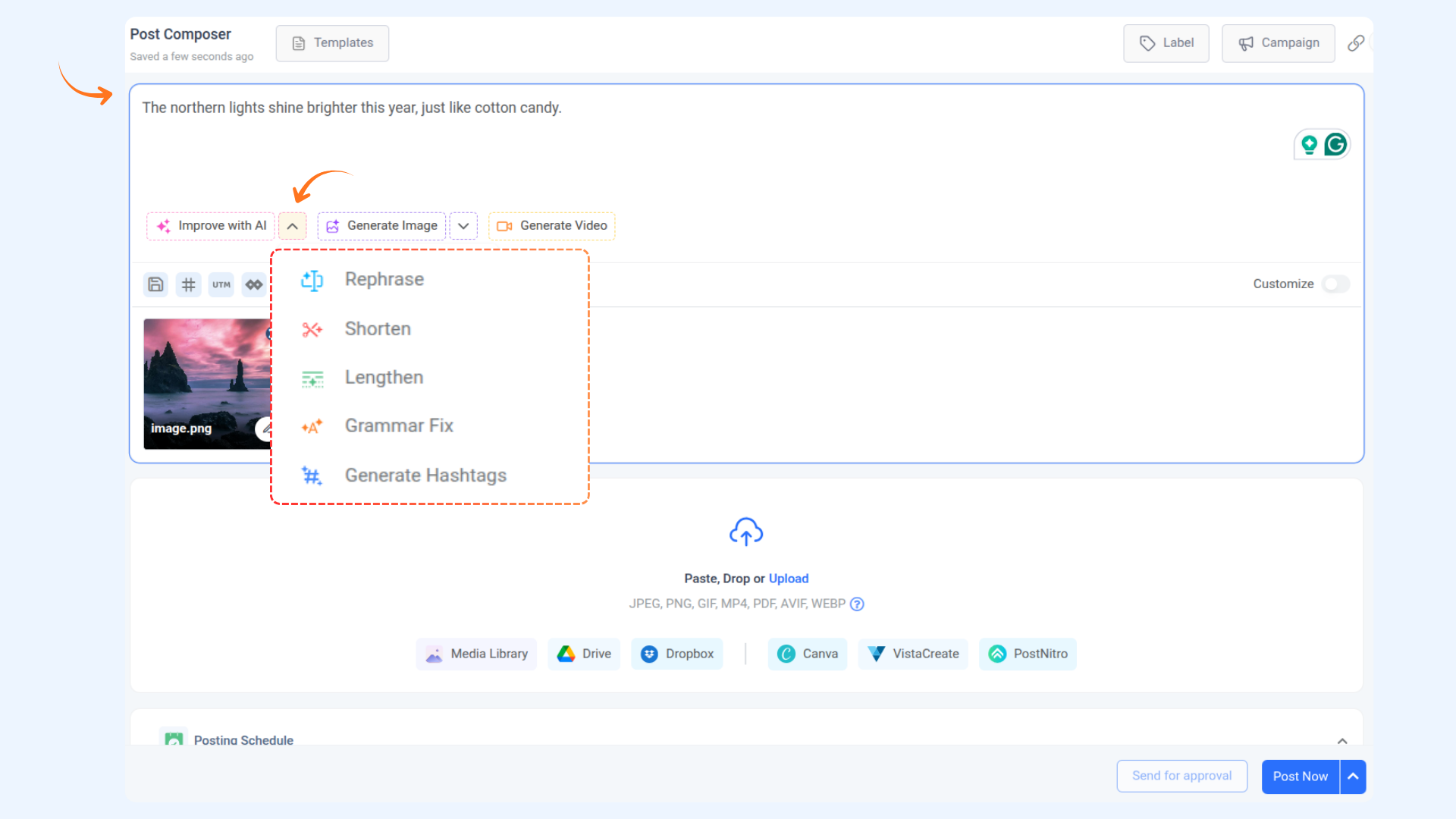
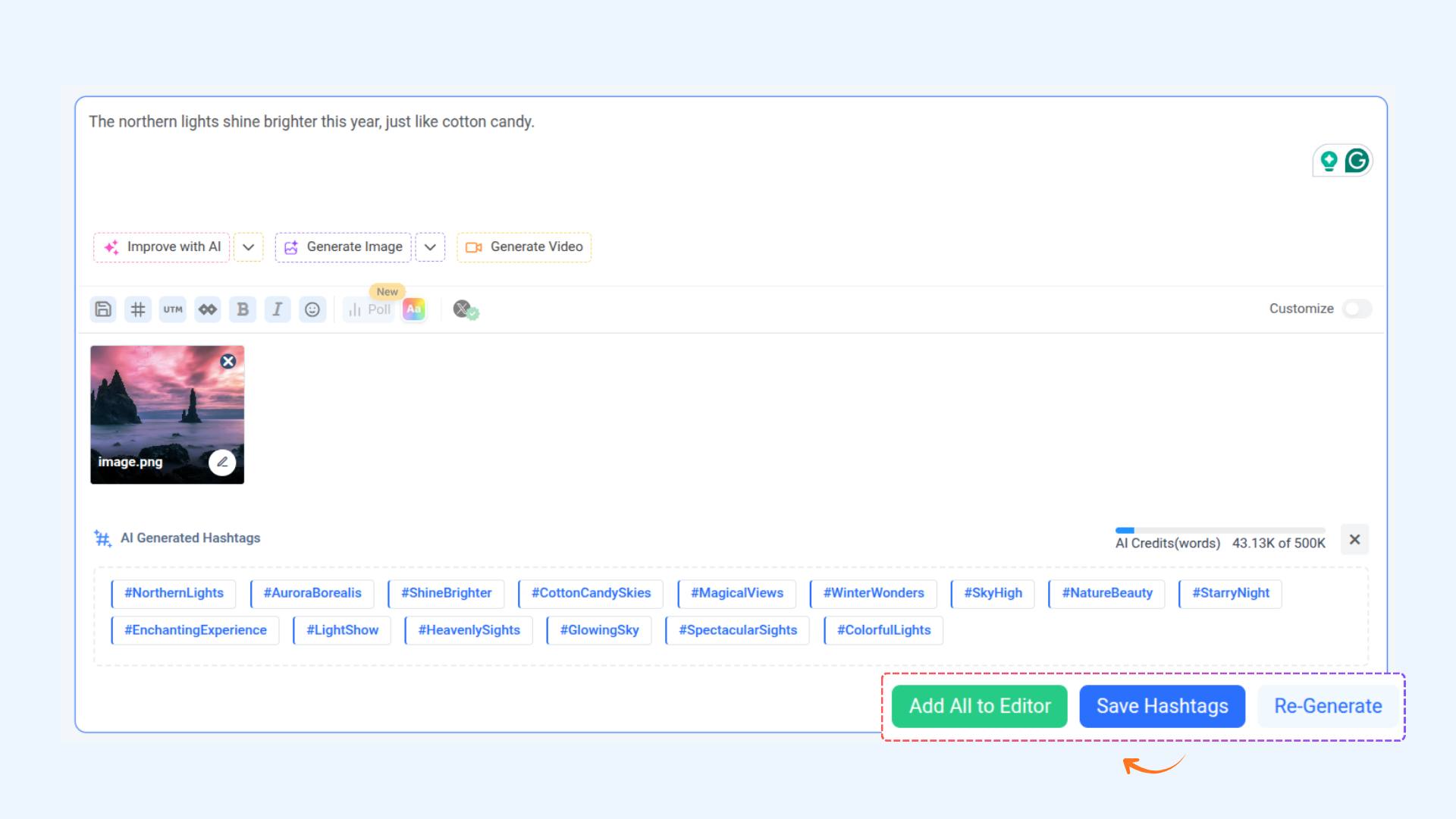
AI will process your content and generate relevant hashtags.
Once hashtags are generated, you have the following options:
Add All to Editor: All hashtags will be added to the caption editor
Save Hashtags: Save the hashtags for use later
Re-Generate: Regenerate hashtags if needed
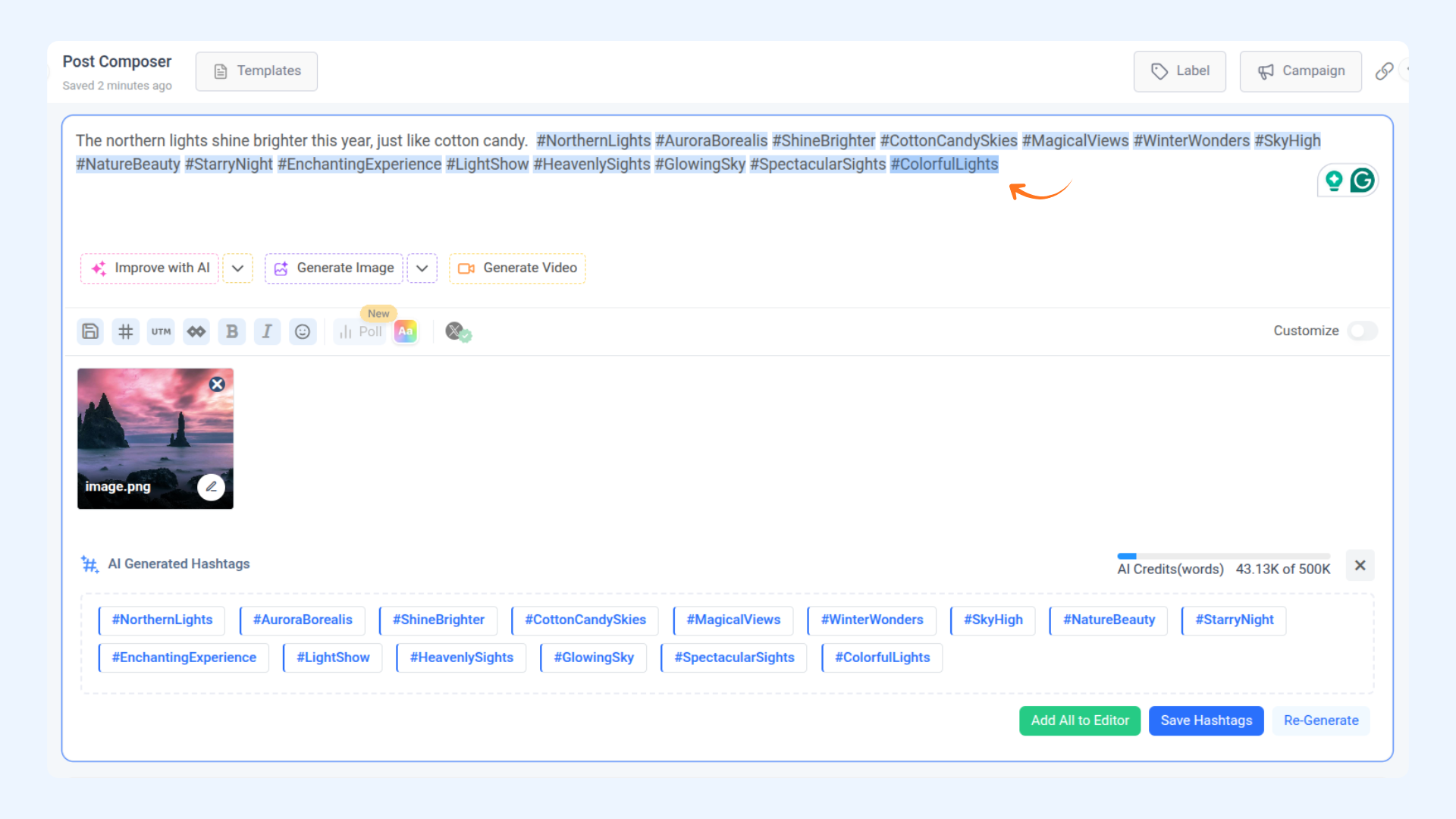
Click Add All to Editor to automatically insert all the generated hashtags into your caption editor. You can then review, edit, or post your content directly. This makes adding multiple hashtags fast, seamless, and hassle-free.
Create smarter, faster, and better with AI! 🚀
FAQs
Q1: Can I add all generated hashtags at once?
A1: Yes! Use the “Add All to Editor” option to insert all hashtags directly into your caption editor instantly.
Q2: Can I save generated hashtags for later?
A2: Absolutely! Click “Save Hashtags” to store them for future posts.
Q3: What if I want a different set of hashtags?
A3: Click “Re-Generate” to let AI produce a new set of hashtags based on your current content.
Was this article helpful?