

Bulk Schedule Via AI
Say goodbye to creating posts one by one. Bulk Schedule via AI lets you generate a whole batch of ready-to-publish social media posts complete with AI-generated images and captions and schedule them all at once through AI Studio. Go from a blank page to a full content calendar in just a few clicks.
In this Article:
How to Bulk Schedule via AI
Open Bulk Schedule via AI
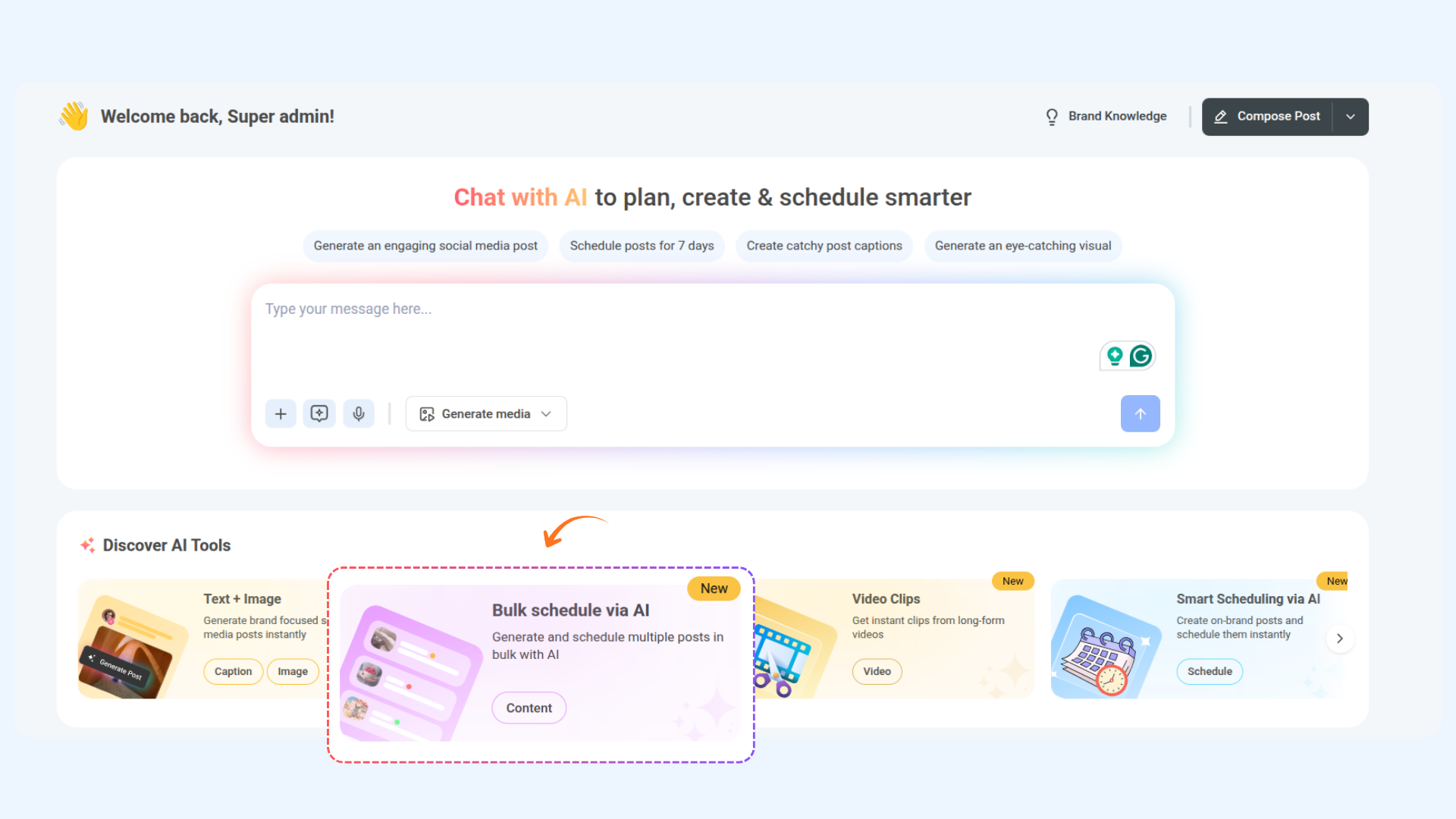
From the Home dashboard, scroll down to the Discover AI Tools section and click on the Bulk Schedule via AI card.
Set Up Your Brand Knowledge (First Time Only)
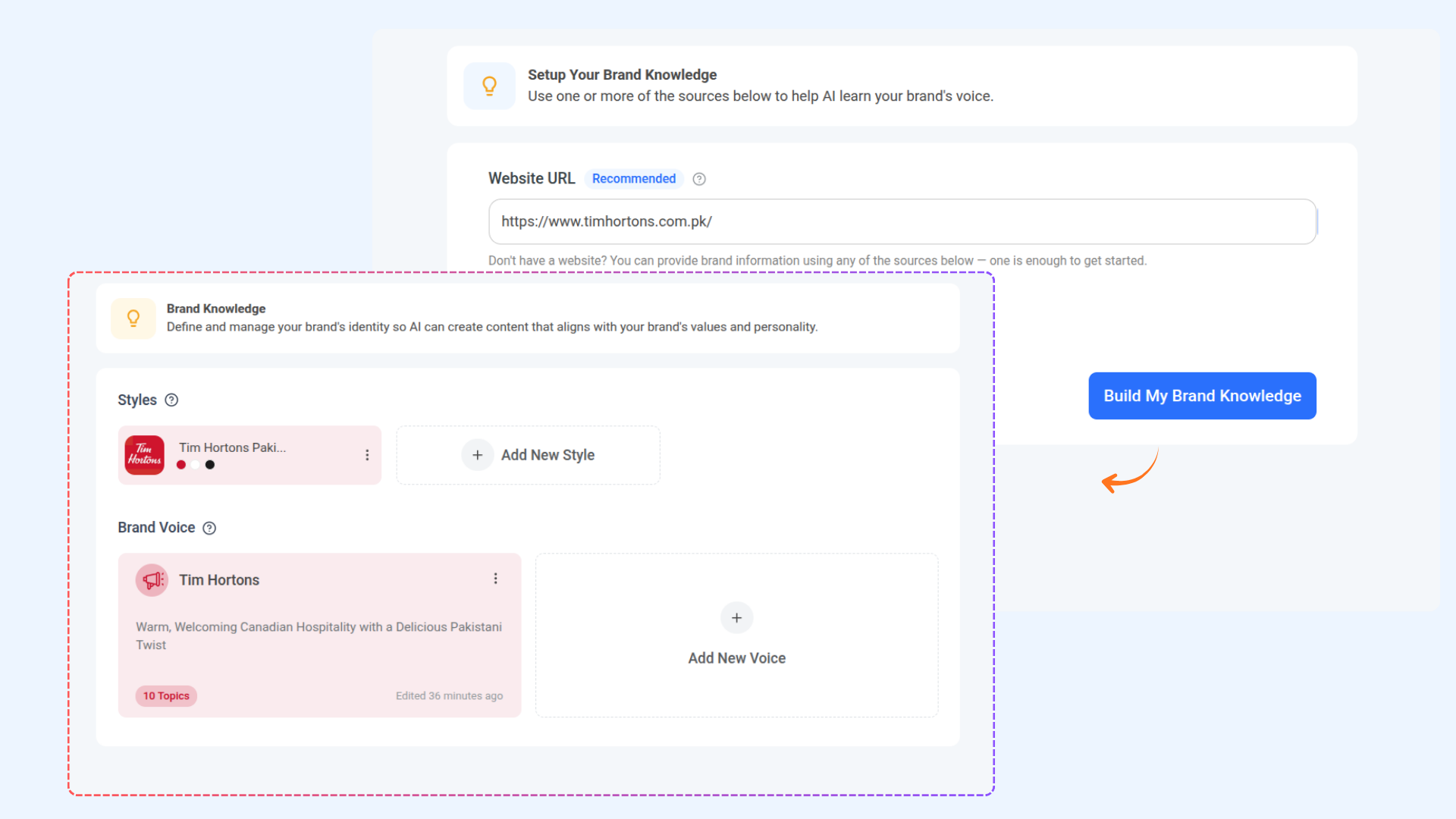
If you haven't set up Brand Knowledge yet, you'll be taken to the Setup Your Brand Knowledge page. Enter your Website URL — this is the recommended way for the AI to learn your brand's tone and voice.
Don't have a website? Click Add more sources (optional) to provide brand information through other sources. Once done, click Build My Brand Knowledge.
Configure Your Post Settings
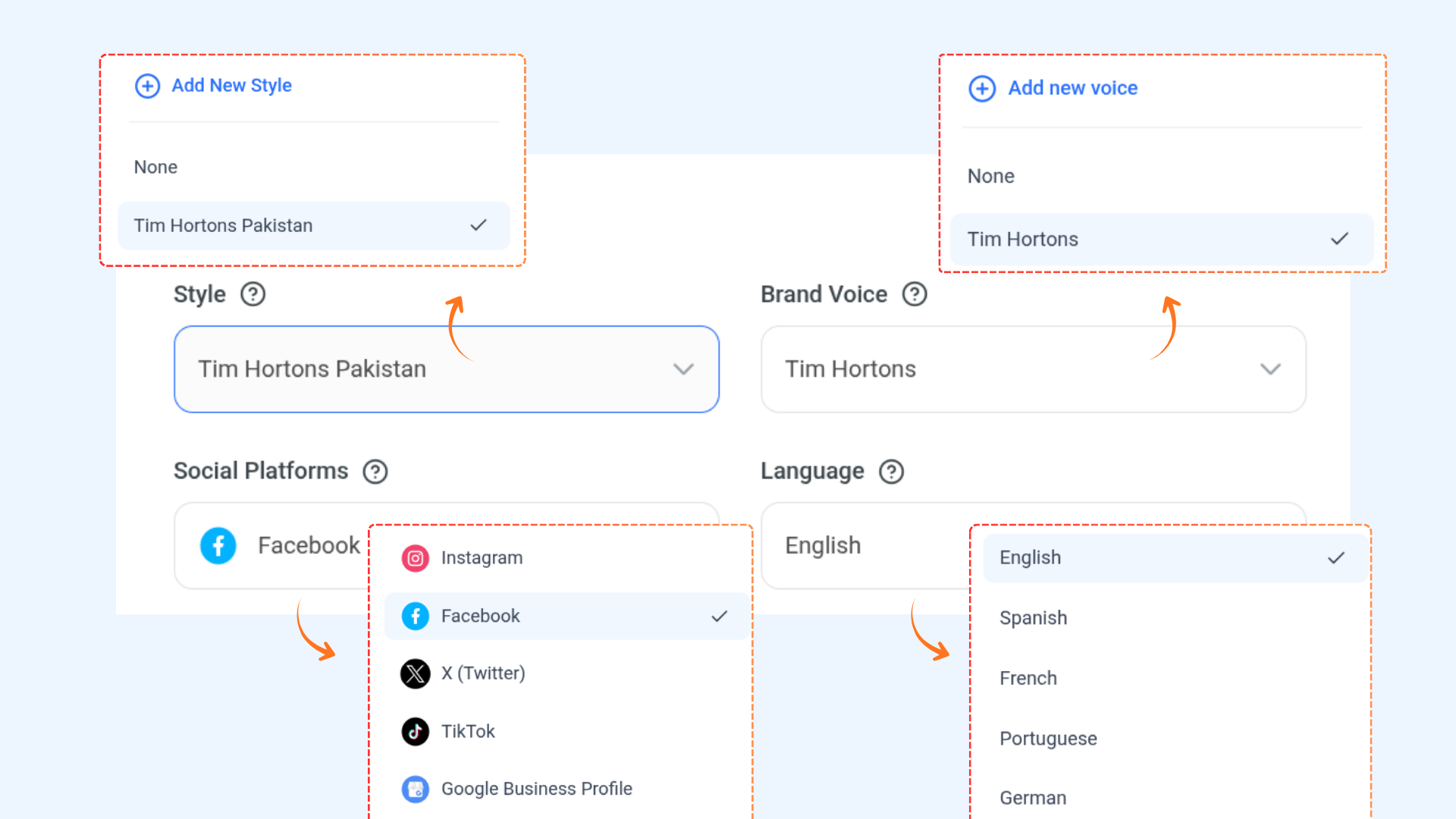
Once your Brand Knowledge is set up, a Review & Generate pop-up will appear. Start by filling in:
Style — Choose a posting style that matches your brand's content approach
Brand Voice — Select the brand voice you've set up for your workspace
Social Platforms — Pick the platform you want to generate posts for (e.g. Facebook, Instagram)
Language — Choose the language for your captions
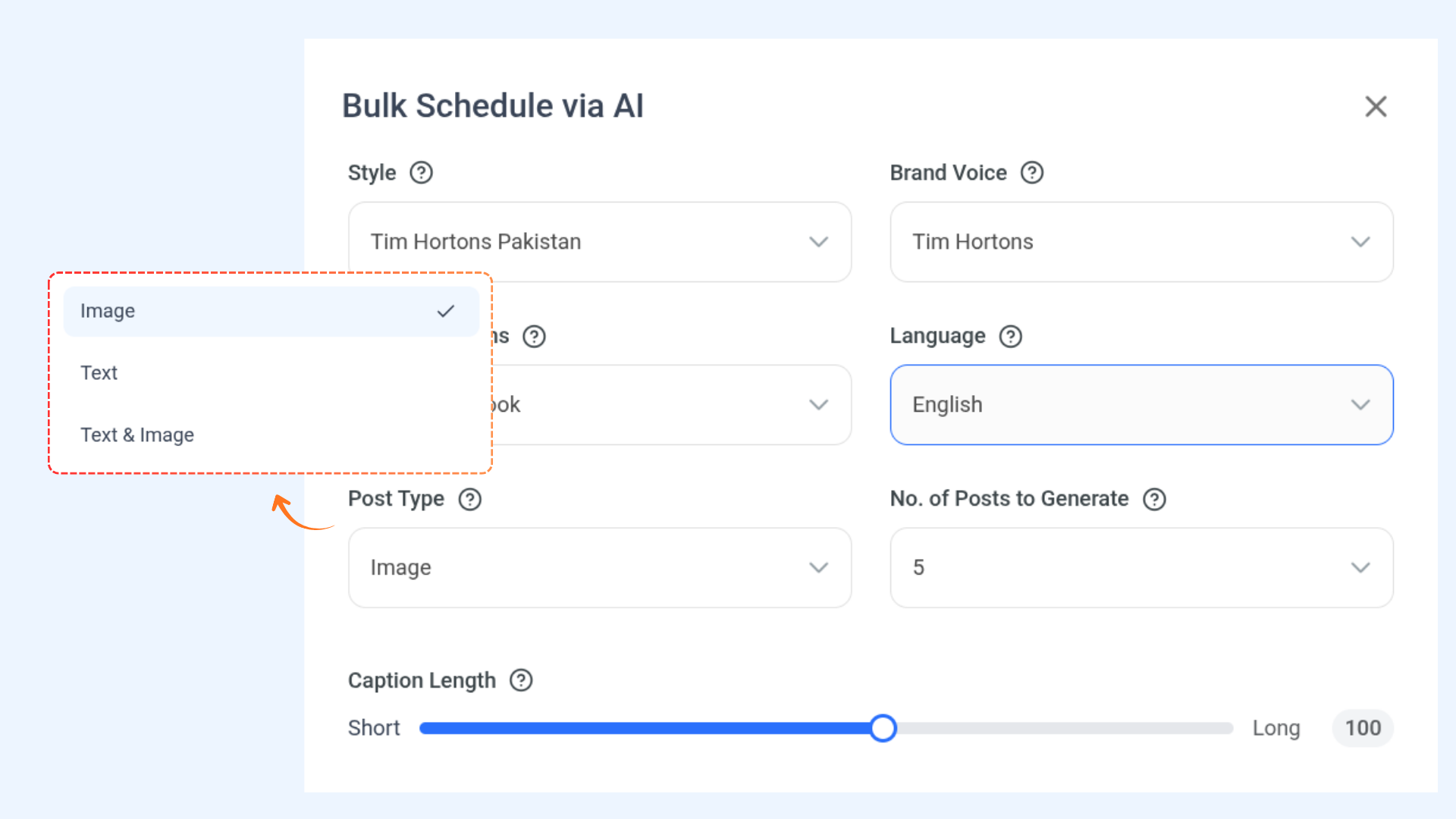
Next, configure your content preferences:
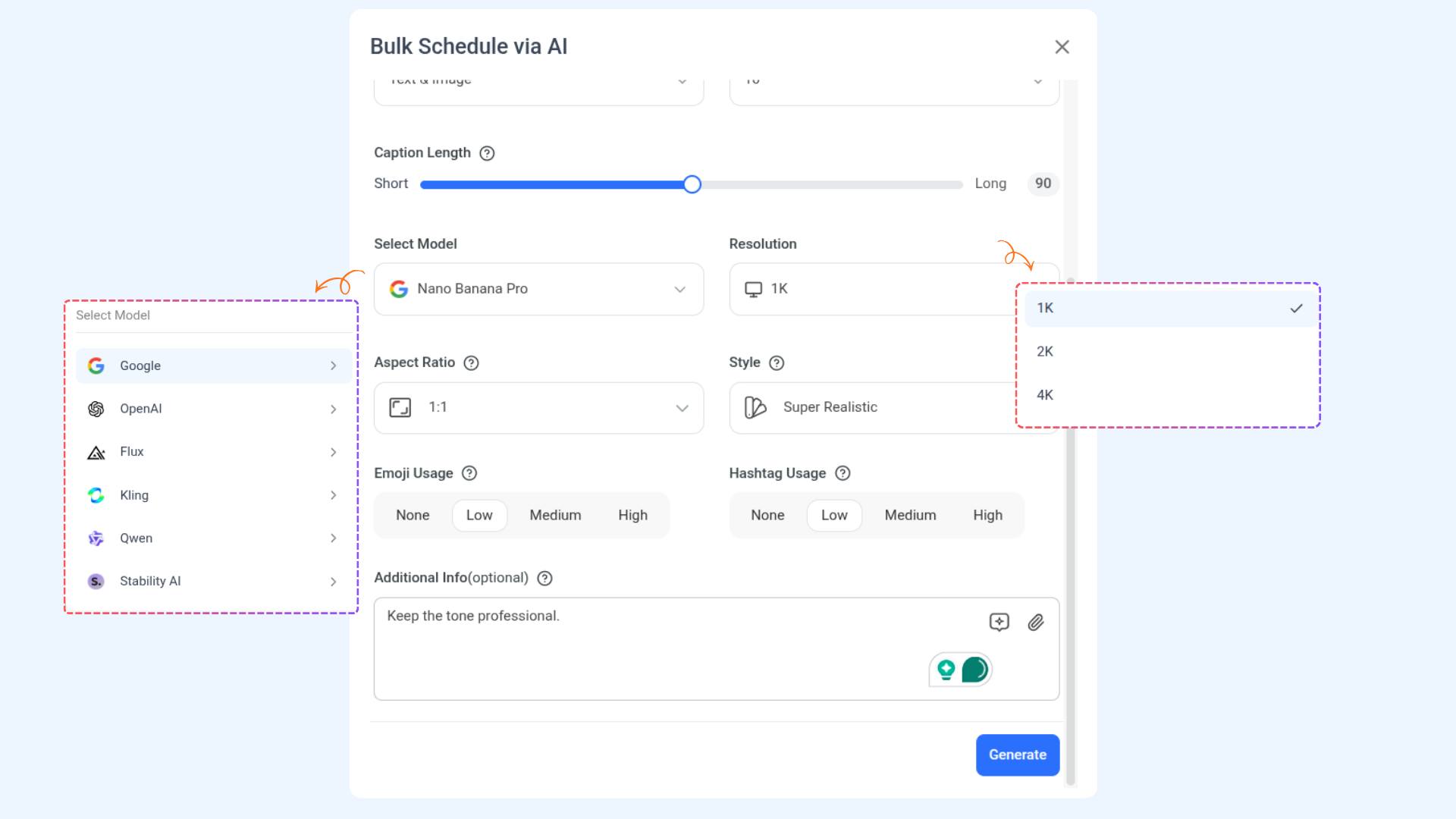
Post Type — Select Image, Text, or Text & Image
No. of Posts to Generate — Choose how many posts you want generated in one go
Caption Length — Drag the slider between Short and Long
Finally, fine-tune your visual and tone settings:
Aspect Ratio — Choose the image ratio (e.g. 1:1 for square posts)
Style — Set an image style or leave as No Style
Resolution — Select the output resolution for your generated visual (e.g. 1080p)
AI Model — Choose the AI generation model that best fits your creative needs
Emoji Usage — Choose None, Low, Mid, or High
Hashtag Usage — Choose None, Low, Mid, or High
Additional Info (optional) — Add extra context or a reference image to guide the AI
Once you're happy with your settings, click Generate. The AI will start generating your posts — this may take a few moments.
Review Your Generated Posts
Once generation is complete, a Bulk Schedule via AI pop-up will appear showing all your generated posts in a grid. You can switch between Grid View and List View using the buttons at the top.
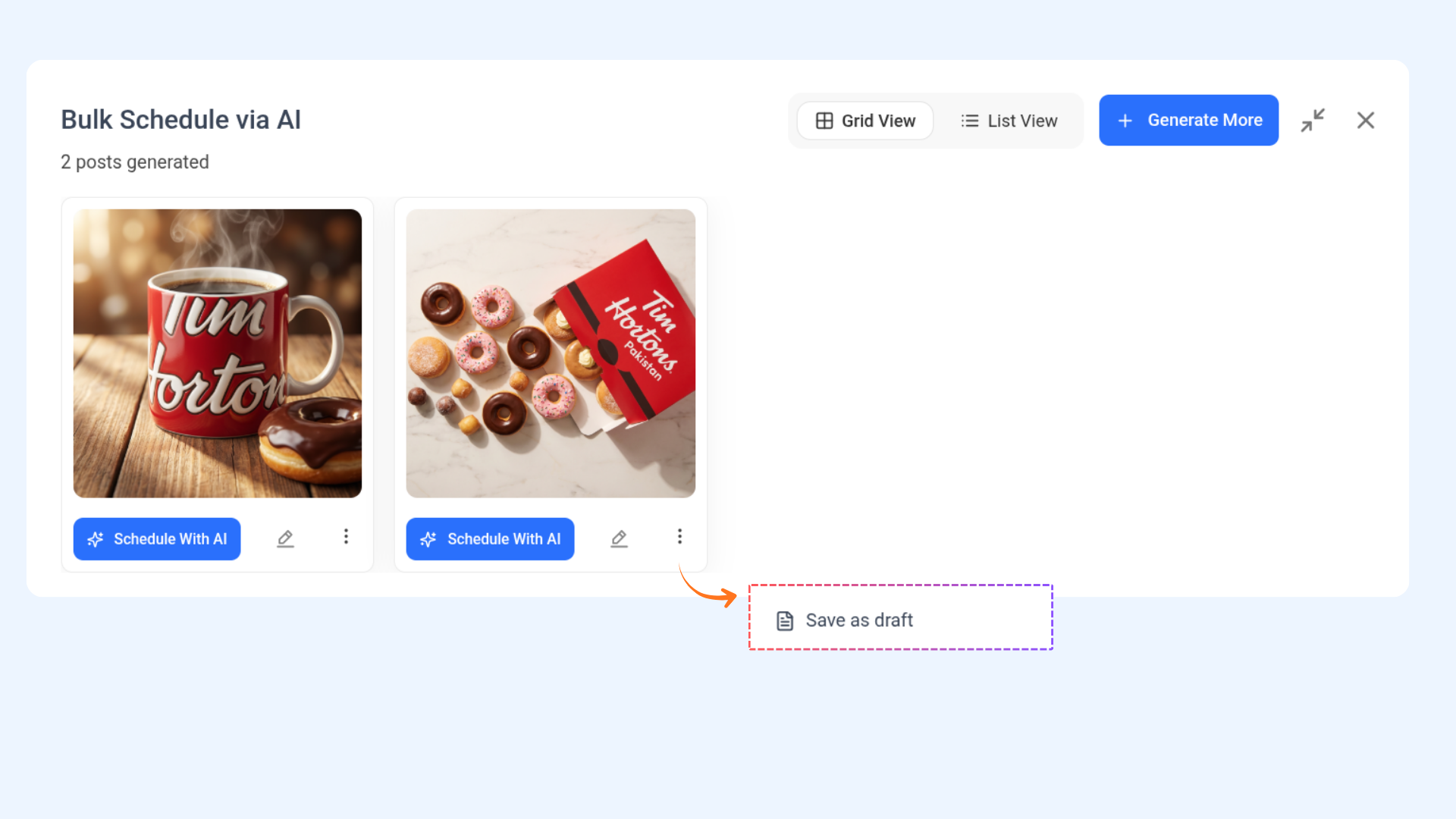
For each post, you have three options:
Schedule With AI — Send this individual post to AI Studio to schedule it
Pencil icon — Open the post directly in the Composer to edit it manually
Three dots ( ⋮ ) — Save the post as a draft
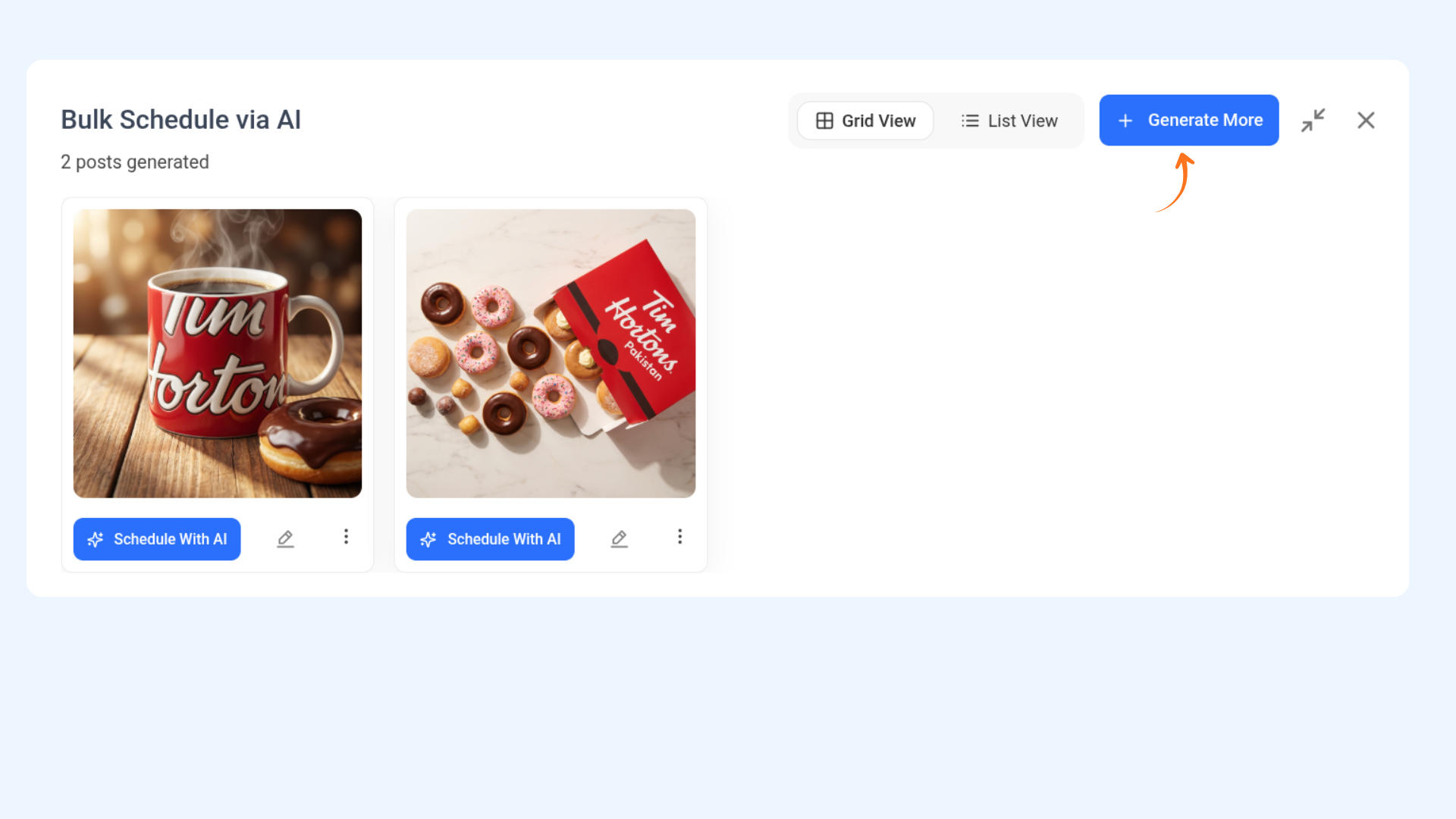
Need more posts? Click + Generate More at the top right to generate an additional batch using the same settings.
Schedule via AI Studio
To schedule multiple posts at once, click the checkbox on each post you want to select — or click Select all at the bottom to select every post at once.
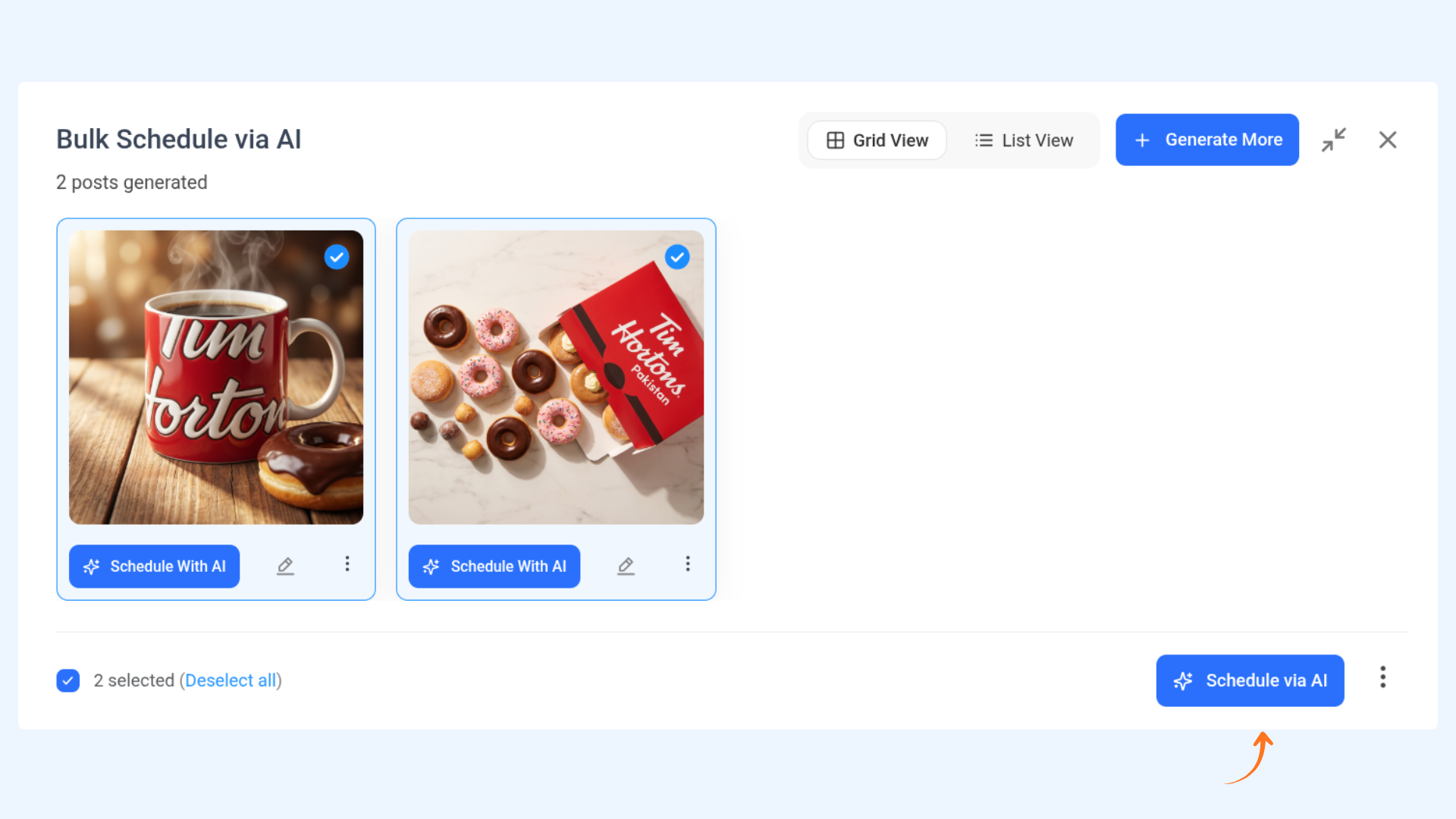
Once you've selected the posts you want, click Schedule via AI at the bottom right. Your selected posts will open in AI Studio as AI Library Posts.
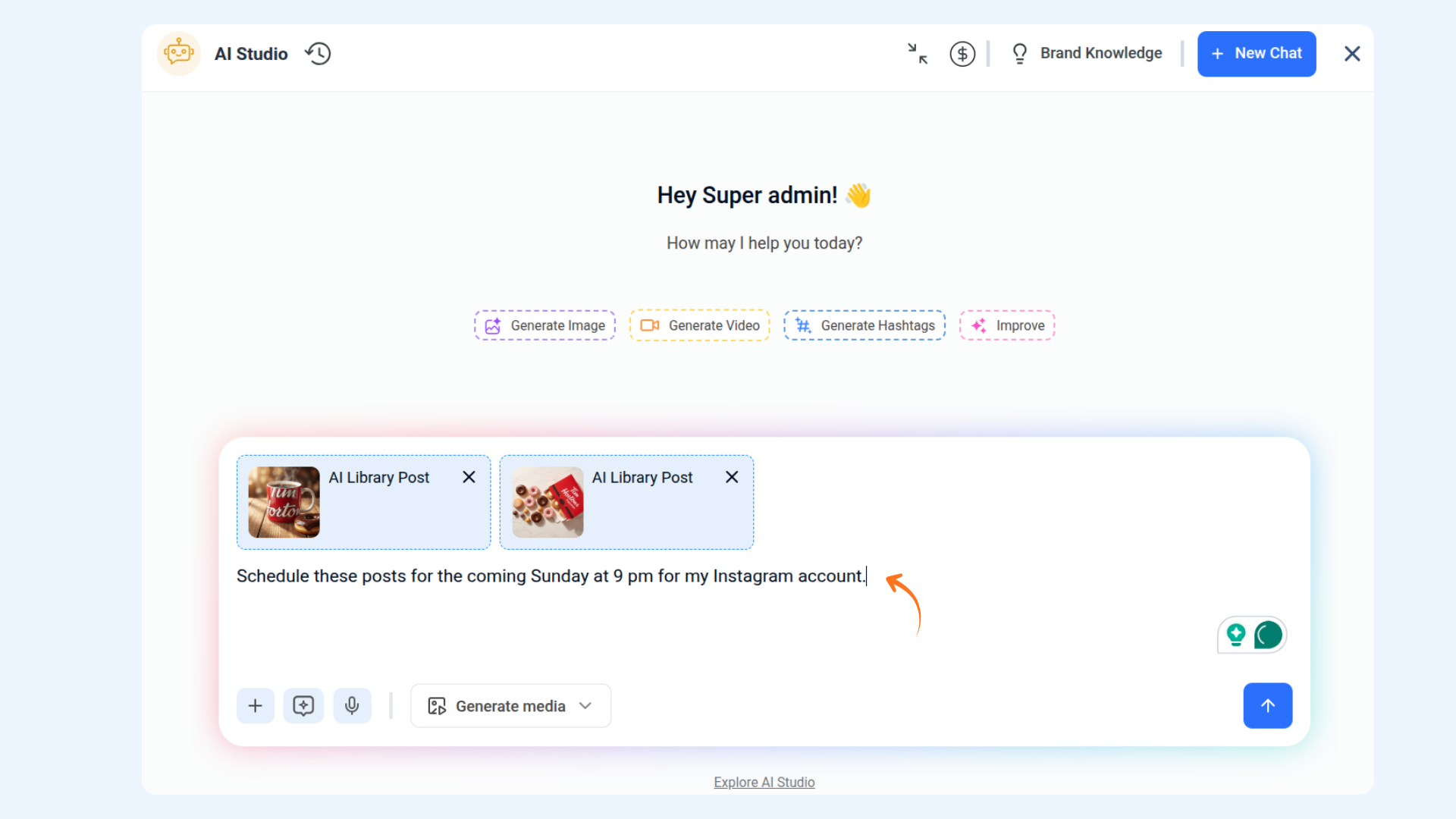
In AI Studio, type what you want to schedule and hit send. The AI will handle the rest. Learn more
FAQs
What is Bulk Schedule via AI? It's a tool in ContentStudio that lets you generate multiple social media posts at once using AI — with images and captions — and schedule them all in one go through AI Studio.
Where do I find Bulk Schedule via AI? Go to the Home dashboard and look for the Discover AI Tools section. Click the Bulk Schedule via AI card to get started.
Do I need to set up Brand Knowledge before I can use this? Yes — Brand Knowledge is required so the AI can generate posts that match your brand's tone and voice. If you haven't set it up yet, you'll be prompted to do so when you first open the tool.
Can I edit a post before scheduling it? Yes. Click the pencil icon on any generated post to open it in the Composer, where you can edit the caption, swap the image, or adjust any details before scheduling.
Can I save posts as drafts instead of scheduling them? Yes. Click the three dots ( ⋮ ) on any post and select Save as Draft. You can come back to it later from your drafts in the Planner.
Can I generate posts for multiple platforms at the same time? Currently, posts are generated for one platform per session. To generate posts for a different platform, simply run the process again and select a different platform in the settings.
Was this article helpful?