
React to comments in Planner
You can now react to comments in Planner using emojis — making it easier to acknowledge feedback without adding extra replies. This helps keep conversations clean while still letting teammates know their message has been seen. 🩷
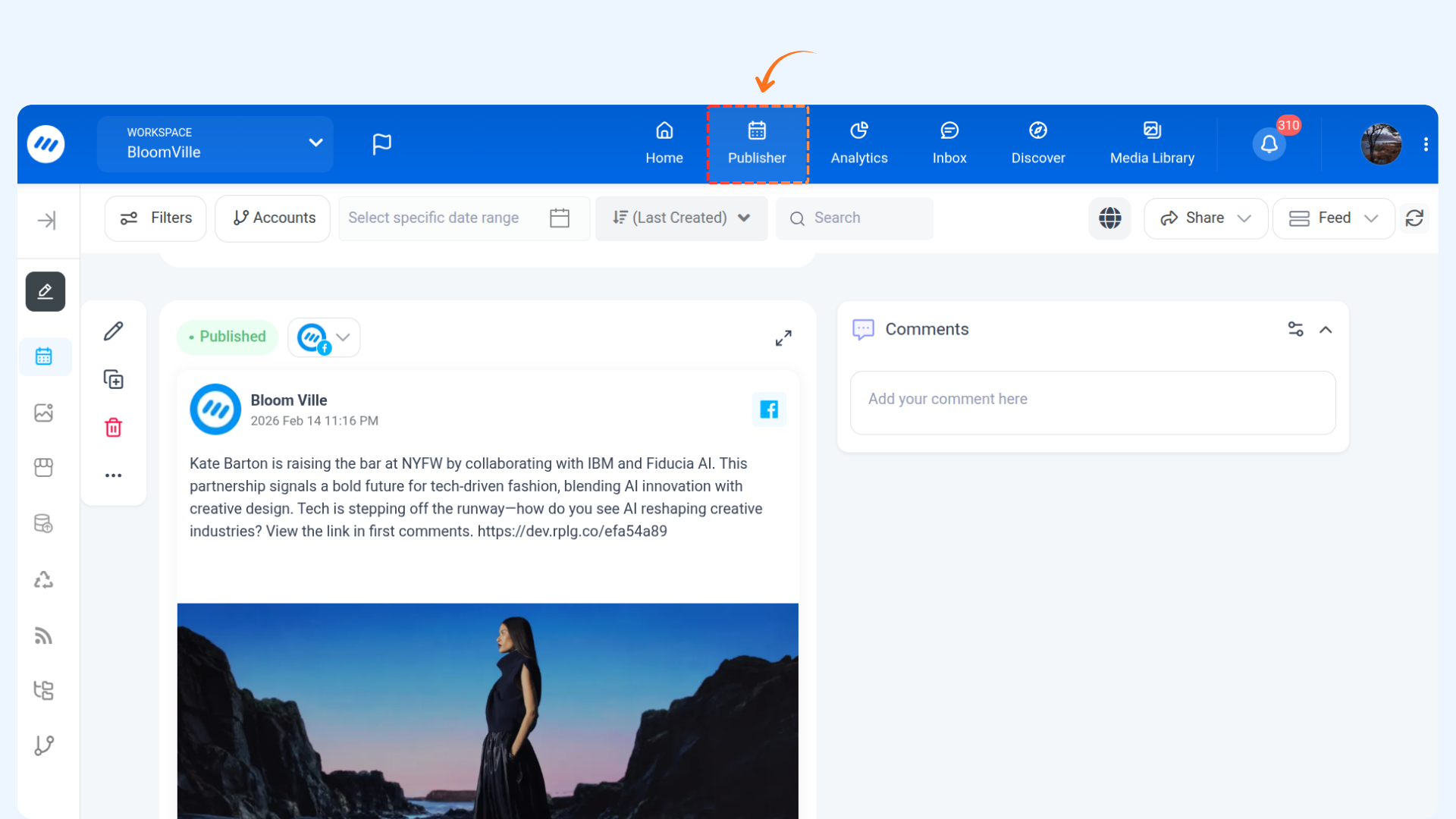
How to React to Comments in Planner
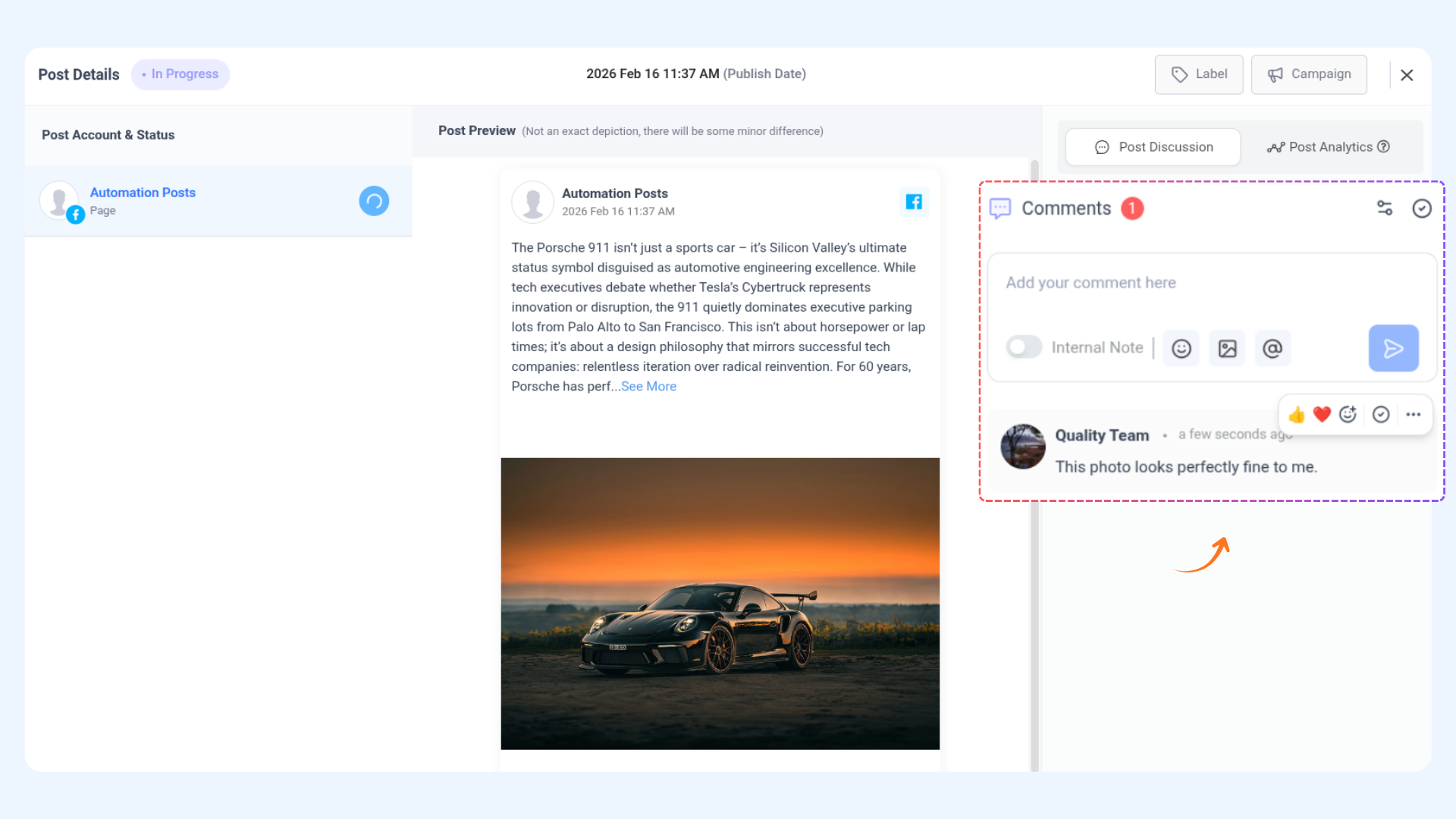

Mark Comments as Resolved/Unresolved
You can mark a comment as resolved once the feedback has been addressed. This helps keep the comment section organized and makes it clear which discussions are still pending.
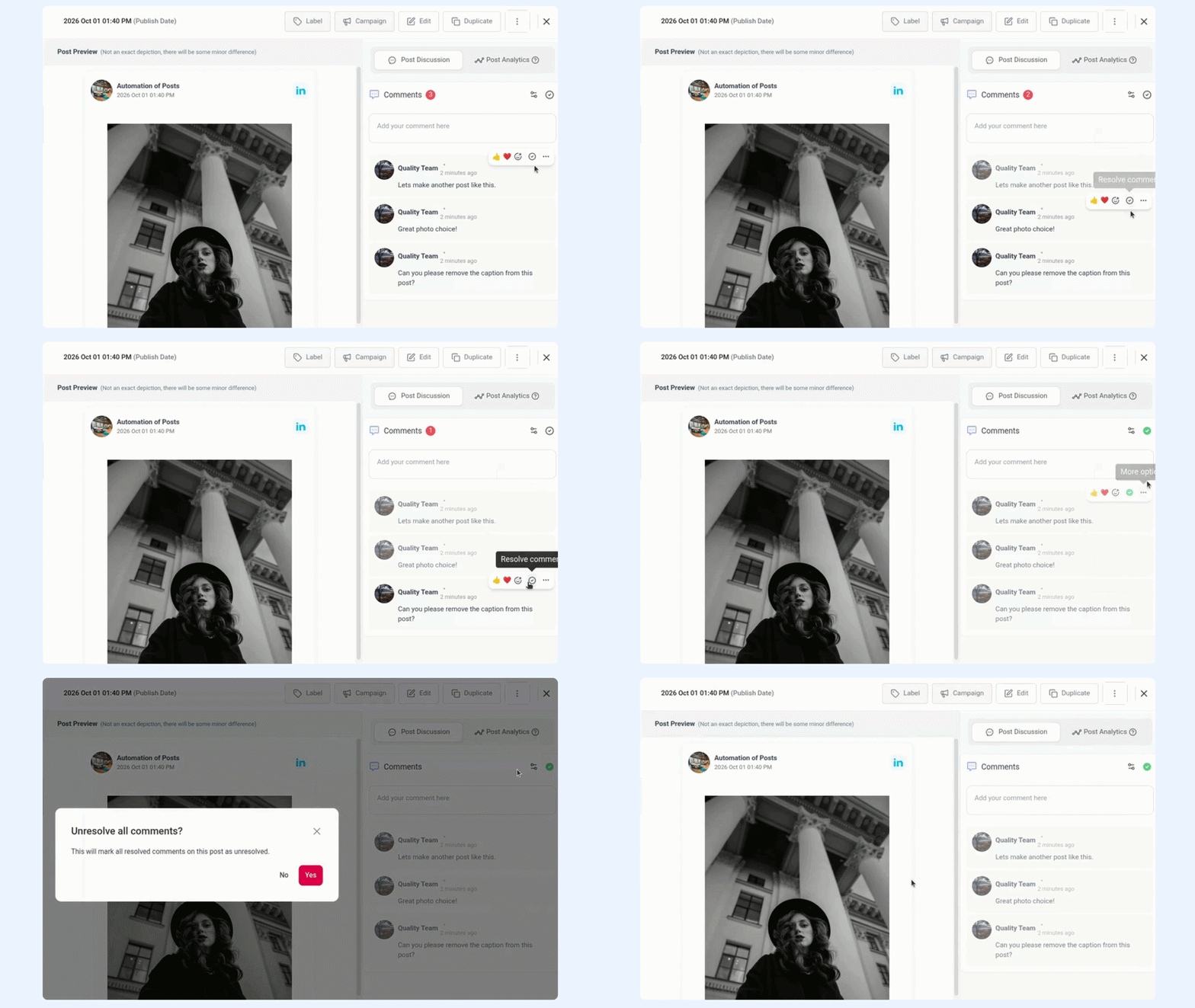
If a teammate suggests an edit and you’ve already implemented it, you can mark the comment as resolved instead of replying "Done" — keeping the thread clean and clutter-free.
FAQ's
Q1: Can I react to comments from the composer section?
A: Yes! The reaction feature is also available in the Composer comment section, so you can react directly while drafting or previewing posts.
Q2: Can others see my reactions on shareable links?
A: Reactions are visible, but on shareable links, users can only view the reacts — they cannot add new reactions from there.
Q3: Are multiple reactions allowed per comment?
A: Yes, you can select multiple reactions per comment if needed. Each reaction will be displayed with the total count.
Q4: Can I remove or change a reaction?
A: Absolutely! Simply click on the reaction again to remove it or select a different emoji to change it.