

AI Studio
Meet AI Studio — your creative command center, supercharged. ✨ Every AI tool in ContentStudio is now in one place, so you can go from a blank page to a finished, scheduled post without ever switching tabs. Chat, create images and videos, write captions that convert, and plan a month of content in minutes. It all kicks off the second you open your Home page.
Start a conversation with AI Chat
On the Home page, find the AI Studio panel under "Plan, create & schedule smarter with AI Studio." With the AI Chat tab selected, type your message in the text box and press Enter to start.
Your chat opens in the full AI Studio screen, where you can keep the conversation going, ask follow-up questions, or generate content instantly.
Prefer to jump straight in? Open AI Studio anytime from the left sidebar, or tap the floating 🤖 button at the bottom-right corner of your Home page.
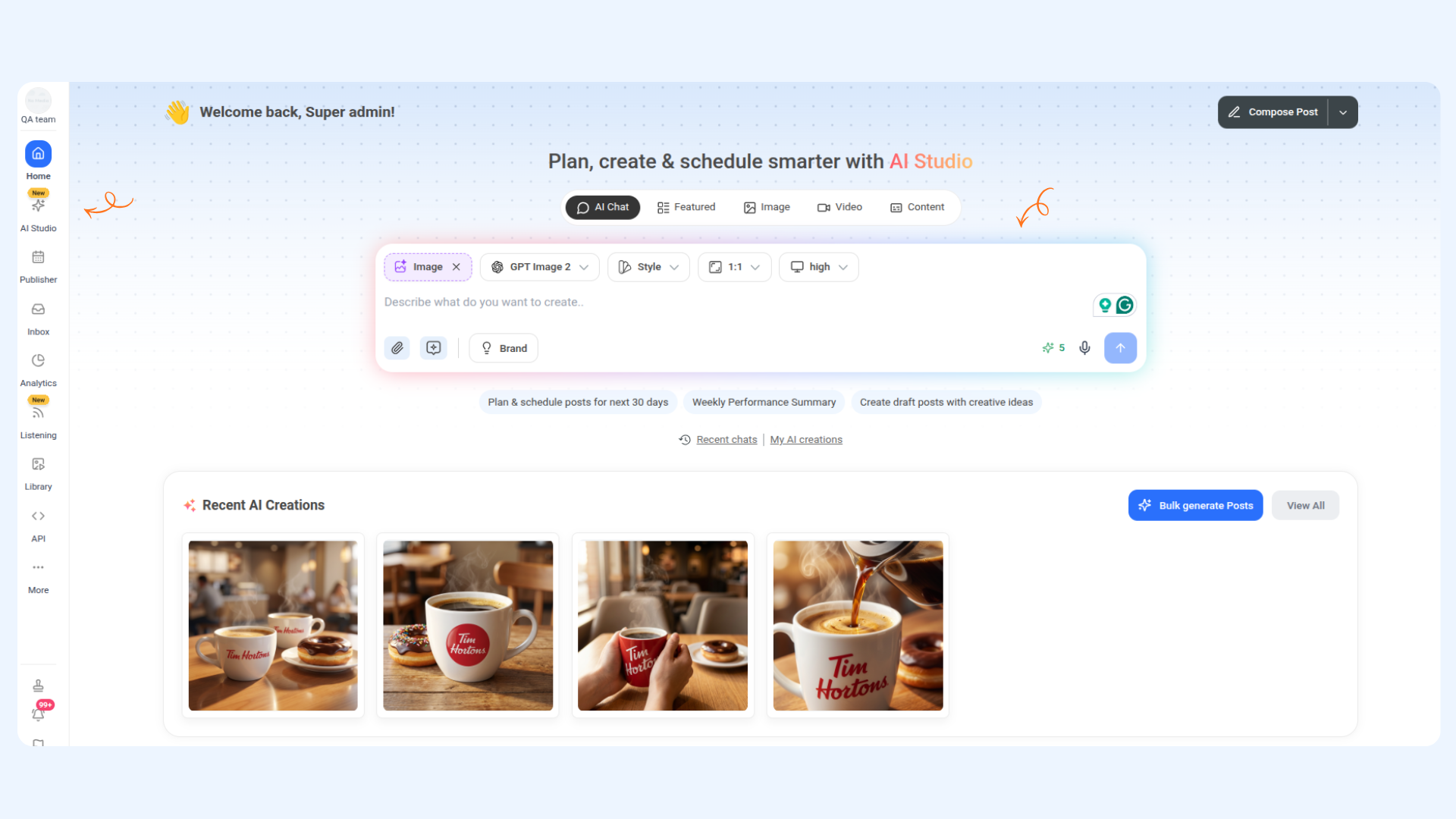
Switch modes anytime using the tabs at the top: AI Chat, Featured, Image, Video, and Content.
Search the web and explore any topic without leaving ContentStudio.
Kick things off with quick prompts like "Plan & schedule posts for next 30 days," "Weekly Performance Summary," or "Create draft posts with creative ideas."
Keep everything on-brand — AI responds using your selected Brand Voice.
Revisit past conversations under Recent chats, or browse everything you've made in My AI creations.
Generate images right inside the chat
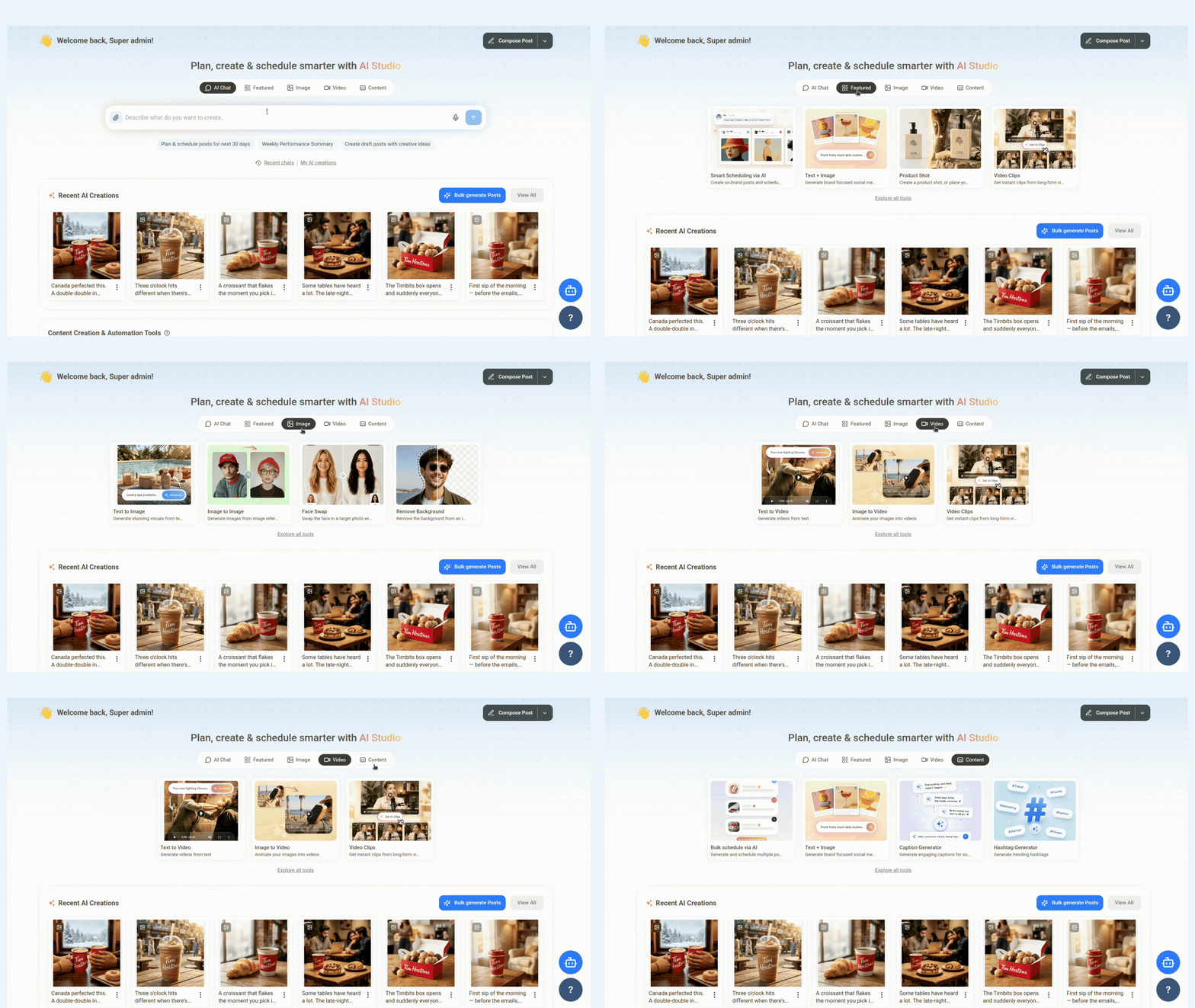
In the chat box, click the Image toggle to switch into image mode.
Choose your AI model from the model menu — for example, GPT Image 2. You can pick from providers like Google, OpenAI, Flux, Kling, Qwen, and Stability AI.
Set your Style, Aspect ratio (e.g., 1:1), and Quality (e.g., High) using the options along the top.
Type what you'd like to create in the text box, then click the send button. Your image is generated right inside the chat — ready to refine, download, or drop into a post.
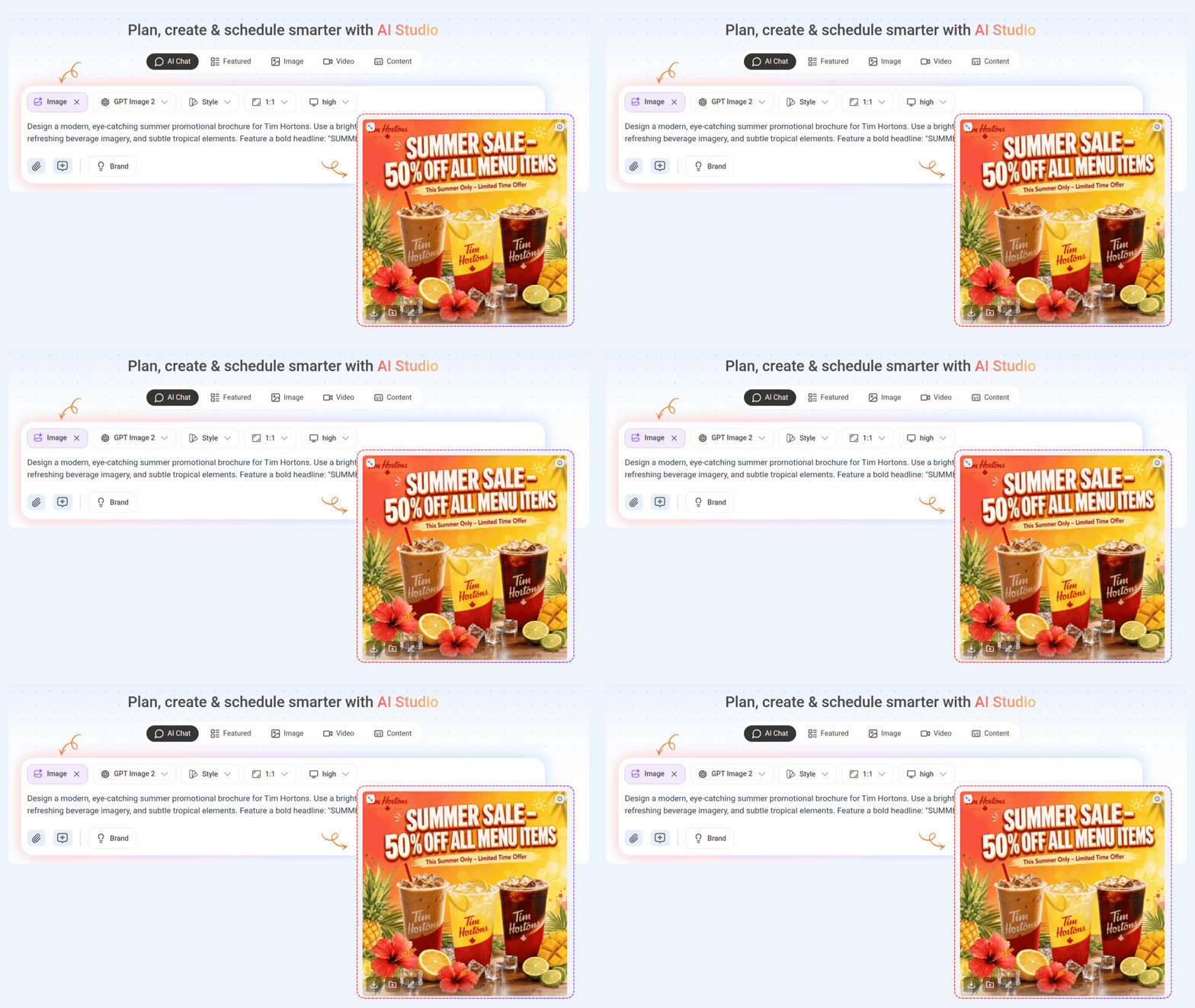
Generate videos right inside the chat
To view more details on video generation and the cost of credits, see this doc → View doc
In the chat box, click the Video toggle to switch into video mode.
Choose your AI model — for example, Seedance 2.0. Providers include Seedance, Google, OpenAI, Wan, Minimax, and Kling.
Set your Style, Aspect ratio (e.g., 16:9), Duration (e.g., 6s), and Resolution (e.g., 720p). Toggle audio on or off with the speaker icon.
(Optional) Upload a Start Frame and/or End Frame to control how your video opens and closes.
Describe your video in the text box and click send. Your video renders right inside the chat.

Model — each provider offers different motion quality, speed, and credit usage.
Style — set the overall visual tone of your video.
Aspect ratio & Resolution — fit the format (16:9, vertical, etc.) and sharpness (e.g., 720p).
Duration — choose how long the clip runs (e.g., 6s).
Audio — turn generated audio on or off.
Start & End Frame — upload reference frames to guide the first and last moments of your video.
Your full creative workspace: the AI Studio page
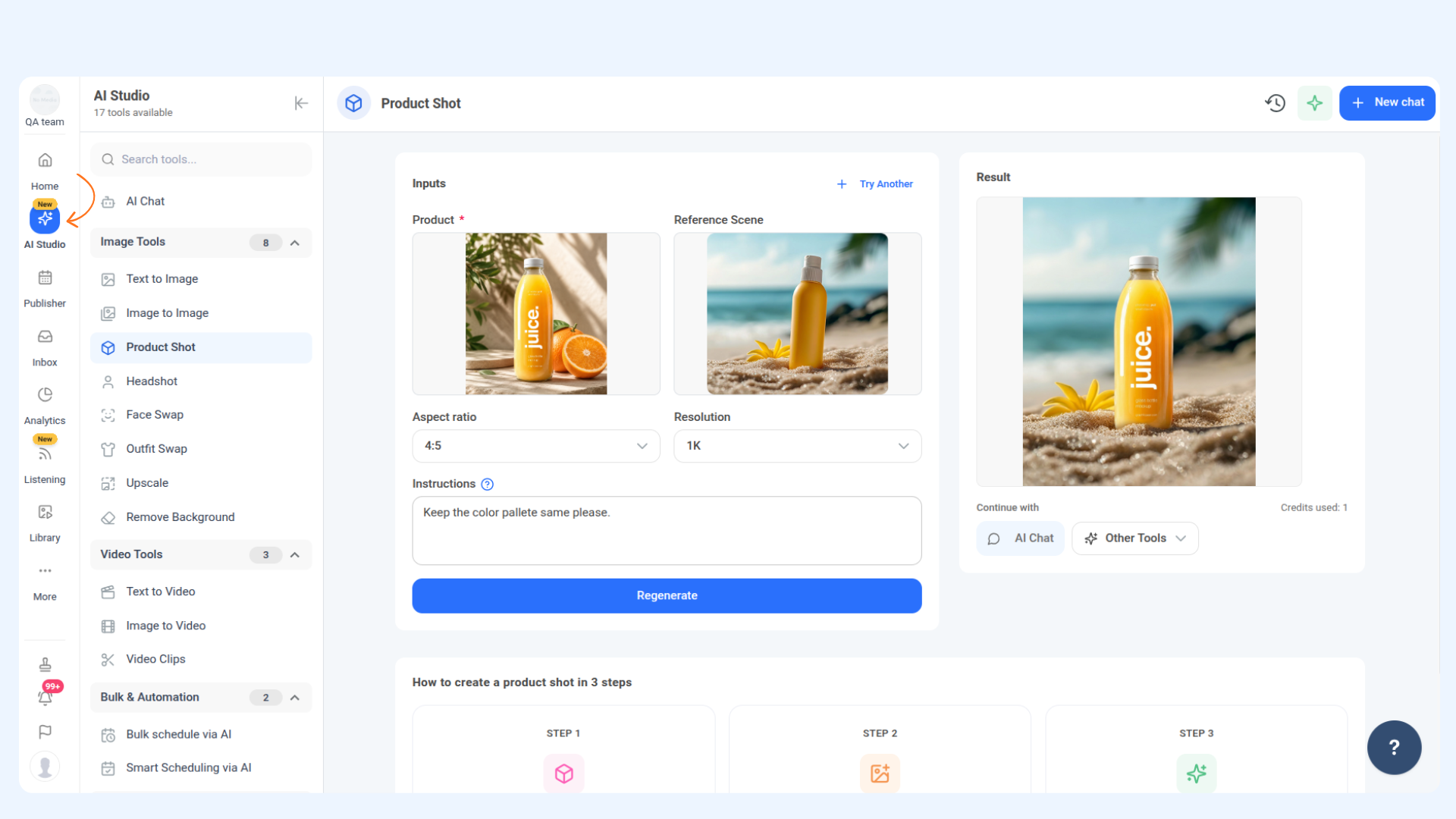
Click AI Studio in the left sidebar (look for the New badge). The full AI Studio workspace opens.
On the left, browse all 17 tools neatly grouped by category — or use the Search tools box to jump straight to the one you need.
Click any tool to open it, or use the chat in the center to create images, videos, and posts. Start a New chat anytime, and reopen earlier sessions from the chat history icon.
🎨 Image Tools
Image Tools give you everything you need to create and polish visuals — from generating images out of thin air to cleaning up the photos you already have.
Text to Image
Turn a short text prompt into high-quality, on-brand visuals in seconds.
Use case: Create a scroll-stopping graphic for your product launch — no designer required.

Image to Image
Upload an existing image and generate fresh variations while keeping your original concept.
Use case: Reimagine last season's campaign visual in a brand-new style.

Product Shot
Turn a simple product photo into clean, professional studio and lifestyle shots.
Use case: Make a plain phone snap of your product look store-ready.

Headshot
Generate professional, studio-quality headshots from a casual photo.
Use case: Get consistent, on-brand team headshots without booking a photoshoot.

Face Swap
Swap a face in any image quickly and realistically.
Use case: Personalize a template visual by dropping your team member into the scene.

Outfit Swap
Change the outfit on a subject in your image while keeping everything else intact.
Use case: Preview your new apparel line on a model without a full product shoot.

Upscale
Boost the resolution and sharpness of any image without losing quality.
Use case: Rescue a small, low-res logo so it looks crisp on a full-size banner.

Remove Background
Instantly remove or replace the background of any image with clean, precise edges.
Use case: Cut out your product as a transparent PNG for ads and thumbnails.

🎬 Video Tools
Video Tools turn your ideas and images into motion — whether you're starting from a prompt, a still photo, or a longer recording you want to trim down.
Text to Video
Generate a complete video straight from a text prompt.
Use case: Turn a blog headline into a short promo clip for Reels.

Image to Video
Animate a still image into smooth, eye-catching motion.
Use case: Bring a product photo to life as a scroll-stopping video.

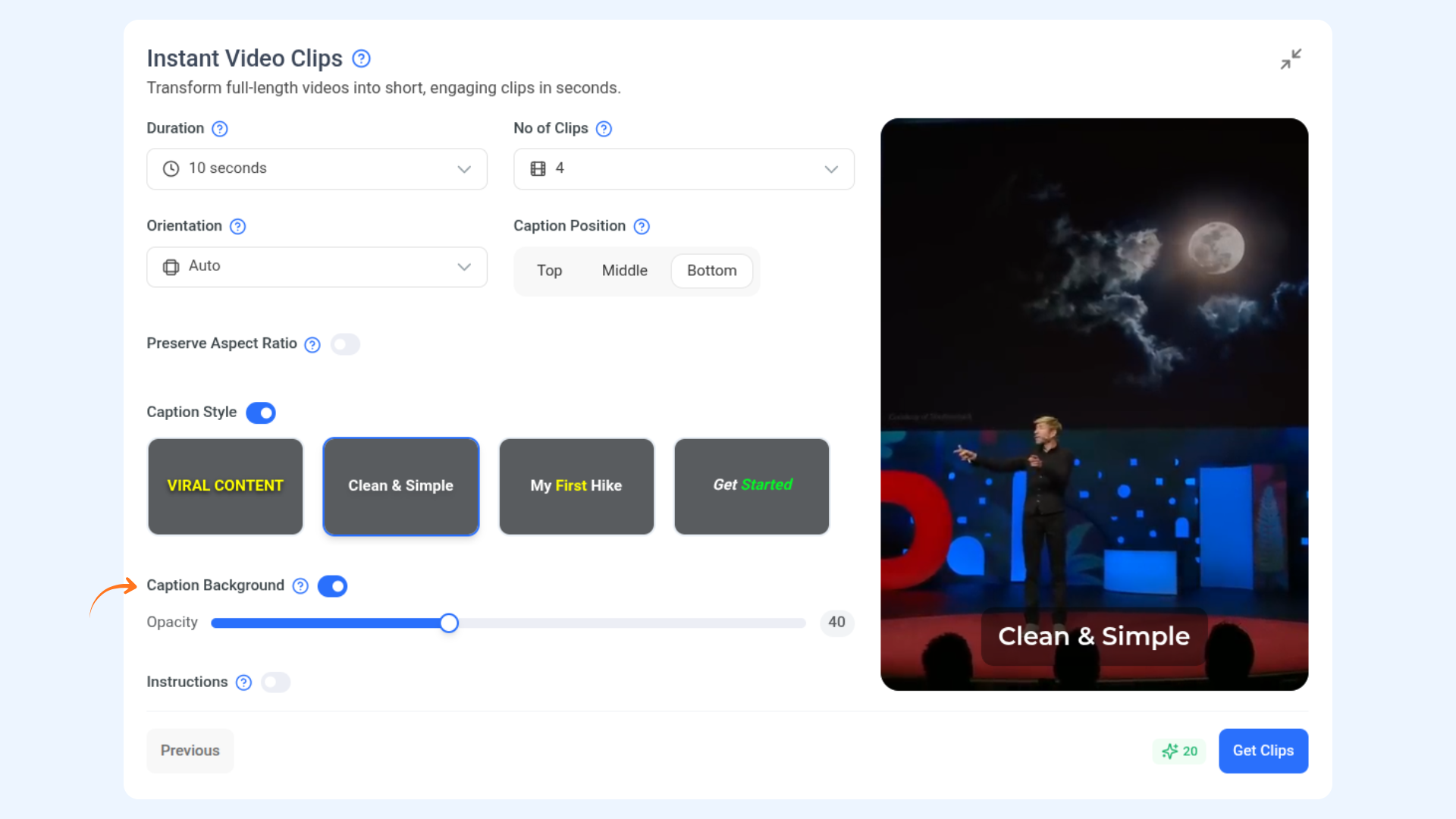
Video Clips
Cut long videos into short, share-ready clips.
Use case: Pull the best 15 seconds out of a long recording for TikTok.
View doc →
Motion Control
Transfer movement from a reference video to a character while keeping their appearance unchanged.
Use case: Animate a still character image with realistic motion from a reference performance.

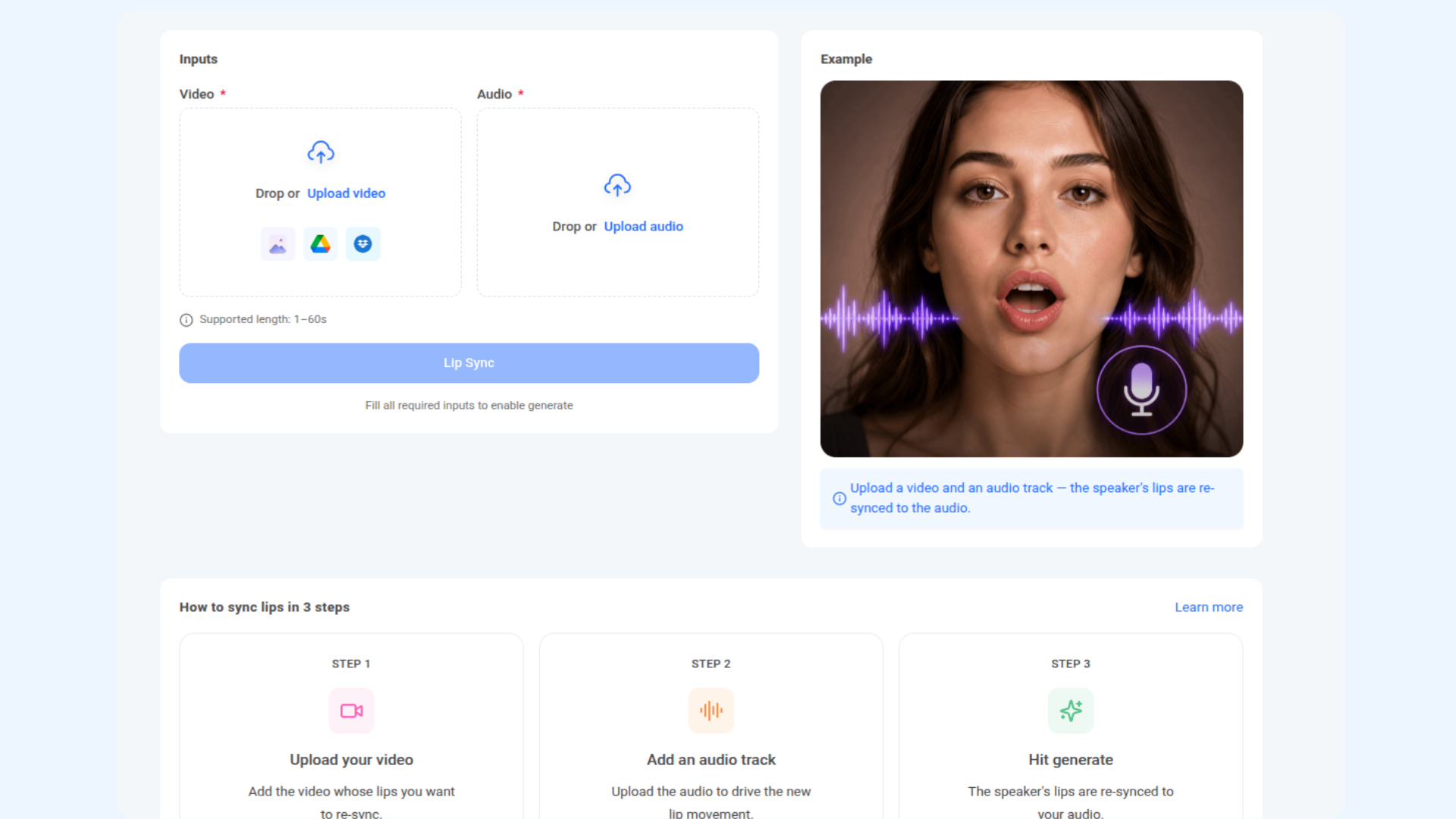
Lip Sync
Synchronize a speaker's lip movements with a new audio track for natural-looking speech.
Use case: Make a person in a video speak a different script using an uploaded voice recording.
⚡ Bulk & Automation
Bulk & Automation tools take the busywork off your plate — generate and schedule whole batches of posts, and let AI handle the timing for you.
Bulk schedule via AI
Generate and schedule a batch of posts in one go.
Use case: Fill your entire content calendar for the month in minutes.
View doc →
Smart Scheduling via AI
Let AI write, refine, and schedule posts at the best times — all in one flow.
Use case: Hand AI a topic and get a ready-to-publish post on your calendar without ever leaving the chat.
View doc →
✍️ Content Tools
Content tools help you write the words that make posts perform — full posts, captions, and hashtags, all tuned to your brand.
Text + Image
Generate a complete, brand-focused post with a matching caption and visual together.
Use case: Create a ready-to-post daily promo — caption and image in one click.
Caption Generator
Craft scroll-stopping captions in your brand's tone in seconds.
Use case: Get three caption options for a photo you just shot.
Hashtag Generator
Find trending, relevant hashtags to boost your reach.
Use case: Add high-performing hashtags so a new post actually gets discovered.
FAQs
Do I need any setup to start using AI Studio?
No setup required. Just head to your Home page, type in the AI Chat box, and you're off. To generate images or videos, switch to the Image or Video mode inside the chat and pick your model.
What are AI credits?
AI credits are what power your AI generations in AI Studio. Each time you generate an image, video, or piece of content, a set number of credits is used. Your available balance is shown next to the send button in the chat.
How many credits does each generation use?
It depends on what you're creating and which model you choose. Text-based tasks like captions and hashtags use the fewest credits. Images cost more, and videos cost the most — especially at higher resolutions and longer durations. Premium models generally use more credits than lighter ones, so lighter models are great for quick drafts.
What happens if I run out of credits?
Once your credits are used up, you won't be able to generate new content until they refresh or you top up. You can review your plan's credit allowance in your account settings.
Can I keep my content on-brand?
Absolutely. Select your Brand Voice in the chat, and AI Studio will tailor its responses and content to match your brand's tone and style.
Can AI Studio schedule my posts for me?
Yes. With Bulk schedule via AI and Smart Scheduling via AI, you can generate and schedule multiple posts at once and let AI handle the best posting times for you.
Will my past conversations be saved?
Yes. You can revisit earlier chats from Recent chats, and browse everything you've generated under My AI creations.
Do image and video downloads cost extra credits?
No — credits are used when you generate content, not when you download it. Once something is created, you can download or reuse it freely.
Was this article helpful?