

How to add a social account to social inbox?
In this article:
Connecting social accounts
The process of connecting accounts to ContentStudio is the same as connecting them to the Social Inbox for publishing or analytics purposes. This includes:
Facebook Pages
Instagram Business Accounts
LinkedIn Pages
GMB Profile
YouTube Comments
Connection status indicators
After syncing your accounts:
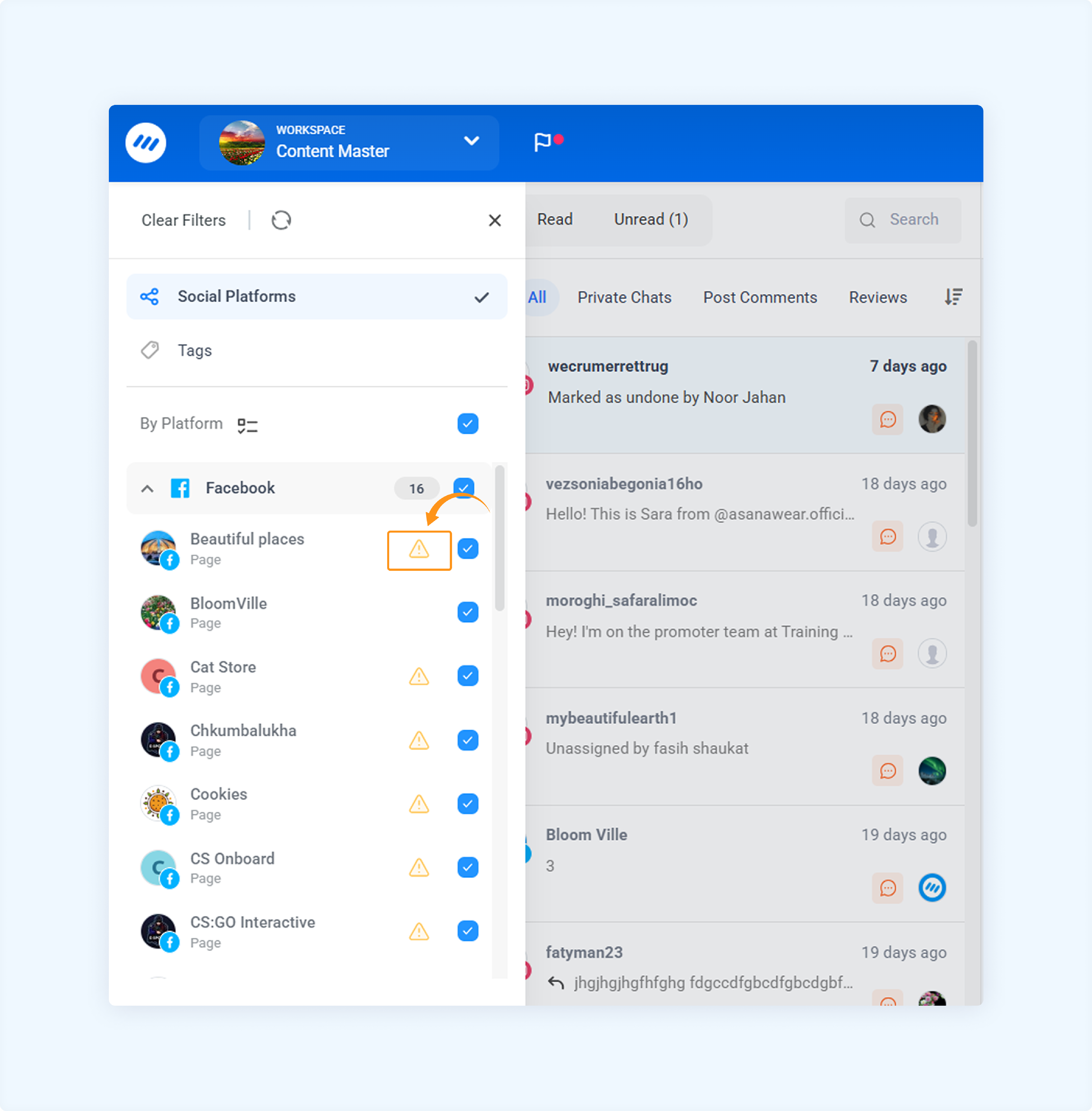
There will be no red warning icon next to accounts that are successfully connected and have full permissions.
Accounts with missing or insufficient permissions will have a red warning icon next to them. Messages from these accounts will not be displayed in the Social Inbox.
FAQs
Q1. Do I need to connect my social accounts separately for the Social Inbox?
A: No. Once you connect your account to ContentStudio with all required permissions, it will be automatically linked to the Social Inbox.
Q2. Why do I see a red warning icon next to my social account?
A: A red warning icon means the account is connected, but required permissions were not granted. As a result, you won’t see interactions (comments, messages, etc.) from that page or profile in the Social Inbox. Reconnect the account and ensure all permissions are enabled.
Q3. How do I fix permission issues for a connected account?
A: To fix this, go to Settings > Social Accounts, click Reconnect, and during the Facebook or Instagram authorization process, grant all requested permissions.
Q4. Can I connect a personal Instagram account to the Social Inbox?
A: No. Only Instagram Business accounts linked to a Facebook Page can be connected to the Social Inbox.
Was this article helpful?