

ContentStudio's API in Pabbly
ContentStudio provides a powerful API that allows you to automate different tasks using Pabbly. With this setup, you can connect ContentStudio to other tools, fetch data, and publish content programmatically.
In this article:
Getting Started with Pabbly and ContentStudio Workflows
Go to pabbly.com, sign up for a new account and complete the setup. If you already have an account, simply log in.
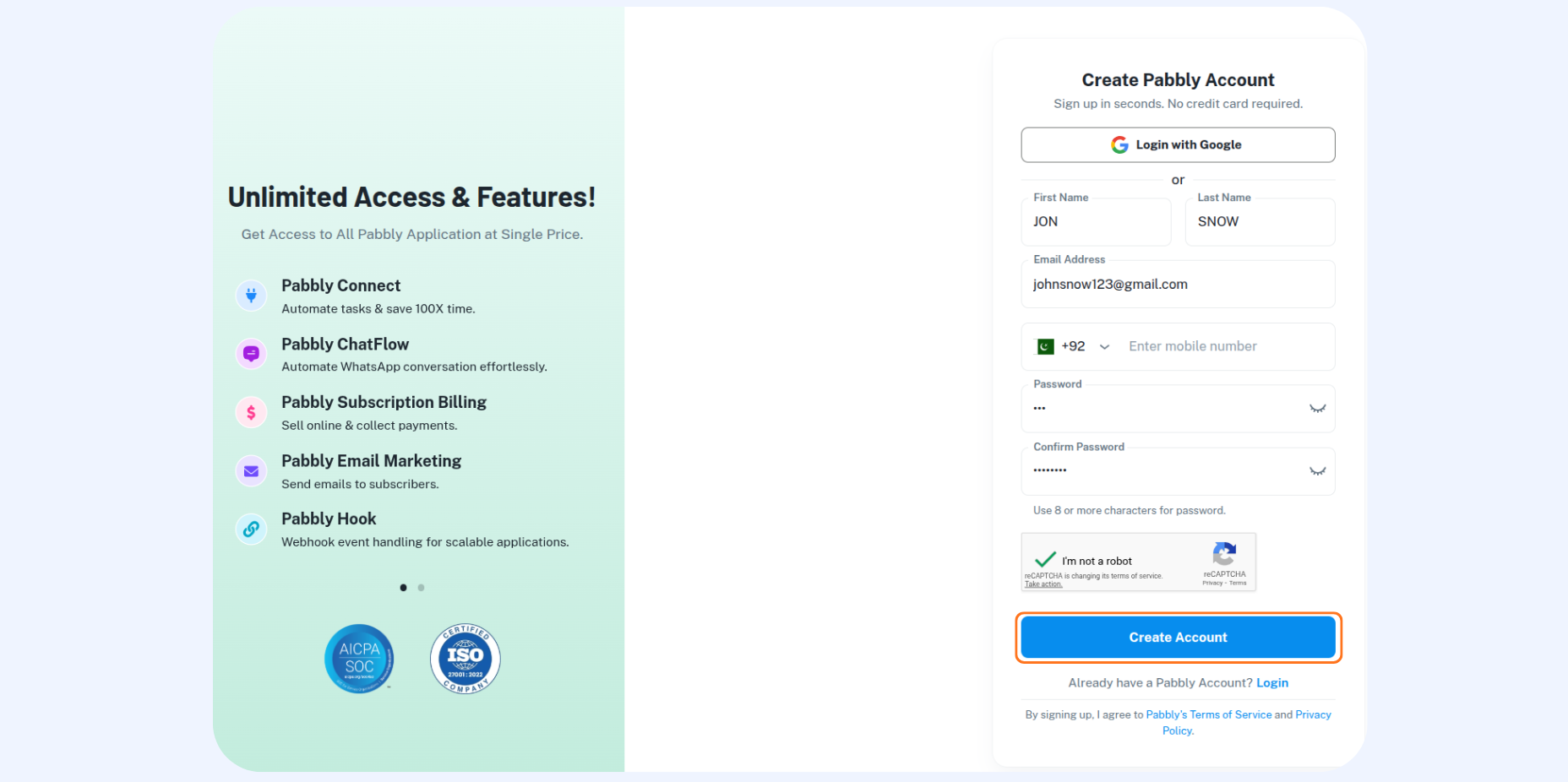
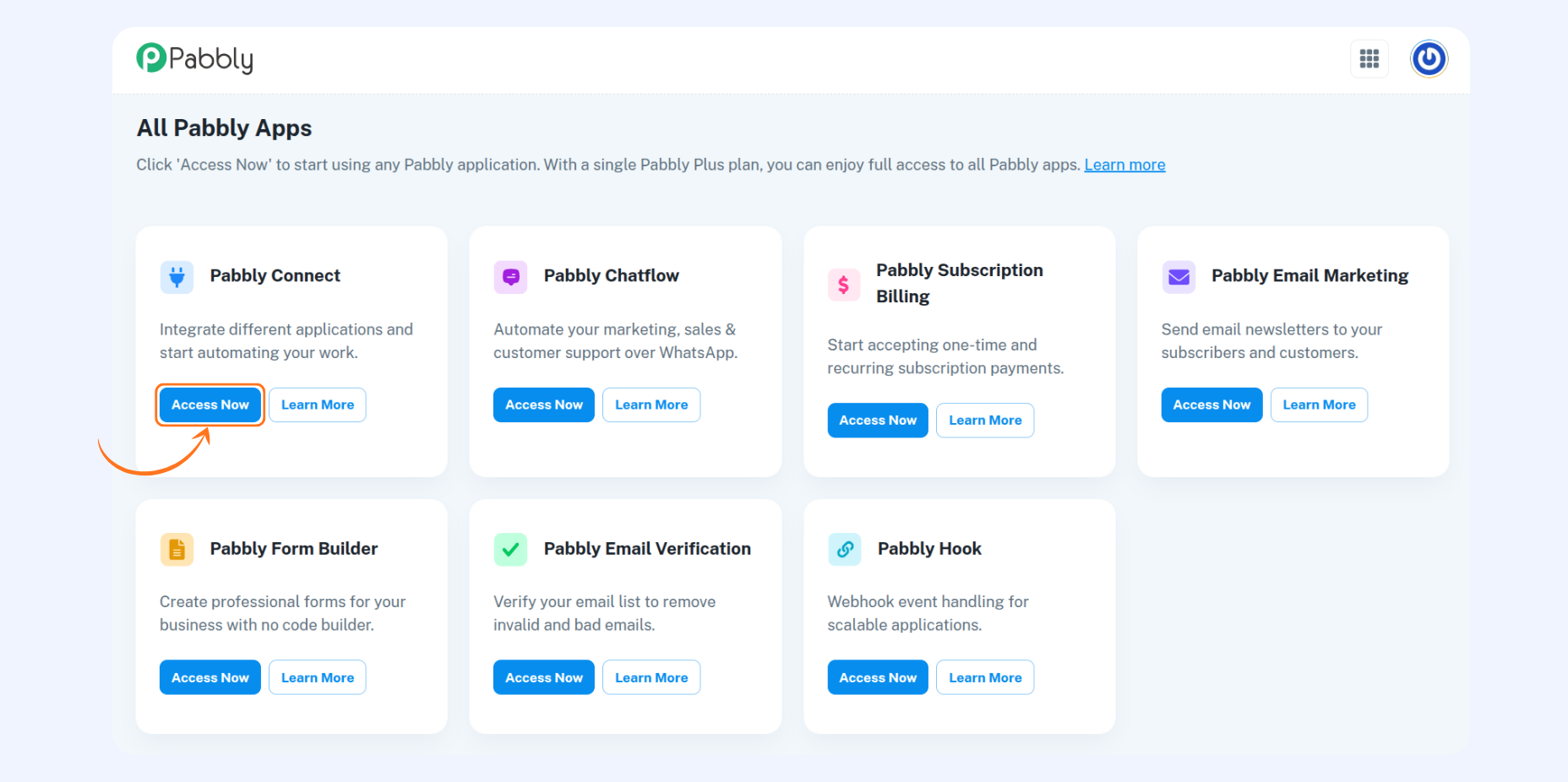
Now a page will appear with all Pabbly Apps.Click on Access Now inside the Pabbly Connect box.
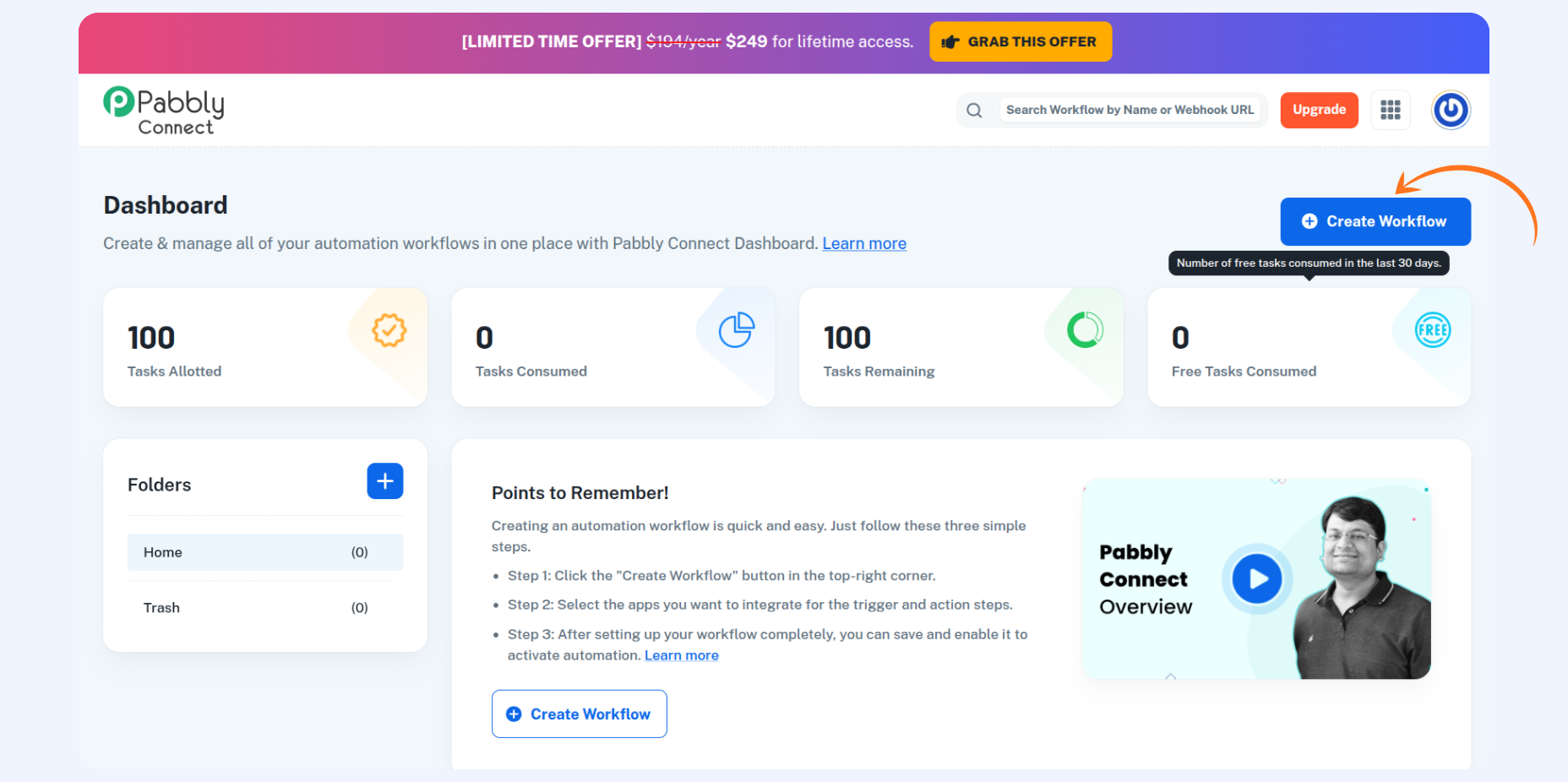
From the Pabbly Connect dashboard, click on Create Workflow.
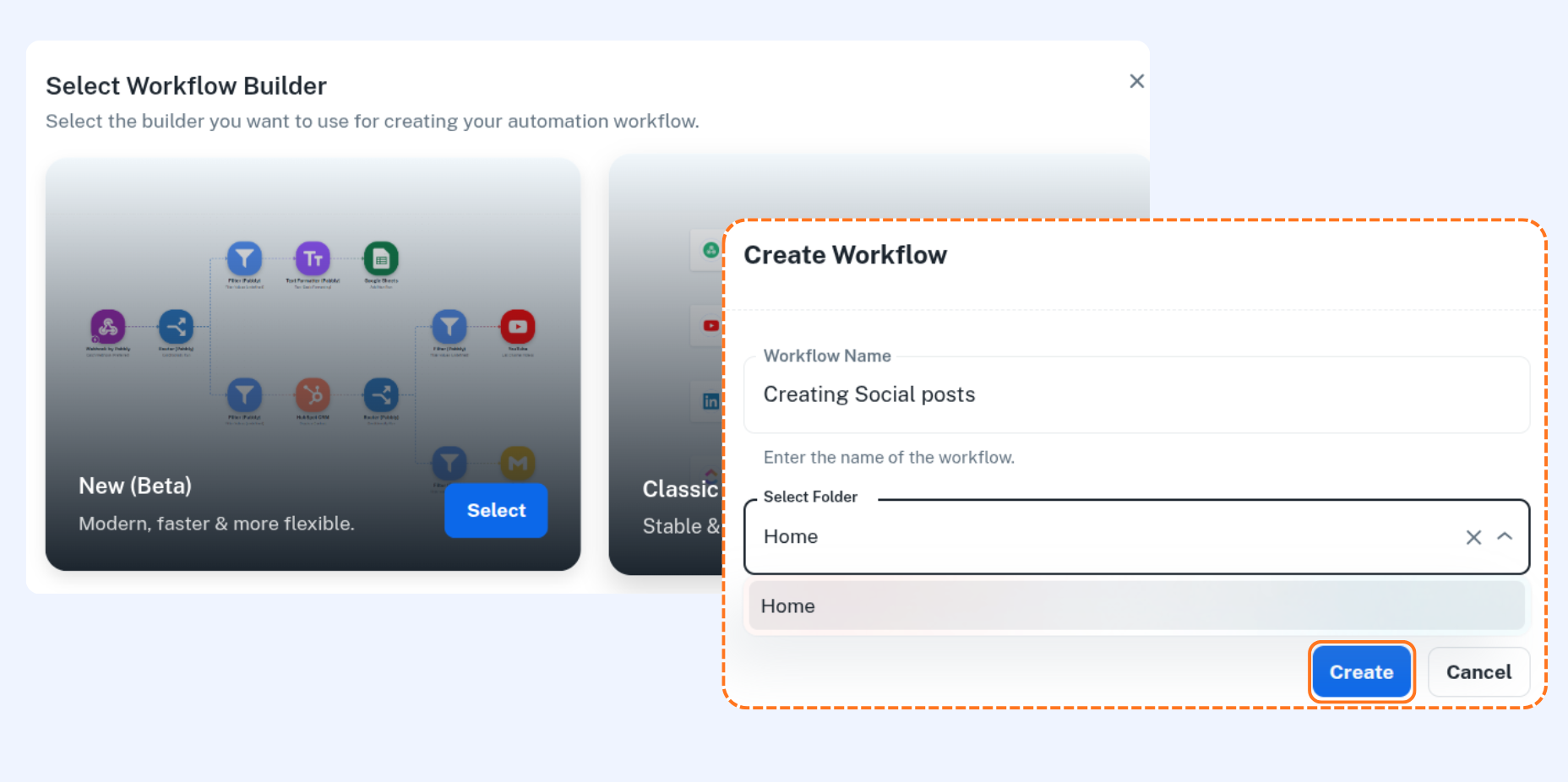
Select your preferred workflow builder — either New (Beta) or Classic, depending on your choice.
Enter a name for your workflow, select a folder to organize it, and click Create to continue.
Automating Workflows with ContentStudio and Pabbly
You can automate a wide range of tasks with ContentStudio using Pabbly workflows — from pulling data to posting on social media. Here’s a simple example case that shows how to connect and publish a post through the API. For full reference, check the ContentStudio API Guide.
API Endpoints Reference
All requests are made against the base URL: https://api-prod.contentstudio.io/api/v1/
Action | Method | Endpoint |
|---|---|---|
Fetch Workspaces | GET | /workspaces |
Fetch Social Accounts | GET | /social-accounts |
Create Post | POST | /posts |
List Posts | GET | /posts |
Delete Post | DELETE | /posts/{id} |
Get Authenticated User Info | GET | /me |
Create a Social Post with Pabbly
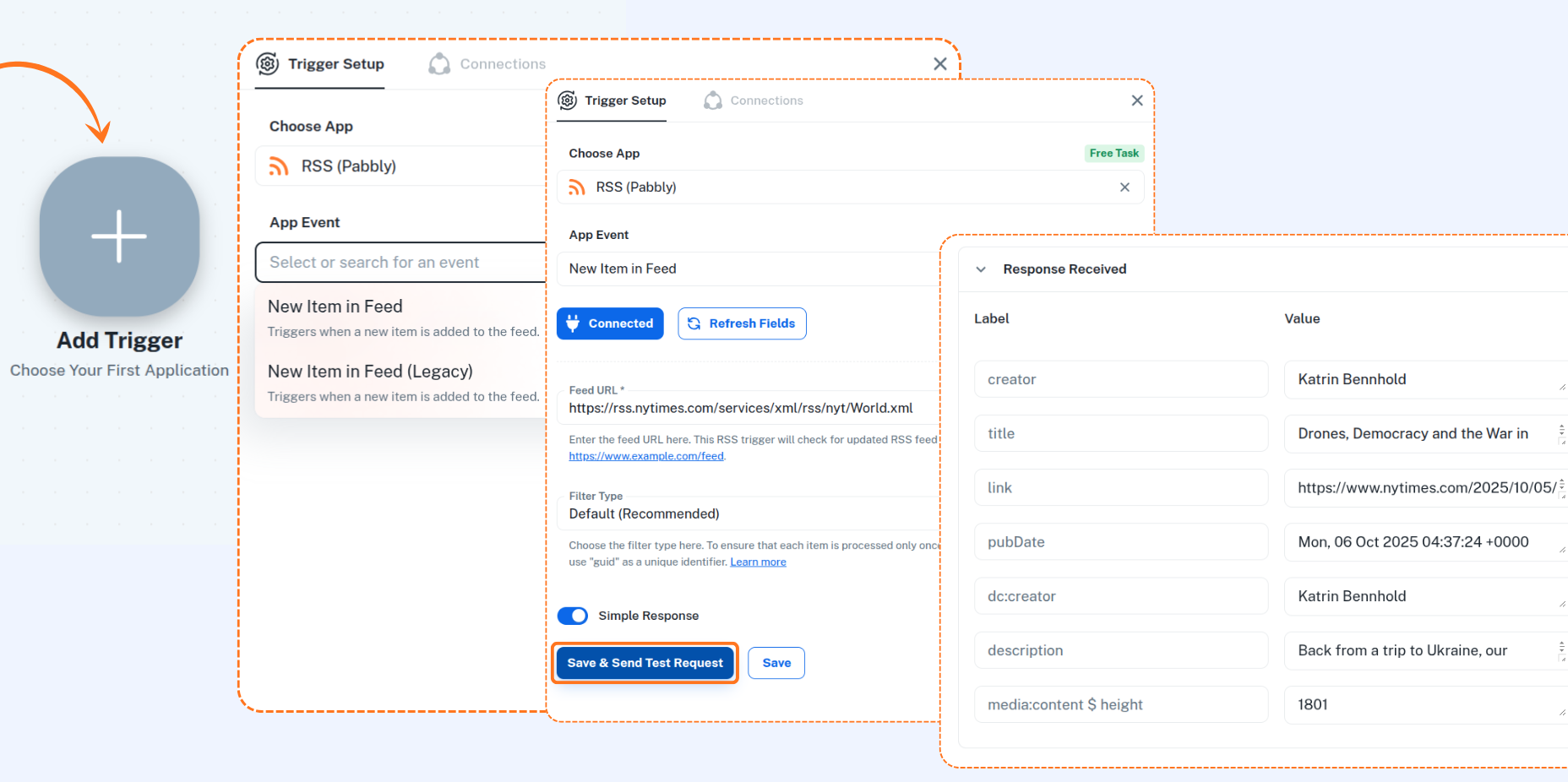
Add a Trigger
Add your first step by selecting any trigger that fits your use case — for example, the RSS Feed Trigger to pull content automatically from a feed.
Choose any app event of your choice. For example, in this case, select New Item in Feed. Then click on Connect.
Enter the Feed URL, then click Save & Send Test Request. A response should be received confirming the connection.
Fetch Your Workspace
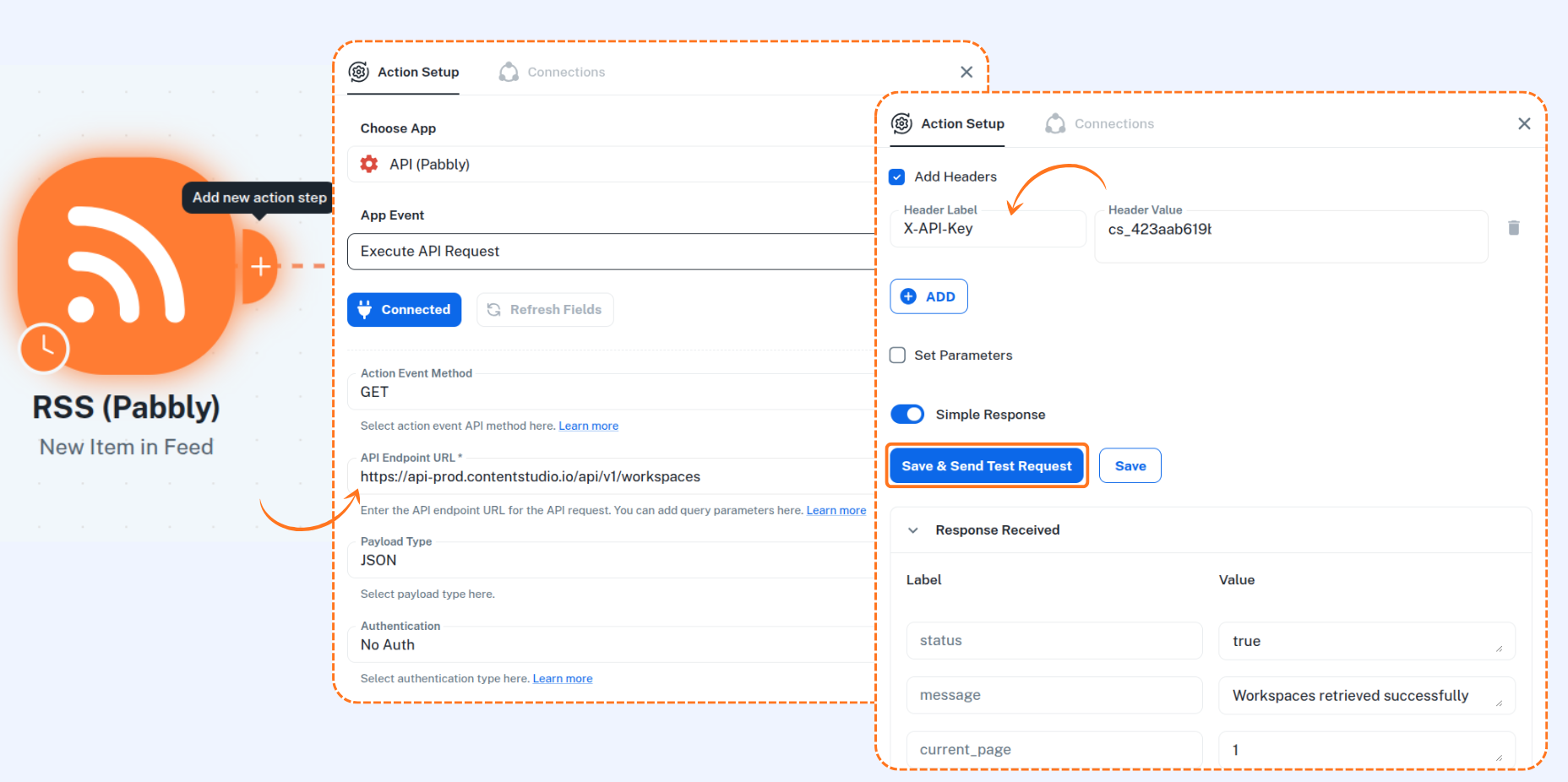
Add a new step and select API (Pabbly) from the list of available options.
Choose the app event as Execute API Request and click on Connect. Then set the Action Event Method to
GET.Enter the API Endpoint URL:
https://api-prod.contentstudio.io/api/v1/workspacesand set the Payload Type asJSON.Check the Add Headers option and add:
Label: X-API-Key
Value: <Your API Key>
After this, click on Save & Send Test Request.
Fetch Connected Social Accounts
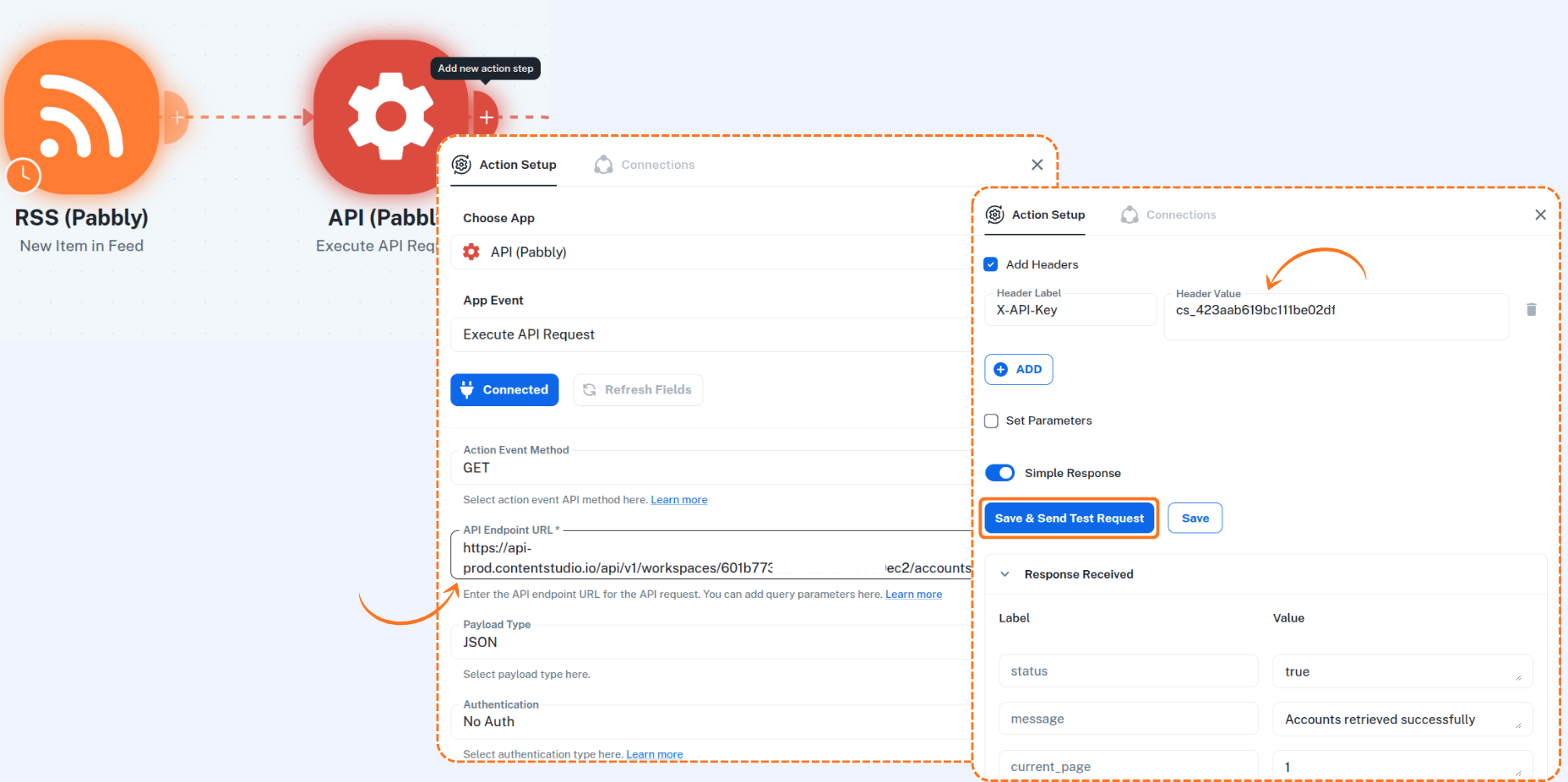
Add a new step again, choose the app event as Execute API Request and click on Connect. Then set the Action Event Method to
GET.Enter the API Endpoint URL:
https://api-prod.contentstudio.io/api/v1/workspaces/{workspace_id}/accountsReplace
{workspace_id}with the actual ID you fetched earlier.Also, set the Payload Type as
JSON.Check the Add Headers option and add:
Label: X-API-Key
Value: <Your API Key>
Finally, click on Save & Send Test Request to receive the connected social accounts.
Create a Social Media Post
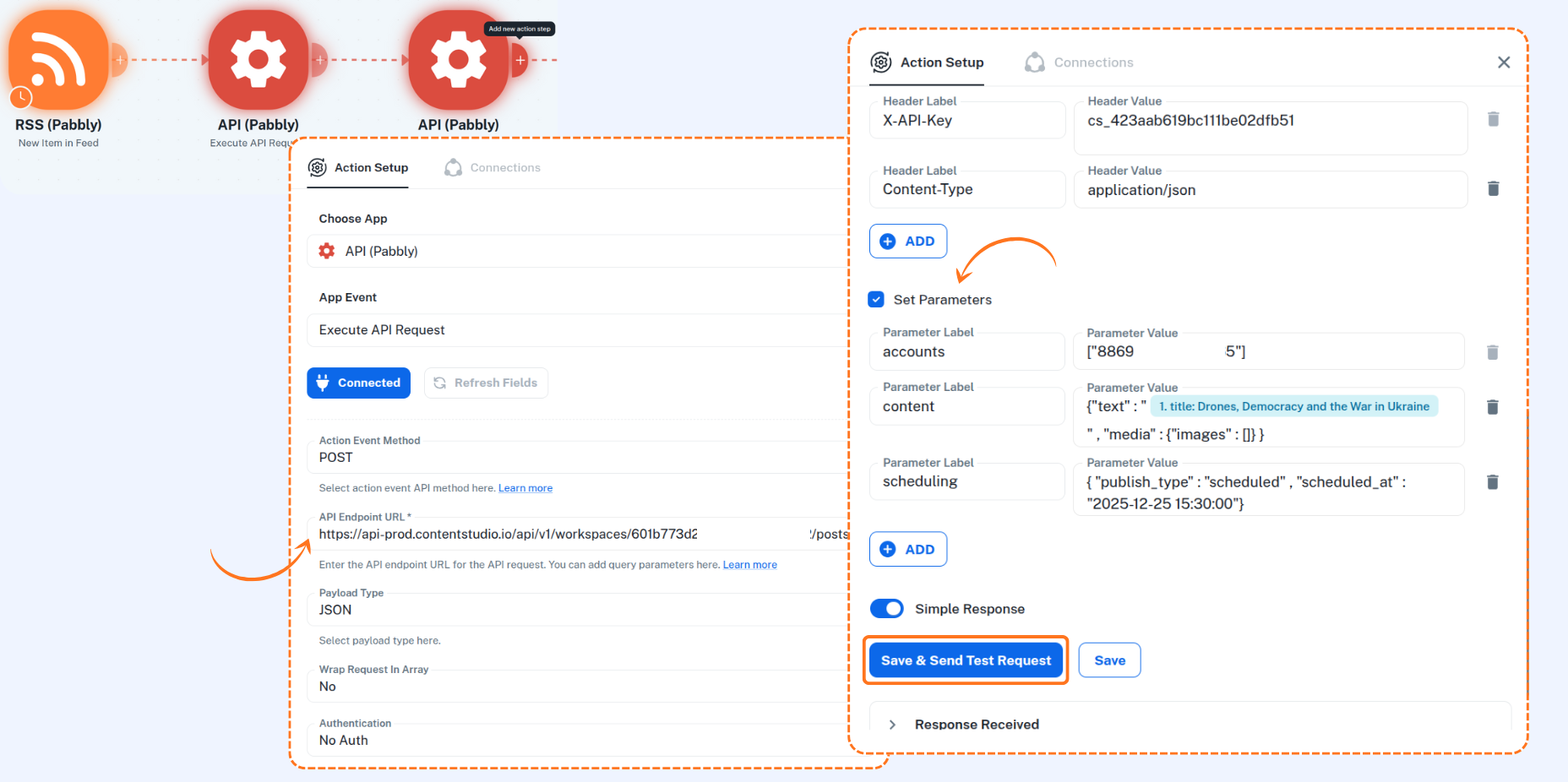
Add a new step → select API (Pabbly), choose the Execute API Request action, and click on Connect. Set the Action Event Method to
POST.Enter the API Endpoint URL:
https://api-prod.contentstudio.io/api/v1/workspaces/{workspace_id}/posts. Replace{workspace_id}with your actual workspace ID. Select Payload Type asJSON.Check Add Headers and configure:
Label: X-API-Key
Value: <Your API Key>
Now click on Set Parameters and add the following parameters manually:
Parameter Label
Description
Example Value
accounts
IDs of the social accounts to post on
["2c69-74-478-9c64-b152"]
content
Main text and optional media. You can add text manually or map values from RSS trigger.
{"text":"1. title: Drones, Democracy and the War in Ukraine","media":{"images":[]}}
scheduling
Schedule the post for draft, now, or future publish.
{"publish_type":"scheduled","scheduled_at":"2025-12-25 15:30:00"}
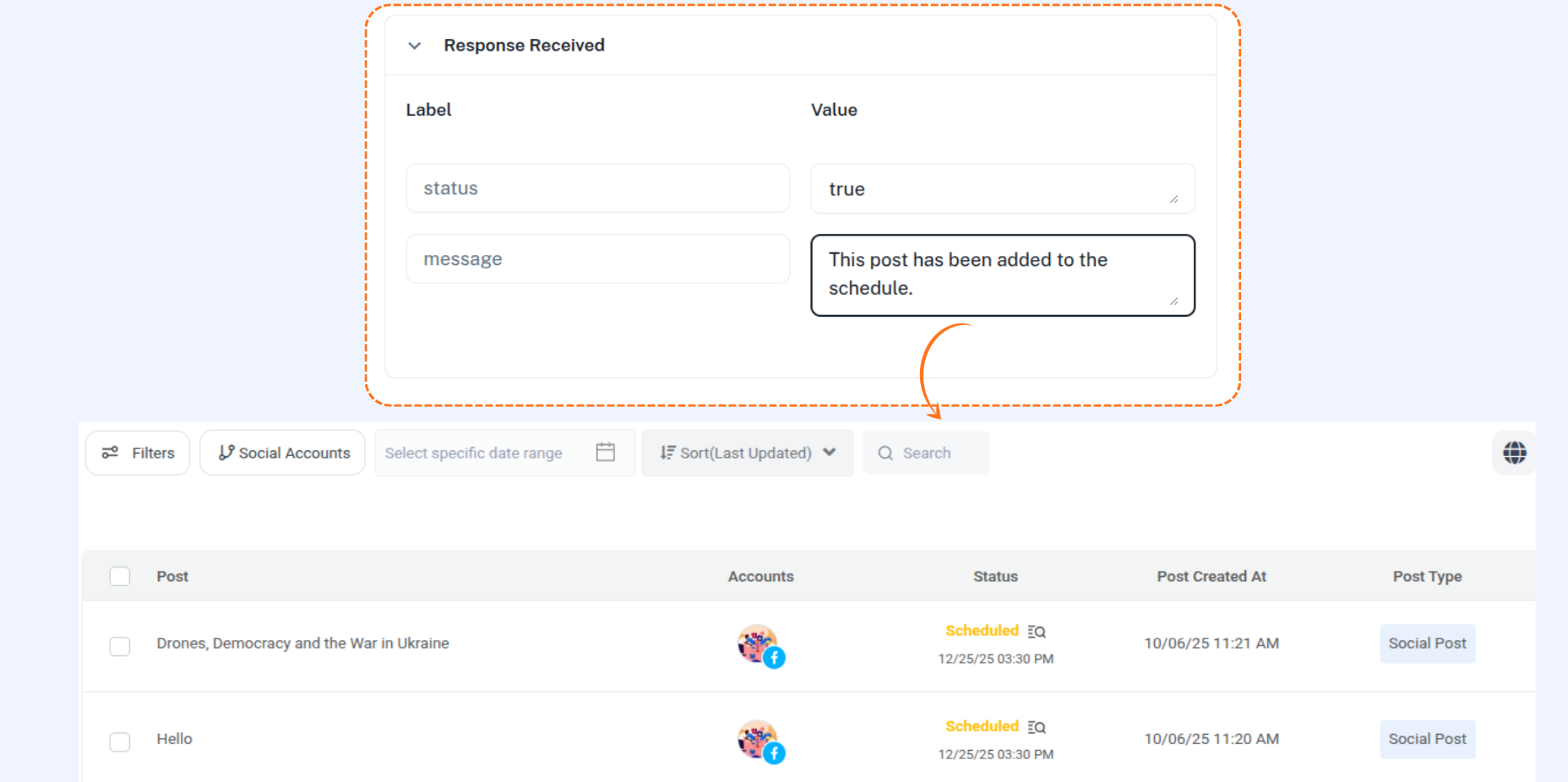
Finally, click on Save & Send Test Request. A successful response means your post is now created (or scheduled) in ContentStudio.
A response will be received saying "Post has been added to schedule".
To verify, open ContentStudio Publisher (Planner → List view) and check the scheduled post: Open ContentStudio Publisher.
That’s all you need to know about using ContentStudio’s API in Pabbly.
FAQs
1. Why is my API request showing an authentication error in Pabbly?
This usually happens when the API key is missing or incorrect. Make sure you’ve added the correct X-API-Key header and updated it if the key was regenerated in ContentStudio.
2. What should I do if the response is empty or shows “status: false”?
Check that you’re using the correct workspace or account ID from previous steps. Invalid or missing IDs will result in an empty response.
3. Can I schedule posts using the API in Pabbly?
Yes. You can set the publish_type to now or specify a scheduled time in your API body to publish later.
4. How can I post to multiple social accounts at once?
Include multiple account_id s in the API body when creating a post. The same content will be published across all selected accounts.
Related Articles
Was this article helpful?