

Connect LinkedIn Profile and Pages
In just a few simple steps, you can connect your LinkedIn profile and pages with ContentStudio and streamline your LinkedIn content management experience.
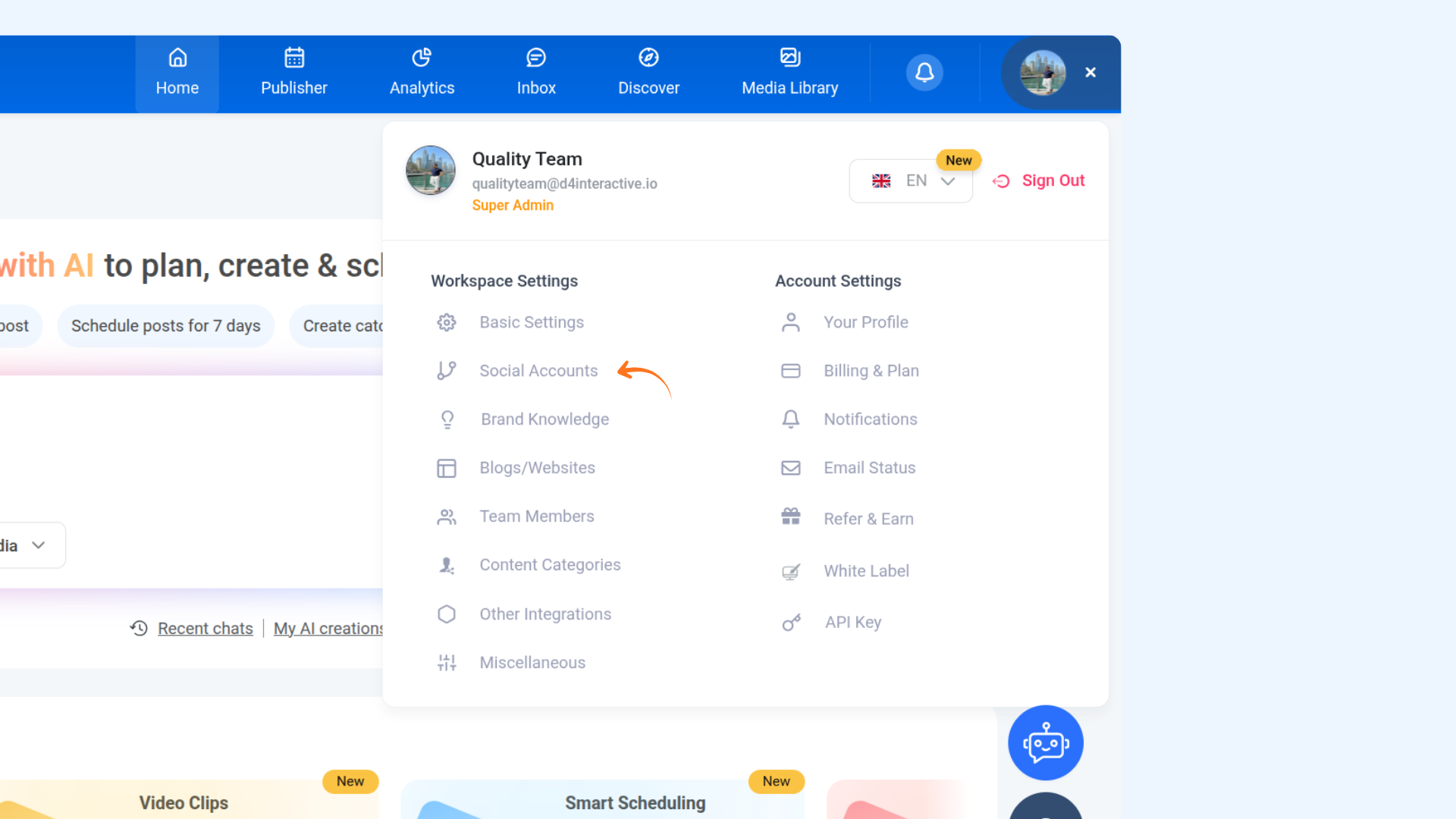
Go to Settings from the ContentStudio home page.
Click on Social Accounts.
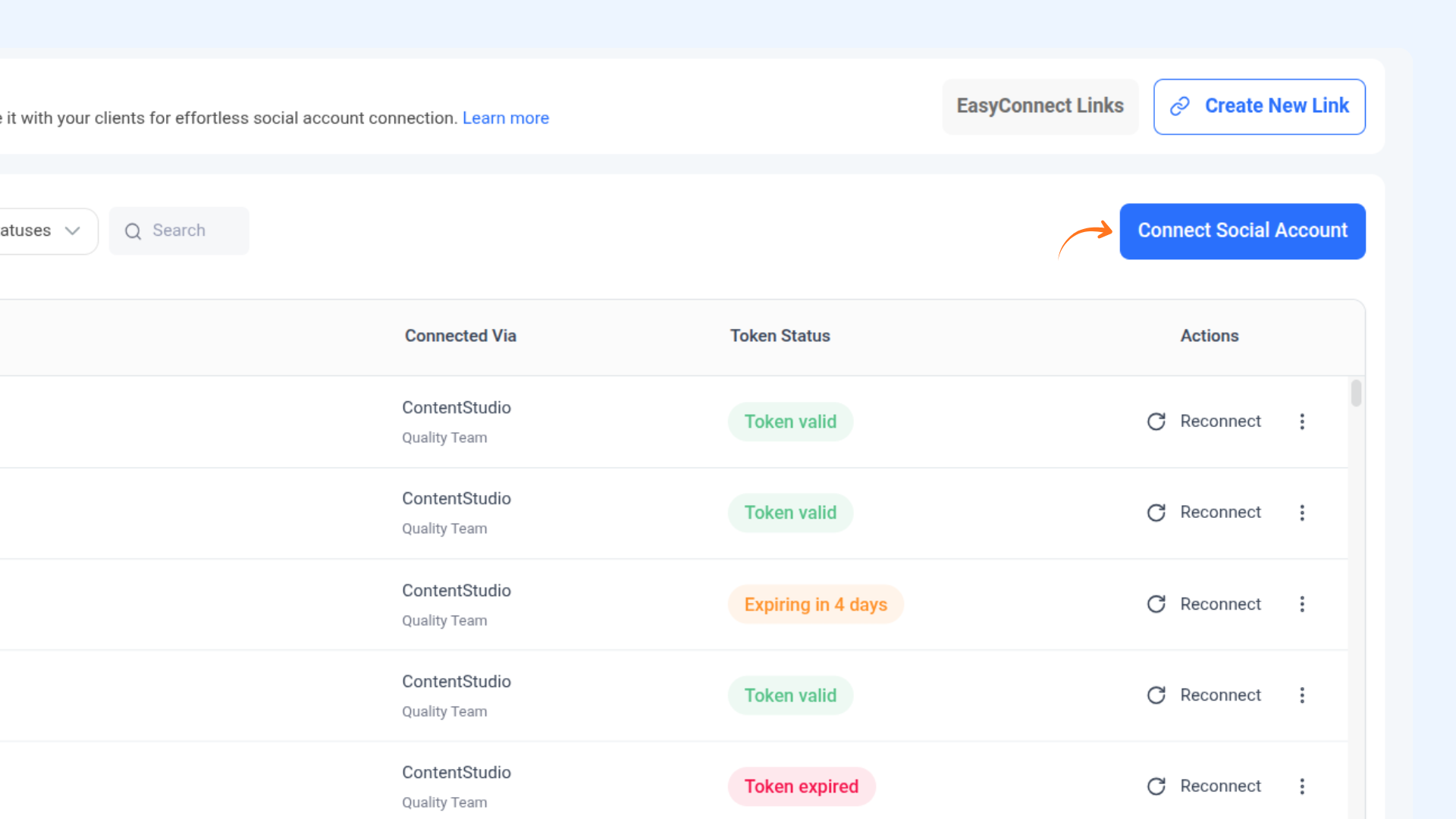
Click on Connect Social Account.
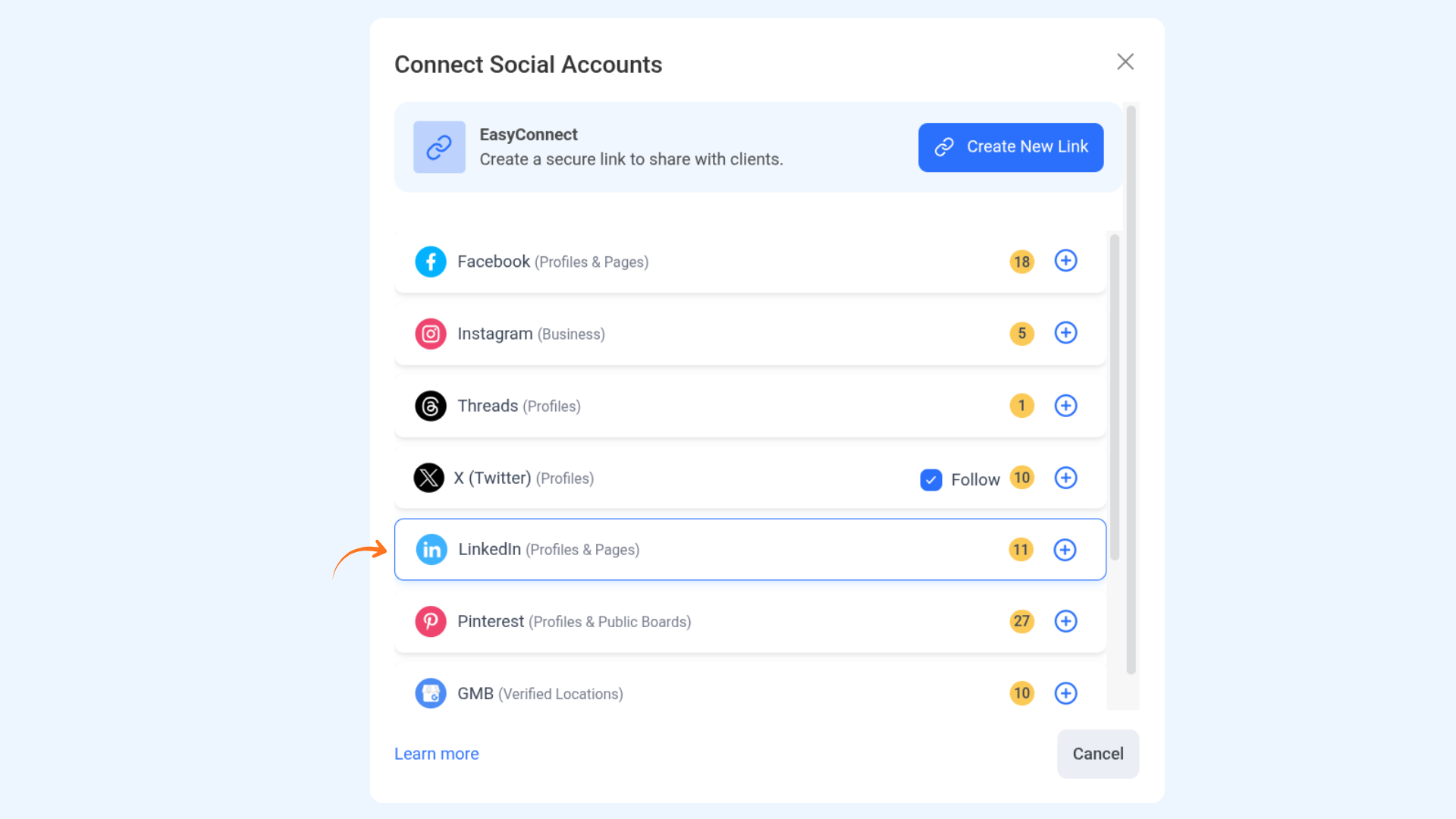
Navigate to LinkedIn and click on Connect.
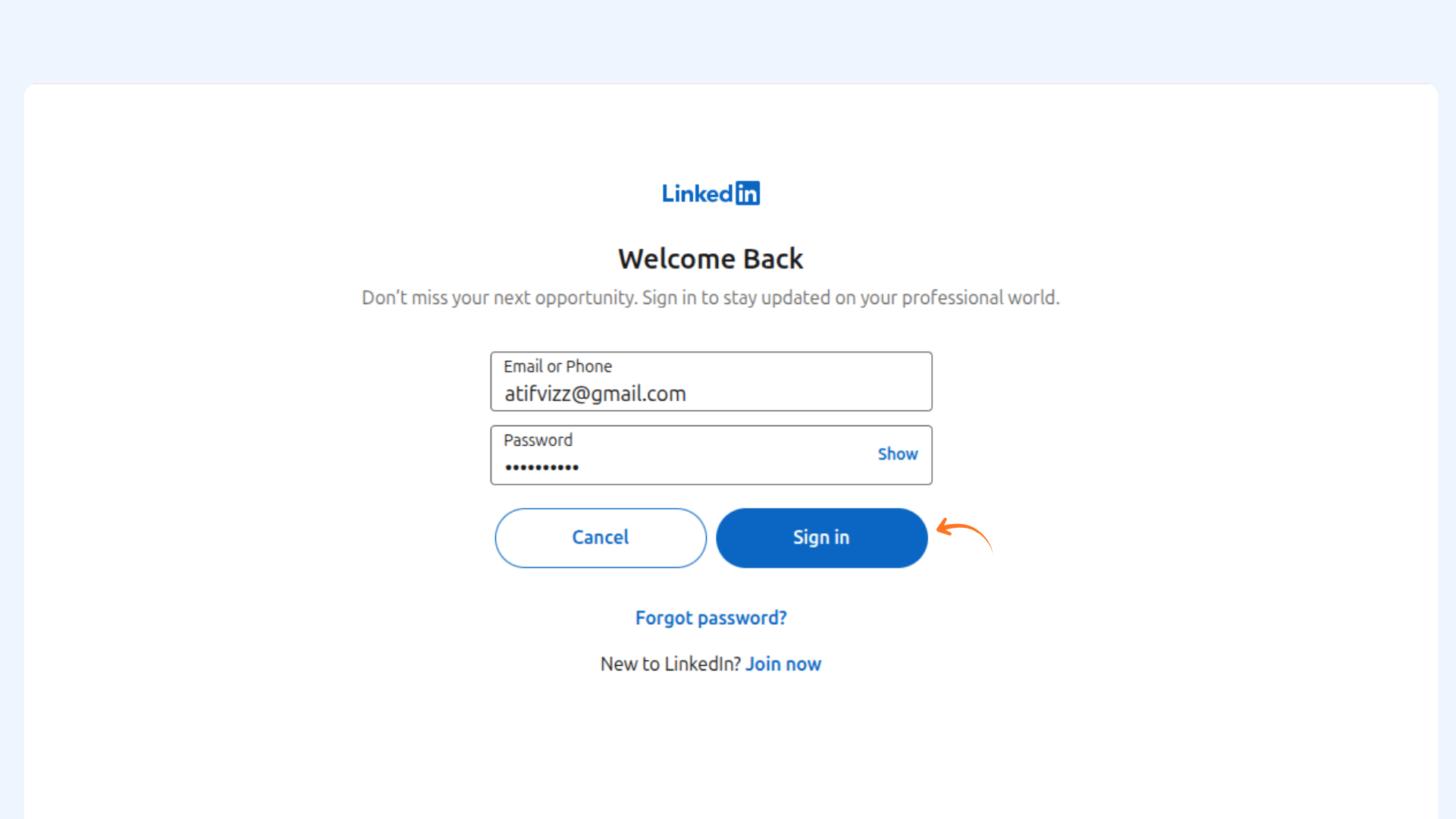
Fill in your credentials and Click Sign In. After logging in to LinkedIn, you will be redirected back to the ContentStudio app.
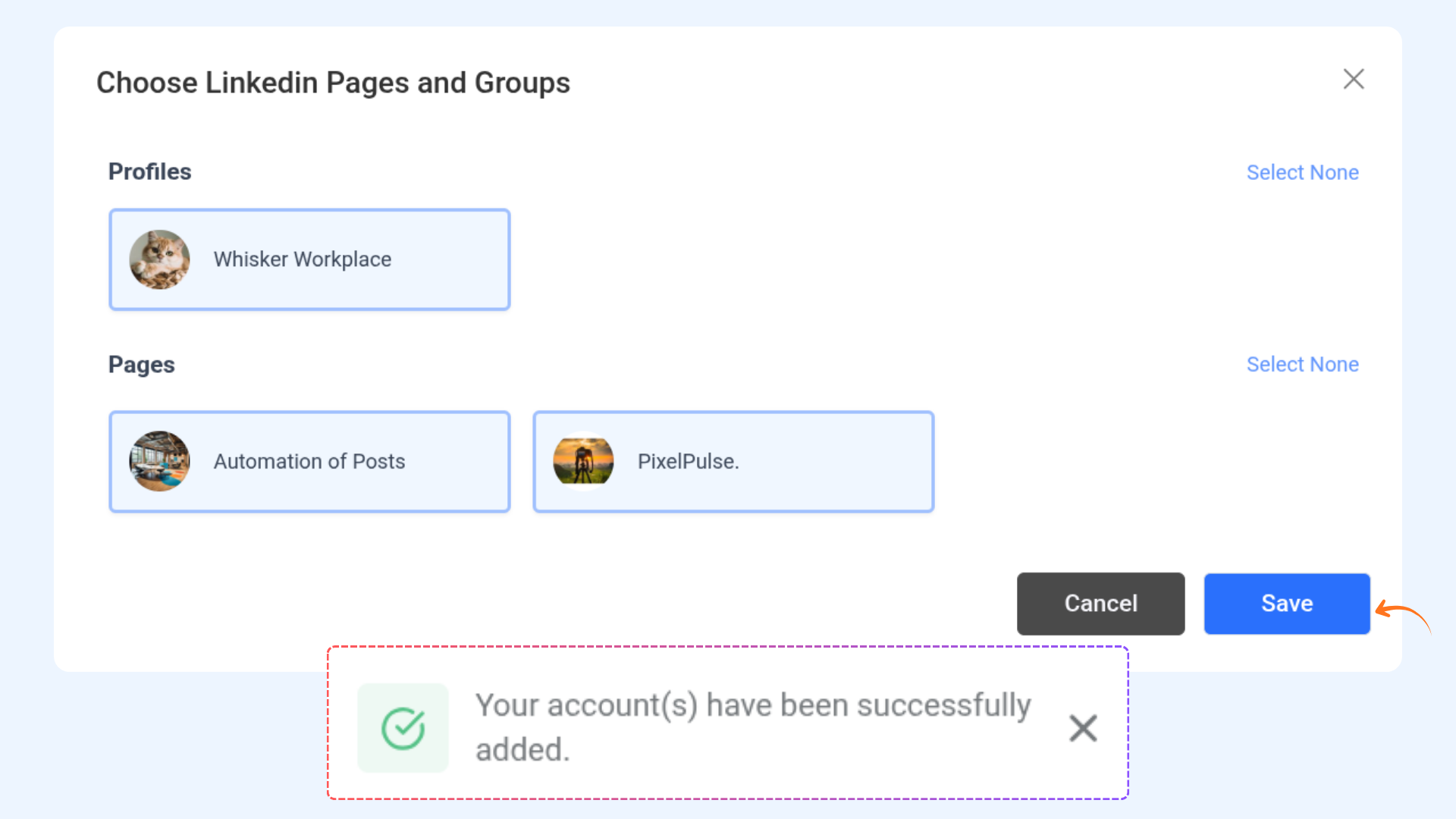
A popup will appear allowing you to choose the LinkedIn profile or pages you want to connect.
Select the desired profile or pages and click Save. The selected LinkedIn account will be added successfully.
FAQ's
Can I connect both my LinkedIn profile and pages?
Yes, ContentStudio allows you to connect both your LinkedIn profile and pages. During the connection process, you can select one or multiple profiles and pages from the popup.
Do I need admin access to connect a LinkedIn page?
Yes, you must have admin access to a LinkedIn page to connect it with ContentStudio. Pages without admin permissions will not appear in the selection list.
Can I disconnect my LinkedIn account later?
Absolutely. You can disconnect your LinkedIn profile or page anytime from the Social Accounts section in Settings.
What should I do if the connection fails?
If the connection fails, try logging out and logging back into LinkedIn, then repeat the connection process. If the issue persists, reach out to ContentStudio support for assistance.
Was this article helpful?