

Linking your Twitter profile
Reconnecting your Twitter account with ContentStudio ensures a seamless posting experience, allowing you to share your favorite content directly to Twitter without interruptions. Follow the simple steps outlined here to restore connectivity and start posting instantly.
Let us get in 😊
In this article:
Step-by-step process
Log in to Your ContentStudio Account
Access your dashboard by entering your login credentials.Navigate to Workspace Settings → Social Accounts
Open Workspace Settings and select Social Accounts from the dropdown menu.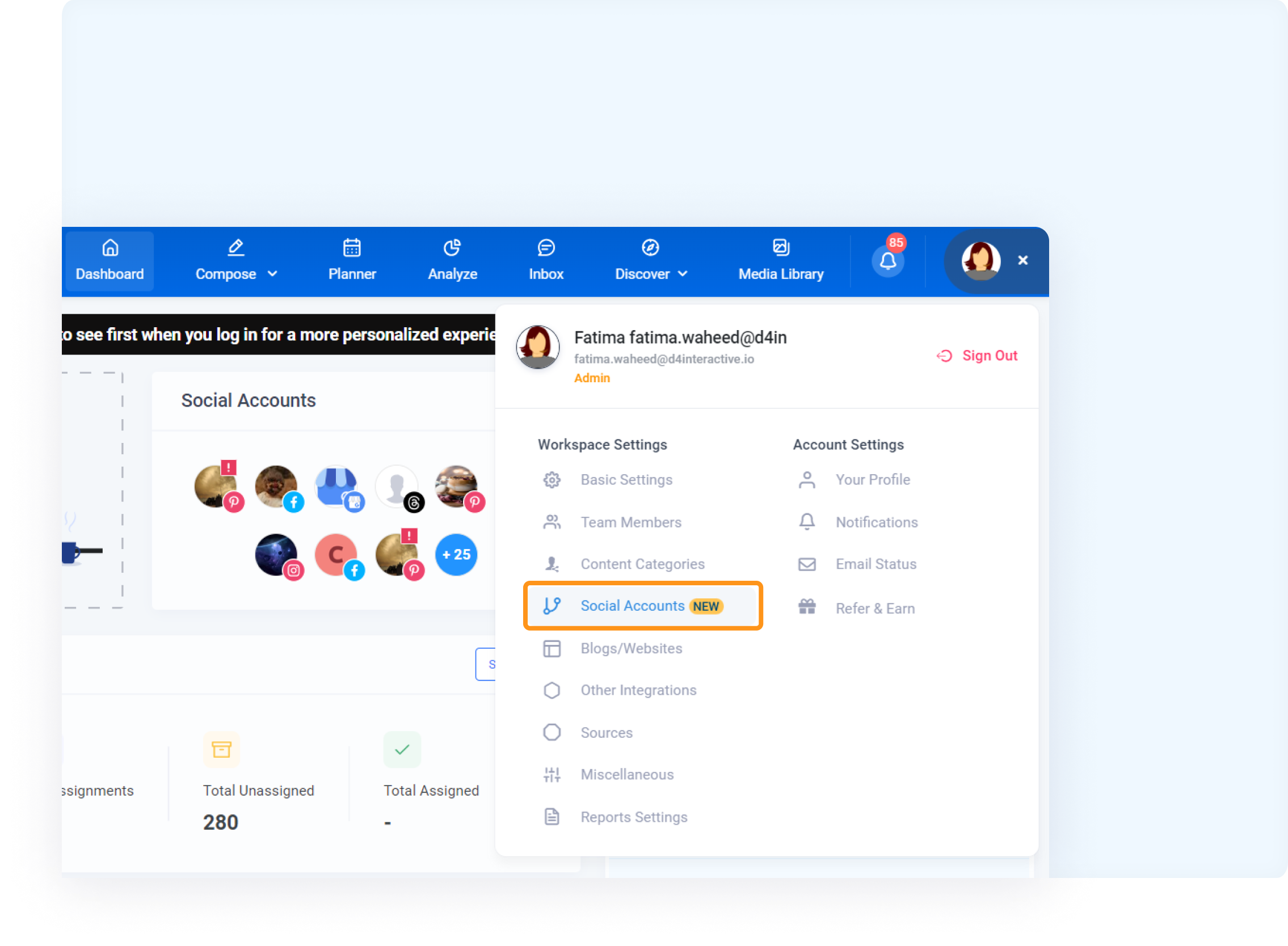
Reconnect Your X (Twitter) Account
Scroll down to the X (Twitter) accounts list and click the Reconnect button located in the right corner.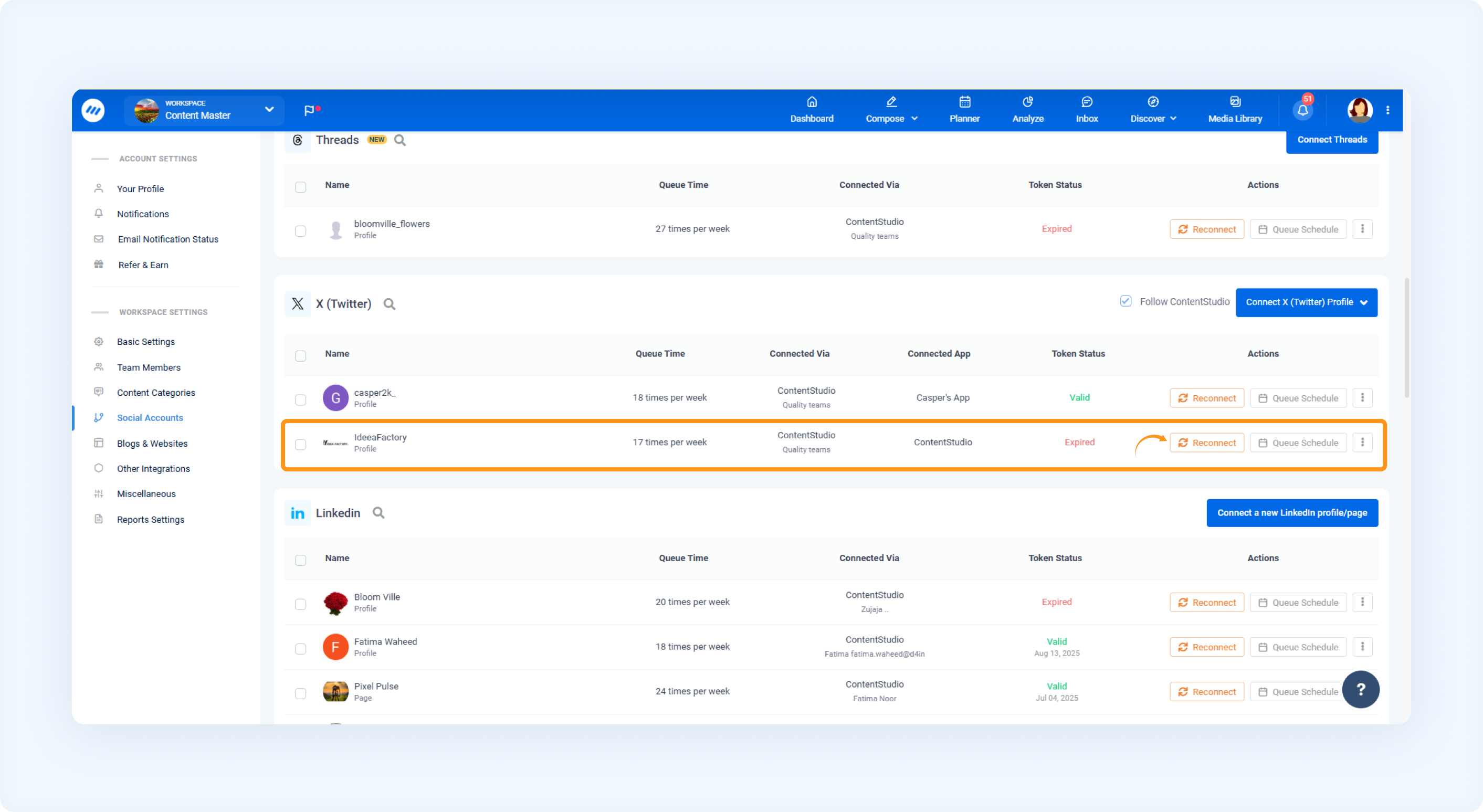
Authorize ContentStudio
A pop-up will appear asking you to authorize access. Enter your username, email, and password, then click Authorize App to reconnect your account successfully.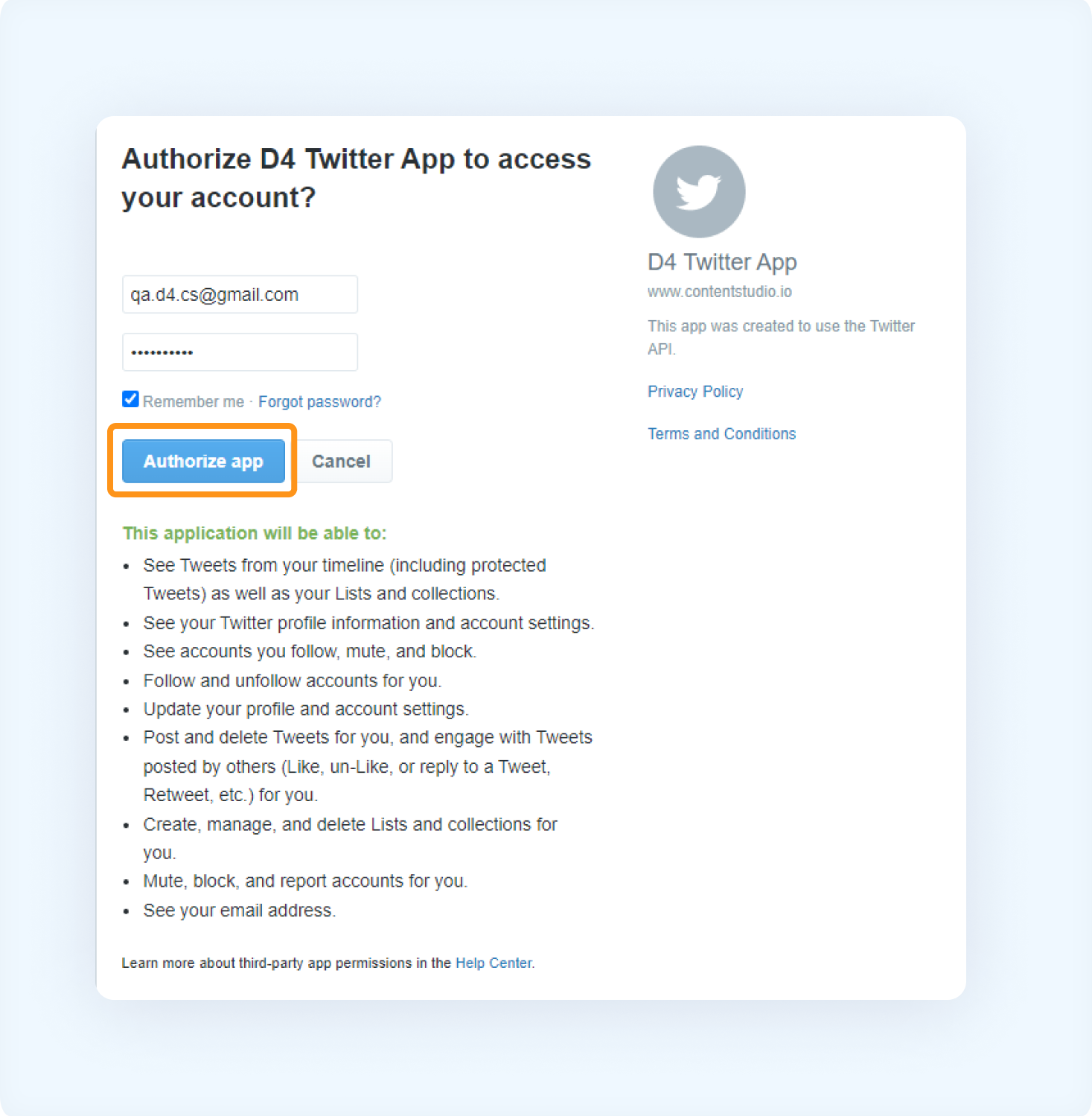
FAQs
Q1: Will I lose any data by reconnecting my Twitter account?
A: No, reconnecting your Twitter account does not affect any saved posts, drafts, or previous activity in ContentStudio.
Q2: Can I post to my Twitter profile immediately after reconnecting?
A: Yes, once you’ve successfully reconnected your Twitter account, you can start posting directly to your Twitter profile from ContentStudio.
Was this article helpful?