

Getting started with Media Library
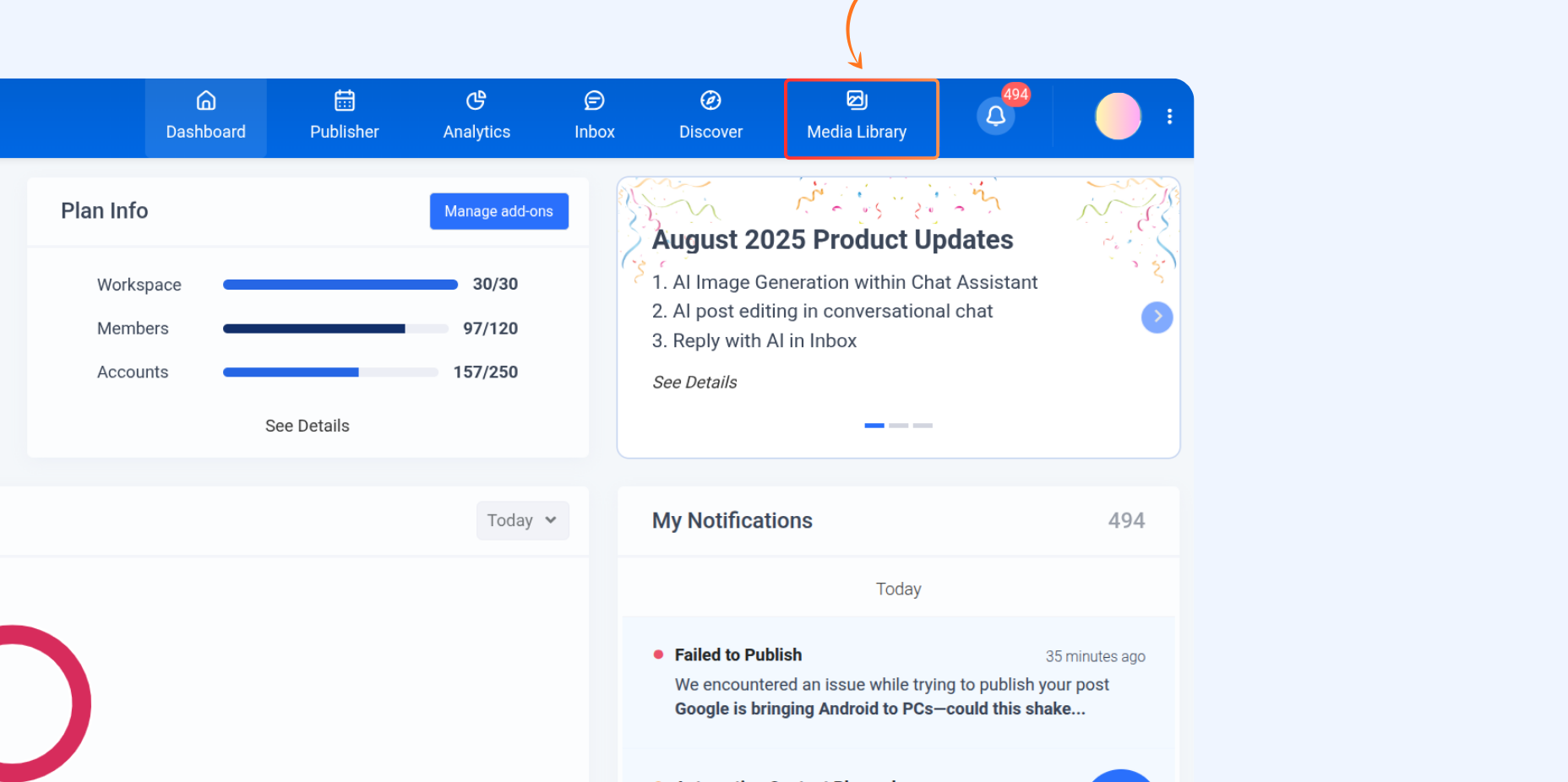
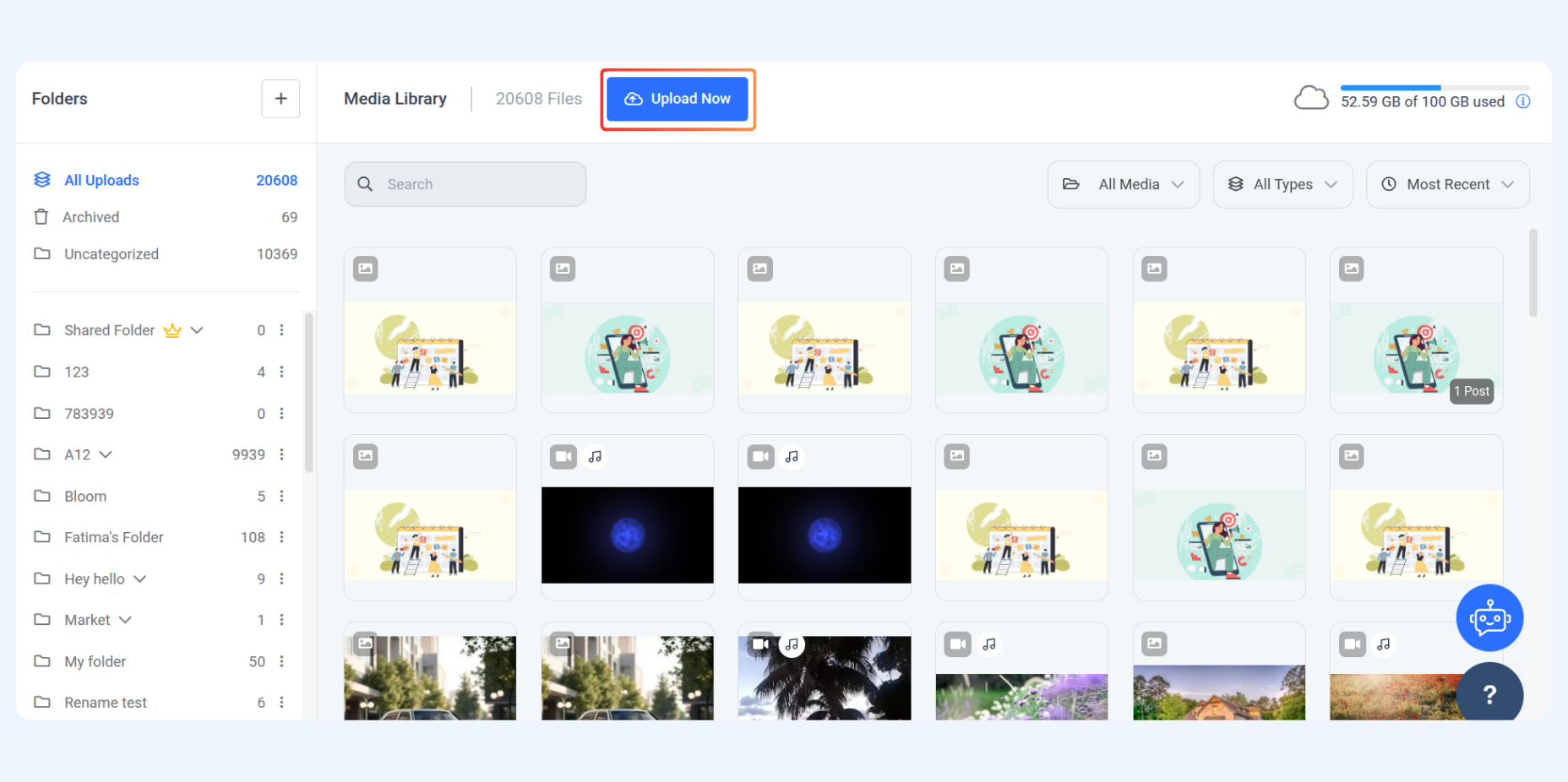
The Media Library helps you upload and organize all your media files like images, videos, and GIFs in one place. You can easily manage your files, create folders, and keep your content organized.
In this Article:
Media Library
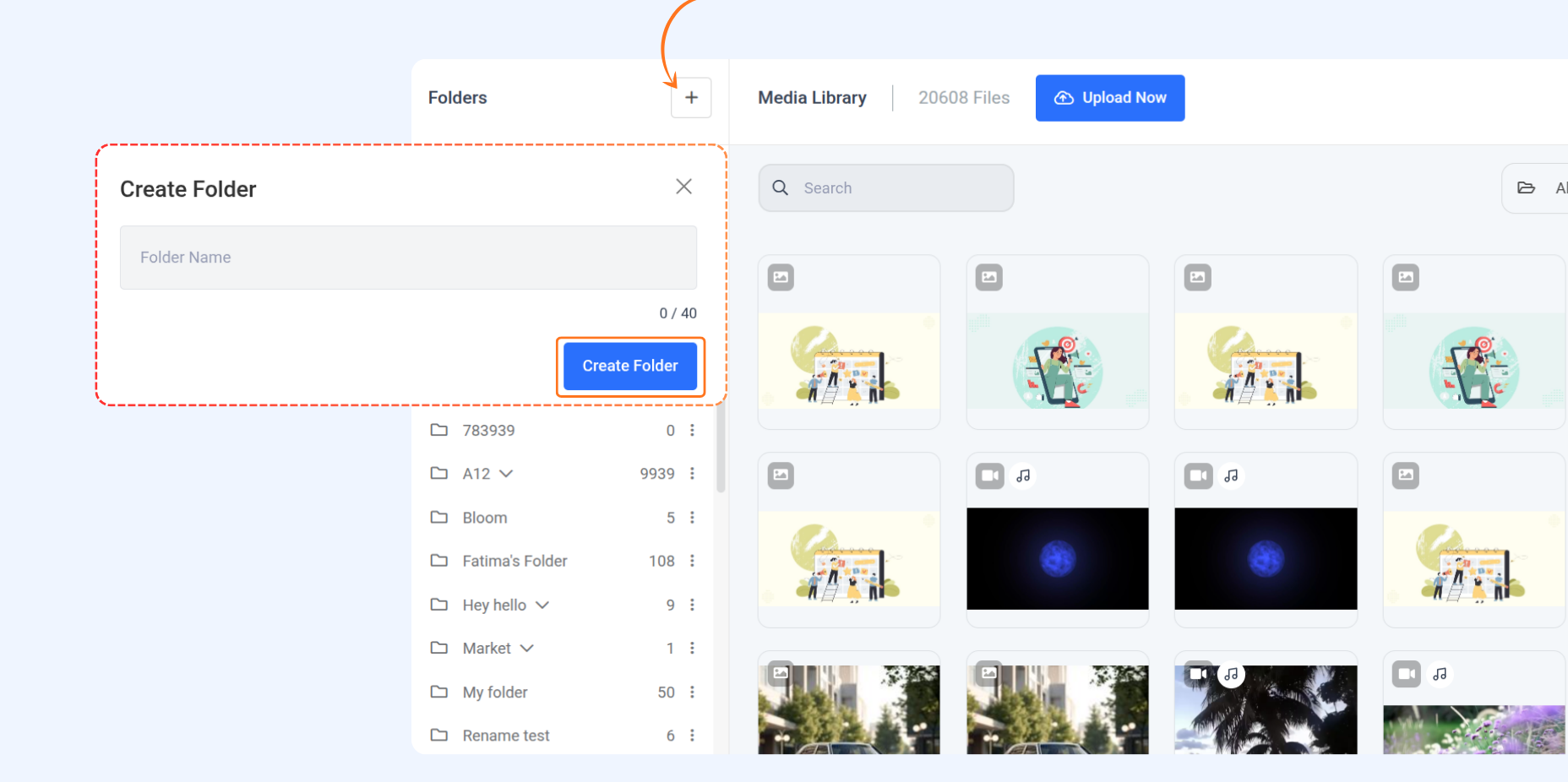
How to Create a Folder
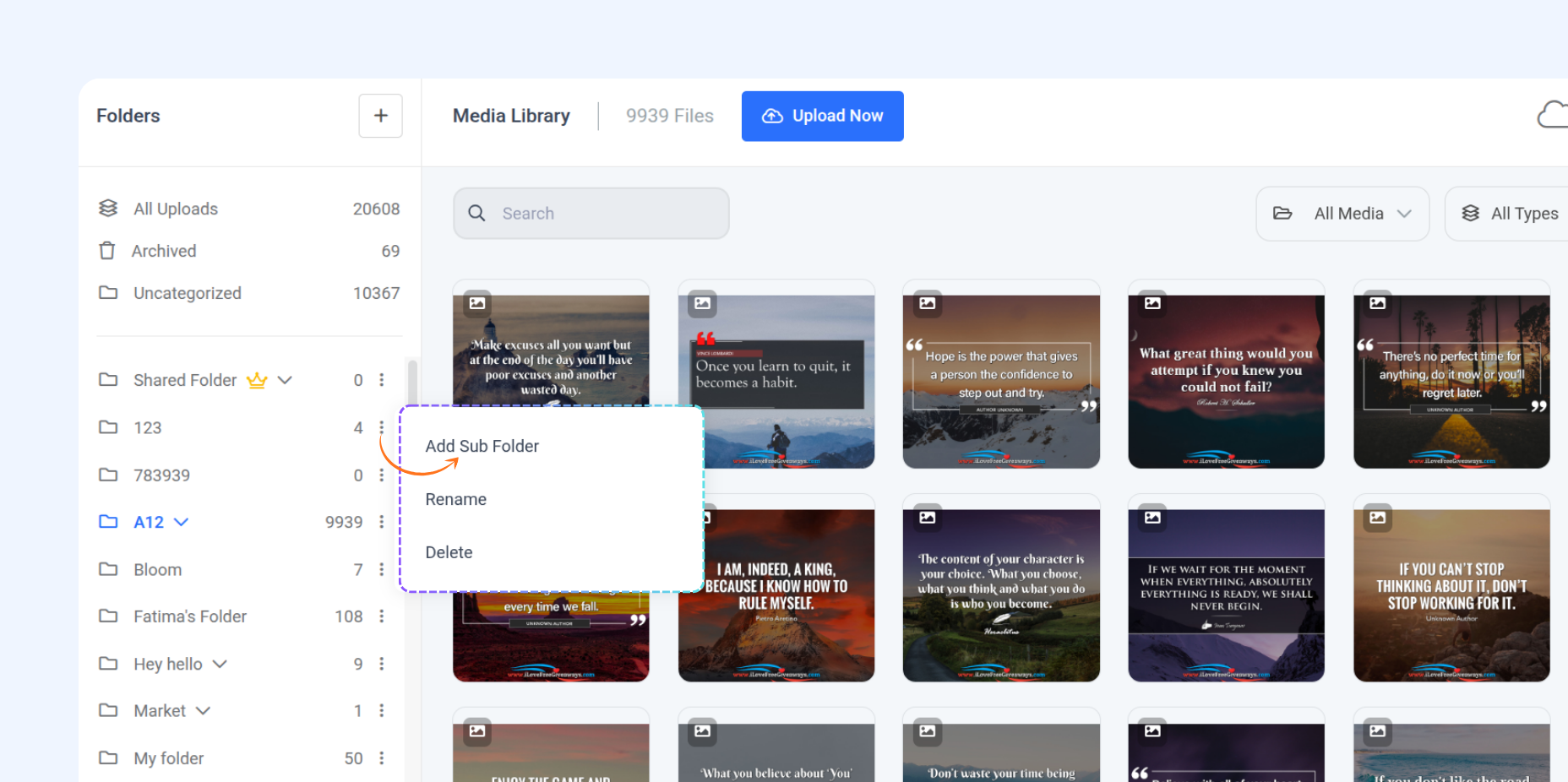
How to add Subfolders
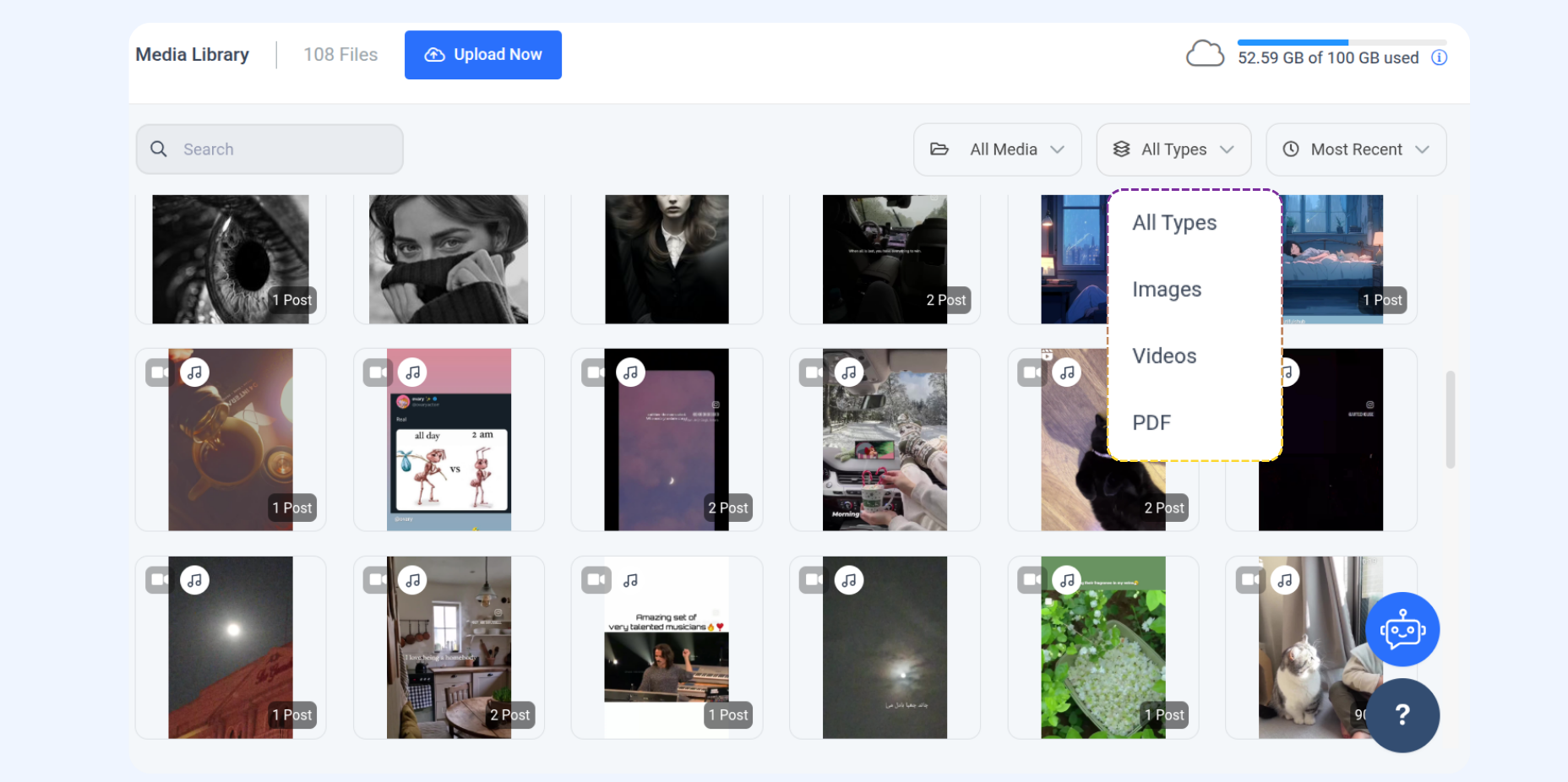
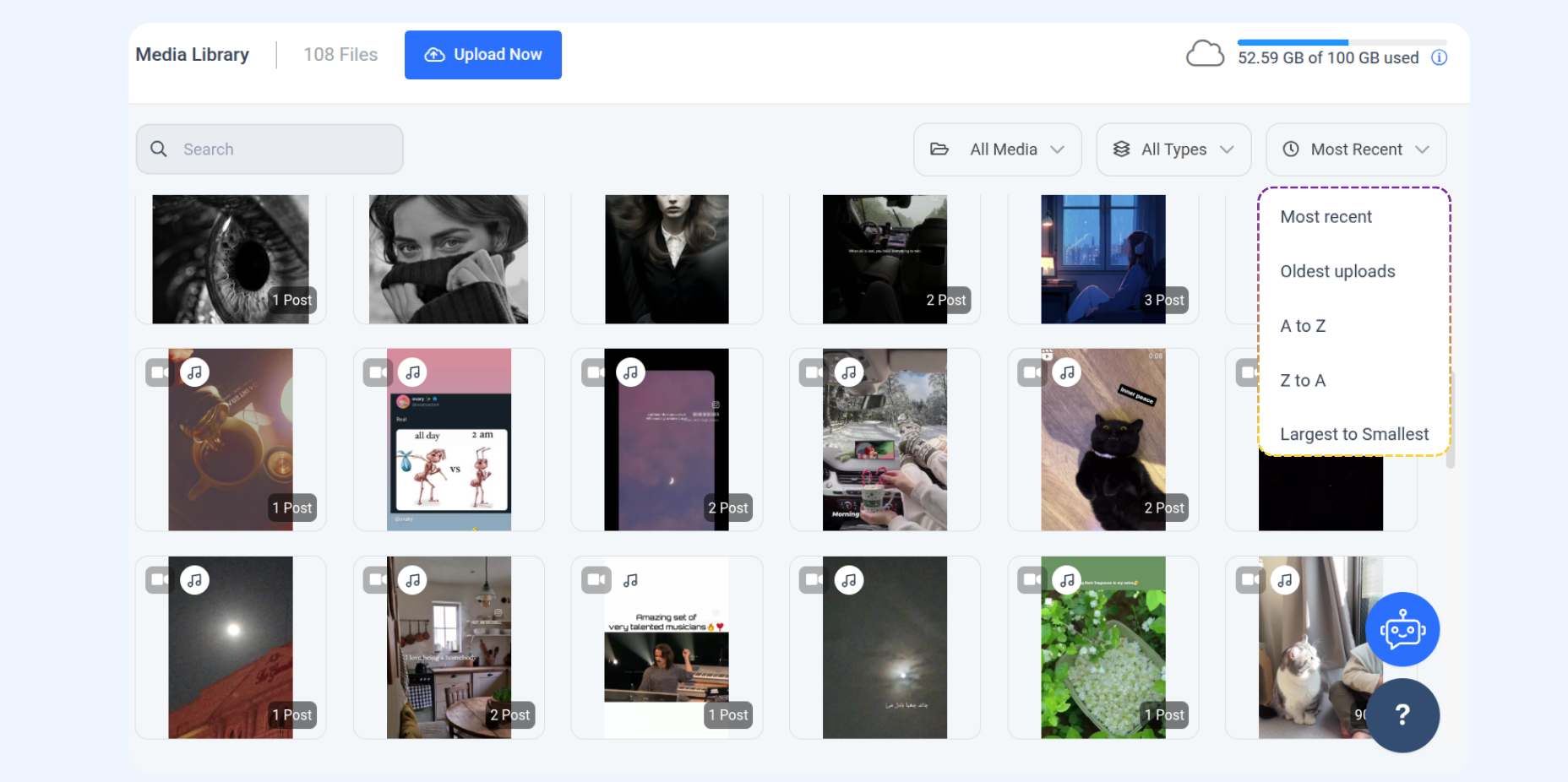
Filtering & Sorting
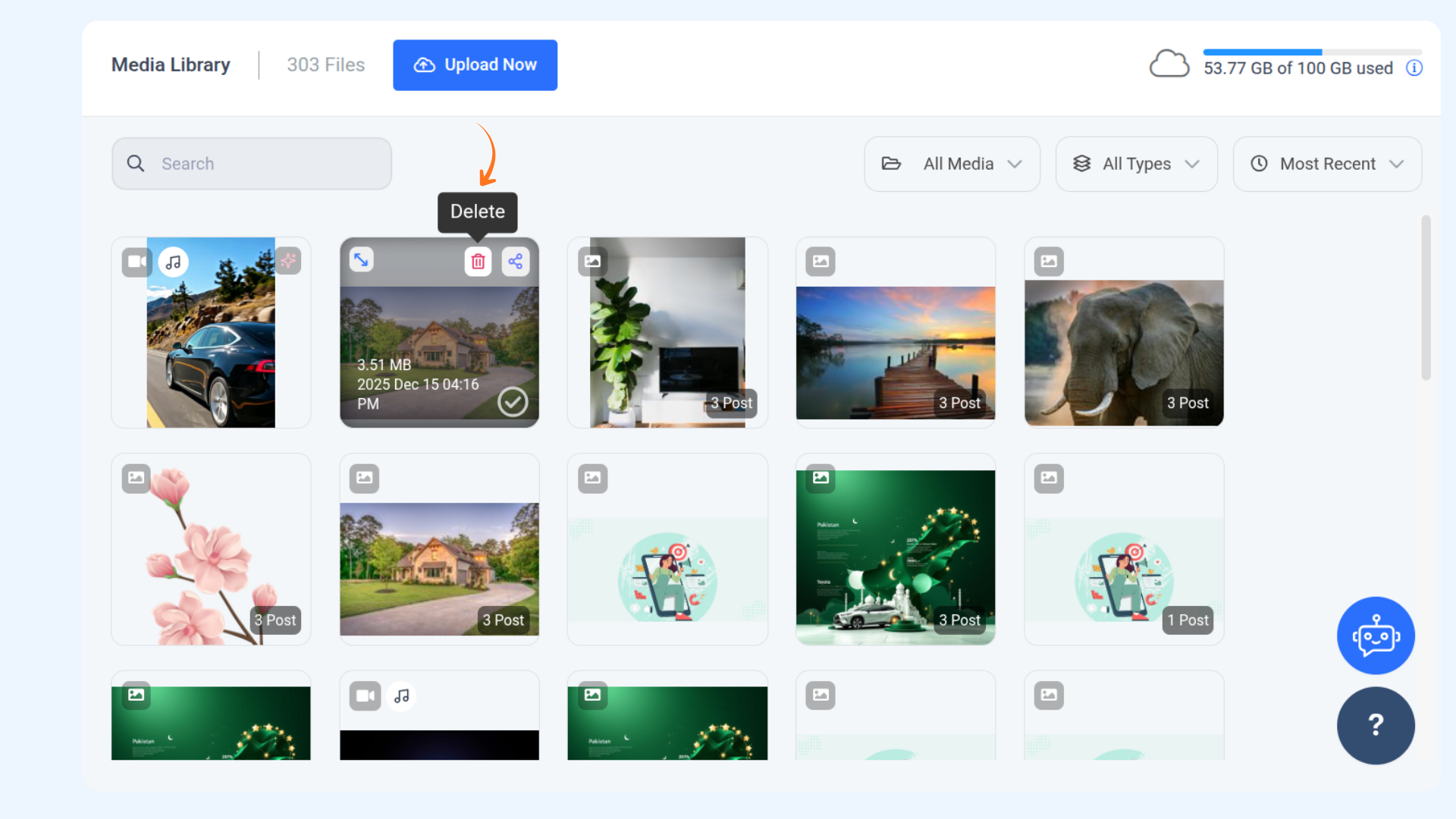
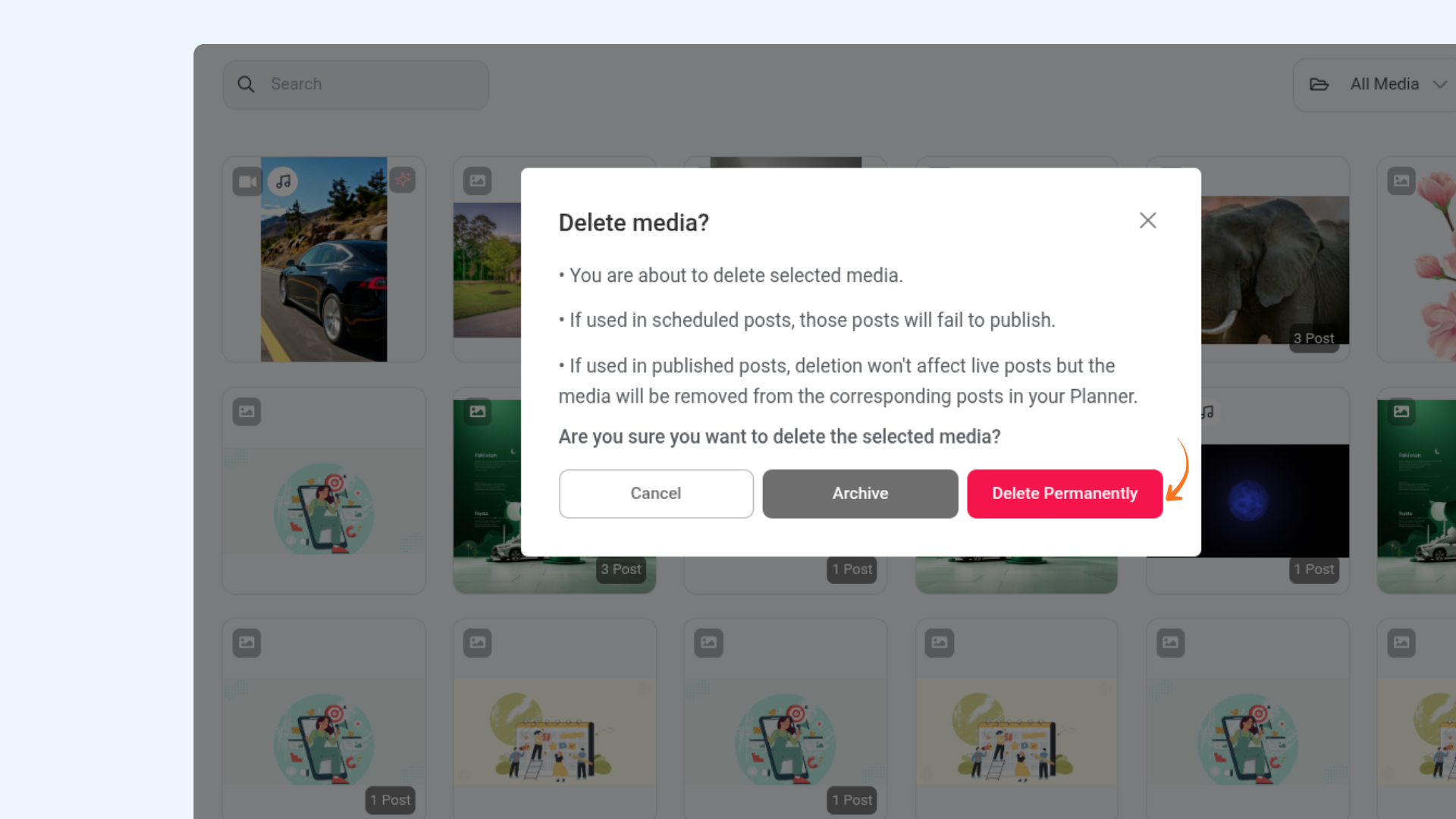
Deleting Media from Media library
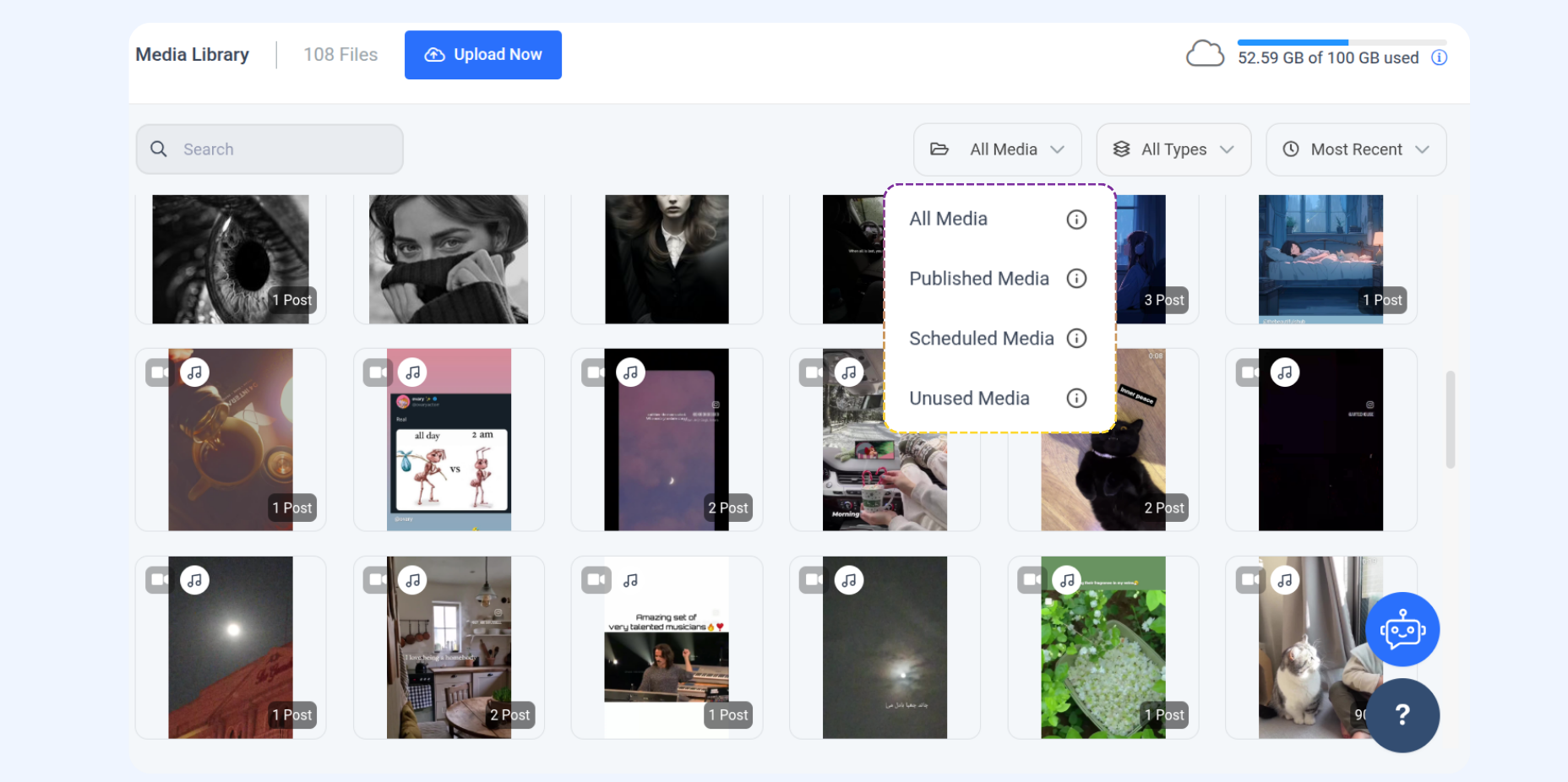
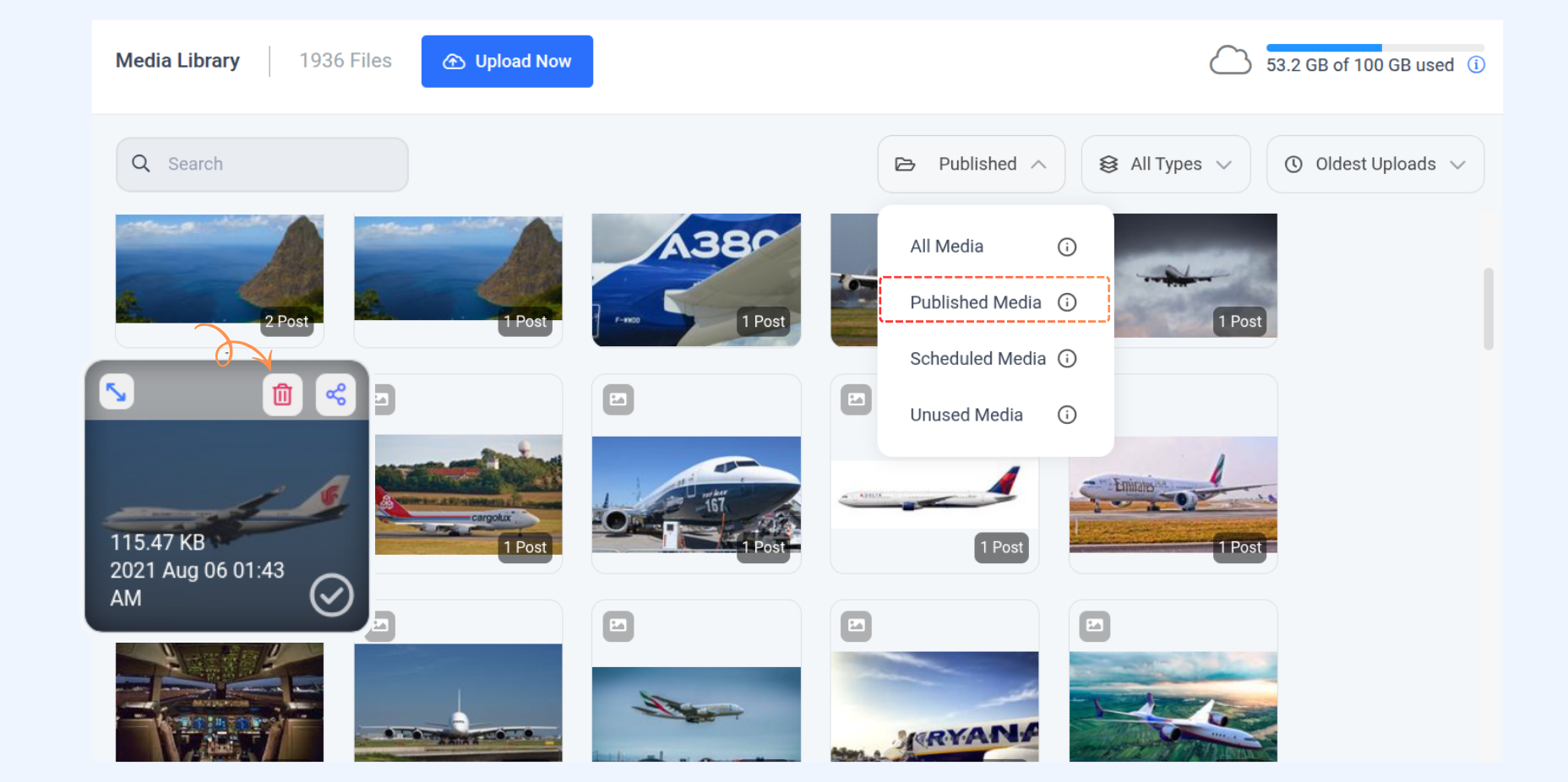
Published and Unused Media Filters
FAQs
Can I upload multiple files at once?
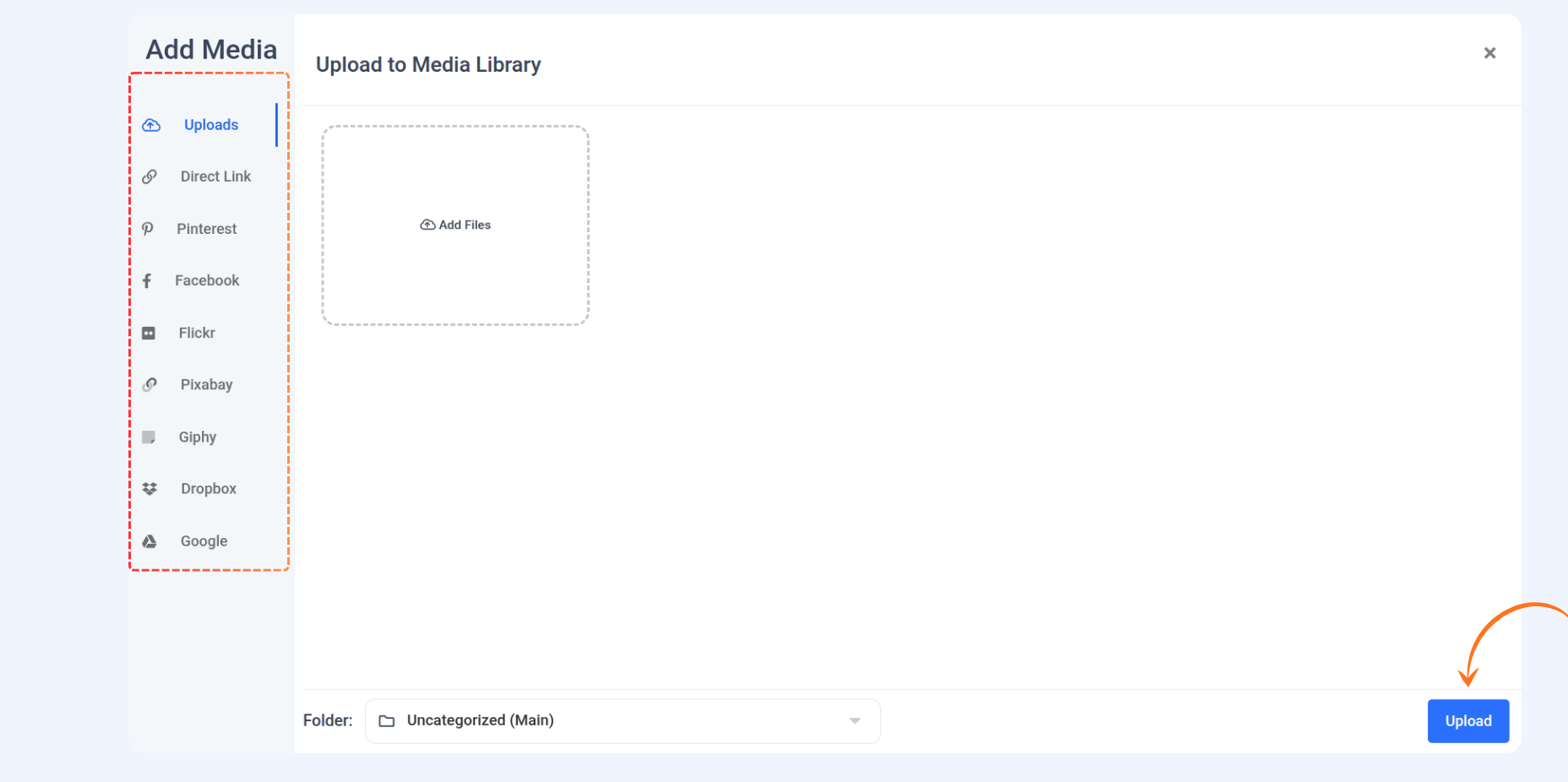
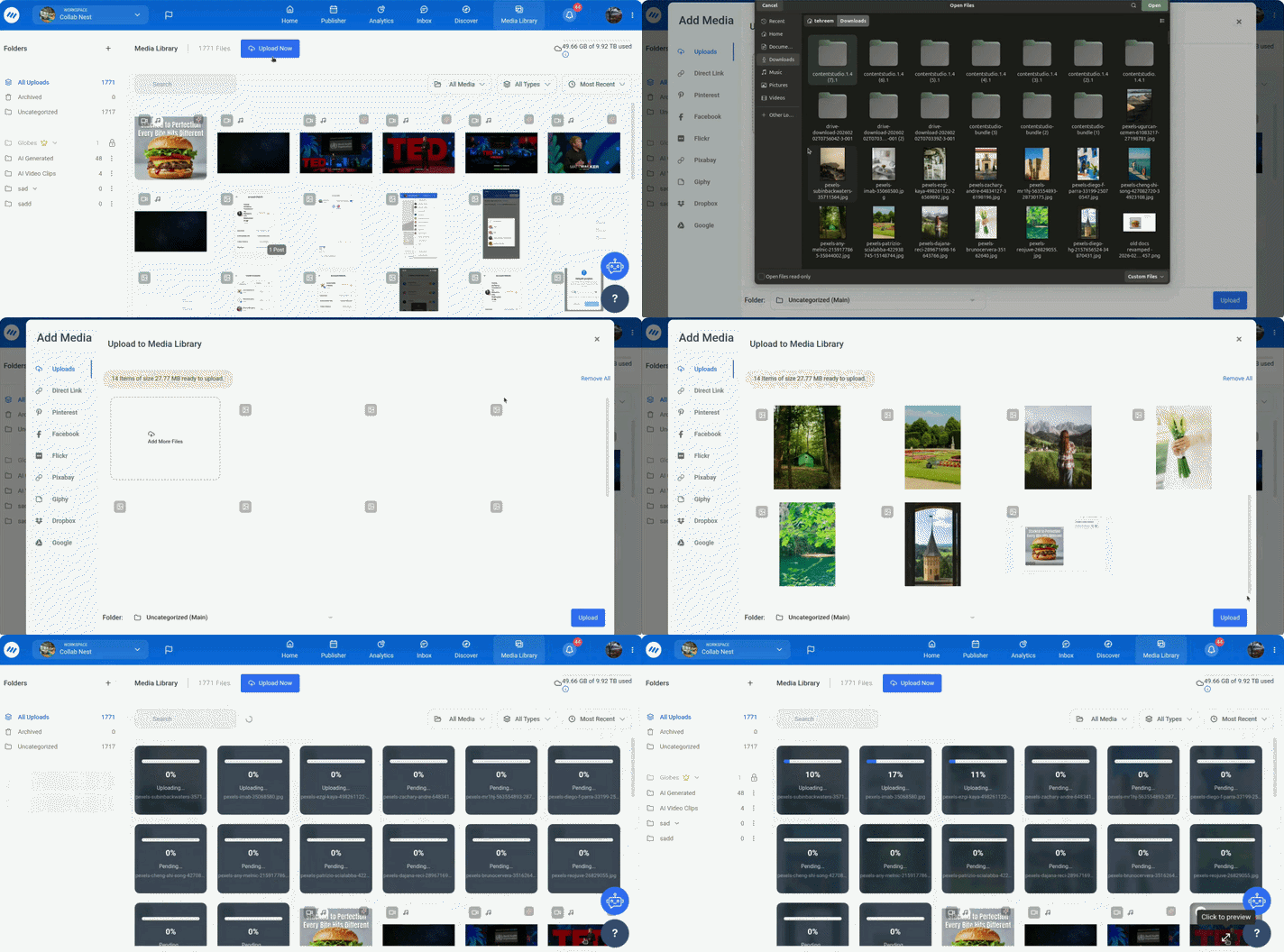
Yes, you can select and upload multiple images, videos, or documents in one go.
How can I free up storage in my workspace?
You have two simple options:
Upgrade your storage – you can buy additional storage from the Add-Ons section.
Clear existing published media – use the Published Media filter to safely delete media that’s already live on your social platforms. This frees up space without affecting your scheduled or queued posts.
What file formats are supported in the Media Library?
The Media Library supports formats like JPG, PNG, GIF, MP4, and PDF.
Will deleting a file remove it from my published posts?
No, deleting a file used in a published post won’t affect it. However, removing media linked to scheduled or draft posts may cause issues.
Can I move files between folders?
Yes, you can easily organize your media by dragging and dropping files between folders.
Was this article helpful?