

How to connect Pinterest profile and boards
In all of your Workspaces, you can connect as many Pinterest profiles and boards with ContentStudio platform as you want, following the steps below.
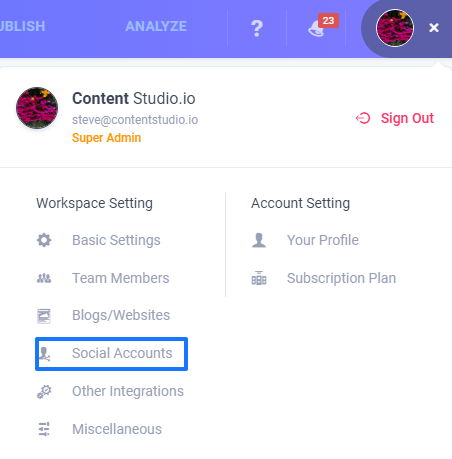
Go to social accounts
Starting off, navigate to the right top corner to get into Settings > Social accounts.
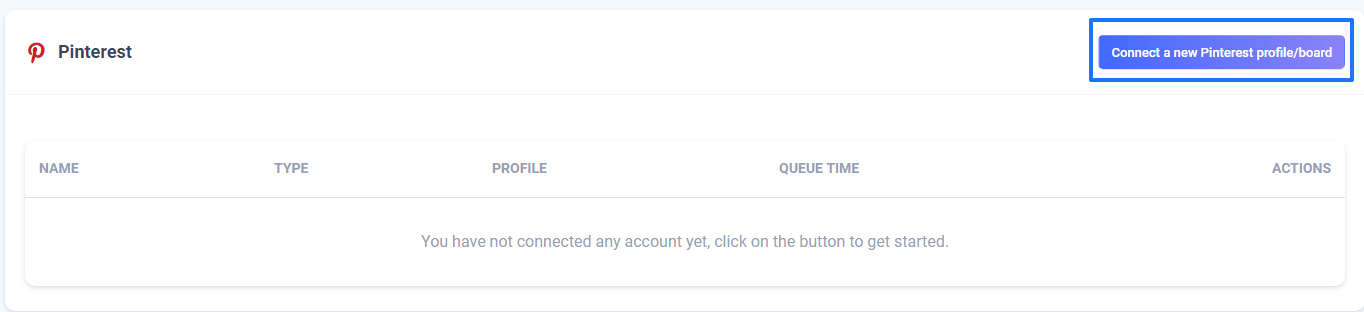
Connect Pinterest
Moving forward, on the social accounts page, you need to click 'Connect a new Pinterest profile/board' at the right top.
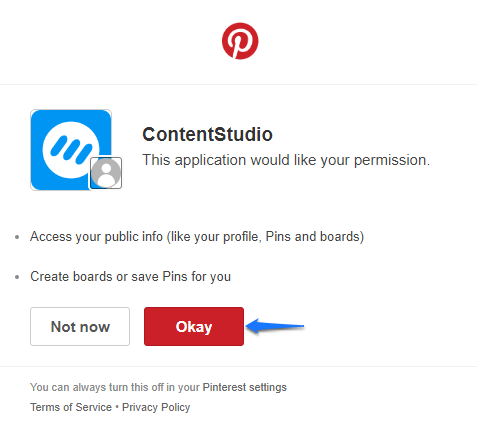
Authorize your account
Moving forward, after clicking connect icon and entering the account details, you will go through to the authorization process, you need to click 'Okay' to proceed with the connection.
Select your Boards/Profiles
Once done with the authorization part, you will be taken to the next pop-up where you will see a list of your boards/Profiles which require your approval to get connected, you can select the ones you want to add.
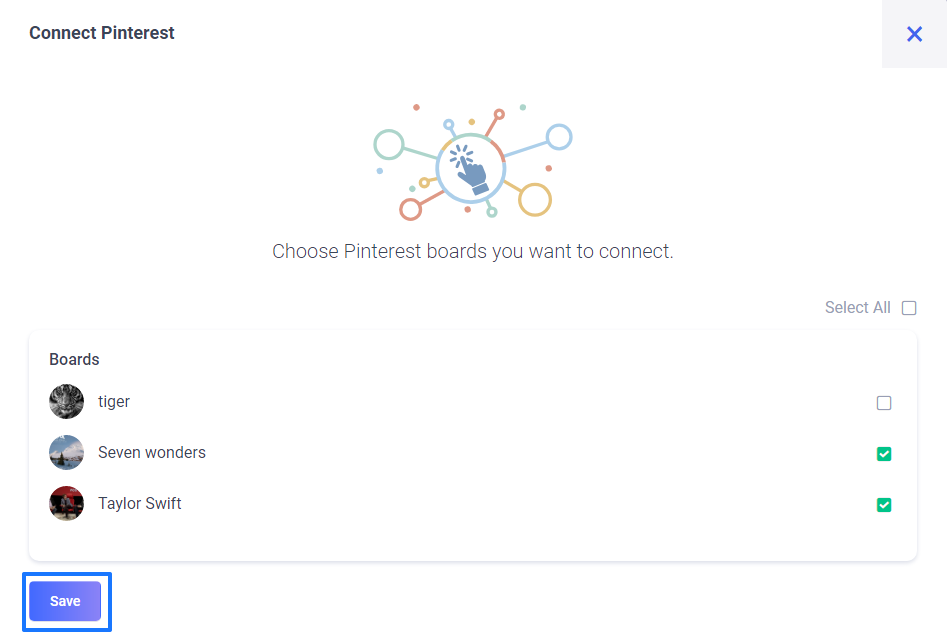
Verify your connection with Boards/Profile
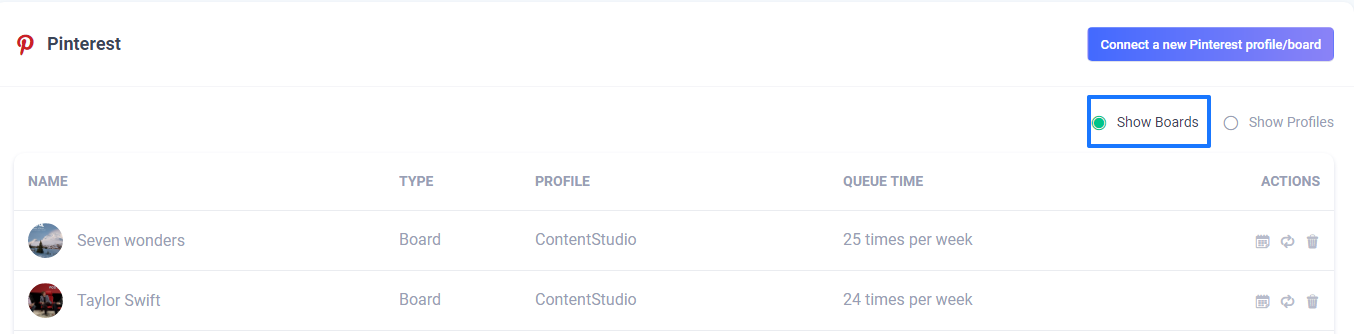
In the last step, please make sure that all of the selected boards/Profiles are successfully connected and showing a green signal, as illustrated in the below image.
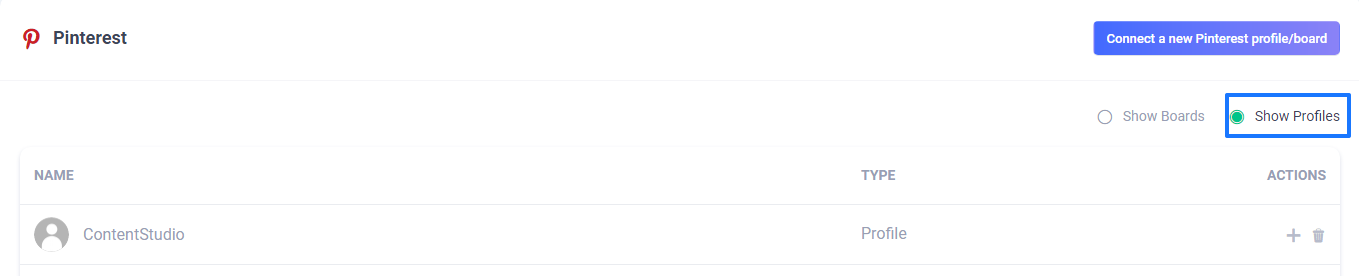
Also, you can locate your Profiles separately.
Following the above steps, you can easily connect your Pinterest Boards/Profiles in just no time.
Was this article helpful?