

How to connect Bit.ly account
ContentStudio allows you to shorten links using Bit.ly. For that, you need to connect your Bitly account with ContentStudio.
Below is a step-by-step process to connect your Bitly account with ContentStudio for link shortening purposes.
How to Connect Bitly with ContentStudio
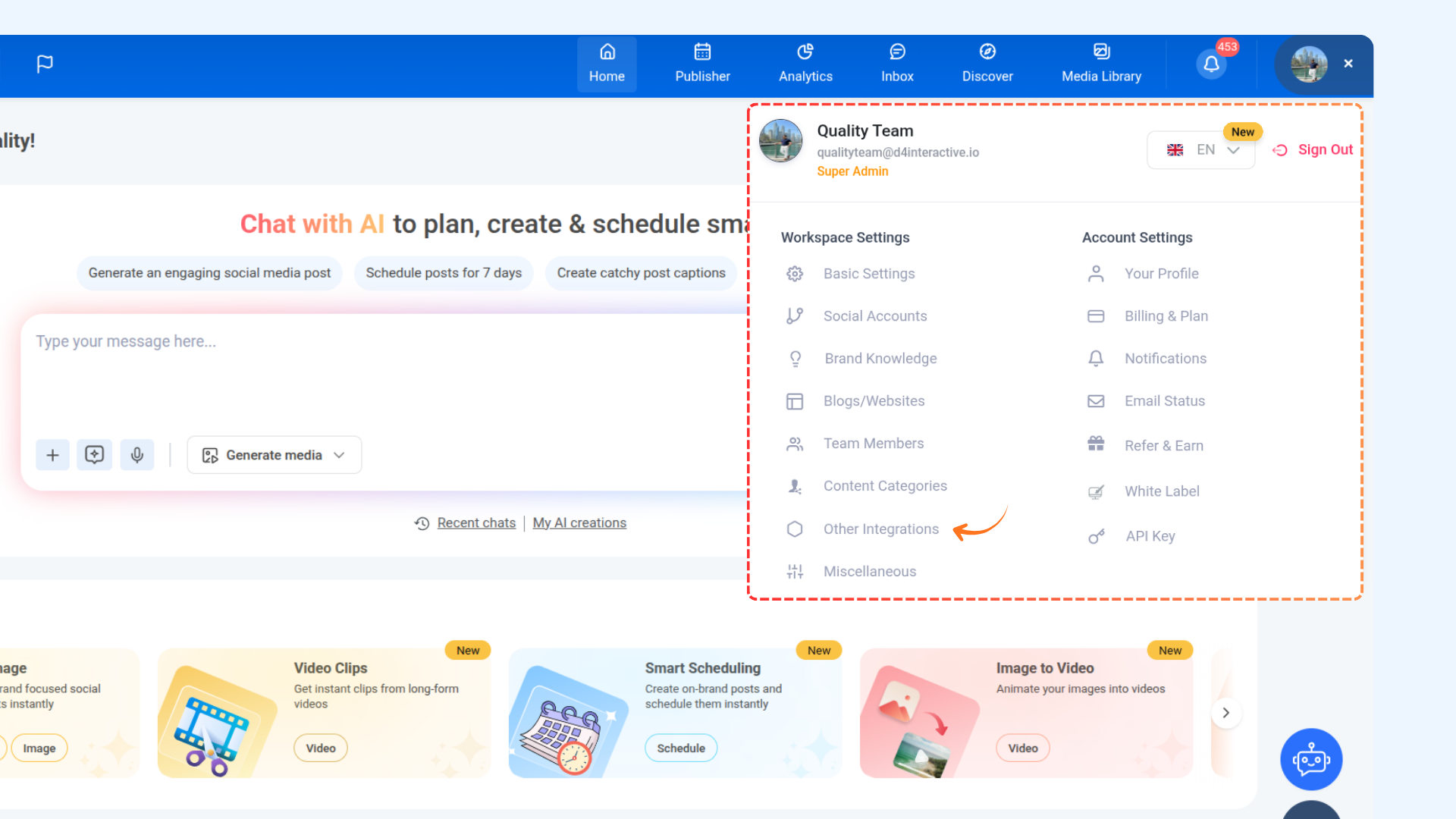
Hover over the top-right corner of your workspace, open Settings, and click on Other Integrations.
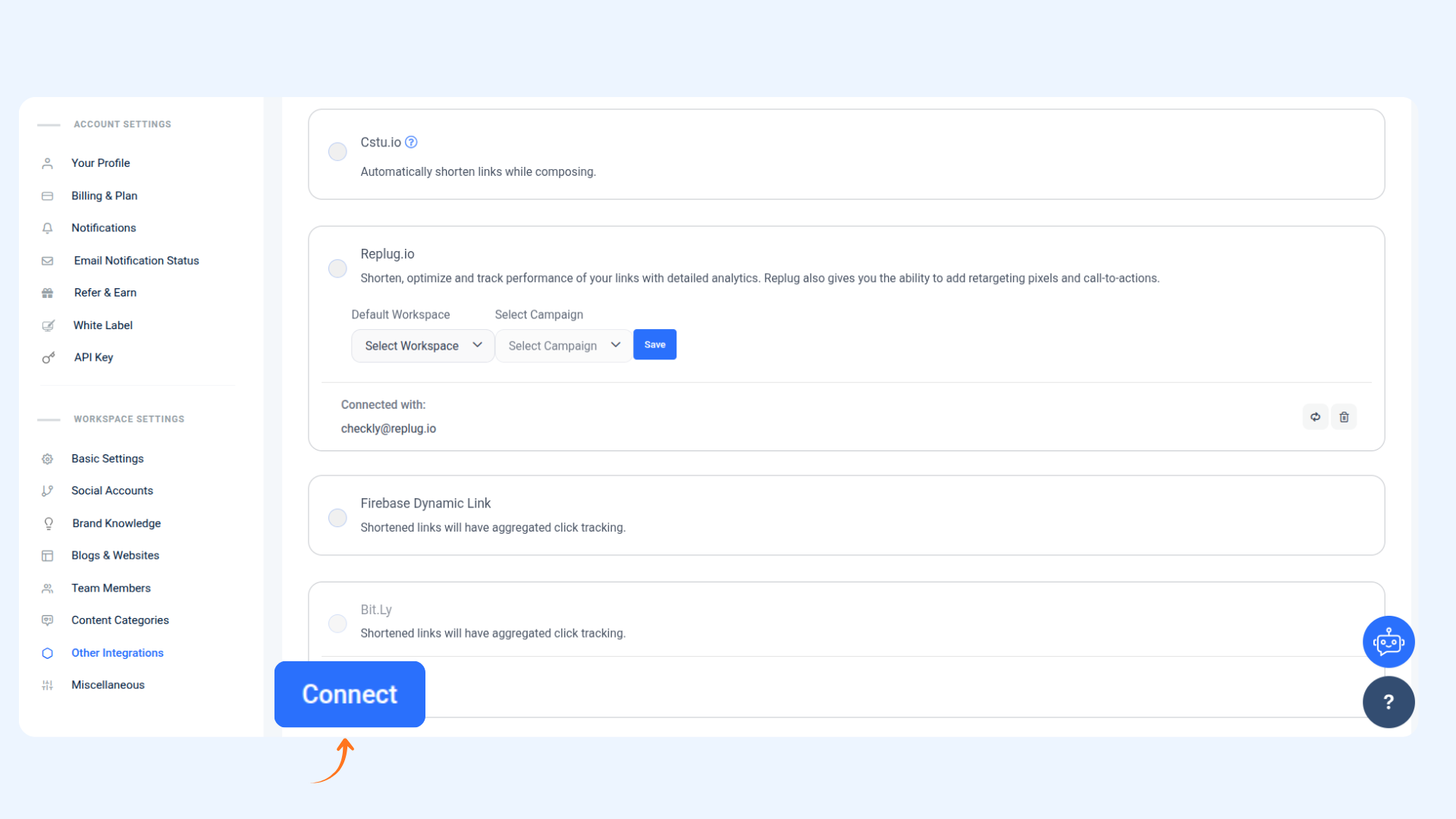
From the integrations list, locate Bitly and click Connect.
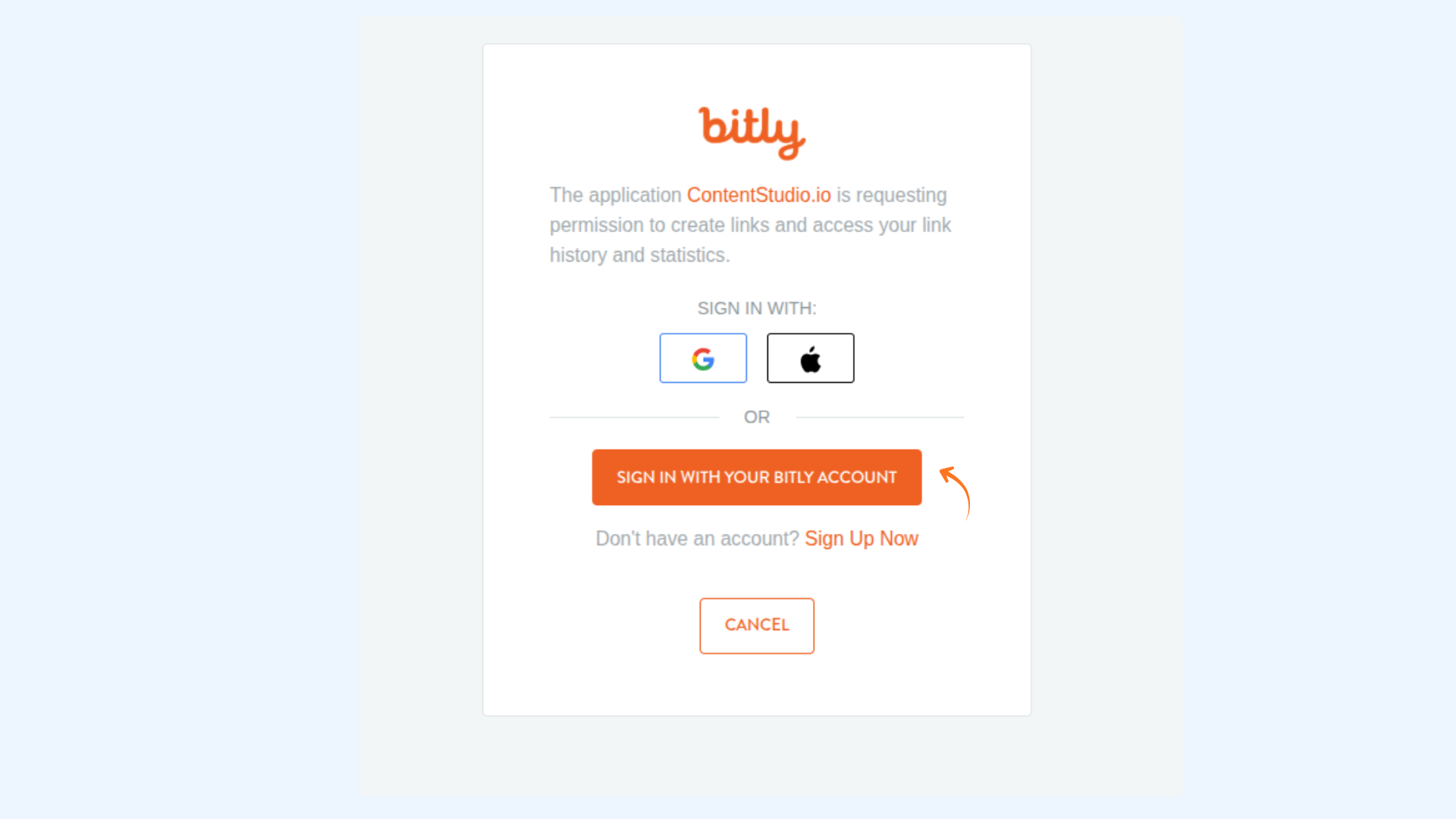
Enter your Bitly email address and password to sign in to your account.
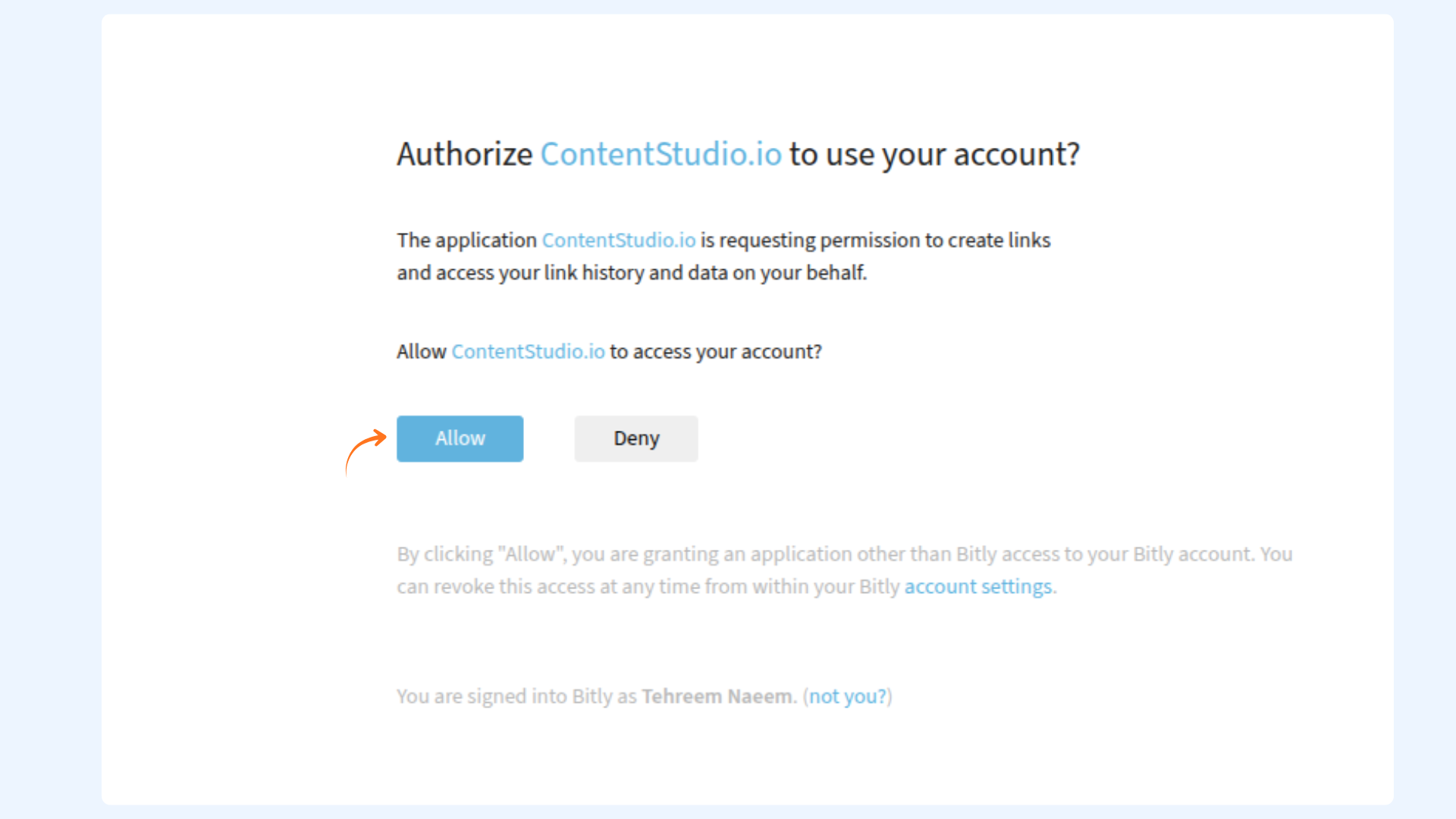
After signing in, you will be redirected to Bitly’s authorization screen. Click Allow to grant ContentStudio access.
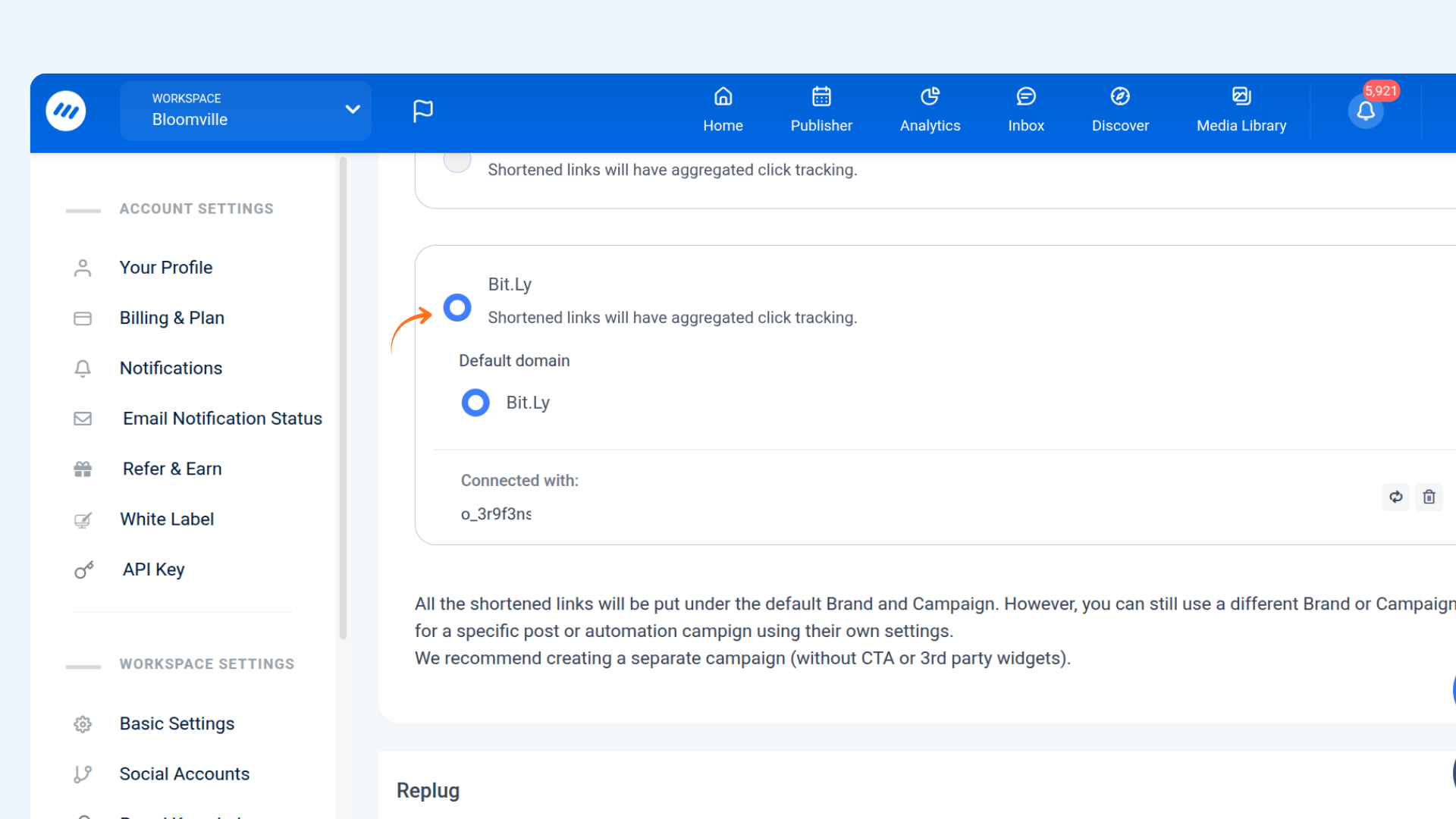
Once authorized, your Bitly account will appear in the integrations list, confirming a successful connection. You can enable or disable the Bitly link shortener at any time by clicking on it.
FAQs
Can I disconnect my Bitly account from ContentStudio?
Yes. You can disconnect your Bitly account at any time from the Other Integrations section by clicking on the connected Bitly account.
Can I connect multiple Bitly accounts to one workspace?
No. Only one Bitly account can be connected to a ContentStudio workspace at a time.
How do I enable or disable Bitly link shortening?
Once your Bitly account is connected, you can enable or disable link shortening directly from the integrations list by clicking on the Bitly account.
Will disconnecting Bitly affect previously published links?
No. Disconnecting Bitly will not impact links that have already been published. It will only stop Bitly from being used for future link shortening.
What happens if my Bitly authorization expires?
If your authorization expires, Bitly link shortening will stop working. You’ll need to reconnect your Bitly account from the integrations section to continue using it.
Was this article helpful?