

How to Integrate Webflow with Content Studio
Here's a video guide of how you can integrate Webflow with Content Studio
To publish content to your Webflow blog/website, you need to integrate it with the Content Studio platform.
How to Setup Webflow
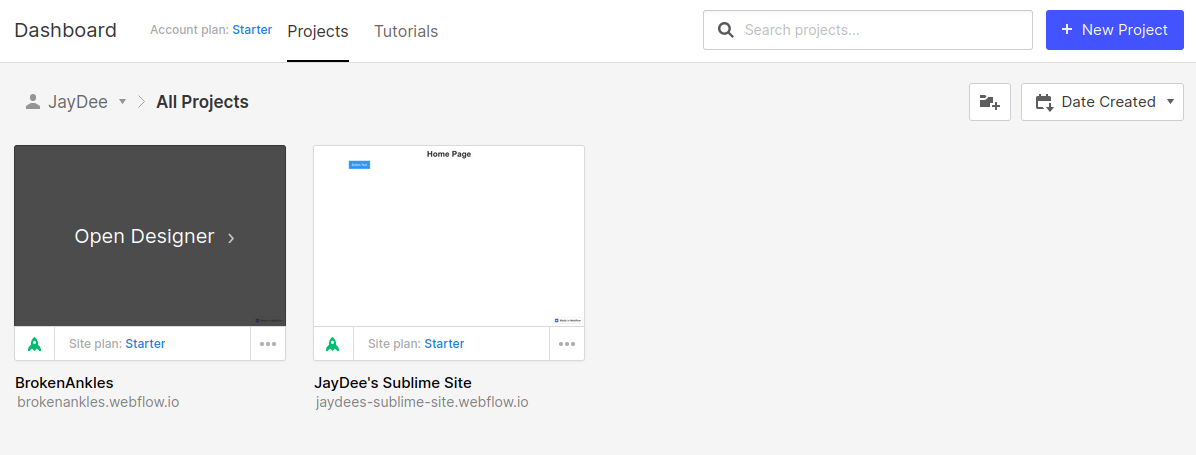
Step 1: To integrate Webflow in the Content Studio you should have a project inside the Webflow setup (as shown in the image below)
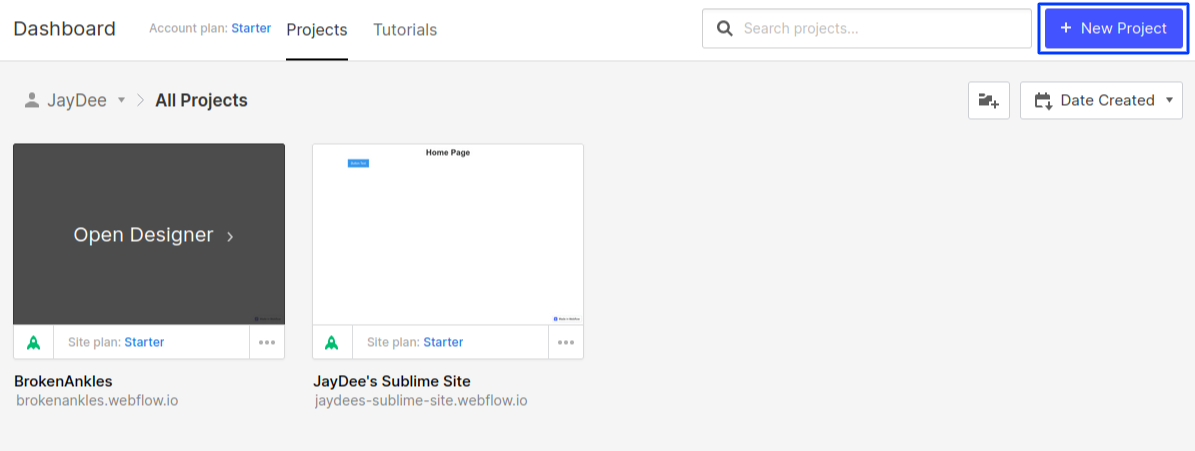
Step 2: If you do not have any project, create a new one by simply clicking on the New Project option at the top right corner.
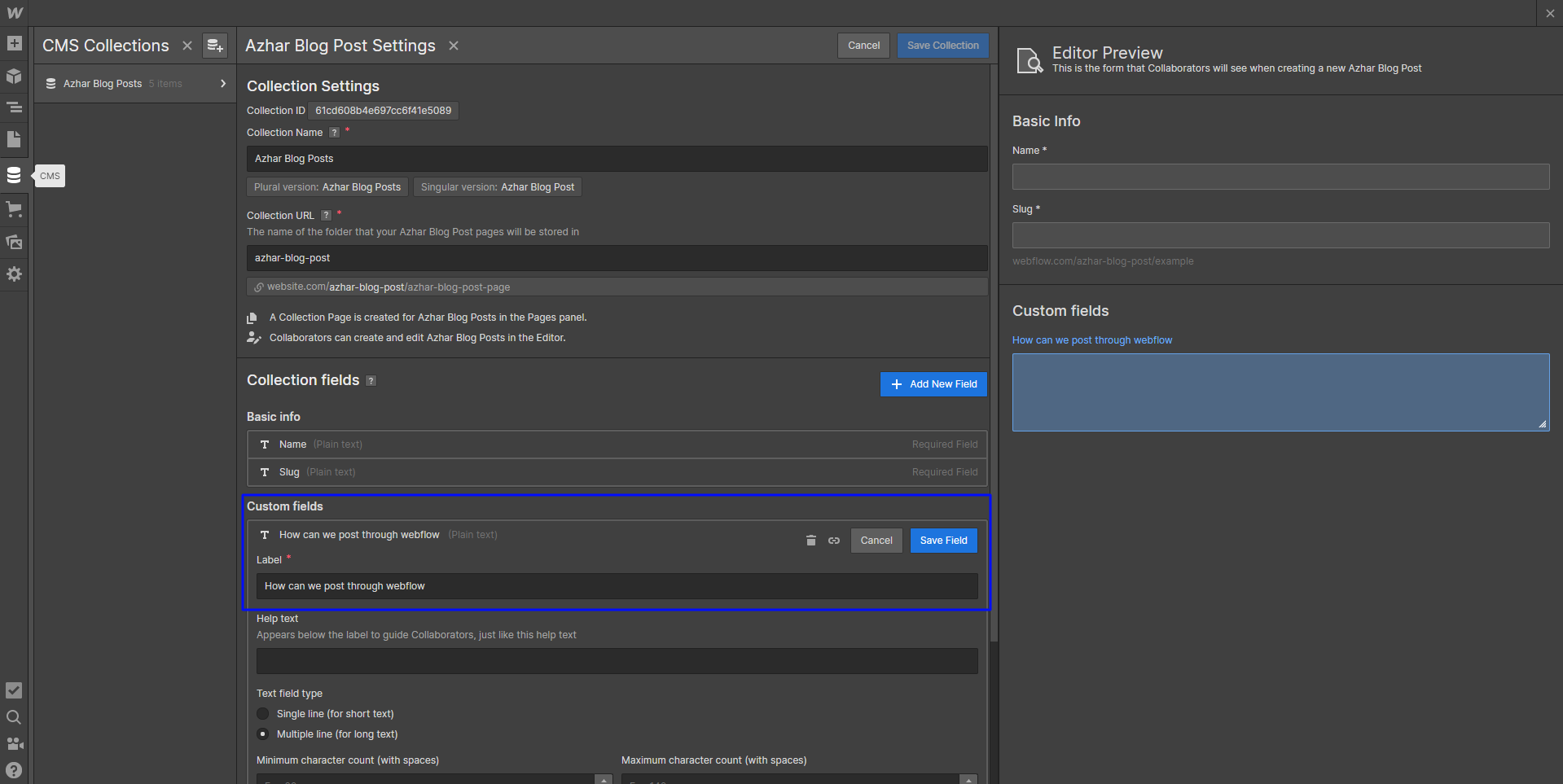
Step 3: After the project is set up, click on the one that you wish to add and it redirects you to the editor. From here Click on CMS collection and add at least one custom field as shown in the image below.
Integration of Webflow with Content Studio:
Step 1: The Webflow integration option is available in Profile>Blogs/Website.
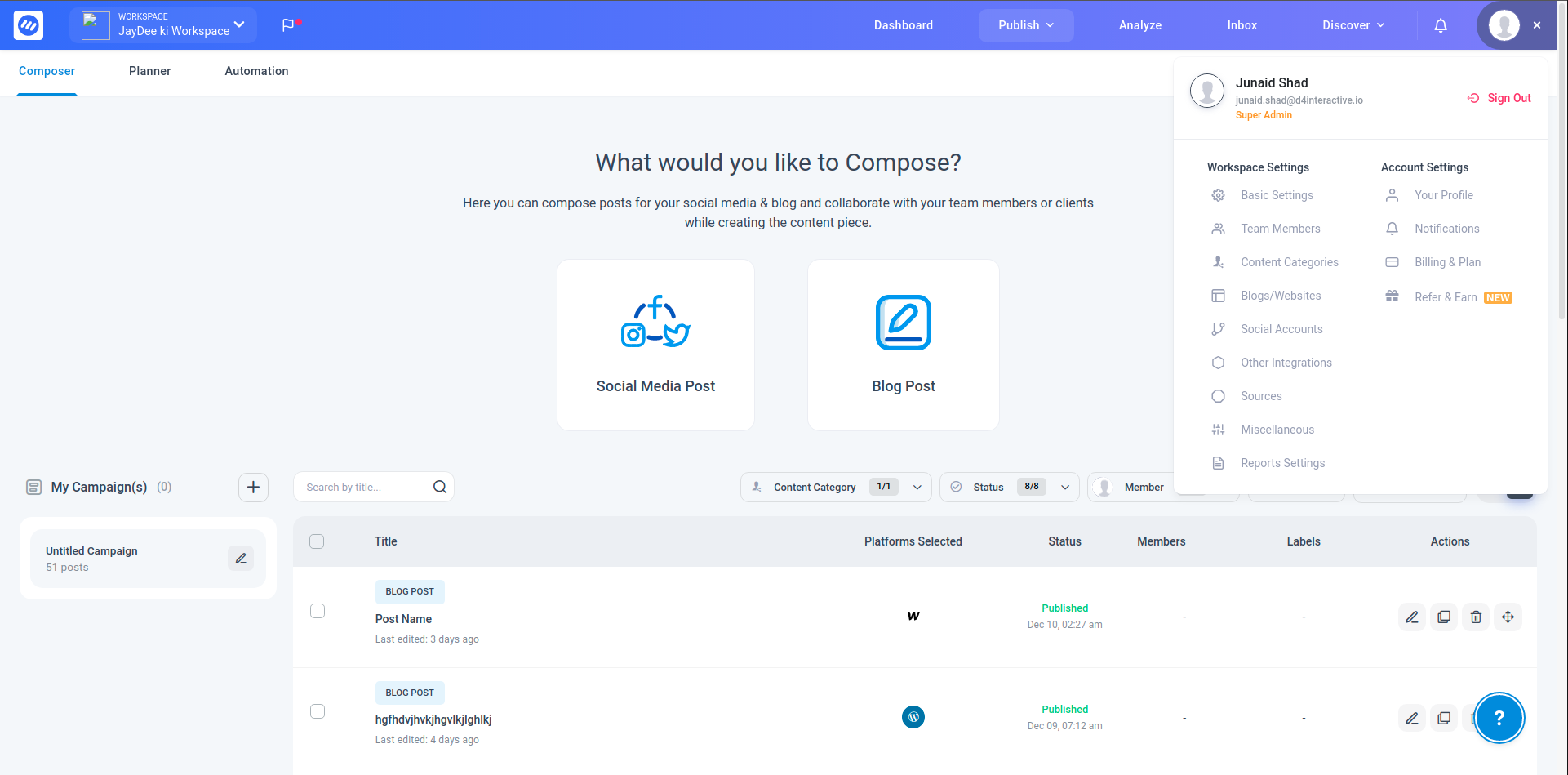
Step 2: From there, Connect Webflow and follow the integration process.
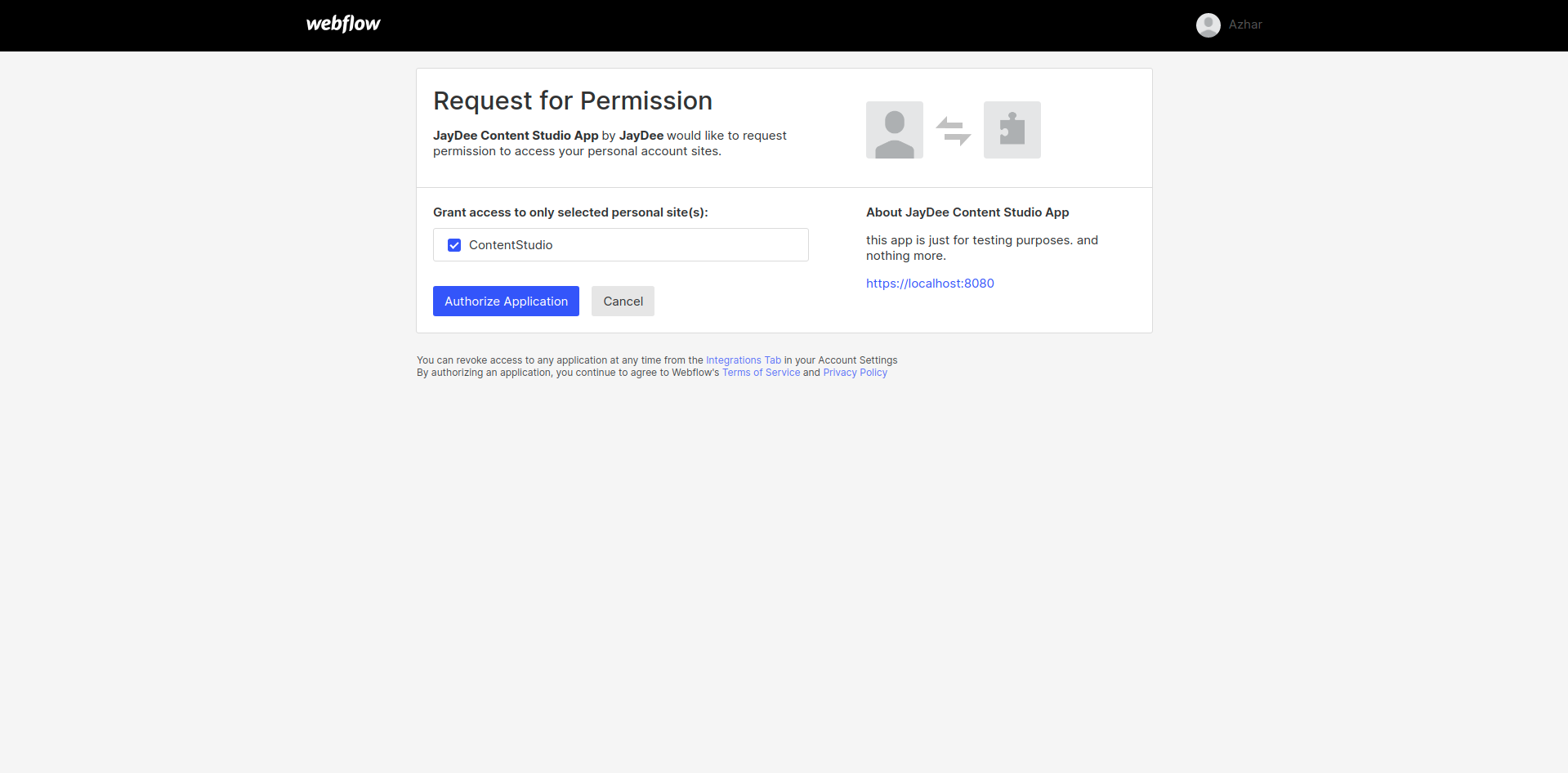
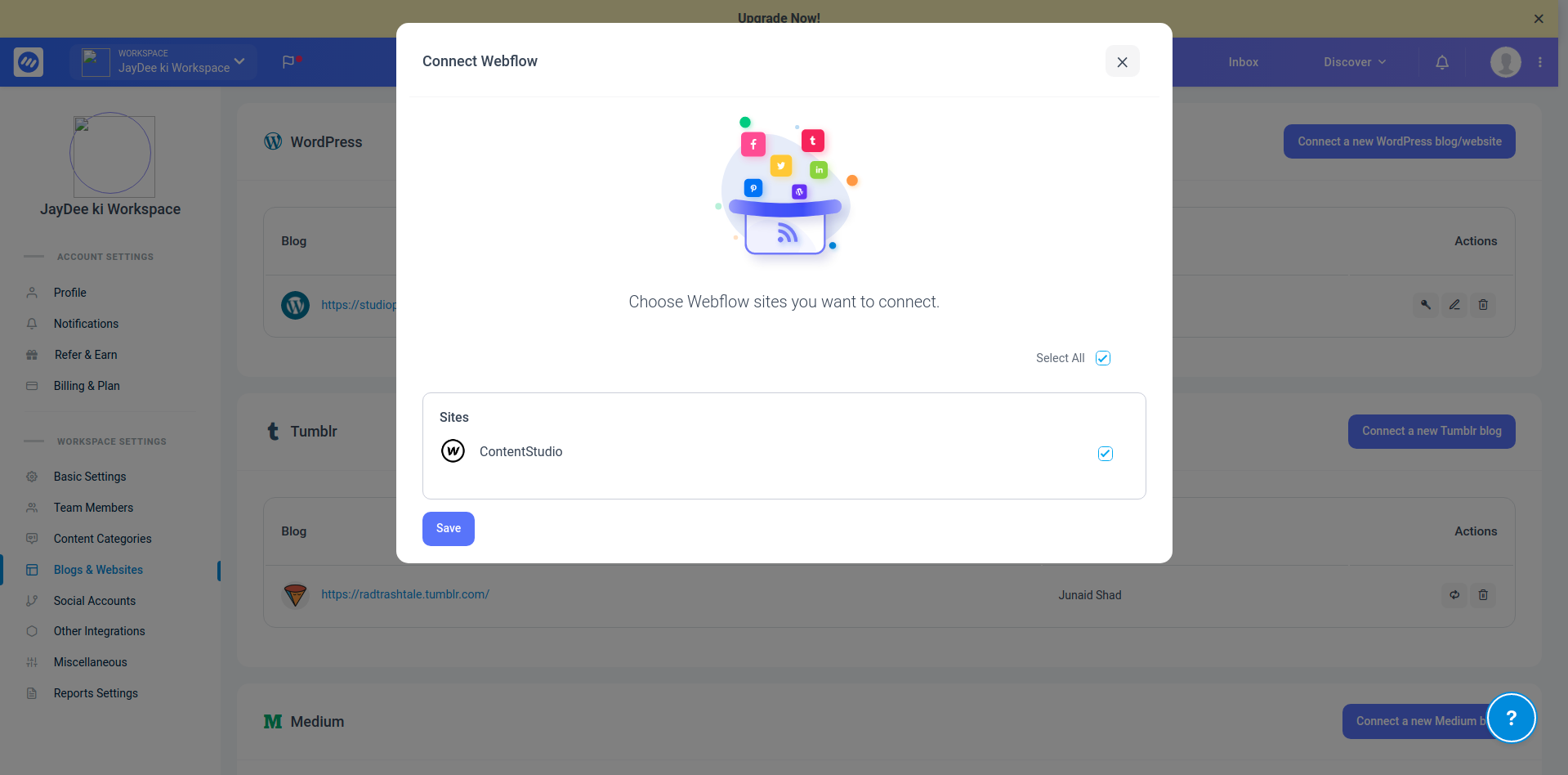
Step 3: It will be redirected to the app and the modal will open. Select the sites you want to add to the content studio for posting and click save.
Step 4: Now Webflow is Integrated, you can now create a blog post by adding Webflow as a primary selection, select your web flow site, select collection, and set your publish status.
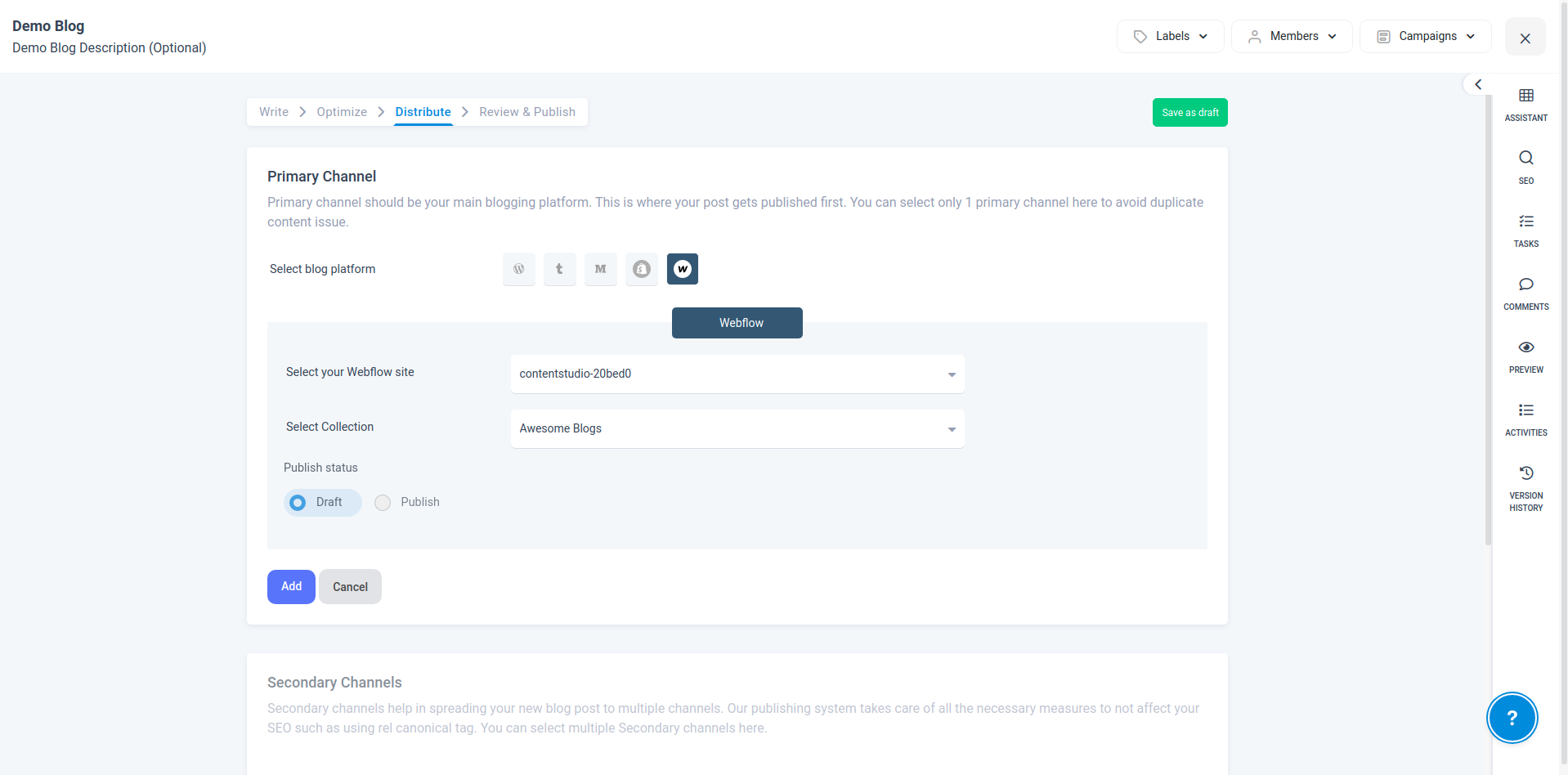
While adding primary or secondary blogs you can select an option to draft and publish.
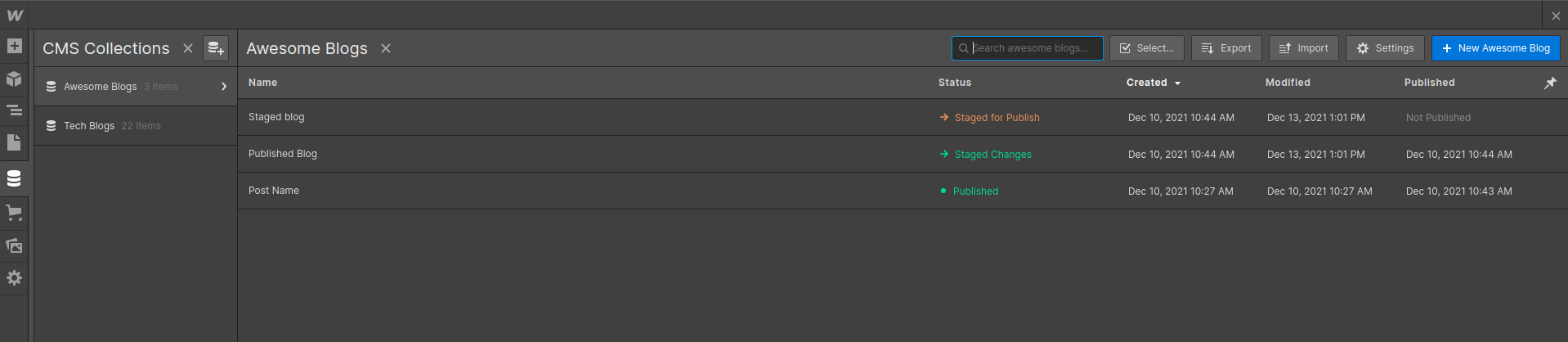
Draft: When we select and publish with this option the blog post is added in CMS as "staged for published'' status and is not published on the live domains.
Publish: (Live Collection) When you select and publish with this option the blog post is added in CMS as "published" status.
Was this article helpful?