

How to perform Bulk Action in Media Library
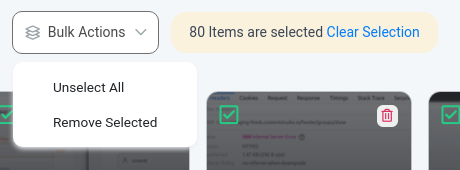
Media Library now lets you perform a bulk action; with this, you can either Unselect all or remove all of the selected media assets.
To learn your way around it, follow the steps and information below.
Step 1
Navigate to Media Library.
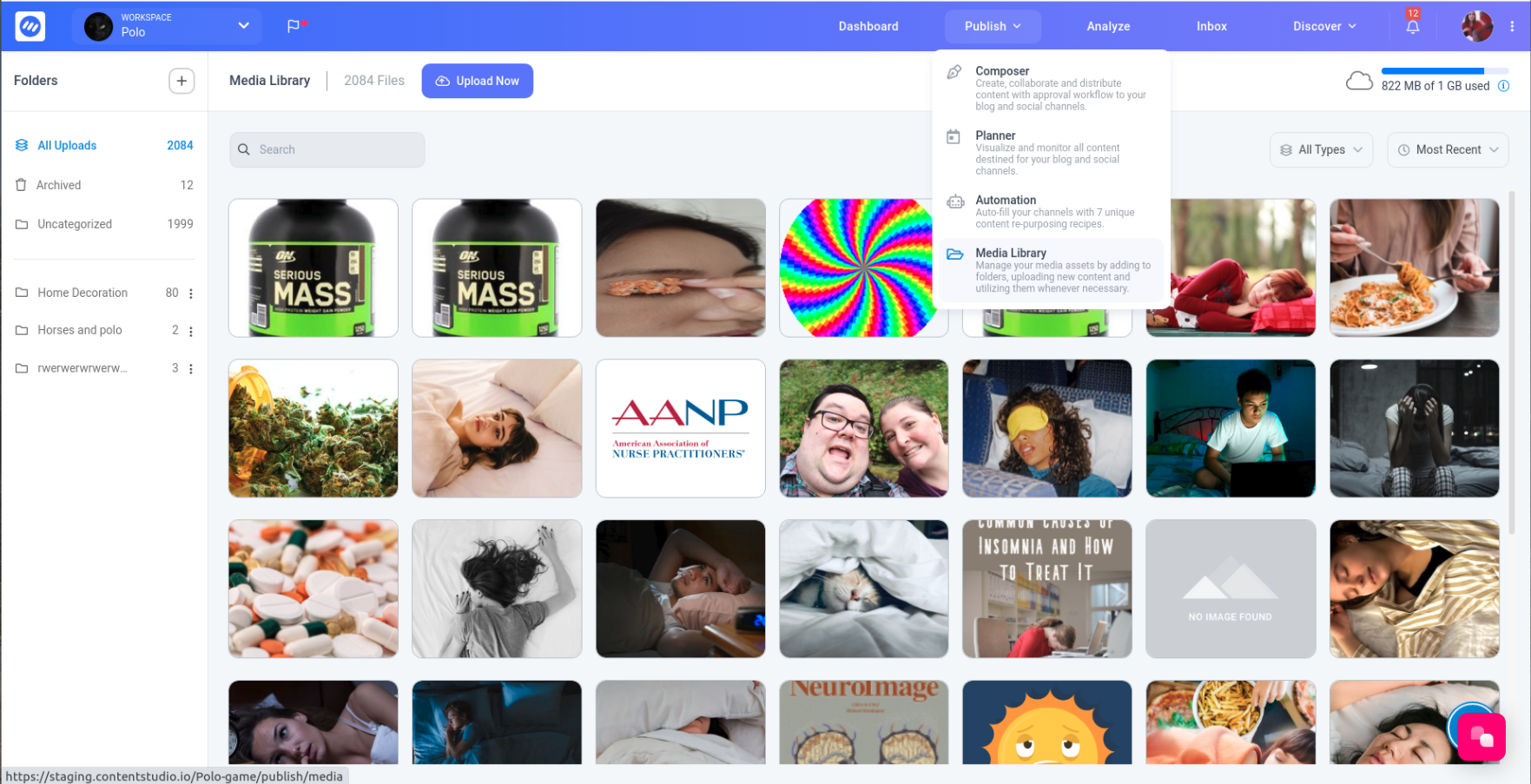
Step 2
Select the Folder with the media assets you want to perform a bulk action on, as shown in the image below.
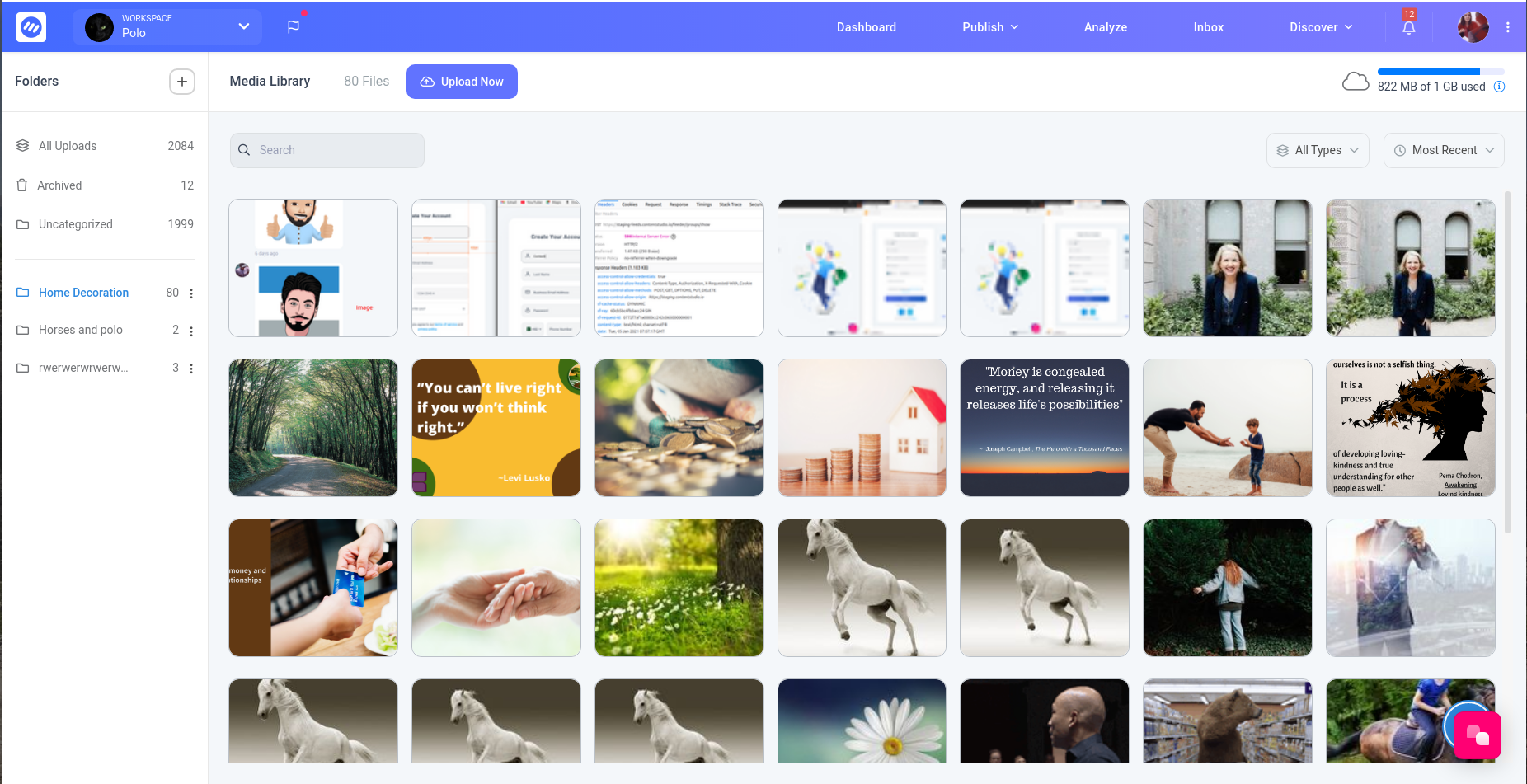
Step 3
Select at least 2 images to enable bulk action.
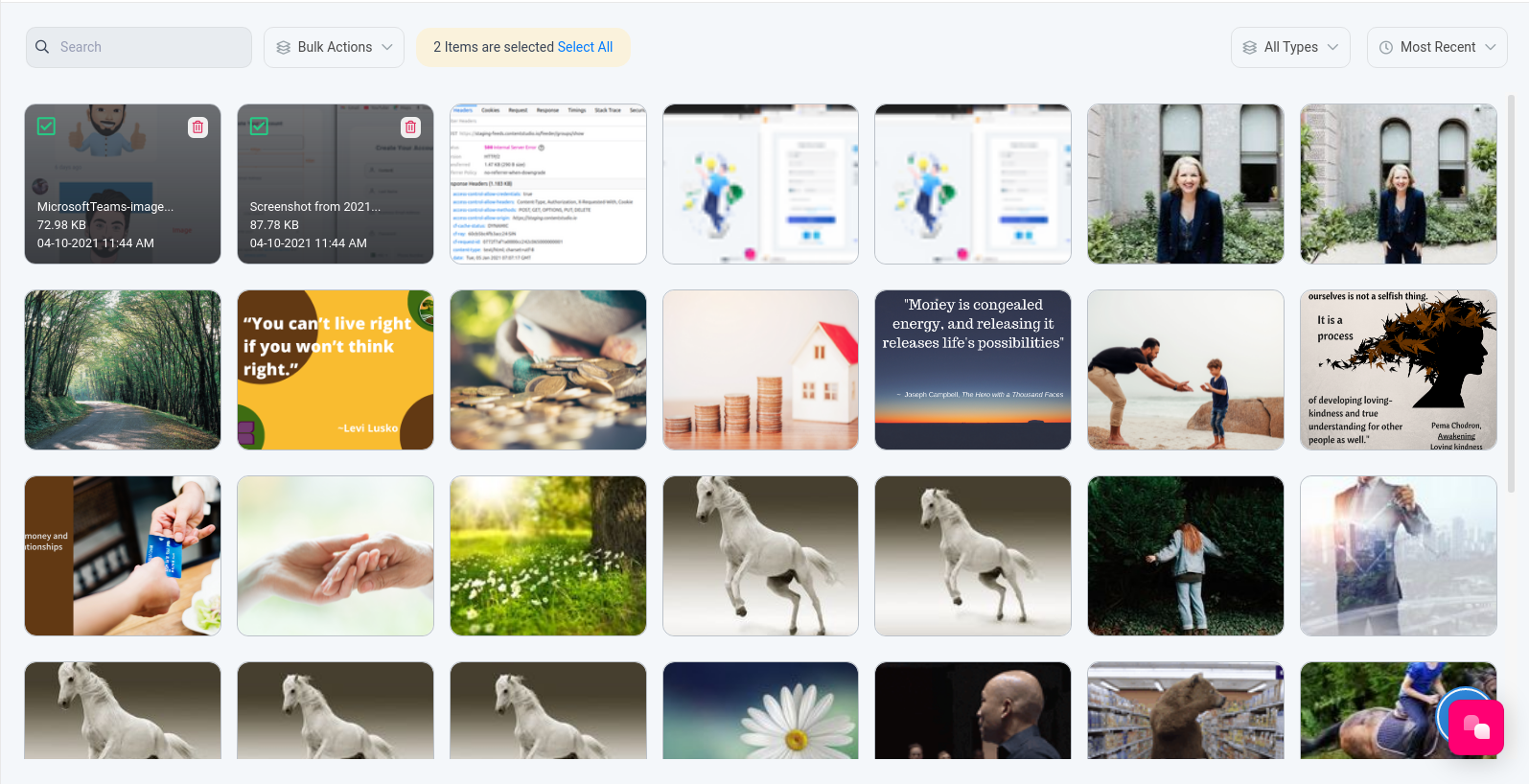
Step 4: Bulk Action
A. Select all the media assets
Select all the media assets as shown in the image below:
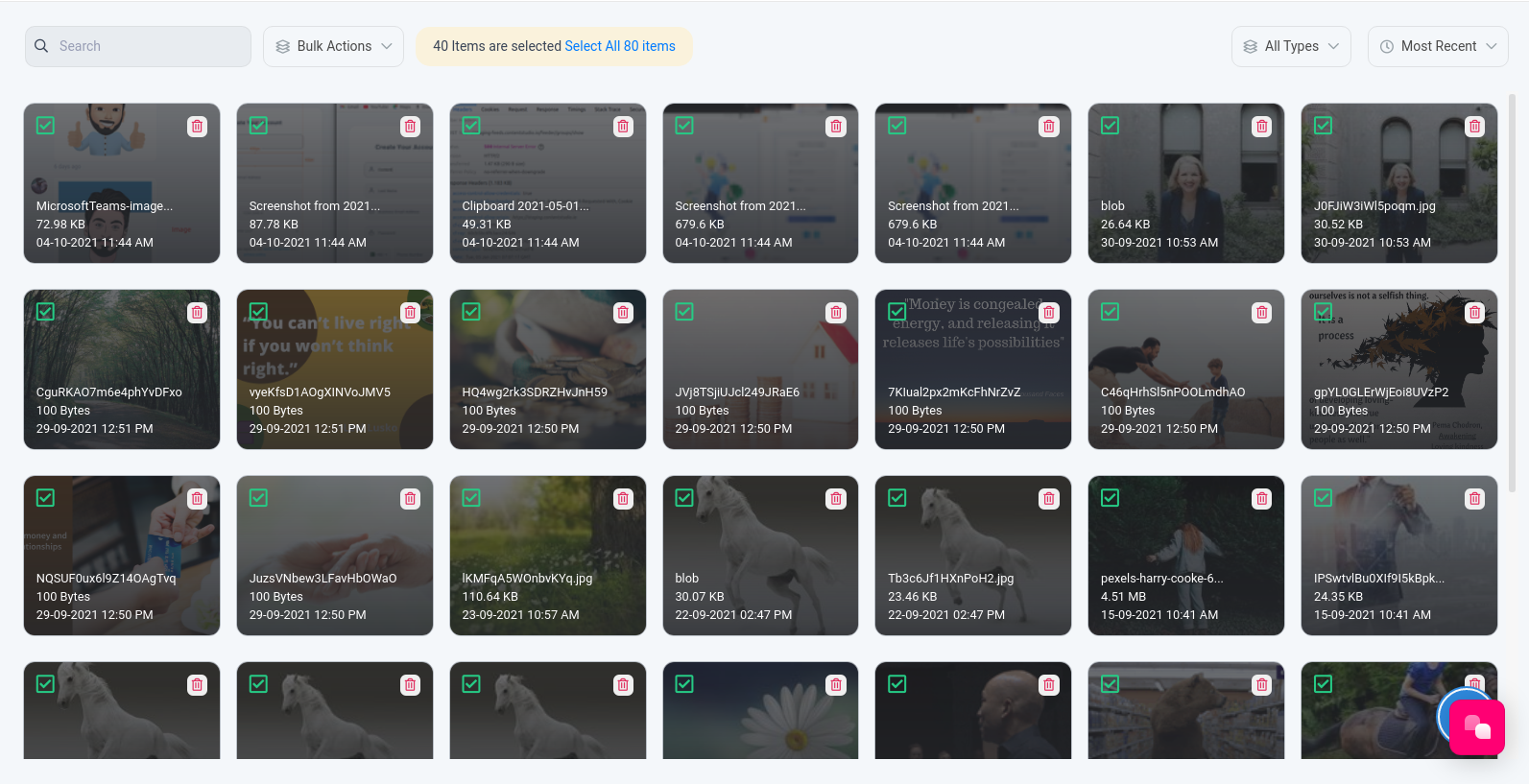
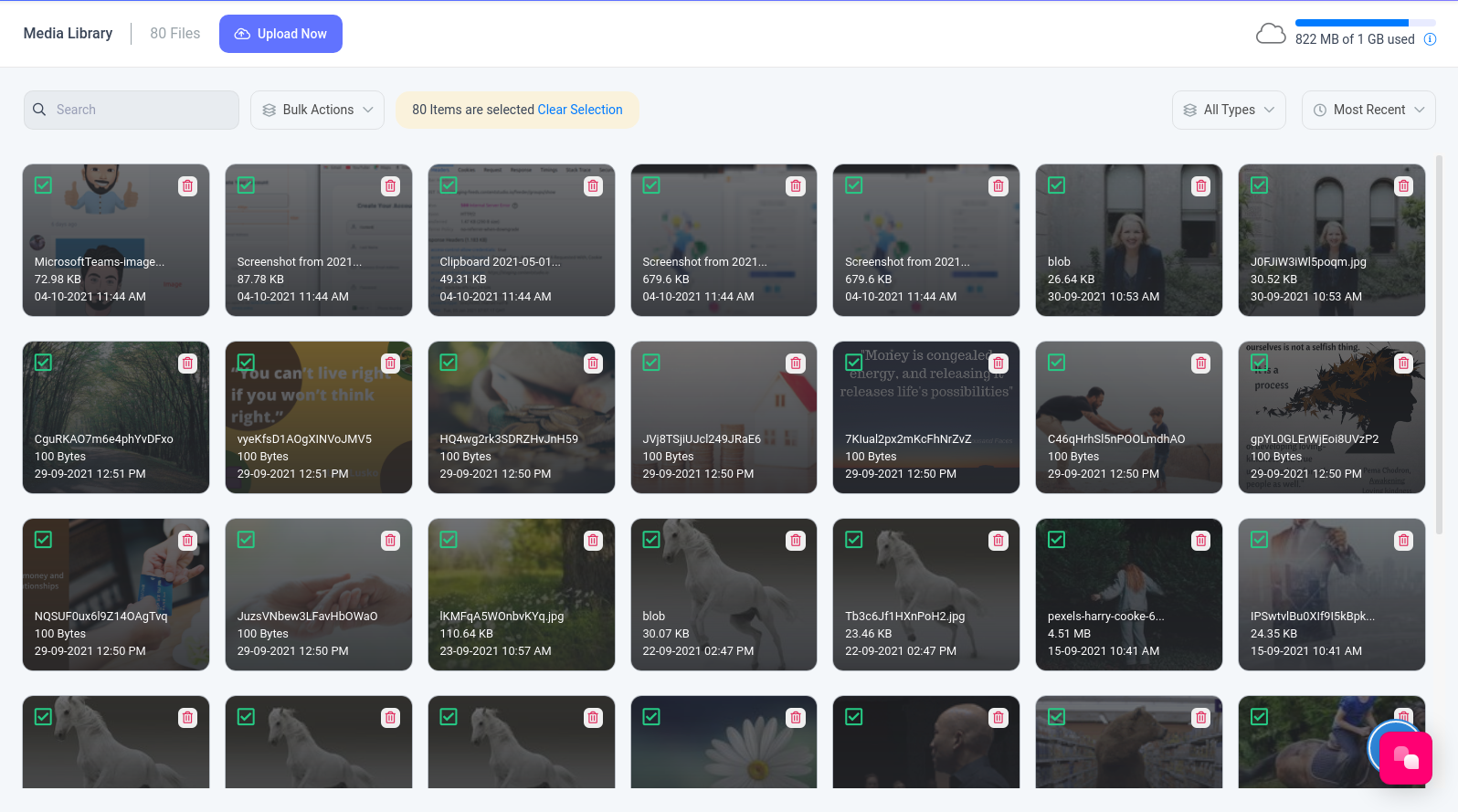
Now you have the option to either clear the selection or perform the bulk action.
B. Perform Bulk Action
From bulk action, you can either clear selection or Remove all of the selected media assets.
Step 5: Bulk Remove Selected Assets
Bulk remove Selected Assets as shown in the image below.
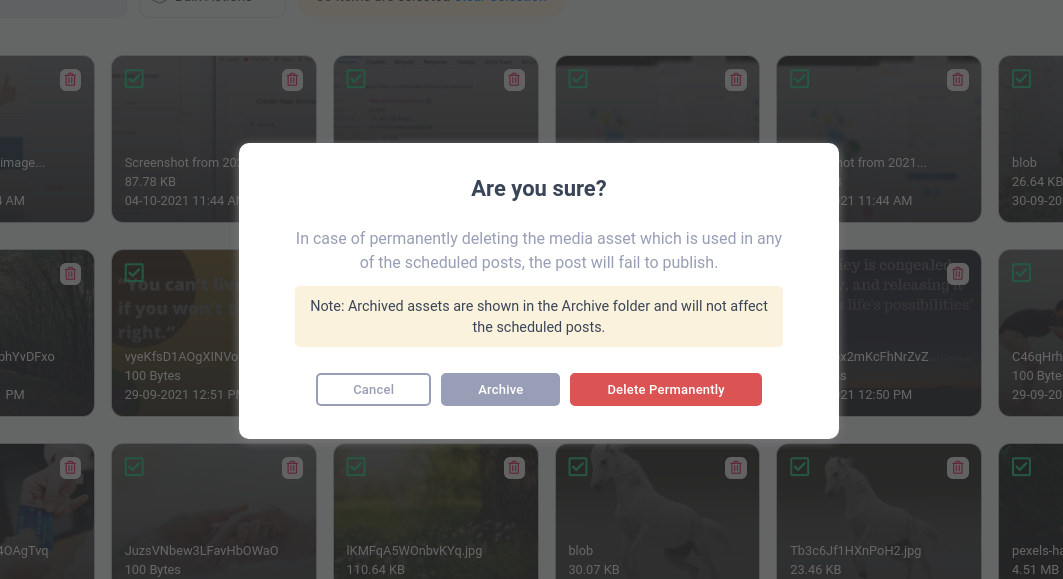
A confirmation box would appear asking you to either Archive the media asset or Delete them Permanently.
Select your preference.
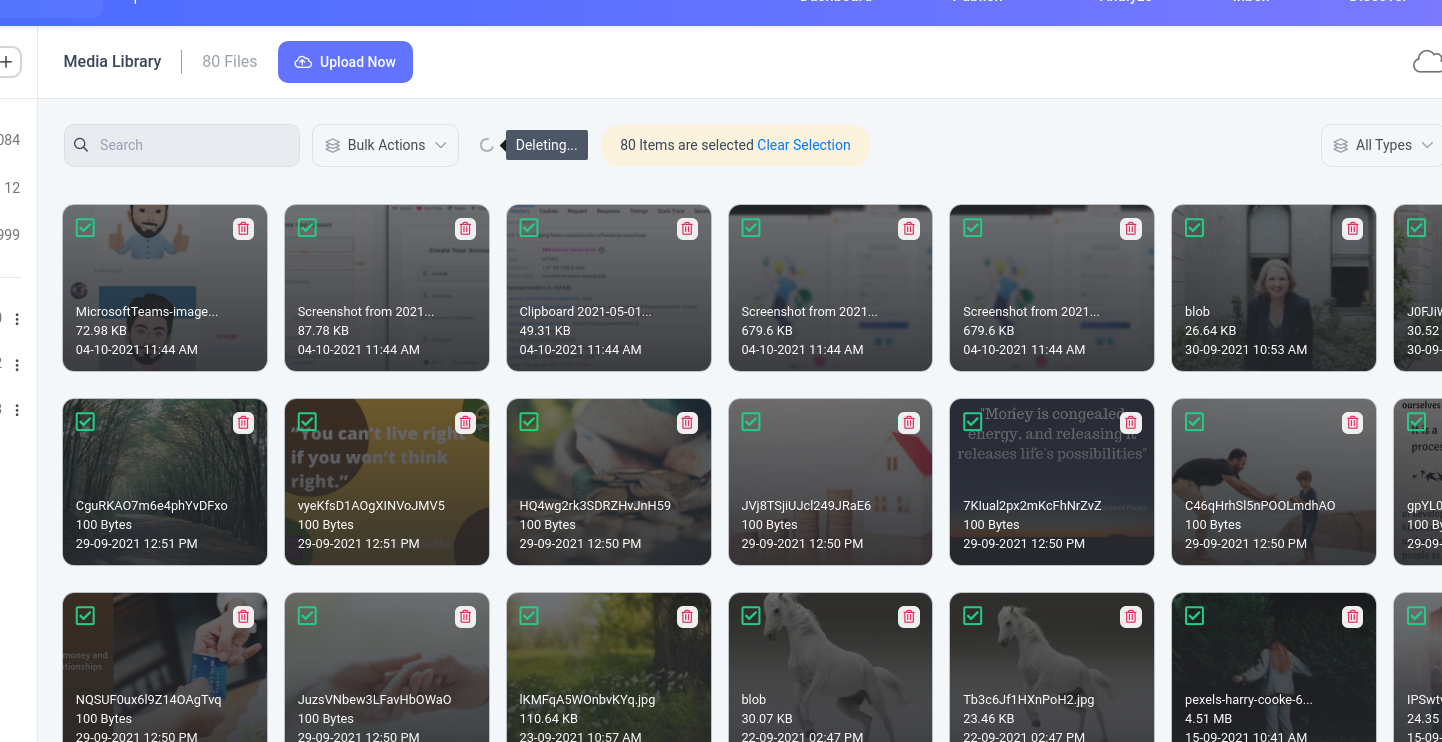
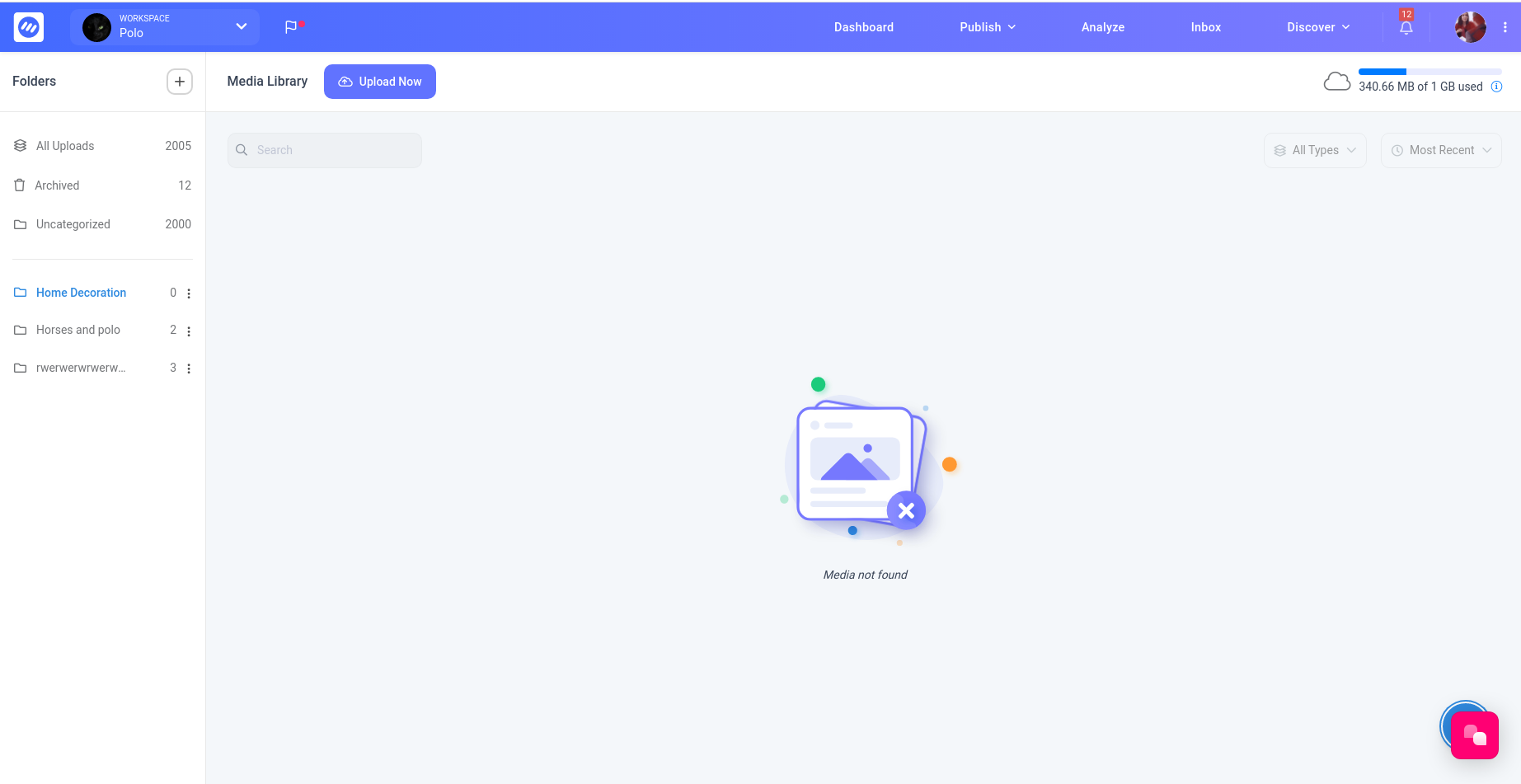
After successfully performing the action, the folder would be empty.
Was this article helpful?