

Export PDF Reports
Export PDF turns your ContentStudio analytics into a PDF report that you can download, share with clients or keep for your records. You can export straight from the analytics page you are viewing, such as the Overview, a platform page like Facebook or Instagram, Meta Ads or Campaign & Label. You can also create a new export from the Download Reports page in the Analytics sidebar. Every export is saved on the Download Reports page, so you can download it again whenever you need it.
How to Access Export PDF
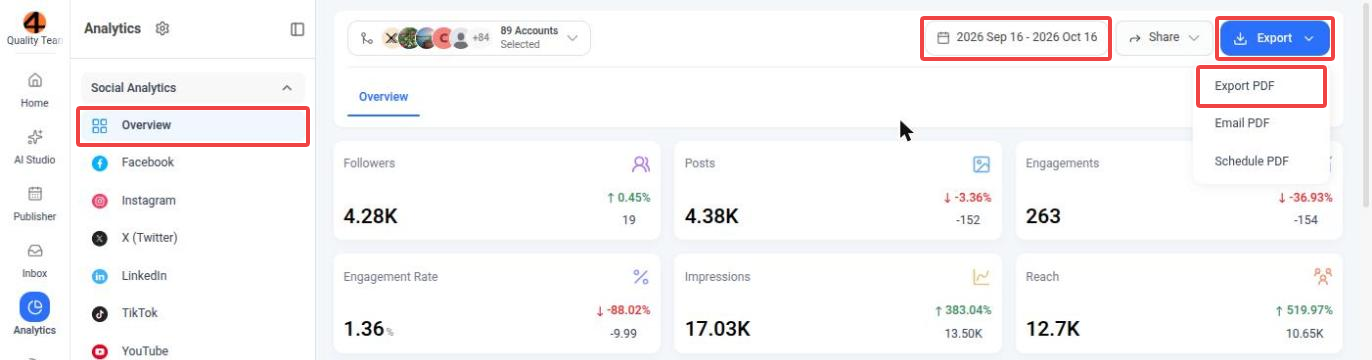
The same Export menu is available on the platform pages, such as Facebook or Instagram, and on Meta Ads and Campaign & Label. On Campaign & Label, select at least one campaign or label first. Competitor reports have an Export PDF button at the top of each report.
Exporting a Report from an Analytics Page
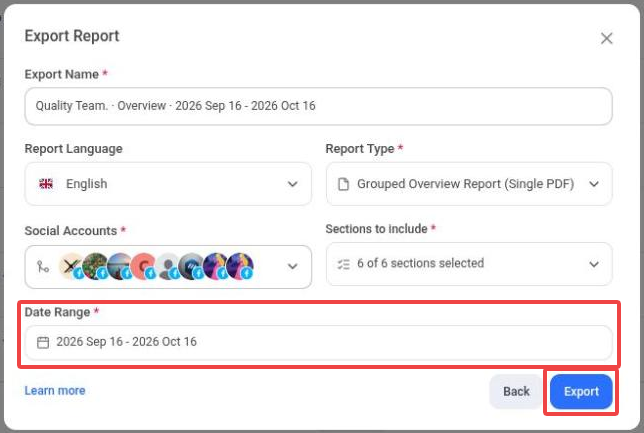
When you select Export PDF, the Export Report window opens with the accounts from the page already selected. Fill in the details and export the report:
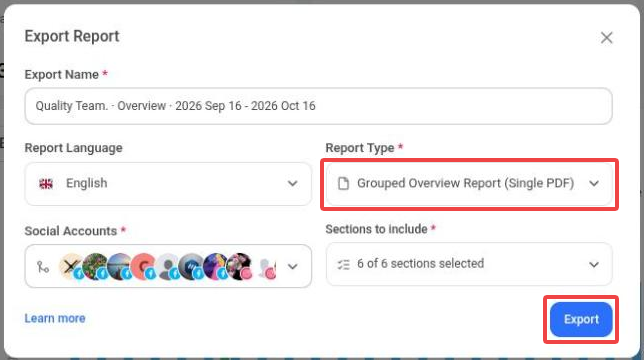
You'll see a message that your report is being generated. ContentStudio notifies you when it's ready, and you can follow its progress on the Download Reports page.
Exporting a Report from Download Reports
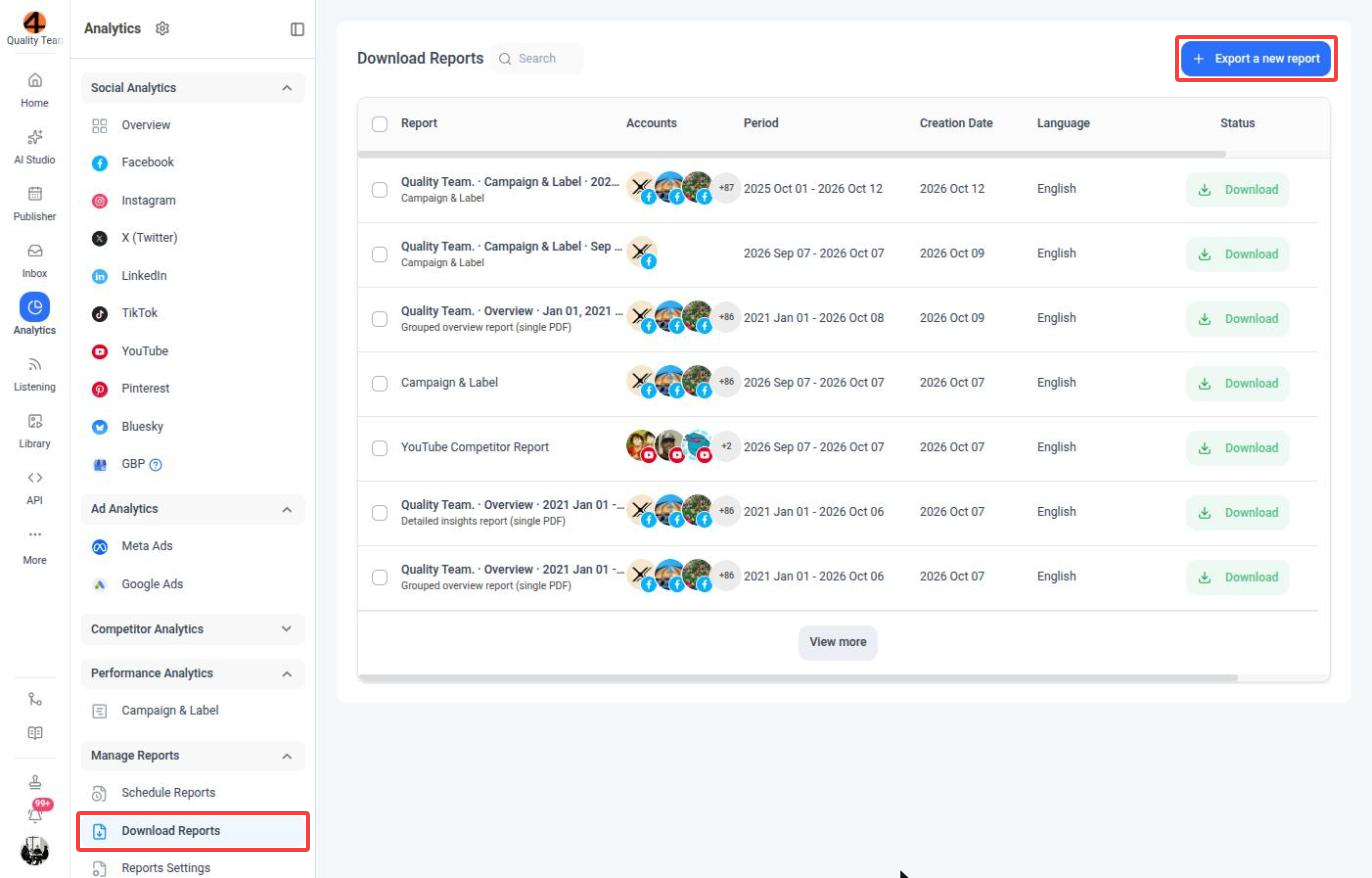
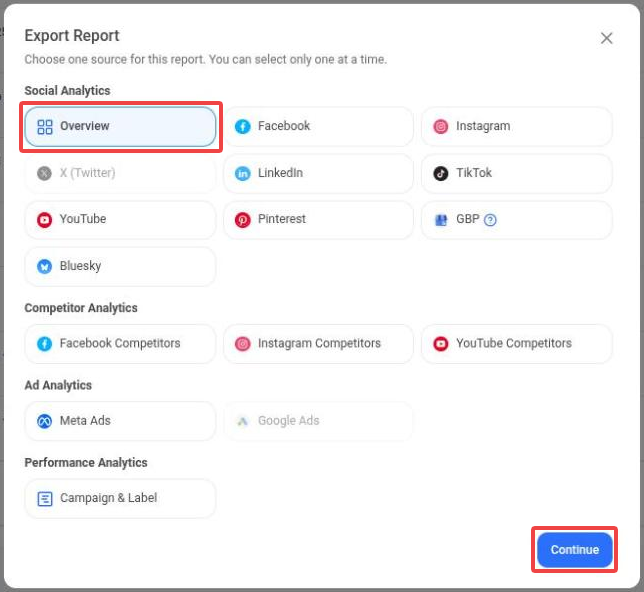
You can also start an export from the Download Reports page without opening an analytics page first. This is the quickest way to export a report for a different source or date range.
- For a competitor report, also choose the Competitor Report you want to export.
- For Campaign & Label, choose the Campaigns and Labels to include. There is no report type to pick.
- A source is greyed out when there is nothing to report on yet, for example when no account of that type is connected.
Report Options
Reports can be generated in English, French, German, Italian, Spanish, Polish, Swedish, Czech, Chinese and Greek.
Choose how your PDF is put together:
- Grouped overview report (single PDF): combined insights for all selected accounts in one PDF with an overview layout.
- Individual overview reports (single PDF): an overview report for each account, one after the other in a single PDF.
- Individual overview reports (separate PDFs): an overview report for each account, each in its own PDF.
- Detailed insights report (single PDF): detailed insights for each account, one after the other in a single PDF.
- Detailed insights reports (separate PDFs): detailed insights for each account, each in its own PDF.
The overview report types are available for Overview reports. Platform, Meta Ads and competitor reports use the two detailed insights types.
Pick the sections that appear in your report. Use Select all to include everything, or search for a section.
- Overview reports: Overview cards, Engagement vs publishing behaviour, Platforms engagement breakdown, Performance comparison, Top posts and Account insights.
- Platform reports list the sections of that platform's analytics. A Facebook report, for example, can include Overview, Audience Growth, Page Impressions, Page Engagements, Publishing Behaviour, Publishing behaviour breakdown, Reels Performance, Video Performance, Audience Demographics, Top Posts and AI Insights.
- Campaign & Label reports: Overview cards, Daily Post Impressions Trend, Daily Post Engagements Trend, Post Breakdown, Top posts per platform and Top posts by engagement.
- Detailed insights reports exported from the Overview always include every section. To choose specific sections, open that platform's analytics page and export from there.
Downloading and Managing Exported Reports
All your exports are listed on the Download Reports page. Each row shows the report name and type, the accounts it covers, the period, the creation date, the language and the report's status.
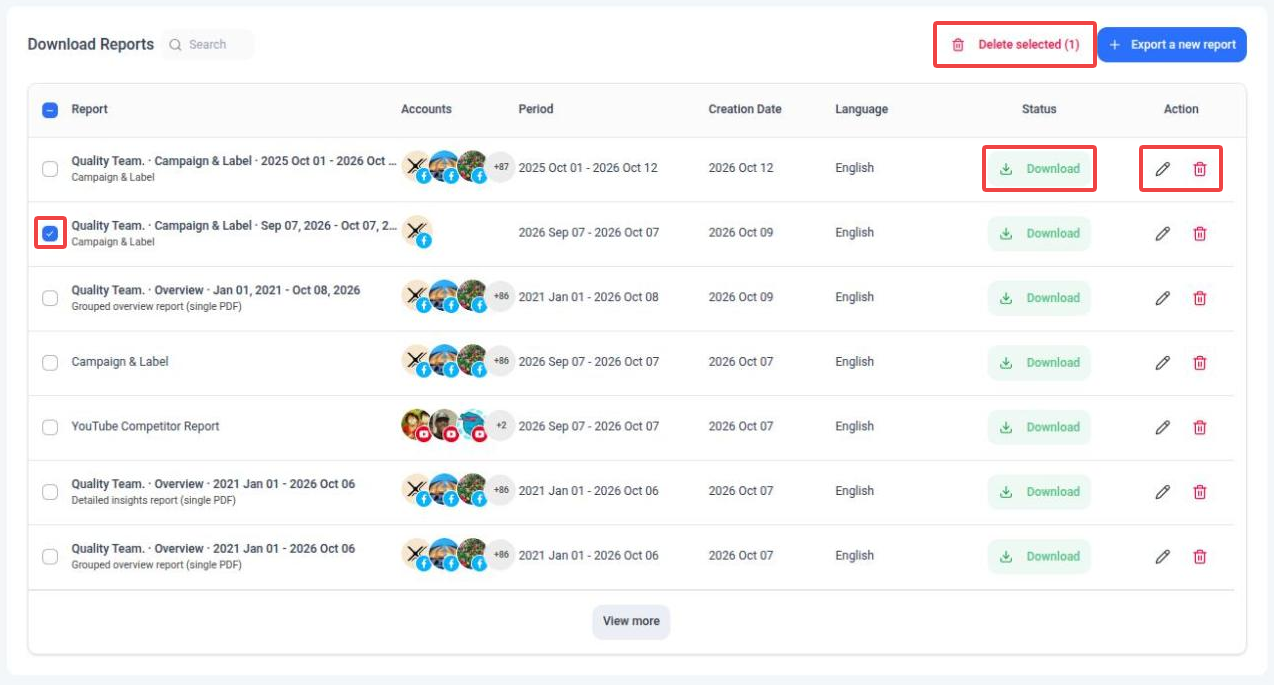
- Download: click Download in the Status column to save the PDF. While a report is still being created, its status shows Generating report...
- Retry: if a report's status shows Failed, click Retry to generate it again.
- Rename: click the pencil icon to give the report a new name of up to 255 characters.
- Remove: click the trash icon to delete a report. To delete several at once, select them and click Delete selected. Deleted reports can't be recovered.
- Search: use the search box next to the page title to find a report.
Good to Know
- The company logo and name you add under Manage Reports → Reports Settings are applied to all your analytics reports.
- Large reports can take a few minutes to generate. You'll get a notification when your report is ready.
- To send a report by email right away, use Email PDF from the same Export menu. To receive it by email every week or month, use Schedule PDF.
FAQs
Where can I find my exported reports?
On the Download Reports page. Go to Analytics, and in the sidebar under Manage Reports, click Download Reports.
Can I include multiple accounts in one PDF?
Yes. Select the accounts under Social Accounts and choose a single-PDF report type, such as Grouped overview report (single PDF), Individual overview reports (single PDF) or Detailed insights report (single PDF).
Can I choose which sections appear in my report?
Yes, use Sections to include. Detailed insights reports exported from the Overview always include every section. To pick sections, export from that platform's analytics page.
Which date range does my report cover?
When you export from an analytics page, the report covers the date range selected at the top of that page. When you export from Download Reports, it covers the Date Range you pick in the form.
Can I export competitor reports?
Yes. Open a competitor report and click Export PDF, or go to Download Reports, click Export a new report and choose Facebook Competitors, Instagram Competitors or YouTube Competitors.
Why are some sources greyed out?
A source is greyed out when there is nothing to report on yet, for example when no account of that type is connected or no competitor report has been created.
Which languages are available?
English, French, German, Italian, Spanish, Polish, Swedish, Czech, Chinese and Greek
Was this article helpful?