

Custom Views in Planner
Custom Views in Planner allow you to save specific filters, layouts, and date ranges so you can quickly access the content that matters most to you. Instead of repeatedly applying the same filters, you can create personalized views tailored to your workflow.
In this Article
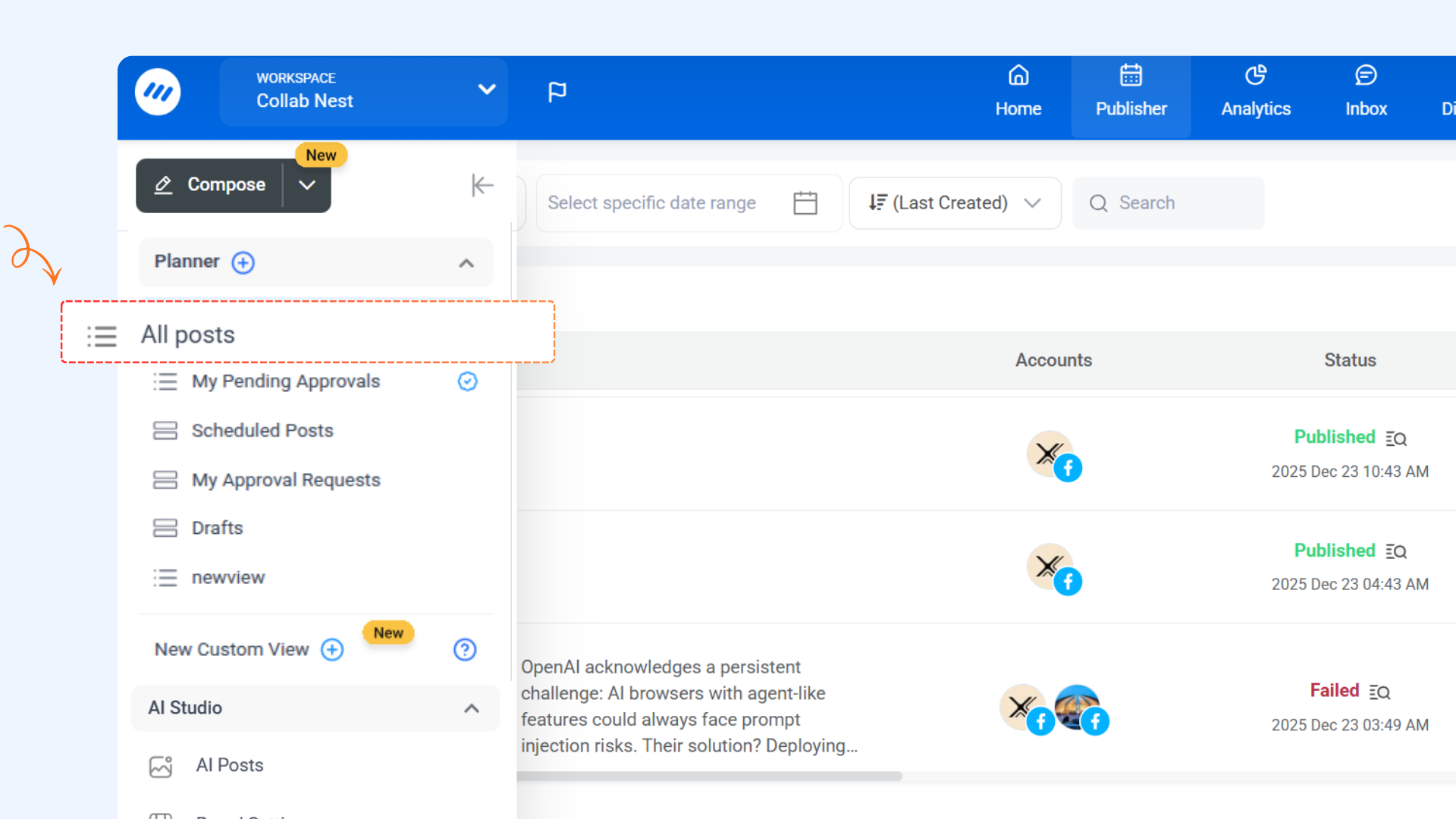
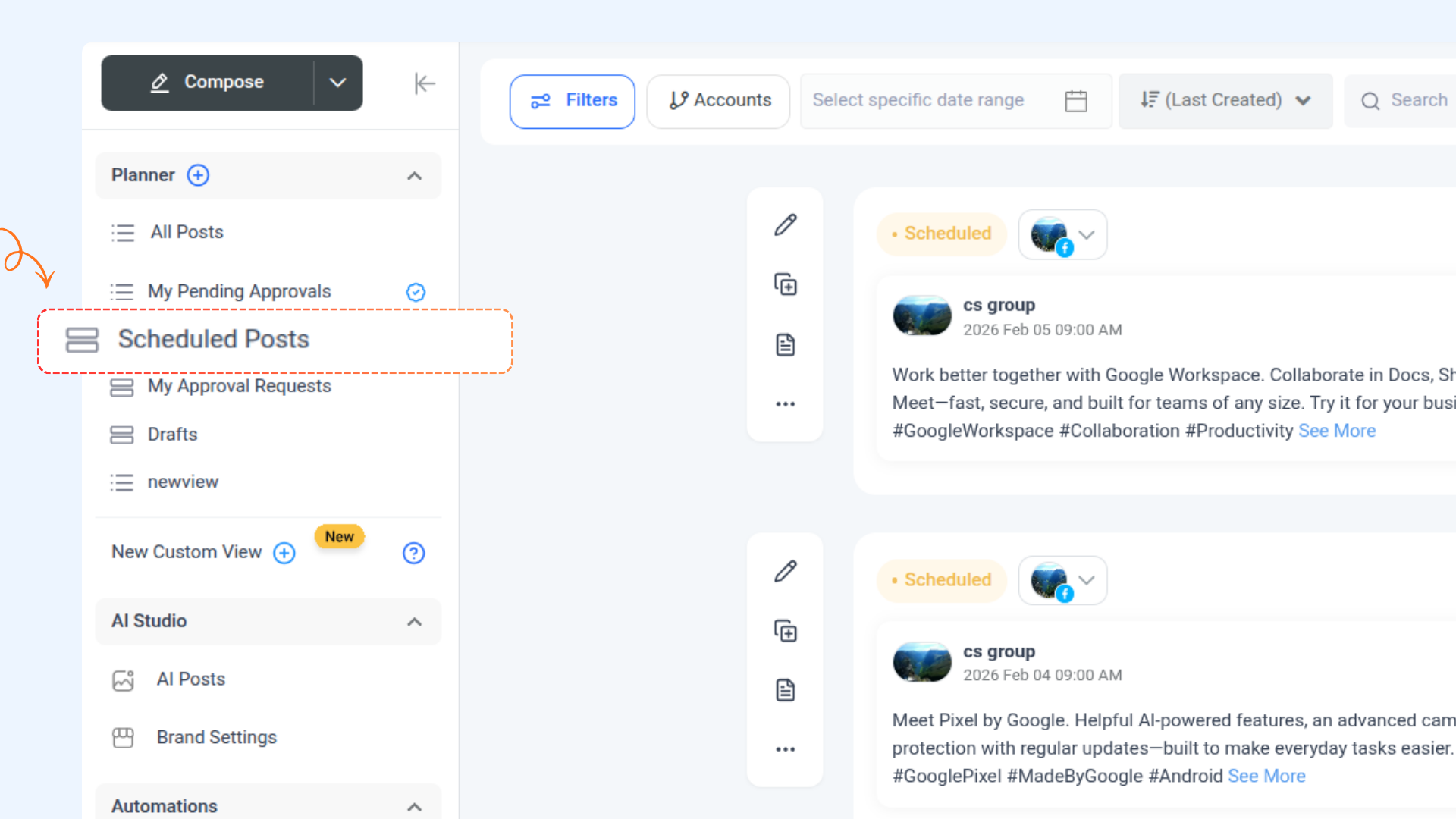
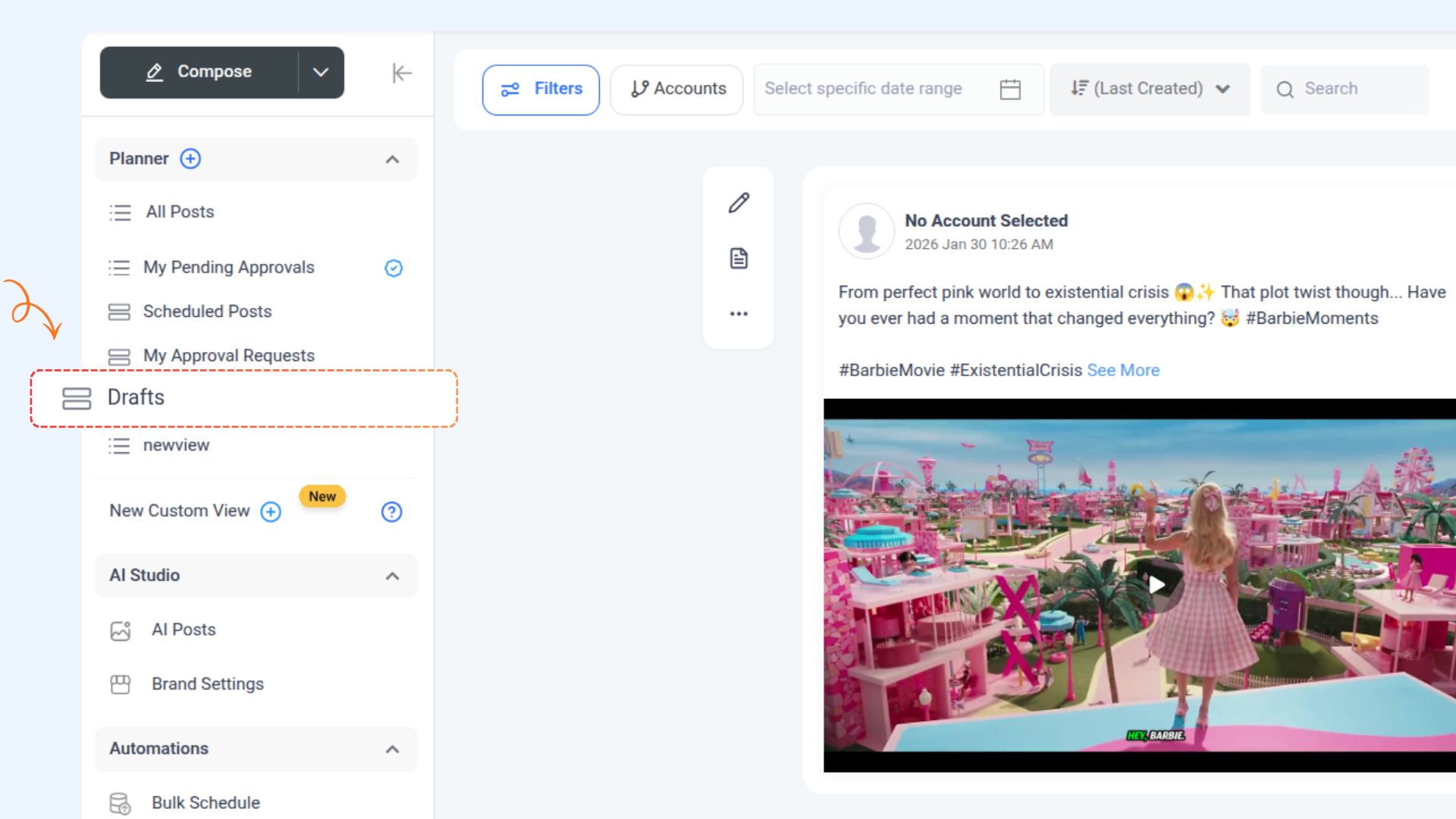
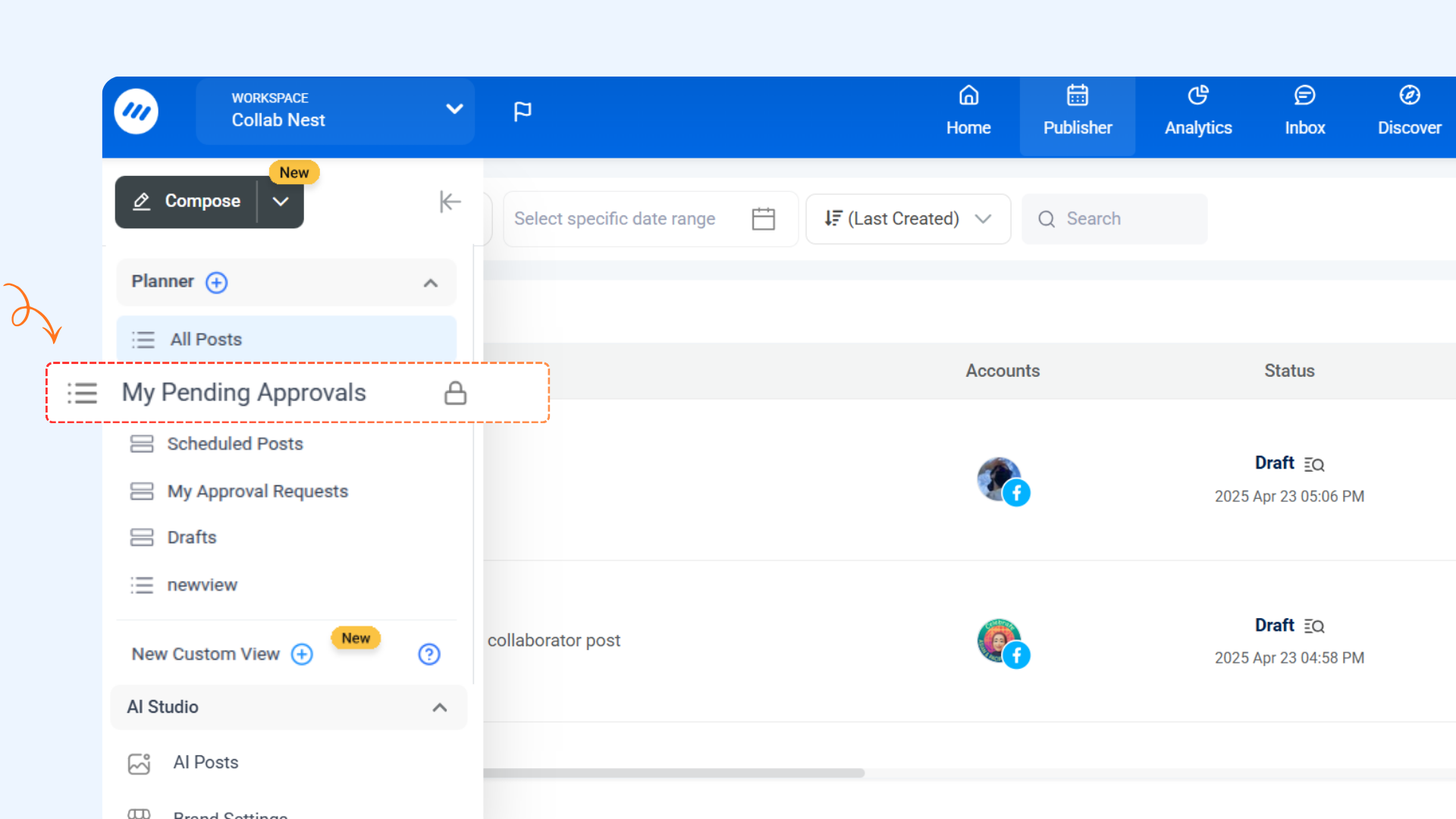
Default Views in Planner
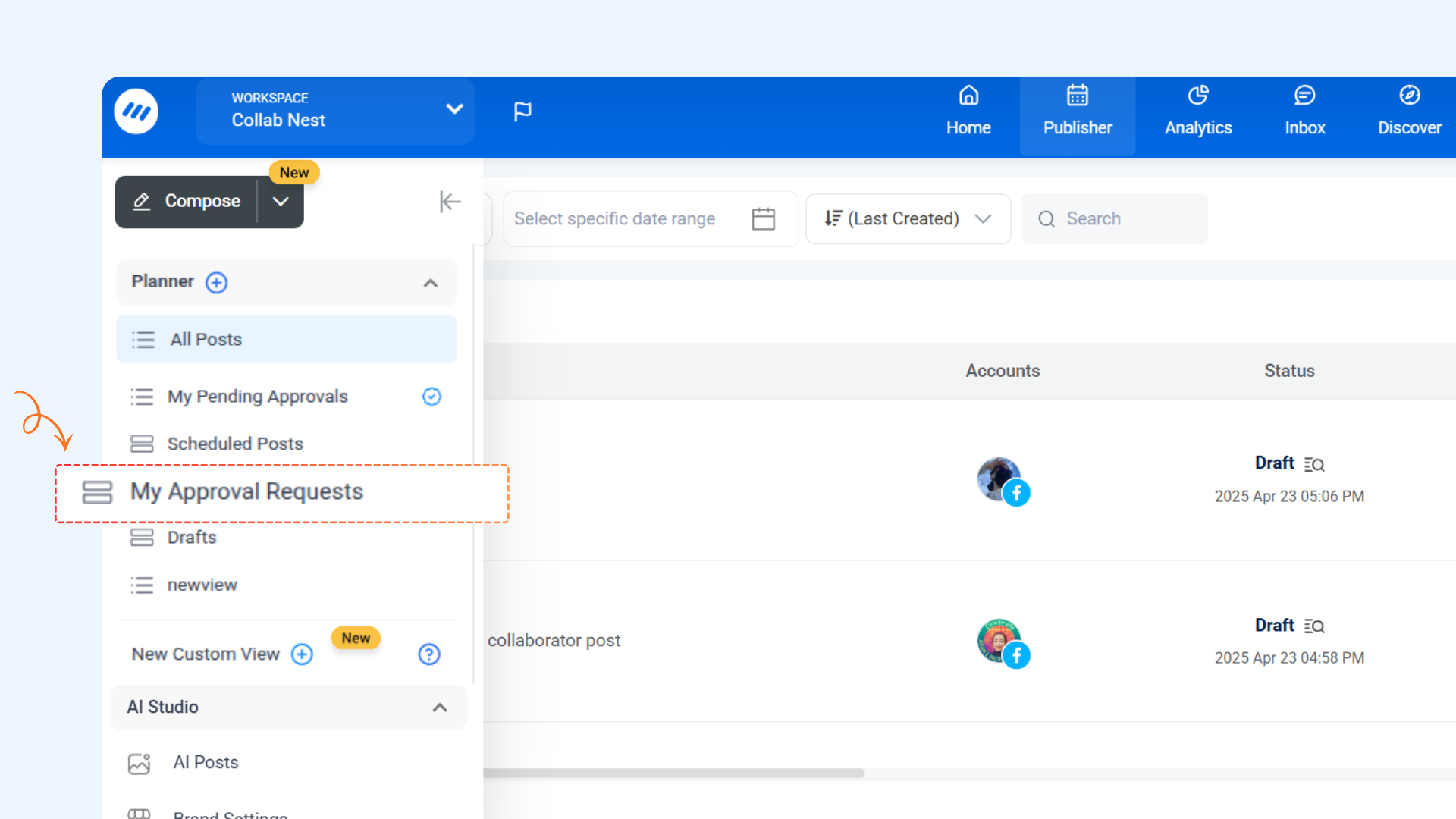
Creating a Custom View
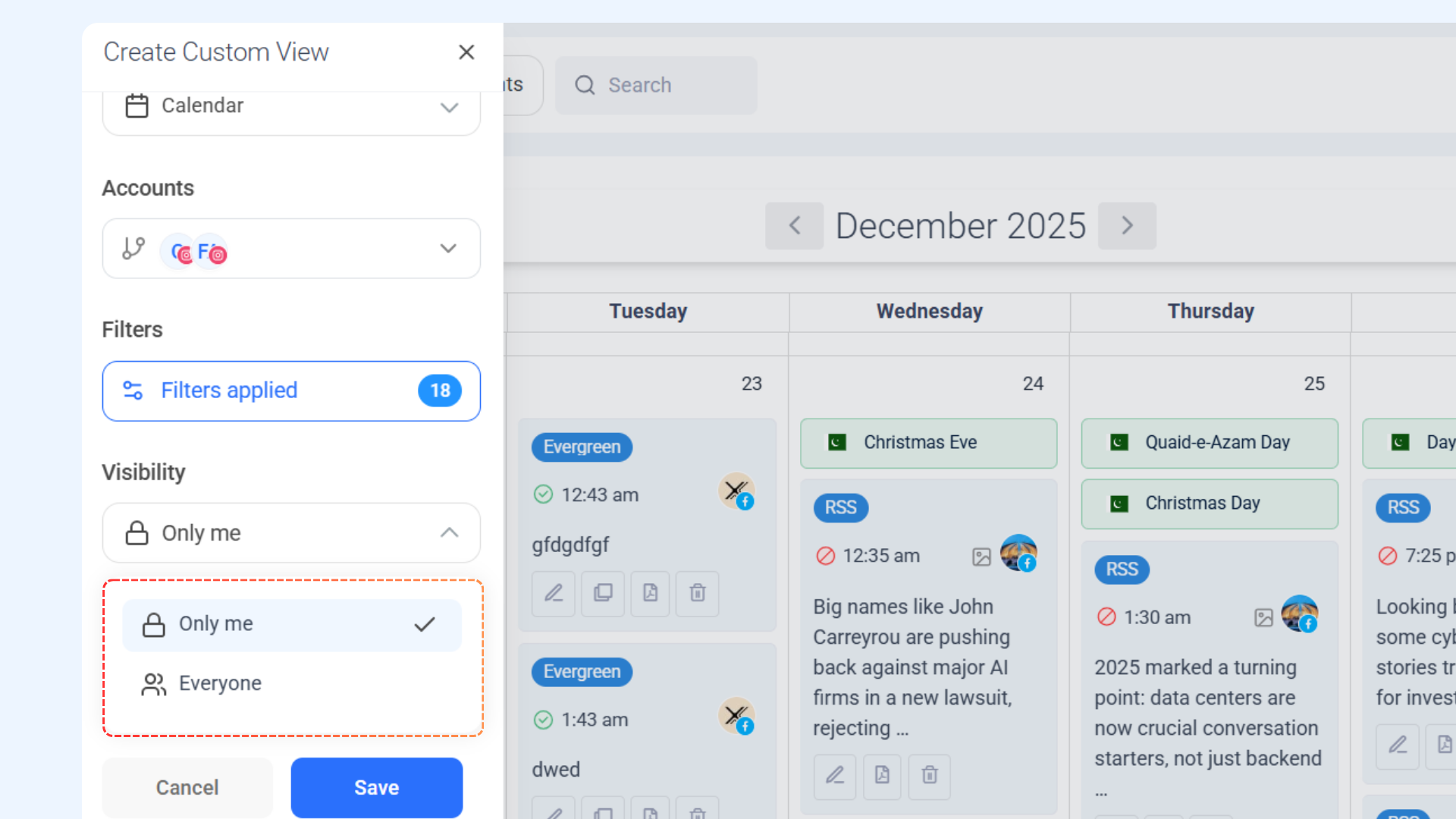
Custom Views allow you to create a personalized Planner setup by pre-selecting filters, view types, and date ranges.
Follow these steps to create a custom view:
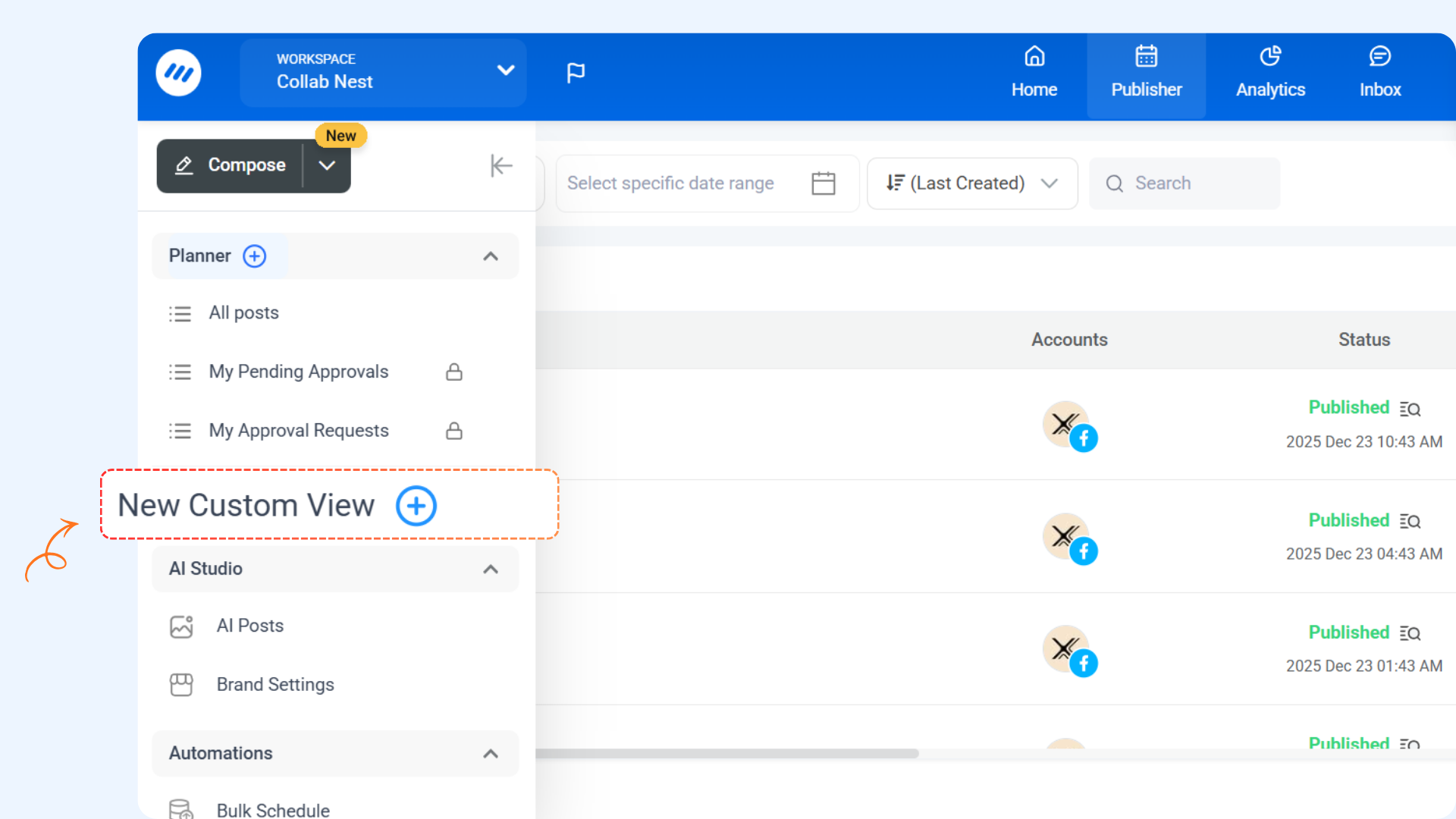
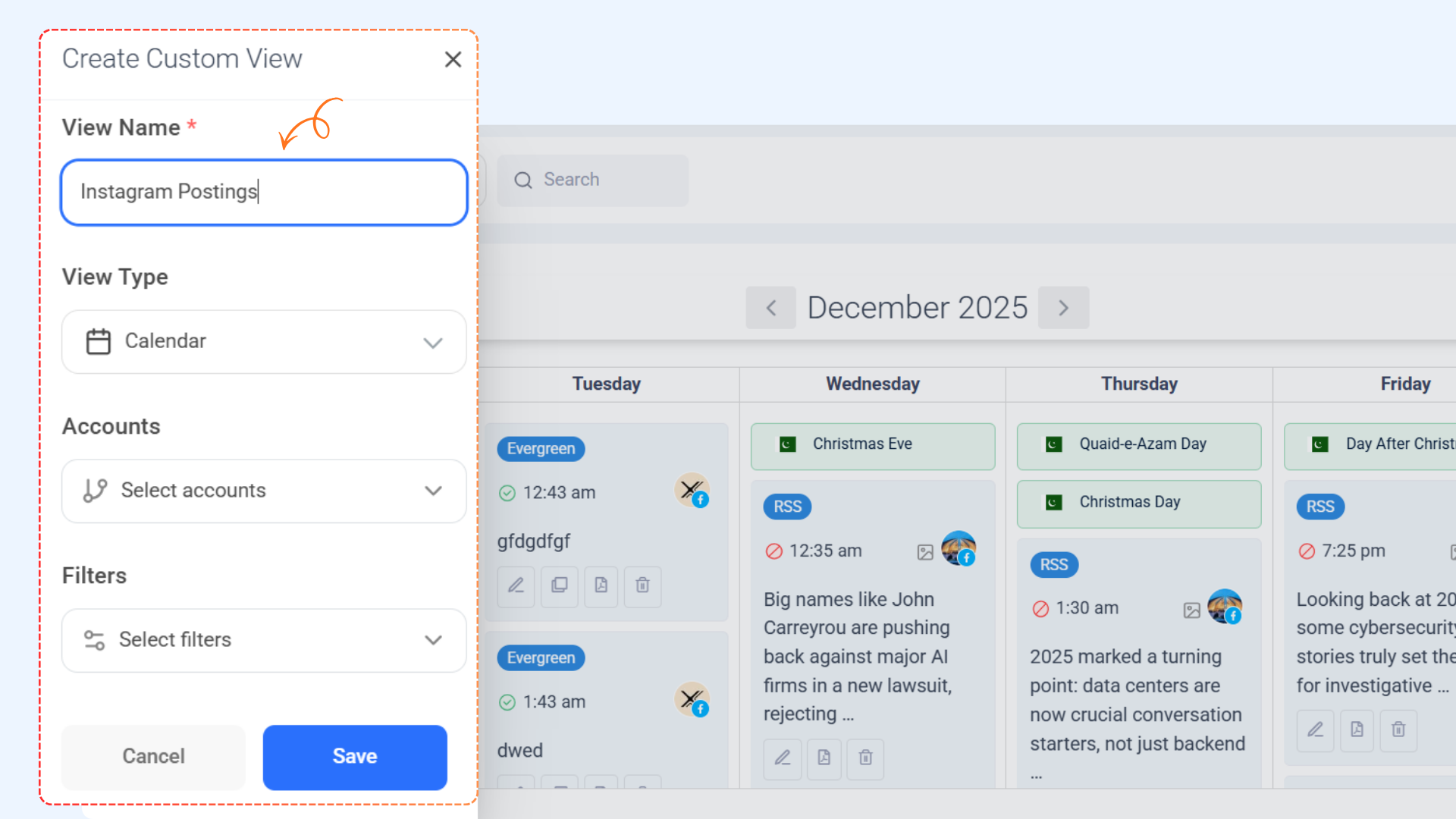
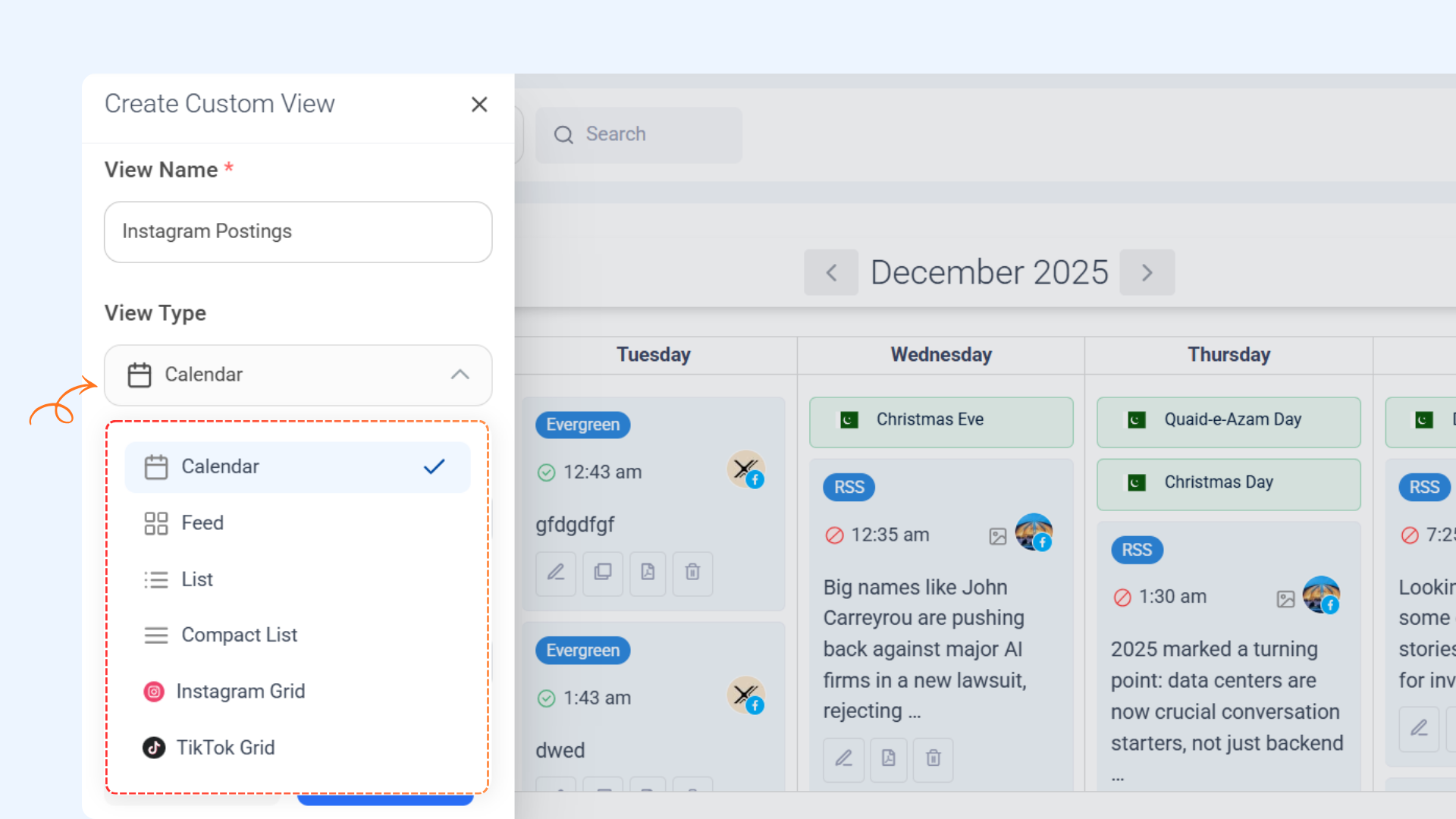
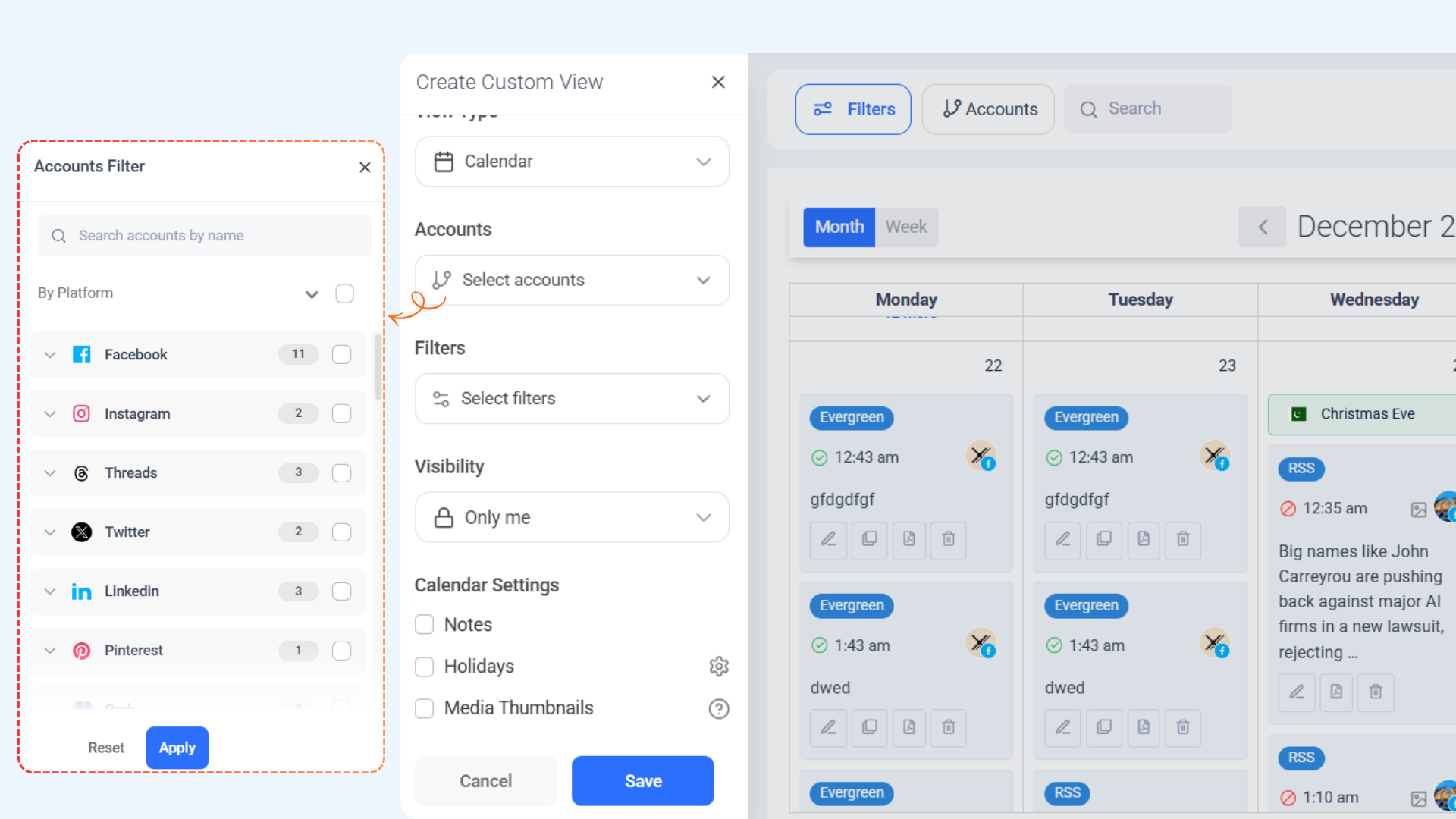
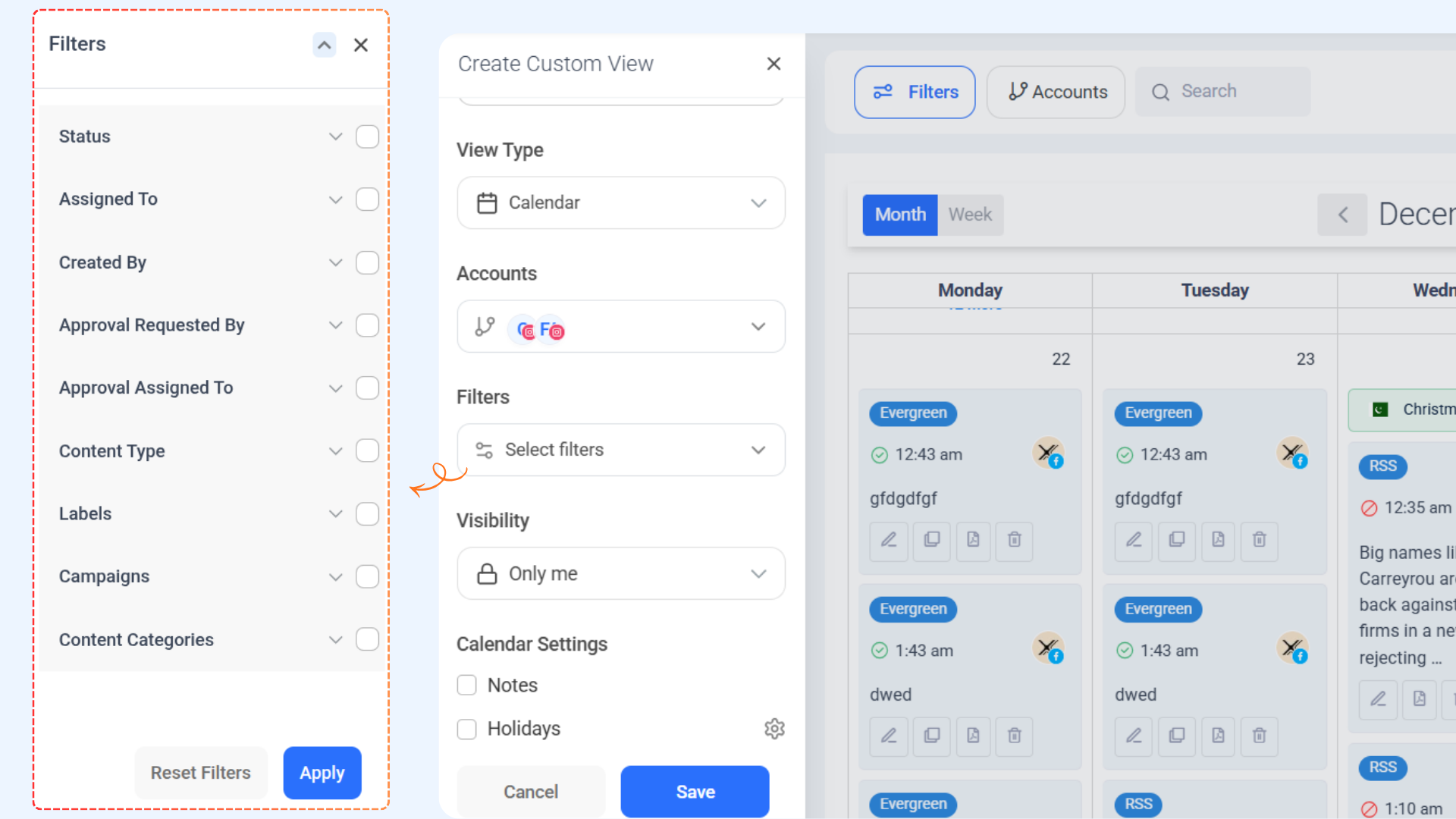
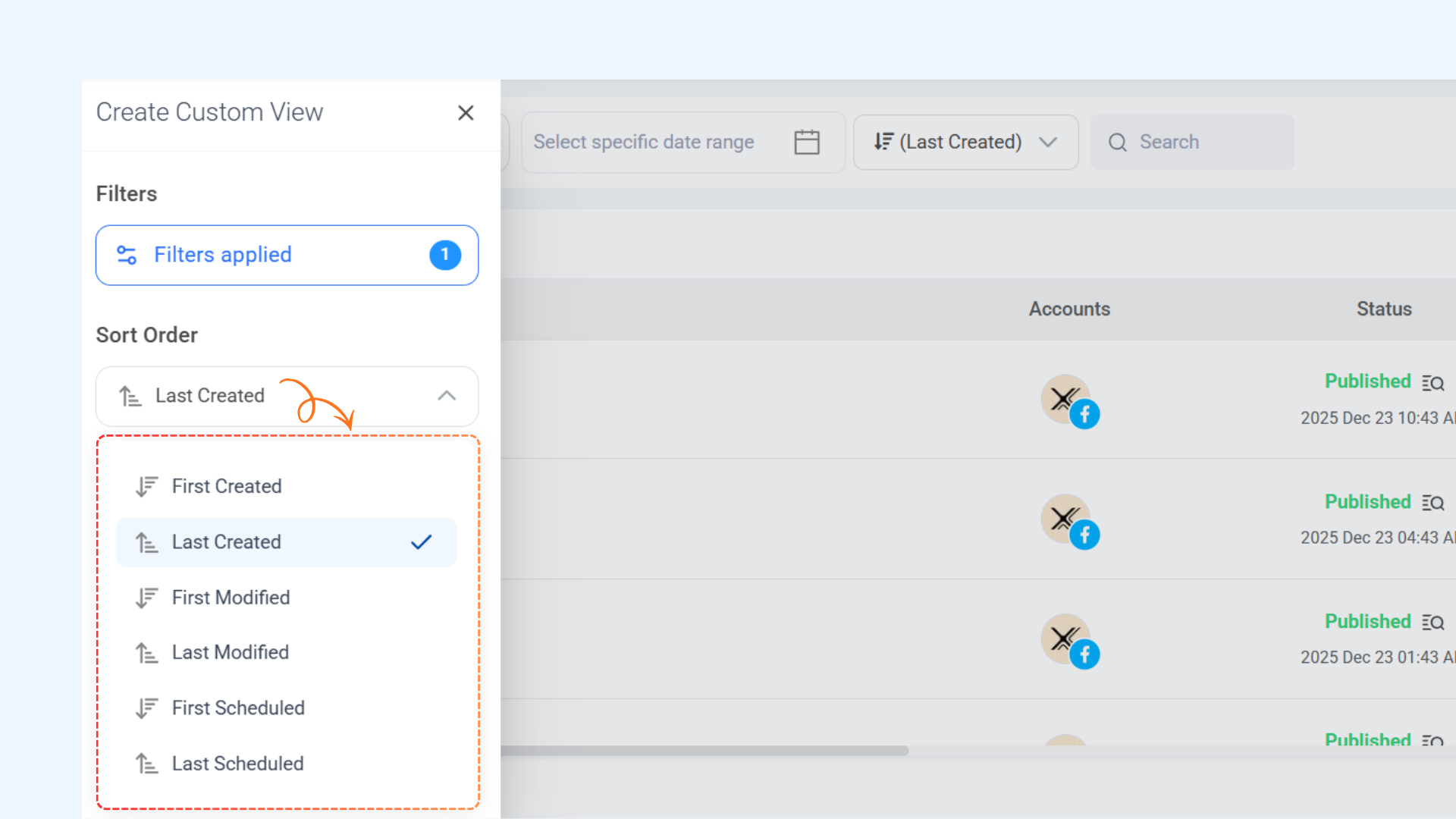
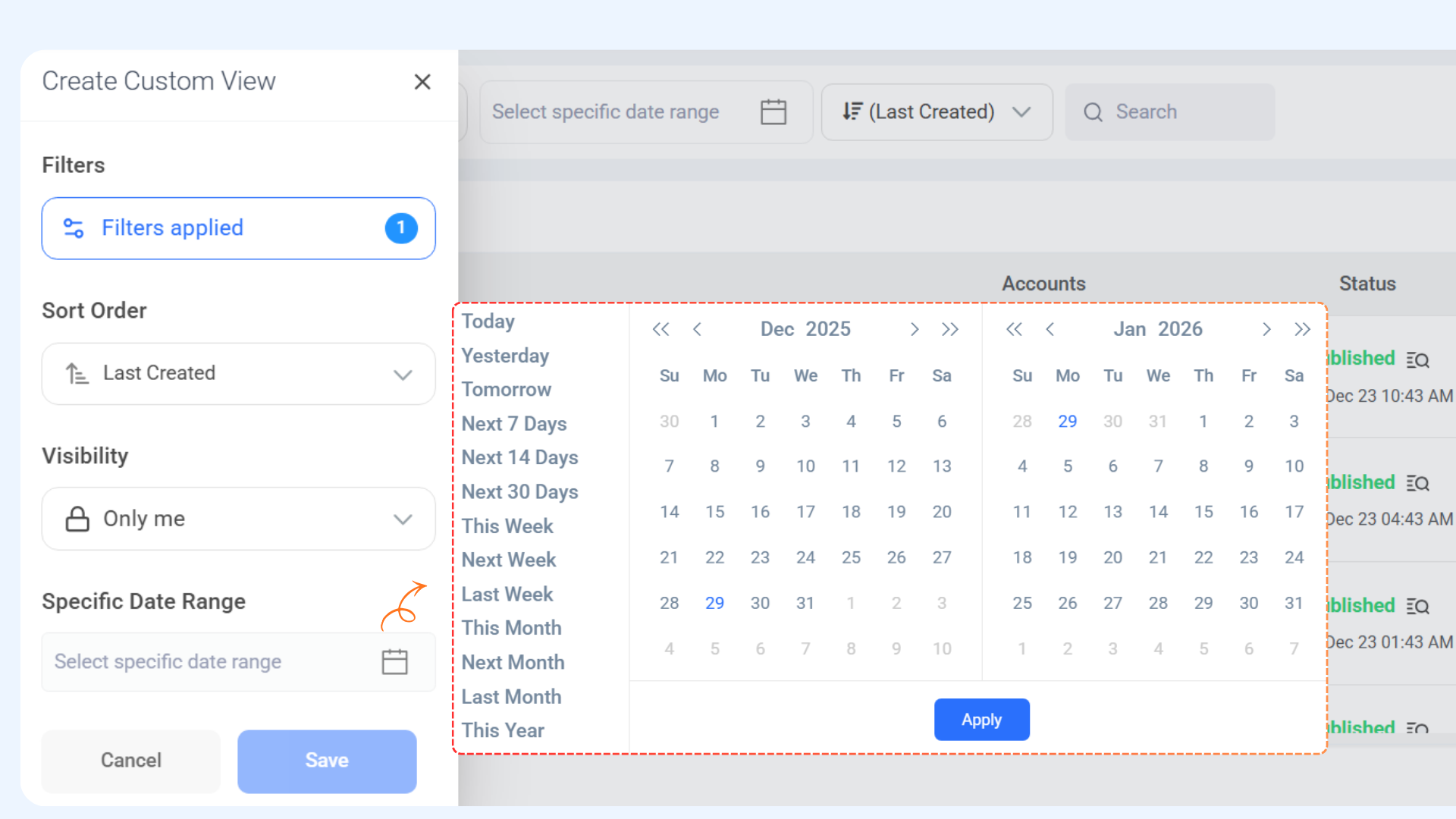
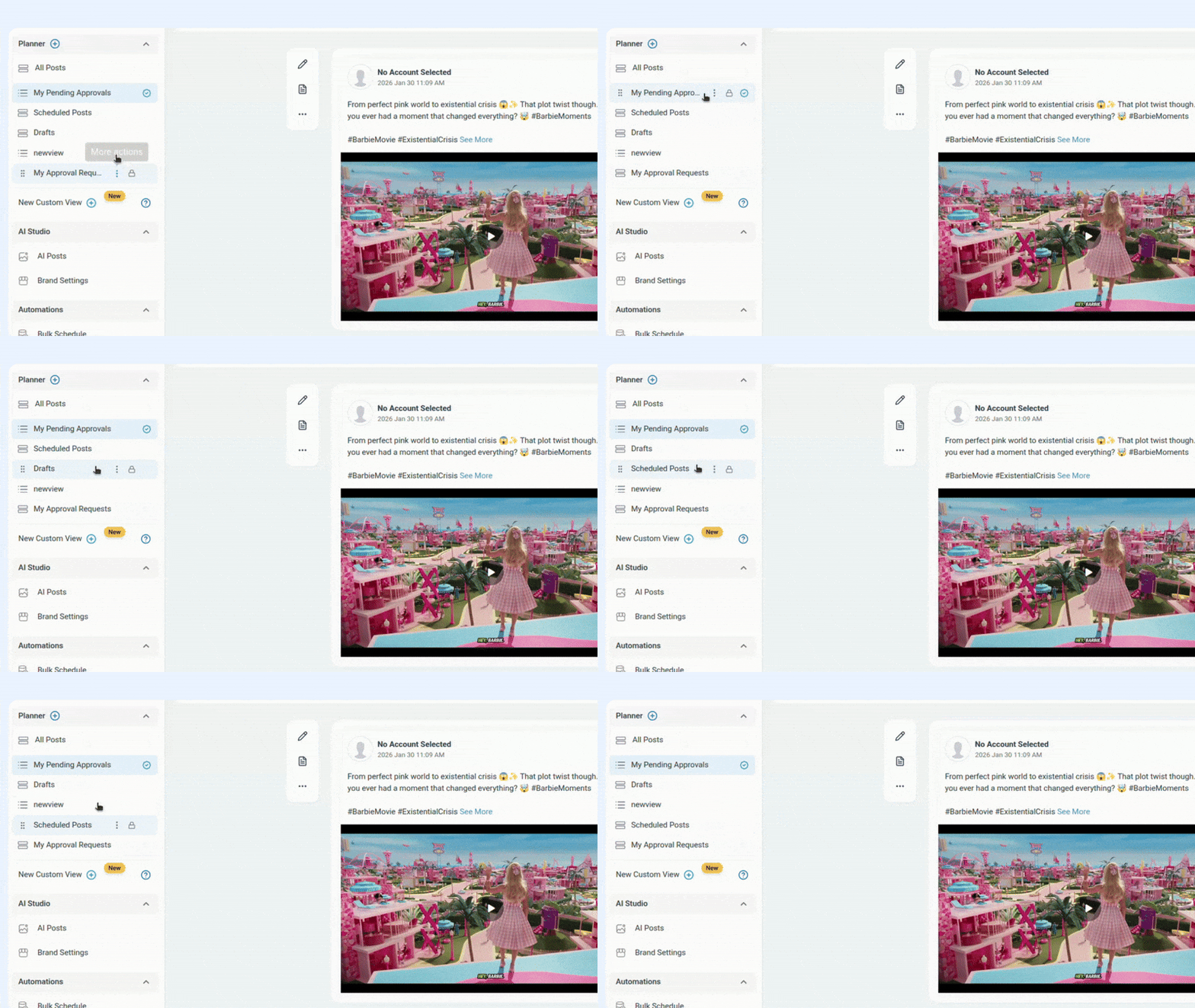
Manage your Views
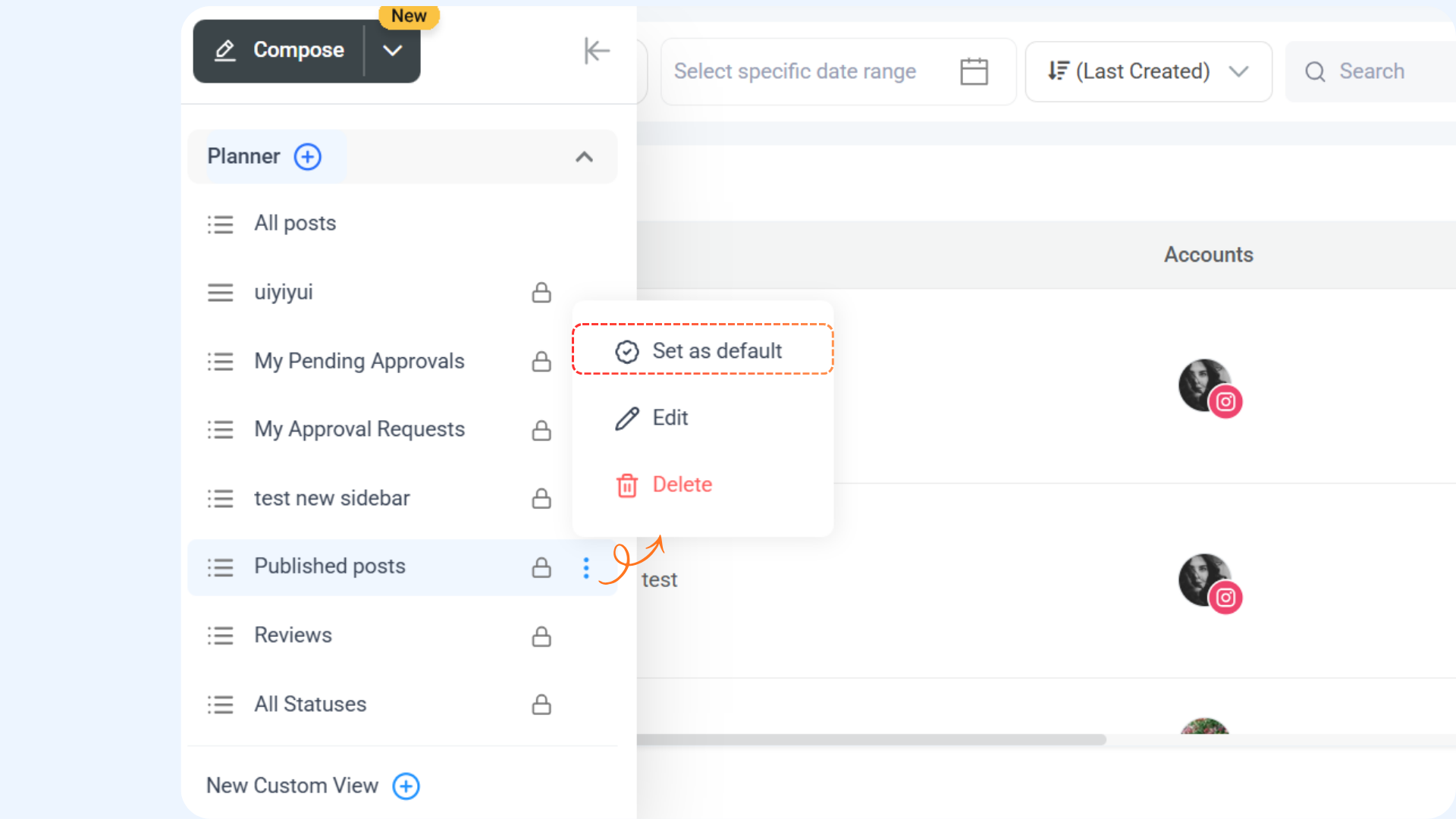
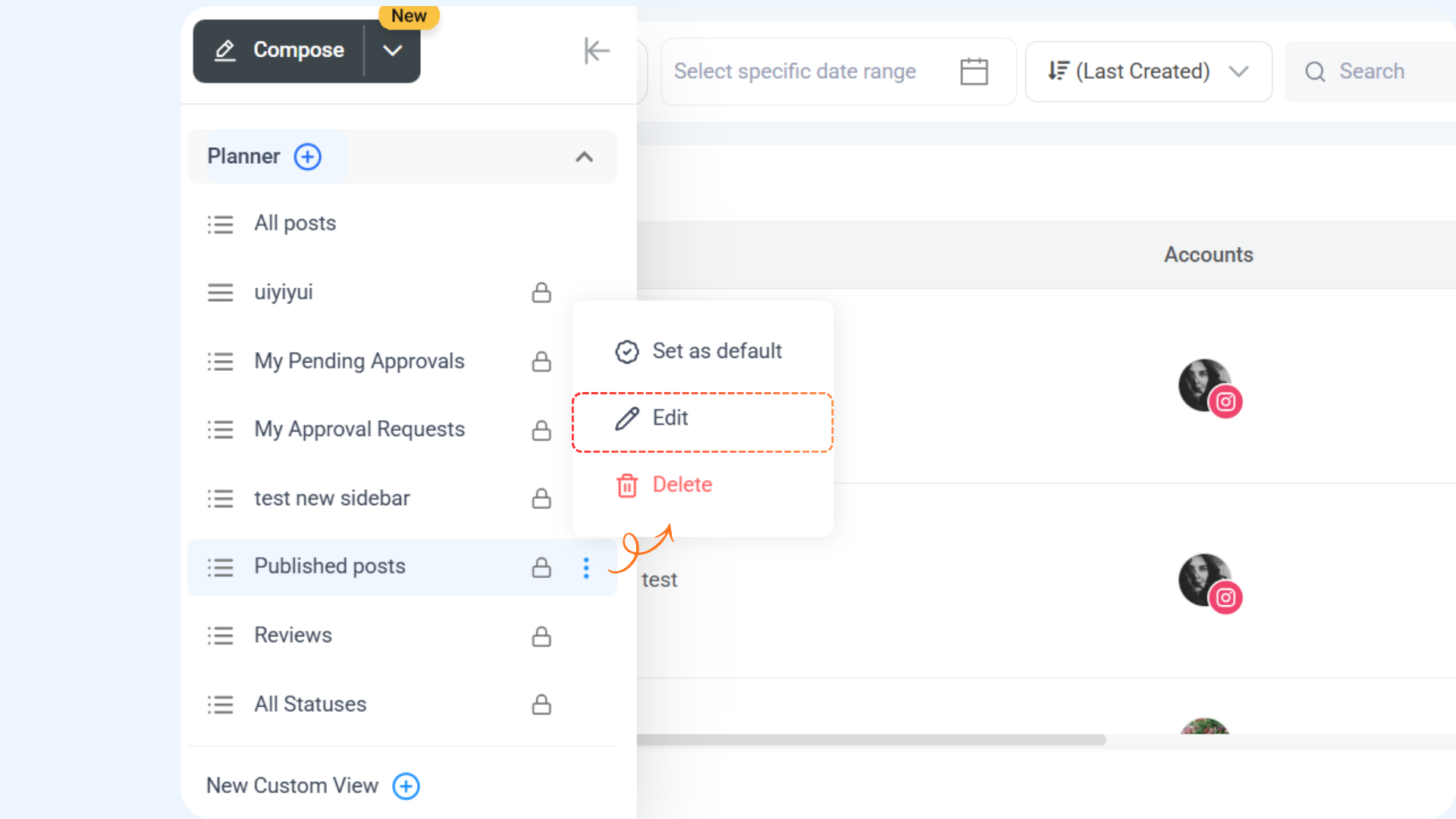
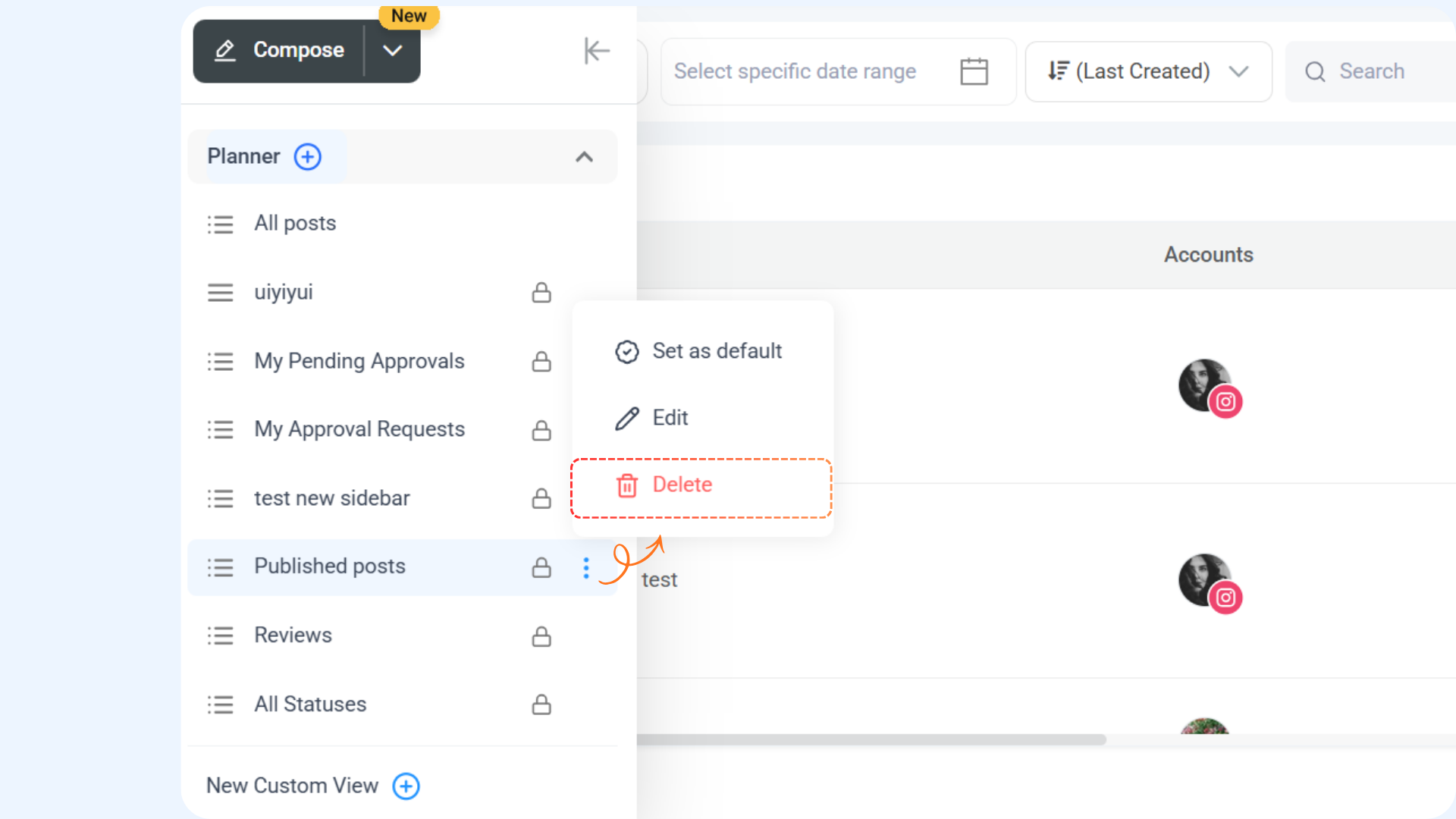
You can manage your views easily to keep your Planner organized. Here’s how you can edit, delete, or set a view as default.
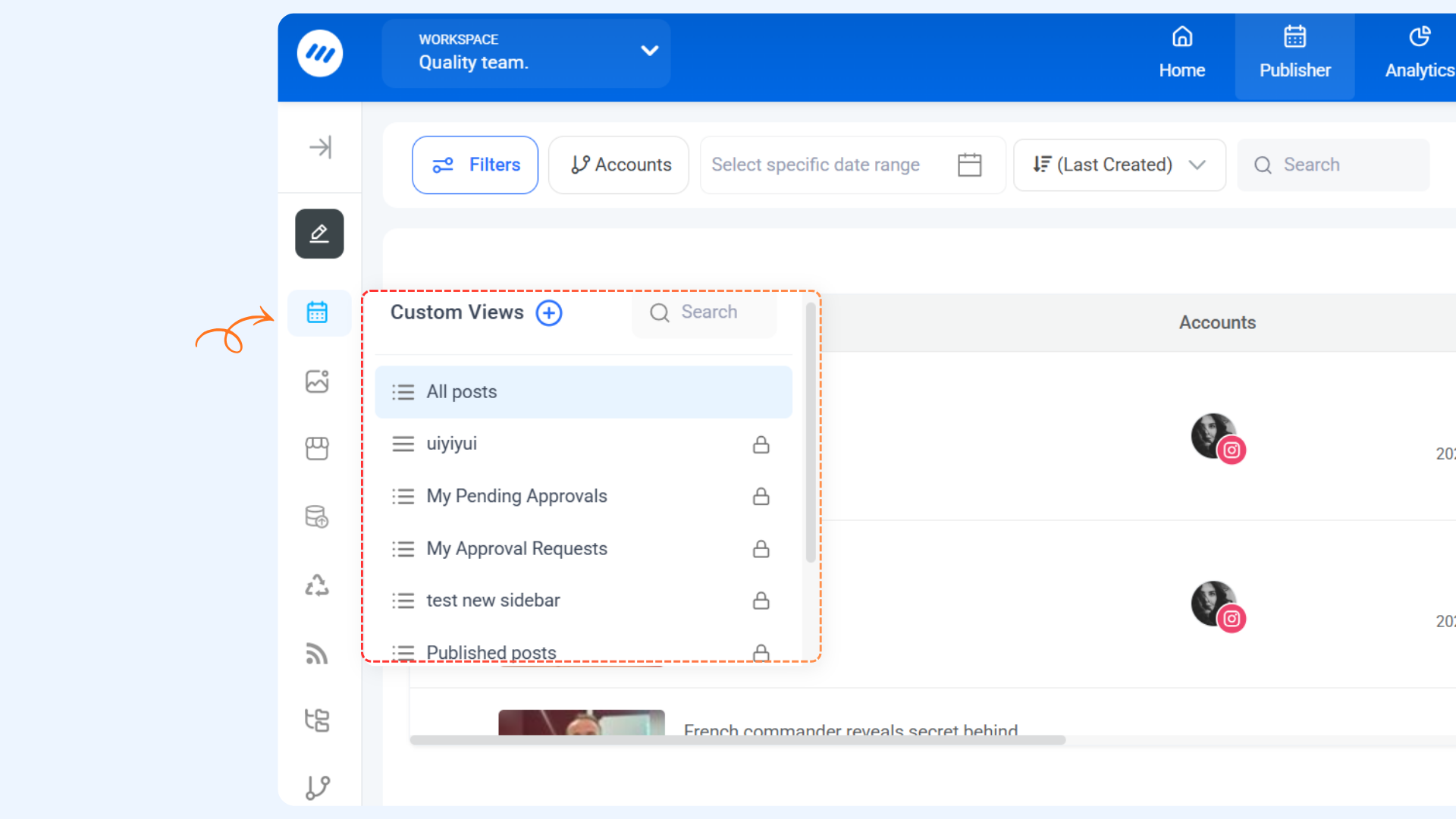
Where You Can View Custom Views
FAQs
1. What happens if I apply filters directly in the Planner?
If you apply filters directly in the Planner (outside the Create Custom View panel), those filters will still be considered when you create a new view.
This means the new view will already include any filters that are currently applied in the Planner.
2. Can I change filters after creating a custom view?
Yes. You can edit a custom view at any time by clicking the three-dot menu next to the view name and updating the filters or settings.
3. Why can’t I edit or delete the All Posts view?
The All Posts view is the default system view. It cannot be edited or deleted, but it can be set as your default view.
4. Will deleting a view delete my posts?
No. Deleting a view does not delete any posts. It only removes the saved view configuration.
5. Can I set more than one default view?
No. You can only have one default view at a time. Setting a new default view will replace the previous one.
6. Who can see my custom views?
This depends on the visibility settings you choose while creating the view. You can keep a view private or share it with others, based on your permissions.
Was this article helpful?