

How do I send one or multiple posts for approval using bulk schedule?
Bulk scheduling just got even more collaborative! 🤝
With Bulk Schedule Automation, you can now send posts for approval right after uploading your CSV file. This helps maintain content quality, streamline teamwork, and ensure that only approved posts are published — all without needing to access the Planner.
Send posts for approval during bulk scheduling
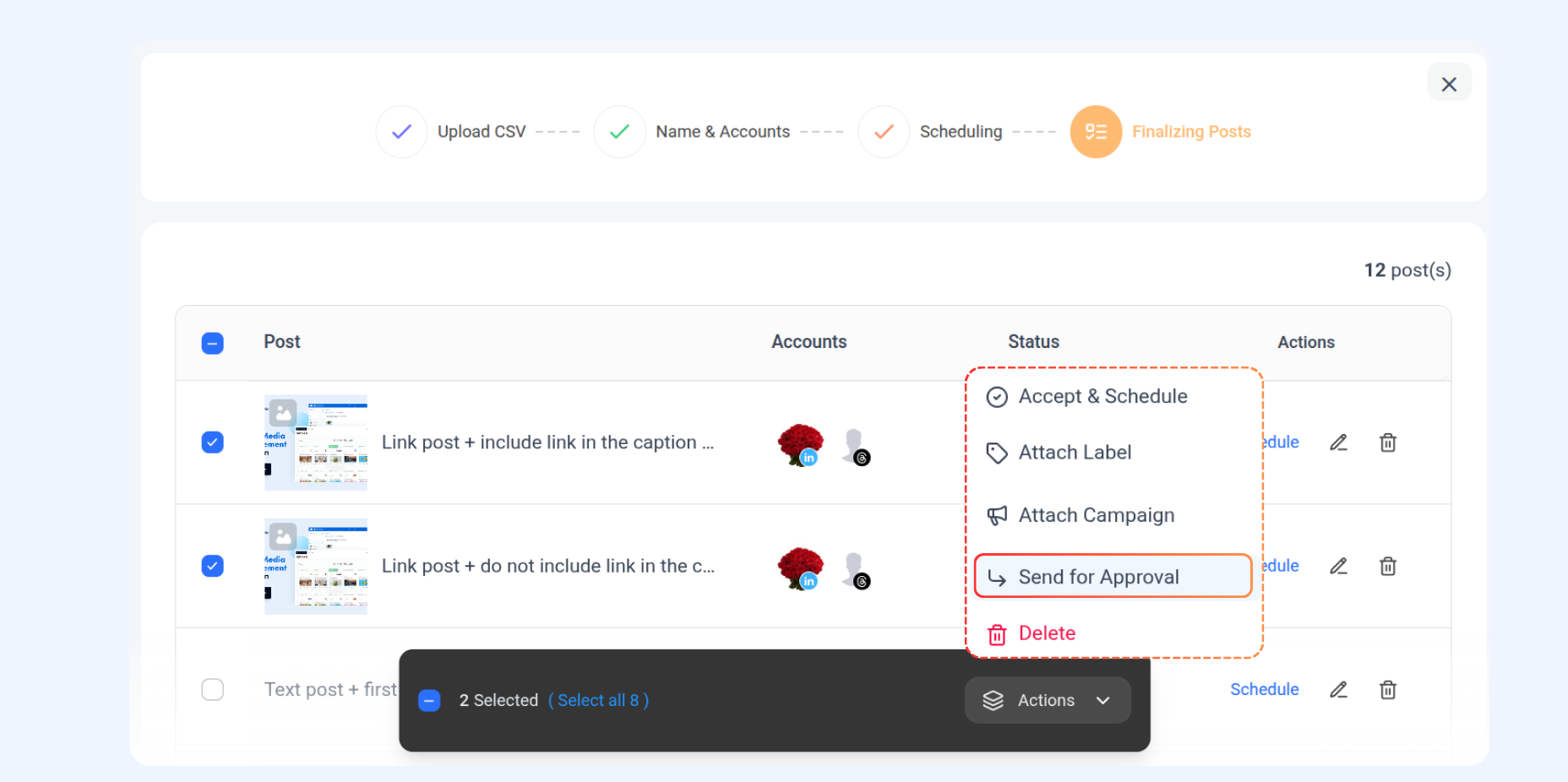
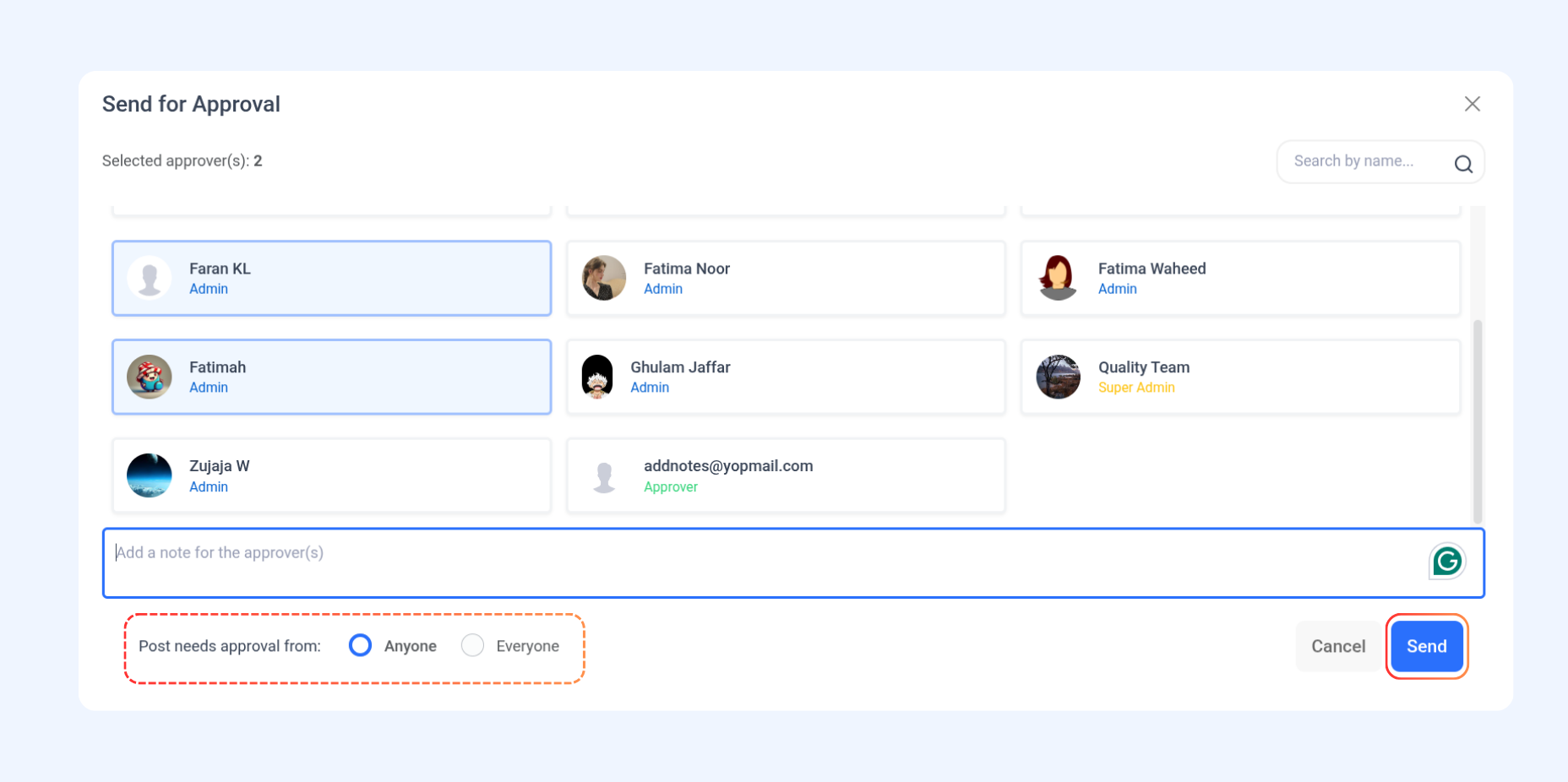
After uploading and reviewing your CSV file, you’ll reach the table where all posts are listed. From here, you can select one or multiple posts to send for approval.
How to approve posts

Once approved, posts will move to the next status in your workflow (e.g., Scheduled).
FAQs
Q1: Can I send posts for approval after scheduling them in bulk?
Yes! After uploading your CSV and reviewing the posts, you can send them for approval before finalizing.
Q2: Can I edit posts before sending them for approval?
Absolutely. Use the pencil icon next to each post to make changes before selecting and sending them for approval.
Q3: Will approvers be notified automatically?
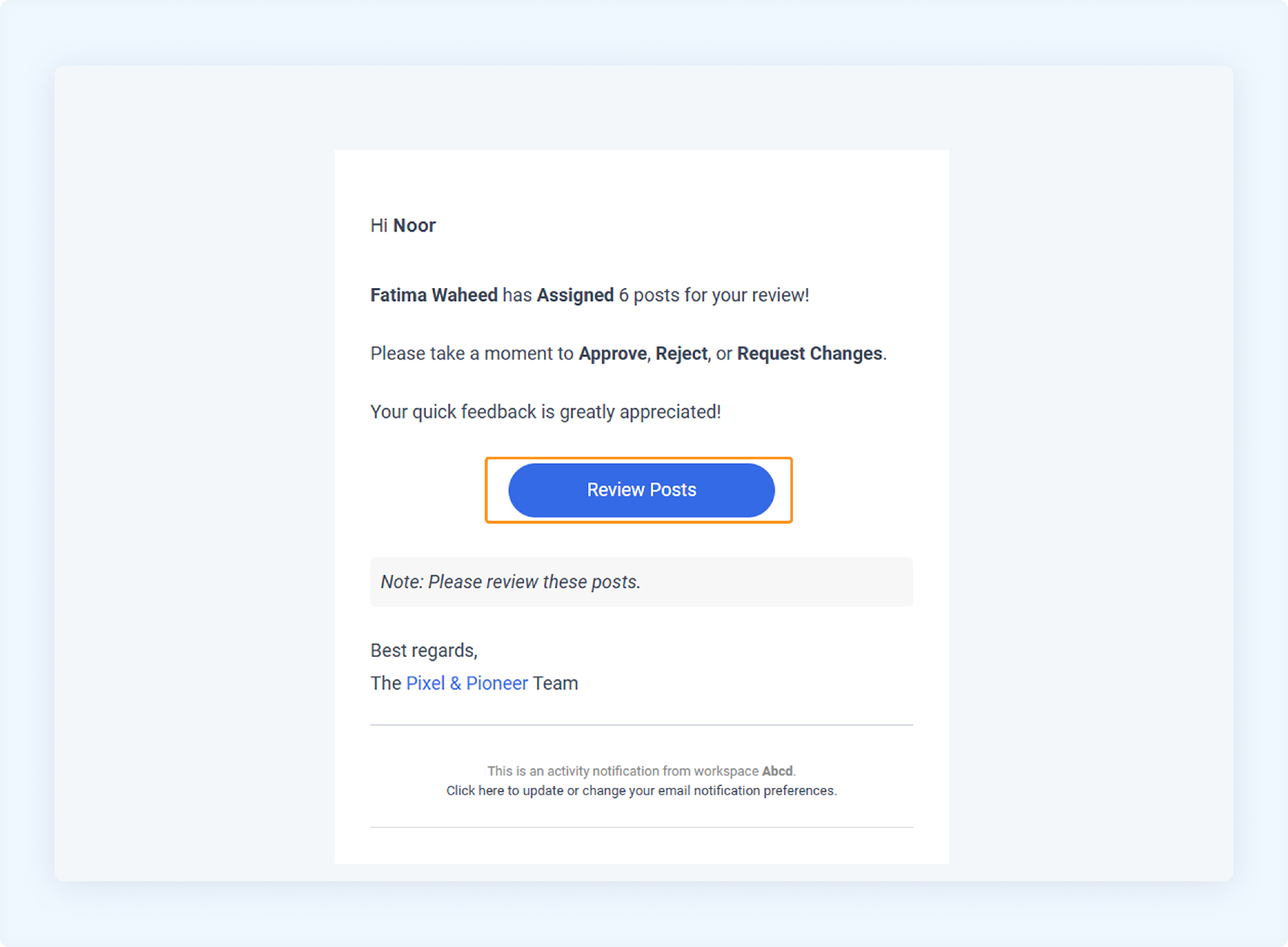
Yes. Once you click Send, the selected approvers will receive an email notification with a link to review the posts.
Was this article helpful?