

Managing the Social Accounts
The Social Accounts page allows you to easily connect, manage, and monitor all your social media profiles in one place. From adding new accounts to checking connection health, refreshing tokens, or removing accounts, this guide walks you through each step for seamless account management.
In this article:
1. Connect Social Account to Content Studio
Click Profile Settings on the right side, then select Social Accounts from the submenu.
Click Connect Account on the top right.
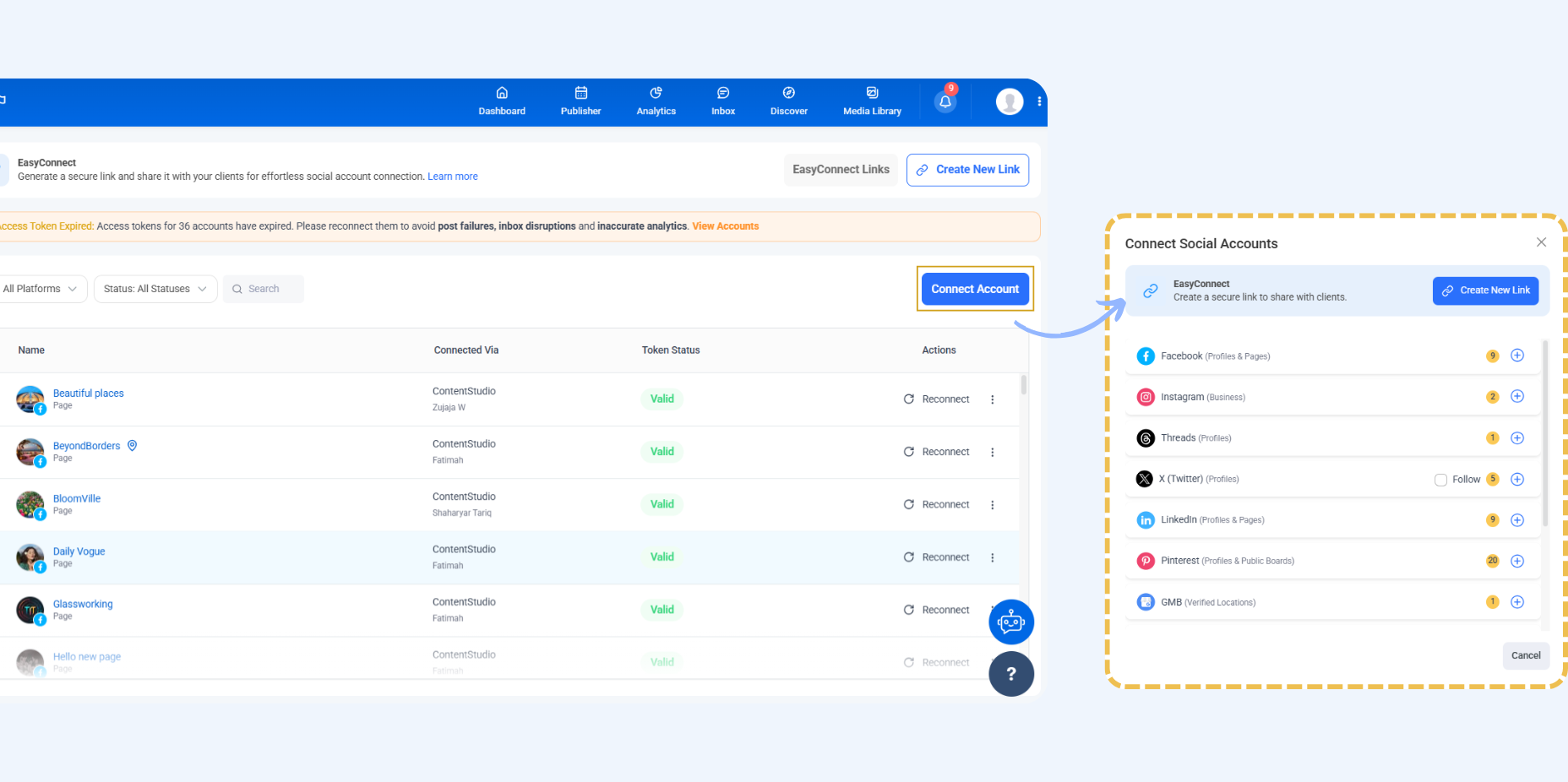
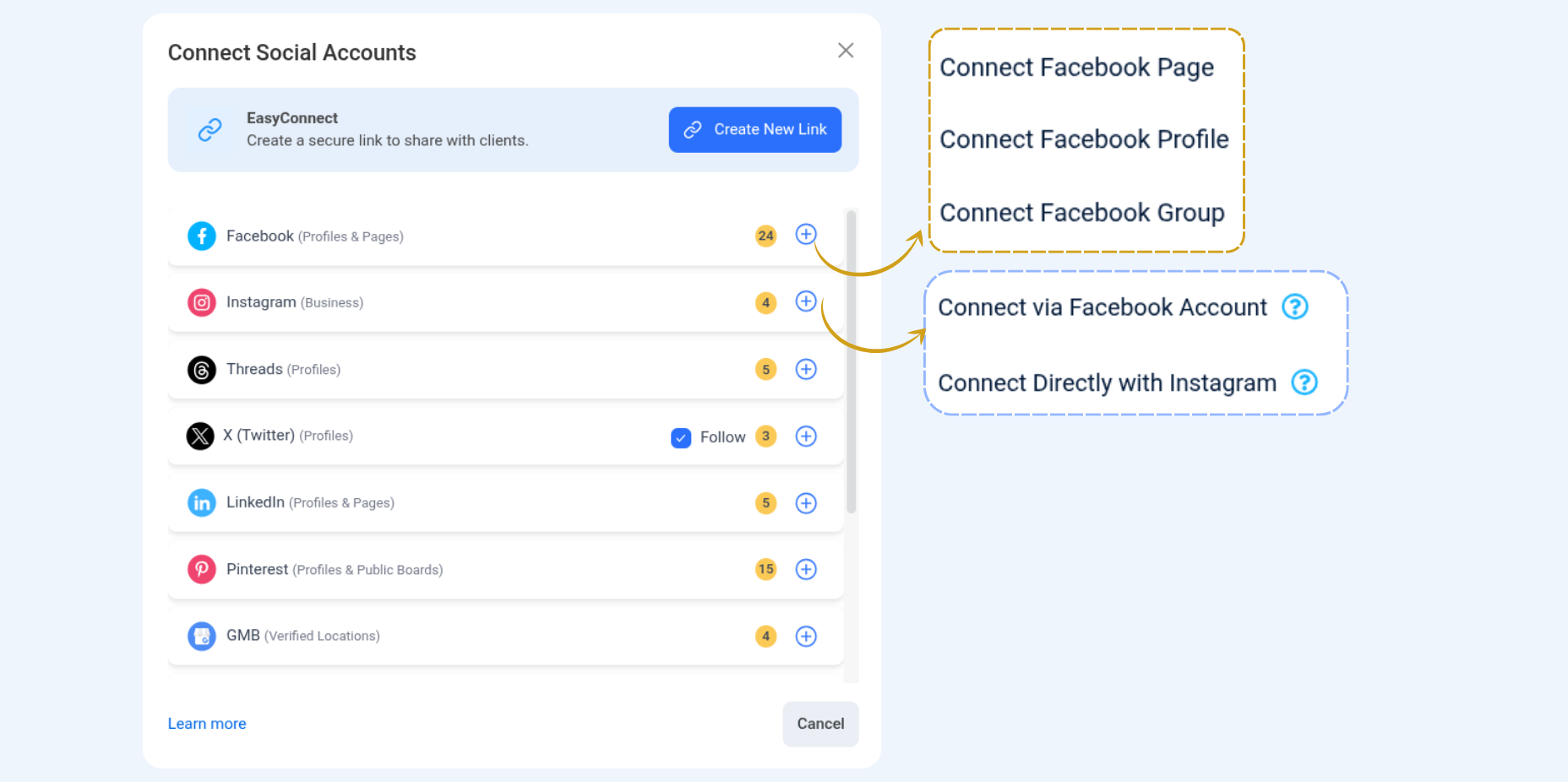
A Connect Social Accounts popup appears—choose an account to connect (Facebook, Instagram, Threads, Linked, etc.).
Platform | Allowed Account Types / Features | How to Connect |
|---|---|---|
Threads | Profiles | Connect directly through your Threads account |
X (Twitter) | Profiles | Connect directly through your X account |
Profiles, Pages | Connect via your personal LinkedIn profile or managed Page | |
Profiles, Public Brands | Connect via your Pinterest account | |
Google My Business | Verified Locations | Connect via your verified GMB location |
YouTube | Channels | Connect via your YouTube channel |
Tumblr | Personal, Business | Connect via your Tumblr account |
Bluesky | Profiles | Connect directly through your Bluesky account |
1. Facebook
We can connect Facebook to ContentStudio (Facebook Pages, Facebook Profile, Facebook Group) to schedule posts, manage content, and track engagement.
Check these links to see how to connect Facebook Pages, Profiles, and Groups.
2. Instagram
We can connect Instagram Business Accounts to ContentStudio to schedule posts, manage content, and track engagement.
You can connect Instagram in the following ways:
3. LinkedIn
We can connect LinkedIn Personal Profiles and LinkedIn Company Pages to ContentStudio to schedule posts, manage content, and track engagement.
4. X (Twitter)
We can connect X (Twitter) Profiles to ContentStudio to schedule posts, manage content, and track engagement.
5. Pinterest
We can connect Pinterest Business Accounts to ContentStudio to schedule pins, manage content, and track engagement.
6. Google My Business (GMB)
We can connect Pinterest Business Accounts to ContentStudio to schedule pins, manage content, and track engagement.
7. Tumblr
We can connect Tumblr Blogs to ContentStudio to schedule posts and manage your content.
8. Bluesky
We can connect Bluesky Profiles to ContentStudio to schedule posts and manage your content.
Directly Connect Bluesky Profile
9. YouTube
We can connect YouTube Channels to ContentStudio to schedule videos, manage content, and track engagement.
10. Threads
We can connect Threads Business Accounts to ContentStudio to schedule posts, manage content, and track engagement.
Directly Connect Threads Business Account
11. Tiktok
We can connect TikTok Business Accounts to ContentStudio to schedule videos, manage content, and track engagement.
Directly Connect TikTok Business Account
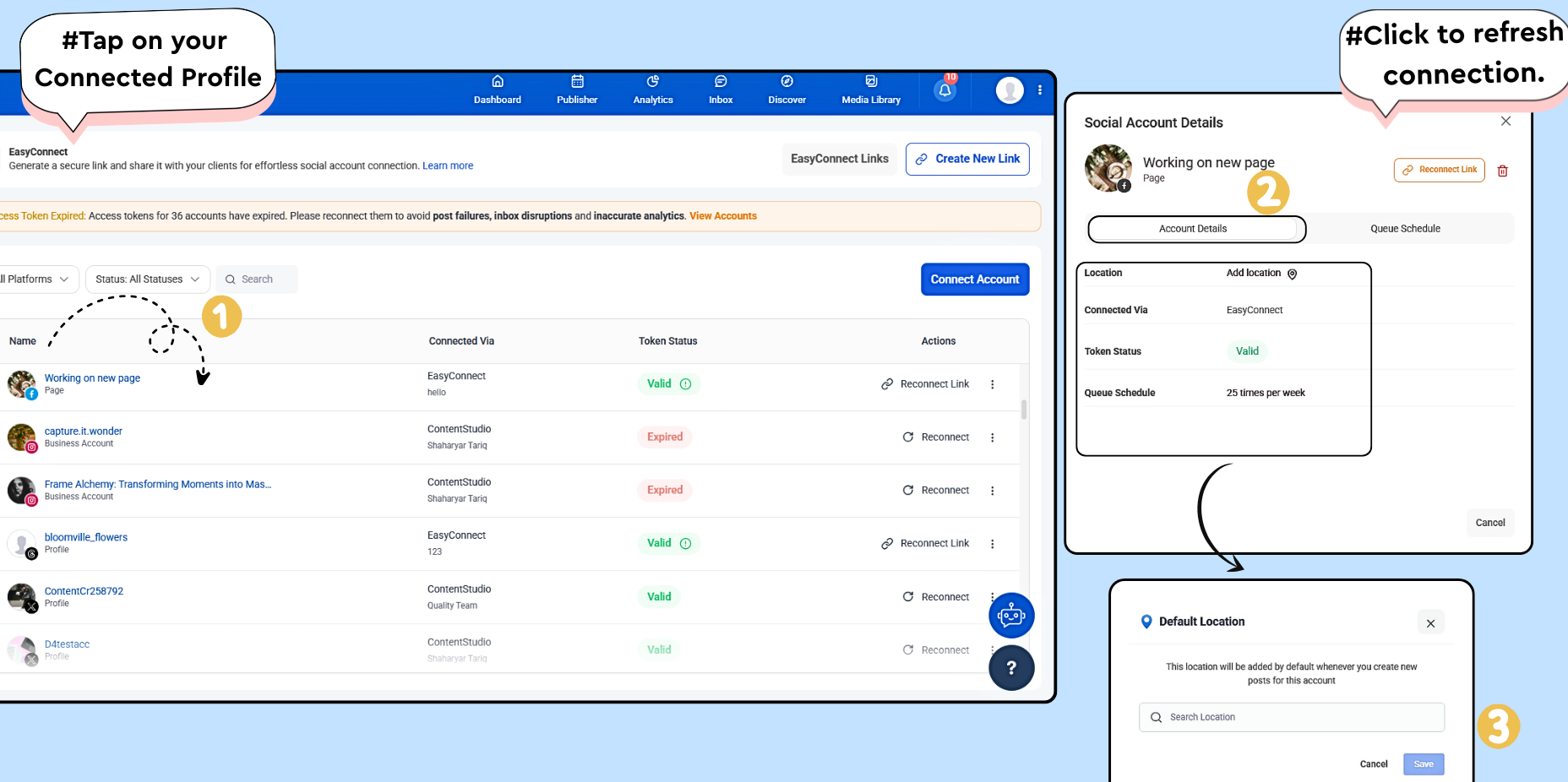
3. View Account Details
Open a connected profile (e.g., Facebook Page, Instagram account, etc.) to view its Social Accounts details panel.
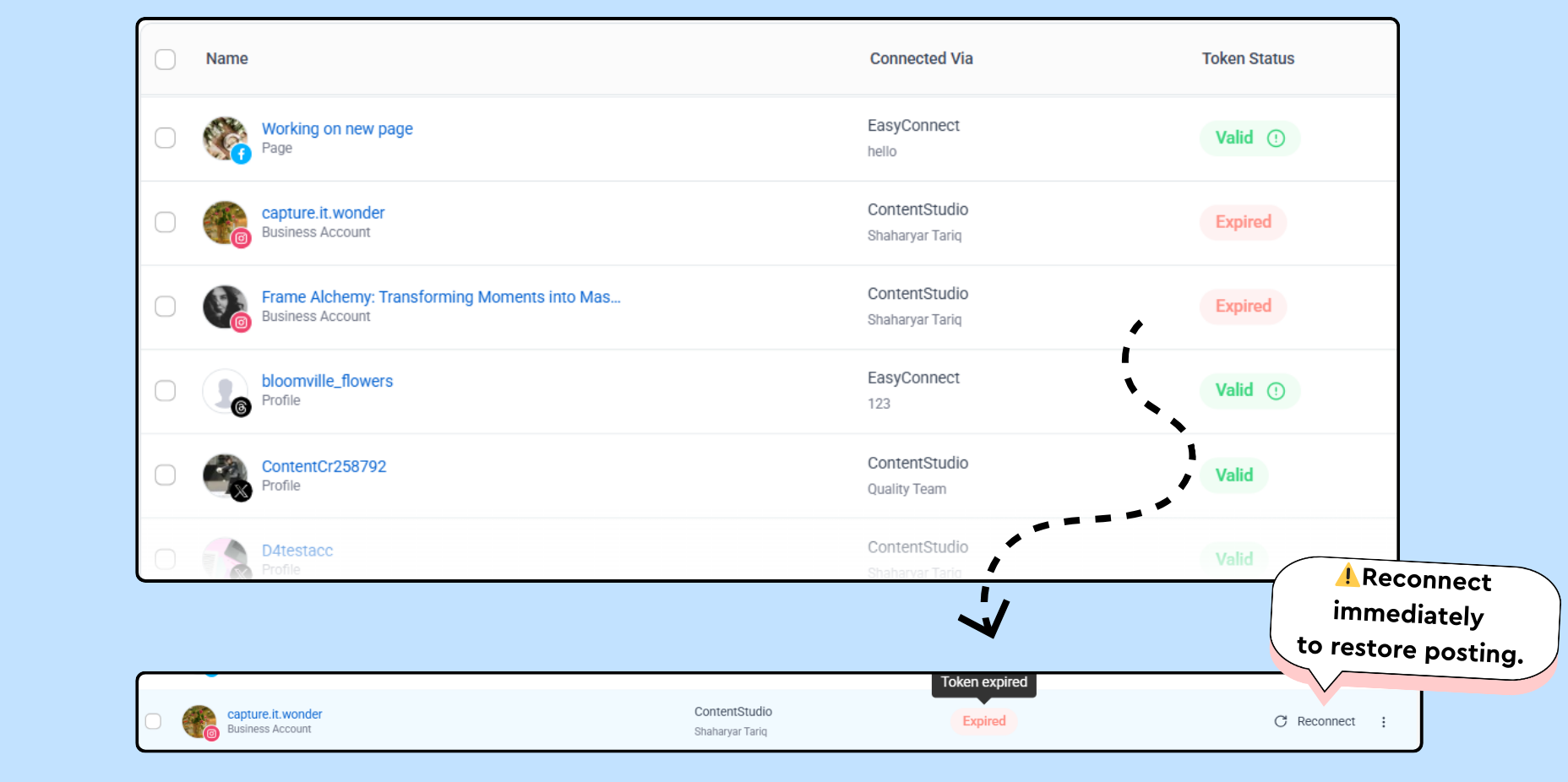
Token Status
Valid – Token is active and working.
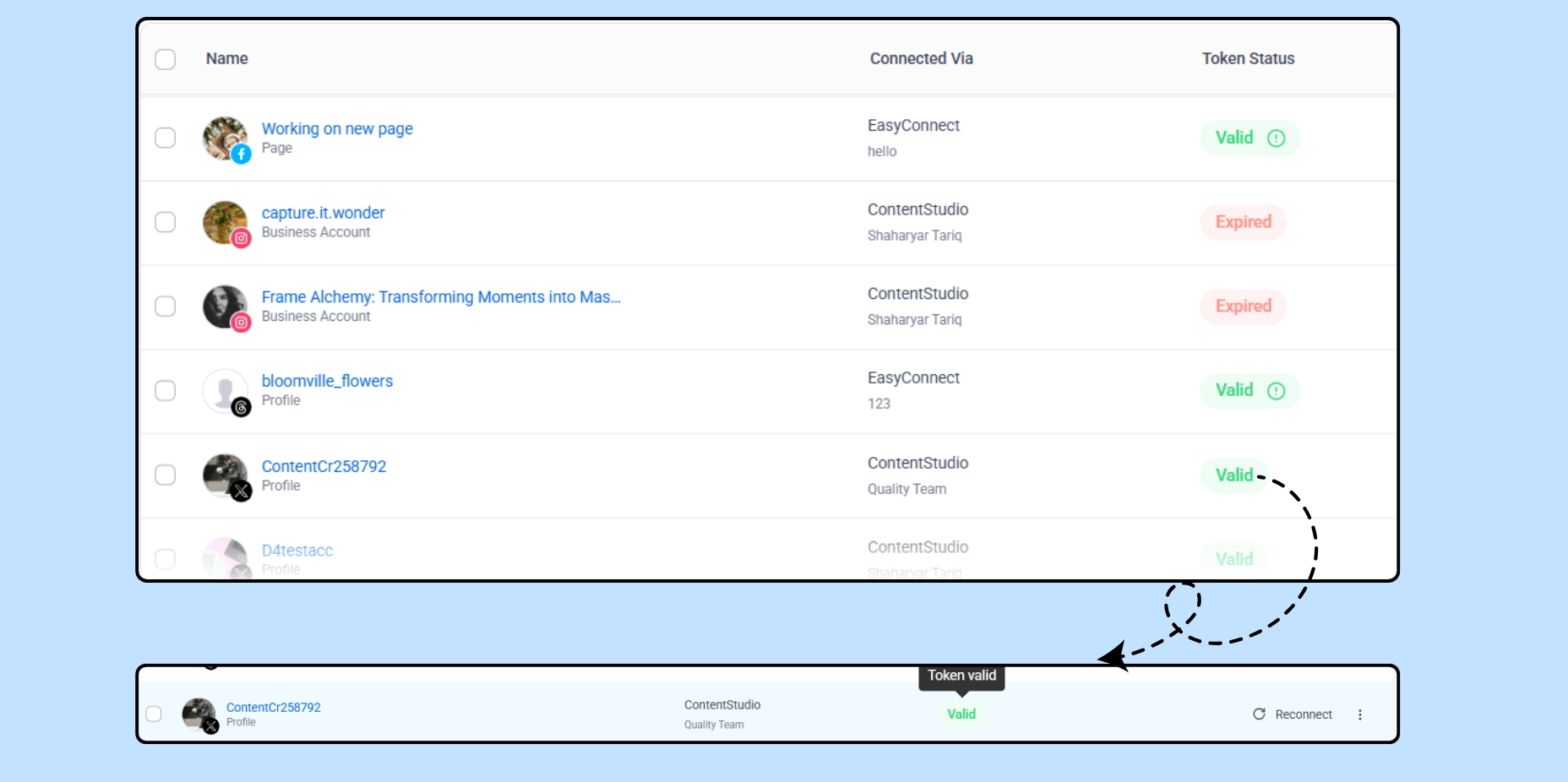
Expiring Soon: This token will expire soon—reconnect to avoid interruptions.
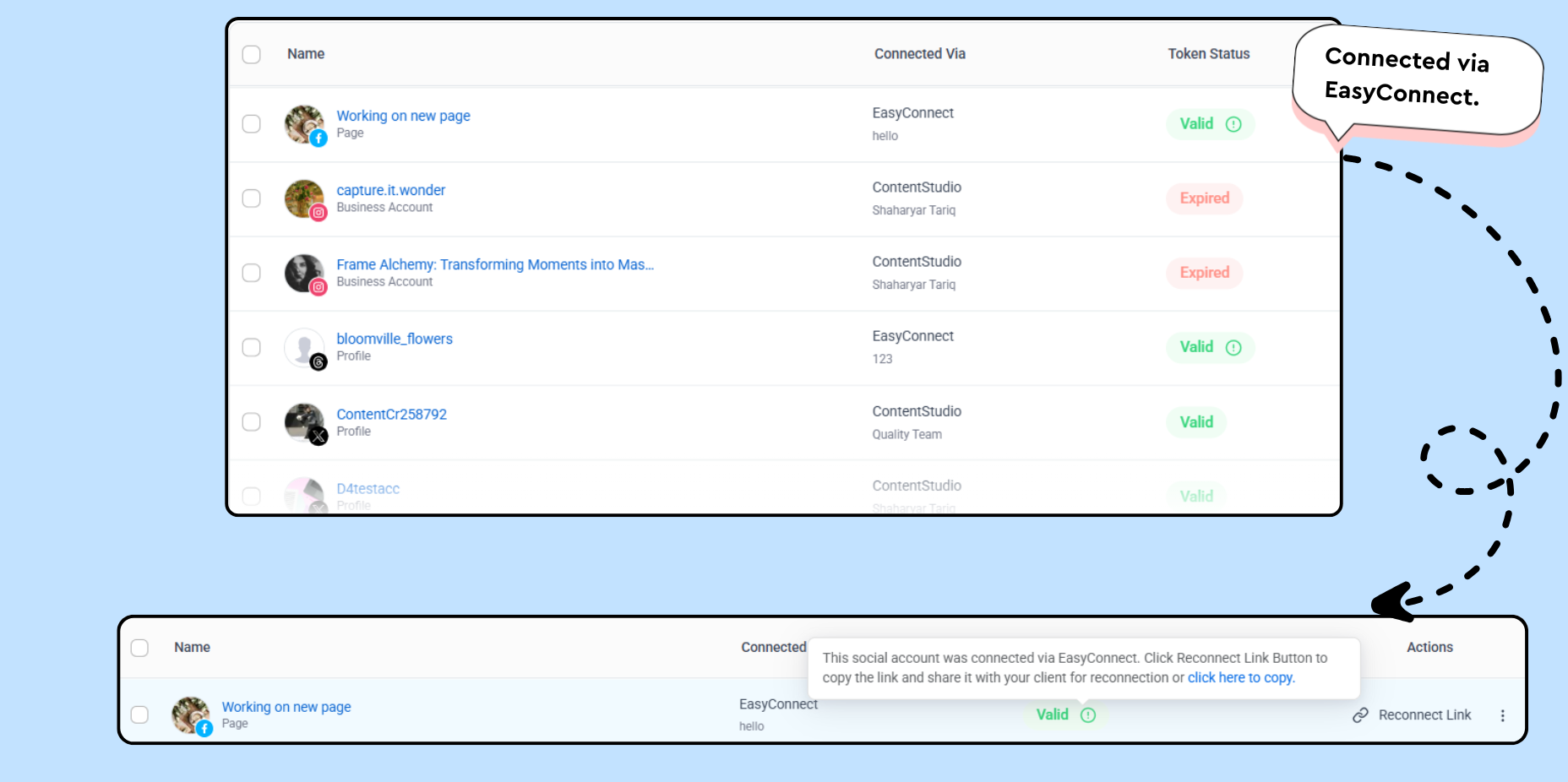
Expired – Token is no longer valid, reconnect required.
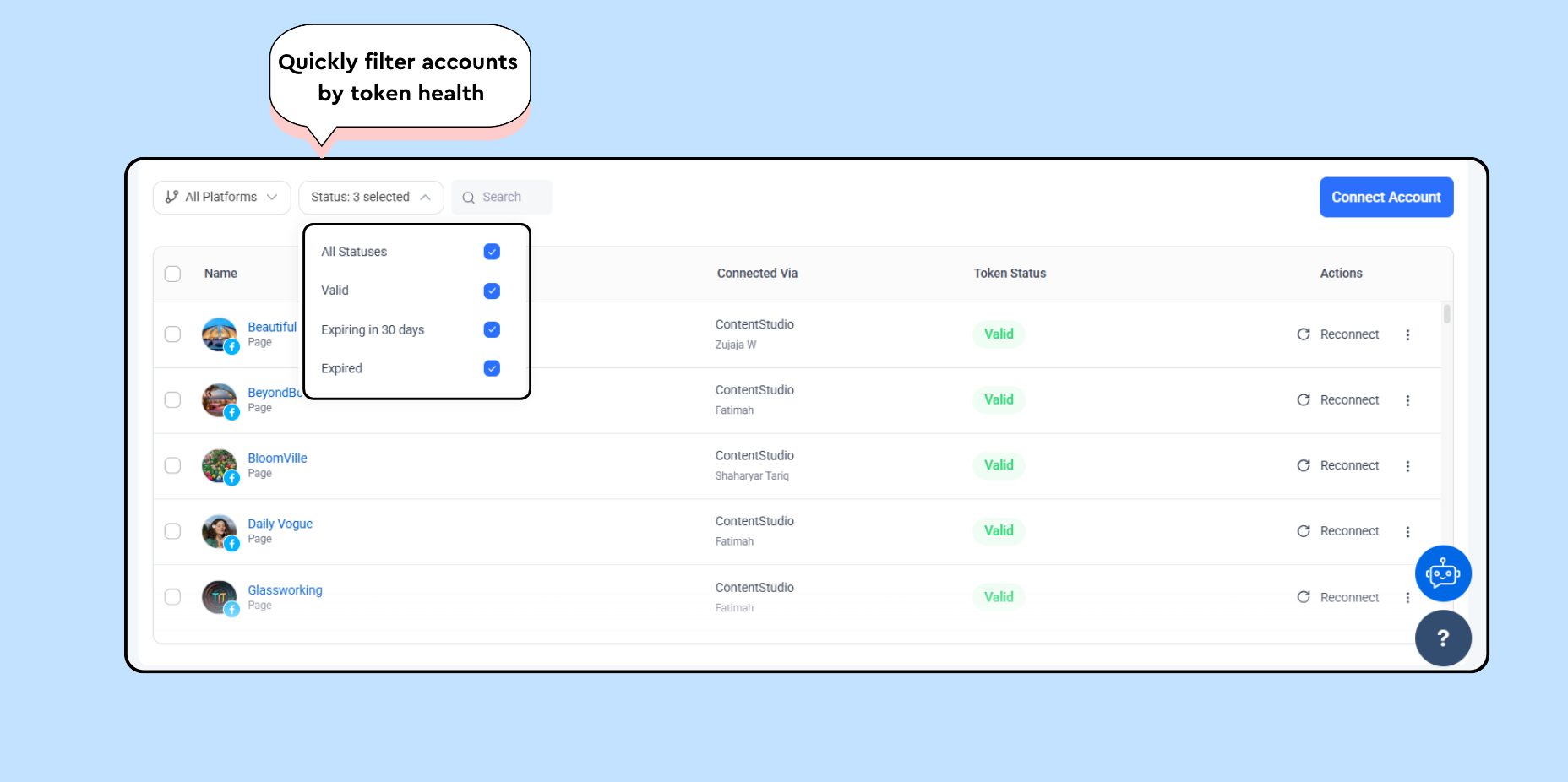
Status Filter
Use this filter to view accounts based on their connection status:
All Statuses – shows all accounts.
Valid – only shows actively connected accounts.
Expiring in 30 days – shows accounts that will need reconnection soon.
Expired – displays accounts that require immediate reconnection.
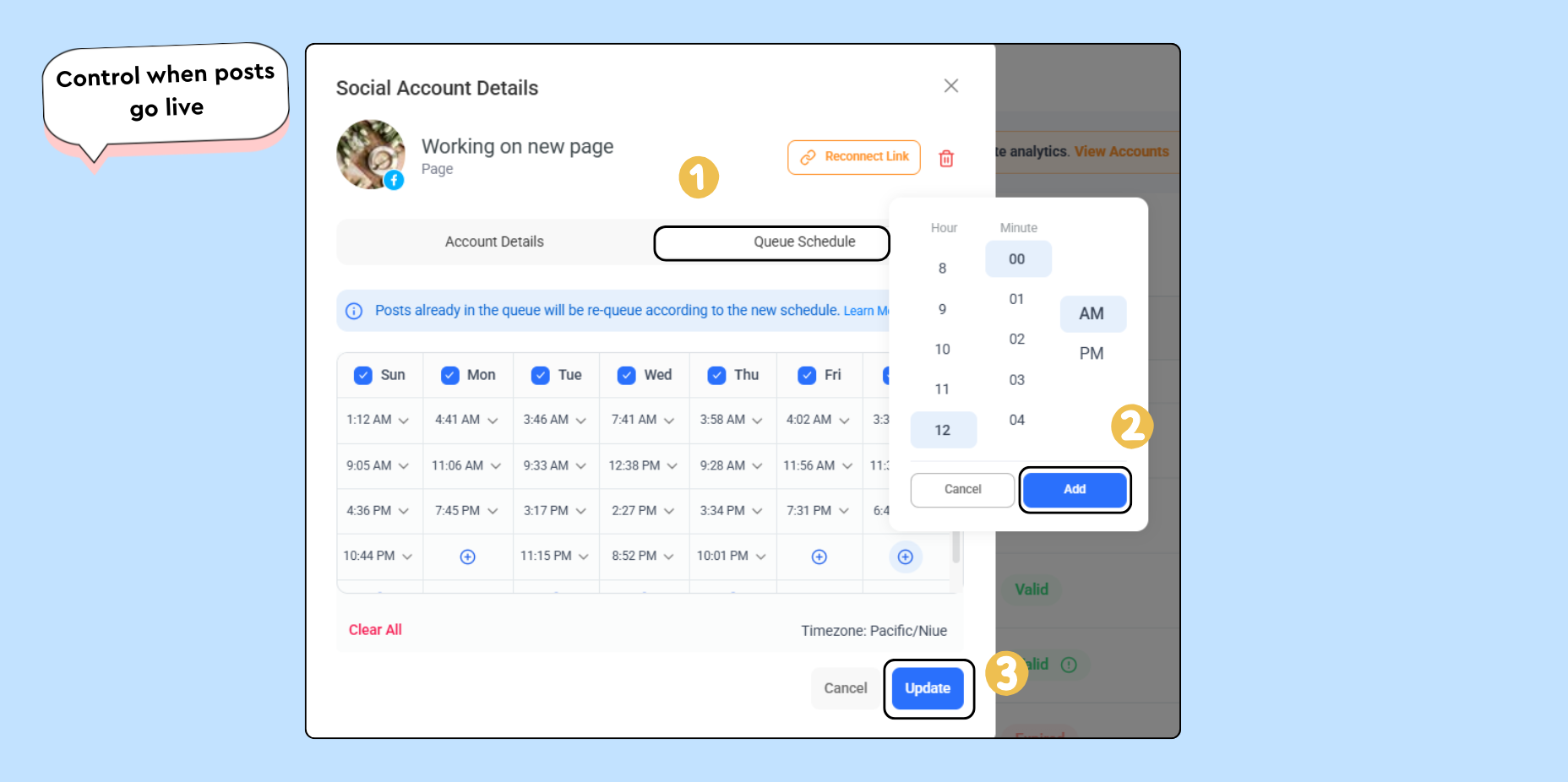
4. Queue Schedule
The Queue Schedule decides when and how often your posts go live on each connected account. Every account has its own schedule, so you can set different posting times and frequency (for example, 25 posts per week on one account and 10 on another).
For details, Check: What are social queues?
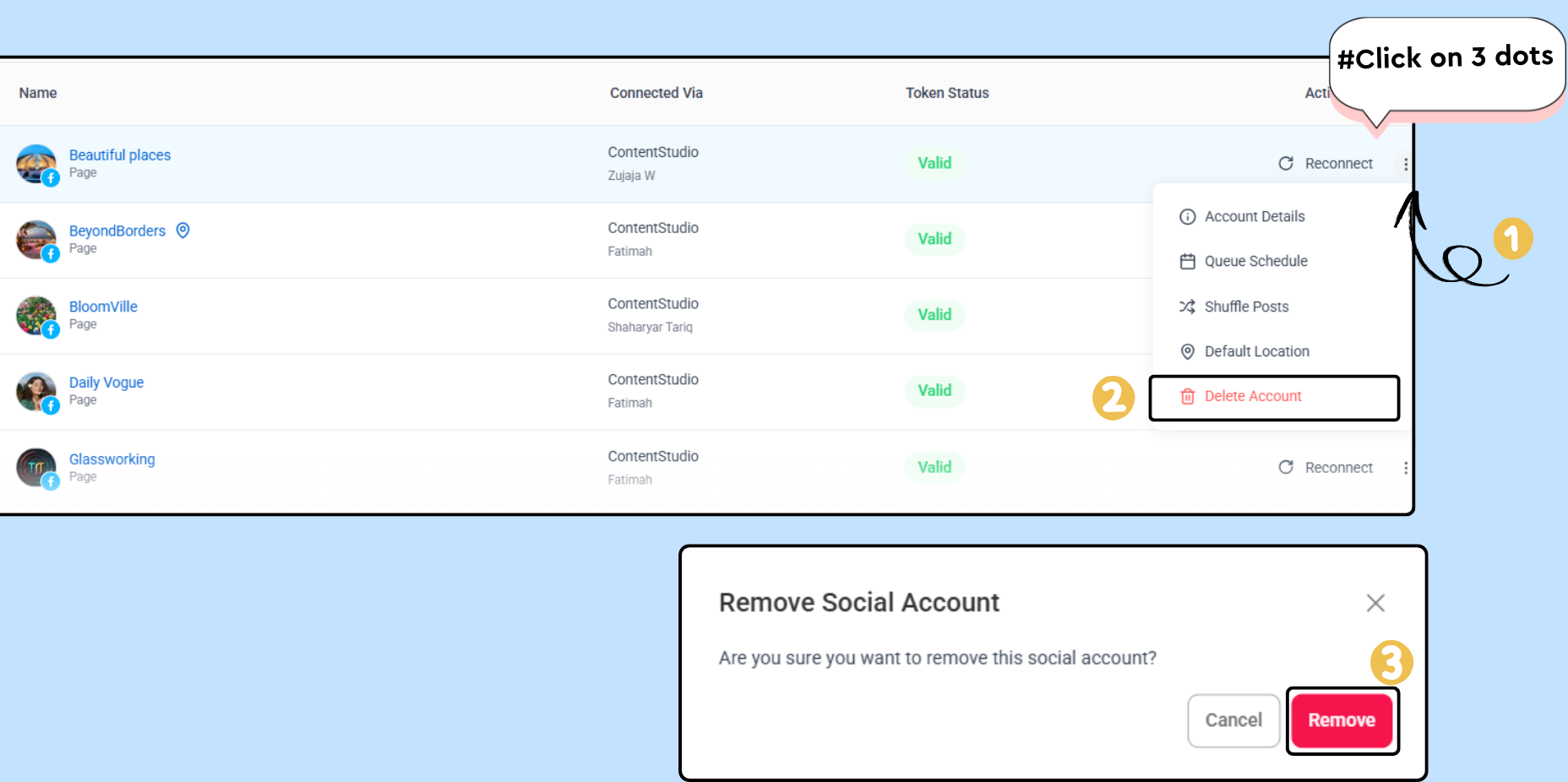
5. Remove a Social Account
Remove any connected account directly from this section.
6. EasyConnect Links
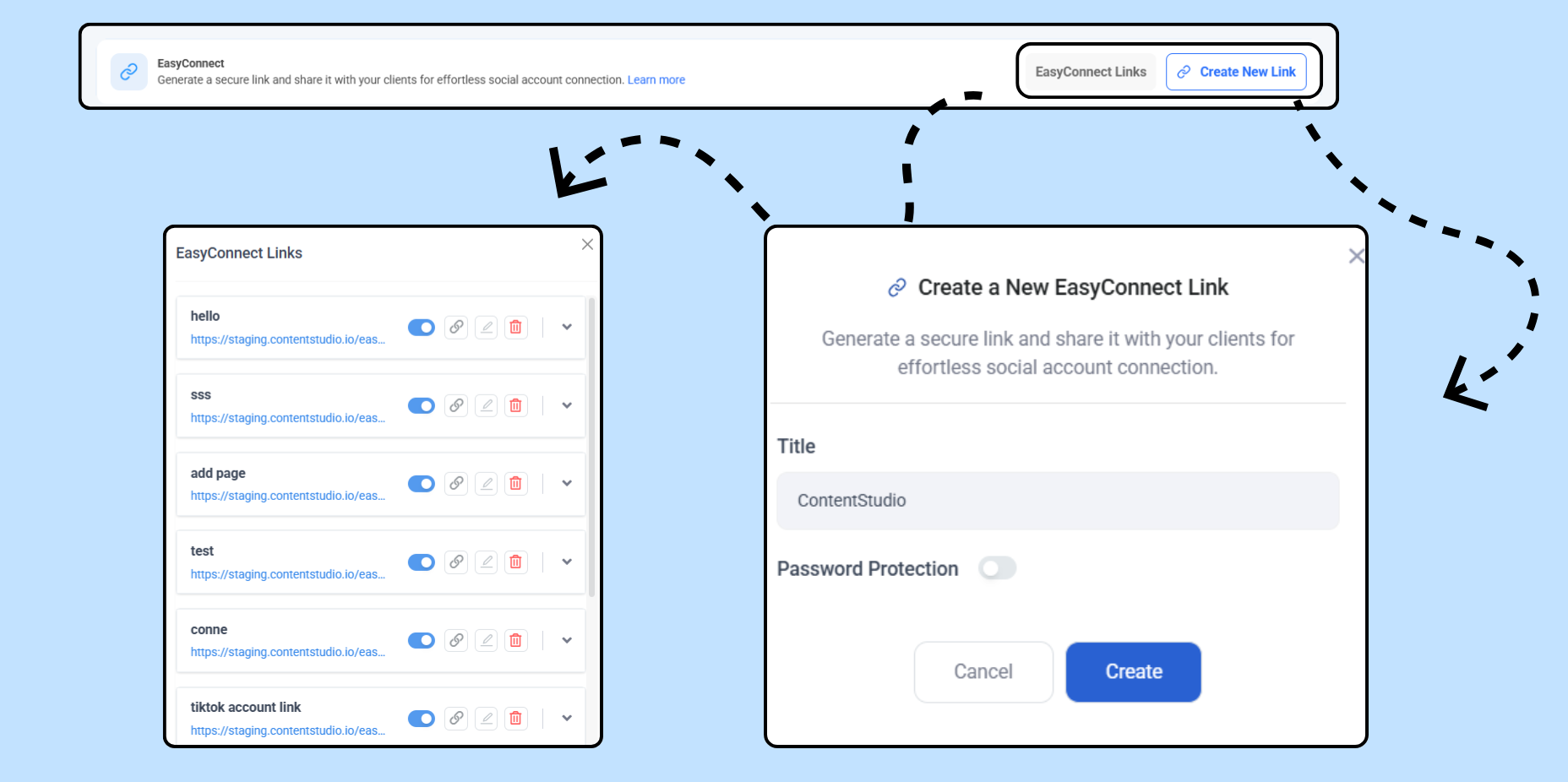
EasyConnect lets you generate a secure link that clients can use to connect their social accounts without sharing credentials.
🔗 For the complete setup and usage guide, see: How to use and set up EasyConnect
Frequently Asked Questions
Q1. Will scheduled posts still publish if my token expires?
No. If the token expires before the scheduled time, posts will fail to publish. Always refresh expiring tokens to avoid interruptions.
Q2. Can I reconnect an expired account without losing my scheduled posts?
Yes. As long as you reconnect before removing the account, your scheduled posts will remain intact.
Q3. What happens if I remove and then re-add the same account?
Removing an account permanently deletes its scheduled posts, queues, and analytics. Re-adding it creates a fresh connection with no history carried over.
Q4. Can multiple team members manage the same social account?
Yes. Once an account is connected to a workspace, any team member with access can schedule, edit, or publish posts depending on their role permissions.
Related Articles
Was this article helpful?