

React to comments in Planner
You can now react to comments in Planner using emojis — making it easier to acknowledge feedback without adding extra replies. This helps keep conversations clean while still letting teammates know their message has been seen. 🩷
How to React to Comments in Planner
From the Home dashboard, go to Planner and open any post.
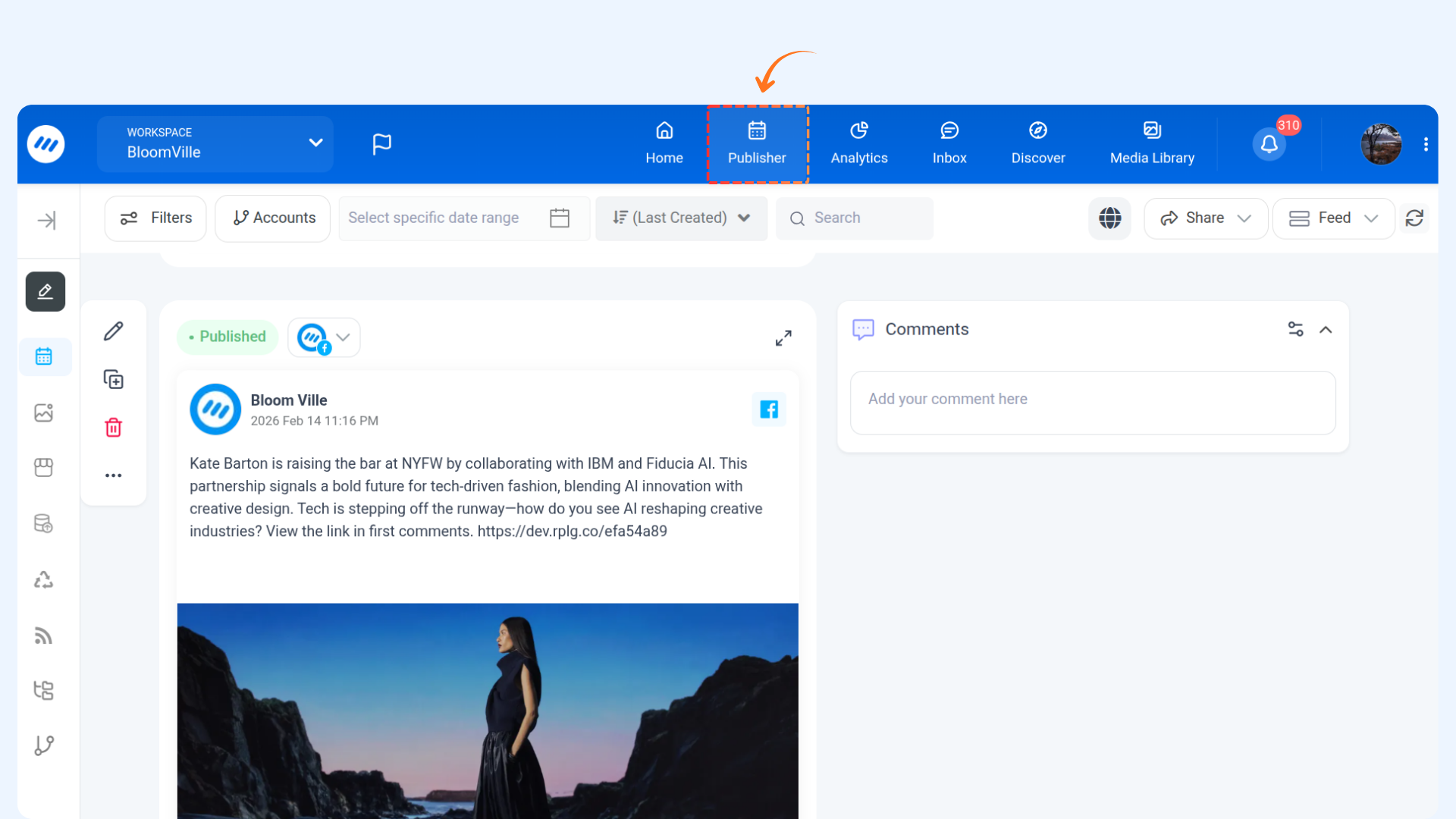
Go to the Comments section and hover over the comment you want to react to.
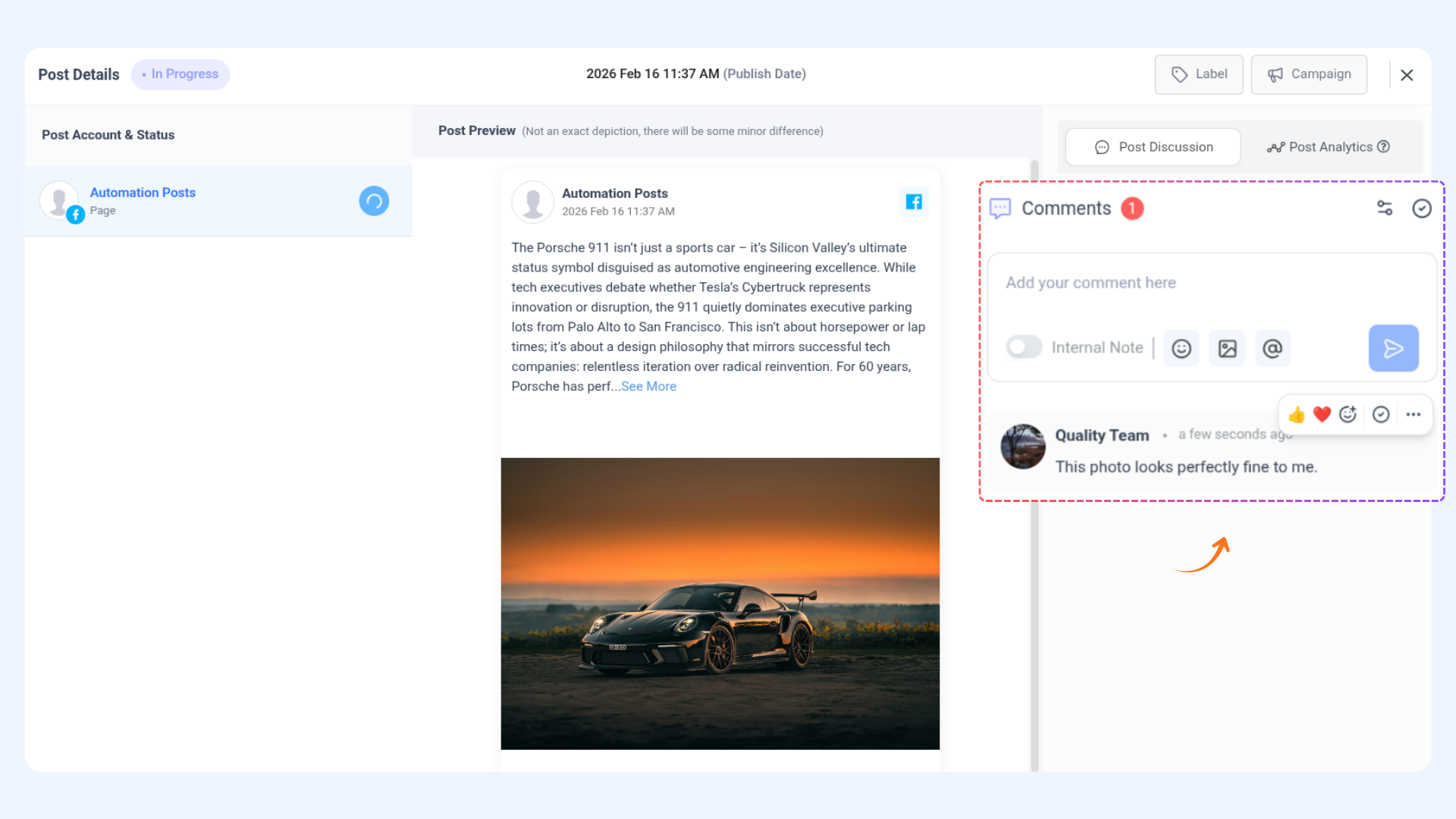
Click the emoji icon that appears and select your reaction. The reaction is added instantly.

Mark Comments as Resolved/Unresolved
You can mark a comment as resolved once the feedback has been addressed. This helps keep the comment section organized and makes it clear which discussions are still pending.
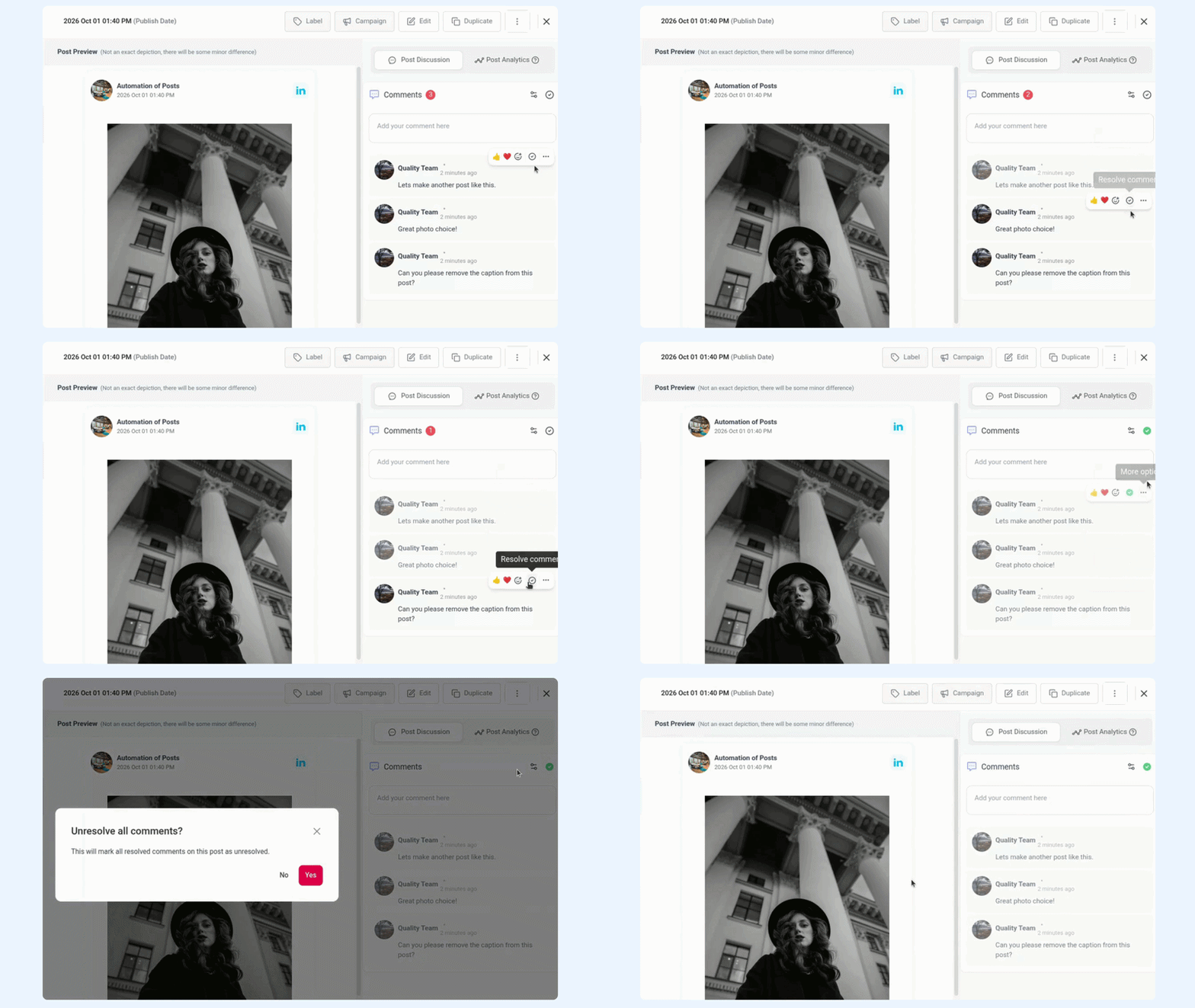
Navigate to the Comments section and hover over the comment you want to resolve.
Click the ✔️ tick icon that appears next to the emoji reactions. The comment will be marked as resolved instantly.
To reopen the discussion, simply click the tick icon again to unresolve the comment.
FAQ's
Q1: Can I react to comments from the composer section?
A: Yes! The reaction feature is also available in the Composer comment section, so you can react directly while drafting or previewing posts.
Q2: Can others see my reactions on shareable links?
A: Reactions are visible, but on shareable links, users can only view the reacts — they cannot add new reactions from there.
Q3: Are multiple reactions allowed per comment?
A: Yes, you can select multiple reactions per comment if needed. Each reaction will be displayed with the total count.
Q4: Can I remove or change a reaction?
A: Absolutely! Simply click on the reaction again to remove it or select a different emoji to change it.
Was this article helpful?