

How to set up recurring notes in ContentStudio?
The Recurring Notes feature in ContentStudio lets you schedule notes to repeat on a Daily, Weekly, or Monthly basis. Whether you want to set daily reminders, weekly syncs, or monthly planning notes, you can automate it with just a few clicks.
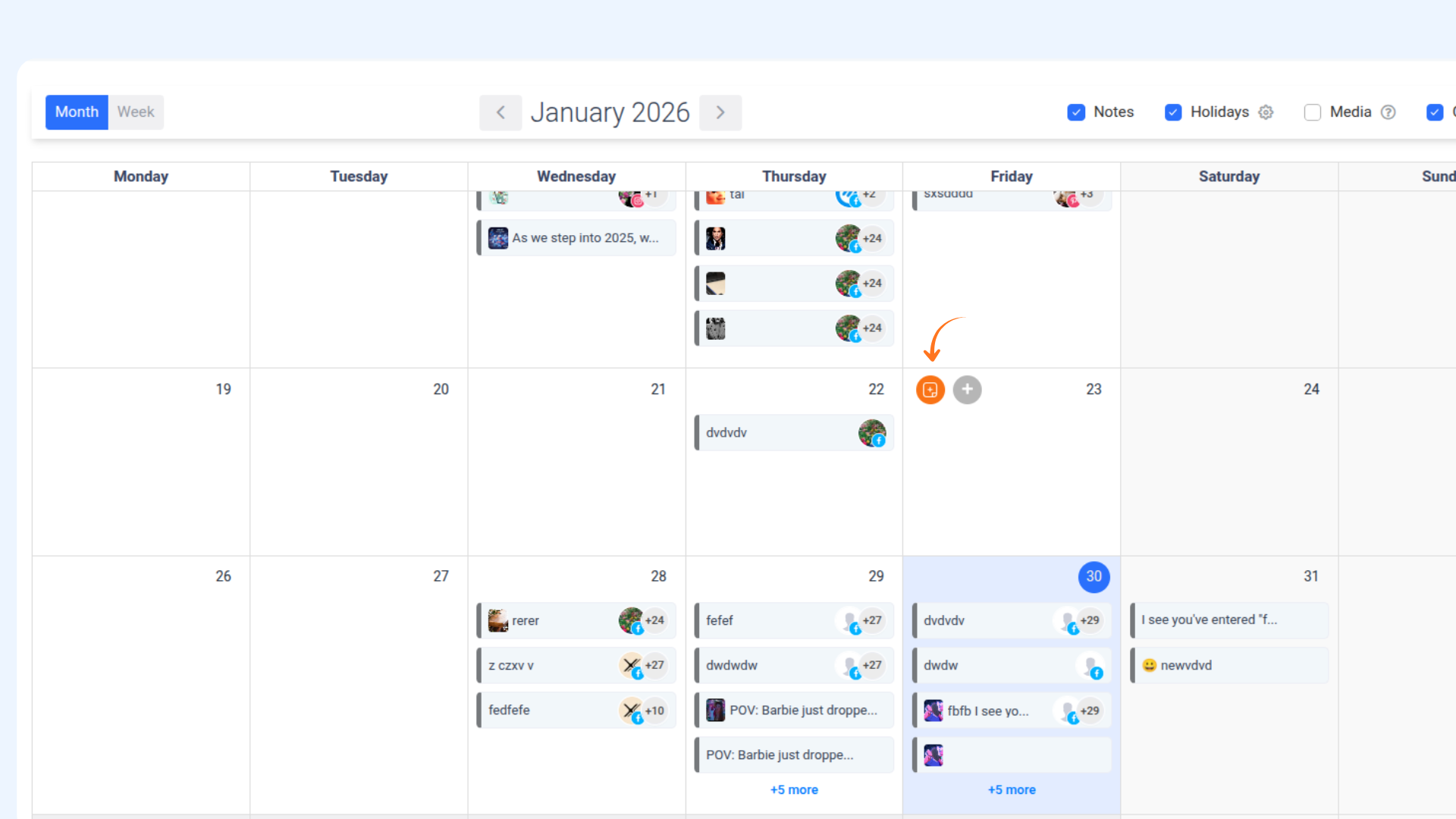
Go to Publisher → Planner.
Click the "Add Note" button, or open an existing note to edit it.
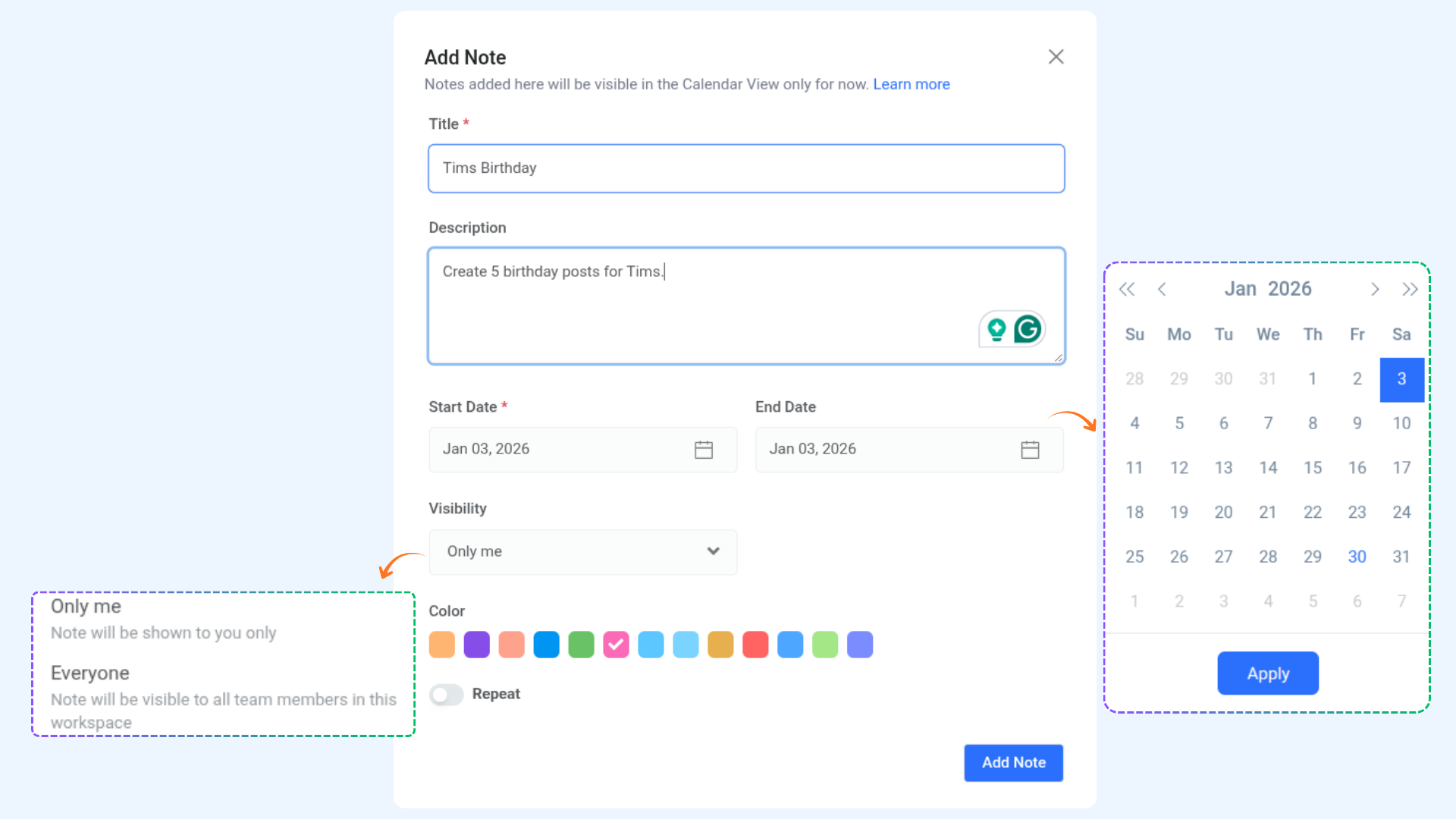
Add the required details and enable the "Repeat" toggle.
Once the Repeat option is enabled, a repetition dropdown will appear with the following settings:
Repeat Every [X] [days/weeks/months]: Choose how frequently the note should repeat.
Ends: Select when the repetition should stop — either on a specific date (e.g., Mar 31, 2025) or after a set number of occurrences.
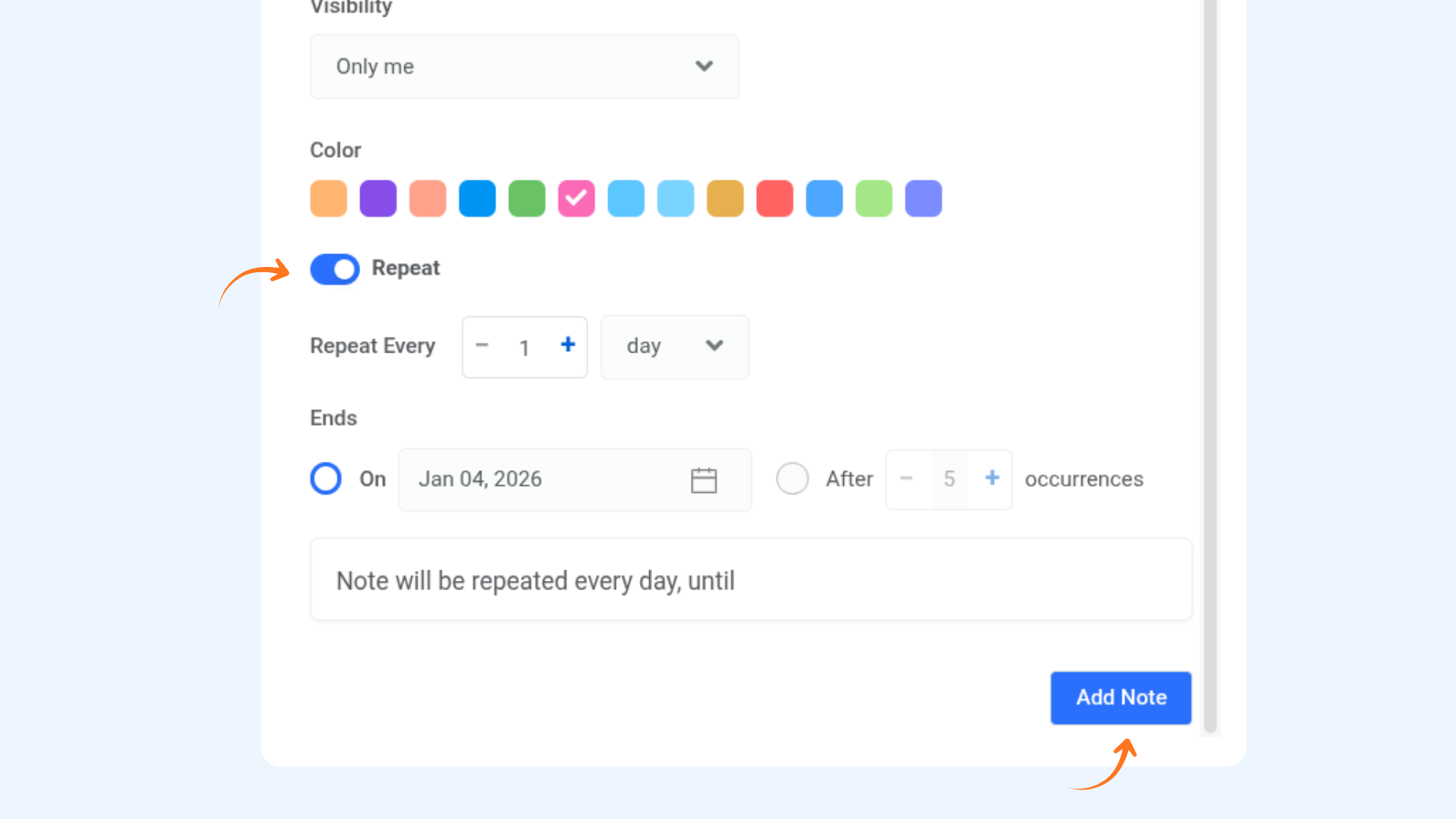
Click the "Add Note" button to save.
FAQs
Q1: Can I switch between “On” and “After” later?
A: Yes, you can switch between the two during creation or when editing a note.
Q2: Can I delete or edit a single instance of a recurring note?
A: Yes, each occurrence appears individually in the calendar and can be edited or deleted as needed.
Q3: What happens if I reduce the number of occurrences in an already scheduled note?
A: Only future instances beyond the new limit will be removed.
Q4: Can I create recurring notes without end dates?
A: No, you must fill in all the fields.
Was this article helpful?