

How can clients and approvers add notes in the planner?
ContentStudio has introduced a new permission setting that controls whether Clients and Team Approvers can add notes across the platform. This ensures better control over collaboration and content review.
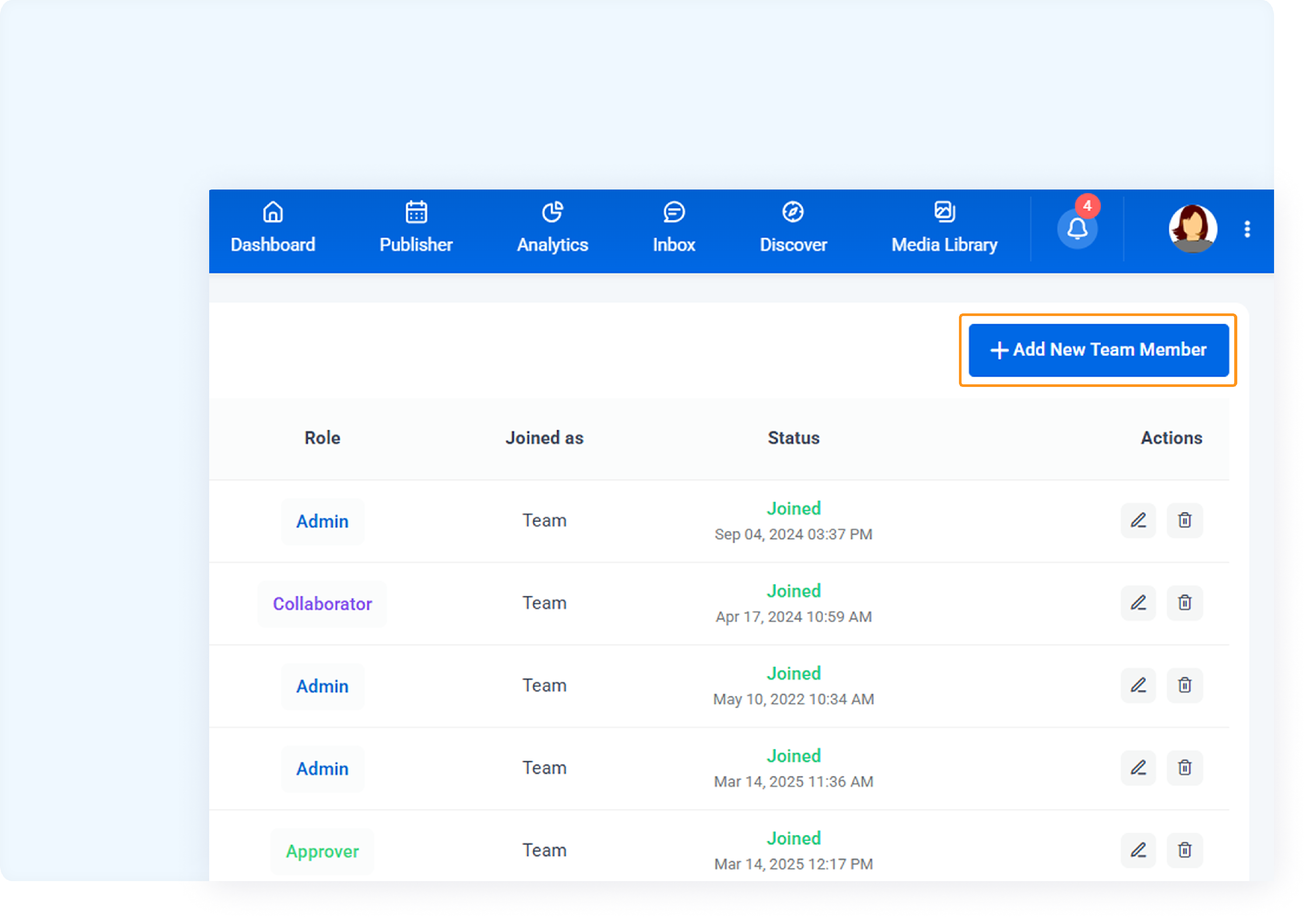
Go to Your Profile → Team Members.

Click Add Team Member.
Select the role as Approver.
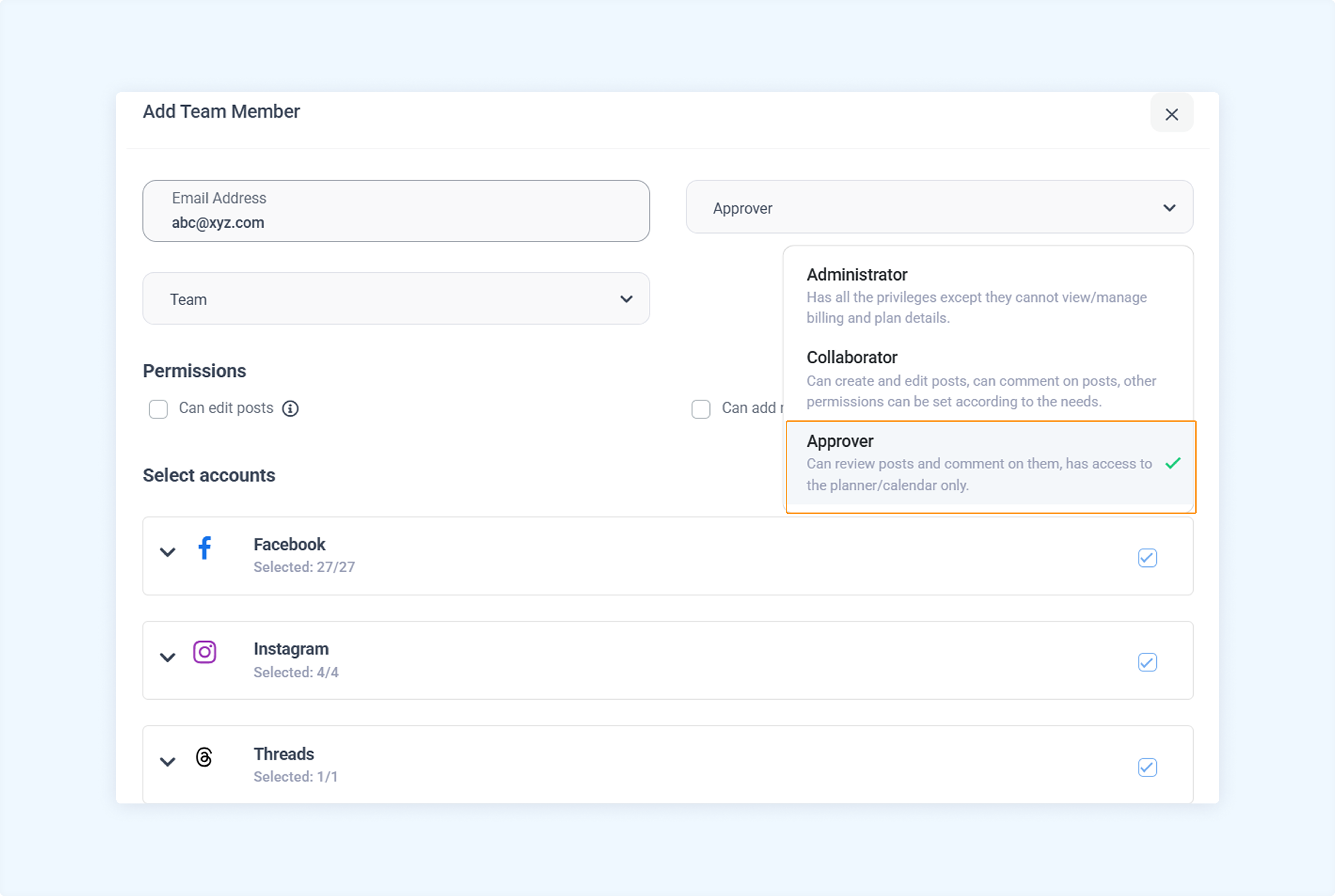
You will see a new checkbox: ✅ Can add notes.
To grant permission to add notes, ✅ check the box.
To restrict the member from adding notes, leave it unchecked.
You can also select specific accounts/platforms for which you want to give the permission.
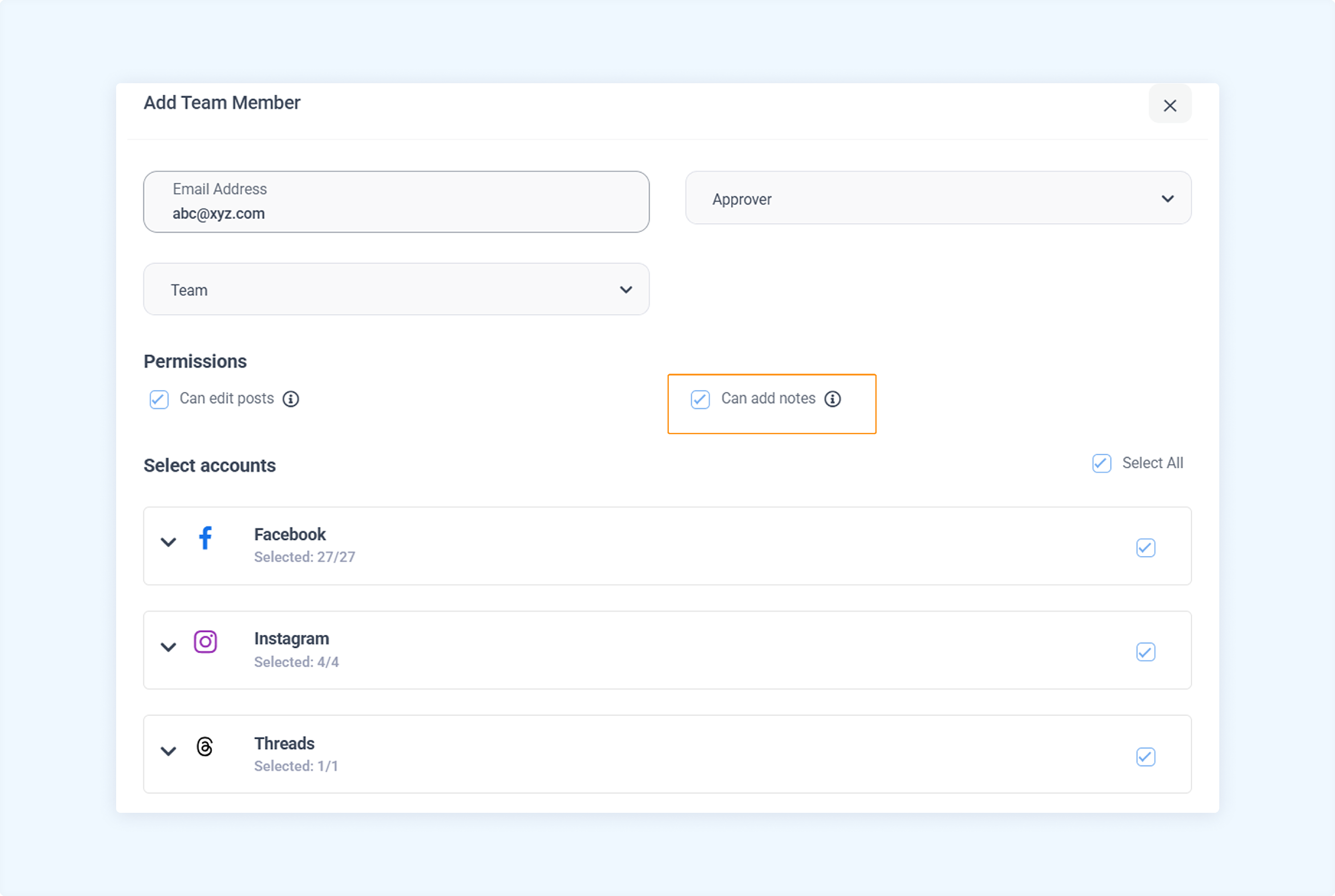
Click Save. The permission will be saved along with the invite.
FAQs
Q1: Can I change this permission later?
A: Yes. You can edit a team member's role and toggle the "Can add notes" checkbox at any time.
Q2: Why don't I see the "Can add notes" checkbox?
A: The checkbox only appears when the selected role is Client or Team Approver.
Q3: Does this permission affect note visibility?
A: No. It only controls whether the user can add notes. Depending on other visibility settings, they may still view notes.
Q4: What if I upgrade a Client to a full team role later?
A: Once upgraded to a role like Editor or Admin, this specific permission no longer applies—they will inherit the default permissions of the new role.
Was this article helpful?