

React to comments in Planner on iOS
You can now react to comments in Planner using emojis — making it easier to acknowledge feedback without adding extra replies. This helps keep conversations clean while still letting teammates know their message has been seen.
In this Article:
How to React to Comments in Planner
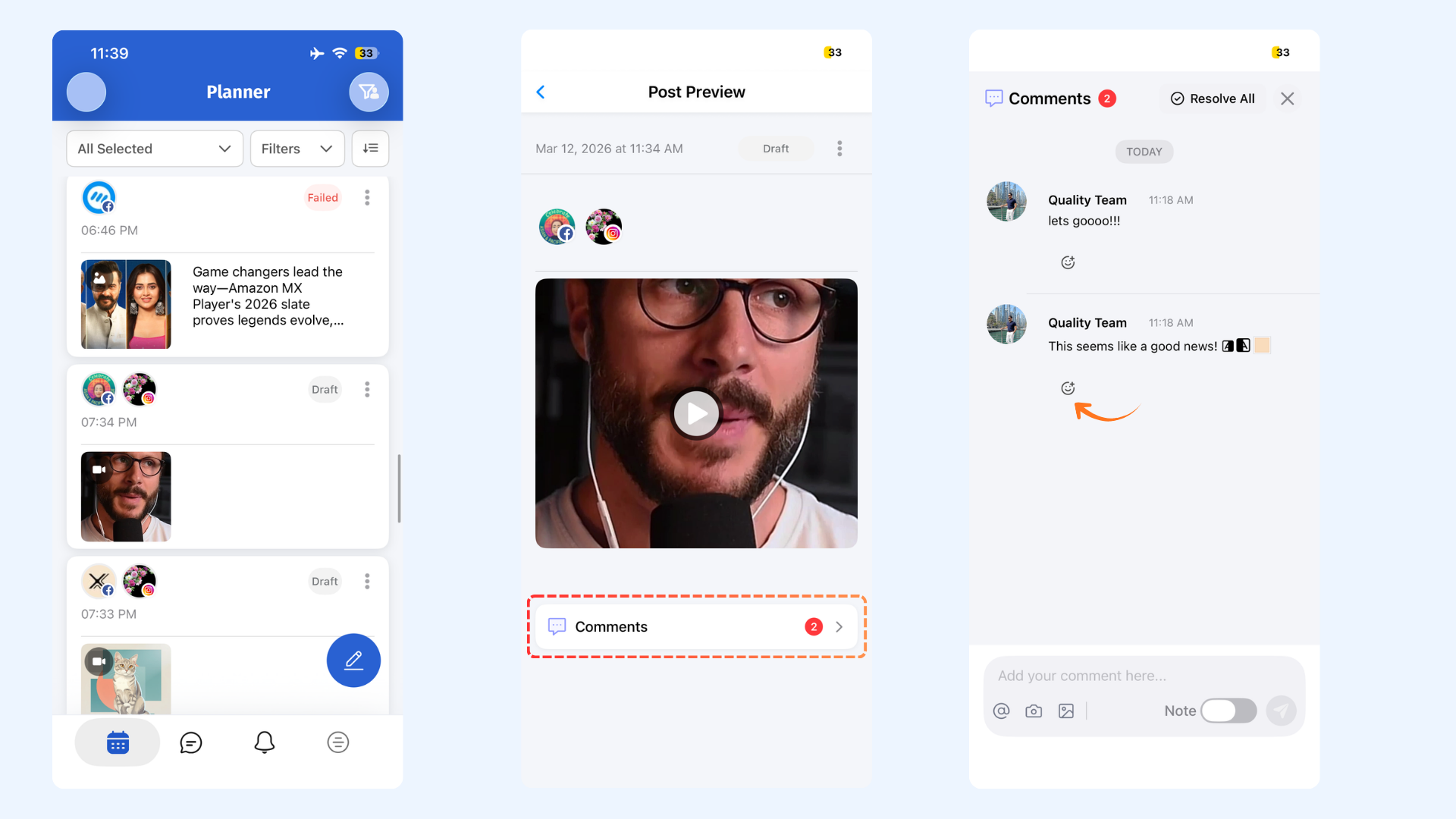
From the Home dashboard, go to Planner and open any post.
Tap Comments to view the list of comments on that post.
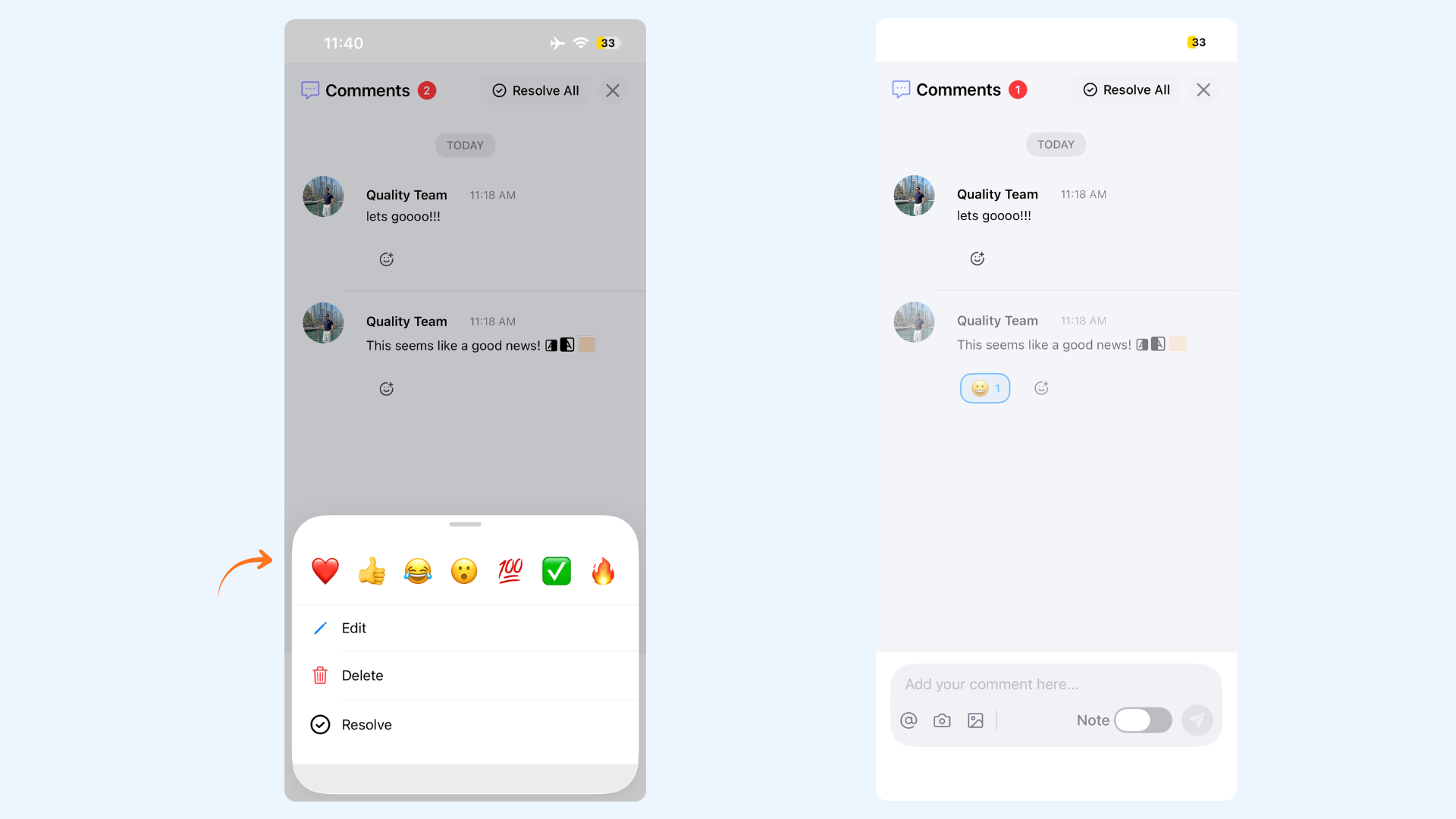
Tap the emoji icon under a comment and select the reaction you want to add.
Your reaction will appear instantly under the comment.
Mark Comments as Resolved or Unresolved
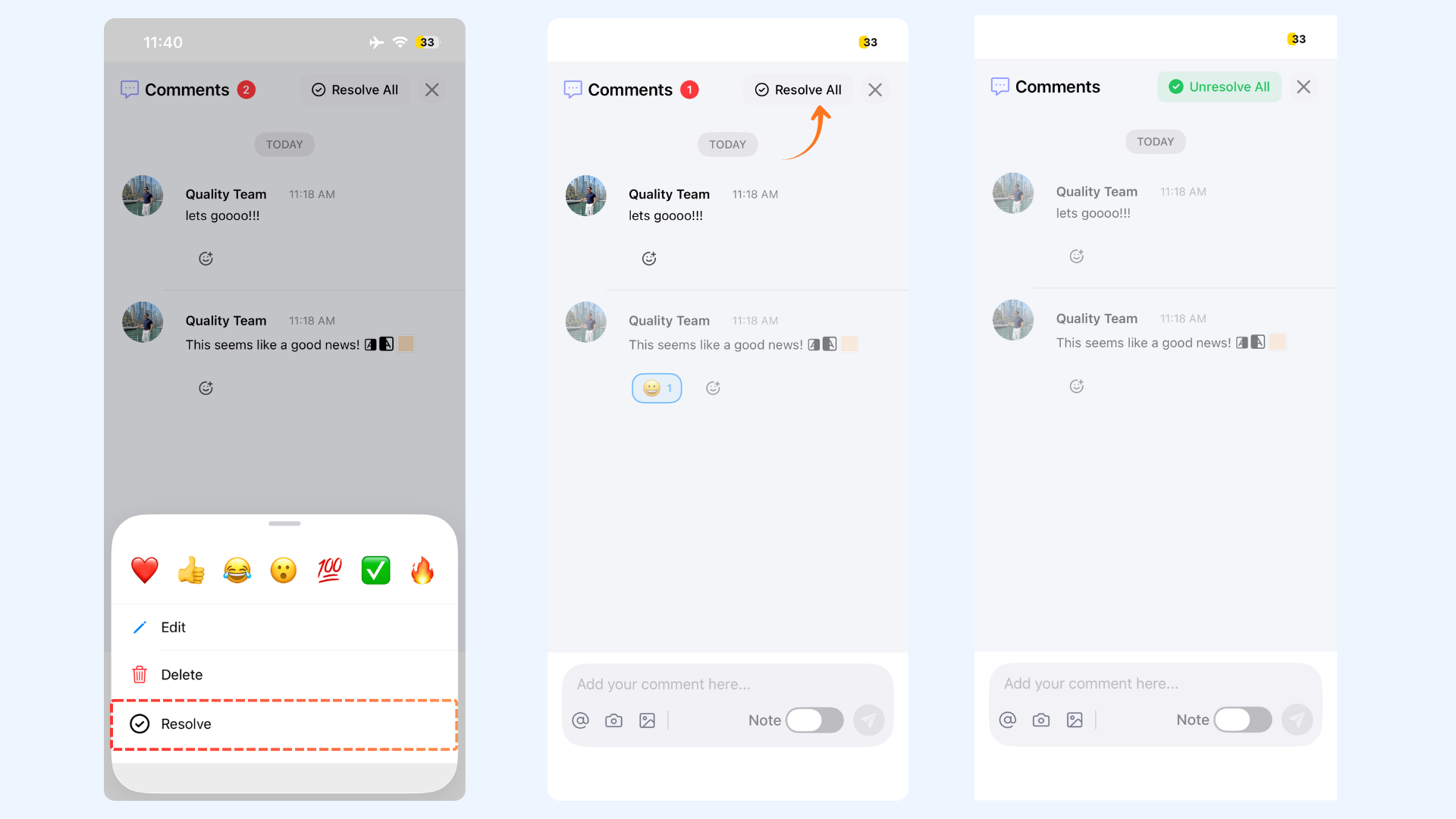
From the Planner, open any post and tap Comments.
Long-press on the comment you want to manage.
A menu will appear with options such as Resolve.
Tap Resolve to mark the comment as resolved.
FAQs
Can I react to a comment in Planner on iOS?
Yes. Open the post in Planner, tap Comments, then tap the emoji icon under a comment to add a reaction. Your reaction will appear instantly.
Who gets notified when I react to a comment?
Only the person who wrote the comment receives a notification when you react to it.
Can I change or remove my reaction?
Yes. Simply tap the emoji reaction again and select a different one or remove it.
How do I resolve a comment on iOS?
Open the Comments section of a post, long-press the comment, and select Resolve from the menu.
Was this article helpful?