

Delete published posts from social media platforms through ContentStudio
With ContentStudio, you can delete posts directly from your social media platforms without logging in to each platform separately. This updated feature saves time and effort by allowing you to manage and remove published content through ContentStudio.
To delete a post, locate the published post in your account, select the delete option, and confirm the action.
In this article:
Overview
The post-deletion feature enables users to manage their published content more efficiently. Depending on the platform, users can delete posts either from ContentStudio alone or from both ContentStudio and the social media platform.
Delete published posts from social media platforms through ContentStudio
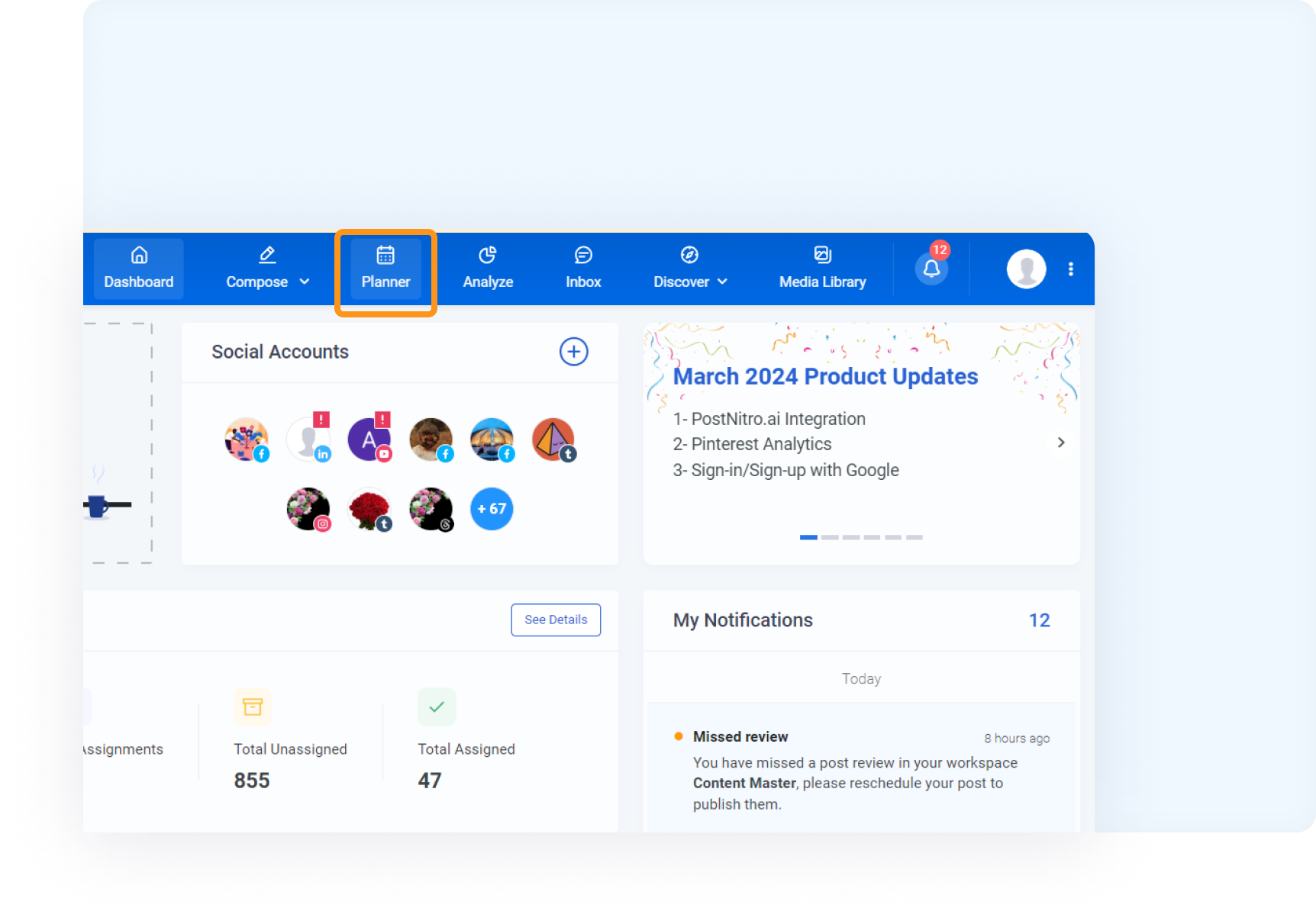
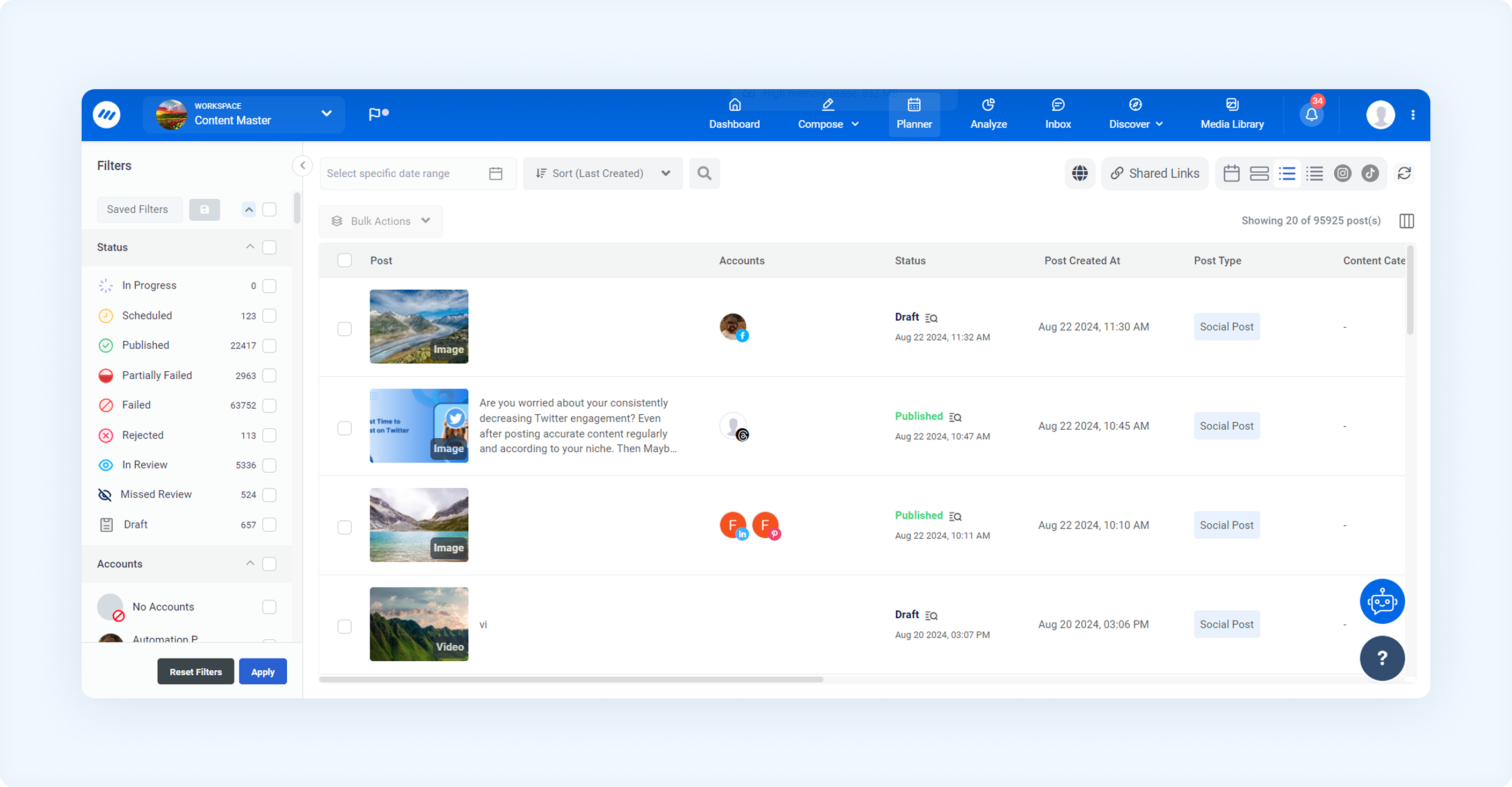
Go to Planner.
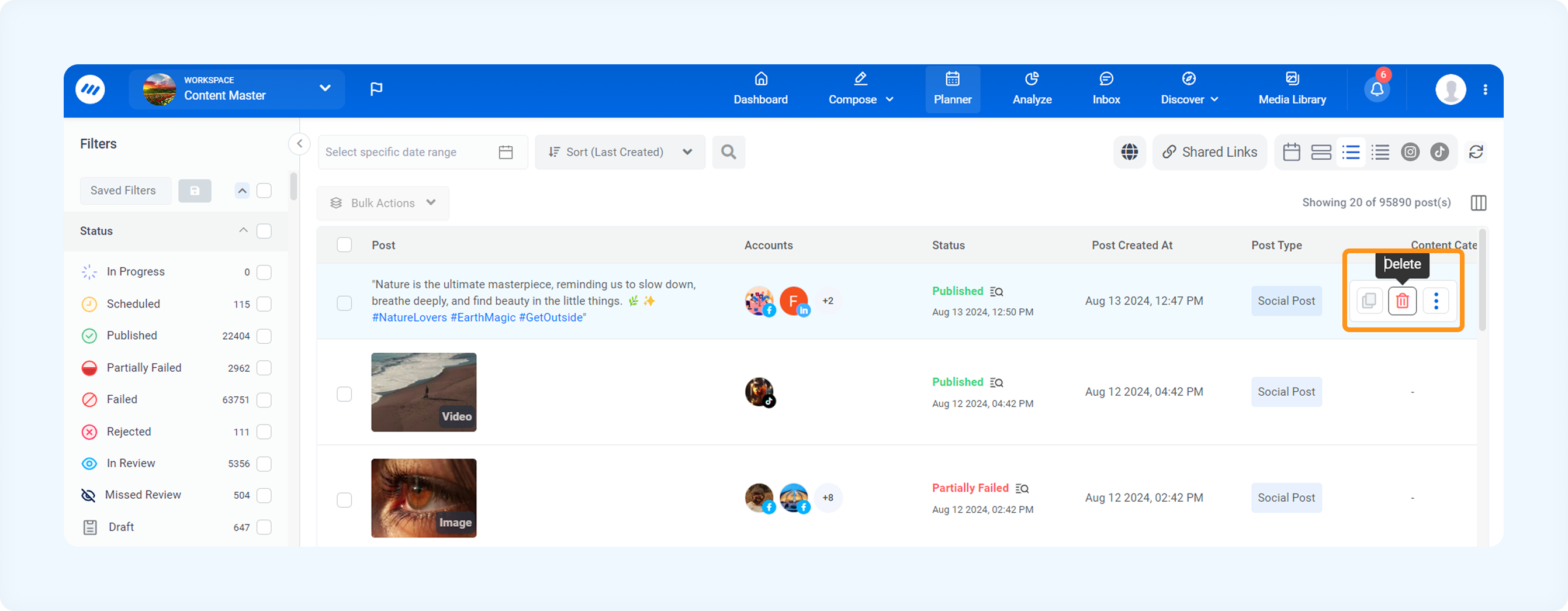
Find the post and click the Delete icon.
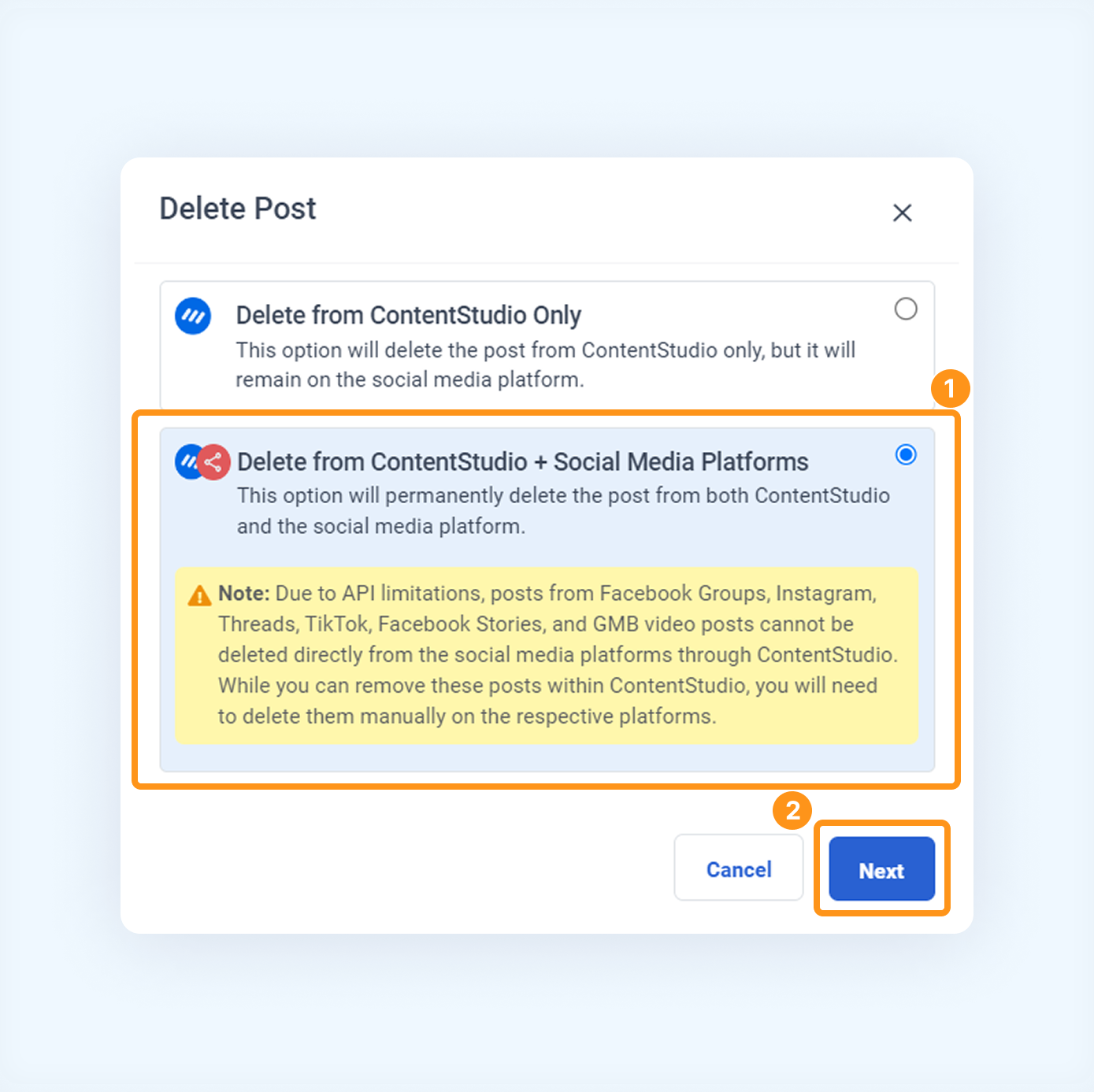
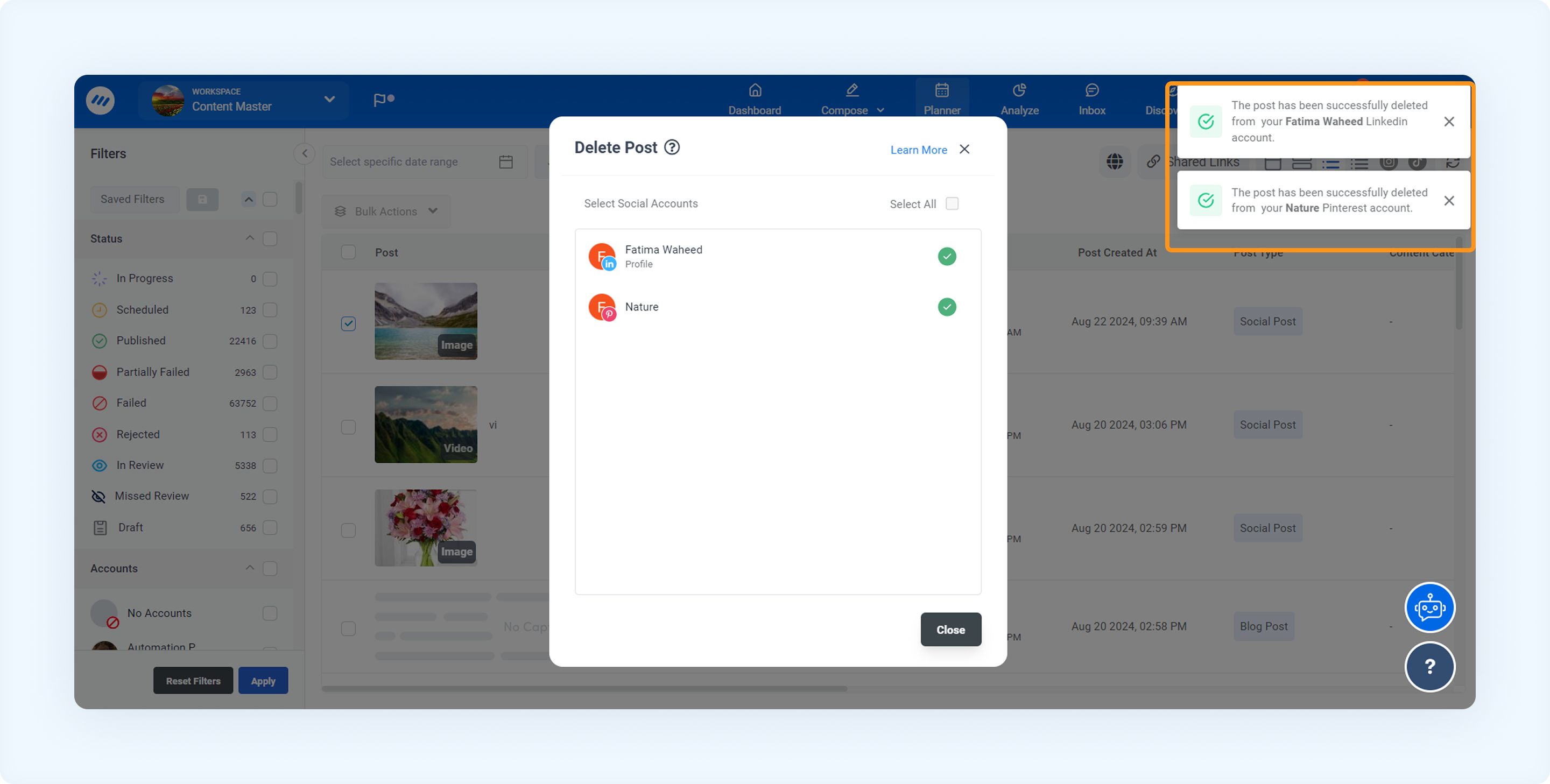
Select "Delete from ContentStudio + Social Media Platforms" and click Next.
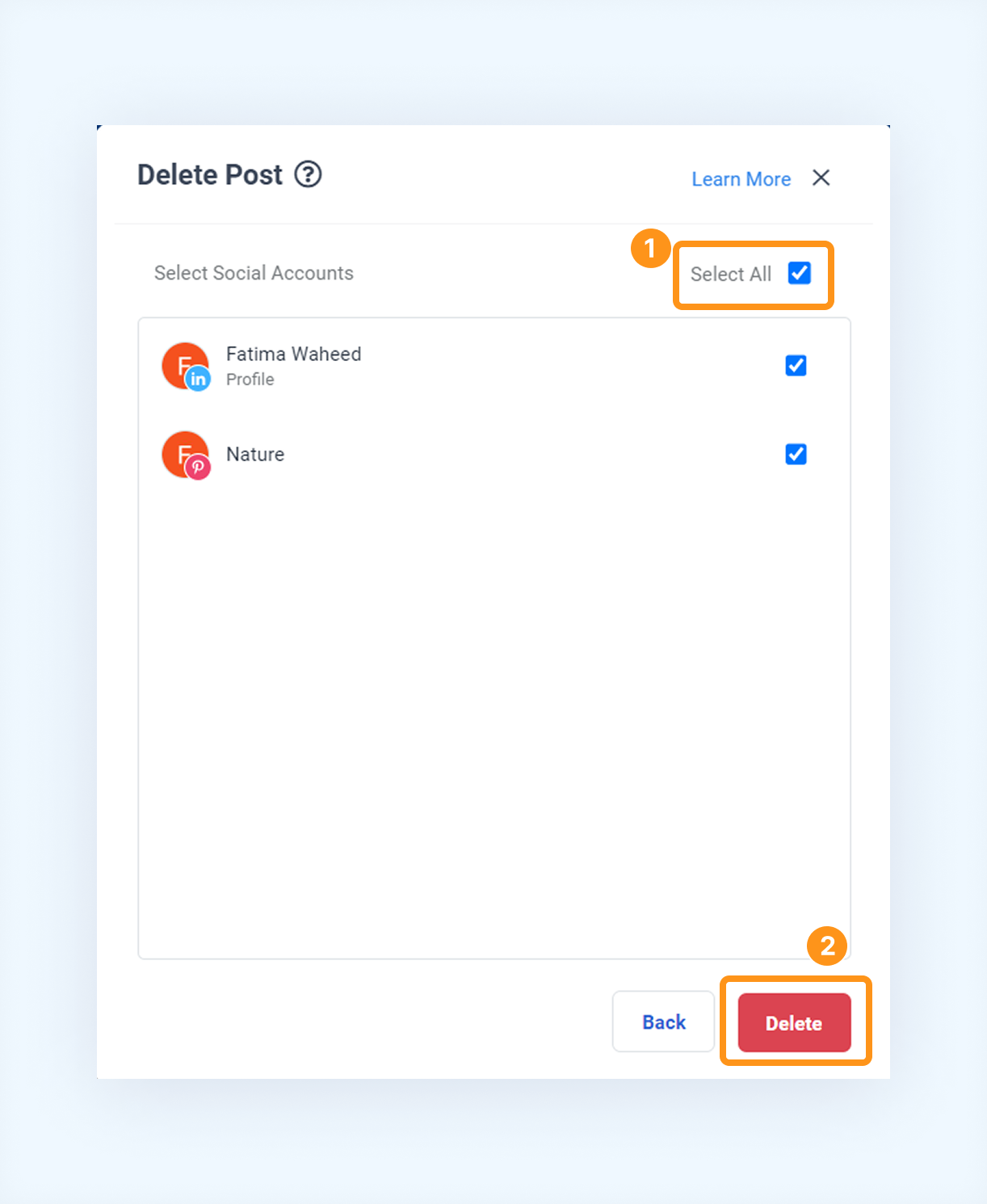
Select the platforms (or click Select All) and then click Delete.
The post will be deleted from ContentStudio and the selected social media platforms.
Delete published posts from ContentStudio
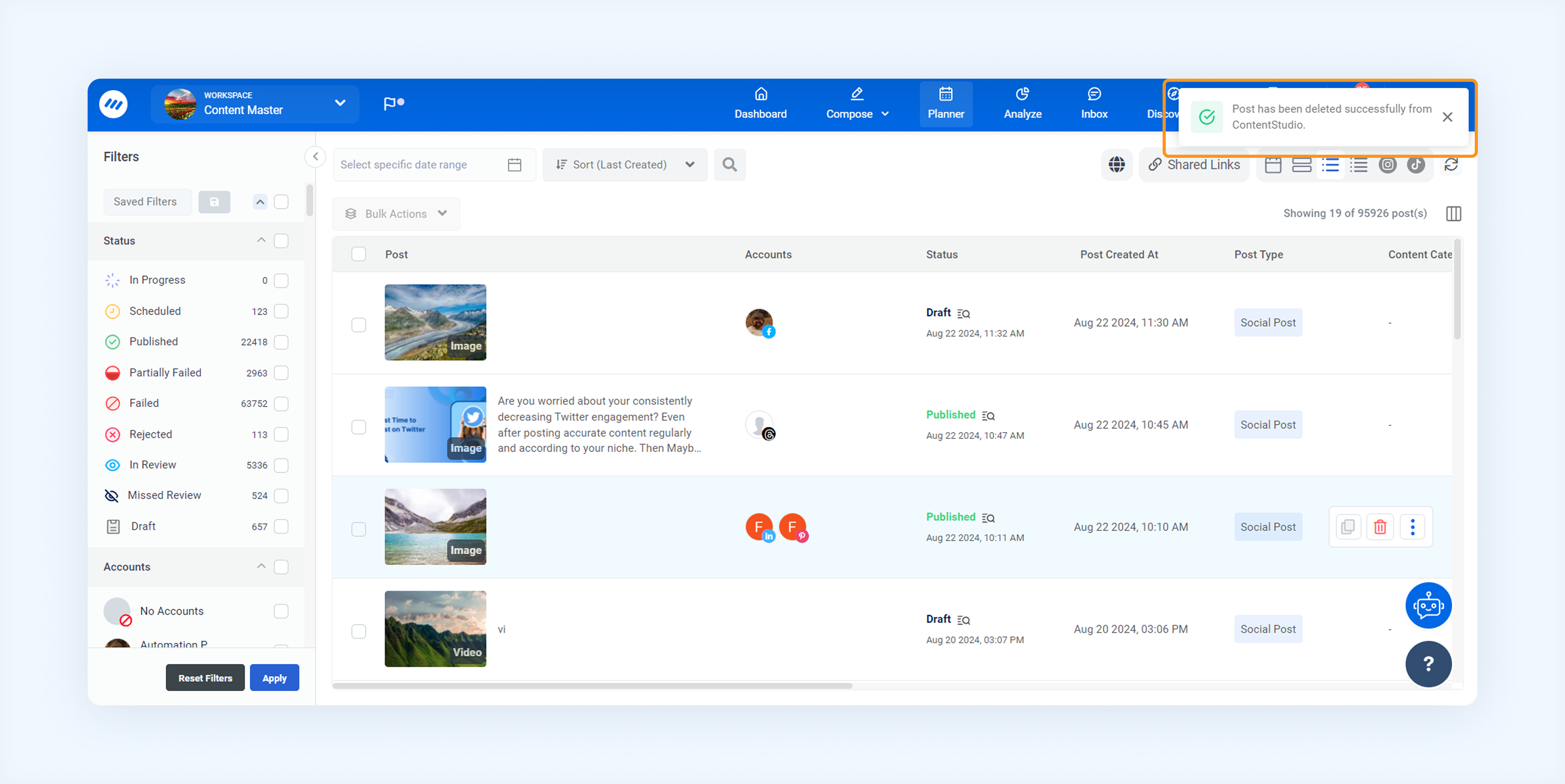
Go to Planner.
Find the post and click the Delete icon.
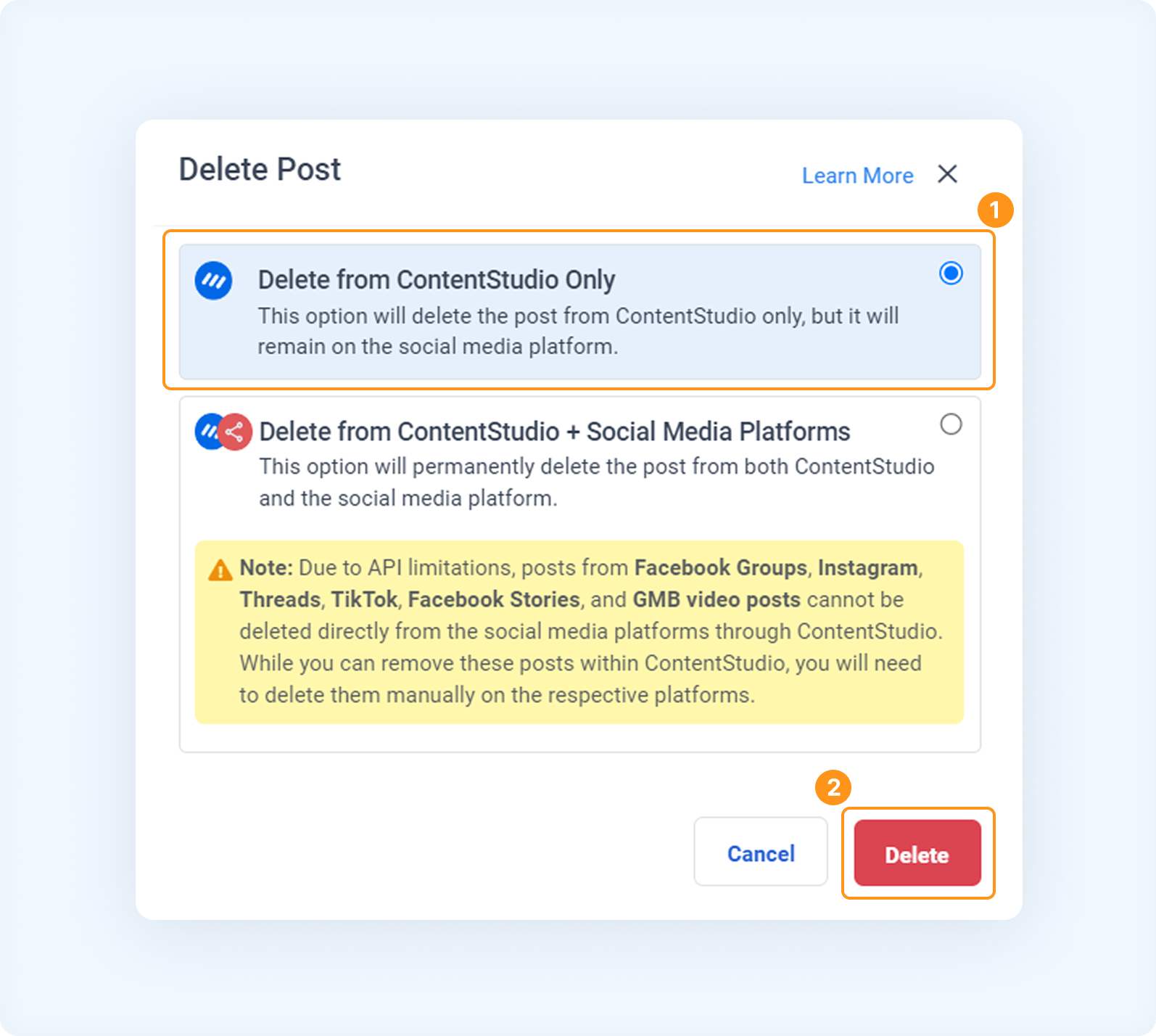
Select "Delete from ContentStudio Only" and click Delete.
Exception handling in post-deletion
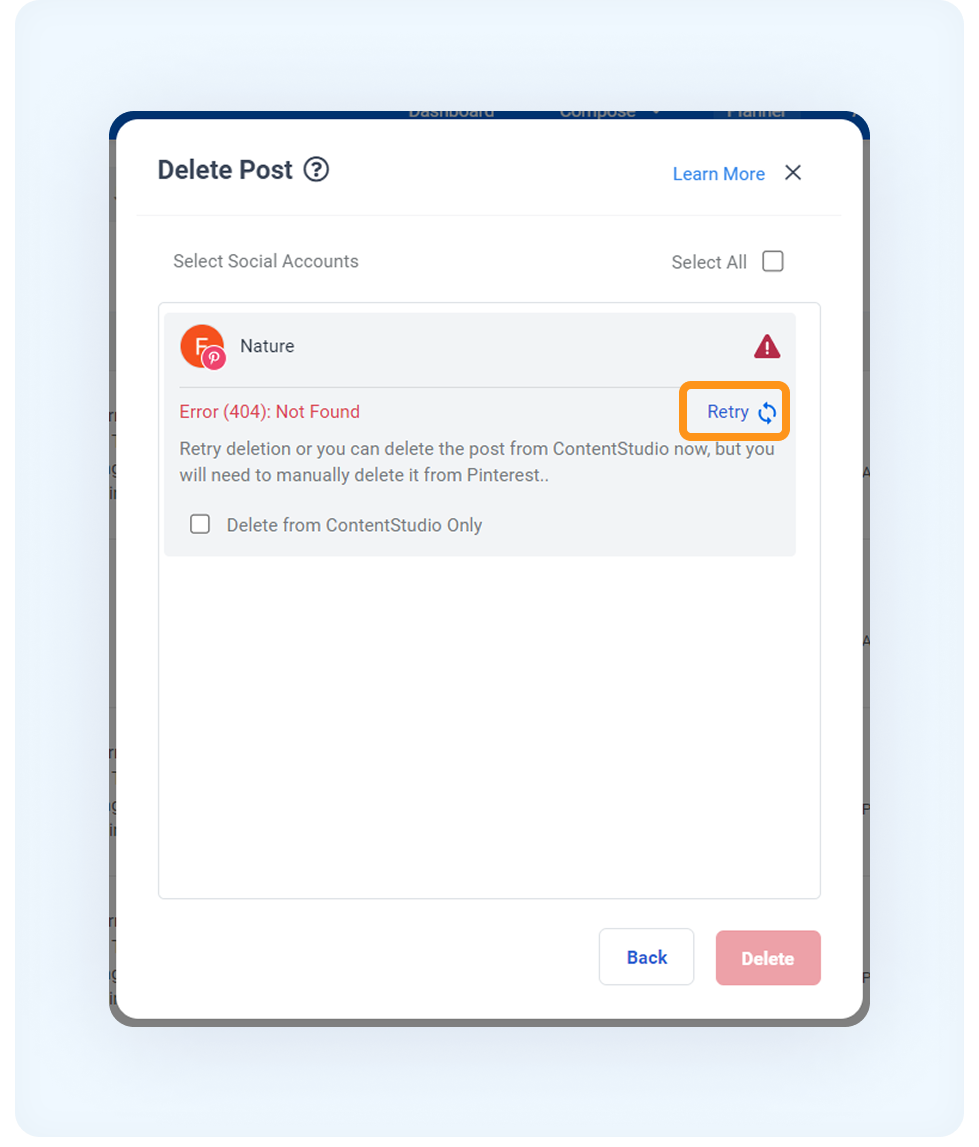
a. Failed deletion
b. API Limitations in Deletion Processes
Navigate to the Planner and select the post you wish to delete.
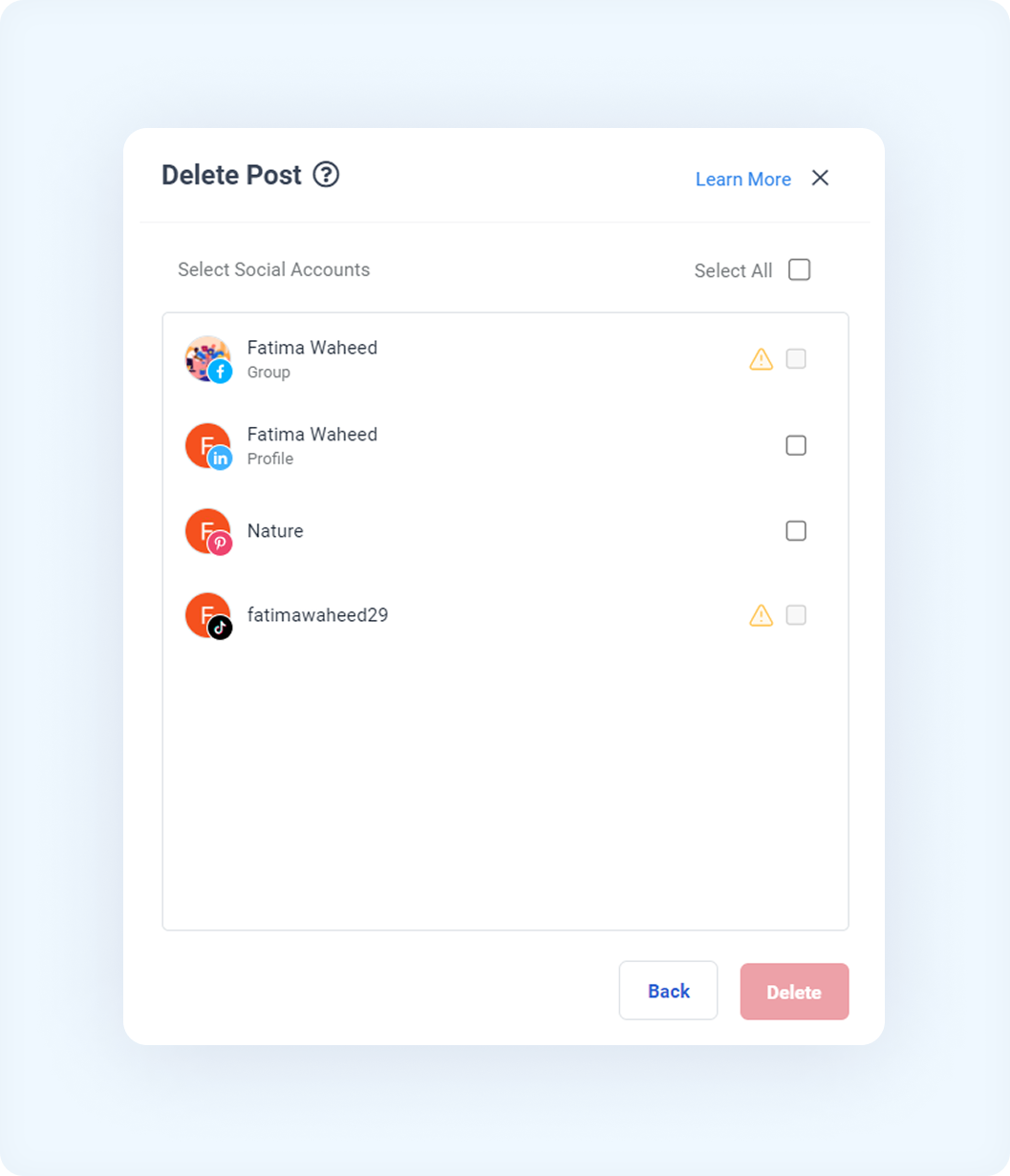
Review the popup. Platforms with API restrictions will be marked with a warning sign, indicating that special action is required.
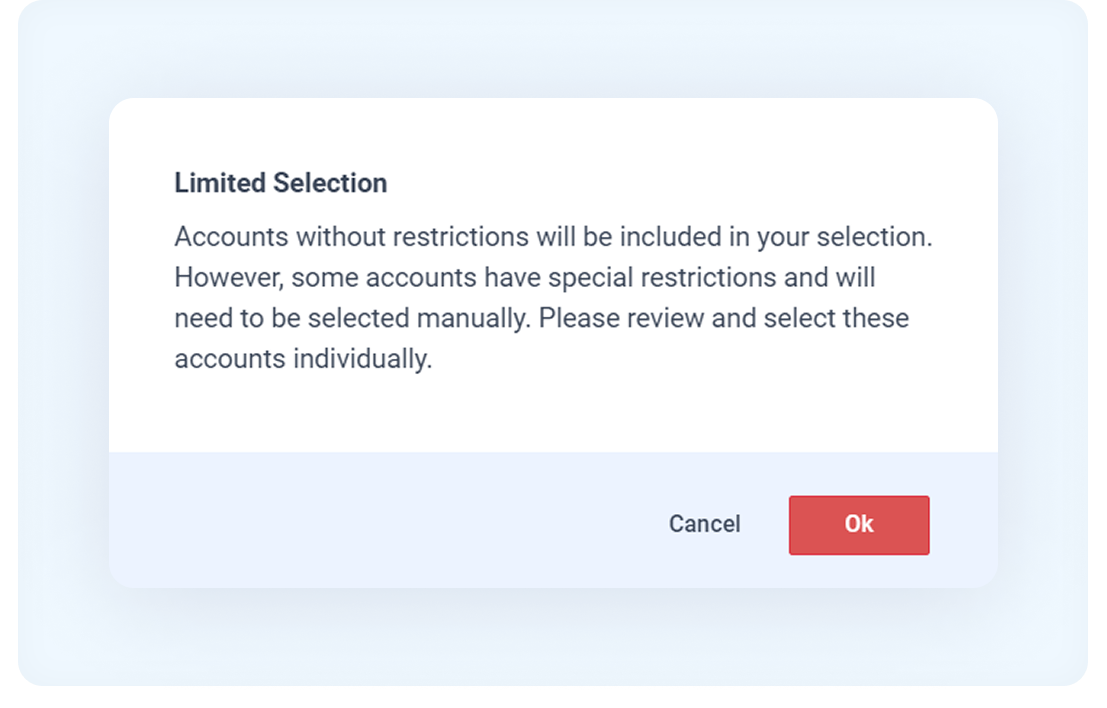
Handle restricted accounts: If you click "Select All", an error message will appear. Accounts without restrictions will be auto-included, but those with restrictions must be selected manually. You can then review and select these accounts, or cancel/confirm by clicking Ok.
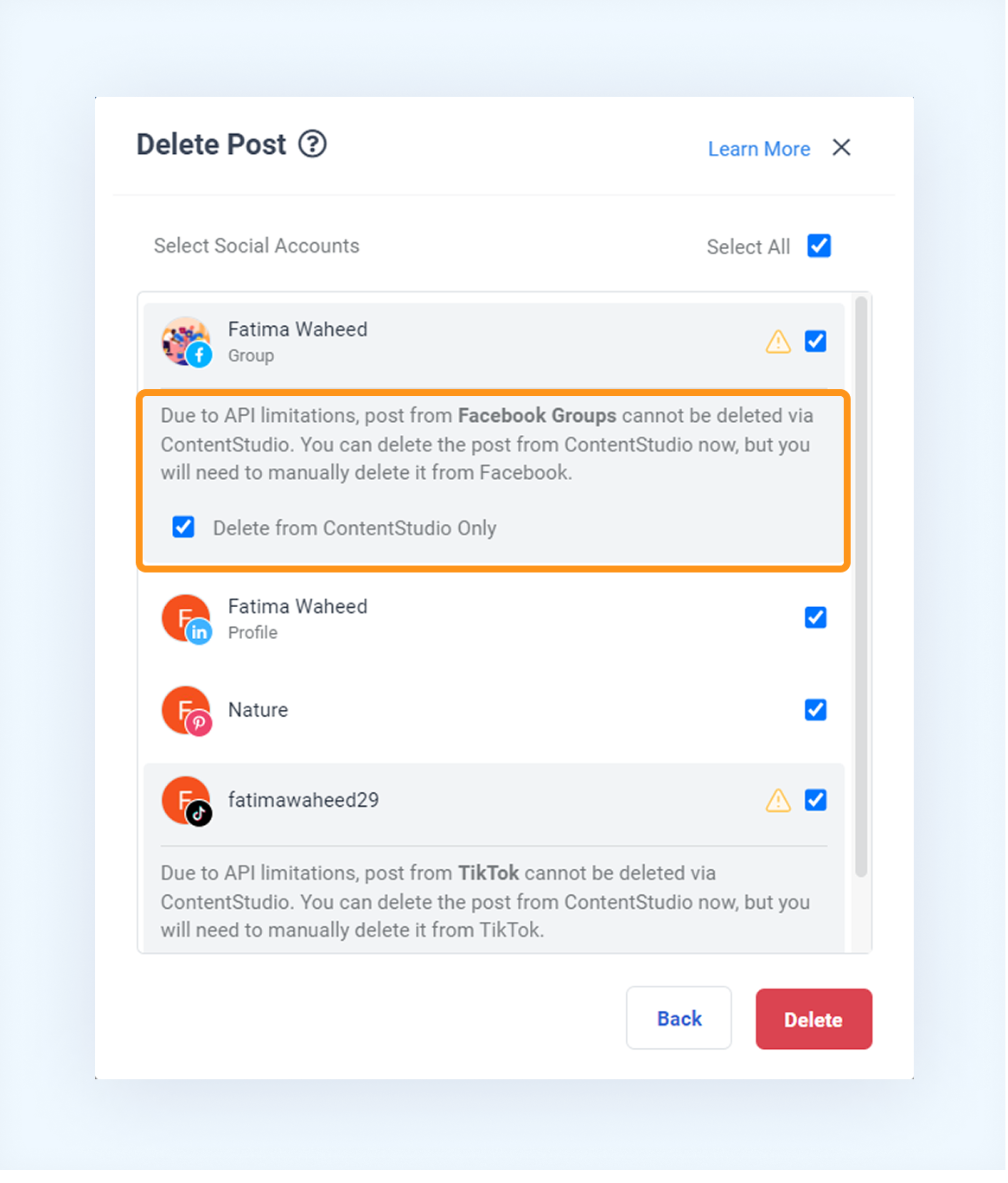
View Platform Warning: Click the warning icon next to the account to see that deletion through ContentStudio is not possible due to API limitations. You can choose to keep the post in ContentStudio or delete it from here, but manual deletion from the platform itself is required.
Delete from ContentStudio: To delete the post from ContentStudio, check the "Delete from ContentStudio Only" option and click Delete.
Following these steps will ensure that posts are removed from their respective platforms and ContentStudio, except where manual deletion is necessary.
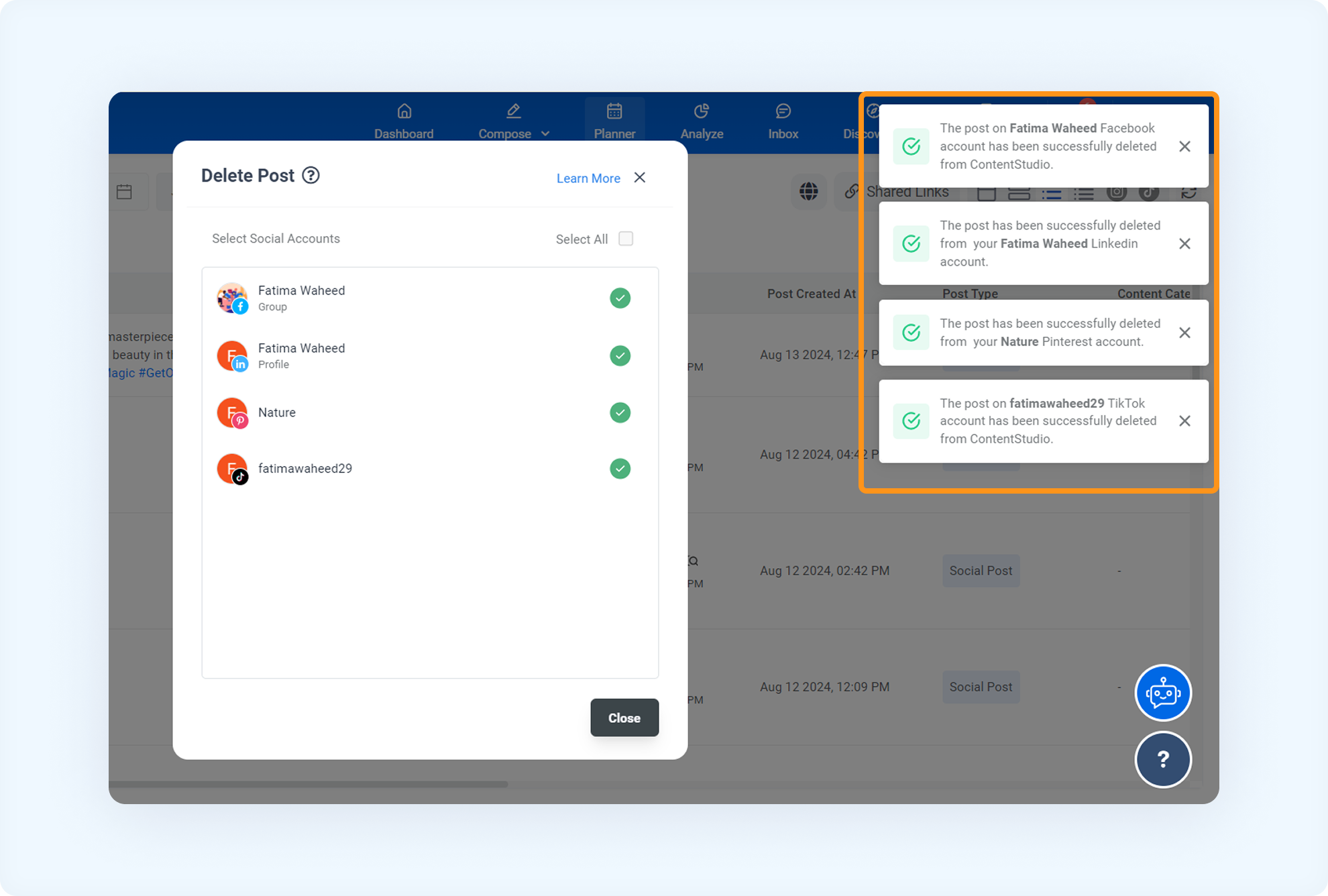
c. Delete Partially Failed Post
In some cases, you may need to delete a partially failed post. To do this:
Go to Planner and select a partially failed post.
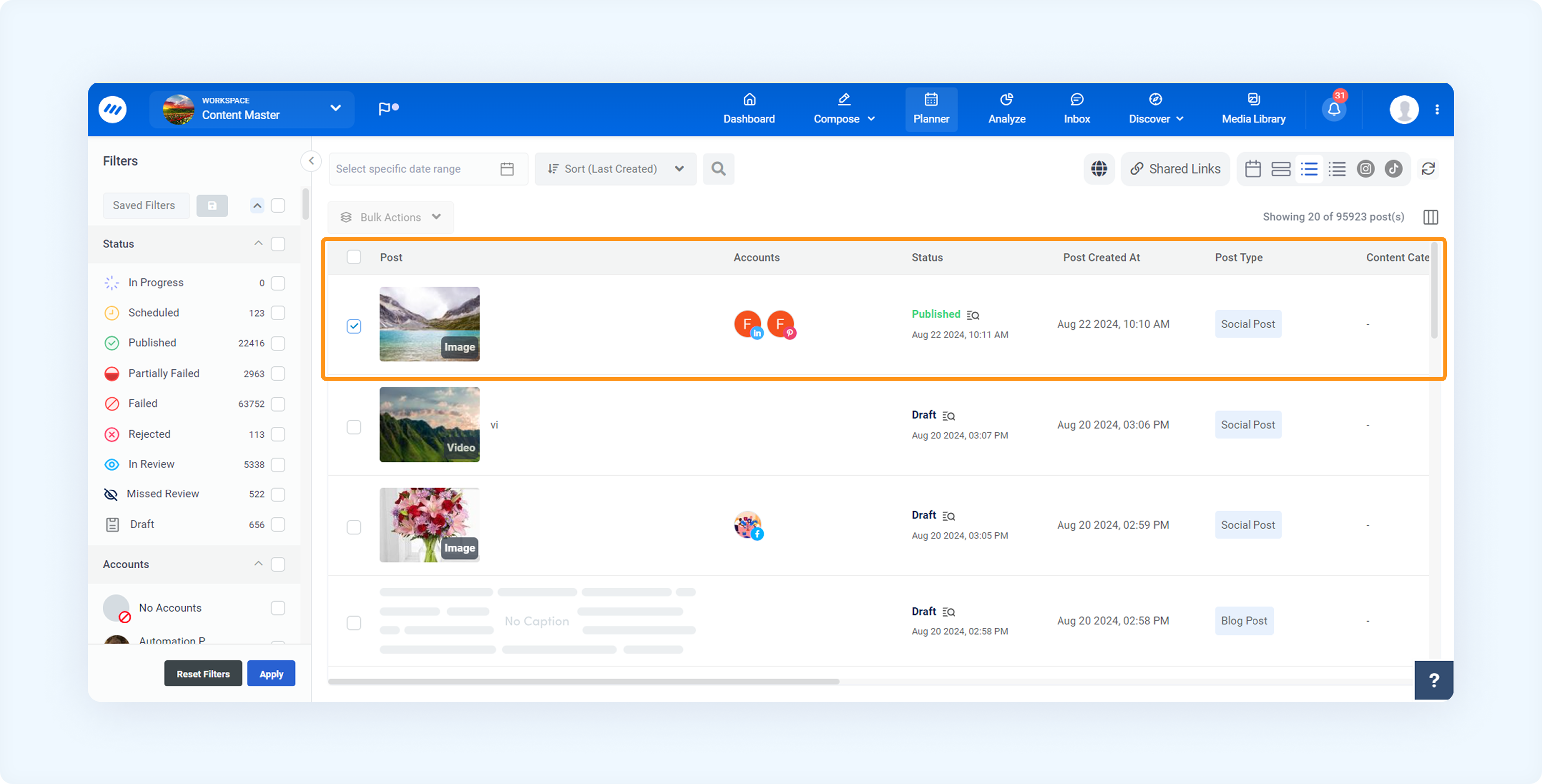
Click on the post, and the preview will open, showing its statuses, including Published and Failed.
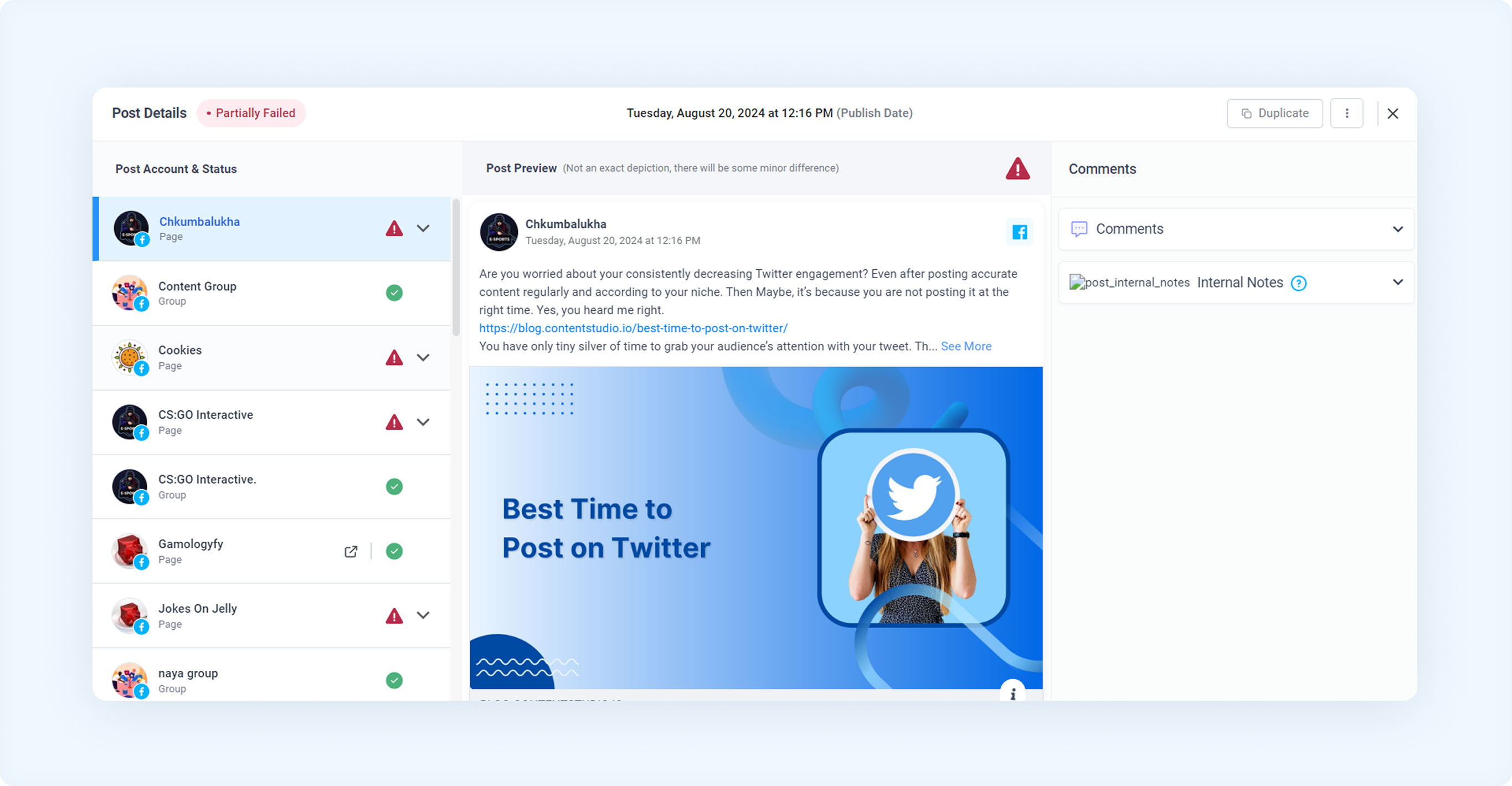
To delete a partially failed post, click on the three dots and select "Delete Post".
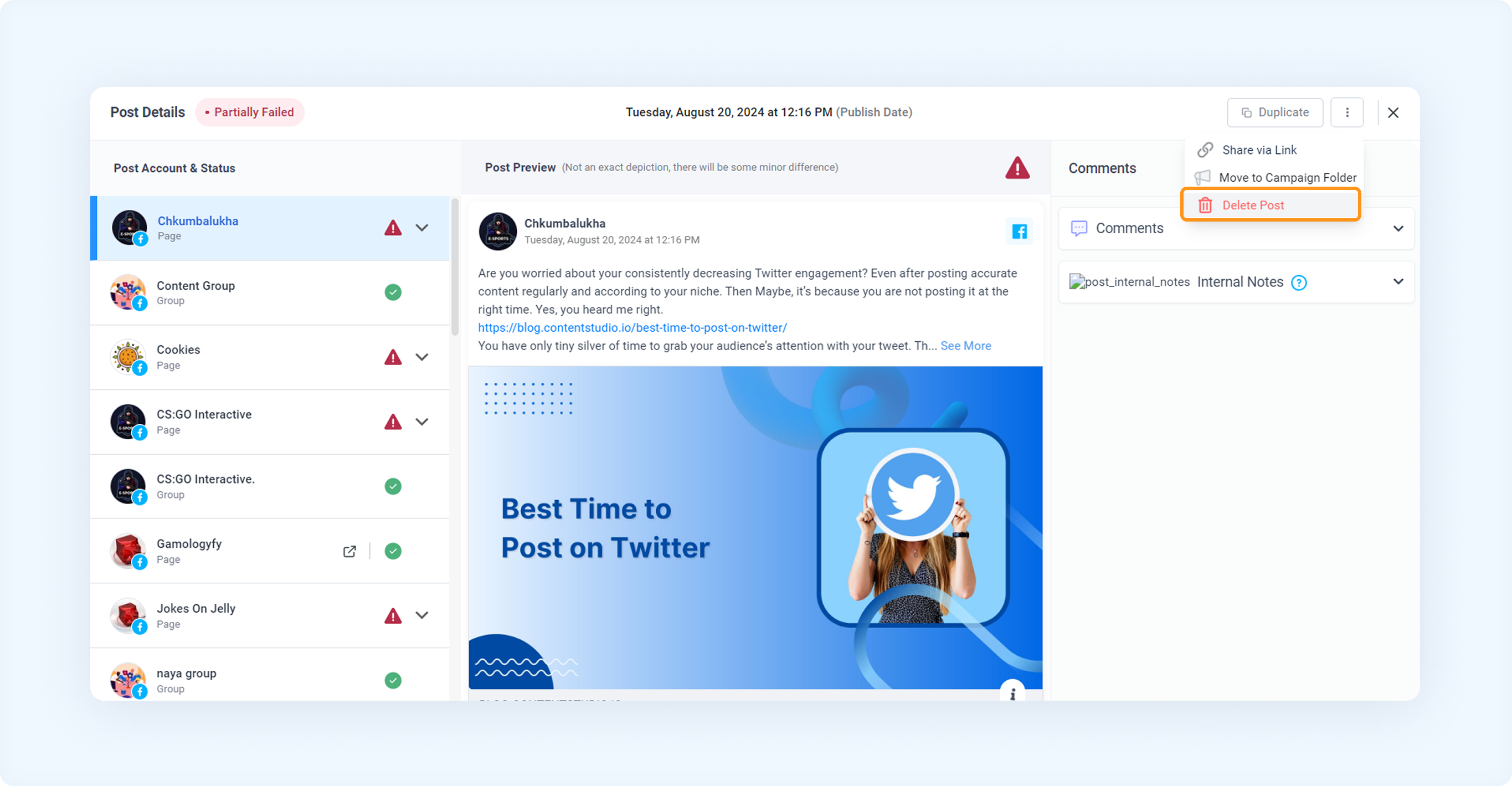
You will see two options to delete a post:
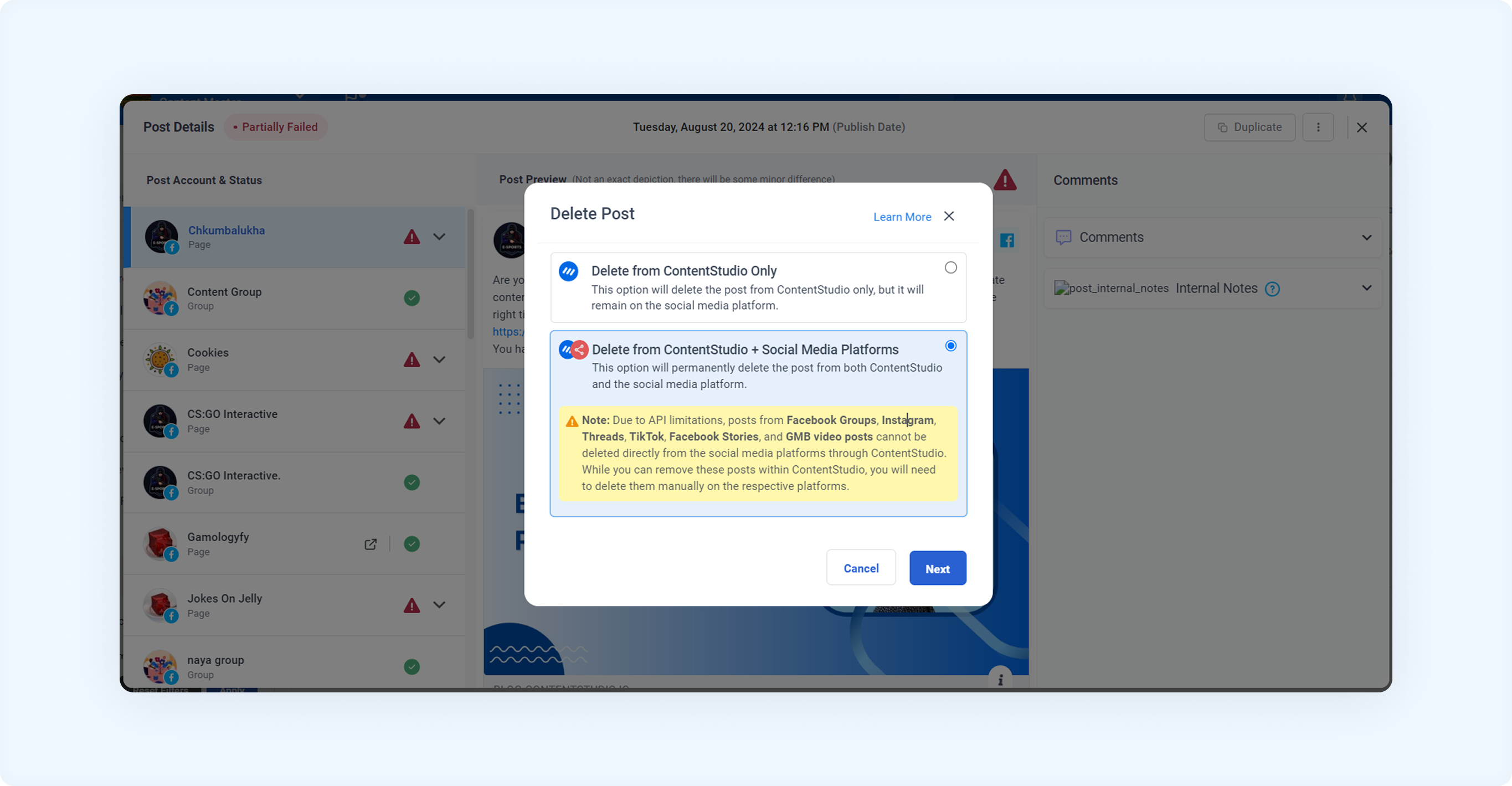
Delete from ContentStudio Only: Removes the post only from ContentStudio.
Delete from ContentStudio + Social Media Platforms: Deletes the post from both ContentStudio and the social media platforms where it was published.
Depending on your needs, choose either "Delete from ContentStudio Only" or "Delete from ContentStudio + Social Media Platforms". Selecting the second option and clicking Next will take you to a list of all social media platforms where the post was published and partially failed.
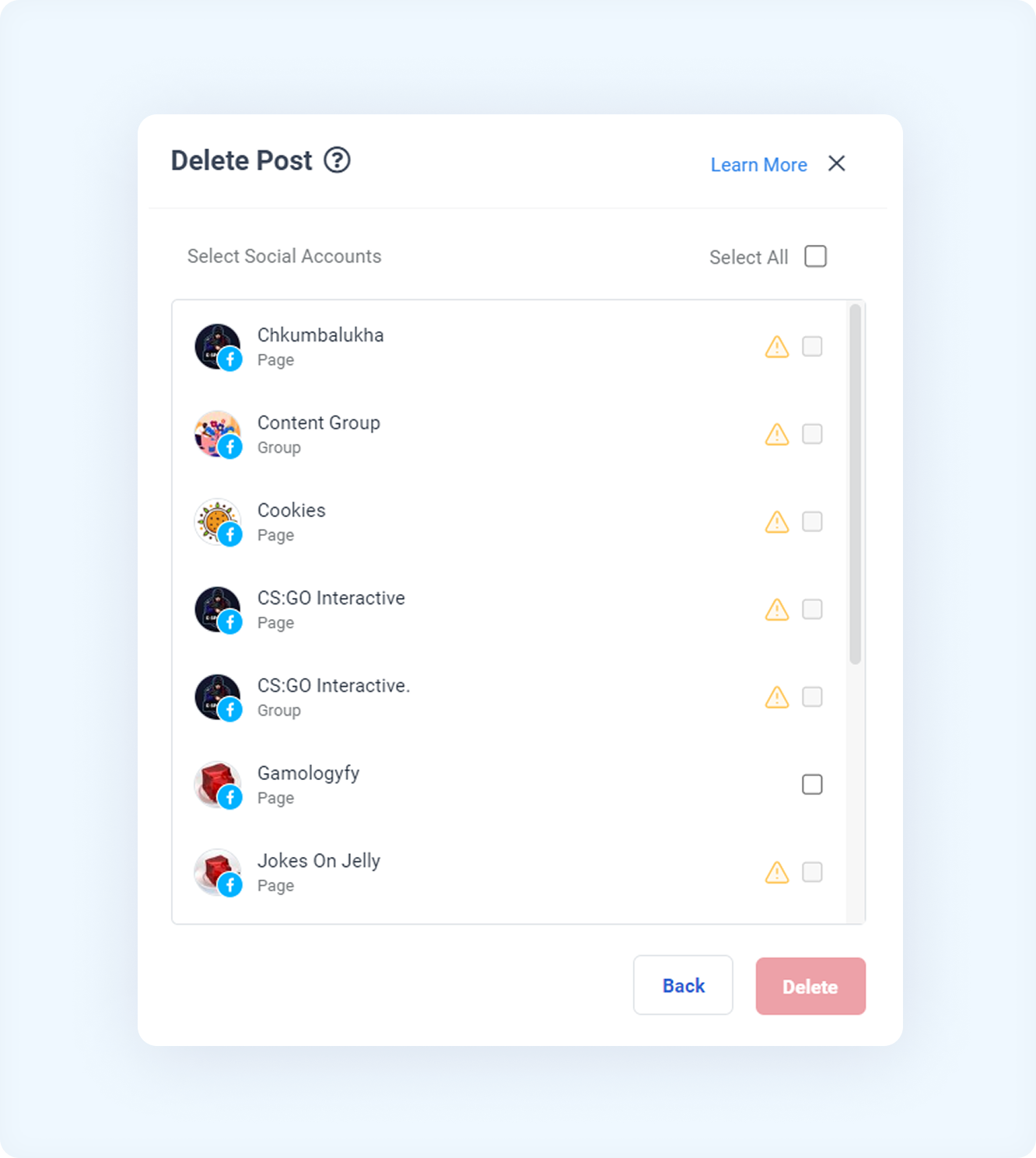
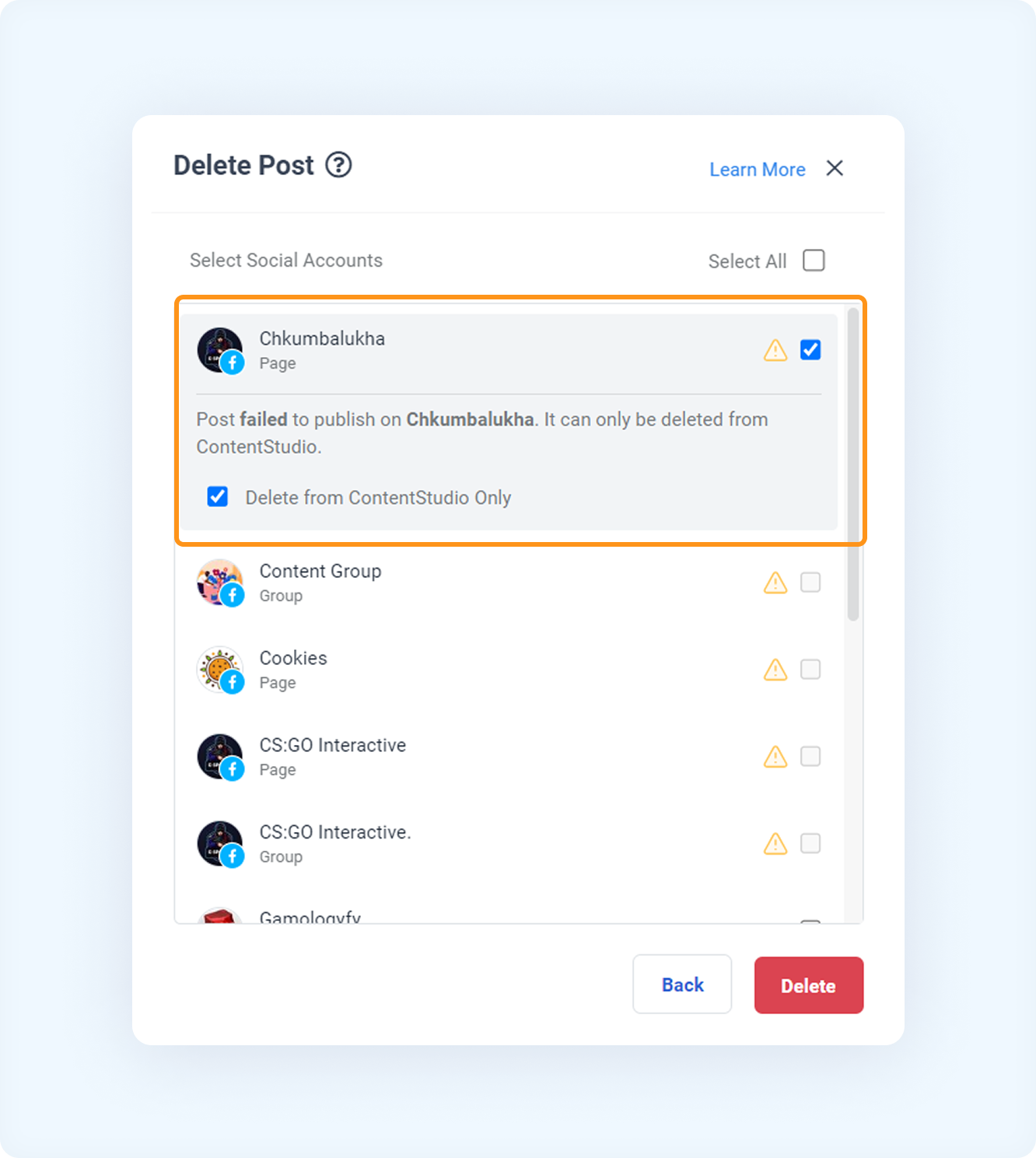
Delete All Posts from ContentStudio: Click "Select All", then manually select the failed post and choose "Delete from ContentStudio Only" by checking the option. This will delete all posts from ContentStudio.
FAQs
Q1: Why can't I delete Instagram or TikTok posts directly from the native app using ContentStudio?
A: Due to platform restrictions, posts on Instagram or TikTok can only be deleted directly from the native app using ContentStudio. Users must manually delete posts from these platforms.
Q2: What happens if I delete a post from ContentStudio but not from the social media platform?
A: The post will no longer appear in your ContentStudio account but will remain visible on social media unless manually deleted.
Q3: How to delete a post from unsupported platforms:
A: For platforms not supporting deletion through ContentStudio, you must manually delete the post from the native platform. Log in to the respective social media platform, locate the post, and delete it directly.
Was this article helpful?