

How to update the queue time
Queue scheduling helps you automate and organize your posts with a clear calendar view. Need to adjust your schedule? Updating your queue ensures your content stays on track.
Let’s see how it works! 🚀
In this article:
Understanding queue update
Queues work sequentially. If you decide not to publish posts on a specific day and update the queue, the scheduled posts will automatically shift. This means:
The post originally scheduled for the skipped day moves to the next available time slot.
All subsequent posts are pushed accordingly.
Step-by-step process
Go to Social Accounts
Navigate to Your Profile → Social Accounts.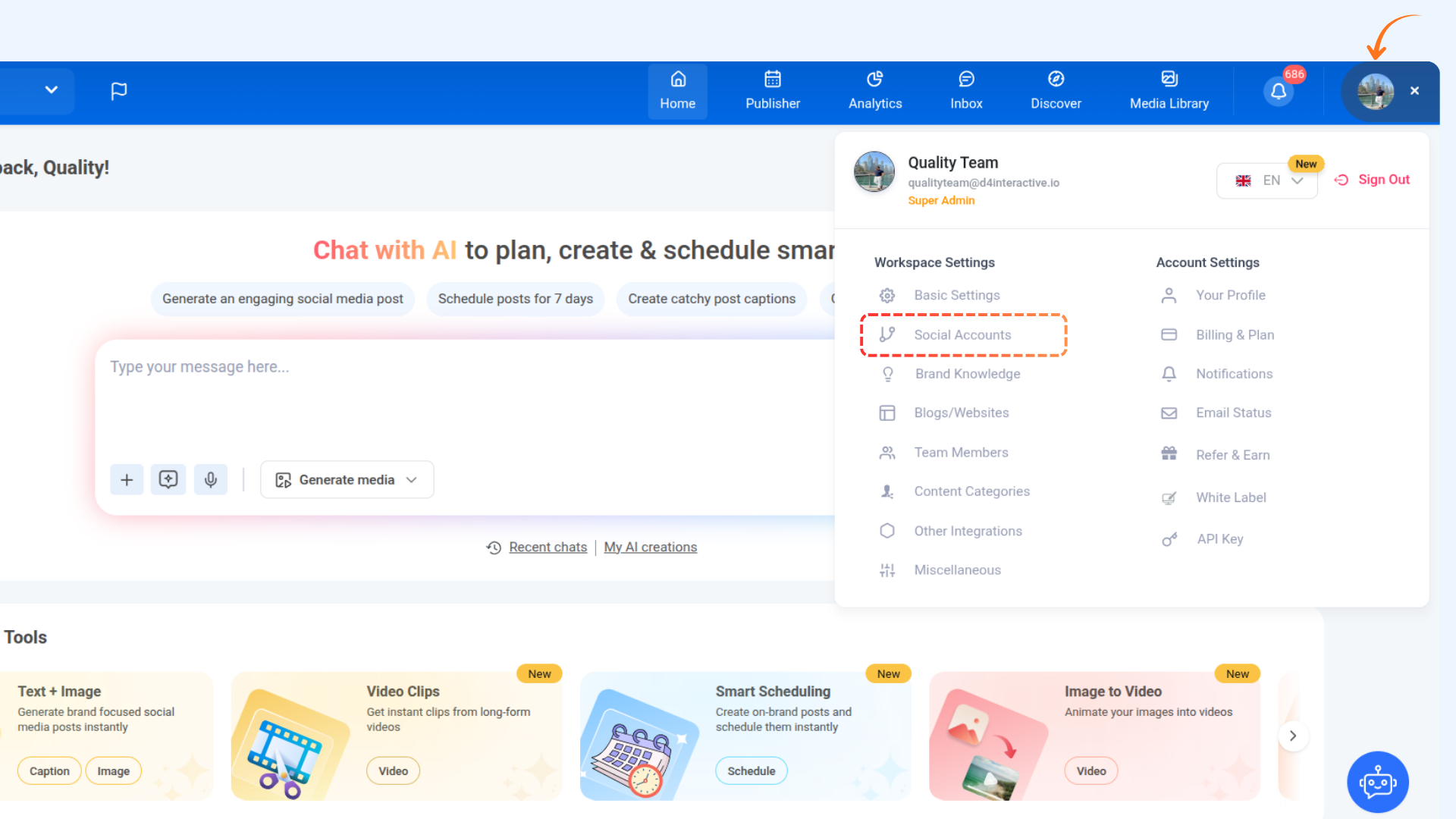
Open Queue Schedule
Each social account has its own queue. Identify the account you want to update and click Queue Schedule.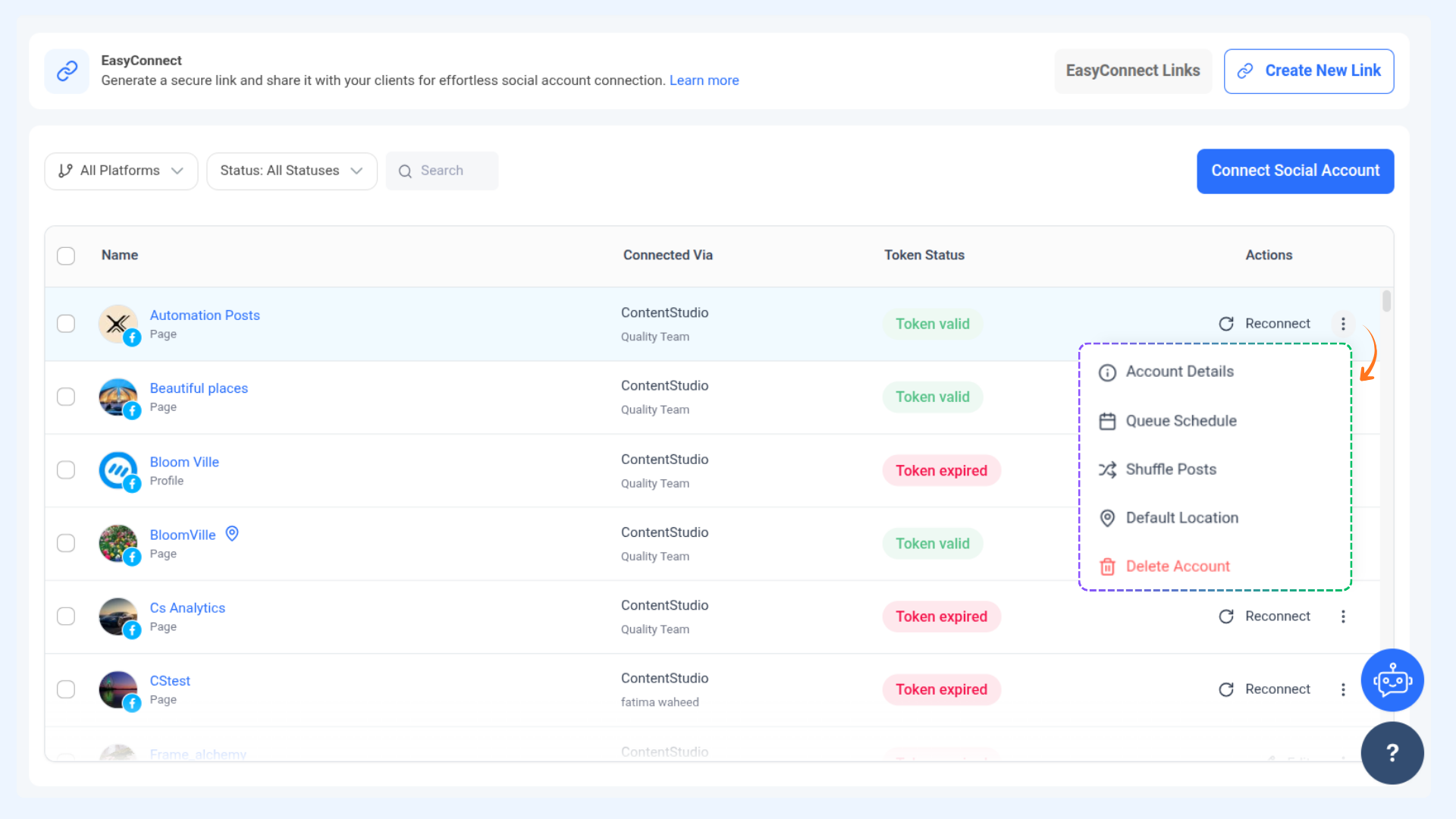
View scheduled posts
The queue displays all scheduled posts for the current week.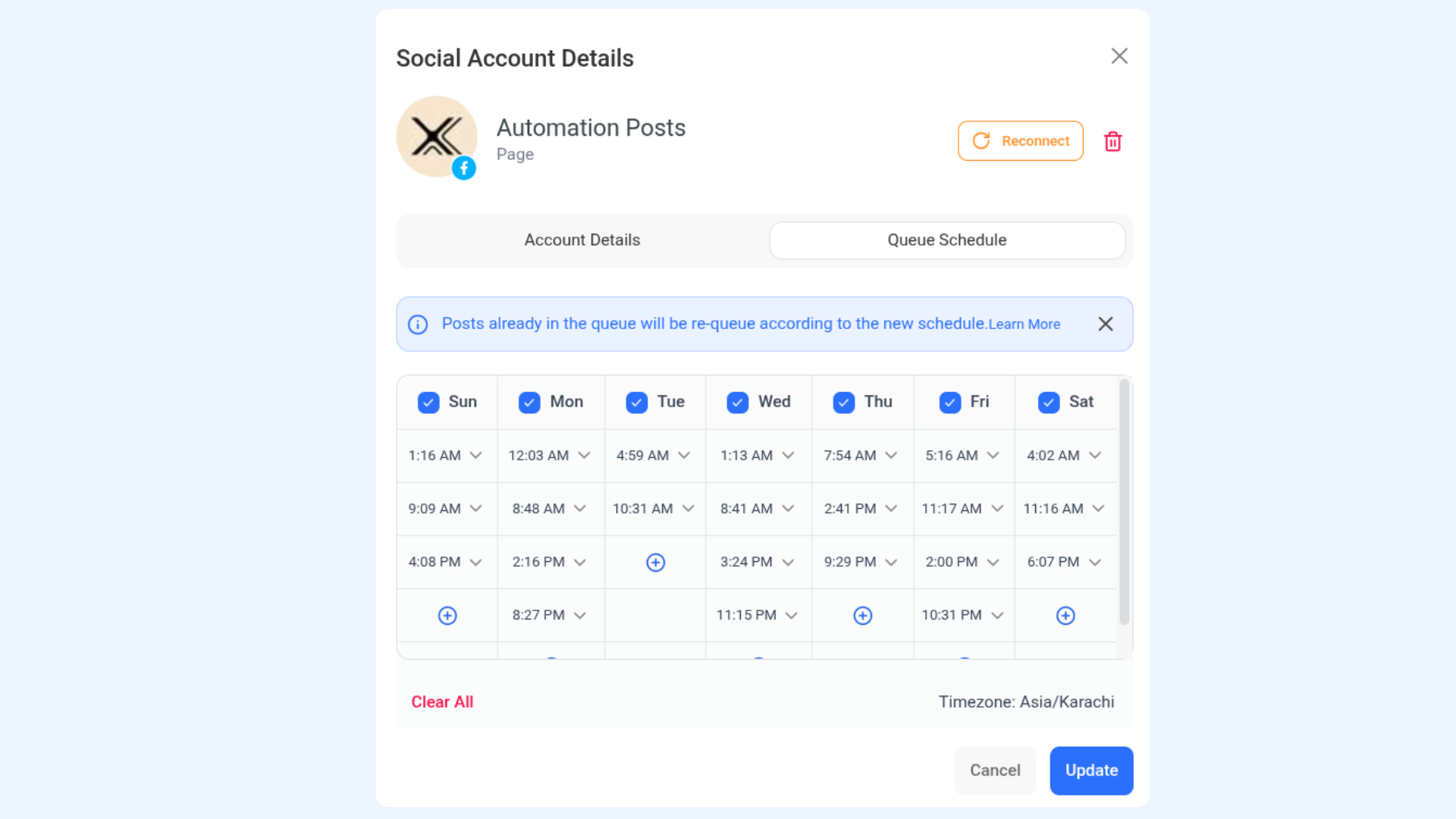
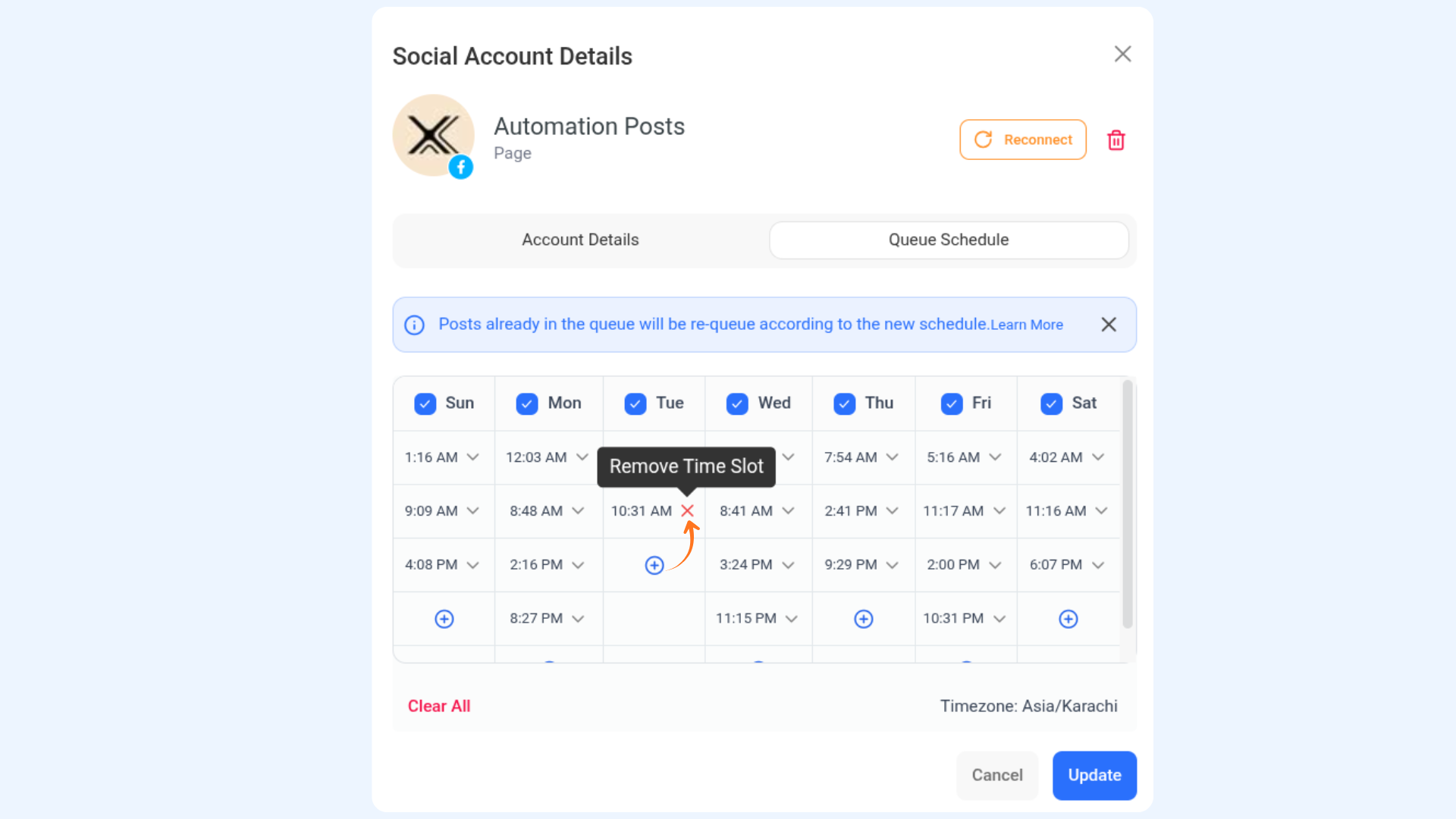
Adjust the schedule
Select a day using the dropdown menu.Remove unwanted slots: Click the ❌ icon.
Add additional slots: Click the + icon.
Apply changes
Click Update to save the queue changes.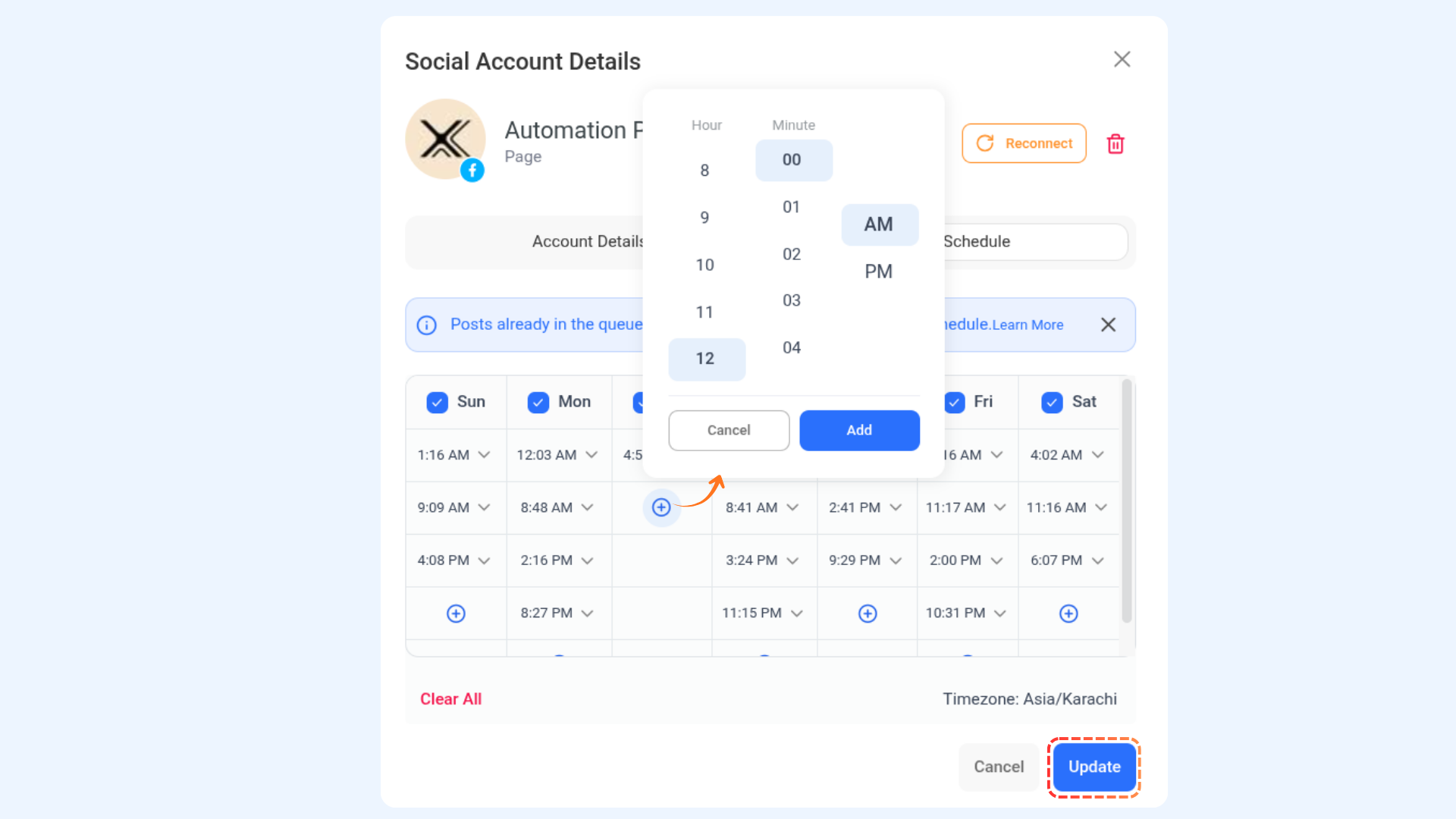
FAQs
Q1: What happens if I skip a scheduled post in the queue?
A: If you choose not to publish a post on a specific day and update the queue, the post will be moved to the next available time slot, and all subsequent posts will shift accordingly.
Q2: Does updating the queue affect all my workspaces?
A: No, queue updates apply only to the selected workspace. Updating a queue in one workspace does not impact the same social account in another workspace.
Q3: Can I add multiple posting times for a single day?
A: You can add time slots by clicking the "+" button to schedule multiple posts for the same day.
Was this article helpful?