

Instagram Carousel Publishing: Images, Videos, or Mixed Posts
Welcome to the guide for using our social media management platform’s Instagram Carousel posting feature. This document will walk you through the steps of utilizing this enhancement, which allows you to create engaging carousel posts directly from our platform. The interface has been updated to streamline the posting options for a more intuitive user experience. 📝
Let’s dig in!
In this article
Creating an Instagram carousel post
Head to the Composer. Select an Instagram account and start composing a post. Add text and media files, including images and video.
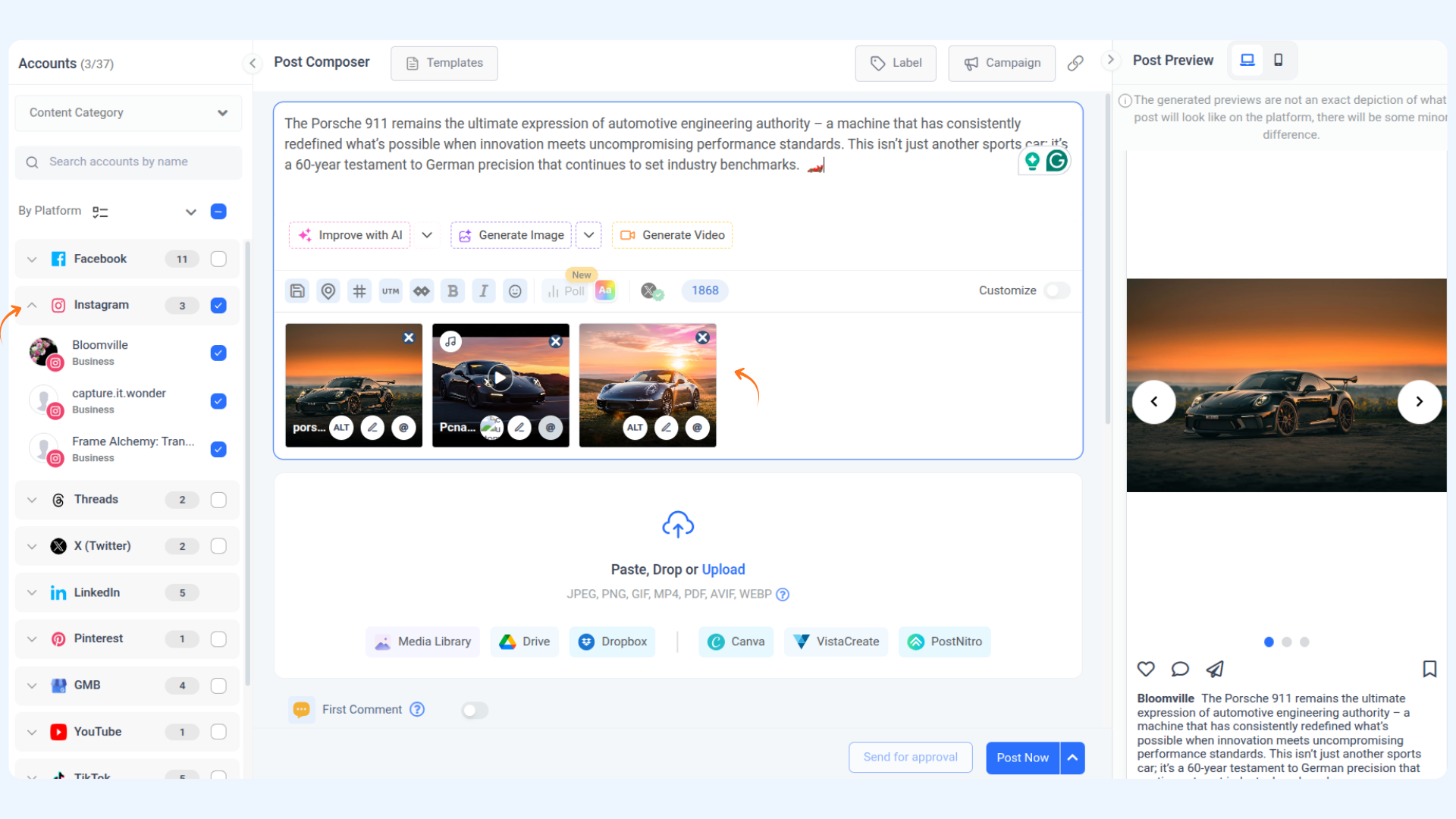
Navigate to Instagram settings, select the publishing medium, and choose 'Carousel' as the post type. Desktop and mobile previews will appear on the right-hand side, displaying your images and videos in carousel format.
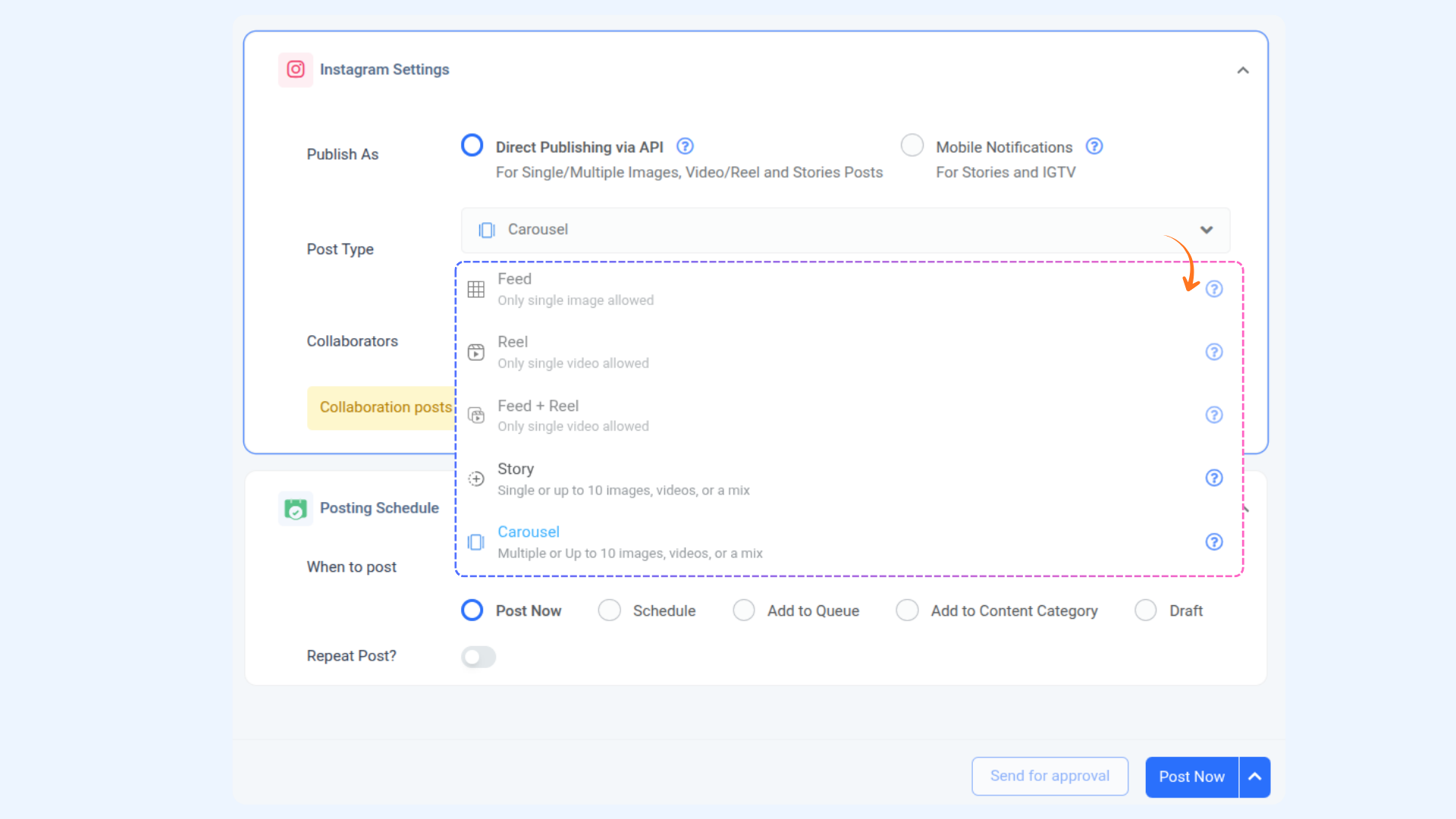
Carousel Media Specs:
Media Type | Format | File Size Limit | Duration / Notes | Recommended Aspect Ratio |
|---|---|---|---|---|
Image | JPEG (JPG), PNG | 8 MB max | — | 9:16 |
Video | MOV, MP4 | 100 MB max | 3–60 seconds | 1:1 |
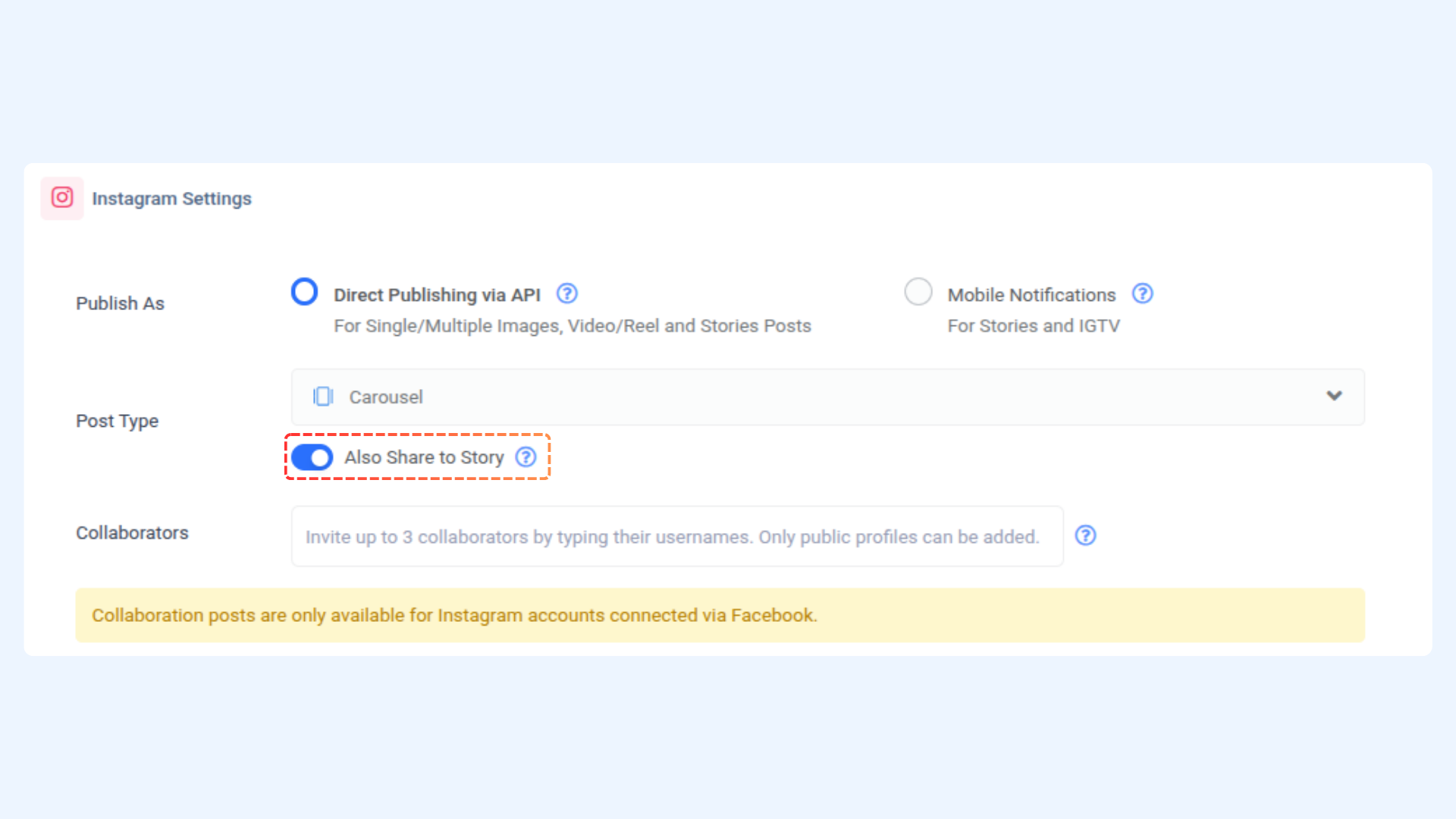
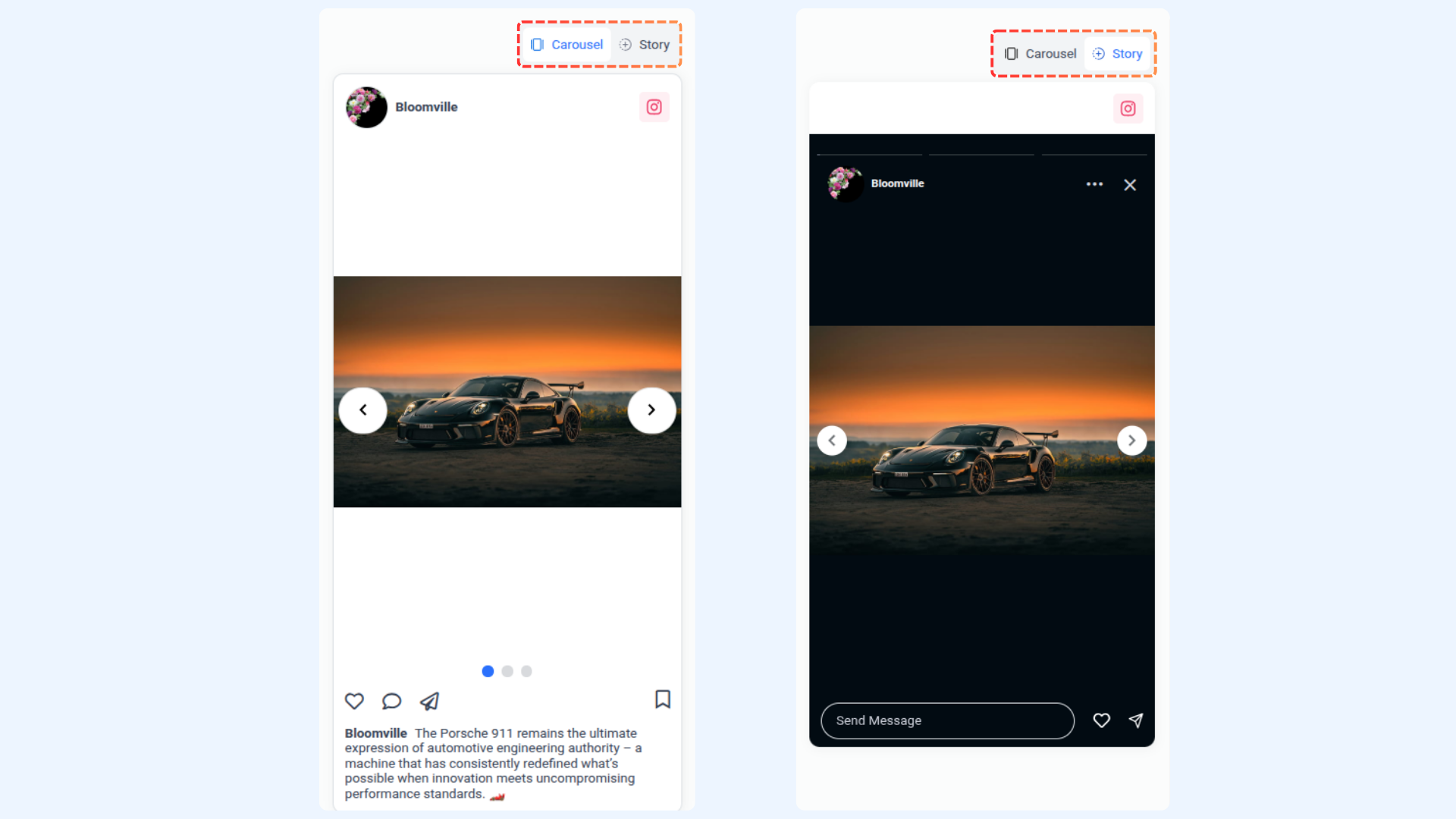
When creating a carousel, you can also publish it as a story by toggling the 'Also share to story' button. The preview will update accordingly.
Once the post is finalized, choose the desired posting schedule or Post Now. Published posts will display as carousel and story (if toggled).
FAQs
Q1: Can I mix images and videos in one carousel post?
A: Yes, indeed! Mix and match up to 20 images and videos in a single carousel post to create a dynamic multimedia experience.
Q2: Can I publish a post as a story using the Feed+Reel post type?
A: Yes, you can publish a post as Feed+Reel and a story simultaneously.
Was this article helpful?