

Share posts for approval with a public link
Easily share posts for external approval—no login required! With ContentStudio, you can generate shareable links for clients or managers to approve, reject, or comment on your posts. Each approver enters their name and email, so you always know who took action. You can even add a password for extra security. 🔗
In this article:
Create and send a shareable link
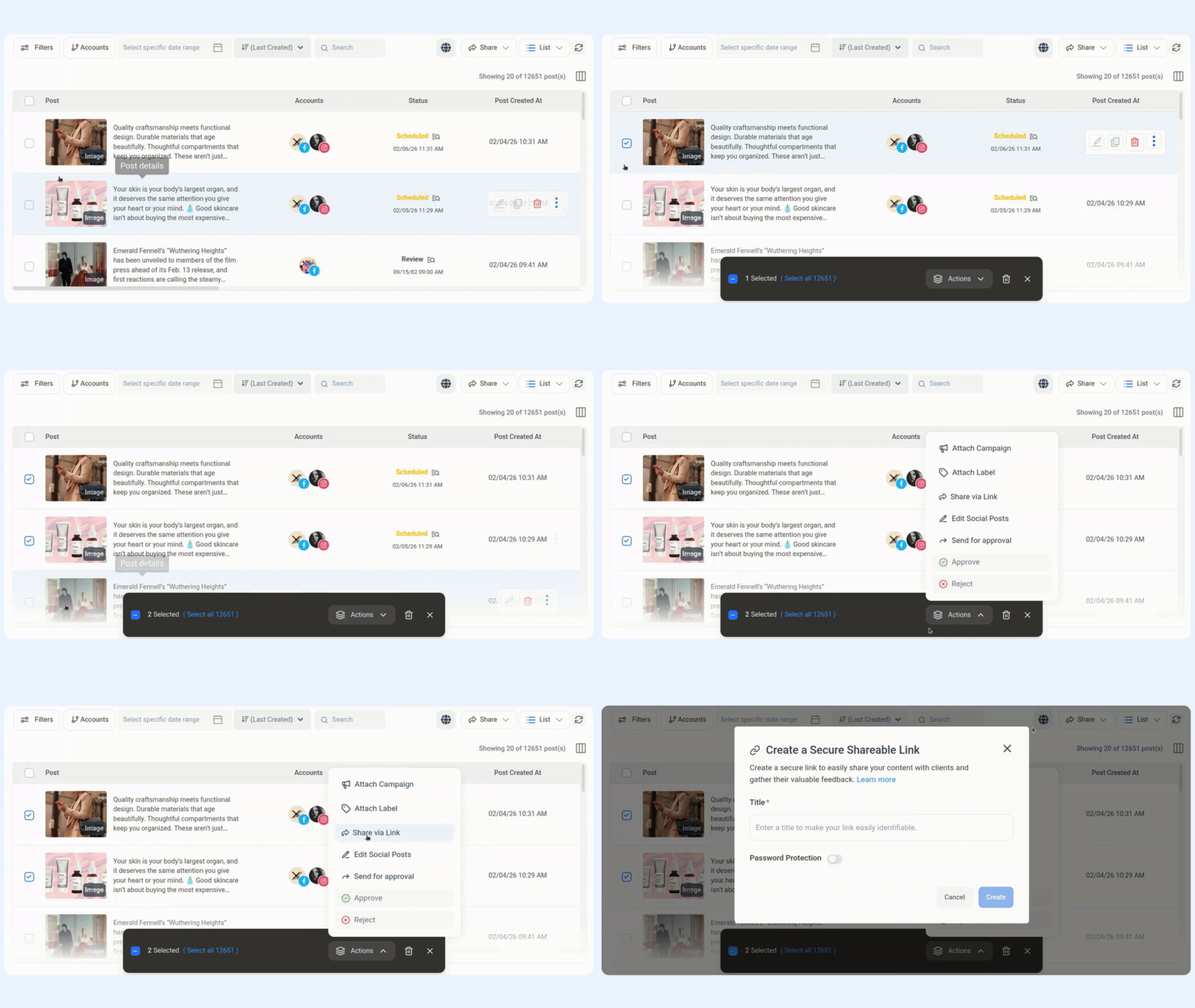
Create a secure, shareable link to let external users view posts, leave comments, or approve content (if enabled). Refer to the GIF below to see how to select posts and choose Share via link from the Actions menu.
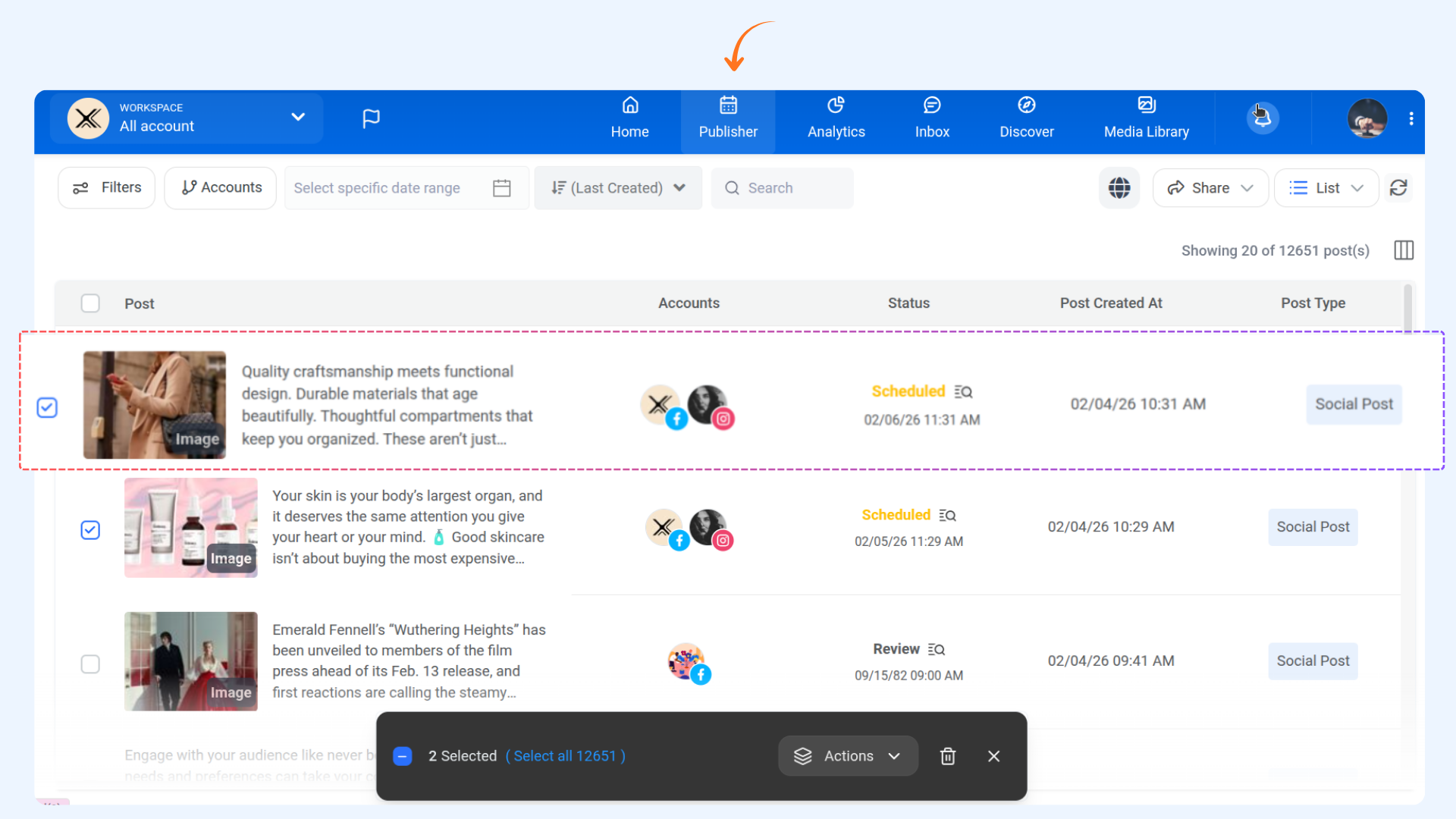
Navigate to the Publisher from Home and select one or more posts.
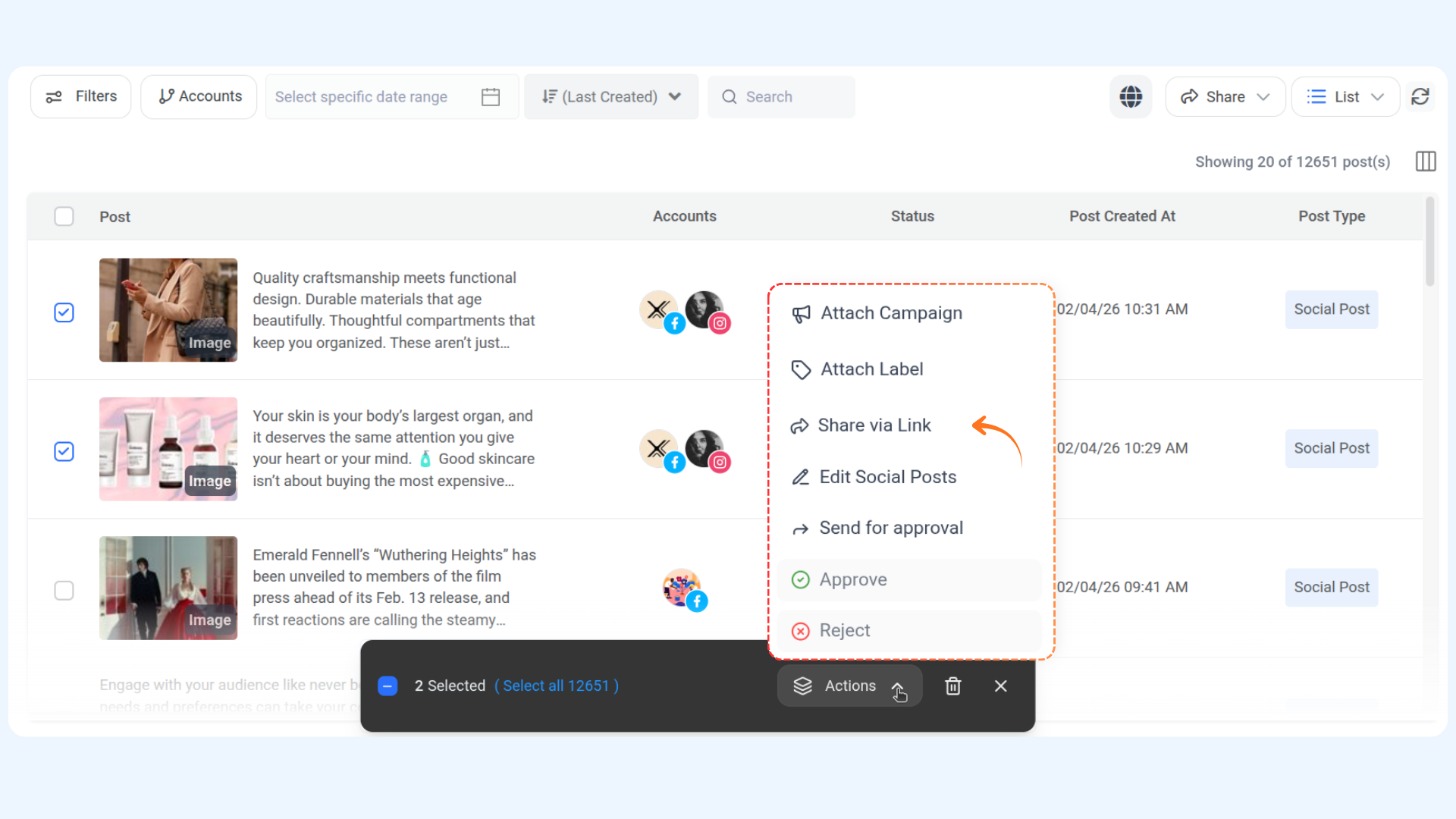
From the Bulk Action button, click Share via link.
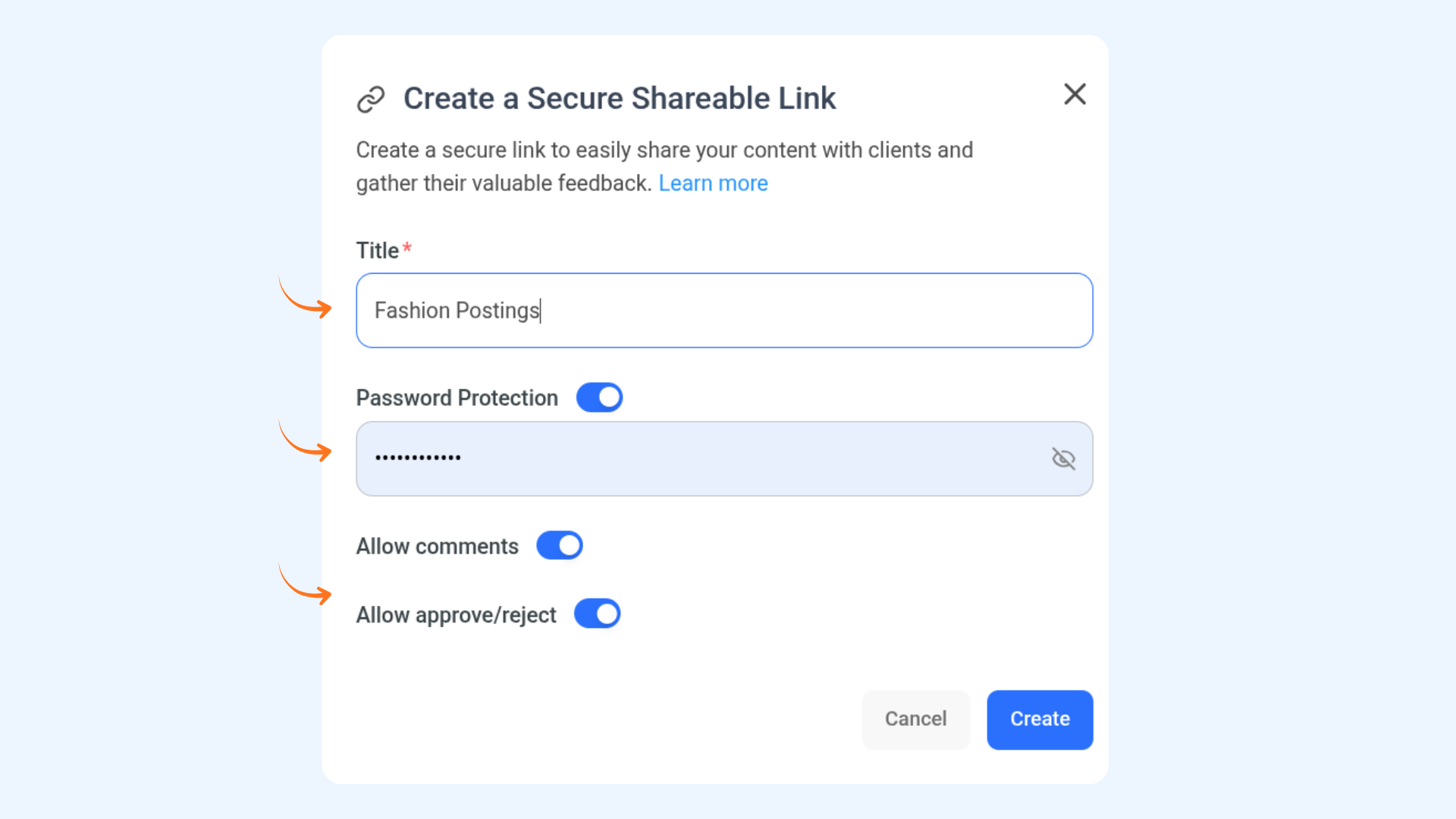
Configure the sharing options for your link:
Name — Enter a name for the shared link.
Password Protection — Optionally enable this to restrict access with a password.
Allow Comments — Toggle on to let reviewers leave comments on the post.
Allow Approve/Reject — Toggle on to let reviewers approve or reject the post directly from the shared link.
Once done, click Create.
Configure sharing options:
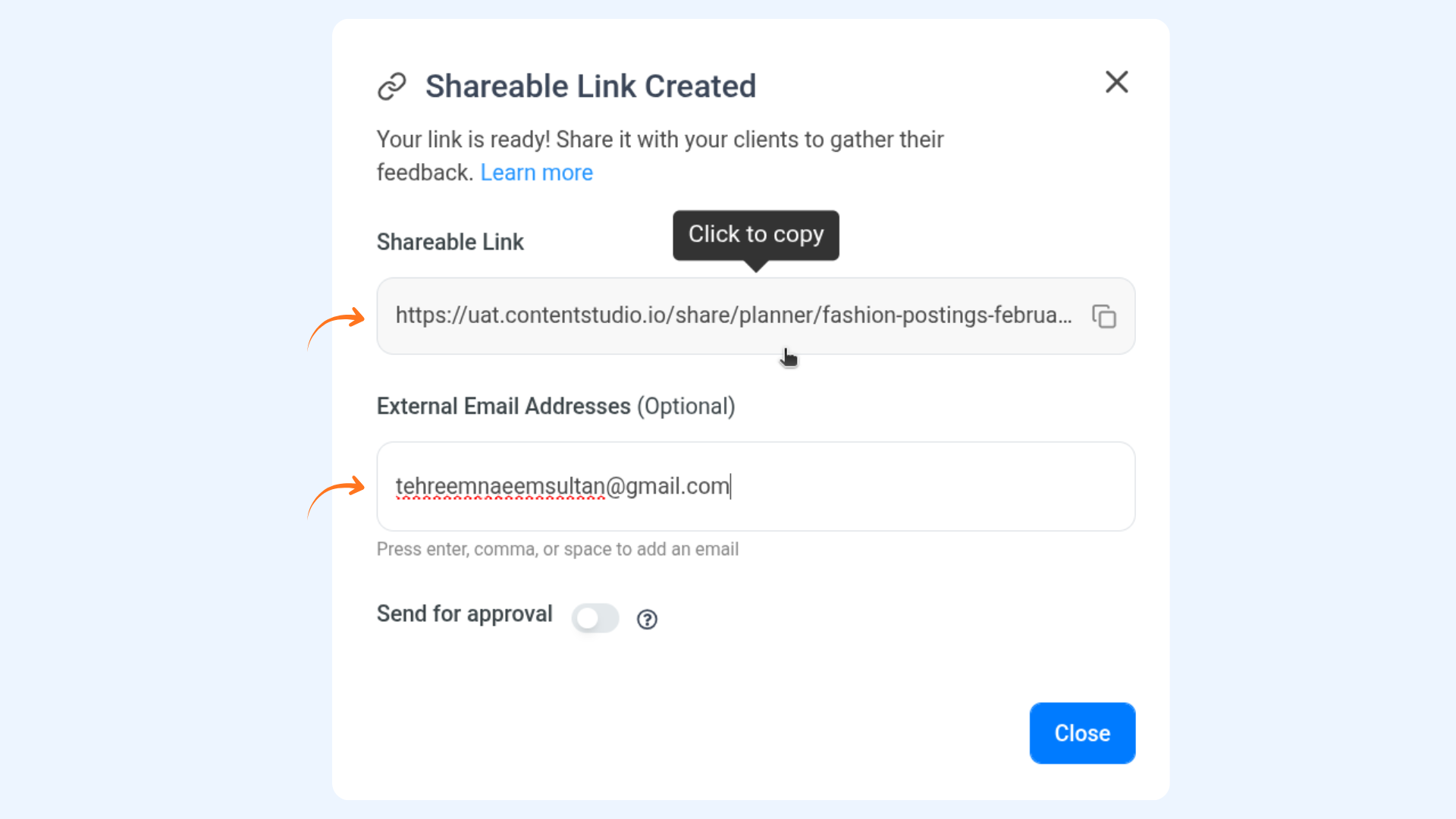
Copy the generated shareable link
Add external email addresses
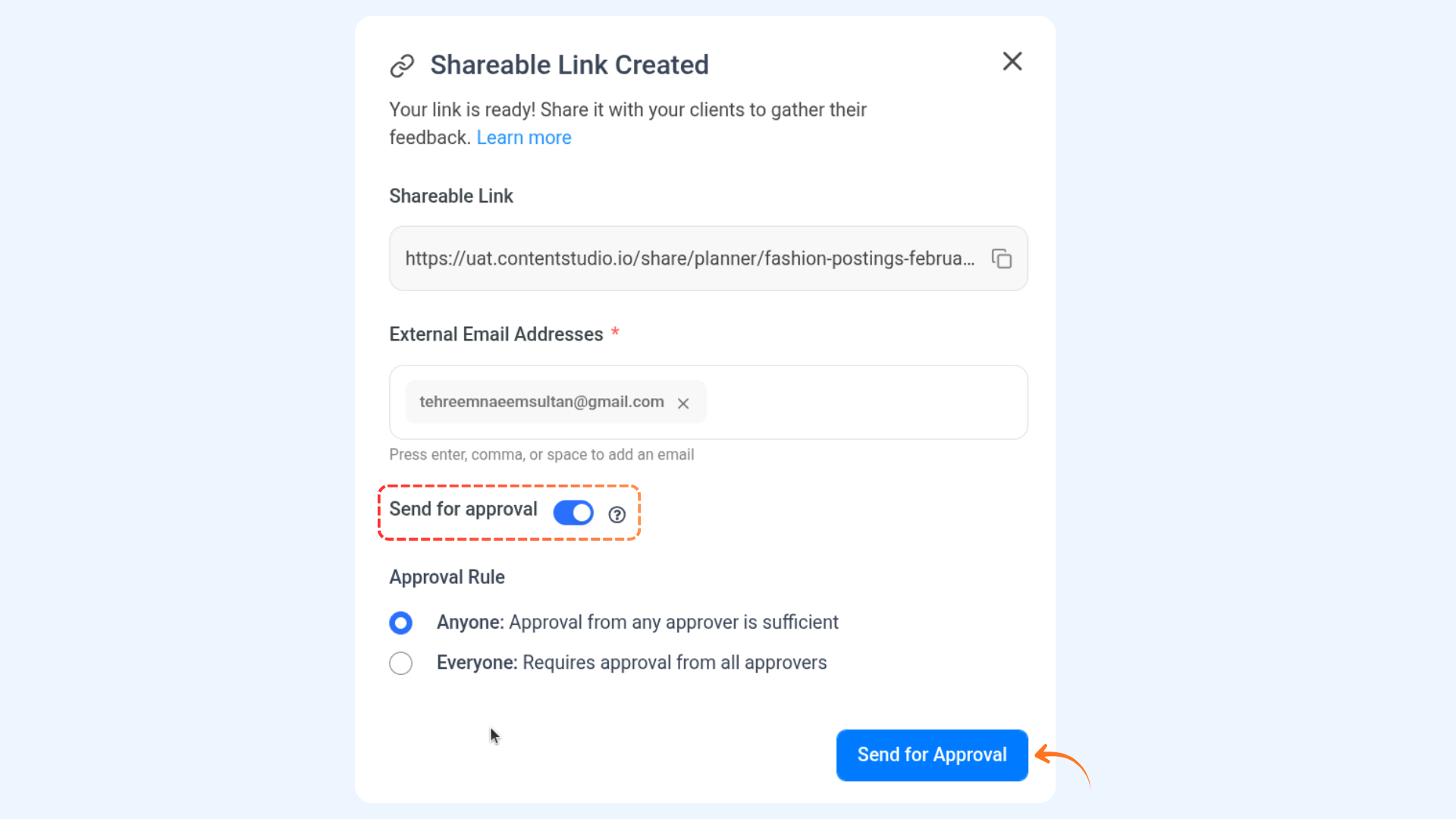
Enable Send for approval to move posts to In Review
Select an approval rule:
Anyone — approval from any approver is sufficient
Everyone — approval is required from all approvers
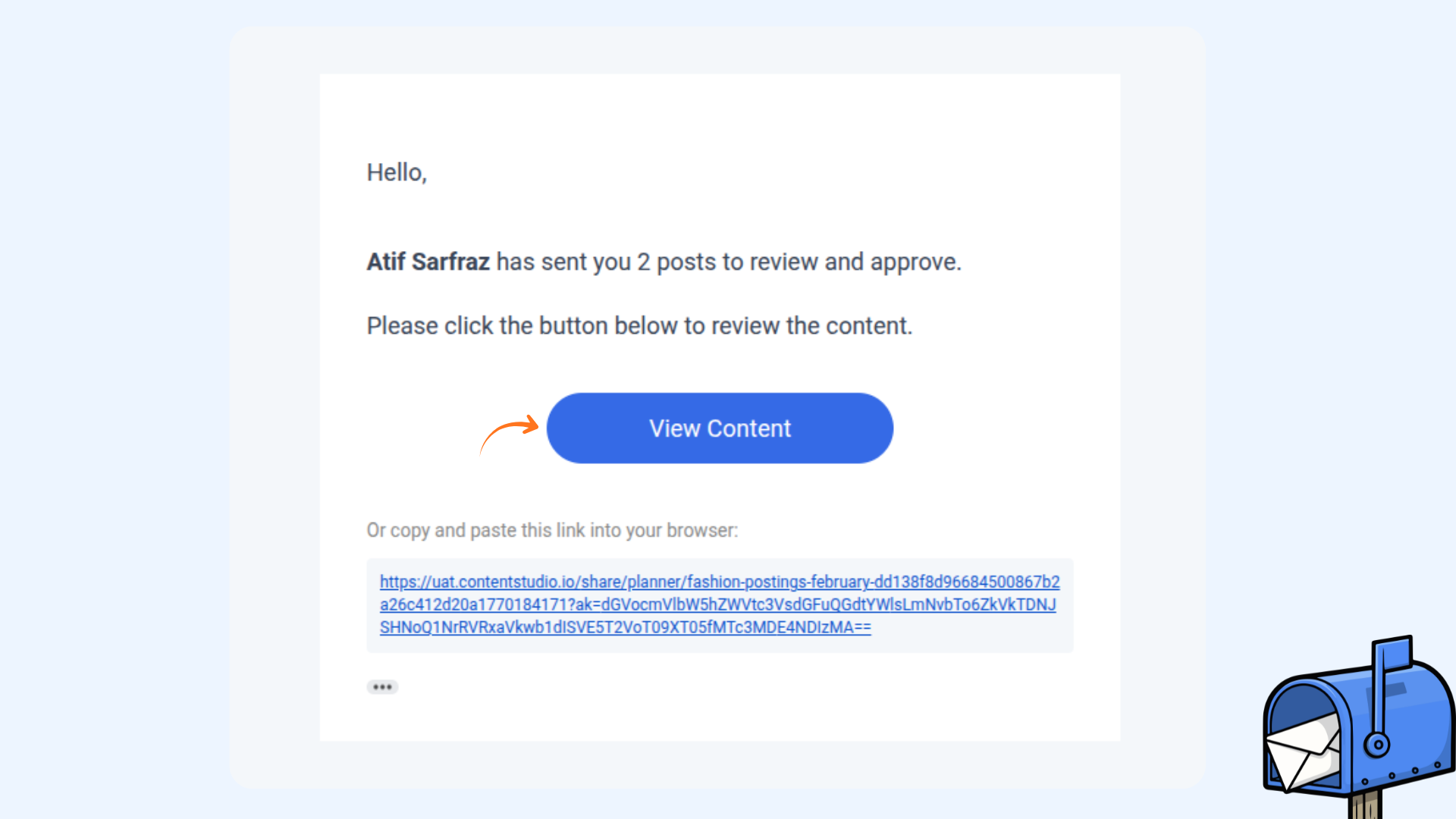
View and manage shared posts via link
Open the shared link directly or click the link received via email (if sent).
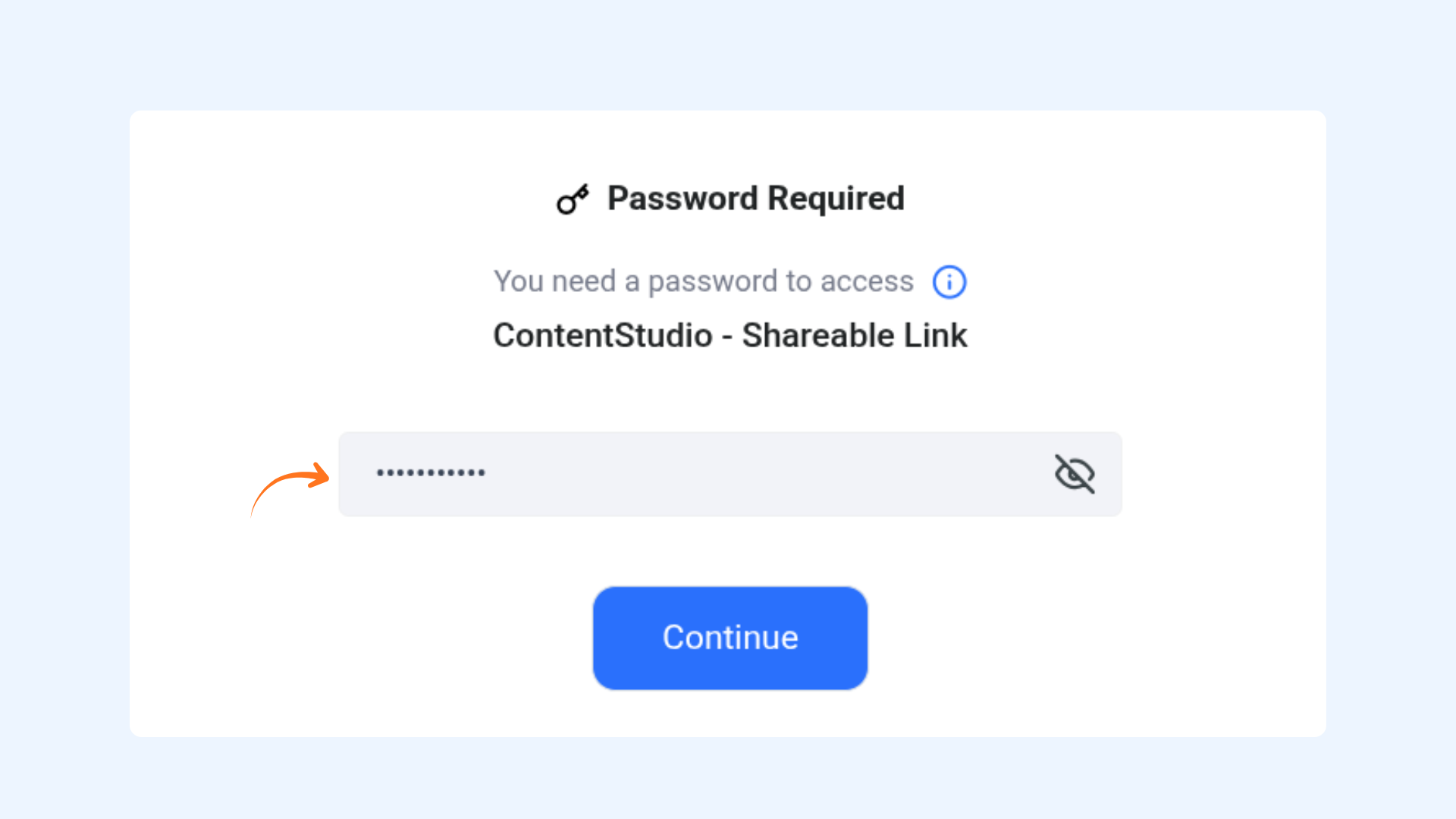
If password protection is enabled, enter the password and click Continue.
View all shared posts and interact by leaving comments or taking action (if approval is enabled).
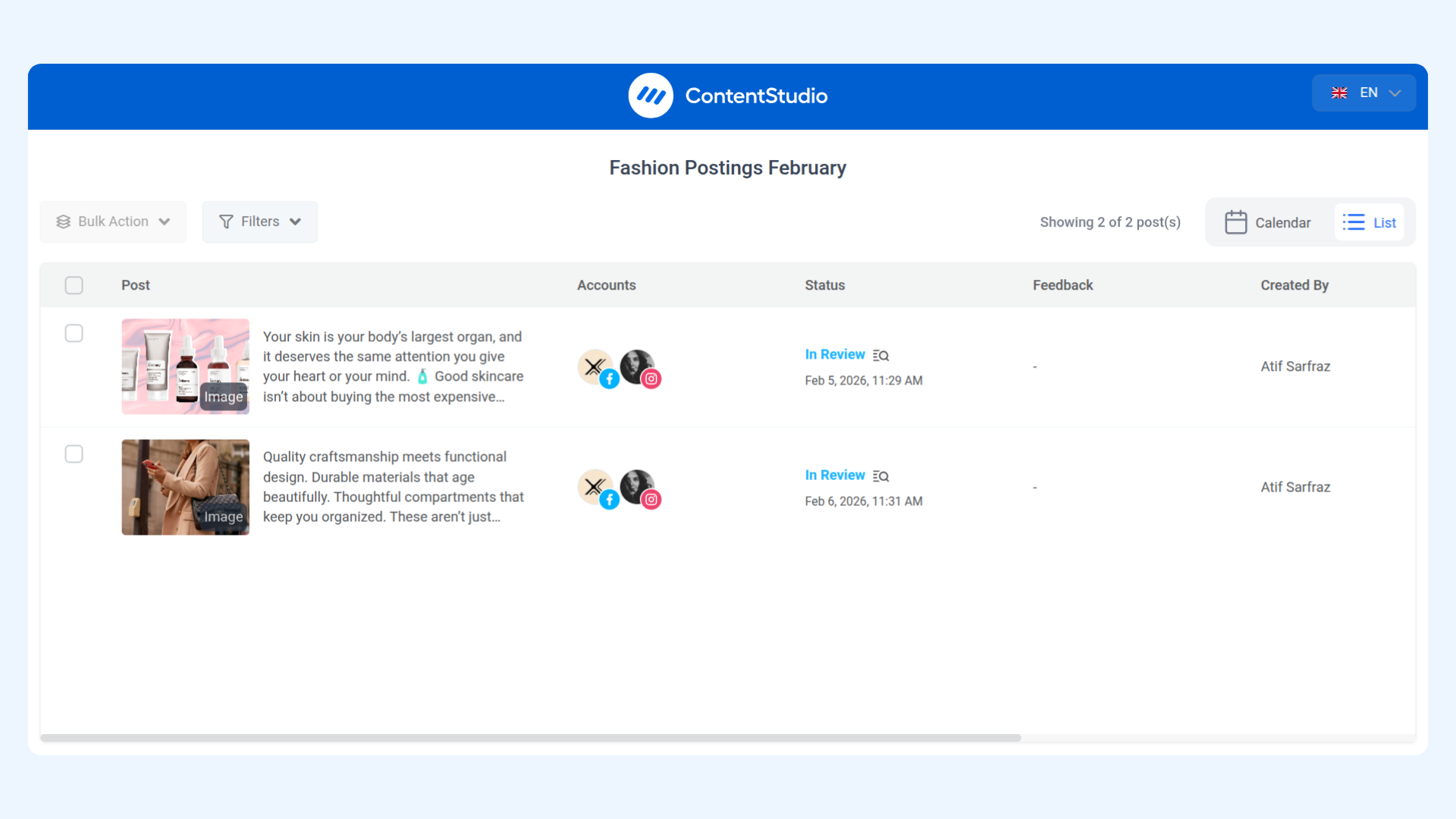
Approve or reject a post:
Click on a post to open its preview and view the available actions.
Click Approve or Reject
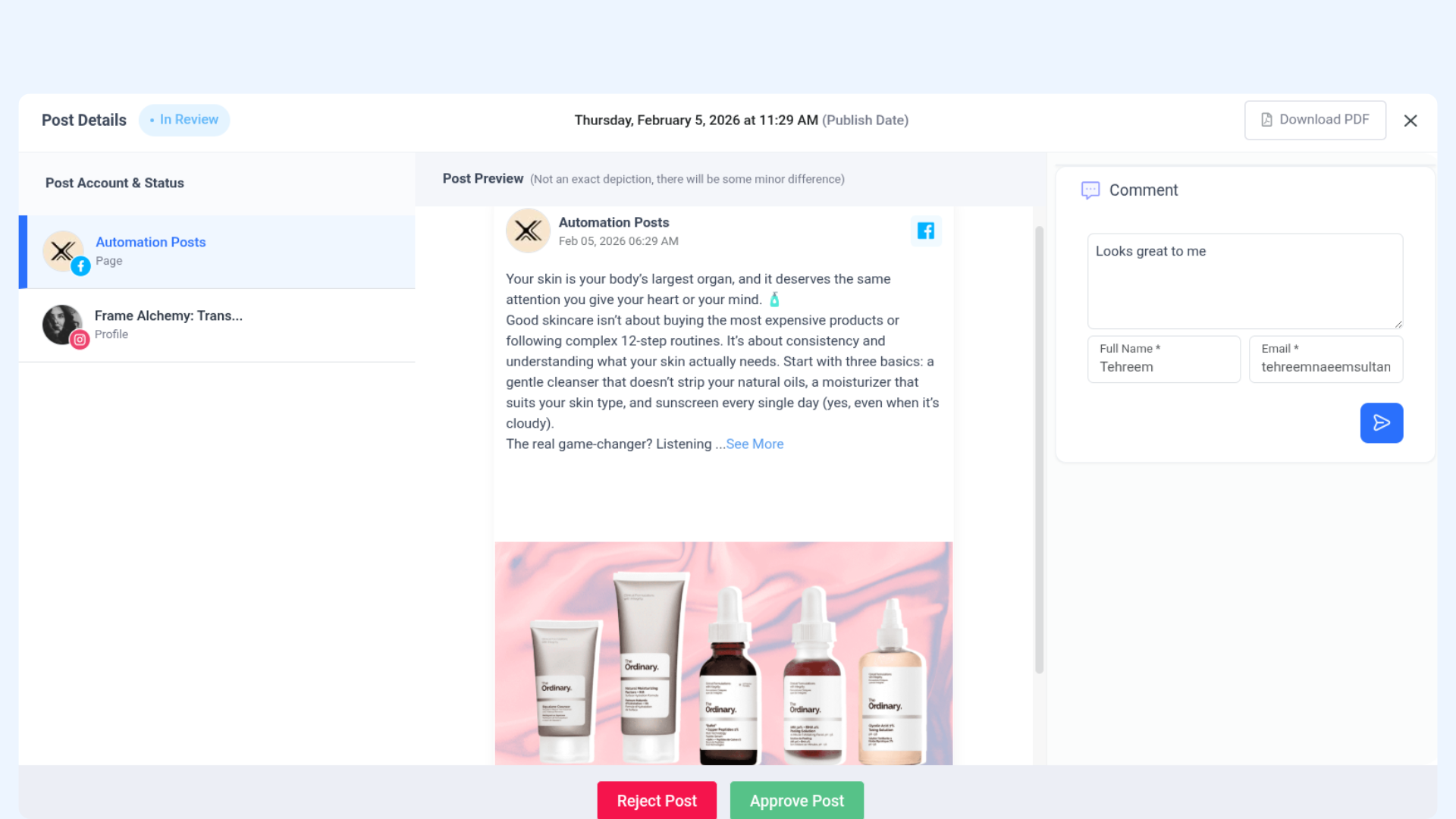
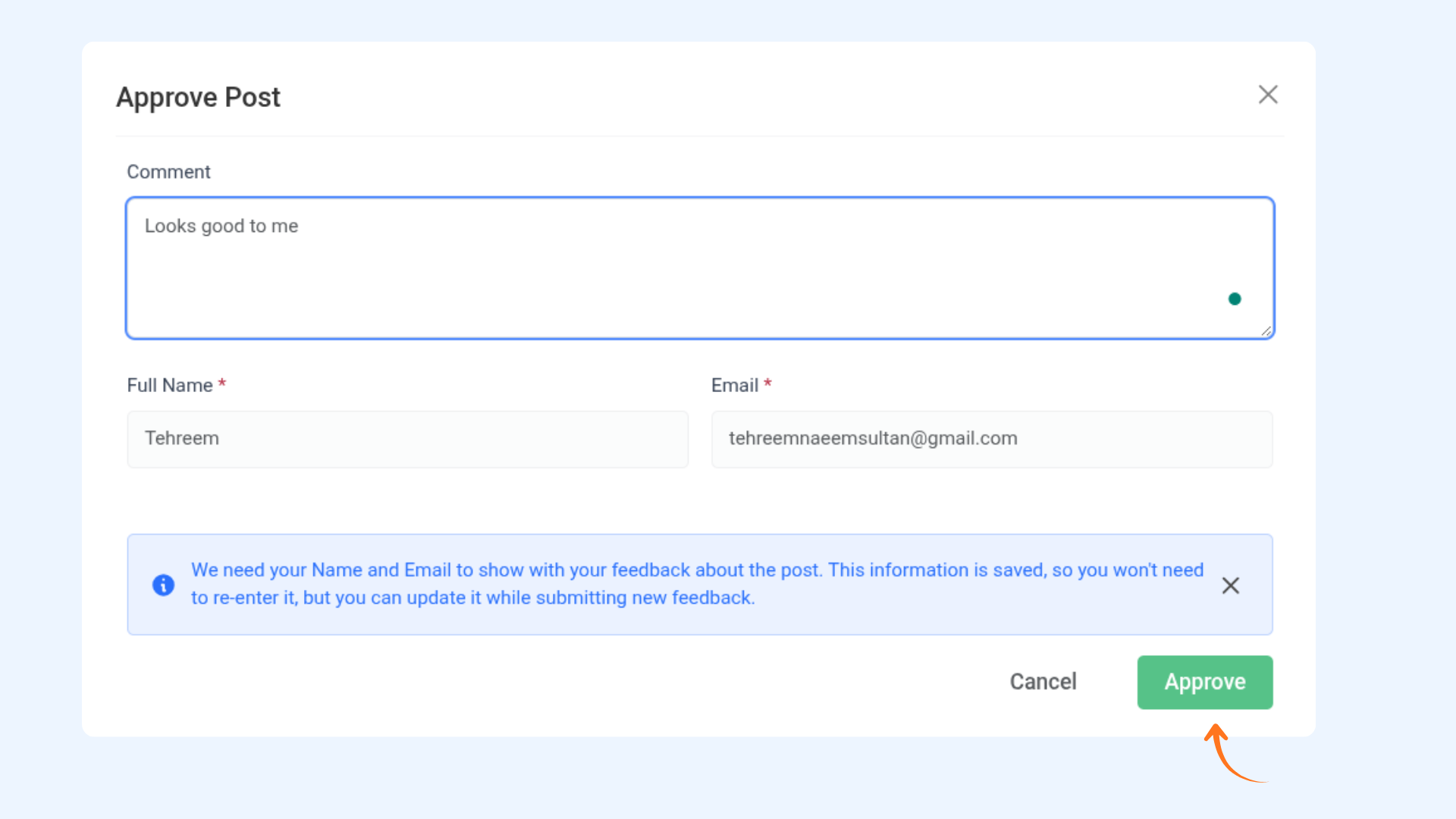
Enter the comment you want to leave.
Enter your full name and email address (required)
Click Approve or Reject to submit
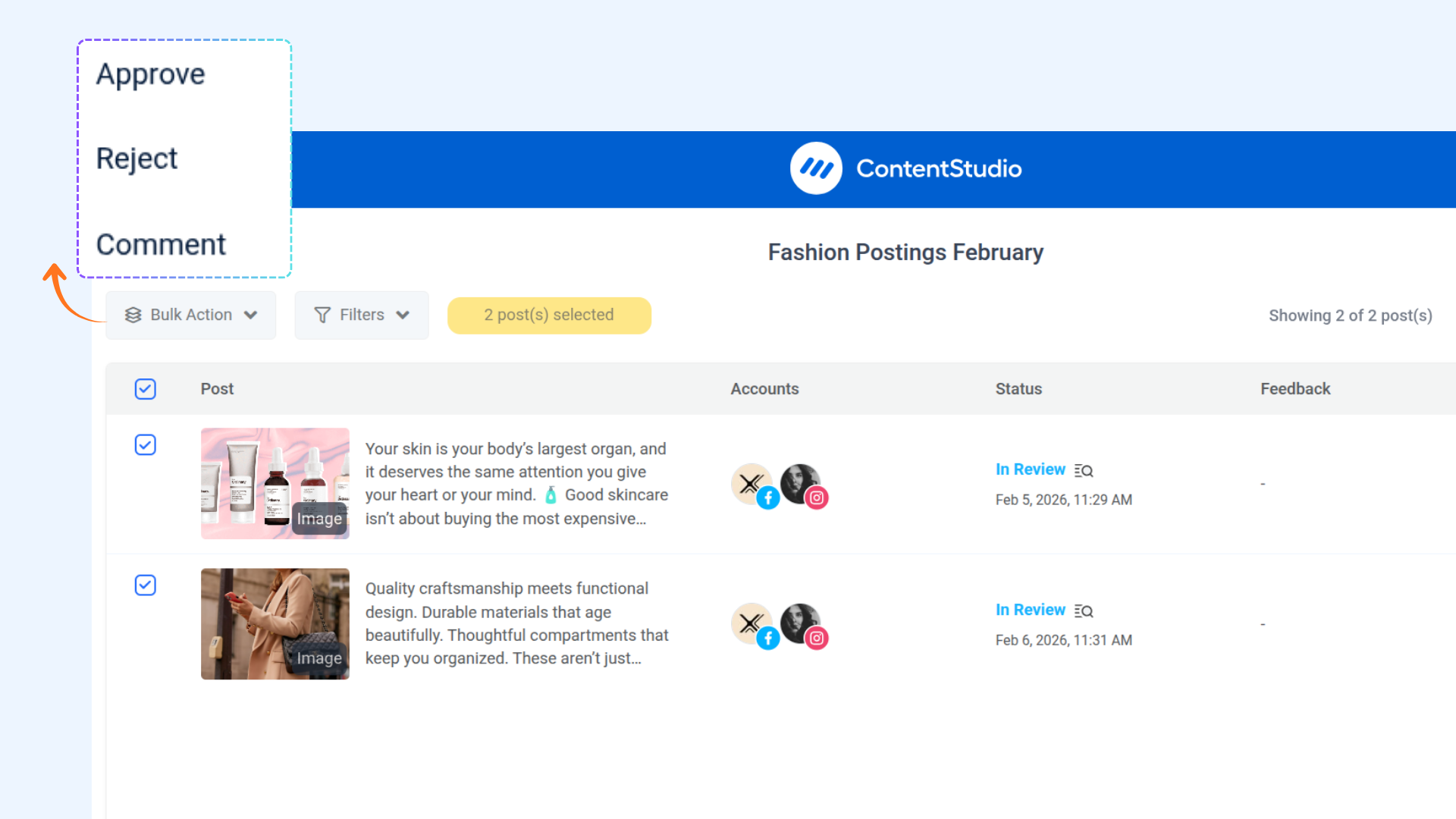
You can also bulk approve by selecting the posts and clicking the Bulk Action button, then click Approve.
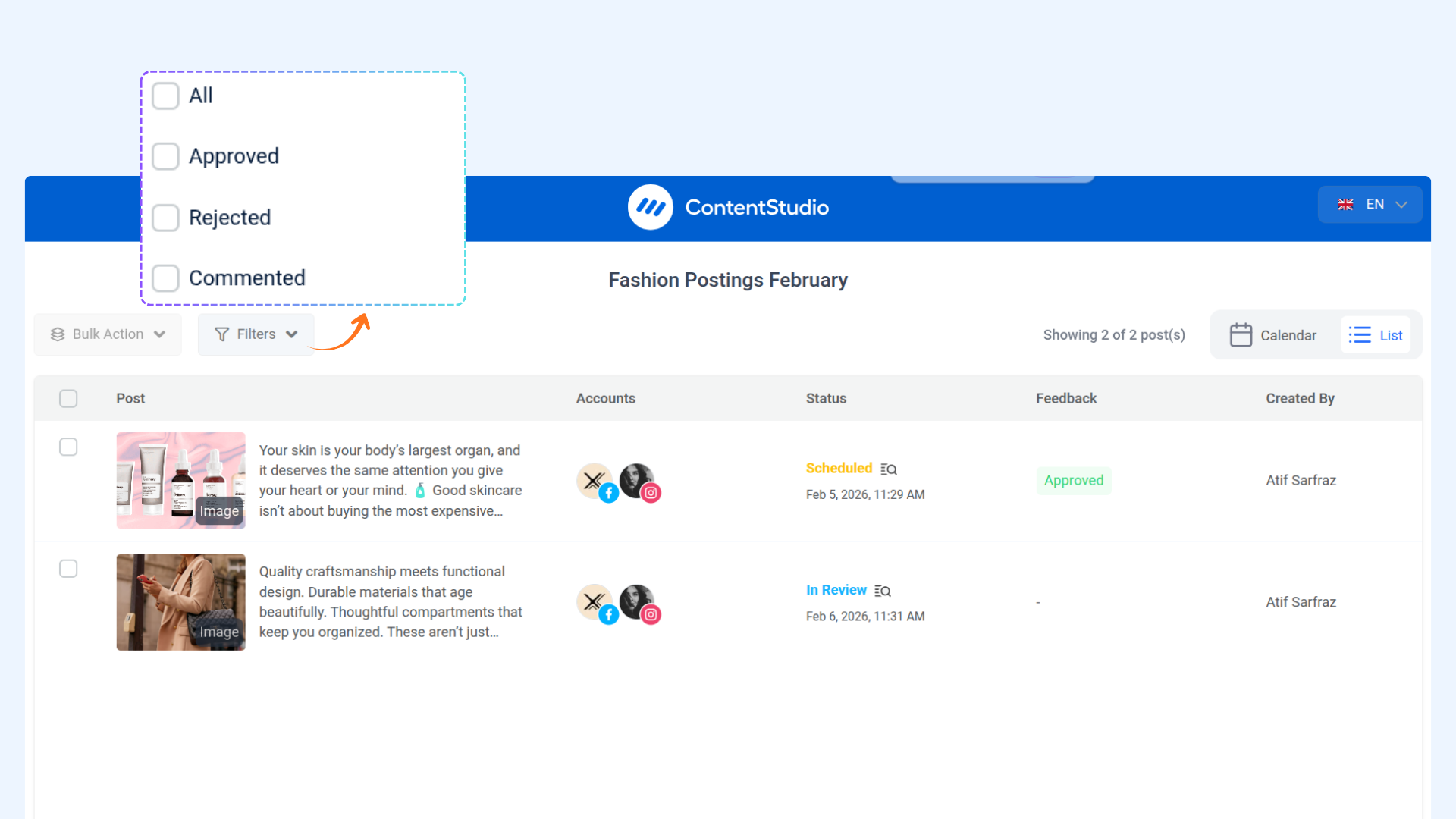
Use the filter to easily search and manage posts:
All
Approved
Rejected
Commented
Post Approval Workflow
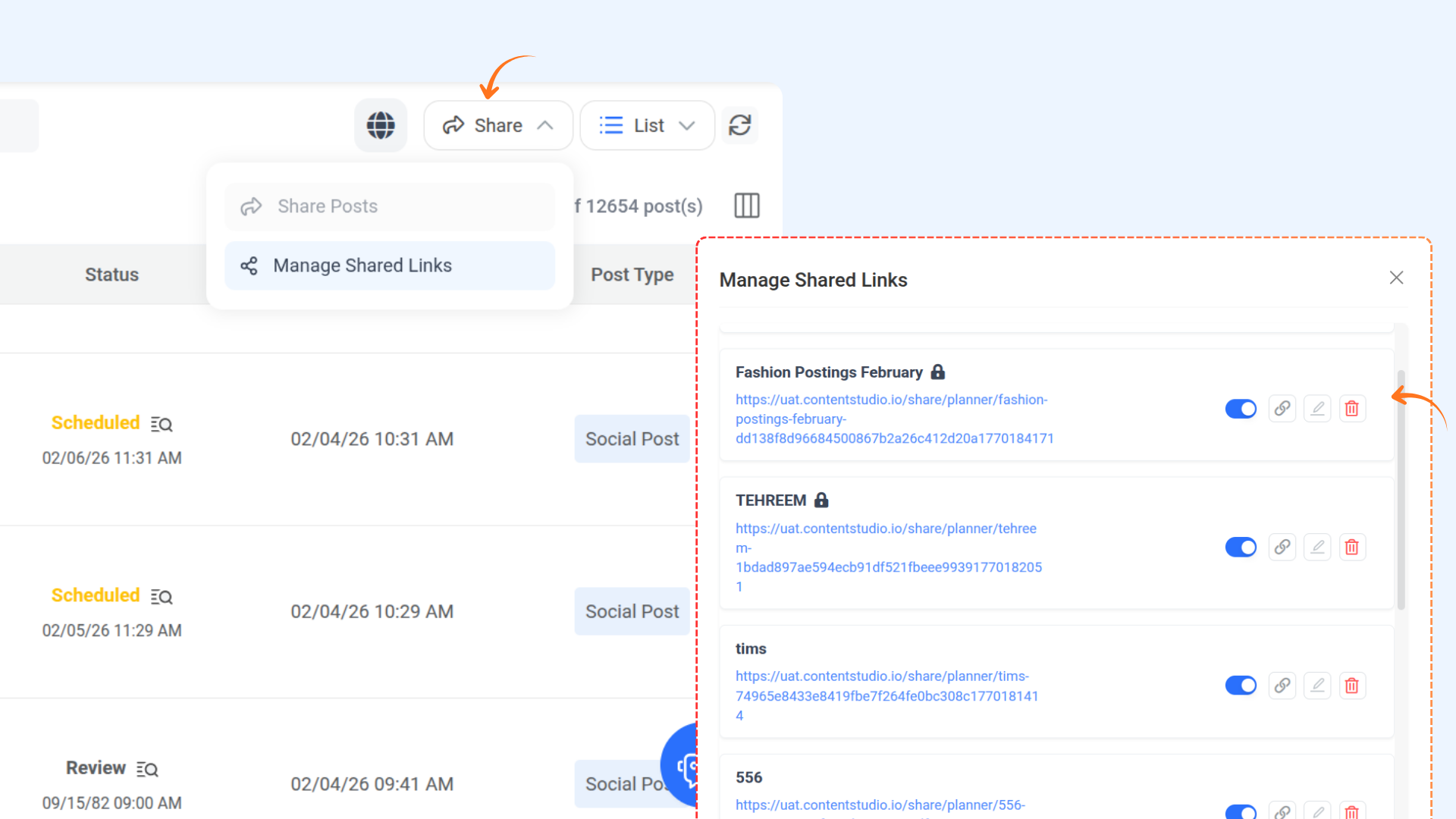
In the Planner, click on the Share button and choose Manage Shared Links.
You will get a popup with a list of all the shared links. You can:
Disable a link
Copy the link
Delete the link
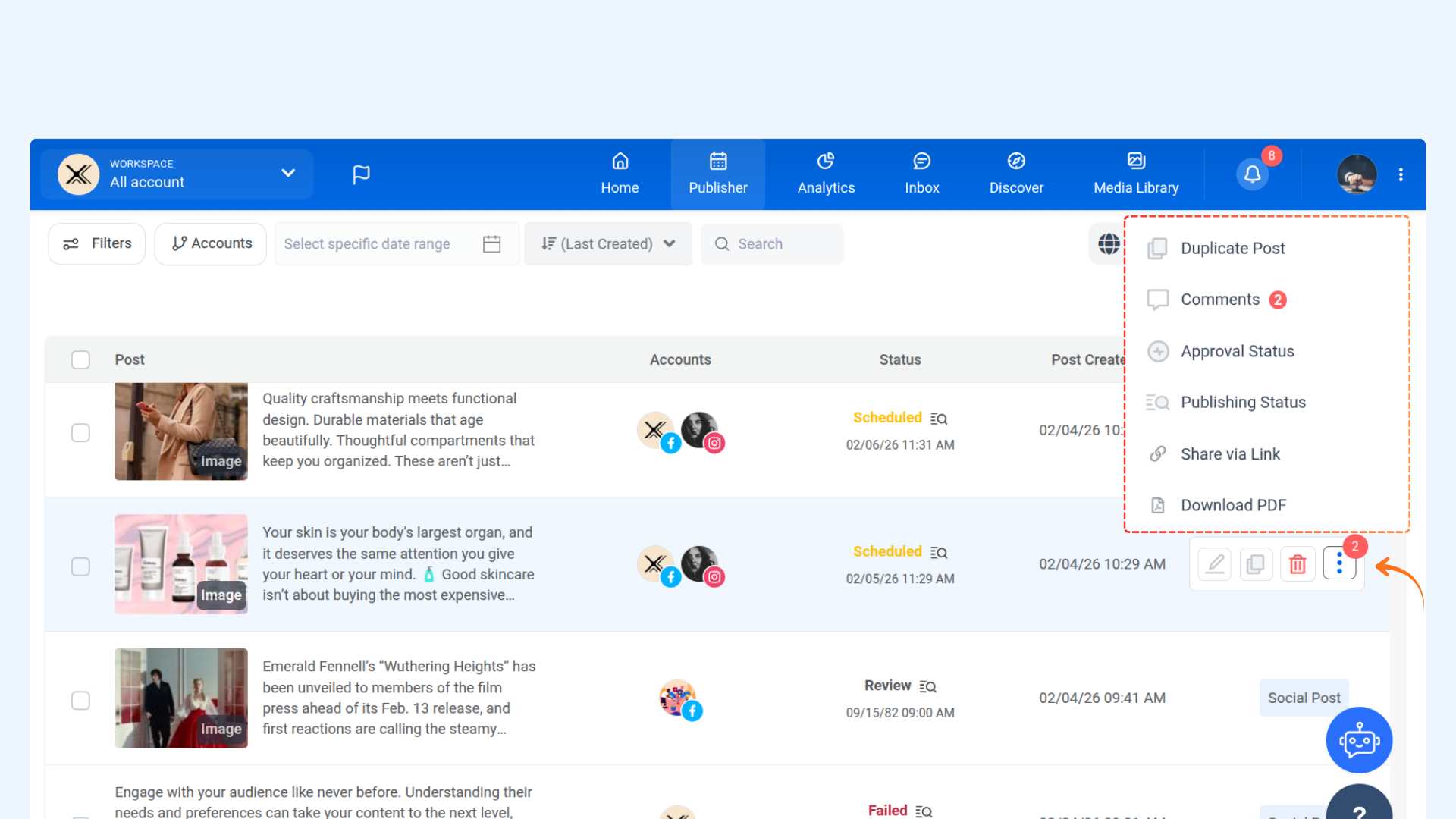
Click on the three dots next to the post, or click on the post to open the post preview.
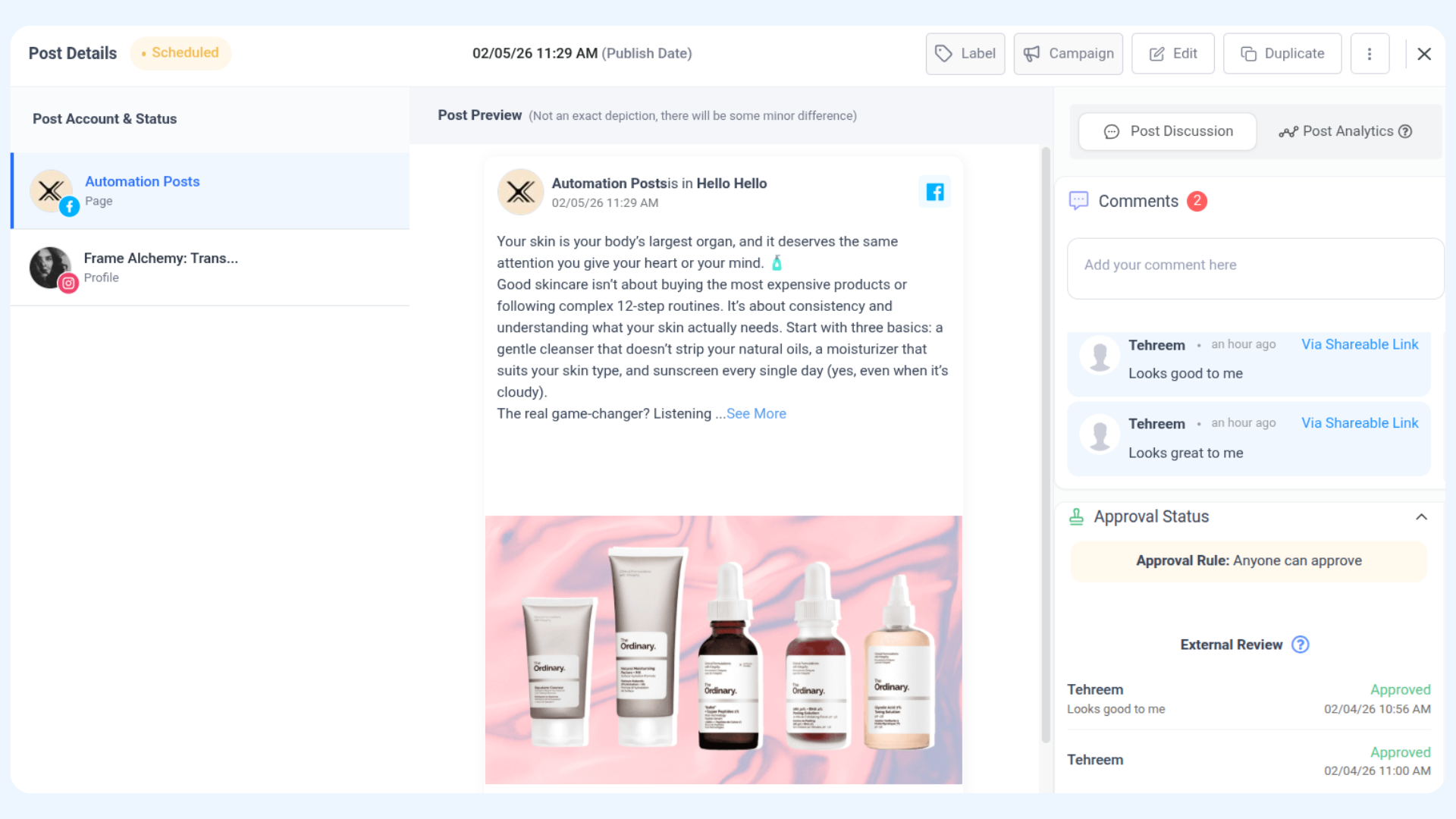
You can view:
Post details
Comments
Approval status
Or click on the post to view the post preview, comments, and approval status all in one place.
FAQs
Q1: How can I track who approved or rejected a post through the link?
A: When your client or manager acts like approval or rejection, they must enter their name and email. This information is saved and can be viewed in the Planner under the post's comments and approval status.
Q2: The link I shared is no longer needed. How do I disable or delete it?
A: You can easily manage your shareable links in the Media Library. Go to the top right corner, click on the shared links button, and you can disable or permanently delete the link.
Q3: What happens if someone leaves a comment when approving or rejecting?
A: Comments are saved along with the name and email of the user. You can view these in the Planner under the post’s comments section to track any feedback or instructions.
Was this article helpful?